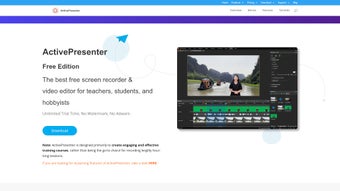

Download ActivePresenter – Free Screen Recorder & Video Editor
Overview
ActivePresenter is a comprehensive screen‑recording and video‑editing tool that has earned a solid reputation among educators, trainers, and content creators. Designed with a clean, intuitive interface, the application allows Mac users (and Windows users, although this review focuses on macOS) to capture anything that happens on their screen—from full‑desktop sessions to precise regions—while simultaneously adding webcam footage, voice‑overs, or system audio. What truly separates ActivePresenter from many free alternatives is the seamless transition from recording to editing; once a capture is complete, users can immediately dive into a full‑featured editor that supports trimming, splitting, and resizing clips, as well as more advanced operations such as blurring sensitive information, inserting dynamic text, and applying smooth transitions. The free version is genuinely free: it places no watermark on exported videos and provides a generous set of export formats, including MP4, AVI, WMV, and GIF. For e‑learning professionals, the built‑in quiz builder and slide‑based presentation mode make it simple to turn raw footage into interactive lessons. Even beginners will feel comfortable thanks to tooltips, a library of pre‑made templates, and a “one‑click” export wizard. Security‑conscious users will appreciate that all recordings are stored locally until they decide to share them, and the software receives regular updates that address both performance and compatibility concerns. In short, ActivePresenter offers a powerful, all‑in‑one solution for anyone who needs to record screen activity, polish the footage, and publish it without the hassle of juggling multiple programs.
Key Features
- Flexible Screen Capture: Record the entire screen, a selected window, or a custom region. Supports simultaneous webcam and system audio capture.
- Real‑Time Annotation: Add shapes, arrows, callouts, and highlights while recording to emphasize key points on the fly.
- Powerful Timeline Editor: Drag‑and‑drop timeline with multi‑track support for video, audio, and annotations.
- Cut, Split, and Trim: Perform basic edits instantly; remove unwanted sections without re‑recording.
- Advanced Effects: Blur sensitive data, adjust playback speed, add transitions, and apply color correction.
- Text & Caption Tools: Insert dynamic text boxes, subtitles, and captions that can be styled with fonts, colors, and animations.
- Interactive Quizzes: Build multiple‑choice, true/false, and fill‑in‑the‑blank quizzes directly within the video for e‑learning.
- Export Options: Export to MP4, MOV, WMV, AVI, GIF, or publish directly to YouTube, Vimeo, and SCORM packages.
- No Watermark in Free Version: Unlike many competitors, the free tier delivers clean, professional‑looking videos.
- Regular Updates & Support: Monthly patches improve stability, add new codecs, and expand platform compatibility.
Installation, Compatibility & How to Use ActivePresenter
Getting started with ActivePresenter is straightforward. The installer is a small .dmg file for macOS (or an .exe for Windows) that can be downloaded directly from the official website. After mounting the disk image, simply drag the ActivePresenter icon into the Applications folder. The first launch prompts the user to accept the license agreement and offers an optional check for updates—highly recommended to ensure you have the latest bug fixes and feature enhancements.
System Requirements: macOS 10.13 (High Sierra) or later, with at least 4 GB of RAM and 200 MB of free disk space for the core program. The software also runs efficiently on Windows 7, 8, and 10, making it a cross‑platform solution for teams with mixed environments.
Step‑by‑Step Recording Guide
- Open ActivePresenter and select “Record” from the main toolbar.
- Choose the capture mode: Full Screen, Window, or Custom Area.
- Toggle webcam and microphone options if you want a picture‑in‑picture effect.
- Press “Start Recording” and perform the actions you wish to capture.
- When finished, click the stop button; the recording automatically opens in the editor.
Editing Workflow
- Trim unwanted portions by dragging the edges of the clip on the timeline.
- Split the video into separate segments using the “Split” command (Ctrl + B).
- Add annotations, callouts, or text overlays from the “Insert” menu.
- Apply transitions between clips by dragging a transition effect onto the timeline.
- Use the “Export” wizard to select the desired output format and quality settings.
The interface is designed for both beginners and power users. Newcomers can rely on the “One‑Click Export” button, which automatically chooses optimal settings for the selected format, while advanced users can fine‑tune bitrate, frame rate, and audio channels. The built‑in preview window lets you see changes in real time, eliminating the need for constant re‑exports.
Pros, Cons, Frequently Asked Questions & Conclusion
Pros
- All‑in‑one solution eliminates the need for separate recording and editing apps.
- Free version is truly free—no watermarks, no hidden limits.
- Rich set of e‑learning features, including quizzes and SCORM export.
- Intuitive UI with helpful tooltips and keyboard shortcuts.
- Regular updates keep the software secure and compatible with new OS versions.
Cons
- Advanced features such as multi‑track audio mixing are only available in the paid Pro edition.
- The initial learning curve for the full editor can be steep for absolute beginners.
- While macOS support is solid, some users report occasional UI glitches on older Mac hardware.
FAQ
Is ActivePresenter really free, or does it add a watermark?
Yes, the free version is completely watermark‑free. You can export videos in most common formats without any branding.
Can I use ActivePresenter for commercial projects?
The free edition permits commercial use, but if you need advanced features such as multi‑track audio, premium templates, or priority support, upgrading to the Pro license is recommended.
What export formats are supported?
ActivePresenter supports MP4, MOV, AVI, WMV, GIF, as well as e‑learning formats like SCORM, xAPI, and CMI5.
Does the software run on the latest macOS Ventura?
Yes, the current build is fully compatible with macOS Ventura (13) and receives regular compatibility patches for new macOS releases.
How secure are my recordings?
All recordings are saved locally on your device unless you choose to upload them. The program does not collect or transmit data without user permission.
Conclusion & Call to Action
ActivePresenter stands out as a versatile, reliable, and genuinely free screen‑recording and video‑editing suite. Its blend of powerful editing tools, e‑learning capabilities, and a user‑friendly interface makes it an excellent choice for educators, corporate trainers, and content creators alike. While power users may eventually gravitate toward the paid Pro tier for extra polish, the free version already delivers a professional‑grade workflow without the frustration of watermarks or hidden fees. If you’re looking for a secure, regularly updated tool that lets you capture, edit, and publish in one seamless environment, ActivePresenter deserves a spot on your software shelf.
Ready to get started? Click the button below to download the latest version of ActivePresenter and begin creating high‑impact videos today.
After testing the free edition for several weeks, I can confirm that ActivePresenter delivers a smooth recording experience, a feature‑rich editor, and reliable export options. The lack of watermarks alone sets it apart from many competing tools. Although the learning curve is a bit steep for beginners, the comprehensive help resources and intuitive UI help bridge the gap quickly. Overall, it earns a solid 4.5 out of 5 stars.







