
Frequently Asked Questions
Getting Started
To connect to Wi-Fi and the Internet, select the Settings icon  and then the down arrow
  until the Wi-Fi Scan Setup field is highlighted. Select the plus button
  to perform a Wi-Fi scan.
Scroll down to select your Wi-Fi network (2.4 GHz) and press the Enter key  and enter the Wi-Fi password.
Press up or down  , left or right
 to scroll to the character, and press to select the enter character. Press OK when complete. Press
  to return to the Wi-Fi Network setup page. Leave the password blank if the Wi-Fi network is not encrypted.

The Wi-Fi signal strength icon is displayed on the home page. If wireless connectivity is successful, the Wi-Fi icon  on the top left-hand side of the display tablet.
- To connect your WS-2902A or WS-2902D to AmbientWeather.net, you must first connect your weather station console to your WiFi Router.
Look for the WiFi icon  in the time field of the weather station console. Make sure this WiFi icon is on. If it is on, you already connected to WiFi.
If it is off, please reference:
I Cannot Connect The WS-2902A Console To WiFi.
How Do I Connect My WS-2902, WS-2902A To AmbientWeather.Net?
2. Launch the console configuraton app awnet  on your mobile device or tablet, the weather station MAC address is displayed in the Device List.
The example below is for three devices connected to the same network:

Tap on the device directly to program it and make sure a schedule is set:

3. Visit AmbientWeather.net and select Create your Account. Use the MAC address shown above to register your account.
... Permalink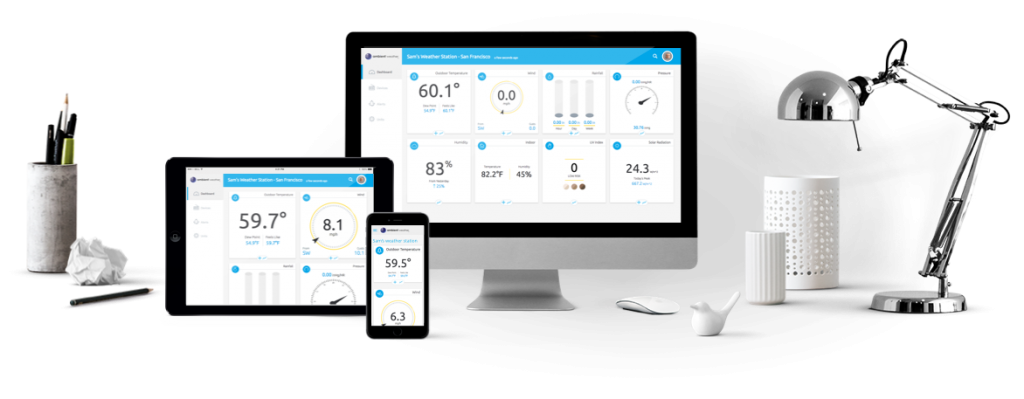
AmbientWeather.net not only features a mobile friendly and responsive dashboard that works well on any platform (desktop, laptop, tablet or mobile device) but also features apps for iOS and Android Devices as well as third party apps. You can bookmark your dashboard here:
https://ambientweather.net/dashboard
or download apps here:
For programmers:
We developed an Application Programming Interface (API) that will allow you and others to write applications and integrate with other products (above and beyond the current features like text alerts, email alerts, IFTTT, Google Home and Amazon Alexa).
You can learn more here:
To view apps developed using the AmbientWeather.net APIs and Wunderground.com, visit our Community Page:
You can keep track of what is happening at our Ambient Weather Network User’s Group:
https://www.facebook.com/groups/ambientweathernetwork/
Product Page
https://www.ambientweather.net

You can add or delete a device from the Devices panel:
To add a device, tap the + button next to Connect a New Device:
To delete a device, tap on the Ambient Weather icon to open the drop down menu, and select Delete this device.
Product Page
https://www.ambientweather.net
Do you have a question for us? Head on over to the Contact Us page to reach out!
- Getting Started
- WS-2902 Weather Station
- WS-2000 Weather Station
- WS-5000 Weather Station
- All Weather Stations
- Outdoor Weather Sensors
- Weather Station Mounting
- WS-4000 Weather Station
- DROP
- Indoor Home Monitoring Stations
- Indoor Home Monitoring Sensors
- Weather Cameras
- Ambient Weather Network
- Video Guides
- WS-2000 Videos
- WS-5000 Videos
- WS-3000 Videos
- WS-8482 Videos
- Build Your Own Weather Station Videos
- Ambient Weather Misc
- data (6)
- WS-2000 (188)
- WS-5000 (138)
- WS-1550-IP (80)
- WS-1900 (78)
- WS-2902 (176)
- WS-2902A (189)
- WS-2902B (86)
- WS-2902C (131)
- 6152-AIRBRIDGE (17)
- 6152-WEATHERBRIDGE (19)
- 6152-WEATHERBRIDGEPRO (19)
- 6152C-WEATHERBRIDGE (18)
- 6153-AIRBRIDGE (19)
- 6153-WEATHERBRIDGE (17)
- 6162-AIRBRIDGE (20)
- 6162-WEATHERBRIDGE (20)
- 6162C-WEATHERBRIDGE (19)
- 6163-AIRBRIDGE (19)
- 6163-WEATHERBRIDGE (20)
- 6250-AIRBRIDGE (18)
- 6250-WEATHERBRIDGE (19)
- 6250-WEATH (9)
- WS-0101 (6)
- WS-0262A (12)
- WS-0270 (8)
- WS-04 (6)
- WS-0416 (6)
- WS-05 (7)
- WS-06 (7)
- WS-07 (16)
- WS-08 (16)
- WS-0800-IP (50)
- WS-0802 (10)
- WS-09 (17)
- WS-0900-IP (71)
- WS-10 (22)
- WS-1000-WiFi (119)
- WS-1001-WiFI (123)
- WS-1002-WIFI (127)
- WS-1075 (14)
- WS-11 (15)
- WS-110 (17)
- WS-1171 (26)
- WS-1171A (17)
- WS-1171B (24)
- WS-1172 (23)
- WS-2002 (50)
- AmbientWeather.com (111)
- AmbientWeather.net (216)
- WS-100 (7)
- WS-1201-IP (121)
- WS-1401-IP (101)
- WS-1500-IP (34)
- WS-1900A (8)
- WS-50 (14)
- WS-50-WEATHERSTATION (8)
- WS-7078 (13)
- WS-7079 (13)
- WS-8478 (48)
- WS-8478A (48)
- 6250-WEATHERBRIDGEPRO (8)
- OBSERVERIP (50)
- WEATHERBRIDGE (13)
- WS-1200 (65)
- WS-1200-IP (113)
- WS-8480 (23)
- WS-1400-IP (98)
- WS-1600-IP (46)
- WS-1001-AIRBRIDGE (44)
- WS-1050 (6)
- WS-1175 (6)
- WS-1201 (71)
- WS-1201-AIRBRIDGE (43)
- WS-2000 (8)
- WS-5000 (8)
- WS-12 (14)
- WEATHERBRIDGEPRO (9)
- WS-1401-IP-WEATHERBRIDGE (55)
- PM2.5 (6)
- PM25 (13)
- WS-0265 (12)
- WS-0265-3000 (7)
- RC-8401 (17)
- WS-1173 (23)
- WS-1173A (23)
- WS-2080 (23)
- WS-2090 (24)
- WS-2095 (26)
- WS-2801 (20)
- WS-5305 (16)
- WH31B (8)
- WH31E (11)
- WH31L (10)
- WH31LA (8)
- WH31P (8)
- WH31SM (7)
- WH32B (7)
- AQIN (11)
- WH31 (7)
- WS-3000-X3 (18)
- WS-3000-X8 (16)
- AMBIENTCAM (13)
- AMBIENTCAMHD (12)
- WS-3000-X5 (17)
- WS-4000 (12)
- WS-09-C (6)
- WS-091-C (8)
- WS-2902D (12)
- WS-8482 (33)
- WS-5050 (27)
- WS-1965 (10)
- WeatherUnderground.com (27)
- WS-1000-BTH (7)
- F007TH (13)
- WS-2800 (13)
- WS-2801A (18)
- WS-8460 (11)
- Webcam (14)
- RC-8401A (7)
- RC-8465 (12)
- RC-8300 (6)
- RC-8300-WHITE (6)
- RC-8370-BLUE (8)
- RC-8370-GRAY (8)
- RC-8370-GREEN (8)
- RC-8370-RED (8)
- RC-8370-ROSE (8)
- RC-8370-SILVER (8)
- RC-8427 (11)
- WS-14 (13)
- WS-15 (8)
- WS-16 (8)
- WS-17 (8)
- WS-18 (9)
- WS-19 (9)
- WS-20 (10)
- WS-21 (8)
- WS-22 (6)
- WS-23 (6)
- WS-24 (7)
- WS-25 (9)
- WS-26 (6)
- WS-28 (6)
- WS-70 (6)
- WS-5000-IP (9)
- WH31PF (8)
- AMBIENTCAMHD3 (12)
- WS-2080A (13)
- WC-FMWAC2K (7)
- WS-1170 (7)
- WS-8365 (8)
- WS-2700 (7)
- WS-8400 (9)
- F007PF (18)
- F007T (8)
- F007TP (12)
- F008PFN (11)
- WS-5300 (10)
- WS-1000-WIFI (119)
- WS-1001-WIFI (123)
- ambientweather.com (111)
- Observerip (50)
- Weatherbridge (13)
- Ambientweather.net (216)
- ambientweather (15)
- ws-2000 (188)
- ws-5000 (8)
- Ws-5000 (138)
- ws-7078 (13)
- ws-7079 (13)
- WS-4000 (9)
