
Protect Your Web Applications with Scalable & Intelligent
WAF-as-a-Service
Get StartedStop threats before they reach your site. No nameserver change required: Easy setup, powerful protection, built for WordPress and beyond.
Key Features Snapshot

Real-Time Threat Detection
Identify and block malicious traffic instantly.

OWASP Top 10 Protection
Out-of-the-box compliance with industry-leading security rules.

No Nameserver Change
As easy as changing your domain’s “A” record.
What Makes Atomic Edge Different

IP restriction by URI path
Granular access control by limiting IPs per specific URL paths.

Smart rate limiting
Throttle traffic intelligently based on route and HTTP method.

DDoS mitigation baked in
Automatic protection against volumetric and application-layer attacks.

Custom rules via dashboard
Define and manage WAF behavior easily with a UI or programmable interface.

Bleeding-edge CVE rules
Push updates and security rules globally in real time.

Seamless integration
Designed for seamless use with modern stacks, CI/CD pipelines, and APIs.
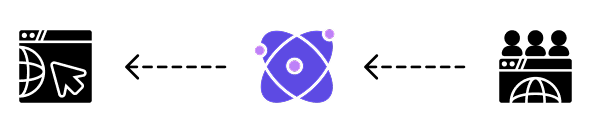
How Atomic Edge Works
Simple Setup. Powerful Security.
Atomic Edge acts as a security layer between your website & the internet — inspecting, filtering, and blocking malicious traffic before it ever reaches
your application.
Frequently Asked Questions
What is AtomicEdge and how does it protect my website?
Cloud-based WAF protection for your websiteAtomicEdge is a cloud-based Web Application Firewall (WAF) service that sits between your website visitors and your web server. It inspects all incoming traffic and blocks malicious requests before they reach your site. AtomicEdge protects against common web attacks including SQL injection, cross-site scripting (XSS), remote file inclusion, command injection, and brute-force attacks. The service uses industry-standard OWASP Core Rule Set along with specialized rulesets for WordPress sites, providing enterprise-grade protection without requiring technical expertise to manage.
Why am I getting 502 Bad Gateway errors after setting up AtomicEdge?
Your hosting provider's firewall is likely blocking AtomicEdgeThis is the most common issue users face, and it’s almost always caused by your hosting provider’s firewall blocking AtomicEdge. Since AtomicEdge fetches content from your origin server on behalf of visitors, your hosting provider may see these requests as suspicious and block them.
Solution: You must whitelist the AtomicEdge endpoint IP addresses (both IPv4 and IPv6) in your hosting control panel:
- cPanel/WHM: ConfigServer Security & Firewall → Quick Allow
- Plesk: Tools & Settings → IP Address Banning → Trusted IP Addresses
- Cloud Firewalls (AWS, DigitalOcean): Add inbound rules allowing HTTP/HTTPS from both endpoint IPs
You can verify connectivity using the “Test” button next to the Backend IP fields in your Site settings.
How do I configure DNS to use AtomicEdge?
Point your domain to AtomicEdge's endpoint serversAfter creating your site in AtomicEdge, you’ll receive IPv4 (and often IPv6) endpoint addresses. Update your domain’s DNS records at your DNS provider (Cloudflare, GoDaddy, Route 53, etc.):
- Update your A record to point to the IPv4 address provided by AtomicEdge
- Add an AAAA record pointing to the IPv6 address (if provided)
- Wait for DNS propagation (typically 5-60 minutes)
Example:
- A Record:
example.com→203.0.113.100 - AAAA Record:
example.com→2001:db8::1
My legitimate users are being blocked. How do I fix false positives?
Identify and disable the specific WAF rule causing the issueWAF rules occasionally block legitimate traffic (false positives). To resolve this:
- Check your WAF Logs in the Analytics tab to identify which rule ID triggered the block
- Go to the WAF tab and add that rule ID to the “Disabled Rules” field
- Save your settings
Example: If rule
913100is causing issues, add913100to the Disabled Rules field. You can disable multiple rules by separating them with commas:913100,920100,921110Important: Only disable rules if you’re experiencing confirmed false positives. Each disabled rule reduces your security protection.
What's the difference between the Free, Advanced, and Enterprise plans?
Choose the plan that fits your protection needsFeature Free Advanced (Pro) Enterprise Sites Up to 100 Unlimited Unlimited WAF Rulesets OWASP Core only All rulesets All rulesets Page Protection Rules 5 rules max 30 rules max Unlimited Rate Limiting Up to 10,000 RPM Up to 10,000 RPM Unlimited RPM Bot Blocking ✓ ✓ ✓ Geographic Access Control ✓ ✓ ✓ Priority Support – – ✓ How does Rate Limiting work and how should I configure it?
Prevent abuse by limiting requests per IP addressRate limiting restricts the number of HTTP requests a single IP address can make to specific URI patterns. When exceeded, the user receives an HTTP 429 (Too Many Requests) error.
Rate limiting is configured as a Page Protection Rule in the Access Control tab:
- Add a new rule and select Rate Limiting as the action
- Set a URI pattern (e.g.,
/wp-login.php,/api/*) - Set Requests Per Minute (RPM)
Recommended values:
- Normal pages: 60-120 RPM
- API endpoints: 30-60 RPM
- Login pages: 10-30 RPM (brute-force protection)
Tip: Enable “Allow Global Whitelist to Bypass” so your own IPs are never rate limited.
Can I block AI bots from scraping my content?
Yes, AtomicEdge includes built-in AI Bot ProtectionYou can block crawlers from major AI companies including:
- OpenAI (GPTBot/ChatGPT)
- Anthropic (Claude-Web)
- Google AI (Google-Extended, separate from regular search)
- DeepSeek
- GitHub Copilot
- Perplexity AI
To enable: Go to the Bot Protection tab, toggle on Bot Blocking, select which bot providers to block, and choose a response code (403, 404, or 451). AtomicEdge automatically maintains up-to-date IP lists for these providers.
Note: Bot Protection does NOT affect legitimate search engines like Google Search or Bing—your SEO is not impacted.
How do I protect specific pages like my admin area or login page?
Use Page Protection Rules for granular security controlsUse Page Protection Rules in the Access Control tab to apply security to specific URIs:
Example: Protect admin area with IP restriction
- Rule Name: “Admin Area Protection”
- URI Pattern:
/admin/* - Action: IP Restriction
- Whitelisted IPs: Your office IP
- Response: 404 Not Found (stealth mode)
Example: Add CAPTCHA to login page
- Rule Name: “Login Protection”
- URI Pattern:
/wp-login.php - Action: Captcha Challenge
Example: Rate limit your API
- Rule Name: “API Rate Limit”
- URI Pattern:
/api/* - Action: Rate Limiting
- RPM: 60
What WAF rule groups should I enable?
Start with OWASP Core Rule Set for comprehensive protectionFor most websites, we recommend starting with the OWASP Core Rule Set (CRS). It’s the industry-standard WAF ruleset maintained by OWASP and provides comprehensive protection against common web attacks.
For WordPress sites: Also enable the WordPress ModSecurity Ruleset, which includes specialized rules for WordPress-specific attack patterns.
For high-security requirements: Consider enabling the Comodo WAF Rules for additional protection layers.
Best practices:
- Start with OWASP CRS and monitor your WAF logs for the first few days
- Add WordPress rules if you’re running WordPress
- Only disable specific rules if you experience confirmed false positives
How long does it take for changes to take effect?
Most changes deploy within secondsConfiguration changes in AtomicEdge typically take effect within seconds. When you save settings, the configuration is immediately deployed to our distributed Caddy server endpoints.
However, there are a few exceptions:
- DNS changes: When first setting up AtomicEdge, DNS propagation can take 5-60 minutes depending on your DNS provider and TTL settings
- Bot IP lists: Updated daily automatically—you don’t need to do anything
- WAF rulesets: Automatically kept up-to-date by AtomicEdge
Tip: After making changes, you can verify they’re working by checking the Analytics tab for traffic or using the “Test” button to verify backend connectivity.
Trusted by Developers & Organizations