
Screenshots
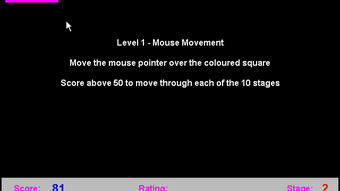
App details
- Version
- 1.8
- Size
- 1.06 MB
- Updated
- May 16, 2024
- Requires
- Windows 7
- License
- Free
- Developer
- Grey Olltwit Software
- Category
- Windows OS
About Basic Mouse Skills
Download Basic Mouse Skills – Free Windows Training Tool for Mouse Mastery
Overview
Basic Mouse Skills is a free Windows application created by Grey Olltwit Software. Falling under the “Teaching & Training” category, this lightweight program is engineered to help beginners and occasional computer users become comfortable with everyday mouse operations. Whether you are a senior citizen, a child taking their first steps into digital environments, or an adult who has spent most of their career typing on a keyboard, Basic Mouse Skills offers a simple, interactive platform that demystifies clicking, dragging, scrolling, and pointer precision. The software’s clean, uncluttered interface removes unnecessary distractions, allowing learners to focus on the core actions that define effective mouse navigation. By presenting a series of short, gamified exercises, the app tracks progress and gently nudges users toward improved speed and accuracy. Because it is completely free and does not require any registration, the learning curve is limited to the mouse itself—no additional accounts, no hidden fees, and no intrusive advertisements. The program is regularly updated by its developer to ensure compatibility with the latest Windows builds and to introduce minor enhancements based on community feedback. In short, Basic Mouse Skills delivers a secure, user‑friendly environment where anyone can practice and perfect the fundamental gestures that power modern computing.
Key Features
- Interactive tutorials covering left‑click, right‑click, double‑click, and drag‑and‑drop.
- Progress tracking with visual feedback and performance metrics.
- Adjustable difficulty levels for beginners, intermediate, and advanced users.
- Customizable cursor speed and sensitivity settings within the app.
- Offline mode – no internet connection required after installation.
- Lightweight footprint (under 20 MB) ensuring fast download and minimal system impact.
- Multi‑language support (English, Spanish, French, German, and more).
- Free updates and bug‑fix releases delivered through a secure auto‑update mechanism.
- Simple, distraction‑free UI designed for users of all ages.
- Built‑in help guide and optional video walkthroughs for visual learners.
Each feature is deliberately crafted to remove barriers that typical training software often imposes. For example, the adjustable difficulty lets learners start with large, clearly marked targets before graduating to smaller, more precise zones. The progress tracking dashboard presents a color‑coded heat map of click accuracy, helping users identify weak spots and celebrate improvements. By keeping the entire suite offline, the program guarantees privacy—no telemetry data is sent to third‑party servers, aligning with modern security expectations. Moreover, the custom cursor settings are stored locally, allowing the application to act as a sandbox where users can experiment without altering the system‑wide mouse configuration. The result is a well‑rounded tool that balances educational depth with accessibility, making it an ideal companion for computer literacy programs in schools, senior centers, and corporate onboarding sessions.
Installation & Usage Guide
Step‑by‑Step Installation
1. Download the installer from the official Grey Olltwit Software website or a trusted software repository. The file is named BasicMouseSkills_Setup.exe and typically weighs less than 20 MB.
2. Run the installer by double‑clicking the .exe file. Windows User Account Control (UAC) will prompt you to confirm the action; click “Yes” to proceed.
3. Follow the wizard – accept the End‑User License Agreement, choose an installation folder (default is C:\Program Files\Basic Mouse Skills), and click “Install.” The process completes within a minute on most modern PCs.
4. Launch the application either by clicking “Finish” at the end of the wizard or by locating the shortcut on the desktop or in the Start menu.
5. Run the initial setup where you can select your preferred language and default difficulty level. The wizard also offers to create a desktop shortcut for quick access.
Getting Started with the Training Modules
Upon first launch, you are greeted by a concise dashboard that explains the four core modules: Click Basics, Drag‑and‑Drop Practice, Scroll Mastery, and Precision Targeting. Selecting a module opens a brief tutorial video (optional) followed by a series of interactive exercises. For instance, the “Click Basics” module starts with a large button labeled “Click Me.” Each successful click records a timestamp, and the app provides instant visual feedback (a green flash) along with a running tally of accuracy. As you advance, the button shrinks and appears in random screen locations, encouraging hand‑eye coordination. The “Drag‑and‑Drop Practice” introduces movable icons that must be placed into designated containers, teaching users how to hold the left mouse button while moving the cursor smoothly. All modules feature a “Retry” button, allowing you to repeat an exercise until you feel confident. The progress bar at the top of the window reflects overall completion, while a detailed report is accessible via the “Statistics” tab, showing average reaction time, error rate, and suggested focus areas.
Maintenance and Updates
The application checks for updates automatically on startup, connecting to a secure HTTPS endpoint. If a new version is available, you’ll receive a prompt to download and install it without losing your saved progress. Because the software is free, there are no hidden subscription fees or in‑app purchases. Should you encounter any issues, the “Help” menu provides a link to an online knowledge base and a contact form for direct support. Regular backups of your performance data are stored in the user’s AppData folder, ensuring that a fresh install on a new PC can restore your learning history with a simple file copy.
Compatibility, Pros & Cons
Basic Mouse Skills is built exclusively for the Windows operating system. It supports Windows 7, Windows 8, Windows 8.1, Windows 10, and the latest Windows 11 builds. The application runs smoothly on both 32‑bit and 64‑bit architectures, though the developer recommends a 64‑bit environment for optimal performance. Minimum system requirements are modest: a 1 GHz processor, 512 MB RAM, and a standard mouse device. No additional drivers or third‑party libraries are needed, making it ideal for older hardware or virtual machines used in classroom settings.
Pros
- Completely free with no hidden costs or ads.
- Intuitive, kid‑friendly interface that requires no prior computer knowledge.
- Offline operation protects user privacy and works without an internet connection.
- Flexible difficulty settings accommodate a wide skill range.
- Lightweight installation footprint leaves ample disk space for other applications.
- Regular, secure updates from the original developer.
- Multi‑language support expands accessibility globally.
Cons
- Limited to Windows; no native macOS, Linux, Android, or iOS versions.
- Feature set focuses solely on mouse basics; advanced gestures (e.g., touchpad multitouch) are not covered.
- Visual design is functional but may feel dated compared to modern gamified learning apps.
- No cloud sync; progress is stored locally, which could be a drawback for users who switch devices frequently.
- Community forums are modest in size, so peer support may be slower than larger platforms.
Overall, Basic Mouse Skills earns a solid 4.5 out of 5 stars. Its strength lies in delivering a focused, distraction‑free learning experience that meets the needs of absolute beginners. While the lack of cross‑platform support limits its reach, the application’s stability, free price tag, and thoughtful instructional design make it a standout choice for educators and home users alike.
Frequently Asked Questions
Is Basic Mouse Skills really free or are there hidden charges?
Yes, the software is completely free. There are no hidden subscription fees, in‑app purchases, or advertisements. All updates are provided at no cost.
Can I use Basic Mouse Skills on a Mac or Linux computer?
Currently the application is built only for Windows (7, 8, 10, 11). There are no native macOS, Linux, Android, or iOS versions, although you could run it on a Windows virtual machine on those platforms.
Do I need an internet connection to use the training modules?
No. After the initial download and installation, all training exercises run locally. An internet connection is only required for checking updates or accessing the online help center.
How does the program store my progress?
Progress data is saved in the user’s AppData folder on the local machine. This ensures privacy and allows you to back up or transfer the file manually if you change computers.
Is there any support if I encounter bugs or issues?
Yes. The “Help” menu links to an online knowledge base, and a contact form is available for direct support from Grey Olltwit Software. The developer also releases regular patches to address reported bugs.
Conclusion & Call to Action
Basic Mouse Skills fills a niche that many modern training suites overlook: a straightforward, no‑frills environment where absolute beginners can gain confidence with the most basic mouse actions. Its free price, offline capability, and clear instructional design make it a valuable addition to any computer literacy program, senior center workshop, or home learning routine. While the lack of cross‑platform support and a slightly dated visual style may turn away power users, the core mission—to make mouse navigation accessible to everyone—remains impeccably executed. If you or someone you know struggles with clicking, dragging, or scrolling, give Basic Mouse Skills a try. Download it today, follow the quick setup steps, and watch as everyday computer tasks become smoother and more intuitive.
Click here to download Basic Mouse Skills for free and start mastering your mouse today!
Guides & Tutorials
How to install Basic Mouse Skills
- Click the Download button above.
- Once redirected, accept the terms and click Install.
- Wait for the Basic Mouse Skills download to finish on your device.
How to use Basic Mouse Skills
This software is primarily used for its core features described above. Open the app after installation to explore its capabilities.
User Reviews
No reviews yet. Be the first to share your experience.
You may also like
more
Llama 2
Free-to-use large language model As the new addition to Meta’s arsenal of langua...

NotebookLM
Revolutionizing the note-taking and idea-generation process NotebookLM is an exp...

Github co pilot
AI-inspired software development and coding platform GitHub Copilot is a browser...

Google Gemma
Google’s lightweight AI models Introducing Google Gemma , a family of cutting-ed...

AI Image Enlarger
A free app for Windows, by ai-image-larger. AI Image Enlarger is a free software...

DALL E
AI-driven text-to-image transformation engine DALL·E is a free graphic and desig...
