
Free camera app for Windows
Camera is a free multimedia application offered by Google. As the name suggests, this application allows you to snap pictures from your desktop computer. You can also use this to record a video.
Top Recommended Alternative

Camera is an extension of Google Chrome. With this, installing it on your device will be easy. However, the app itself is barebones. It works like a built-in camera for Windows computers. It also has limited capabilities; you cannot even use the mirror effect while recording a video. If you are looking for more features, you can try other alternatives, such as ManyCam and iVCam.
Easy setup
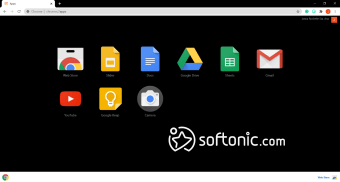
Installing the Camera app on your device is easy. As mentioned, you can find its download file from the Google Chrome extension store. Like the other apps there, users need only to click the Install button to have it saved. You can also check its extension security before you start the installation. Once installed, you can launch the app directly from the app's list on your Google Chrome browser.
For the app to work, users must allow Chrome to access their webcam. Camera works for both built-in cameras and plugins. If you have previously allowed Chrome to access your camera and microphone, this should not be an issue. Otherwise, a pop-up notification should ask for permission. If you don't see this, you can look for a Blocked Microphone icon on your address bar. Click the icon and click the Allow option. After that, you can use the app to snap pictures or record videos.
Use cases
Once you finish setting up your camera, you can now start using it for various applications and purposes. Being a Chrome extension, this app can seamlessly work for web meetings and presentations, which are mostly done in the Chrome browser anyway. It can run in the background for an unobstructed experience, and you can take quick snapshots at any time.
Another way to utilize the Camera app is for video recording for things like making a tutorial video or learning material for teaching students. Similar to other camera apps, you can quickly pause and resume your recordings at any point. You can choose between multiple resolutions depending on your preference, and files are saved directly to a dedicated folder for easy management,
Limited capabilities
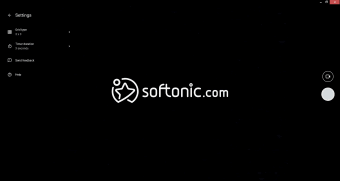
Camera works like the built-in camera for Windows 11. Upon launching, you will have the option to take a photo or record a video by clicking the appropriate icon on-screen. Snapping a picture or starting a recording is also as simple as clicking the capture button. However, unlike other standalone camera apps, this one comes with limited features. It also does not allow you to touch up your images, so you will have to install a photo editor or a video editor.
Another included feature you can enjoy in this app is the Mirror button. This allows you to flip the screen of your snapped image. You can also apply a grid to your camera, which helps you get a better angle for your pictures or recordings. The grid can be set to 3x3, 4x4, or Golden Ratio. Finally, there is a timer that you can use before it takes a snapshot, which counts from either 3 or 10 seconds.
Beyond barebones extensions
While the original Camera extension you mentioned remains simple, there are other Chrome extensions now offering far more advanced webcam control and video features. Tools like WebCam for Google Chrome provide several built-in effects and filters—including blur, grayscale, sepia, and hue adjustments—that enhance selfies and recording quality directly from the browser. These extensions typically support multiple languages and are designed to work across Chrome on Windows, macOS, and Linux, offering users a richer set of visual options compared to the basic Chrome Camera app.
Professional-grade video enhancements
For users who want more than just snapshots or simple recordings, there are AI-powered Chrome extensions that improve webcam performance during video calls and recordings. Extensions such as Webcam Effects offer real-time background blur, virtual background replacement, smart zoom, color and lighting correction, and even fun emojis or GIF overlays—all within the browser without installing external software. These tools can make online presentations or video calls look more polished and professional.
Virtual camera and advanced recording tools
Other Chrome-based extensions like CamIn – Video Recorder & Virtual Webcam combine webcam recording with additional features such as picture-in-picture overlays, stickers, AI-powered background removal, and screen annotation tools. These allow users not only to record videos but also to present dynamically during meetings or tutorials—essentially turning the browser webcam into a versatile virtual camera setup adaptable to multiple use cases.
Permissions and camera access considerations
It’s also worth noting that modern browsers such as Chrome must be explicitly granted access to the webcam through your operating system’s privacy settings. If Chrome isn’t listed under Windows camera permissions, you may need to open a site that requests camera access to prompt the OS dialog to enable it—then restart the browser for the change to take effect. This extra step ensures your webcam works properly with extensions like Camera or alternatives without relying on third-party software.
Is it worth downloading?
All things considered, Camera is as generic as its name. While it is easy to download and requires fewer resources than other similar apps, it comes with severely limited capabilities. It is almost completely redundant, given that many desktop computers already have a native camera app that provides the same, if not more, features. Overall, there are better free options available that give you more.