
Download CHM Editor – Edit, Translate & Manage CHM Files Securely
Overview
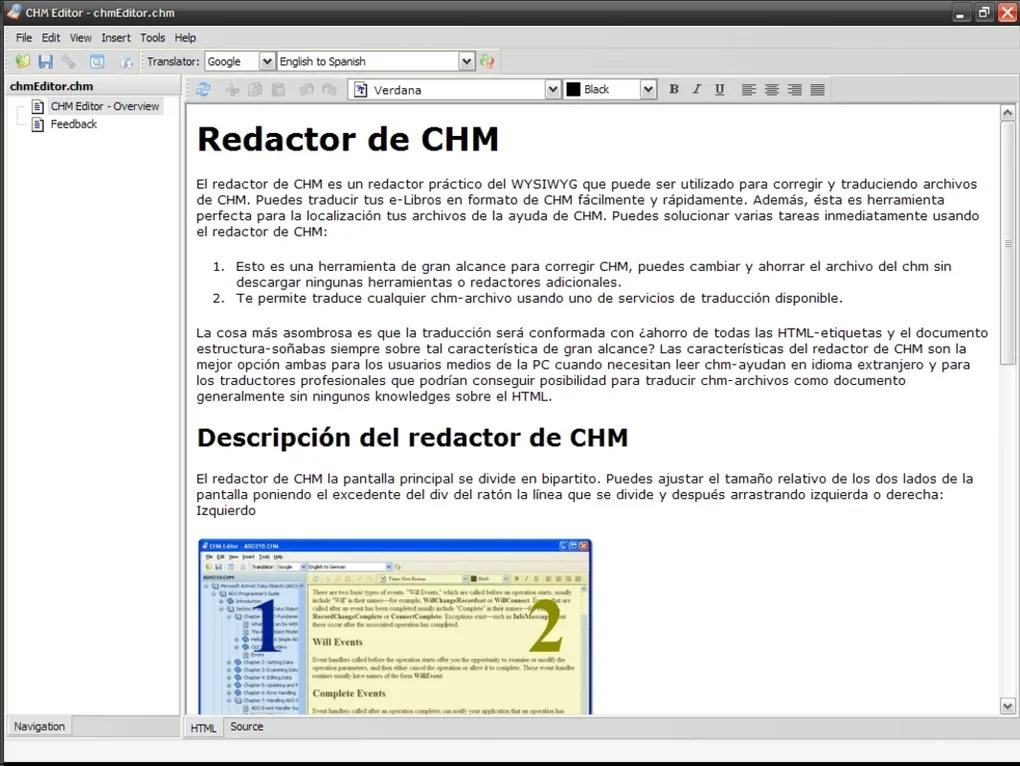
CHM Editor, developed by GridinSoft, is a purpose‑built Windows utility designed to simplify the editing and translation of compiled HTML help files (CHM). Whether you are a technical writer polishing documentation, a software developer updating help topics, or a multilingual support team needing rapid language conversion, CHM Editor offers a streamlined workflow that eliminates the need for complex decompilation tools. The interface follows a familiar toolbar paradigm, allowing users to edit plain text, insert images, and adjust hyperlinks directly within the CHM project. One of the standout capabilities is its built‑in translation engine, which leverages Google and Yahoo translation services to convert content into dozens of languages with a single click. While the automatic translation is convenient, the software also respects the reality that machine translation is not perfect; it encourages manual review and correction to achieve professional‑grade results. CHM Editor does not provide a native text‑size adjustment slider, but developers comfortable with HTML can edit the source code of the help file directly, giving full control over styling. The application is lightweight, requires no additional runtimes, and integrates cleanly into Windows 10/11 environments, making it an attractive option for anyone looking for a free, secure, and easy‑to‑use CHM manipulation tool.
Key Features of CHM Editor
- WYSIWYG Text Editing: Edit help topics with a rich‑text toolbar that supports bold, italic, underline, lists, and hyperlink insertion without leaving the application.
- One‑Click Translation: Utilize Google or Yahoo translation APIs to automatically translate the entire CHM file into over 50 languages, with language selection handled through intuitive dropdown menus.
- HTML Source Access: For users comfortable with markup, the program provides direct access to the underlying HTML source, enabling custom CSS, script insertion, and fine‑tuned layout adjustments.
- Project Tree Navigation: A collapsible tree view mirrors the internal structure of the CHM file, allowing quick navigation to specific sections, topics, or resource files.
- Resource Management: Import, replace, or delete images, icons, and other embedded resources without breaking internal references.
- Secure Compilation: After editing, CHM Editor recompiles the project into a standard .chm file, preserving security flags and ensuring compatibility with Windows Help Viewer.
- Multi‑Language Support: The UI itself can be switched between English, Russian, German, and French, catering to a broader user base.
- Automatic Backup: Before each compile, the software creates a timestamped backup of the original file, protecting against accidental data loss.
- Lightweight Installer: The installation package is under 10 MB, downloads quickly, and does not require additional runtimes such as .NET Framework.
- Free for Personal Use: CHM Editor is offered as a free tool for personal and educational purposes, with optional paid licenses for commercial environments.
Installation, Usage & Compatibility
Installation Steps
- Download the latest CHM Editor installer from the official GridinSoft website.
- Run the
.exefile; the installer will guide you through the standard Windows setup wizard. - Accept the End‑User License Agreement, choose the destination folder (default is
C:\Program Files\CHM Editor), and click Install. - After the copy process completes, launch the application via the desktop shortcut or the Start menu.
- On first launch, the program may prompt you to download the latest translation dictionaries from Google/Yahoo; allow this to ensure up‑to‑date language support.
Basic Usage Workflow
- Open a CHM file: Click the Open icon on the toolbar or drag the .chm file into the main window. The internal project tree will appear on the left.
- Edit Text: Select a node, then edit the content in the central pane. Use the formatting toolbar to apply styles or insert links.
- Translate Content: Choose Tools → Translate, select the source language and the target language, then click Translate All. Review the generated text in the preview pane.
- Manual Corrections: For any mistranslated sentences, edit directly in the text pane. You can also switch to HTML View for precise markup tweaks.
- Compile the CHM: When satisfied, click File → Save & Compile. The software will generate a new .chm file in the same directory, preserving the original as a backup.
Compatibility
CHM Editor is built for Windows operating systems, specifically supporting Windows 10, Windows 11, and Windows 8.1 (both 32‑bit and 64‑bit). The installer automatically detects the appropriate architecture and installs the matching binaries. While the core functionality is Windows‑centric, the compiled .chm files can be opened on any platform that includes a compatible CHM viewer, such as macOS (via third‑party viewers) or Linux (using xCHM or gnochm).
Pros, Cons, Frequently Asked Questions & Conclusion
Pros
- Intuitive, toolbar‑driven UI that requires minimal training.
- One‑click translation powered by major online services.
- Direct HTML source editing for advanced users.
- Automatic backup creation prevents accidental data loss.
- Free for personal use with optional commercial licensing.
Cons
- No built‑in text‑size adjustment slider; users must edit HTML for font changes.
- Reliance on external translation APIs means occasional connectivity issues.
- Limited to Windows; no native macOS or Linux installer.
- Machine translation may require extensive manual proofreading for technical content.
- Advanced features like batch processing are absent.
Frequently Asked Questions
Can I use CHM Editor to create a new CHM file from scratch?
Yes. CHM Editor allows you to start a new project, add HTML pages, images, and then compile them into a standard .chm file using the same workflow as editing an existing file.
Is the translation feature completely offline?
No. The translation relies on Google or Yahoo online services, so an active internet connection is required for the automatic translation to work.
Does CHM Editor preserve bookmarks and table‑of‑contents entries after editing?
Yes. The software maintains the original navigation structure, including bookmarks and TOC entries, as long as you do not delete the underlying HTML files.
Can I translate only selected sections instead of the whole file?
Absolutely. You can highlight specific nodes in the project tree and invoke the translation command for those items only, saving time and reducing the need for manual cleanup.
Is there a way to customize the translation engine or use a private API key?
The free version uses the public APIs of Google and Yahoo. For enterprises that require a private key or custom engine, GridinSoft offers a commercial license with configurable API settings.
Conclusion & Call to Action
CHM Editor fills a niche that many developers and documentation teams have struggled with for years: editing and translating compiled help files without juggling multiple third‑party utilities. Its blend of a user‑friendly WYSIWYG editor, robust translation integration, and direct HTML access makes it a versatile tool for both beginners and seasoned professionals. While it lacks a few advanced batch features and is Windows‑only, the core functionality is solid, free for personal use, and backed by GridinSoft’s reputation for secure software. If you regularly work with .chm documentation, need a quick way to localize help content, or simply want a reliable editor that won’t break your existing files, CHM Editor is worth a download. Click the button below to get the latest version, start editing your help files today, and experience a smoother workflow for every CHM project.
Overall Rating: 4 out of 5 stars
Pros: intuitive UI, one‑click translation, free for personal use.
Cons: no native text‑size slider, Windows‑only, relies on internet for translation.








