Search the Community
Showing results for tags 'admin tools'.
Found 21 results
-

Version 1.0.3
20 downloads
AdminWarn is intended for situations where players clearly exceed server rules or must be explicitly warned. It is not a lightweight or easily dismissible notification. The purpose is not to preserve gameplay flow, but to deliver a clear and serious warning. Warnings are delivered instantly and ignore conditions such as safe zones or PvP status. Stop guessing whether your warning messages in chat were actually noticed. Tired of sending important warnings as an admin via RCON or global chat and never being sure who actually read them? AdminWarn is built to give admins certainty. AdminWarn is designed for manual warning delivery. This is not an automated warning system. Every warning is intentionally sent by an admin using commands. At the same time, AdminWarn handles warnings smartly and automatically in the background. Warnings sent to offline players are stored and shown automatically when the player next joins, even days later. For individual online players, warnings remain stored until acknowledged, then are automatically cleared. All data is wipe-aware and cleaned up automatically on server wipes. Instead of relying on admin-sent chat warnings that can get lost, ignored, or missed while players are AFK, AdminWarn delivers a mandatory, player-specific GUI warning directly on the player’s screen. Each warning includes a configurable sound effect, using only built-in, local in-game sounds. No external or custom audio files are used. This is not an auto chat message. It is a visual warning that requires player acknowledgment. Even if the player closes the game without confirming it, the warning will reappear on the next login until acknowledged. No hard movement lock is applied. Warnings can be sent via RCON, server console, or in-game admin console (F1). In-game commands /warn and /warnall are used to manually send warnings. /warn can target individual players whether they are online or offline, while /warnall applies only to online players. Discord webhook logs clearly confirm when warnings are acknowledged. Global warnings apply only to online players and do not generate Discord logs, preventing spam and rate-limit issues. How It Works? 1) Admin sends warning (chat/RCON) → Message is delivered via GUI with sound 2) Player must acknowledge → Cannot play until clicking button (No movement lock, only a visual GUI barrier) 3) Offline player support → Warnings sent to offline players are saved and displayed via GUI when they join 4) Data management → Auto-clears on wipe Key Features - GUI warning that requires player confirmation - Works online/offline - Warnings save for offline players - Global warnings - Warn all online players at once - Discord logging - Track acknowledged warnings - Wipe detection - Auto-clear data on server wipe - Professional interface - Clean GUI with sound effects - UTC-based date display - All timestamps are shown in UTC (Coordinated Universal Time) Performance AdminWarn is built with an optimized and efficient code structure, making its presence virtually unnoticeable on the server. It runs smoothly during long uptimes and maintains stable hook memory and performance values under normal server conditions. Wipe Behavior - Restarts: Data preserved (approved warnings are auto-deleted for data optimization) - Server wipe: All warning data automatically cleared - No manual cleanup needed (Most of the time, it is not necessary) Commands ➤ Admin Chat Commands: /warn <player>|<steam64ID> <message> /warnall <message> ➤ Console/RCON Commands: warn <player>|<steam64ID> <message> warnall <message> Note: Player names are not unique and may include different alphabets or special characters. To avoid ambiguity, using Steam64ID is strongly recommended when sending warnings. Permissions Oxide/Carbon oxide.grant group admin adminwarn.admin c.grant group admin adminwarn.admin Discord Webhook Logging When enabled, sends acknowledgement logs to Discord: Player name Warning message Read status (online/after reconnect) Timestamp Does NOT log warning sending (only acknowledgements) Does NOT log global warning acknowledgements (due to DC rate limits) Configuration { "Clear data on wipe": true, "Discord Log Enabled": false, "Discord Webhook URL": "", "Show Date in GUI": true, "Warning sound": "assets/prefabs/building/wall.frame.shopfront/effects/metal_transaction_complete.prefab" } Lang/en { "NoPermission": "You don't have permission to use this command.", "WarnUsage": "Usage: /warn <player name or steamid> <message>", "PlayerNotFound": "Player not found. Use SteamID for offline players.", "DuplicateWarning": "Duplicate warning prevented for player {0}", "WarningSent": "Warning sent to {0}: {1}", "WarningSaved": "Warning saved for offline player {0}.", "WarnAllUsage": "Usage: /warnall <message>", "WarnAllSent": "Global warning sent to {0} online players: {1}", "ConsoleWarnUsage": "Usage: warn <player name or steamid> <message>", "ConsoleWarnAllUsage": "Usage: warnall <message>", "AcknowledgeThanks": "Thank you for acknowledging the warning.", "GuiTitle": "SERVER WARNING", "GuiButtonText": "✔ I ACKNOWLEDGE", "GuiDatePrefix": "Date", "GuiWarningFormat": "Hello {0}, you have received a warning." }$18.99- 3 comments
-
- 1
-

-
- #admin
- #admin tools
- (and 42 more)
-

Version 2.0.9
80,970 downloads
Convenient GUI manager for player and group permissions. Allows assignment of player permissions. (online or sleeping) Allows assignment of group permissions. Allows one-click removal of all players from a group. (group page - "Remove All") Allows adding/removing a player from groups. Supports unlimited plugins/permissions/groups Up to 60 plugins per-page. Up to 40 permissions per-page. Up to 40 user groups per-page Allows for local and sql backup and recall of all permissions or groups. Permissions. permissionsmanager.allowed - Allows players to use GUI. Plugin can be used with this permission, or by any Admin : Auth Level 2. Chat commands. /perms data - Backup and restore permissions and/or groups - local data file and/or SQL. ** /perms OR /perms player - Opens GUI player list, allowing a player to be chosen. /perms group - Opens GUI group list, allowing a group to be chosen. /perms player <playername> - Opens permissions GUI for the specified player. /perms group <groupname> - Opens permissions GUI for the specified group. Console commands. EmptyGroup <groupname> - Removes all players from the specified group. Configuration. Global. Chat - Title colour Chat - Message colour GUI - Label colour GUI - On colour GUI - Off colour GUI - AllPerPage - Sets All/None option to per-page, or per plugin. Options - GUI Transparency 0-1 Options - Plugin BlockList - ex. "playerranks,botspawn" Block list must be lower case, comma separated, no spaces, and no final comma, as above. Useful tool for picking CUI colours - RGB Decimal - Take the RGB Normalized decimal output, and remove all commas. ** Please note that with data backups : SQL saving is accumulative - Saving adds current permissions/group data to whatever was already saved. Local data file saving is not accumulative. It overwrites any existing backup with the current server permissions/groups. FAQ. Q: I'm trying to revoke permission(Y) for a player, but it says "Inherited". A: The player is in a group(X) which is also granted permission(Y). Solution: Revoke permission (Y) from group(X) or remove the player from group(X). Q: I removed a player from group(X), but they still have permission(Y). A: This is the opposite of the above. This player must have been independently granted permission(Y) at some time. Solution: Revoke permission(Y) from the player.Free- 221 comments
- 34 reviews
-
- 39
-

-

-
- #permissions
- #admin
- (and 7 more)
-

Version 2.0.1
119 downloads
AdminEssentials is a powerful and easy-to-use toolkit for Rust server administrators. It provides a comprehensive suite of moderation, management, and utility commands to help you run your server smoothly. Features Teleportation tools: Teleport to players or coordinates, teleport back to previous locations, and teleport to placed map markers. Player moderation: Kick players, ban players (with timed durations and reasons), and unban players via simple commands. Player management: Heal players to full health, kill players instantly, and toggle special modes like God mode and Creative mode for yourself or others. Inventory and items: Give items to players, clear a player’s inventory, repair items, and view any player’s inventory contents in real time. Item Trash Can: Includes a personal Trash Can UI for safely destroying items. Server controls: Change the server time, set a personal “admin time”, instantly clear all weather effects, and reload server plugins in-game. Communication: Send private messages to players and reply quickly to the last message. Display a list of all online players and get detailed information on any player with a WhoIs lookup command. Automated messages: Optionally broadcast welcome messages to joining players and goodbye messages on disconnect. Configure periodic auto-messages that broadcast to the server at set intervals. Logging and customization: All admin actions can be logged to the server console/RCON and/or to a Discord webhook (configurable per command). Customize the chat prefix and icon for AdminEssentials messages to suit your server’s style. Commands (Use these commands in chat with the "/" prefix. All commands require the user to have the appropriate permission as listed in the Permissions section.) Teleportation Commands /goto – Teleport yourself to a player or to specific coordinates. (You can also teleport one player to another by specifying two player names.) /tpm – Toggle “teleport to marker” mode. When enabled, placing a map marker will instantly teleport you to that location. Use /tpm again to disable this mode. /back – Teleport back to your last saved location. Typically this returns you to where you teleported from (or your death location, if applicable). /spectate – Spectate the target player. Puts you into spectate mode attached to that player. Use the command again (or the on-screen UI button) to exit spectating and return to your original position. Moderation Commands /kick [reason] – Kick a player from the server. You may provide an optional reason which will be shown to the player. /ban [duration] [reason] – Ban a player. Optionally specify a duration (e.g. “30m”, “2h”, “7d”) and/or a reason. If no duration is given, a default (1 day) ban is applied. /unban – Unban a player. You can use either the player’s name or Steam ID. Player Management Commands /heal [player] – Fully heal yourself (no name) or the specified player (if a name is given). Restores health and vital stats to maximum. /kill [player] – Instantly kill yourself or the specified player. /god [player] – Toggle god mode (invincibility) on yourself or on another player. A player in god mode will not take damage or die until god mode is toggled off. /creative [player] – Toggle Rust’s creative mode on yourself or on another player. Creative mode allows building and crafting without restrictions. /creativeall – Toggle creative mode for all players on the server at once. Inventory Commands /give [amount] [skinId] [name] – Give an item to a player. You must specify the target player and item short name (or Item ID). You can optionally specify an amount (default 1), a skin ID, and a custom item name. /clear [player] – Clear your own inventory (no name given) or another player’s inventory (if a player name is provided). This completely empties the inventory of the target. /repair [player] – Repair the currently held item to full condition. If a player name is given, repair that player’s held item instead. /repairall [player] – Repair all items in your inventory. If a player name is given, repair all items in that player’s inventory instead. /viewinv – View the specified player’s inventory. This opens the target player’s inventory containers (main, belt, wear) for you, allowing you to see and/or move items. /trash – Open your personal trash can UI. This provides a special container (default 18 slots) where you can place items to destroy. Closing the trash UI with items inside will delete those items (after you confirm via the Delete button). Server Management Commands /time <0-24> – Change the server time to the specified hour (0–24). For example, “/time 12” sets in-game time to noon. /admintime [0-24] – Set your personal time of day. This overrides the server time for you only (useful for admins who want daylight while it’s night on the server). Specify an hour (0–24) to lock your time, or use no argument to reset back to normal server time. If you run it with no number or with -1 it will disable admintime. /clearweather – Instantly clear all weather effects on the server. This will stop rain, fog, and thunderstorms, returning to clear weather. /reload [plugin] – Reload an Oxide/Umod plugin. By default (no name given), this will reload the AdminEssentials plugin itself. You can specify another plugin name to reload that plugin instead. Communication Commands /pm <player> <message> – Send a private message to a player. The target player will receive your message privately. /r <message> – Reply to the last private message you received. This sends a PM back to whoever last messaged you (equivalent to a “reply” function). Information Commands /whois [player] – Display detailed information about a player. With no name, it will show your own info. The info can include the player’s name, Steam ID, position coordinates, connection status, health and vitals, and flags (admin, godmode, etc.). (The amount of detail shown depends on your permissions; see Permissions.) /players – Show a list of all online players on the server. By default this will list the player names (and possibly IDs) in chat. Utility Commands /essentials – Display the AdminEssentials help list. This command prints a list of all available AdminEssentials commands (the same commands listed above) with brief descriptions, to your chat. Only users with permission can use this. Permissions (Each permission can be granted to server staff or groups to allow use of the corresponding commands. All permission strings begin with adminessentials. as shown.) adminessentials.goto – Required to use the /goto command. adminessentials.back – Required to use the /back command. adminessentials.tpm – Required to use the /tpm teleport-to-marker command. adminessentials.spectate – Required to use /spectate. adminessentials.kick – Required for the /kick command. adminessentials.ban – Required for the /ban command. adminessentials.unban – Required for the /unban command. adminessentials.heal – Allows use of /heal. adminessentials.kill – Allows use of /kill. adminessentials.god – Allows use of /god mode toggle. adminessentials.creative – Allows use of /creative mode toggle. adminessentials.creativeall – Allows use of /creativeall (creative mode for all players). adminessentials.give – Required for /give item command. adminessentials.clear – Required for /clear inventory command. adminessentials.repair – Required for /repair command (repair held item). adminessentials.repairall – Required for /repairall command (repair all items). adminessentials.viewinv – Required for /viewinv (view player inventory). adminessentials.trash – Required for /trash (open personal trash can). adminessentials.time – Allows use of /time to set server time. adminessentials.admintime – Allows use of /admintime for personal time setting. adminessentials.clearweather – Allows use of /clearweather. adminessentials.reload – Allows use of /reload command to reload plugins. adminessentials.pm – Required for /pm and /r (private messaging commands). WhoIs Information Permissions: (The /whois command output is divided into sections; each section requires a specific permission. Granting all will show full info.) adminessentials.whois.info – Allows the /whois command to show basic info: player name, Steam ID, and position. adminessentials.whois.status – Allows /whois to show connection status (online/offline), life status (alive or dead), sleeping or wounded state. adminessentials.whois.stats – Allows /whois to show the player’s stats: health, calories, hydration, temperature, radiation, bleeding, wetness. adminessentials.whois.flags – Allows /whois to show player flags: whether the player is admin, in creative mode, developer mode, flying, or in god mode. adminessentials.players – Required for the /players list command. adminessentials.help – Required for the /essentials help command (to view the in-game command list).$19.99- 15 comments
- 1 review
-
- 2
-
-
-
- #admin
- #essentials
- (and 17 more)
-

Version 1.0.0
27 downloads
SkinFinder is an admin tool with which you can pull the SkinID of certain objects. The nice side effect is that the short name and the NetID are also displayed. More Free Plugins: If you are looking for more useful free plugins, please have a look at my Discord, you only have to choose the Flash role when you join. Support Discord Permission: To use the plugin, you need the .use permission. skinfinder.use load, run, enjoyFree -

Version 1.7.2
921 downloads
What is MapVoter? MapVoter is a comprehensive Rust server management plugin that automates the entire wipe cycle - from map generation and community voting to server restarts and updates. Let your players choose the next map while you enjoy fully automated server maintenance. Perfect for: - Community servers wanting player engagement - Server owners seeking automation - Admins tired of manual wipe management - Servers with regular wipe schedules Key Features Map Voting System - In-Game UI Voting - Interface for players to vote - Discord Integration - Vote directly from your Discord server - Multiple Map Sources - Generate random maps, use RustMaps.com filters, or create custom maps - Duplicate Vote Prevention - Optional Discord authentication to prevent vote manipulation Fully Automated Wipe Management - Scheduled Auto-Wipes - Set your wipe schedule (weekly, bi-weekly, monthly) - Forced Wipe Support - Automatically handles Rust's monthly forced wipes - Custom Wipe Cycles - Define your own map/BP wipe schedules - Countdown Timers - Players see exactly when the wipe occurs - Pre-Wipe Voting - Start votes X days before wipe for maximum participation Flexible Map Generation - Procedural Maps - Generate random maps with custom seeds - RustMaps.com Integration - Select from thousands of pre-made maps - Filter Support - Use RustMaps filter IDs to match your server style (staging, etc.) - Custom Map URLs** - Use your own map files or RustMaps premium maps - Auto-Generate Custom Maps - Subscribers can auto-generate maps every wipe UI Design - In-Game Interface - Clean voting and admin menus - Admin Dashboard - Settings GUI for easy configuration Fun Kit System - Pre-Wipe Events - Enable fun kits before wipe to keep players engaged - Automatic Activation - Triggers X minutes before wipe - Blueprint Lock - Prevents BP farming during fun kit period - Kits Plugin Integration - Works with your existing kit setups Discord Bot Integration - Vote Embeds- Discord embeds showing all map options - Command Support - Admin control from Discord - Role-Based Permissions - Restrict commands by Discord roles - Multi-Channel Support - Configure different channels for different commands - Embed Customization - Add your branding with custom avatars and footers Server Automation - Auto-Updates - Automatically updates server and Oxide - File Cleanup - Selectively delete plugin data on wipe - Server.cfg Management - Automatically updates map seed/size/URL Advanced Configuration - In-Game Settings Editor - Change settings without editing files - Granular Control - Configure every aspect of voting and wiping - Permission System - Control who can vote and manage - Debug Logging - Track auto-wipe progress for troubleshooting - Server Identity Support - Works with multi-server setups Required Plugins: - image-library - For displaying map thumbnails - Wipe Info API - For wipe schedule detection - Discord Extension - For Discord integration Server Requirements: - Windows Dedicated Server, Ubuntu, Pterodactyl Panel, or Open Game Panel - Administrator privileges for server management - Standard server structure with `server.cfg` in `/server/{identity}/cfg/` - Ability to edit server startup command Optional: - Kits Plugin - For fun kit feature - Server Rewards - For vote rewards - RustMaps Account - For premium map features Quick Start Guide 1. Installation 1. Upload MapVoter.cs to /oxide/plugins/ 2. Install required dependencies (Image Library, WipeInfoApi, Discord Extension) 3. Restart server to generate configuration file 2. Basic Configuration Configuration Guide 1. Set your wipe schedule in config (e.g., every 7, 14, 21, 28 days) 2. Configure Discord bot token and channel IDs 3. Set your RustMaps API key (optional) 4. Define your server identity in config 3. Server.cfg Setup Create/edit your `server.cfg` file in `/server/{identity}/cfg/`: server.port 28000 server.seed server.worldsize server.maxplayers 100 server.hostname "Your Server Name" server.level "Procedural Map" 4. Test Run 1. Type /mvote in-game to open the menu 2. Generate some test maps 3. Try voting and check results 4. Verify server.cfg updates correctly Commands Player Commands /mvote - Opens the main voting UI Permission: MapVoter.vote /voteresult - Shows current vote results Permission: MapVoter.vote Admin Commands (In-Game) /mvote - Opens admin dashboard Permission: MapVoter.Manager /startvote - Starts voting after selecting maps Permission: MapVoter.use MapVoter.generate <count> <seed> <duration> - Generate maps and start vote Permission: MapVoter.use MapVoter.mapwipe <delay> <size> - Wipe map with new size Permission: MapVoter.use MapVoter.mapwipe <delay> <url> - Wipe with custom map URL Permission: MapVoter.use MapVoter.bpwipe <delay> <size> - Wipe map and blueprints Permission: MapVoter.use MapVoter.bpwipe <delay> <url> - BP wipe with custom map Permission: MapVoter.use MapVoter.cancelwipe - Cancel ongoing wipe countdown Permission: MapVoter.use MapVoter.stopvoting - Stop current vote Permission: MapVoter.use MapVoter.update <delay> - Update server and Oxide Permission: MapVoter.use MapVoter.cancelupdate - Cancel update countdown Permission: MapVoter.use MapVoter.reload - Reload plugin configuration Permission: MapVoter.use Discord Commands !vote - Show current vote options !generate <count> <seed> <duration> - Generate and start vote !mapwipe <delay> <size> - Trigger map wipe !bpwipe <delay> <size> - Trigger BP wipe !cancelwipe - Cancel wipe !stopvoting - Stop voting !update <delay> - Update server !cancelupdate - Cancel update Permissions MapVoter.vote - Allows players to vote on maps MapVoter.use - Basic admin functions (generate, start vote) MapVoter.Manager - Full admin access to all features Configuration Overview Auto Vote System: • Enable/disable auto-voting • Set days before wipe to start vote • Define vote start time (24-hour format) • Number of maps to generate Auto Wipe System: • Enable/disable auto-wipe • Map wipe schedule (e.g., days 7, 14, 21, 28) • BP wipe schedule (e.g., day 0 = forced wipe) • Custom wipe times • Forced wipe handling RustMaps Integration: • API key configuration • Filter ID support • Staging/barren preferences • Search depth (pages per request) Discord Configuration: • Bot token • Channel IDs (voting, logs) • Command prefix • Role-based permissions • Avatar and footer customization Data Cleanup: • Plugin data files to delete on wipe • Separate lists for forced wipe and map wipe Common Use Cases Weekly Wipe Server "Map Wipe schedule": [7], "BP Wipe schedule": [0], "Start voting x days before wipe": 2 Maps wipe every 7 days, BPs wipe on forced wipe, voting starts 2 days early. Bi-Weekly with Community Choice "Map Wipe schedule": [14], "BP Wipe schedule": [0, 14], "Number of maps to generate": 6 Wipes every 14 days, BPs wipe twice (forced + bi-weekly), 6 map options. Monthly with RustMaps "Map Wipe schedule": [28], "Select random maps from rustmaps filter id": true, "filter Id": "your_filter_id" Monthly wipe using curated RustMaps with your preferred settings. Troubleshooting Vote Not Starting Automatically? • Check WipeInfoApi is loaded • Verify wipe schedule matches your server • Ensure "Auto start vote" is enabled • Check console for errors Server Not Wiping? • Verify server.cfg path in config • Check server identity matches • Enable debug mode for detailed logs • Test with manual wipe command first Discord Bot Not Working? • Verify bot token is correct • Check channel IDs are valid • Ensure bot has proper permissions • Verify Discord Extension is installed Maps Not Generating? • Check RustMaps API key (if using filters) • Verify Image Library is loaded • Test with procedural generation first • Check filter ID is valid Best Practices For Server Owners: 1. Test First - Run dry-run commands with no players online 2. Backup Regularly - Always backup before major wipes 3. Communicate - Use Discord to inform players of wipe schedule 4. Monitor Logs - Enable debug mode during first few wipes 5. Update Dependencies - Keep Image Library and WipeInfoApi current For Players: 1. Vote Early - Don't wait until the last minute 2. Check Discord - Vote announcements posted there 3. Review Maps - Look at thumbnails before voting 4. Follow Rules - One vote per person (if authentication enabled) Bonus Features Fun Kit System Keep players engaged before wipe with special kits: • Pre-wipe PvP events • Testing new builds • Practice raids • Community fun Server Rewards Integration Reward players for voting: • Give reward points per vote • Encourage participation • Build community engagement Multi-Server Support Run multiple servers with one plugin: • Server identity configuration • Independent wipe schedules • Shared Discord bot ━━━━━━━━━━━━━━━━━━━━━━━━━━━━━━━━━━━━━━━━━━━━━━━━━━━━━━━━━━━━━━━━━ Support & Updates Get Help: • Discord: kaysharp • Configuration Guide: https://kaysharp42.github.io/MapVoter/Config-Guide.html Resources: • Image Library: https://umod.org/plugins/image-library • WipeInfo API: https://codefling.com/plugins/wipeinfo • Discord Extension: https://umod.org/extensions/discord • RustMaps.com: https://rustmaps.com/ ━━━━━━━━━━━━━━━━━━━━━━━━━━━━━━━━━━━━━━━━━━━━━━━━━━━━━━━━━━━━━━━━━ Why Choose MapVoter? Save Time - Fully automated wipe management Engage Community - Let players choose their maps Professional - Modern, polished UI Reliable - Trusted by hundreds of servers Flexible - Highly customizable Supported - Active development and support ━━━━━━━━━━━━━━━━━━━━━━━━━━━━━━━━━━━━━━━━━━━━━━━━━━━━━━━━━━━━━━━━━ License & Terms This plugin is provided as-is for use on Rust servers. By purchasing and using this plugin, you agree to: • Not redistribute or resell the plugin • Not reverse engineer or decompile • Use on your own servers only • Provide credit to the original author$45.00- 59 comments
- 9 reviews
-
- 4
-
-
-
- #admin tools
- #admintool
- (and 10 more)
-

Version 3.1.19
1,460 downloads
Installation Place the AdminToggle.cs file in /oxide/plugins/ Place the XLIB.dll Dependency in /RustDedicated_Data/Managed/ Grant yourself the default permission o.grant user YOURNAME admintoggle.master the .master permission selector needs to be adapted to what you called the permission setting for the mode Information AdminToggle Allows admins with permission to toggle between player & admin mode Reset Command Open f1 console & write at.fix - Reverts you to player mode (the hard way) (Permission, Priority, Toggle Commands) - Must be unique Core Mode Featues Unlimited custom modes Customizable permission name Priority system for modes Master mode Oxide group toggling Custom commands to toggle Restriction system to specfic steam ids a certan mode Mode Settings (admin) Require a reason to toggle Autorun commands on toggle Separated inventories Teleport back to toggle location upon exiting Revert auth to 0 on disconnect Blocked commands Custom outfit while in mode Notifications (global-chat notification, local-chat notification, popup notification, sound perfab notification & Discord embed Notification) Interface toggle button, pulsing panel, action menu Blocked actions Blocked plugins hooks Mode Settings (player) Autorun commands on revert Notifications (global-chat notification, local-chat notification, popup notification, sound perfab notification & Discord embed Notification) Blocked commands Blocked plugins hooks API Hooks void admintoggle_onAdmin (BasePlayer player) { /*Do something epic*/ } void admintoggle_onPlayer (BasePlayer player) { /*Do something epic*/ } API Methods bool IsAdmin(BasePlayer player); object[] GetMode(BasePlayer player, bool TrueMode = false); /* IF player.userID IS ASSIGNED ANY MODE RETURNS TRUE IF player.userID IS NOT ASSIGNED ANY MODE RETURNS FALSE */ bool isAdmin = AdminToggle.Call<bool>("IsAdmin", player.userID); /* IF player IS NOT ASSIGNED MODE RETURNS NULL IF bool IS SET FALSE RETURNS CURRENT MODE -- object[0] permission (string), object[1] priority (int), object[2] isMaster (bool) IF bool IS SET TRUE RETURNS HIGHEST MODE -- object[0] permission (string), object[1] priority (int), object[2] isMaster (bool) */ object[] getMode = AdminToggle.Call<object[]>("GetMode", player, false); Default Configuration (1 mode) Known incompatible plugins Server Armour (Compatible with v2.29.44 and above)$8.99- 146 comments
- 11 reviews
-
- 2
-
-
- #admin
- #admintool
- (and 31 more)
-

Version 0.0.1
16 downloads
APErrorNotify is a Rust server plugin that monitors the loading status of other plugins and sends notifications to Discord if any plugins fail to load. With support for multiple languages (English, Russian, Ukrainian, and Polish), this plugin lets users select their preferred notification language. APErrorNotify automatically scans all server plugins on startup or reload, identifies those that failed to load, and sends detailed messages, including error descriptions if enabled, as an embedded Discord message via Webhook. Key Features: Multi-language notification support (English, Russian, Ukrainian, Polish). Automatic notifications of plugin load failures on server startup and plugin reload. Configurable embed color for Discord notifications. Option to enable/disable error description in messages. Configuration: { "EmbedColor": 16711680, "IncludeErrorDescription": true, "Language": "en", "NotifyOnPluginLoadFail": true, "Translations": { "en": { "DefaultMessage": "APErrorNotify detected plugin load errors", "PluginReloadTitle": "Plugin Reload: Plugins Failed to Load", "ServerStartTitle": "Server Started: Plugins Failed to Load" }, "pl": { "DefaultMessage": "APErrorNotify wykrył błędy ładowania pluginów", "PluginReloadTitle": "Przeładowanie pluginu: Błąd ładowania pluginów", "ServerStartTitle": "Serwer uruchomiony: Błąd ładowania pluginów" }, "ru": { "DefaultMessage": "APErrorNotify обнаружил ошибки загрузки плагинов", "PluginReloadTitle": "Перезагрузка плагина: Ошибка загрузки плагинов", "ServerStartTitle": "Сервер запущен: Ошибка загрузки плагинов" }, "uk": { "DefaultMessage": "APErrorNotify виявив помилки завантаження плагінів", "PluginReloadTitle": "Перезавантаження плагіна: Помилка завантаження плагінів", "ServerStartTitle": "Сервер запущено: Помилка завантаження плагінів" } }, "WebhookUrl": "" }$3.00 -
Version 2.0.3
524 downloads
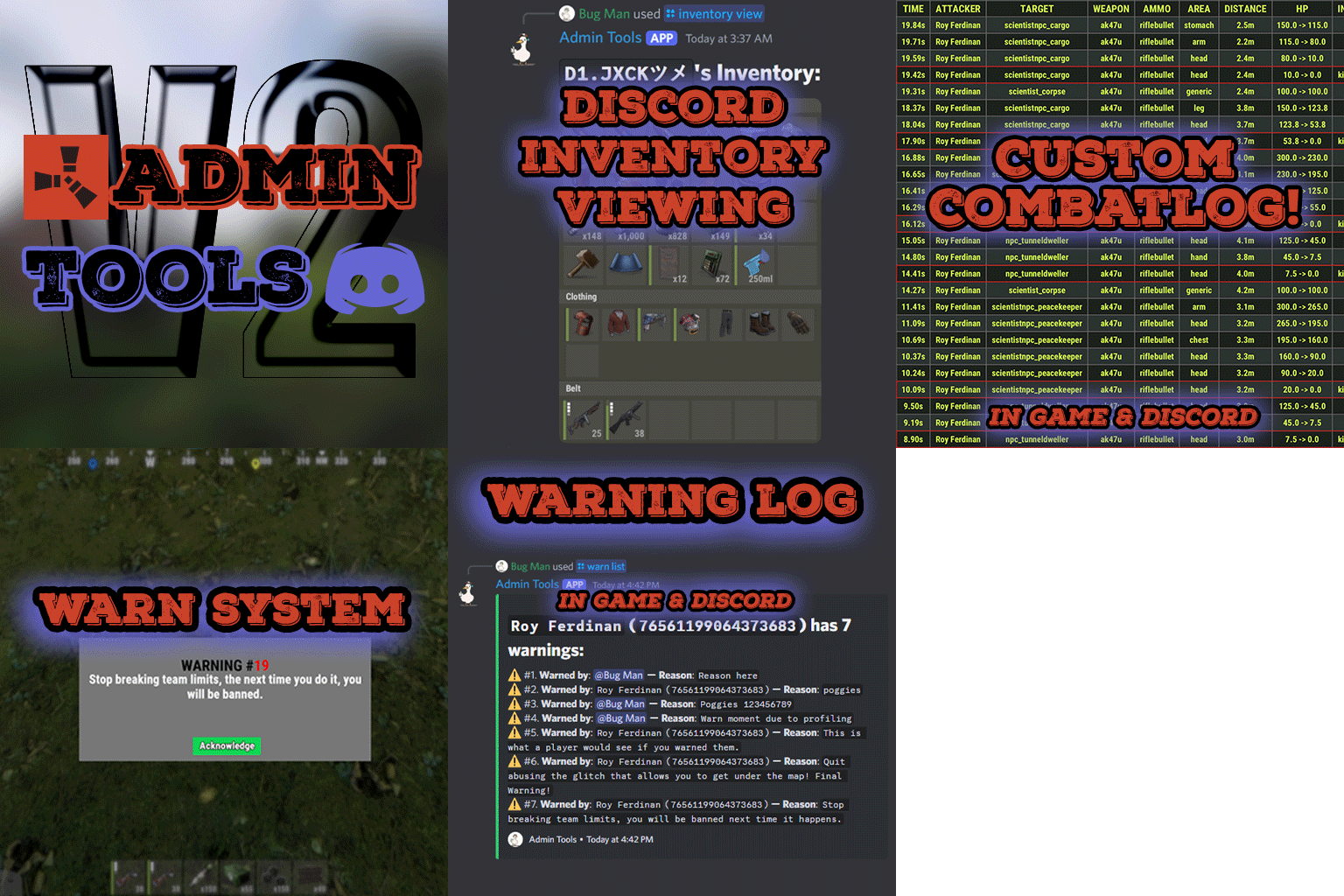
Admin Tools is an all-in-one plugin designed to make your job as a server owner/admin easier. This plugin has a wide range of features and commands that allow you to control your server easily, both in-game and via Discord. It also adds custom quality of life features exclusive to this plugin! ★ Inventory Viewing System - View an NPC or player's inventory in Discord and in-game ★ Multi-Server Support - Allows you to manage multiple Rust servers from a single bot ★ Custom Combatlog System - View a player's combatlog in Discord and in-game ★ Backpack Viewing System - View a player's backpack (uMod plugin) in Discord ★ Custom ID System - Get the ID of players on your server quick and easy, copy directly from chat ★ Warn System - Inform players of their wrongdoings and keep track of them (Warn Visuals: UI, Chat, Chat + Toast/Gametip) ★ Watchlist System - Lets you put suspicious players on a list for you to monitor, logs in-game and to discord ★ Server Command System - Reload/load/unload plugins and other console commands in Discord and in-game ★ F7 Report Logging System - Log F7 reports to discord with their combat log attached (if enabled) ★ and more! (Rest of features below) Please note, the Permissions UI Shown on screen towards the start of this video is FROM CARBON, NOT THE PLUGIN Please note, the Permissions UI Shown on screen towards the start of this video is FROM CARBON, NOT THE PLUGIN (Changed/Exclusive): * Timestamps for video in video's description - Make sure to up video quality if watching from this site. * Timestamps for video in video's description - Make sure to up video quality if watching from this site. ★ Permission System - Grant/revoke permissions to groups and players from Discord and in-game ★ Minecraft Creative System - While enabled, hold middle click to get the item you're looking at ★ Rename System - Rename the players who think they are funny (toggle in config) ★ Tempban System - Tempban players with no database required ★ Unique ID System - Find players even when they have the same or similar names -- Thanks to nivex ★ Kill, Wound, Revive & Respawn System - Kill, wound (down), revive and respawn players from Discord and in-game ★ Team Viewing System - View a player's team members from Discord and in-game Q: Does this plugin have a GUI or do its commands use GUI? A: No. The only UI in-game for this plugin is the warning screens. Please do not purchase this plugin thinking it has GUI for its commands, they are ALL commands entered into chat, Discord, or RCON. There are however, 'modals' for Discord, but nothing GUI based for within the game other than the warning screens displayed when '/warn'ing a user (which can be configured by the user). Q: How do I set up the bot? A: Set Up Instructions - If you miss any permissions, can always add them to the Admin Tools role in discord after you invite the bot. Q: Does this plugin link players to Rust? A: No. You can use the free plugin DiscordCore by MJSU if you would like to link your players. Q: Does this plugin log kills/PMs/F1 Spawn/chat? A: No. Admin Tools only logs the following if enabled: F7 Reports, Bans, commands from this plugin, and players who are watchlisted. You can always view a player's combatlog from discord though. You can use the free logging plugins DiscordLogger by MONoH or DiscordChat by MJSU depending on your goal. However, personally, I recommend against using logging functionality that would be occurring very frequently due to Discord's rate limiting. Though, DIscordLogger is made in a way that combines messages if possible to prevent limiting. Q: Can this log to multiple Discord servers? A: YES. All you need to put for logging to multiple servers is the channel ID you want to log to in the list of channel IDs in the config. Q: Does this plugin ONLY work with Discord Extension 3.0.0+? A: YES. You need to download the 3.0.0+ version from GitHub, it is linked at the top (and right here) as a required dependency. Any version prior to 3.0.0 will not work with this plugin, but any version 3.0.0 and later will. Q: Will this work on a shared hosting server? A: Yes, BUT you will not be able to take advantage of the threading done within the plugin. It should still work fine, but when you're on a shared host, you may only have access to a single core/thread (not positive on which) and as a result the threading I am doing in the plugin will just be ran on the main thread. As a result some of the discord functionality (ie: image generation) may affect the server as its now running on the main thread (what the server uses to run the game on) instead of a separate thread which would normally not affect the server. The image generation stuff (backpack and inventory) is normally pretty quick depending on number of items and pictures being used/sent, and can be between 100-250ms to generate on my server, however that was while no players were on. Q: How do I fix this error Response Code: Forbidden Discord Error Code: 50001 Discord Error: Missing Access ? A: All you need to fix this issue is MFA/2FA on the account used to create the bot. This issue is caused by Discord requiring your account to have either MFA or 2FA due to the bot being in a Community Discord server. After you add 2FA/MFA this error will go away. Q: Renaming isn't working, how do I fix this? A: The issue is likely that you don't have it enabled in the config, make sure to enable it in the config, its above the warning options and the discord API options. Q: My commands aren't appearing, how do I fix this? A: You can do the following in an attempt to try and force the bot to update its commands: Discord > Server Settings > Integrations > Admin Tools Bot > Toggle one of the checkboxes it shows in either Roles & Members or Channels > Save > Undo toggle > Save again. Q: Does this work with Rustcord? A: Yes, however you need this version here by MJSU as it has been updated to work with DiscordExtension 3.0.0+ versions. Q: How do I set up Multi-Server Support? A: Do as follows: Enable the bool (true/false) config option for multi-server system. Fill and keep the list of servers order the same if possible between configs (not required, but recommended). Use the /server command in discord to swap to the server you want to start listening to/sending commands to. On first use of command, it will error in all but one server console (tries to reply to a message more than once), that is expected and doesn't do that after that first command. It is used to set it up. If you want the activity information to change when swapping servers, make sure to enable that functionality in the config. Special thanks to Nivex for both creating and allowing me to use the method used to generate unique IDs for players. For support, please make a support ticket or join the Cobalt Studios Discord.$29.99 -

Version 1.0.0
23 downloads
Wall Rotator Wall Rotator is a quality-of-life plugin that allows players to rotate walls at any time, bypassing Rust's default 10-minute rotation window. Perfect for servers that want to give players more building flexibility while maintaining control through TC authorization and optional material costs. Key Features Bypass the 10-minute timer - Players can rotate walls long after placement TC Authorization - Require cupboard access before allowing rotation (configurable) Material costs - Optional resource requirements based on wall tier (wood/stone/metal/armored) VIP/MVP support - Configurable cost multipliers for donor tiers Admin bypass - Admins can rotate any wall without restrictions Safety checks - Prevent rotation of walls with mounted items, explosives, or recent damage Developer hooks - API for other plugins to integrate with rotation events Players often realize they need to rotate a wall after the vanilla timer expires. Rather than tearing down and rebuilding (wasting resources), this plugin gives them the flexibility to fix their mistakes. Server owners maintain control through TC requirements and configurable costs making it feel like players are paying for it. Configuration { "Require TC Authorization": true, "Enable Rotation Costs": false, "VIP Cost Multiplier (1.0 = 100%, 0.5 = 50%, 0 = free)": 0.5, "MVP Cost Multiplier (1.0 = 100%, 0.5 = 50%, 0 = free)": 0.25, "Block Rotation With Mounted Items": true, "Block Rotation With Explosives": true, "Block Rotation After Damage (seconds)": 30.0, "Material Costs": { "wood": { "Item Shortname": "wood", "Amount": 50 }, "stone": { "Item Shortname": "stones", "Amount": 50 }, "metal": { "Item Shortname": "metal.fragments", "Amount": 50 }, "toptier": { "Item Shortname": "metal.refined", "Amount": 5 } } } Configuration Options Require TC Authorization - If true, players must have cupboard access to rotate walls (recommended) Enable Rotation Costs - Toggle material costs for rotation VIP/MVP Cost Multipliers - Reduce costs for donor tiers (0 = free, 0.5 = 50%, 1.0 = full price) Block Rotation With Mounted Items - Prevent rotation if picture frames, shelves, signs, etc. are attached Block Rotation With Explosives - Prevent rotation if C4 or satchels are attached Block Rotation After Damage - Set cooldown period after wall takes damage (prevents rotation during raids) Material Costs - Define resource requirements per wall tier when costs are enabled Chat Commands /rotate - Rotate the wall you're looking at (requires wallrotator.use permission) Simply look at a wall and type /rotate. The plugin handles the rest. Permissions wallrotator.use - Allows player to use the /rotate command wallrotator.admin - Bypasses all restrictions (TC auth, costs, mounted items, explosives, damage cooldown) wallrotator.nocost - Rotate walls for free (when costs are enabled) wallrotator.vip - Apply VIP cost multiplier wallrotator.mvp - Apply MVP cost multiplier (usually lower than VIP) Note: MVP permission takes priority over VIP if a player has both. Developer API Other plugins can integrate with Wall Rotator using these hooks: OnWallRotate - Called before rotation occurs. Return non-null to cancel. object OnWallRotate(BasePlayer player, BuildingBlock wall) { // Return string message to cancel and notify player // Return any non-null value to silently cancel // Return null to allow rotation } OnWallRotated - Called after successful rotation. void OnWallRotated(BasePlayer player, BuildingBlock wall) { // Perform actions after wall is rotated }$3.99 -

Version 1.0.1
237 downloads
AI Assistant Bot Overview This AI Assistant bot is designed to interact with users on Discord by connecting to the OpenAI API. It supports a variety of features, including reading documents, handling attachments, and maintaining configurable conversation histories. Here's everything you need to know about configuring and using the bot. IMPORTANT NOTE Before continuing to read the instructions and explanations, please be aware that this bot relies on paid dependencies, including the OpenAI API key. You must ensure your API key has sufficient balance, as the cost depends on the size of your documents and the level of player interaction. While the cost is minimal for smaller servers, it may increase for larger communities with higher usage. I’ve explained more about the costs and other details below. If you’re looking for the installation guide, scroll down a bit past the explanation, and you’ll find it there. File and Folder Structure 1. As soon as you launch the bot for the first time, if no configuration file exists, you will see the following message: Default config.json file created. Please update it with your API keys and preferences. 2. You must update the `config.json` file with your desired settings, API keys, and preferences before relaunching the bot. After making the necessary configurations, restart the bot to apply the changes. 3. When you launch the bot for the first time, several files and folders are automatically generated to support its functionality. These include: Generated Folders: 1. `docs/`: - You can store documents in a folder for the bot to reference during conversations. While I haven’t tested it with many users simultaneously, the model-switching feature helps avoid rate limits, ensuring smooth operation. One of the models has no daily limits, so the bot should function without interruptions. However, your total text file size **should not exceed 10-12 MB** since no AI currently supports processing that much text efficiently. If you have large files, it's best to **split them into smaller chunks**—for example, separate files for topics like "raid," "ranks," and other categories to ensure optimal performance.(again please be sure your total documents wont hit 10-12 MB) In the near future, I plan to develop a **search system** that will make document retrieval **more efficient and cost-effective** for long-term usage! I hope this update will allow the bot to process documents in **image formats or PDFs** and support much larger files for better exploration. 2. `usage/`: - Contains two important configuration files: - **`whoami.txt`**: A file where you define the bot's identity. Use this file to explain who the bot is and configure its personality and purpose step by step. - **`conditions.txt`**: A file to specify conditions for the bot’s responses. For example, you can add rules like "Never generate harmful content" or "Avoid generating code." I’ve included my own configurations in the ZIP file you’ll receive—these have been tested and work well. However, you can edit them as needed. Some essential settings have already been added to ensure the bot functions properly. 3. `userschat/`: - Stores user conversation histories. The bot uses these files to remember the context of recent interactions for a configurable amount of time. 4. `downloads/`: - A folder to store files uploaded or downloaded by users during their interactions with the bot. 5. How to Configure the Usage Files The `usage/` folder includes the following AI-readable files: 1. `whoami.txt`: - Use this file to define the bot's identity. For example, you can write: `You are a helpful and friendly AI assistant designed to answer questions, provide guidance, and help users interact with documents.` - Configure it incrementally to refine the bot's personality. 2. `conditions.txt`: - Add conditions to guide the bot's responses. For example: `Never generate harmful or inappropriate content.` `Avoid generating programming code unless explicitly requested.` `Always provide accurate and ethical answers.` - These conditions help you customize the bot's behavior to align with your community's values. Tips for Efficient Configuration 1. Less is More: Write concise and clear prompts in these files to minimize token usage. Fewer but well-structured instructions reduce costs and improve the bot’s understanding. 2. Cost Insight: API usage costs are minimal. For instance, after over 1,000 requests and millions of tokens, the total cost was only 40 cents. However, ensure your OpenAI account has enough funds, as the bot will stop functioning if the balance is insufficient. AI-Understandable Files The bot processes these files naturally, so you can write them in plain, conversational language. For example: - Whoami Example: "You are a smart and efficient assistant that helps users manage files, answer queries, and provide creative solutions." - Conditions Example: "Avoid political discussions, never generate malicious content, and always prioritize user privacy." These files act as dynamic prompts that guide the bot’s behavior in real-time. Cost Management Tips - While the cost of running the bot is minimal, it scales based on the number of requests and tokens used. - Use concise prompts and optimize file content to reduce token usage. In future updates, I will introduce a token limit and methods to save tokens both on the bot side and the player side. However, there is already a setting called "temperature of response" in the bot config, which controls message length and creativity—making responses either longer and more creative or shorter and more precise. - Regularly monitor your OpenAI account balance to avoid interruptions. Adding funds ensures smooth operation, especially when the bot is used in a large community. Key Features 1. Multi-functional AI Assistant: - The bot connects to OpenAI API and supports multiple AI models such as `gpt-3.5-turbo`, `gpt-4`, and others. - It intelligently answers questions based on provided information and configuration settings. - I have carefully optimized the list of AI models to prioritize efficiency and avoid rate limits, all while maintaining functionality. Each request to the bot incurs a cost, as OpenAI's API usage is paid. If cost isn't a concern, the GPT-4 models are the best choice due to their superior creativity and advanced responses. However, for cost-effective usage, the configuration balances between model capabilities and expenses, ensuring a practical yet powerful bot experience. 2. Highly Configurable: - The bot is driven by a comprehensive configuration file generated on the first launch. You can customize nearly every aspect of its functionality. 3. Document Handling: - The bot supports attachments in formats like `txt`, `json`, and `csv`. These files can be processed for extended interactions, although this feature can be disabled if not preferred. 4. Conversation Tracking: - The bot maintains user conversations in files for a configured duration (`time_to_keep_history_conversation_in_secconds`). This helps the bot remember context within a specified timeframe before creating a new history file. 5. Rate Limit Handling: - Supports switching between AI models to avoid rate limits imposed by OpenAI's API tiers. - You can configure the rate limit thresholds for individual users. I was concerned about large communities using lower-tier OpenAI API keys, as they may face rate limit issues. To address this, I implemented a model-switching function to avoid these rate limits per minute. However, if you upgrade your account for long-term usage, you can reduce these problems. You can find more information about how OpenAI’s usage tiers work at this link: OpenAI Rate Limits Guide. On higher tiers, there are no usage limits, so you won’t encounter the same restrictions. If you spend over an specific amount, you should see no issues and enjoy smoother performance in the long run. 6. Spam Protection: - Users are limited to a configurable number of messages (e.g., 5 messages per minute) to prevent spam and API overuse. 7. Admin and Owner Controls: - Owner IDs in the configuration file can configure advanced settings and access an "EditingMode" for direct file and folder operations, allowing them to bypass limits on the code or have root access in the current or future updates. 8. Status and Activity Configuration: - The bot can display a custom status, activity type (e.g., "Playing AI-Assistant"), and optional activity URL. It supports most status and activity types based on the available Discord status documentation. 9. Response Temperature: - Adjust the bot's creativity and response tone using configurable temperature settings (e.g., "cold" for factual precision, "hot" for maximum creativity). How to Configure the Bot 1. Configuration File The bot generates a `config.json` file on its first launch. You'll need to configure this file step-by-step: - Discord Bot Token: Obtain it from Discord Developer Portal . Ensure to enable intents (Message Content, Presence, and Server Members) in the bot settings. - OpenAI API Key: Generate an API key from OpenAI Platform . Note that OpenAI is a paid service, and API usage costs depend on your tier (e.g., $5/month for basic usage). Each tier has different rate limits. - Owner IDs: Add your Discord user IDs to grant access to advanced bot controls. - Log Channels and Warnings: Configure `log_channel_ids` for file upload/download logs and `warning_ids` to notify admins of unauthorized access attempts. How to Use the Bot 1. Editing Mode Admins can enter Editing Mode to manage files and folders using simple commands. All explanations can be found once you enter Editing Mode by typing the available help commands. 1. Change Directory: Use commands like `cd <directoryname>` or `cd ..` to navigate between directories. 2. List Files: Use `ls` or `list` to see the files in the current directory. 3. View File: Use `view <filename>` to display the contents of a file. 4. Edit File: Use `edit <filename>` to modify a file's contents. 5. Download Files: Use `download <filename>` to download a specific file, or `download all` to download all files. 6. Create/Remove Files: Use `add <filename>` to create a file, and `rm <filename>` to delete a file. 7. Exit Editing Mode: Use `exit` to leave Editing Mode. Handling Attachments - The bot can process file attachments in supported formats (`txt`, `json`, `csv`). However, enabling this feature may lead to excessive API usage if users send large files. You can enable or disable this feature in the configuration: "handle_attachments (true/false) - Enable this to allow the bot to respond to file uploads or images. Note: This will use more tokens per API request depending on how large the text file is.": "false", 2. Configurable Settings 1. Bot Status You can set the bot's status and activity type in the configuration: "bot_status": { "status(e.g. online,idle,dnd)": "online", "activity_type(e.g. playing, listening, watching, competing or streaming)": "playing", "activity_text": "AI-Assistant", "activity_url": "https://www.twitch.tv/your_channel - Place a twitch link here if activity type is set to streaming." }, 2. Spam Protection To prevent abuse, configure message rate limits: "spam_detection": { "message_limit": 5, "rate_limit_period (in seconds)": 60 }, This limits users to 5 messages per minute by default. Adjust these settings as needed. 3. Response Temperature Control the bot's tone and creativity: - Cold: Factual and precise. - Neutral: Balanced between precision and creativity. - Warm: Creative responses while maintaining relevance. - Hot: Highly creative and speculative. You can also override with a temperature value between `0.1` and `1.0`: "Response Temperature": { "Ai_selected_mode(e.g. cold,natural,warm,hot)": "natural", "Ai_promopts_explnation": { "Cold (Low creativity, high precision)": "Respond with factual and precise information, avoiding creative or speculative responses.", "Neutral (Balanced creativity and precision)": "Respond with a balance of creativity and accuracy, adapting tone to fit the context.", "Warm (Higher creativity, moderate precision)": "Respond creatively while maintaining relevance to the topic.", "Hot (Max creativity, low precision)": "Respond with maximum creativity, even if it involves speculative or unconventional ideas." }, "Temperature Value (Optional Override 0.1 to 1.0 (Cant be 0.0 it means disabled temp minimum is 0.1))": 0.0, "Temperature_Value_prompt": "Your selected response temperature has been set to {prompt_temp_value} please resonse the message according to this temprature float number that is between 0.1 and 1 anythings beyond 1.0 is equal to 1.0 low means less creativity and amount of text higher means lots of creativity and explnation", "Set this to false to disable the `no_temp_error` message. Remove Ai_selected_mode and set temperature to 0.0 for a natural AI response.": "true" }, 4. file Cleanup Configuration The File Cleanup section in the configuration file controls how the bot manages and cleans up old user conversation files. This feature ensures that storage isn't unnecessarily occupied by outdated conversation histories. "file_cleanup": { "file_age_limit_seconds": 727200, "cleanup_interval_seconds - if = 0 it means disable and never clean the users conversation": 43200 }, Key Parameters: 1. "file_age_limit_seconds": - Specifies the maximum age (in seconds) a conversation file can reach before being deleted. - For example, if set to `727200`, files older than 8 days (727200 seconds) will be automatically removed. 2. "cleanup_interval_seconds - if = 0 it means disable and never clean the users conversation": - Defines the interval (in seconds) at which the bot will check for and delete outdated files. - If set to `43200`, the bot will check for aged files every 12 hours. 3. Disable Cleanup: - To disable the cleanup feature entirely and retain all conversation histories permanently, set `cleanup_interval_seconds` to `0`: "cleanup_interval_seconds - if = 0 it means disable and never clean the users conversation" How It Works: - The bot periodically scans the `userschat/` folder to identify files older than the age limit ("file_age_limit_seconds"). - Any files that exceed this age are automatically deleted during the cleanup interval. - This ensures efficient management of storage and prevents excessive buildup of old files. By adjusting these settings, you can control how long user conversations are retained and the frequency of cleanup operations. For servers with strict data retention policies, this feature can be fine-tuned or disabled entirely. 5. Bot Messages Every bot message is fully configurable in the `bot_messages` section. You can edit warnings, greetings, or any response to match your preferences or server culture. Version and Updates - Current Version: `1.0.0` - Updates are guaranteed if there are any issues or bugs in the code. New feature updates will only be provided if new ideas come to mind or are suggested through user feedback. However: > This bot is actively used by me, so any new updates or enhancements will be released as soon as they are ready! # Guide to Install and Run Your Discord AI Assistant Bot # Update Your Server Ensure your server is up-to-date before proceeding (this is crucial if you are hosting the bot on your own machine): sudo apt update && sudo apt upgrade -y Install Python 3 and pip Install Python 3 and `pip` (Python package manager). If you're logged in as `root`, you can omit `sudo`: sudo apt install python3 python3-pip -y Verify the Installation Run the following commands to confirm Python 3 and `pip` are installed correctly: python3 --version pip3 --version > Example Output: SHAYAN:/home python3 --version Python 3.8.10 SHAYAN:/home pip3 --version pip 20.0.2 from /usr/lib/python3/dist-packages/pip (python 3.8) Install Virtual Environment (Optional but Recommended) To isolate your Python project, install the `venv` module: sudo apt install python3-venv -y Create a Virtual Environment Create a virtual environment to keep dependencies isolated: python3 -m venv venv Activate the Virtual Environment Activate the virtual environment to work within it: source venv/bin/activate Note: To deactivate the virtual environment, run the following command later:: deactivate Install Required Dependencies Use `pip3` (or `pip` inside the virtual environment) to install the necessary libraries for the bot: pip3 install discord.py openai Important Note If you encounter errors like: `Error: module 'openai' has no attribute 'error'` or issues related to the version of the `openai` library being outdated, too new, or incompatible, use the following command to fix the problem: pip install openai==0.28.0 This will install the specific version `0.28.0` of the `openai` library, which is known to work with the bot. Once installed, the bot should start working without issues. Run Your Bot Navigate to the directory where your bot script (`AIasistant.py`) is located and run it: cd /path/to/your/script python3 AIasistant.py 1.Navigation Tips: - Use `cd directory_name` to go into a directory. - Use `cd ..` to go back one directory. - If you need to upload the script file (`AIasistant.py`) from your local PC to your host, use an SFTP client like WinSCP or FileZilla. Alternatively, open the file on your host using `nano`: nano AIasistant.py Paste the bot code, then save and exit using `Ctrl + X`, `Y`, and `Enter`. Hosting Platforms for Your Bot While this guide assumes you're running the bot on your own server, there are several platforms where you can host your Discord bot. Tip: Many of these platforms provide pre-installed Python environments with dependencies. If you're using such a platform, you may not need to install Python manually—just upload the bot code and define dependencies. Pre-Bundled Virtual Environment (Optional) I’ve already set up a virtual environment (`venv`) with all dependencies installed alongside the bot code. You can simply transfer it to your host and run the bot. However: - Python 3 must still be installed on the host. - The `venv` may not work directly if the host's OS differs from your local system. To make it work: 1. Upload the zip file to the host using SFTP or any file transfer method. 2. Extract the contents using the following command: unzip -o AI-Assistant.zip 3. Navigate to the directory containing the files: cd AI-Assistant 4. Activate the virtual environment: source venv/bin/activate 5. Run the bot: python3 AIassistant.py Tip: You can use tools like **tmux** or **nohup** to keep the bot running on your host permanently. These tools allow the bot to continue running even if you disconnect from the server. You can search online for tutorials on how to use them. While the bot itself is stable and won’t crash, occasional Discord rate limits or heartbeat issues might cause it to stop. Most professional bot hosting platforms include anti-crash mechanisms, so you generally don’t need to worry about this. If transferring the `AI-Assistant.zip` does not work, simply recreate the virtual environment on the host and install dependencies by following the initial setup steps above. # Final Note # Please remember that OpenAI's API is a paid service, and there is a usage cost per message. Be sure to check your usage to manage costs effectively. If you need help or have questions about the bot, feel free to reach out to me on Discord: ` shayan_. ` You can contact me there for assistance. As far as this post and tool are concerned, I’ve decided to give a part of this project to AI. I wrote the message fully and gave some parts of it to AI to fix and format the tutorial and explanations for me For sure, it’s much more readable than my original text But thanks to AI, our world might be an easier—or scarier—place in close future! # Exact Configuration File # { "discord_bot_token": "Enter your Discord bot token from https://discord.com/developers/applications. Remember to enable intents in the bot configuration.", "openai_api_key": "Enter your OpenAI API key here. Purchase it at https://platform.openai.com/ to use OpenAI models. More details are in the README file.", "discord_link": "Your Discord Server Link Here", "ai_models": [ "gpt-3.5-turbo-16k", "gpt-3.5-turbo", "chatgpt-4o-latest", "gpt-4o-mini", "gpt-4o" ], "time_to_keep_history_conversation_in_secconds": 3600, "handle_attachments (true/false) - Enable this to allow the bot to respond to file uploads or images. Note: This will use more tokens per API request depending on how large the text file is.": "false", "send_bot_response_in_2000_characters_chunks": "true", "allowed_file_extentions": [ "txt", "json", "csv" ], "blacklisted_directories_to_expand": [ "userschat" ], "owner_ids": [ "User IDs listed here will have access to editing mode and avoid rate limits.", "owner_discord_user_id_1", "owner_discord_user_id_2" ], "warning_ids": [ "Warnings about unauthorized access will be sent to these user IDs.", "warning_discord_user_id_1", "warning_discord_user_id_2" ], "warning_channel_ids": [ "Warnings about unauthorized access will be sent to these channels.", "warning_discord_channel_id_1", "warning_discord_channel_id_2" ], "warning_role_ids": [ "Discord role IDs listed here will be tagged in warning channel messages.", "discord_role_to_tag_1", "discord_role_to_tag_2" ], "log_channel_ids": [ "Logs related to file uploads and downloads will be sent to these channels.", "log_discord_channel_id_1", "log_discord_channel_id_2" ], "editingmode_commands": { "enter_editingmode": [ "editingmode", "editmode" ], "listing_command": [ "ls", "list", "files", "avilable" ], "change_dir": [ "cd", "dir", "directory" ], "change_dir_return": [ "..", "back", "return" ], "show_file": [ "view", "show" ], "download_file": [ "download", "get" ], "download_all": [ "all", "everything" ], "edit_file": [ "edit", "change", "replace" ], "append_to_file": [ "append", "addto" ], "new_file": [ "add", "new", "mk" ], "remove_file": [ "remove", "rm", "del" ], "exiting_command": [ "exit", "quit", "deactive", "leave" ], "help_commands": [ "cmd", "help", "command", "commands" ] }, "auto_cleanup": { "Clear the last conversation from the bot prompt if its size exceeds the specified limit in kilobytes (KB). This helps reduce token usage per request and improves efficiency.": 20, "Create_new_conversation_file_if_size_limit_exceeded": "true" }, "file_cleanup": { "file_age_limit_seconds": 727200, "cleanup_interval_seconds - if = 0 it means disable and never clean the users conversation": 43200 }, "chat_history": { "allow_users_to_clearself_history (true/false)": "true", "clear_chat_history_commands": [ "clearhistory", "clean", "clear", "reset" ], "not_allowed_message": "**You dont have permission to clear your chat history it would automatically be reseted every `{time_threshold_secconds}` secconds.**" }, "bot_status": { "status(e.g. online,idle,dnd)": "online", "activity_type(e.g. playing, listening, watching, competing or streaming)": "playing", "activity_text": "AI-Assistant", "activity_url": "https://www.twitch.tv/your_channel - Place a twitch link here if activity type is set to streaming." }, "spam_detection": { "message_limit": 5, "rate_limit_period (in seconds)": 60 }, "Response Temperature": { "Ai_selected_mode(e.g. cold,natural,warm,hot)": "natural", "Ai_promopts_explnation": { "Cold (Low creativity, high precision)": "Respond with factual and precise information, avoiding creative or speculative responses.", "Neutral (Balanced creativity and precision)": "Respond with a balance of creativity and accuracy, adapting tone to fit the context.", "Warm (Higher creativity, moderate precision)": "Respond creatively while maintaining relevance to the topic.", "Hot (Max creativity, low precision)": "Respond with maximum creativity, even if it involves speculative or unconventional ideas." }, "Temperature Value (Optional Override 0.1 to 1.0 (Cant be 0.0 it means disabled temp minimum is 0.1))": 0.0, "Temperature_Value_prompt": "Your selected response temperature has been set to {prompt_temp_value} please resonse the message according to this temprature float number that is between 0.1 and 1 anythings beyond 1.0 is equal to 1.0 low means less creativity and amount of text higher means lots of creativity and explnation", "Set this to false to disable the `no_temp_error` message. Remove Ai_selected_mode and set temperature to 0.0 for a natural AI response.": "true" }, "bot_messages": { "warning_message": "# {role_tags} \n **Warning!** User ID `{user_id}` - tagged as <@{user_id}> tried to access the editing system without permission.", "warning_message_direct": "# **Warning!** User ID `{user_id}` - tagged as <@{user_id}> tried to access the editing system without permission.", "not_owner_message": " You are not an owner to use this command. This action has been reported to the admins to take actions. ", "not_allowed_assistant": "**Assistant is not allowed to assist with the following files: {attachment}. Files like photos, PDFs, or any type of attachments are not assistable due to security reasons. This feature has been disabled by the admins. If you need assistance with something that requires attachments uploading, please contact Admins themselves. You can open a ticket on our Discord server:** \n {discord_link}", "file_upload": "**[`{attachment.filename}`]({attachment.url}) uploaded to `{user_state.current_directory}` by <@{user_id}> (UserID:`{user_id}`)**", "file_download": "**[`{file_name}`]({file_link}) downloaded by <@{user_id}> (UserID: `{user_id}`)**", "limited_use": "<@{user_id}>, you're sending too many messages! Please wait `{time_left}` more seconds before sending another message.", "not_allowed_to_leave": "**You are not allowed to leave this directory! (No other Direcotry with bot access exist please type the command with a directory name after it to switch path)**", "no_temp_error": " No temperature is defined. Please contact the developers about this problem.", "no_valid_defined_prompt": "No response temperature is defined. Response as you like", "normal_users_greeting": "# You are now connected with **Epic-Rust.org AI Assistant**. Feel free to ask any questions about the server! Please note that your conversation with the bot is being saved to improve your experience. Join our [Discord](https://epic-rust.org/discord) | Visit our [Shop](https://epic-rust.org/) | Check out our [Steam Group](https://epic-rust.org/steam)", "normal_users_greeting_clearning_access": "# You are now connected with **Epic-Rust.org AI Assistant**. Feel free to ask any questions about the server! Please note that your conversation with the bot is being saved to improve your experience - If you encounter bot issues or bad responses, simply clear the conversation history using {clear_commands} for a fresh start and more accurate answers. Join our [Discord](https://epic-rust.org/discord) | Visit our [Shop](https://epic-rust.org/) | Check out our [Steam Group](https://epic-rust.org/steam)", "owner_users_greeting": "# Welcome, Admin! You can enter **Editing Mode** by simply typing {formatted_editing_mode_args}. Once inside, use {formatted_Valid_Help_Commands} to view all available commands and options for the bot. ", "how_to_use": "**Available Commands:**\n# 1. **{formatted_change_dir_args} <directoryname> or using {formatted_change_dir_args} {formatted_dir_return_args}**: Change the current directory.\n# 2. **{formatted_listing_args}**: List the contents of the current directory.\n# 3. **{formatted_show_file_args} <filename>**: View the contents of a specific file.\n# 4. **{formatted_download_file_args} <filename>**: Download a specific file.\n# 5. **{formatted_download_file_args} {formatted_download_all_args}**: Download all files in the current directory, 8 files at a time.\n# 6. **{formatted_edit_file_args} <filename>**: Edit the contents of a specific file. You will be prompted to enter the new content for the file.\n# 7. **{formatted_append_to_files_args} <filename>**: Append content to an existing file. You will be prompted to provide the content to append.\n# 8. **{formatted_new_file_args} <filename>**: Create a new file and add content to it. You will be prompted to enter the content for the new file.\n# 9. **{formatted_remove_file_args} <filename>**: Delete a specific file.\n# 10. **{formatted_exit_command_args}**: Exit editing mode if you are in it.\n# For more help, just type {formatted_Valid_Help_Commands} again. Happy exploring!", "bot_cleared_message": "**The bot does not remember the last conversation due to file size limits and long conversation. A new conversation file has been created. Please proceed with your questions again.**" }, "version": "1.0.1", "Created By": "SHAYAN - Discord Id for more support: shayan_. " } Discord ID : SHAYAN_.Free -
.thumb.jpg.ea97fa9b70c17dcc5b0234f1f2318213.jpg)
Version 1.1.1
179 downloads
BaseGuardian ensures that sudden server restarts, forced crashes, or network drops won’t leave players’ bases vulnerable, by closes all doors. It also automatically boosts Tool Cupboard upkeep to a safe threshold, preventing unexpected decay. Designed for simplicity, fairness, and seamless integration with Rust’s native upkeep rules, BaseGuardian takes server management to the next level—now with added options for automated protection. Key Benefits Automated Crash & Network Handling BaseGuardian can automatically close all doors and top up Tool Cupboards whenever it detects a crash or network outage. No manual intervention needed—players stay protected even if you’re offline. Instant Door Security With a single command, any open door, gate, shutter, or ladder hatch across the map is snapped shut—especially helpful right after a server crash or restart. Accurate Upkeep Top-Ups BaseGuardian brings each qualifying Tool Cupboard’s coverage up to a pre-set number of hours (default: 12 hours). Because it taps into Rust’s own upkeep balance, each base pays only for the exact time and resources it needs. Fair for All Base Sizes Larger or higher-tier bases require more resources to stay protected; simpler bases need less. No one’s overpaying, and no hidden shortcuts are involved. Permission-Based Commands Two separate permissions let you decide who can close doors and who can top up TCs. This prevents misuse and keeps server management firmly in your control. No Leftover Resources Once upkeep is topped up, materials are seamlessly consumed to provide the extended coverage. Players don’t find unexpected piles of items in their cupboard—just the additional time they need. Minimal Disruption Although the plugin checks multiple entities, it’s designed as an on-demand tool for admins. Run it when needed (e.g., after a restart) with negligible impact on your server’s performance. Commands & What They Do Close All Doors Command: bg.doors Effect: Closes every door, gate, shutter, and ladder hatch on the server if they’re open. Use Case: Ideal after forced restarts or when an admin wants to ensure no player base is left open during downtime. Top Up Tool Cupboards Command: bg.tc Effect: Scans all non-abandoned TCs, and brings each one’s upkeep coverage to a default threshold (12 hours). The plugin accounts for each base’s size/tier, creating and using only the necessary resources. Use Case: Perfect for preventing mass decay after downtime or ensuring players have a fair buffer when forced offline. Frequently Asked Questions "Why don’t I see extra resources in the Cupboard afterwards?” BaseGuardian immediately converts spawned materials into extra coverage. You won’t see leftover items because they’re fully used to boost the TC’s timer. "How is the upkeep cost determined?” The plugin uses Rust’s own upkeep system to decide what’s required for the final hours. Larger or more complex buildings need proportionally more resources, while simpler bases pay less. "Can I change 12 hours to a different amount?” Yes. The plugin defaults to 12 hours, but you can adjust it to match your server’s rules—such as 8, 10, or 24 hours—ensuring any forced downtime doesn’t unfairly penalize players. "What if a TC has fully decayed already?” By default, BaseGuardian skips TCs with zero coverage. If you prefer to ‘rescue’ those TCs, you can modify the plugin’s settings to do so. "Does this run automatically?” Now it can! Besides manual commands, the new version detects crashes or network issues and handles door closures/TC top-ups automatically—keeping your server protected even when you’re not there. Permissions BaseGuardian’s two core features—closing doors and topping up TCs—are independently permissioned. This means you can give some staff the ability to secure doors, while only a few select admins can top up everyone’s upkeep, or vice versa. Check your server’s mod framework documentation for how to manage these permissions. Door Closure Permission: Allows the use of the door-closing command. TC Top-Up Permission: Allows the use of the upkeep top-up command. Why BaseGuardian? Defends Offline Players: Protects your community from uncontrollable downtime and forced restarts. No Game-Breaking Workarounds: Aligns with Rust’s native decay and upkeep standards without creating artificial advantages. Unobtrusive: Kicks in only when you command it, so normal gameplay is never disrupted. Transparent & Fair: Ensures players’ bases remain intact if they can’t reconnect promptly, boosting server reputation and trust. With BaseGuardian, your Rust server stays secure and fair—no matter how abruptly it reboots or how large the bases get. It’s a small but invaluable addition for any admin who wants peace of mind and a satisfied player community. A special thanks to EU Game Host for generously providing free server hosting to support the development and testing of BaseGuardian. Your assistance has been instrumental in helping this project flourish and ensuring the Rust community enjoys a smooth, reliable experience. UK Game Server Hosting - EUGAMEHOSTFree -

Version 1.0.5
181 downloads
Boom is an admin/troll/OP tool which adds c4 explosions to regular weapon damage. Details. When a player, or turret, has permission any damage that it inflicts with bullets results in a (real) c4 explosion and c4 damage. Anything that can be hurt/damaged/broken with bullets will go boom. Examples - Animals, players, barrels. Trees and nodes, for example, do not take damage and, therefore, do not go boom. Permissions boom.admin - Allows unrestricted use of boom. boom.allowed - Allows players to toggle boom. boom.turretsallowed - Allows players to toggle boom for their turrets. boom.costs - With this permission each boom costs 1c4 (taken from inventory). Chat Commands /boom - Toggles boom on and off for players who have the permission and are not on cooldown. Initial use of the /boom command enables the tool and begins 'EnabledMinutes' countdown. Subsequent uses will toggle the tool on and off but will not pause the countdown. /boomturret - Toggles boom on or off for the turret that a player with the turret permission is looking at, and authorised on. Turrets are not subject to a countdown, or cooldown. /boom addweapon - Adds the weapon you're holding to the AllowedWeapon list. /boom removeweapon - Removes the weapon you're holding from the AllowedWeapon list. Config. The config options govern player use of /boom command. EnabledMinutes = 1; - How long the player can use boom for. CoolDownMinutes = 1; - How long before player can use boom again. AllowedWeapons = []; - Shortprefabnames of weapons which will make booms. RespectPVEPlugins = false; Notes. AllowedWeapons is a List<string> and should be formatted as follows. ["lr300.entity"], for single or [ "lr300.entity", "m92.entity", "etc", "etc" ], for many. Leaving AllowedWeapons blank enables all weapons.$10.00- 1 comment
- 1 review
-
- 5
-
-
-
- #explosion
- #exploding
- (and 7 more)
-

Version 3.0.7
1,258 downloads
Finder is a small plugin for admins to search for various things quickly and easily Features Find all players with partial names Find all sleeping bags owned by a specific player Find all Tool Cupboards with partial names Find all buildings with partial names Find items Find Teleport locations Permissions finder.find << Required to use chat commands Players with Auth level 1 or 2 should not require special permissions. Chat Commands /find player PLAYERNAME/STEAMID /find cupboard PLAYERNAME/STEAMID /find bag PLAYERNAME/STEAMID /find building PLAYERNAME/STEAMID /find item ITEMNAME MINAMOUNT /find tp FINDID Item names may need to be enclosed in quotations eg /find item "Timed Explosive Charge" 1 => Special thanks to Steenamaroo the code whisperer for helping me keep what little sanity I had left!Free- 6 comments
- 1 review
-
- 3
-
-
- #admin tools
- #admin
- (and 1 more)
-

Version 1.3.5
156 downloads
Advanced graphical plugin manager to easily manage plugins. Features Load/Unload plugins Unloaded plugins are unloaded permanently (not reloading after restarts) Convenient error lookup for not loading plugins Intuitive and super responsive UI (no lag for small UI changes and no mouse reset) Search/Filter function Back button for quick navigation No plugin dependencies Commands (Chat and Console) gplugins - Opens/Closes the UI gplugins.load <pluginname> - Loads the given plugin and removes it from the disabled plugins list gplugins.unload <pluginname> - Unloads the given plugin and adds it to the disabled plugins list Permissions Administrators don't need any permission Players can be given access with the permission 'gplugins.use' (for UI and commands) Hints Clicking the exclamation mark icon will show the error message at the bottom The disablement of plugins after restarts will not work if gplugins is not loaded Loading a plugin in any way other then gplugins when it is disabled in gplugins will not work Configuration uicolor.primary (rgba) - The primary accent color uicolor.disabled (rgba) - The disabled buttons color$11.99 -

Version 1.3.0
125 downloads
Advanced graphical permissions manager to easily manage player and group permissions. Features Assign/Revoke player permissions Assign/Revoke player groups Assign/Revoke group permissions Create, rename, clear and delete groups Convenient overview of given permissions per plugin Hierarchical wildcard permissions Back button for quick navigation Search/Filter function Intuitive UI No plugin dependencies Commands (Chat and Console) gperms - Opens/Closes the UI Permissions Administrators don't need any permission Players can be given access with the provided permissions: 'gperms.use' - Open the GUI (readonly, but needed for any action in GPerms) 'gperms.players' - Grant/Revoke player permissions 'gperms.playergroups' - Assign/Remove players from groups 'gperms.groups' - Grant/Revoke group permissions 'gperms.modifygroups' - Create, edit and delete groups Hints Directly granted permissions will be checked as green Inherited group permissions will be checked as blue To revoke all permissions of a plugin click the 1 level wildcard permission twice (grant all -> revoke all) Configuration perms.hidepluginprefix (true/false) - if set to false, the full permission names will be shown plugins.showwithoutpermissions (true/false) - If set to false, plugins without permissions wil be hidden players.showoriginalnames (true/false) - If set to true, the original playername will also be shown uicolor.primary (rgba) - The primary accent color uicolor.disabled (rgba) - The disabled buttons color uicolor.activetab (rgba) - The active tab color$11.99- 2 comments
- 3 reviews
-
- 7
-

-
-
-
- #permissions
- #admin
- (and 13 more)
-
Version 1.0.8
54 downloads
Terminator stops unwanted rust world spawns and kills rust events and entities via command. Features Ability to toggle config settings via console. One time Kill or continual kill. Item count. Sets server convars where available to lighten load. Commands There are 3 main console commands.. DoIt/DoItNow/Comeon. and 12 variables. Bradley/Plane/Heli/CH47/Mini/Scrap/Horse/Hab/Boats/Ores/Cols/Animals/Logs/Wood/ModCars Bradley is the tank found usually at launch site Plane is the Cargo plane that drops air drops Heli is the attack helicopter Ch47 is the chinook (this will break oil rig events if true) Mini is MiniCopters Scrap is Scrap Transport Helicopters Horse is both wild horse and ridable horse Hab is Hot Air Balloon Boats is Row and RHIB Boats Ores are all mineable Ore Cols are Collectable entities (Pumpkins, Hemp, Corn, Stone, Metal, Sulfur, Wood, Halloween Cross, Easter Eggs...etc Wood are Driftwood Logs Logs found in the floor of the woods Animals is all Animals (Bear, Bore, Stag, Wolf etc) ModCars is the new modular cars. DoIt followed by a variable will toggle the config property E.g. DoIt Mini [Terminator] Terminating Minicopters is set to True DoIt Mini [Terminator] Terminating Minicopters is set to False DoItNow followed by a variable will destroy all active entities of that type. (Also has the extra variable ALL) E.g. DoItNow Mini [Terminator] Terminating MiniCopters [Terminator] None Out ComeOn Will count active items on the map from all of the variable options. E.g. ComeOn [Terminator] There are 16 Minicopters Alive [Terminator] There are 7 Scrap Helis Alive [Terminator] There are 9 Horses Alive [Terminator] There are 9 HotAirBalloons Alive [Terminator] There are 900 Ores Alive [Terminator] There are 2152 Collectable Entites Alive [Terminator] There are 45 Boat Entites Alive [Terminator] There are 143 Animals Entites Alive Configuration The settings and options for this plugin can be configured in the Terminator.json file under the oxide/config directory. The use of a JSON editor or validation site such as jsonlint.com is recommended to avoid formatting issues and syntax errors. { "Kill BradleyAPC true/false": false, "Kill CargoPlane true/false": false, "Kill CargoShip true/false": false, "Kill Attack Heli true/false": false, "Kill Ch47 true/false": false, "Kill MiniCopters true/false": false, "Kill Scrap Helis true/false": false, "Kill Horses true/false": false, "Kill HotAirBalloons true/false": false, "Kill Ores true/false": false, "Kill Collectable Entites true/false": false, "Kill Boat Entites true/false": false, "Kill Animals true/false": false, "Kill Modular Cars true/false": false "Default Population Value For Scrap Transport Helis": 0, "Default Population Value For Minicopters": 0, "Default Population Value For Wild Horses": 1, "Default Population Value For Rideable Horses": 4, "Default Population Value For Hot Air Ballons": 1, "Default Population Value For Row Boats": 4, "Default Population Value For Rhibs": 1, "Default Population Value For Bears": 2, "Default Population Value For Chickens": 3, "Default Population Value For Stags": 3, "Default Population Value For Wolves": 2, "Default Population Value For Boars": 5, "Default Population Value For Modular Cars": 3 } Kill options are toggleable via the DoIt Command. Default Population Values are what the server expects as a default number when NOT terminating the item in question... This has been added as some servers (after the Vehicle update) have chosen to still have MiniCopters and Scrapcopters spawn in the wild... E.g. "Default Population Value For Minicopters": 1 << would be the default value before the update. (now 0) When the plugin is loaded it will set the server convars to the value in the config and when terminating is disabled. Example Setup In this example we want to remove Ores only... Dropping in the plugin will update Server Convars as per the rules set out in the config. [Terminator] Update Server Values scraptransporthelicopter.population: "1" minicopter.population: "1" horse.population: "1" ridablehorse.population: "4" hotairballoon.population: "1" cargoship.event_enabled: "True" [Terminator] Bradley Not Being Terminated [Terminator] Plane Not Being Terminated [Terminator] Heli Not Being Terminated [Terminator] Chinook Not Being Terminated [Terminator] Ores Not Being Terminated [Terminator] Collectables Not Being Terminated motorrowboat.population: "4" rhib.rhibpopulation: "1" bear.population: "2" chicken.population: "3" stag.population: "3" wolf.population: "2" boar.population: "5" By default the Config value for Terminating Ores is false.. so lets set it to true doit ores [Terminator] Terminating Ores is set to True And then lets kill any ores that have spawned on the map before the rule was set doitnow ores [Terminator] Terminating Ores [Terminator] Terminating Ores [Terminator] Terminating Ores [Terminator] Terminating Ores [Terminator] Terminating Ores [Terminator] None Out Now to confirm, if we run ComeOn we can see there are no longer any Ores on the map comeon [Terminator] There are 18 Minicopters Alive [Terminator] There are 9 Scrap Helis Alive [Terminator] There are 36 Horses Alive [Terminator] There are 9 HotAirBalloons Alive [Terminator] There are 3498 Collectable Entites Alive [Terminator] There are 45 Boat Entites Alive [Terminator] There are 143 Animals Entites Alive Lather, Rinse, Repeat for the Variables you want. Video FAQ. Horse When I Kill horses it says [Terminator] Terminating Horse Part1 but no part two... Part 1 is Rideable horses Part 2 is Wild horses. Its fine to see one without the other. Spam When I run a doitnow command there is a log of network spam. This is intentional to show that the plugin is working per variable. The doitnow all command does not do this. nothing out/ not out After running a doitnow command it says terminating and then nothing out or not out. Correct.. it validates that it has killed them all and reports that they are gone. If you have any questions or problems, join my discord https://discord.gg/D2zTWCEnrN$5.00 -
Version 1.0.0
649 downloads
ComTimer is a plugin that runs console commands after an amount of time. Good for automating events quickly and easily Set the commands you want to run into the config list. Set a timer upper limit and a timer lower limit and the plugin will pick a number between and countdown... on completion it will run a command from the list and start the whole process over again. any command that you can run in rcon you can run with this. Configuration Default configuration is as follows: { "Command List": [], "Upper Time In Seconds": 500.0, "Lower Time In Seconds": 200.0 } Setting a single command: { "Command List": ["say Welcome to the server"], "Upper Time In Seconds": 500.0, "Lower Time In Seconds": 200.0 } Setting more then one command: { "Command List": ["say Welcome to the server","callheli","giveall scrap 1"], "Upper Time In Seconds": 500.0, "Lower Time In Seconds": 200.0 } Works well with plugins like CustomHeliTiers if the plugin doesn't have its own spawn timer: { "Command List": ["callheli 1","callheli 2","callheli 3","callheli 4","callheli 5","callheli 6"], "Upper Time In Seconds": 500.0, "Lower Time In Seconds": 200.0 }Free -

Version 1.0.1
605 downloads
NameCheck checks a players name to see if it contains part of the config list and then kicks the player with a custom message. Prevent players advertising on your server with their display name. Configuration Default config looks like this { "Names": [], "Kick Message": "Change your name to enter this server" } For a single entry input it in quotations like this { "Names": [".com"], "Kick Message": "Change your name to enter this server" } For multiple entries enter them separated with a comma { "Names": [".com",".gg","skins"], "Kick Message": "Change your name to enter this server" } Just enter values, reload and forget about it. Make sure all entries are in Lower Case.Free -

Version 1.3.2
27 downloads
CPunishTool is an admin tool. Very intuitive way to punish a player # INFO WHEN TOOL IS EQUIPED AND ACTIVE - Show crosshair - Show UI - Display info in chat for each mode ALL MODE IS SECURED WITH PERMISSIONS AVAILABLE MODE - Kill (Wounded, Stop wounded, Kill) - Kick (with multiple custom reason) - Mute (with multiple custom duration and unmute option) - Voice Mute (with multiple custom duration and unmute option) - Freeze (if player is freeze, unfreeze him) - Ban (with multiple custom reason) # PERMISSION cpunishtool.use - Require for use and get the tool cpunishtool.kill - Require for kill player cpunishtool.kick - Require for kick player cpunishtool.mute - Require for mute player cpunishtool.voicemute - Require for voicemute player cpunishtool.freeze - Require for freeze player cpunishtool.ban - Require for ban player # CHAT COMMAND /punishtool - Get the tool in your inventory # OPTIONAL PLUGIN REFERENCE #PREVIEW # CONFIGURATION { "Kill Option": { "1": { "Short Description": "Wounded", "Details": "startwounded" }, "2": { "Short Description": "Stop Wounded", "Details": "stopwounded" }, "3": { "Short Description": "Kill", "Details": "" }, }, "Kick Option": { "1": { "Short Description": "No reason", "Details": "" }, "2": { "Short Description": "Language", "Details": "Thanks for guarding your language!" }, "3": { "Short Description": "Come discord", "Details": "You are expected on discord.gg/5NtNRhU" }, "4": { "Short Description": "Stop it !", "Details": "Stop and calm down. !" } }, "Mute Option": { "1": { "Short Description": "5 minutes", "Details": "5m" }, "2": { "Short Description": "10 minutes", "Details": "10m" }, "3": { "Short Description": "30 minutes", "Details": "30m" }, "4": { "Short Description": "1 hour", "Details": "1h" }, "5": { "Short Description": "1 day", "Details": "1d" }, "6": { "Short Description": "Permanent", "Details": "" }, "7": { "Short Description": "Unmute", "Details": "unmute" } }, "Mute Voice Option": { "1": { "Short Description": "5 minutes", "Details": "5m" }, "2": { "Short Description": "10 minutes", "Details": "10m" }, "3": { "Short Description": "30 minutes", "Details": "30m" }, "4": { "Short Description": "1 hour", "Details": "1h" }, "5": { "Short Description": "1 day", "Details": "1d" }, "6": { "Short Description": "Permanent", "Details": "" }, "7": { "Short Description": "Unmute", "Details": "unmute" } }, "Ban Option": { "1": { "Short Description": "No reason", "Details": "" }, "2": { "Short Description": "Language", "Details": "Language" }, "3": { "Short Description": "Rules infractions", "Details": "Violation of rules" }, "4": { "Short Description": "Staff deliberation", "Details": "Staff Deliberation" }, "5": { "Short Description": "Cheat", "Details": "Cheat" }, "6": { "Short Description": "Macro", "Details": "Macro" }, "7": { "Short Description": "Insults", "Details": "Insults" } } }$9.99 -

Version 3.0.0
938 downloads
Default Kit management tool. # DOCUMENTATION • Features - Define group or permission - Define default kit respawn - Define start / end - Clear inventory (admin only) • Info The plugin, has the base developed for my server. It has been designed so that when the command is executed, the kit replaces the contents of the inventory with the new contents. I will soon add an option to choose to replace the contents or not. # CHAT COMMAND /kit <command> /clear -- View command (admin) /clear all -- Clear all inventory (admin) /clear main -- Clear main inventory (admin) /clear belt -- Clear belt inventory (admin) /clear wear -- Clear wear inventory (admin) # START / END CONF "7. Start": [ { "DAY": "17", "MONTH": "03", "YEAR": "2020", "TIME / H24 / 08:00": "10:05" } ], # DEFAULT CONFIGURATION { "KITS": [ { "1. Name": "Default", "2. Chat Command": null, "3. Short Desc": "Kits give when a player respawn", "4. Oxide group or permission": null, "5. Kit default": true, "6. Kit active": true, "7. Start": [], "8. End": [], "9. BELT": [ { "SHORT NAME": "rock", "SKIN ID": 804791902, "AMOUNT": 1, "CONDITION": 100.0, "AMMO": 0, "AMMO TYPE": null, "INSTANCE DATA": null, "CONTENTS": null }, { "SHORT NAME": "torch", "SKIN ID": 0, "AMOUNT": 1, "CONDITION": 50.0, "AMMO": 0, "AMMO TYPE": null, "INSTANCE DATA": null, "CONTENTS": null } ], "10. Main": [], "11. Wear": [ { "SHORT NAME": "tshirt", "SKIN ID": 0, "AMOUNT": 1, "CONDITION": 0.0, "AMMO": 0, "AMMO TYPE": null, "INSTANCE DATA": null, "CONTENTS": null } ] } ] } # ADD KIT In config file { "1. Name": "TRY", "2. Chat Command": "test", "3. Short Desc": "Test kit", "4. Oxide group or permission": null, "5. Kit default": false, "6. Kit active": true, "7. Start": [], "8. End": [], "9. BELT": [ { "SHORT NAME": "crossbow", "SKIN ID": 0, "AMOUNT": 1, "CONDITION": 100.0, "AMMO": 0, "AMMO TYPE": null, "INSTANCE DATA": null, "CONTENTS": null } ], "10. Main": [], "11. Wear": [] ] },Free -

Version 1.5.1
879 downloads
BanScreen displays a screen overlay to lock out a player and force them to acknowledge that they are being banned or warned. Updating it 1.5.1 Back up Your Config Features Customiseable overlay that the player is greeted with when banning Chat and console command so that a player can be banned from in game or rcon Variables Background Color "255 0 0 1" << If Background image is false then you can select the color and transparency of the GUI in RGBA format (Examples at bottom) Enabled True/False << Sets a background or color screen ImageURL URL << Set Background Image Messages "BAN_MESSAGE": "Failed to follow rules" << Message that will be displayed after player is banned and when they attempt to join the server FontSize "22" << Size of text on overlay "BAN_MESSAGES" ["line one","line two","line three"] << Text that will be displayed on Ban Screen "LC_MESSAGES" ["line one","line two","line three"] << Text that will be displayed of Last Chance Ban Acknowledge Button Enabled True/False << Display button on Ban Screen Seconds till close if button is false: 10 << Amount of seconds the Ban screen is displayed before banning player if button is set to false Warn Acknowledge Button Enabled True/False << Display button on Warning Screen Seconds till close if button is false: 10 << Amount of seconds the Warning screen is displayed before closing if button is set to false Permissions BanScreen.usecmd Required to use /BanScreen & /LastChance command Chat Commands /BanScreen "Player/ID" Will display Ban Screen to player /LastChance "Player/ID" Will display Last Chance Screen to player Console Command BanScreen "PlayerName/ID" Will display Ban Screen to player LastChance "Player/ID" Will display Last Chance Screen to player Configuration The settings and options for this plugin can be configured in the BanScreen.json file under the oxide/config directory. The use of a JSON editor or validation site such as jsonlint.com is recommended to avoid formatting issues and syntax errors. { "Background": { "Color": "255 0 0 1", "Enabled": false, "ImageURL": "https://i.ytimg.com/vi/yaqe1qesQ8c/maxresdefault.jpg" }, "Ban Acknowledge Button": { "Enabled": true, "Seconds till close if button is false": 10 }, "Messages": { "BAN_MESSAGE": "Failed to follow rules", "BAN_MESSAGES": [ "<color=#000000>STOP!</color> <color=#FFFF00>You have not followed the rules of this server:</color>", "As a result,", "It is the opinion of the staff that you are issued with", "A SERVER BAN", "If you feel the ban is unfair, you may appeal the ban via the following methods", "Discord", "Website", "<color=#0000FF>Note that appeals are at the discretion of the server owner</color>", "<color=#0000FF>And may take up to 48 hours to complete </color>" ], "FontSize": "22" }, "Warn Acknowledge Button": { "Enabled": true, "Seconds till close if button is false": 10 }, "WarningMsgs": { "FontSize": "22", "LC_MESSAGES": [ "<color=#000000>STOP!</color>", "This is a warning.", "Continue to not follow the rules and we will issue you", "A SERVER BAN", "Your actions are in violation of the server rules", "If you need to be remided of the rules", "Use /Rules ", "<color=#0000FF>If you continue in this manner you will be removed from the server</color>", "<color=#0000FF>This is your final warning </color>" ] } } Color Examples blackSolid black. RGBA is (0 0 0 1). blueSolid blue. RGBA is (0 0 1 1). clearCompletely transparent. RGBA is (0 0 0 0). cyanCyan. RGBA is (0 1 1 1). grayGray. RGBA is (0.5 0.5 0.5 1). greenSolid green. RGBA is (0 1 0 1). greyEnglish spelling for gray. RGBA is the same (0.5 0.5 0.5 1). magentaMagenta. RGBA is (1 0 1 1). redSolid red. RGBA is (1 0 0 1). whiteSolid white. RGBA is (1 1 1 1). The Last digit dictates Alpha channel... so for an opaque appearance select a value below 1 E.g. 0.7 Thanks to my moderator and friend MrBytedk for being banned about a hundred times while testing functionality If you have any questions or problems, join my discord https://discord.gg/2ftdtaTQ6SFree- 4 comments
- 1 review
-
- 2
-
-
- #information
- #informational
- (and 5 more)