Search the Community
Showing results for tags 'backup'.
Found 3 results
-

Version 0.5.4
132 downloads
Hey! This is RustHandler, a tool for automatic Rust management (Debian-based Linux distros: Debian, Ubuntu Desktop & Server (64 bit)). No, you're not in the wrong place, this is all about hosting a RustDedicated Linux server, and managing it with a simple, pleasant Winform panel, making server management a breeze with just a few clicks. Installation : On the server side: -Put RustHandler.sh in your user's root directory (/home/YourUser/*here), where it must remain for RustHandler to function properly. -Do : chmod +x RustHandler.sh sudo ./RustHandler.sh -install And that's it! That's all there is to it! PC side : -Now run RustHandlerClient.exe on your PC, log in with your normal user (not root). -Log in > apply your settings in "Server Settings", save > Wipe > Update > Start ! THAT'S IT. -Optional: Install the Rust typography in the archive so that it's correctly interpreted in your software If you have any problem, you can contact me via Discord, I will answer you faster than on the site, search : sebl4rd With RustHandler, you can: -Wipe your server in 1 click. Before wiping, change your settings in Server Settings, then stop your server and wipe it (Full wipe or Save BP option). The Server settings panel contains a number of parameters, including : -CPU affinity -Automatic backups -Custom path selection -Network management -Startup convars -Autoupdate on startup -Choice of Oxide or Carbon compiler -Tips you have about 40 of the most useful convars. You can add/remove as many as you want. RustHandler automatically restarts your server, if for example you use the "TimedExecute.cs” plugin, if you program the command, every day at noon "restart 300”, the server will restart automatically, and if you activate the "Auto_Update” mod, it will update each time it restarts! RustHandler logs all restarts of your Rust server, whether accidental or not. If for example your server becomes unstable, and you suspect it to restart randomly, consult: /home/YourUser/RustHandler/restarter.log You will have a detailed list of reboots your machine has done. Server restart on 2022-04-07 19:59:05 Server restart on 2022-04-08 12:00:58 Server restart on 2022-04-09 12:01:25 Server restart on 2022-04-10 12:00:54 Server restart on 2022-04-11 12:01:18 Server restart on 2022-04-12 12:00:55 Also saves Rust server status backups. Plugin manager: Plugin Manager, allows you to install, update and manage your plugins very easily. Auto scraping of Umod site to keep database up to date. Detection of out-of-date plugins, links to plugins in an organized list... Etc. Rcon client : A Rcon client window, allowing you to make basic commands, and get feedback from your server. Currently pretty basic, but just a click away. You can easily check that your server has started up correctly with this. This window will be greatly improved. RustHandler also has a "protection”, which prevents launching a Rust server several times (otherwise data corruption). But it also allows you to run multiple Rust servers on your machine. If you want to run a 2nd Rust server simultaneously on your dedicated machine (or more), simply create another user, paste Rusthandler.sh at the root of this user, run RustHandler_Client.exe and log in. RustHandler automatically creates logs (raw logs) of your server, including EVERYTHING, so also the start of the server, which does not normally appear on an RCON protocol. Each time your server restarts, RustHandler creates a new log file. Linux beginners : Remember, NEVER to use root/sudo to modify server files/folders. If you modify files with root/sudo, your normal user will no longer be able to modify them! Upcoming updates: -Unfortunately, I haven't had time to translate everything yet, but it will happen very soon! (Baguette !) Added : English version since 0.0.3 -A Wipe mod (without BP)/ FullWipe : Done : in 0.0.4 version Plugin Manager : Oopsie ! A presentation in video A clicable interface throught ssh instead of word commands : Done.. Long time ago Scheduled Wipe -A command or clickable menu to easily import a backup. In case you have a corrupt save. -Your suggestions? Tell me about !$25.00 -
Version 25.9.5411
180 downloads
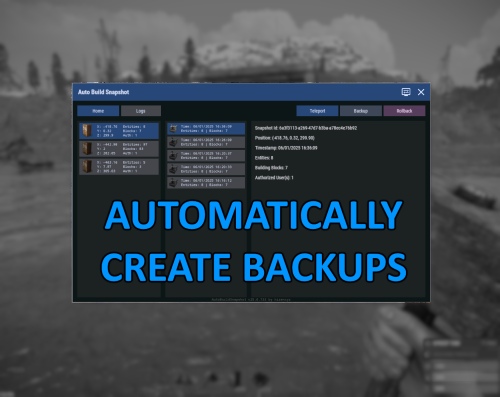
Automatically create backups for your base that you can then rollback to later. Menu command defaults to "abs.menu", but this can be modified in the settings. Most of the navigation is meant to be self-explanatory. All of the phrases should be registered and able to be updated for localization as well. Donations A big ol' thank you if you decide you wanna donate- Ko-fi: https://ko-fi.com/hizenxyz Configuration Explanations General Settings Update Check Interval (seconds): The interval that the plugin will check for updates across all bases and process any changes made to the base. By default this is every hour, but could be shortened if you feel that it should check more often or if you lower the delay between snapshots significantly. Note: This is reset on server restart. Delay Between Snapshot (seconds): The backup interval for individual bases. This is the maximum timespan between saves. Note: This is reset on server restart. Snapshot Retention Period (hours): The number of hours to keep a backup data file for before removing it from the system. Defaults to 30 days. This can be shortened if you don't want to keep backups that long. Not recommended to go longer unless you're running a server that can somehow span multiple wipes. Note: Persisting saves between wipes is not officially supported. Include Ground Resources: Whether to include resources in the backup. Include Non-Authorized Deployables: Disabled. Not currently implmented. Default behavior will include everything. Current Time Zone: The time zone you'd like to display all of the UI timings in. Purely visual. Backend files still save in UTC (Universal Coordinated Time). Commands and Permissions Admin Permission: Gives permission to all other permissions. Toggle Menu Command: The command to toggle the main menu. Toggle Menu Permission: The required permission to toggle the main menu (admin permission will default grant). Backup Permission: The required permission to run manual backups from the interface (backups can only run from interface, so toggle menu or admin permissions are required). Rollback Permission: The required permission to run rollbacks from the interface (rollbacks can only run from interface, so toggle menu or admin permissions are required). Advanced Foundation Zone Radius: Read-only, this is just the radius used to scan foundations. Currently cannot be changed. Max Retry Attempts on Failure: How many attempts to try making a backup before giving up on the base.Free -
Version 1.0.2
140 downloads
Plugin for creating a copy of the console log file. This plugin uses the copylog console command and does not have a settings file. The plugin uses the standard location of the server files. If you use a hosting service, you may need to change the storage paths and file name in the plugin code. For example, if you see that when connecting to the server via FTP, the path to the Oxide folder looks like 127.0.0.1_28015-Server/hostname.com/oxide/, then in the plugin code, the file paths should look like this: string logFilePath = @"Server/hostname.com/console.log"; string currentTime = DateTime.Now.ToString("dd.MM.yyyy - hh'h 'mm'm 'ss's'"); string destinationDirectory = Path.Combine("Server", "hostname.com", "oxide", "logs", "Console_log"); string destinationPath = Path.Combine(destinationDirectory, $"console_{currentTime}.log"); string logFilePath = @"Server/hostname.com/console.log"; - This is the path to the console log file on your server. Be careful, the name of the file may differ from console.log if it is changed by the settings on the hosting that you use. string destinationDirectory = Path.Combine("Server", "hostname.com", "oxide", "logs", "Console_log"); - This is the destination path for saving copies of your log file. To automatically save copies of the log file, you can use the XRestartUI or Timed Execute plugins. In XRestartUI: "Configuring scheduled restarts [ Any command can be scheduled at any time ]": { "06:00": "copylog", "18:00": "copylog" } In Timed Execute: "RealTime-Timer": { "06:00:00": "copylog", "18:00:00": "copylog"Free