Search the Community
Showing results for tags 'customization'.
Found 15 results
-
Version 1.1.0
6 downloads
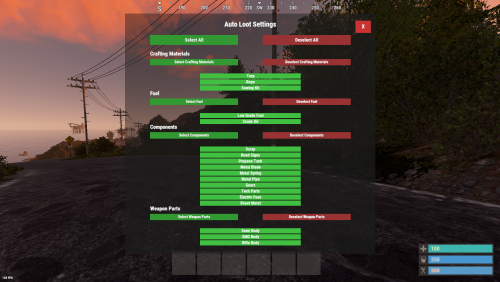
Description: Tired of manually looting every barrel and road sign in Rust? AutoLootMaster streamlines scavenging by automatically collecting loot into your inventory when you destroy barrels and road signs. With a clean, category-based UI, players can choose what to auto-pickup—components, fuel, crafting materials, weapon parts, and more. Plug & Play (No Permissions Required): AutoLootMaster is designed to work for all players by default—no group/permission setup needed. Default Behavior (Important): The UI works as a filter. If a player selects specific items, only those items will be auto-looted. If a player selects no items, AutoLootMaster will auto-loot everything (loot-all by default). It also includes a configurable pickup distance (default 3m) to prevent abuse and ensure looting only happens nearby. Lightweight, easy to set up, and compatible with most Rust servers. Key highlights: Automatic Pickup: Loot is added to your inventory upon destroying containers. Customizable Preferences: Per-player settings saved across sessions. Category System: Grouped items for quick selection. UI-Friendly: Select/deselect all, category toggles, and individual item buttons. Configurable Distance: Control pickup range (default 3m). Bonus Scrap Multiplier Support: Respects server scrap yield modifiers. Performance Optimized: Minimal impact on server resources. Video: Features: Auto-Loot from Containers: Automatically picks up items from barrels (loot_barrel_1/2, oil_barrel) and road signs (roadsign1-9) when destroyed by the player. Player-Specific Preferences: Each player can choose which items to auto-collect via a personal UI menu. Categorized Item Selection: Items grouped into categories like Crafting Materials, Fuel, Components, and Weapon Parts. Select/Deselect Options: Buttons for selecting/deselecting all items, entire categories, or individual items. Configurable Distance: Set a maximum distance (default 3m) for auto-pickup to ensure it’s only for nearby destructions. Data Persistence: Player preferences saved in a data file for reloads and wipes. Bonus Scrap Multiplier Support: Handles server modifiers for scrap yield automatically. Compact UI Design: Responsive and non-intrusive overlay menu accessible via chat command. Commands: /loot - Opens the AutoLootMaster UI menu for selecting pickup preferences. Configuration: The config file (AutoLootMaster.json) is auto-generated on first load. Example: json { "Auto Loot distance": 3.0 } Auto Loot distance: Maximum distance (in meters) from the player to the container for auto-pickup to trigger. Set to 0 to disable distance check (not recommended). Reload after changes: oxide.reload AutoLootMaster$4.99 -
.thumb.gif.0121f37fd2622464def910b265a87256.gif)
Version 1.1.3
271 downloads
Add some new Items to your server for your players to find, and take them on a trip on use REQUIRES IMAGE LIBRARY With this plugin, you can create as many "Drug Items" as you like. You aren't limited to my drug theme, you can create different drinks, medicine and more, Lang is also provided, for your customization needs. 5 base items are provided, Pills, Drink, Syringe, Smokeable, Edible. Each with their own respective base SFX on Use to match its theme. Each item has configurable metabolism effects, you can heal or damage on use, take calories or give, and much more, see config for more info. Each item has customizable in game effects, make the player shake, sway, scream, bleed, vomit upon item use. You can even add your own list and combine different effects as well as edit timing, to create your own curated effects. Each item has the ability to show custom images, maybe you want to make your player "Trip" and flash some Trippy image on screen. You can get as creative as you want, as you can add as many images as you want, you have control on transparency, fade in, stay, and fade out time to make the perfect experience for your players to enjoy. Items can spawn in specified containers, just add the prefab path you would like it to spawn in. To cancel that out, simply leave the prefab path as "". NOTE - WHILE IMAGES ARE SHOWING, OTHER DRUG USES ARE BLOCKED TO ALLOW IMAGE QUEUE TO HANDLE. THIS OVERRIDES COOLDOWN. BASE ITEM SHORTNAME IN CASE YOU WANT TO USE THEM OR CRAFT THEM FROM ANOTHER PLUGIN 1 - PILLS - ANTI RAD PILLS 2 - DRINK - BASIC SCRAP TEA 3 - SYRINGE - MEDICAL SYRINGE 4 - SMOKEABLES - SMALL HALLOWEEN LOOT BAG 5 - EDIBLE - MUSHROOM DRUGS CAN NOW GRANT A TEA BOOST ON USE Command ADMIN - /GIVEDRUGS - SPAWNS ALL CUSTOM ITEMS INTO INVENTORY USEFUL FOR TESTING EFFECTS - REQUIRES DRUGS.ADMIN PERMISSION Demo Video videoplayback.mp4 (ALT LINK) Drugs Demonstration Other Youtuber videos with it featured. CONFIG { "Default Item Use Effects": { "Pill Use Effect": "assets/bundled/prefabs/fx/gestures/take_pills.prefab", "Edible Use Effect": "assets/bundled/prefabs/fx/gestures/eat_generic.prefab", "Drink Use Effect": "assets/bundled/prefabs/fx/gestures/drink_generic.prefab", "Lighter Flick Effect": "assets/prefabs/tools/smoke grenade/effects/ignite.prefab", "Smokeable Use Effect": "assets/bundled/prefabs/fx/door/barricade_spawn.prefab", "Inhale Effect": "assets/prefabs/clothes/diving.tank/effects/scuba_inhale.prefab", "Syringe Use Effect": "assets/bundled/prefabs/fx/hit_notify.prefab", "Sway Effect Pool": [ "assets/content/weapons/_gestures/effects/eat_1hand_celery.prefab", "assets/content/weapons/_gestures/effects/eat_2hand_chewymeat.prefab", "assets/content/weapons/_gestures/effects/drink.prefab" ], "Blood Effect Pool": [ "assets/bundled/prefabs/fx/decals/blood/decal_blood_splatter_01.prefab", "assets/bundled/prefabs/fx/decals/blood/decal_blood_splatter_02.prefab", "assets/bundled/prefabs/fx/decals/blood/decal_blood_splatter_03.prefab" ], "Vomit Effect Pool": [ "assets/bundled/prefabs/fx/gestures/drink_vomit.prefab" ], "Damage Effect Pool": [ "assets/bundled/prefabs/fx/takedamage_hit_new.prefab", "assets/bundled/prefabs/fx/takedamage_hit.prefab", "assets/bundled/prefabs/fx/takedamage_generic.prefab", "assets/bundled/prefabs/fx/screen_land.prefab", "assets/bundled/prefabs/fx/screen_jump.prefab" ], "Scream Effect Pool": [ "assets/bundled/prefabs/fx/player/gutshot_scream.prefab", "assets/bundled/prefabs/fx/player/drown.prefab", "assets/rust.ai/agents/bear/sound/breathe.prefab", "assets/prefabs/npc/murderer/sound/breathing.prefab", "assets/bundled/prefabs/fx/player/beartrap_scream.prefab" ] }, "The Dealer Integration": { "Enable Sales Via The Dealer? (The Dealer Plugin Is available Where you Purchased This Plugin)": false }, "Drugs": [ { "Base Item - 1 (Pills) - 2 (Drink) - 3 (Syringe) - 4 (Smokeables) - 5 (Edible) ": 1, "Item Name": "Hydros", "Skin ID": 3027373420, "Marketable via The Dealer?": false, "Dealer Score (Leaderboard)": 1, "Market Price": 0, "Max Discount Buy Variation in %? (Negative Values) (To Simulate Supply & Demand)": 0, "Maximum Bonus Variation in %? (Positive Values) (To Simulate Supply & Demand)": 0, "Cooldown (Blocks Other Drug Uses)": 20, "Hydration Value (Negative Values Reduce)": -20, "Caloric Value (Negative Values Reduce)": -20, "Healing Value (Negative Values Reduce)": 20, "Temperature Value (Negative Values Reduce)": 0, "Radiation Value (Negative Values Reduce)": 0, "Minimum Amount To Spawn into a Container": 1, "Maximum Amount To Spawn into a Container": 3, "Chance out of 100% to Spawn into a Container (0 = 0% - 1 = 100%)": 0.2, "Container to Spawn this Item in": "assets/bundled/prefabs/radtown/crate_normal.prefab", "Custom Image Setup": [ { "Enable Custom Images": false, "Custom Image Path": "", "Custom Image Alpha": "1", "Time for Custom Image to Fade In": 1, "Time for Custom Image to Stay": 1, "Time Before Custom Image to FadeOut": 3 }, { "Enable Custom Images": false, "Custom Image Path": "", "Custom Image Alpha": "1", "Time for Custom Image to Fade In": 1, "Time for Custom Image to Stay": 1, "Time Before Custom Image to FadeOut": 3 } ], "Effects Setup": { "Enable Sway Effects": true, "Sway Effect Repeats": 3, "Time Between Sway Repeats": 1, "Time Before Sway Triggers": 2, "Enable Blood Effects": false, "Blood Effect Repeats": 3, "Time Between Blood Repeats": 2, "Time Before Blood Triggers": 1, "Enable Vomit Effects": false, "Vomit Effect Repeats": 1, "Time Between Vomit Repeats": 0, "Time Before Vomit Triggers": 3, "Enable Damage Effects": false, "Damage Effect Repeats": 2, "Time Between Damage Repeats": 2, "Time Before Damage Triggers": 0, "Enable Scream Effects": false, "Scream Effect Repeats": 2, "Time Between Scream Repeats": 3, "Time Before Scream Triggers": 4 }, "Custom Effects Setup": [ { "Enable Custom Effect": false, "Custom Effect Path": "", "Custom Effect Repeats": 2, "Time Between Custom Repeats": 3, "Time Before Custom Triggers": 5 }, { "Enable Custom Effect": false, "Custom Effect Path": "", "Custom Effect Repeats": 1, "Time Between Custom Repeats": 4, "Time Before Custom Triggers": 2 } ], "Tea Effect Setup": { "Enable Tea Effects?)": false, "Tea Modifier Type? (1 = Wood Yield, 2 = Ore Yield, 3 = Rad Resist, 4 = Rad Exposure Resist, 5 = Max Health, 6 = Scrap Yield)": 1, "Tea Duration In Seconds": 60, "Tea Boost Value (1.2 = 120%)": 1.2 }, "Send Message to Player on Use?": false, "Message to send to the Player": "", "Enable Commands on Use?": false, "Commands to Run on Use (Use {id} to target the Player)": [ "" ] }, { "Base Item - 1 (Pills) - 2 (Drink) - 3 (Syringe) - 4 (Smokeables) - 5 (Edible) ": 2, "Item Name": "Codeine", "Skin ID": 3027539845, "Marketable via The Dealer?": false, "Dealer Score (Leaderboard)": 1, "Market Price": 0, "Max Discount Buy Variation in %? (Negative Values) (To Simulate Supply & Demand)": 0, "Maximum Bonus Variation in %? (Positive Values) (To Simulate Supply & Demand)": 0, "Cooldown (Blocks Other Drug Uses)": 20, "Hydration Value (Negative Values Reduce)": 20, "Caloric Value (Negative Values Reduce)": 0, "Healing Value (Negative Values Reduce)": -20, "Temperature Value (Negative Values Reduce)": 0, "Radiation Value (Negative Values Reduce)": 0, "Minimum Amount To Spawn into a Container": 1, "Maximum Amount To Spawn into a Container": 2, "Chance out of 100% to Spawn into a Container (0 = 0% - 1 = 100%)": 0.1, "Container to Spawn this Item in": "assets/bundled/prefabs/radtown/crate_normal.prefab", "Custom Image Setup": [ { "Enable Custom Images": false, "Custom Image Path": "", "Custom Image Alpha": "1", "Time for Custom Image to Fade In": 1, "Time for Custom Image to Stay": 1, "Time Before Custom Image to FadeOut": 3 }, { "Enable Custom Images": false, "Custom Image Path": "", "Custom Image Alpha": "1", "Time for Custom Image to Fade In": 1, "Time for Custom Image to Stay": 1, "Time Before Custom Image to FadeOut": 3 } ], "Effects Setup": { "Enable Sway Effects": true, "Sway Effect Repeats": 3, "Time Between Sway Repeats": 1, "Time Before Sway Triggers": 2, "Enable Blood Effects": false, "Blood Effect Repeats": 3, "Time Between Blood Repeats": 2, "Time Before Blood Triggers": 1, "Enable Vomit Effects": false, "Vomit Effect Repeats": 1, "Time Between Vomit Repeats": 0, "Time Before Vomit Triggers": 3, "Enable Damage Effects": false, "Damage Effect Repeats": 2, "Time Between Damage Repeats": 2, "Time Before Damage Triggers": 0, "Enable Scream Effects": false, "Scream Effect Repeats": 2, "Time Between Scream Repeats": 3, "Time Before Scream Triggers": 4 }, "Custom Effects Setup": [ { "Enable Custom Effect": false, "Custom Effect Path": "", "Custom Effect Repeats": 2, "Time Between Custom Repeats": 3, "Time Before Custom Triggers": 5 }, { "Enable Custom Effect": false, "Custom Effect Path": "", "Custom Effect Repeats": 1, "Time Between Custom Repeats": 4, "Time Before Custom Triggers": 2 } ], "Tea Effect Setup": { "Enable Tea Effects?)": false, "Tea Modifier Type? (1 = Wood Yield, 2 = Ore Yield, 3 = Rad Resist, 4 = Rad Exposure Resist, 5 = Max Health, 6 = Scrap Yield)": 1, "Tea Duration In Seconds": 60, "Tea Boost Value (1.2 = 120%)": 1.2 }, "Send Message to Player on Use?": false, "Message to send to the Player": "", "Enable Commands on Use?": false, "Commands to Run on Use (Use {id} to target the Player)": [ "" ] }, { "Base Item - 1 (Pills) - 2 (Drink) - 3 (Syringe) - 4 (Smokeables) - 5 (Edible) ": 3, "Item Name": "Heroin", "Skin ID": 3027374283, "Marketable via The Dealer?": false, "Dealer Score (Leaderboard)": 1, "Market Price": 0, "Max Discount Buy Variation in %? (Negative Values) (To Simulate Supply & Demand)": 0, "Maximum Bonus Variation in %? (Positive Values) (To Simulate Supply & Demand)": 0, "Cooldown (Blocks Other Drug Uses)": 20, "Hydration Value (Negative Values Reduce)": -20, "Caloric Value (Negative Values Reduce)": 0, "Healing Value (Negative Values Reduce)": -40, "Temperature Value (Negative Values Reduce)": 20, "Radiation Value (Negative Values Reduce)": 0, "Minimum Amount To Spawn into a Container": 1, "Maximum Amount To Spawn into a Container": 2, "Chance out of 100% to Spawn into a Container (0 = 0% - 1 = 100%)": 0.3, "Container to Spawn this Item in": "assets/bundled/prefabs/radtown/crate_normal.prefab", "Custom Image Setup": [ { "Enable Custom Images": false, "Custom Image Path": "", "Custom Image Alpha": "1", "Time for Custom Image to Fade In": 1, "Time for Custom Image to Stay": 1, "Time Before Custom Image to FadeOut": 3 }, { "Enable Custom Images": false, "Custom Image Path": "", "Custom Image Alpha": "1", "Time for Custom Image to Fade In": 1, "Time for Custom Image to Stay": 1, "Time Before Custom Image to FadeOut": 3 } ], "Effects Setup": { "Enable Sway Effects": false, "Sway Effect Repeats": 3, "Time Between Sway Repeats": 1, "Time Before Sway Triggers": 2, "Enable Blood Effects": true, "Blood Effect Repeats": 3, "Time Between Blood Repeats": 2, "Time Before Blood Triggers": 1, "Enable Vomit Effects": false, "Vomit Effect Repeats": 1, "Time Between Vomit Repeats": 0, "Time Before Vomit Triggers": 3, "Enable Damage Effects": true, "Damage Effect Repeats": 2, "Time Between Damage Repeats": 2, "Time Before Damage Triggers": 0, "Enable Scream Effects": false, "Scream Effect Repeats": 2, "Time Between Scream Repeats": 3, "Time Before Scream Triggers": 4 }, "Custom Effects Setup": [ { "Enable Custom Effect": false, "Custom Effect Path": "", "Custom Effect Repeats": 2, "Time Between Custom Repeats": 3, "Time Before Custom Triggers": 5 }, { "Enable Custom Effect": false, "Custom Effect Path": "", "Custom Effect Repeats": 1, "Time Between Custom Repeats": 4, "Time Before Custom Triggers": 2 } ], "Tea Effect Setup": { "Enable Tea Effects?)": false, "Tea Modifier Type? (1 = Wood Yield, 2 = Ore Yield, 3 = Rad Resist, 4 = Rad Exposure Resist, 5 = Max Health, 6 = Scrap Yield)": 1, "Tea Duration In Seconds": 60, "Tea Boost Value (1.2 = 120%)": 1.2 }, "Send Message to Player on Use?": false, "Message to send to the Player": "", "Enable Commands on Use?": false, "Commands to Run on Use (Use {id} to target the Player)": [ "" ] }, { "Base Item - 1 (Pills) - 2 (Drink) - 3 (Syringe) - 4 (Smokeables) - 5 (Edible) ": 4, "Item Name": "Bong Hit", "Skin ID": 3386543743, "Marketable via The Dealer?": false, "Dealer Score (Leaderboard)": 1, "Market Price": 0, "Max Discount Buy Variation in %? (Negative Values) (To Simulate Supply & Demand)": 0, "Maximum Bonus Variation in %? (Positive Values) (To Simulate Supply & Demand)": 0, "Cooldown (Blocks Other Drug Uses)": 20, "Hydration Value (Negative Values Reduce)": 0, "Caloric Value (Negative Values Reduce)": -100, "Healing Value (Negative Values Reduce)": 30, "Temperature Value (Negative Values Reduce)": 0, "Radiation Value (Negative Values Reduce)": 0, "Minimum Amount To Spawn into a Container": 1, "Maximum Amount To Spawn into a Container": 2, "Chance out of 100% to Spawn into a Container (0 = 0% - 1 = 100%)": 0.5, "Container to Spawn this Item in": "assets/bundled/prefabs/radtown/crate_normal.prefab", "Custom Image Setup": [ { "Enable Custom Images": true, "Custom Image Path": "https://www.dropbox.com/scl/fi/6qmq7h815yhjx38xqn8g8/dec1.png?rlkey=3rhgv2e6n00y2dvgiw4fjfsrd&st=s3ar804p&dl=1", "Custom Image Alpha": "1", "Time for Custom Image to Fade In": 10, "Time for Custom Image to Stay": 1, "Time Before Custom Image to FadeOut": 10 }, { "Enable Custom Images": true, "Custom Image Path": "https://www.dropbox.com/scl/fi/55ub2riuq31s3ap1kv75v/dec2.png?rlkey=h8uc974hqclz1gburbq5gdb1q&st=b8sp2tc2&dl=1", "Custom Image Alpha": "1", "Time for Custom Image to Fade In": 10, "Time for Custom Image to Stay": 1, "Time Before Custom Image to FadeOut": 10 } ], "Effects Setup": { "Enable Sway Effects": true, "Sway Effect Repeats": 3, "Time Between Sway Repeats": 1, "Time Before Sway Triggers": 2, "Enable Blood Effects": false, "Blood Effect Repeats": 3, "Time Between Blood Repeats": 2, "Time Before Blood Triggers": 1, "Enable Vomit Effects": false, "Vomit Effect Repeats": 1, "Time Between Vomit Repeats": 0, "Time Before Vomit Triggers": 3, "Enable Damage Effects": false, "Damage Effect Repeats": 2, "Time Between Damage Repeats": 2, "Time Before Damage Triggers": 0, "Enable Scream Effects": false, "Scream Effect Repeats": 2, "Time Between Scream Repeats": 3, "Time Before Scream Triggers": 4 }, "Custom Effects Setup": [ { "Enable Custom Effect": false, "Custom Effect Path": "", "Custom Effect Repeats": 2, "Time Between Custom Repeats": 3, "Time Before Custom Triggers": 5 }, { "Enable Custom Effect": false, "Custom Effect Path": "", "Custom Effect Repeats": 1, "Time Between Custom Repeats": 4, "Time Before Custom Triggers": 2 } ], "Tea Effect Setup": { "Enable Tea Effects?)": false, "Tea Modifier Type? (1 = Wood Yield, 2 = Ore Yield, 3 = Rad Resist, 4 = Rad Exposure Resist, 5 = Max Health, 6 = Scrap Yield)": 1, "Tea Duration In Seconds": 60, "Tea Boost Value (1.2 = 120%)": 1.2 }, "Send Message to Player on Use?": false, "Message to send to the Player": "", "Enable Commands on Use?": false, "Commands to Run on Use (Use {id} to target the Player)": [ "" ] }, { "Base Item - 1 (Pills) - 2 (Drink) - 3 (Syringe) - 4 (Smokeables) - 5 (Edible) ": 5, "Item Name": "LSD", "Skin ID": 3027375222, "Marketable via The Dealer?": false, "Dealer Score (Leaderboard)": 1, "Market Price": 0, "Max Discount Buy Variation in %? (Negative Values) (To Simulate Supply & Demand)": 0, "Maximum Bonus Variation in %? (Positive Values) (To Simulate Supply & Demand)": 0, "Cooldown (Blocks Other Drug Uses)": 20, "Hydration Value (Negative Values Reduce)": -30, "Caloric Value (Negative Values Reduce)": 0, "Healing Value (Negative Values Reduce)": 25, "Temperature Value (Negative Values Reduce)": 0, "Radiation Value (Negative Values Reduce)": 0, "Minimum Amount To Spawn into a Container": 1, "Maximum Amount To Spawn into a Container": 2, "Chance out of 100% to Spawn into a Container (0 = 0% - 1 = 100%)": 0.5, "Container to Spawn this Item in": "assets/bundled/prefabs/radtown/crate_normal.prefab", "Custom Image Setup": [ { "Enable Custom Images": true, "Custom Image Path": "https://www.dropbox.com/scl/fi/aem7f55mlz4fa9khwjdu4/deb8.png?rlkey=zmnklt38ils1tycxqq9h2ix7j&st=dv6fgive&dl=1", "Custom Image Alpha": "1", "Time for Custom Image to Fade In": 10, "Time for Custom Image to Stay": 1, "Time Before Custom Image to FadeOut": 10 }, { "Enable Custom Images": false, "Custom Image Path": "", "Custom Image Alpha": "1", "Time for Custom Image to Fade In": 1, "Time for Custom Image to Stay": 1, "Time Before Custom Image to FadeOut": 3 } ], "Effects Setup": { "Enable Sway Effects": true, "Sway Effect Repeats": 3, "Time Between Sway Repeats": 1, "Time Before Sway Triggers": 2, "Enable Blood Effects": false, "Blood Effect Repeats": 3, "Time Between Blood Repeats": 2, "Time Before Blood Triggers": 1, "Enable Vomit Effects": false, "Vomit Effect Repeats": 1, "Time Between Vomit Repeats": 0, "Time Before Vomit Triggers": 3, "Enable Damage Effects": false, "Damage Effect Repeats": 2, "Time Between Damage Repeats": 2, "Time Before Damage Triggers": 0, "Enable Scream Effects": true, "Scream Effect Repeats": 2, "Time Between Scream Repeats": 3, "Time Before Scream Triggers": 4 }, "Custom Effects Setup": [ { "Enable Custom Effect": false, "Custom Effect Path": "", "Custom Effect Repeats": 2, "Time Between Custom Repeats": 3, "Time Before Custom Triggers": 5 }, { "Enable Custom Effect": false, "Custom Effect Path": "", "Custom Effect Repeats": 1, "Time Between Custom Repeats": 4, "Time Before Custom Triggers": 2 } ], "Tea Effect Setup": { "Enable Tea Effects?)": false, "Tea Modifier Type? (1 = Wood Yield, 2 = Ore Yield, 3 = Rad Resist, 4 = Rad Exposure Resist, 5 = Max Health, 6 = Scrap Yield)": 1, "Tea Duration In Seconds": 60, "Tea Boost Value (1.2 = 120%)": 1.2 }, "Send Message to Player on Use?": false, "Message to send to the Player": "", "Enable Commands on Use?": false, "Commands to Run on Use (Use {id} to target the Player)": [ "" ] } ] } Lang { "Overdose": "[<color=red>DRUGS</color>] Don't Overdose...", "Trip": "[<color=red>DRUGS</color>] You are still Tripping out...", "Trippy": "[<color=red>DRUGS</color>] That was Trippy..." } ATTRIBUTION vecteezy(.)com/free-vector/cannabis-leaf vecteezy(.)com/video/42542591-4k-smoke-motion-background-white-smoke-on-black-background vecteezy(.)com/png/21103956-realistic-smoke-effect$20.00 -
Version 1.6.0
4,488 downloads
UltimateLocker - Lock Everything, Auto Lock & Auto Closing UltimateLocker - Lock Everything, Auto Lock & Auto Closing, allows you to place Code Locks/Key Lock on Vehicles, Furnaces, Weapon Racks, Turrets, Mining Quarry, Pump Jack, Motorbike, Motorbike With Sidecar, Pedal Bike, Pedal Trike, Deployable Items and much more. Plus you can decide whether to automatically position the code locks, with many configurations and share locks with your clan/team members. You can also enable automatic closing by positioning door closers automatically or manually, change the closing delay time and decide on which entities to enable it. Place Code Lock wherever you want, Auto Lock and Auto Closing (Door Closer) with a single plugin, 3 plugin in 1. You can decide which entities to enable Code Lock on or Door Closer. Block any entity you want, including electrical, industrial, crafting, research, farming, etc. It has commands for administrators to lock, unlock and remove Code Locks/Key Lock. Include support for new CodeLock: Flight Control Codelock and option to automatically use the Flight Control Codelock skin. IMPORTANT: Added the ability to also place Key Locks, in addition to Code Locks. Place Code Lock/Key Lock wherever you want with a single plugin: Vehicle Locks Motorbike, Motorbike With Sidecar, Pedal Bike, Pedal Trike Rust item lock Windows Lock Automatic lock closing when dismount of the vehicle Code Lock support for Medieval entities: Mounted Ballista, Battering Ram, Catapult, Siege Tower, Ballista Medieval entities block usage: opening/closing doors, reloading/firing ammo, mounting, driving, pushing, pulling, etc... Furnaces, Refineries, and more Weapon Rack Lock Block any entity you want, including electrical, industrial, crafting, research, farming, etc. Farming Lock Electricity Lock / Electrical Lock Industrial Lock Construction Lock Mining Quarry, Pump Jack Items Lock Trap Lock Turrets Lock Misc Lock Fun Lock Deployable Lock And so on... EXAMPLES OF OPERATION/USE: Some examples of how the plugin works when there is a Code Lock/Key Lock to which you do not have access: Usage block/loot furnaces, refineries, electric furnaces, water dispensers, industrial conveyor, industrial crafter, car lift, elevator, small generator, metal shop front, dropbox, mail box, vending machine, etc... Usage block: workbench, research table, repair table, computer station, mixing table, etc... Device Identifier: If the Auto Turrets, CCTV Camera, PTZ CCTV Camera, etc..., are locked with Code Lock/Key Lock, you cannot access them remotely if you do not have access to Code lock/Key Lock, even if you know the identification number. Block use and loot of vehicles, including horses Block use and loot of vehicles, including Motorbike, Motorbike With Sidecar, Pedal Bike, Pedal Trike. Automatic lock closing when dismount of the vehicle Code Lock support for Medieval entities: Mounted Ballista, Battering Ram, Catapult, Siege Tower, Ballista Medieval entities block usage: opening/closing doors, reloading/firing ammo, mounting, driving, pushing, pulling, etc... Block use and loot of: Mining Quarry, Pump Jack. Auto Turret authorization lock, rotation, attack mode, remote control, lock to change identification ID. Locking loot and usafe of SAM Site. Lock to change camera identification ID and remote control. Block personal Quarry Mining usage and loot FARM: fertilizer container block, sowing block, harvesting/cutting plants and clone, or harvesting dead plants, composter lock, Beehive lock, Chicken Coop lock, Cooking Workbench lock, Planter Box lock, etc... Weapon rack: weapons storage and collection block, weapon reloading, weapon exchange. Blocking the insertion and removal of electrical cables and pipes from the various components. Blocking the use of electrical components: switching on/off switches, switches, buttons, changing timer duration and much more... Blocking use and frequency change of transceiver components, RF Broadcaster, RF Receiver. Blocking the use of some entertainment objects such as the piano, drums, boom box, arcade games, etc... Block fun objects such as Strobe Light, Laser Light, Sound Light, Neon Sign, etc... And much more, with new items that will be added in future releases or at your suggestion via a request for support or comment AUTO LOCK: The plugin integrates an automatic positioning system for Code Lock or Key Lock. Using the /autolock or /codelock command the player can manage all the settings: Sharing locks with clan/team members. Create a code lock pin and/or update all your codelock pins with 1 click. Create a Guest pin for your Code Lock and/or update all Guest pins of your code locks with 1 click. Enable the ability to use Key Locks, if you do not have Code Locks in your inventory. Streamer mode: to hide the display of the Code Lock pin on the screen. In addition, there will be many other options that can be enabled/disabled. These options will be available based on how the plugin has been configured. For example: has the ability to place the code lock on the furnaces been enabled? Then there will be the option to enable and/or disable the automatic positioning of the locks on the furnaces. And so on for all the other configurations. And many other new features and features that will arrive with the next plugin updates. ---------- AUTO CLOSING (DOOR CLOSER): The plugin integrates a system for automatic closing, via Door Closer, of various entities. The player can change the settings through a simple and intuitive interface and apply these settings automatically or manually. Using the /autolock or /codelock command and by pressing the button "Auto Closing Settings" the player can manage all the settings: CODE LOCK AUTO SKIN: The plugin allows you to automatically change the code lock skin, automatically switching the skin to the Flight Control Codelock skin. To use this feature, the player must own the DLC. DLC ownership check can be bypassed via configuration or permission (⚠ Only allowed on creative/test servers, otherwise you violate Facepunch’s TOS! ⚠) CONFIGURATION "Disable ownership checking on DLC/Skins. (⚠ Only allowed on creative/test servers, otherwise you violate Facepunch's TOS! ⚠) Default false": false PERMISSION ultimatelocker.bypass.dlc_skin_required - Permission to bypass DLC or Skin ownership checks. With this permission, you can use DLC or Skins you don’t own. PERMISSIONS: ultimatelocker.use - Allows you to use the plugin to place Code Locks/Key Locks. ultimatelocker.admin - Allows you to execute some commands reserved for administrators. ultimatelocker.bypass.lock_deploy_vehicle_check - Allows you to bypass these controls when deploying the lock on vehicles: Requires Building Privilege to place Code Locks Requires Building Privilege to place Code Locks in unowned vehicles Allow deployment of Code Lock in unowned vehicles ultimatelocker.bypass.force - Allows you to bypass Code Locks/Key Locks. (FOR ADMIN USE!!!) ultimatelocker.bypass.dlc_skin_required - Permission to bypass DLC or Skin ownership checks. With this permission, you can use DLC or Skins you don’t own. ultimatelocker.autolock.enabled - This role is required to be able to use the automatic positioning system of Code Lock or Key Lock. ultimatelocker.autolock.nolockrequired - With this role you do not need to have the Code Lock in your inventory, the Code Lock will be placed even if you do not have one. ultimatelocker.autoclosing.enabled - This role is required to be able to use the automatic closing system, Door Closer. ultimatelocker.autoclosing.nodoorcloserrequired - With this role you do not need to have the Door Closer in your inventory, the Door Closer will be placed even if you do not have one. COMMANDS FOR PLAYERS Commands can be typed in chat (by putting the / character in front of the command), or from console. /autolock or /codelock -- Open Auto Lock/Auto Closing settings UI. /locker -- Command to add lock manually. /closer -- Command to add door closer manually. /uncloser -- Command to remove door closer manually. /ul code <code> -- Change the Code Lock code of the entity you are looking at, if you own the entity or if it belongs to a clan/team member. /ul codeall <code> -- Change the Code Lock code on all entities owned by the player. /ul ctime <time> -- Set the closing delay time (seconds) for the Door Closer you are looking at. ---------- COMMANDS FOR ADMIN Commands can be typed in chat (by putting the / character in front of the command), or from console. To use these commands you must have the role: ultimatelocker.admin /ul unlock -- Unlock the Code Lock/Key Lock of the entity you are watching. /ul unlockall <steamID> -- Unlock all player Code Locks/Key Locks. /ul lock -- Lock the Code Lock/Key Lock of the entity you are watching. /ul lockall <steamID> -- Lock all player Code Locks/Key Locks. /ul remove -- Removes the Code Lock/Key Lock of the entity you are watching. /ul removeall <steamID> -- Removes all player Code Locks/Key Locks. /ul code <code> -- Change the Code Lock code of the entity you are looking at. Instead of <code> you must insert the new code. Must consist of 4 numbers. /ul codeall <code> <steamID> -- Change the Code Lock code on all entities owned by the player. You must pass the steamID of the player whose code you want to change instead of the <steamID>. Instead of <code> you must insert the new code. Must consist of 4 numbers. /ul show -- Shows the Code Lock code of the entity you are looking at. -------------------- NB: To use these commands you must set the configuration AllowAdminToBypassCodeLock to be set to true or have the role ultimatelocker.bypass.force. -------------------- Commands can be added or modified in the configuration file: /oxide/config/UltimateLocker.json CLAN/TEAM If the player is part of a clan/team, he can block, unlock or remove Code Locks/Key Locks placed by other teammates, if enabled in the configurations. CONFIGURATION The settings and options can be configured in the UltimateLocker under the config directory. The use of an editor and validator is recommended to avoid formatting issues and syntax errors. { "TimeZone": "Europe/London", "ChatPrefix": "UltimateLocker", "AllowAdminToBypassCodeLock (Allows admin to bypass Code Lock without using commands). Default False.)": false, "Disable ownership checking on DLC/Skins. (⚠ Only allowed on creative/test servers, otherwise you violate Facepunch's TOS! ⚠) Default false": false, "Chat Command": [ "ul", "ultimatelocker" ], "Skin Blacklist Configuration": { "Lock: Block lock for entity with this skin": [], "Door Closer: Block door closer for entity with this skin": [] }, "Auto Lock Configuration": { "Chat Command": [ "autolock", "codelock" ], "Add Lock manually - Chat Command": "locker", "Use only Key Lock. [true] to allow only Key Lock. [false] to allow both Key Lock and Code Lock. (Default: FALSE)": false, "RESYNC DEFAULT SETTINGS for all players. If set to [true], resets all player settings to the default settings configured. Once the settings are reset, the parameter will automatically be reset to false. (Default: FALSE)": false, "FORCE SHARE LOCKS WITH CLAN/TEAM MEMBERS. [true] to force all players to share locks with clan/team members. [false] to force all players to NOT share locks with clan/team members. [null] to use the player's default settings by UI. (Default: null)": null, "Auto Lock Category Configuration": { "Is automatic lock enabled on Doors enabled.": true, "Is automatic lock enabled on Windows enabled.": true, "Is automatic lock enabled on Boxes enabled.": true, "Is automatic lock enabled on Storage Container enabled.": true, "Is automatic lock enabled on Lockers enabled.": true, "Is automatic lock enabled on TC (Cupboards) enabled.": true, "Is automatic lock enabled on Vehicles enabled.": true, "Is automatic lock enabled on Medieval entity enabled.": true, "Is automatic lock enabled on Furnace enabled.": true, "Is automatic lock enabled on Vending Machine enabled.": true, "Is automatic lock enabled on Composter enabled.": true, "Is automatic lock enabled on Mixing Table enabled.": true, "Is automatic lock enabled on Planter enabled.": true, "Is automatic lock enabled on Auto Turret enabled.": true, "Is automatic lock enabled on SAM Site enabled.": true, "Is automatic lock enabled on Traps enabled.": true, "Is automatic lock enabled on Weapon Rack enabled.": true, "Is automatic lock enabled on Stash enabled.": true, "Is automatic lock enabled on Neon Sign enabled.": true, "Is automatic lock enabled on Other Custom Entities enabled.": true, "Is automatic lock enabled on Other Lockable Entities enabled.": true }, "Player default settings": { "Allow automatic lock placement by default. (Default: TRUE)": true, "Allow automatic placement of Key Locks if there are no Code Locks in the inventory. (Default: TRUE)": true, "Allow Guest Code by default. (Default: FALSE)": false, "Allow automatic Share locks with clan/team members by default. (Default: TRUE)": true, "Enable streamer mode by default. (Default: FALSE)": false, "Allow automatic lock on Doors by default. (Default: TRUE)": true, "Allow automatic lock on Boxes by default. (Default: FALSE)": false, "Allow automatic lock on Storage Container by default. (Default: FALSE)": false, "Allow automatic lock on Lockers by default. (Default: TRUE)": true, "Allow automatic lock on TC (Cupboards) by default. (Default: TRUE)": true, "Allow automatic lock on Vehicle by default. (Default: TRUE)": true, "Allow automatic lock closing when dismount of the vehicle by default. (Default: TRUE)": true, "Allow automatic lock on Medieval entity by default. (Default: FALSE)": false, "Allow automatic lock on Furnace by default. (Default: FALSE)": false, "Allow automatic lock on Vending Machine by default. (Default: FALSE)": false, "Allow automatic lock on Composter by default. (Default: FALSE)": false, "Allow automatic lock on Mixing Table by default. (Default: FALSE)": false, "Allow automatic lock on Planter by default. (Default: FALSE)": false, "Allow automatic lock on Auto Turret by default. (Default: FALSE)": false, "Allow automatic lock on SAM Site by default. (Default: FALSE)": false, "Allow automatic lock on Traps by default. (Default: FALSE)": false, "Allow automatic lock on Weapon Rack by default. (Default: TRUE)": true, "Allow automatic lock on Stash by default. (Default: FALSE)": false, "Allow automatic lock on Neon Sign by default. (Default: FALSE)": false, "Allow automatic lock on Other Lockable Entities by default. (Default: FALSE)": false, "Allow automatic lock on Other Custom Entities by default. (Default: FALSE)": false }, "Player Auto Closing default settings": { "Allow automatic closing by default. (Default: FALSE)": false, "Allow automatic closing of Door by default. (Default: FALSE)": false, "Allow automatic closing of Double Door by default. (Default: FALSE)": false, "Allow automatic closing of Window by default. (Default: FALSE)": false, "Allow automatic closing of Garage by default. (Default: FALSE)": false, "Allow automatic closing of Ladder Hatch by default. (Default: FALSE)": false, "Allow automatic closing of External Gate by default. (Default: FALSE)": false, "Allow automatic closing of Fence Gate by default. (Default: FALSE)": false, "Allow automatic closing of Legacy Wood Shelter Door by default. (Default: FALSE)": false } }, "Auto Closing Configuration": { "Add Door Closer manually - Chat Command": "closer", "Remove Door Closer manually - Chat Command": "uncloser", "Player Can Remove Door Closer? (If set to FALSE, only allows removal via command /uncloser). (Default: TRUE)": true, "Pickup Door Closer Refund. (Default: TRUE)": true, "Enable automatic closing of Door. (Default: FALSE)": false, "Enable automatic closing of Double Door. (Default: FALSE)": false, "Enable automatic closing of Window. (Default: FALSE)": false, "Enable automatic closing of Garage. (Default: FALSE)": false, "Enable automatic closing of Ladder Hatch. (Default: FALSE)": false, "Enable automatic closing of External Gate. (Default: FALSE)": false, "Enable automatic closing of Fence Gate. (Default: FALSE)": false, "Enable automatic closing of Legacy Wood Shelter Door. (Default: FALSE)": false, "Minimum Closing Delay Time. (Default: 10 seconds)": 10, "Maximum Closing Delay Time. (Default: 60 seconds)": 60, "Default Closing Delay Time. (Default: 30 seconds)": 30 }, "Requires Building Privilege to place Code Locks. (Default: TRUE)": true, "Requires Building Privilege to place Code Locks in unowned vehicles. (Default: FALSE)": false, "Allow deployment of Code Lock in vehicles owned by other players. (Default: FALSE)": false, "Allow deployment of Code Lock in unowned vehicles. (Default: TRUE)": true, "Auto claim unowned vehicles when deploying locks. (Default: FALSE)": false, "Auto replace vehicle ownership when deploying locks. (Default: FALSE)": false, "Allow pushing vehicles blocked by the Code Lock (Default: TRUE)": true, "Allow pushing vehicles blocked by the Code Lock if present in your Building Privilege. (Default: TRUE)": true, "Set player as owner when placing a Mining Quarry or Pump Jack (also static). (Default: TRUE)": true, "Enable Lock": { "Vehicles": [ { "ItemName": "Minicopter", "EnableLock": true, "PrefabName": "assets/content/vehicles/minicopter/minicopter.entity.prefab", "RequiredPermission": [ "" ] }, { "ItemName": "Scrap Transport Helicopter", "EnableLock": true, "PrefabName": "assets/content/vehicles/scrap heli carrier/scraptransporthelicopter.prefab", "RequiredPermission": [ "" ] }, { "ItemName": "Attack Helicopter", "EnableLock": true, "PrefabName": "assets/content/vehicles/attackhelicopter/attackhelicopter.entity.prefab", "RequiredPermission": [ "" ] }, { "ItemName": "Armored / Hot Air Balloon", "EnableLock": true, "PrefabName": "assets/prefabs/deployable/hot air balloon/hotairballoon.prefab", "RequiredPermission": [ "" ] }, { "ItemName": "Row Boat", "EnableLock": true, "PrefabName": "assets/content/vehicles/boats/rowboat/rowboat.prefab", "RequiredPermission": [ "" ] }, { "ItemName": "RHIB", "EnableLock": true, "PrefabName": "assets/content/vehicles/boats/rhib/rhib.prefab", "RequiredPermission": [ "" ] }, { "ItemName": "Tugboat", "EnableLock": true, "PrefabName": "assets/content/vehicles/boats/tugboat/tugboat.prefab", "RequiredPermission": [ "" ] }, { "ItemName": "Submarinesolo", "EnableLock": true, "PrefabName": "assets/content/vehicles/submarine/submarinesolo.entity.prefab", "RequiredPermission": [ "" ] }, { "ItemName": "Submarine Duo", "EnableLock": true, "PrefabName": "assets/content/vehicles/submarine/submarineduo.entity.prefab", "RequiredPermission": [ "" ] }, { "ItemName": "Horse", "EnableLock": true, "PrefabName": "assets/rust.ai/nextai/testridablehorse.prefab", "RequiredPermission": [ "" ] }, { "ItemName": "Tomaha Snowmobile", "EnableLock": true, "PrefabName": "assets/content/vehicles/snowmobiles/tomahasnowmobile.prefab", "RequiredPermission": [ "" ] }, { "ItemName": "Snowmobile", "EnableLock": true, "PrefabName": "assets/content/vehicles/snowmobiles/snowmobile.prefab", "RequiredPermission": [ "" ] }, { "ItemName": "Sedan", "EnableLock": true, "PrefabName": "assets/content/vehicles/sedan_a/sedantest.entity.prefab", "RequiredPermission": [ "" ] }, { "ItemName": "2 Module Car", "EnableLock": true, "PrefabName": "assets/content/vehicles/modularcar/2module_car_spawned.entity.prefab", "RequiredPermission": [ "" ] }, { "ItemName": "3 Module Car", "EnableLock": true, "PrefabName": "assets/content/vehicles/modularcar/3module_car_spawned.entity.prefab", "RequiredPermission": [ "" ] }, { "ItemName": "4 Module Car", "EnableLock": true, "PrefabName": "assets/content/vehicles/modularcar/4module_car_spawned.entity.prefab", "RequiredPermission": [ "" ] } ], "Deployables": [ { "ItemName": "Large Furnace", "EnableLock": true, "PrefabName": "assets/prefabs/deployable/furnace.large/furnace.large.prefab", "RequiredPermission": [ "" ] }, { "ItemName": "Furnace", "EnableLock": true, "PrefabName": "assets/prefabs/deployable/furnace/furnace.prefab", "RequiredPermission": [ "" ] }, { "ItemName": "Legacy Furnace", "EnableLock": true, "PrefabName": "assets/prefabs/deployable/legacyfurnace/legacy_furnace.prefab", "RequiredPermission": [ "" ] }, { "ItemName": "Refinery", "EnableLock": true, "PrefabName": "assets/prefabs/deployable/oil refinery/refinery_small_deployed.prefab", "RequiredPermission": [ "" ] }, { "ItemName": "Electric Furnace", "EnableLock": true, "PrefabName": "assets/prefabs/deployable/playerioents/electricfurnace/electricfurnace.deployed.prefab", "RequiredPermission": [ "" ] }, { "ItemName": "Stone Fireplace", "EnableLock": true, "PrefabName": "assets/prefabs/deployable/fireplace/fireplace.deployed.prefab", "RequiredPermission": [ "" ] }, { "ItemName": "BBQ", "EnableLock": true, "PrefabName": "assets/prefabs/deployable/bbq/bbq.deployed.prefab", "RequiredPermission": [ "" ] }, { "ItemName": "Hobo Barrel", "EnableLock": true, "PrefabName": "assets/prefabs/misc/twitch/hobobarrel/hobobarrel.deployed.prefab", "RequiredPermission": [ "" ] }, { "ItemName": "Storage Barrel B", "EnableLock": true, "PrefabName": "assets/prefabs/misc/decor_dlc/storagebarrel/storage_barrel_b.prefab", "RequiredPermission": [ "" ] }, { "ItemName": "Storage Barrel C", "EnableLock": true, "PrefabName": "assets/prefabs/misc/decor_dlc/storagebarrel/storage_barrel_c.prefab", "RequiredPermission": [ "" ] }, ............ ] }, "VersionNumber": { "Major": 1, "Minor": 6, "Patch": 0 } } TimeZone: Default: Europe/London ChatPrefix: -- Chat message prefix. Skin Blacklist Configuration: Skins that are not allowed for auto-lock or auto-close can be entered here. If the entity has one of these skins, auto-lock or auto-close will not work. "Skin Blacklist Configuration": { "Lock: Block lock for entity with this skin": [], "Door Closer: Block door closer for entity with this skin": [] }, AllowAdminToBypassCodeLock (Allows admin to bypass Code Locks/Key Locks without using commands). Default FALSE. Disable ownership checking on DLC/Skins. (⚠ Only allowed on creative/test servers, otherwise you violate Facepunch’s TOS! ⚠): Disable DLC/Skin ownership check, to be used only on CREATIVE or TEST servers. Using this option on PVP or PVE servers will result in a warning or ban from the Rust server list by Facepunch. Default false Chat Command: Here you can add, edit or delete Commands can be typed in chat (by putting the / character in front of the command), or from console. Requires Building Privilege to place Code Locks: Requires Building Privilege to place Code Locks/Key Lock. Default: TRUE Requires Building Privilege to place Code Locks in unowned vehicles: Requires Building Privilege to place Code Locks/Key Lock in unowned vehicles. Default: FALSE Allow deployment of Code Lock in vehicles owned by other players: Allow deployment of Code Lock in vehicles owned by other players. Default: FALSE Allow deployment of Code Lock in unowned vehicles: Allow deployment of Code Lock in unowned vehicles. Default: TRUE Auto claim unowned vehicles when deploying locks: Auto claim unowned vehicles when deploying locks. Default FALSE Auto replace vehicle ownership when deploying locks: Auto replace vehicle ownership when deploying locks. Default FALSE Allow pushing vehicles blocked by the Code Lock: Allow pushing vehicles/horses blocked by the Code Lock. Default: TRUE Sets player as owner when placing a Mining Quarry or Pump Jack (also static): Set the player as owner of the Mining Quarry or Pump Jack placed (also those statistics). Default: TRUE Allow pushing vehicles blocked by the Code Lock if present in your Building Privilege: Allow pushing vehicles/horses blocked by the code lock if present in the player's building authorization zone. Default: TRUE Enable Lock: Here you can set which entities to enable, on which you can place a Code Lock/Key Lock. ItemName: The name of the entity EnableLock: Whether or not to enable Code Lock/Key Lock placement for this entity. RequiredPermission: Here you can specify the roles required to be able to insert a Code Lock/Key Lock in the entities enabled in the configuration. You can specify 1 or more roles, and as long as the player has at least one of these roles he can enter the Code Lock/Key Lock. Here you can specify the roles required to be able to insert a Code Lock/Key Lock in the entities enabled in the configuration. You can specify 1 or more roles, and as long as the player has at least one of these roles he can enter the Code Lock/Key Lock. When you enter a role, a server-side role will be created which must then be assigned to the player, here are some examples. "RequiredPermission”: [ "vip_1”]: In this case the ultimatelocker.vip_1 role will be created, it will be necessary to assign this role to the player to enable the insertion of the Code Lock/Key Lock in the configured entity. "RequiredPermission”: [ "user_1”, "vip_2” ]: In this case the ultimatelocker.user_1 and ultimatelocker.vip_2 roles will be created and it will be necessary to assign one of these roles to the player (or even both) to enable the insertion of the Code Lock/Key Lock in the configured entity. The role name must respect certain parameters and can only contain these alphanumeric characters: a-z A-Z 0-9 . _ – Any unsupported characters will be removed, the space character will be replaced by the _ character. AUTO LOCK - CONFIGURATION Chat Command: Here you can specify 1 or more commands to open the UI for Auto Lock settings Add Lock manually -- Chat Command: Command to add lock manually. Default /locker Use only Key Lock. [true] to allow only Key Lock. [false] to allow both Key Lock and Code Lock-- If [true] allow only Key Lock. [false] to allow both Key Lock and Code Lock. Default FALSE If set to true, only new codelocks placed will not be shared, old codelocks will remain shared (if they were shared) RESYNC DEFAULT SETTINGS for all players. If set to [true], resets all player settings to the default settings configured. Once the settings are reset, the parameter will automatically be reset to false: Default settings are applied only 1 time, when the player runs the plugin for the first time. With this option you can reset all default settings for all players, useful when you change a default setting and want it to be applied to all players. The field must be set to true and the plugin restarted, at the end of the restart all players will have the new default settings that have been configured and the parameter is reset to false, for successful reuses. Default false FORCE SHARE LOCKS WITH CLAN/TEAM MEMBERS. [true] to force all players to share locks with clan/team members. [false] to force all players to NOT share locks with clan/team members. [null] to use the player's default settings by UI: This setting allows you to choose how to handle automatic sharing of locks with clan/team members. Default null true: If set to true, locks will be automatically shared with all clan/team members. The player will not be able to change this setting from the plugin UI. false: If set to false, locks will NOT be automatically shared with all clan/team members. The player will not be able to change this setting from the plugin UI. null: If set to null, the player will be able to enable or disable automatic lock sharing with clan/team members, via the plugin UI. -------------------- Auto Lock Category Configuration: This configuration allows you to enable or disable auto-lock regardless of the enabled entities. You can enable/disable auto-lock for each category: Is automatic lock enabled on Doors enabled.: Default true Is automatic lock enabled on Windows enabled.: Default true Is automatic lock enabled on Boxes enabled.: Default true Is automatic lock enabled on Storage Container enabled.: Default true Is automatic lock enabled on Lockers enabled.: Default true Is automatic lock enabled on TC (Cupboards) enabled.: Default true Is automatic lock enabled on Vehicles enabled.: Default true Is automatic lock enabled on Medieval entity enabled.: Default true Is automatic lock enabled on Furnace enabled.: Default true Is automatic lock enabled on Vending Machine enabled.: Default true Is automatic lock enabled on Composter enabled.: Default true Is automatic lock enabled on Mixing Table enabled.: Default true Is automatic lock enabled on Planter enabled.: Default true Is automatic lock enabled on Auto Turret enabled.: Default true Is automatic lock enabled on SAM Site enabled.: Default true Is automatic lock enabled on Traps enabled.: Default true Is automatic lock enabled on Weapon Rack enabled.: Default true Is automatic lock enabled on Stash enabled.: Default true Is automatic lock enabled on Neon Sign enabled.: Default true Is automatic lock enabled on Other Custom Entities enabled.: Default true Is automatic lock enabled on Other Lockable Entities enabled.: Default true -------------------- Player default settings: Allow automatic …. …. by default: The settings that start with "Allow automatic …. …. by default", are the basic settings once the Auto Lock system is enabled. EXAMPLE: If you have Auto Lock enabled and have the setting "Allow automatic lock on Doors by default = true", then it will be set to automatically place the code lock /key lock on doors by default. After that the player can change this setting via the UI. This applies to all basic "allow configuration properties”. -------------------- Allow automatic lock closing when dismount of the vehicle by default.: If the vehicle has a lock, the lock will be automatically closed when you dismount the vehicle, so as to avoid leaving vehicles open and potentially stolen. Default TRUE AUTO CLOSING (DOOR CLOSER) - CONFIGURATION Add Door Closer manually -- Chat Command: Command to add door closer manually. Default /closer Remove Door Closer manually – Chat Command: Command to remove door closer manually. Default /uncloser Player Can Remove Door Closer? (If set to FALSE, only allows removal via command /uncloser): If set to FALSE the DoorCloser cannot be removed by hammer or other plugins (example RemoverTool), but only by the command /uncloser. Default TRUE Pickup Door Closer Refund: If set to FALSE, the Door Closer will not be refunded when removed via hammer or other plugins (example RemoverTool). Default TRUE Enable automatic closing of Door. (Default: FALSE): Enable automatic closing for Single Doors. Permission is still required: ultimatelocker.autoclosing.enabled Enable automatic closing of Double Door. (Default: FALSE): Enable automatic closing for Double Doors. Permission is still required: ultimatelocker.autoclosing.enabled Enable automatic closing of Window. (Default: FALSE): Enable automatic closing for Windows. Permission is still required: ultimatelocker.autoclosing.enabled Enable automatic closing of Garage. (Default: FALSE): Enable automatic closing for Garage. Permission is still required: ultimatelocker.autoclosing.enabled Enable automatic closing of Ladder Hatch. (Default: FALSE): Enable automatic closing for Ladder Hatch. Permission is still required: ultimatelocker.autoclosing.enabled Enable automatic closing of External Gate. (Default: FALSE): Enable automatic closing for External Gate. Permission is still required: ultimatelocker.autoclosing.enabled Enable automatic closing of Fence Gate. (Default: FALSE): Enable automatic closing for Fence Gate. Permission is still required: ultimatelocker.autoclosing.enabled Enable automatic closing of Legacy Wood Shelter Door. (Default: FALSE): Enable automatic closing for Legacy Wood Shelter Door. Permission is still required: ultimatelocker.autoclosing.enabled Minimum Closing Delay Time. (Default: 10 seconds): Minimum delay time usable for automatic closing, Door Closer. Maximum Closing Delay Time. (Default: 60 seconds): Maximum delay time that can be used for automatic closing, Door Closer. Default Closing Delay Time. (Default: 30 seconds): Default delay time for automatic closing, Door Closer. -------------------- Player Auto Closing default settings: Allow automatic closing .... .... by default: The settings that start with "Allow automatic closing .... .... by default", are the basic settings once the Auto Closing system is enabled. EXAMPLE: If you have set "Allow automatic closing of Door by default. (Default: FALSE)": true", automatic closing for doors will be applied automatically. LOCALIZATION The plugin, therefore the automatic messages and statistics, are translated into the following languages: English Italian Spanish French German Dutch Turkish Russian Ukrainian Chinese (Simplified -- zh-CN) Chinese (Traditional -- zh-TW) Translation files are located in the /oxide/lang folder, here is an example of a /oxide/lang/en/UltimateLocker.json translation file. You can add translations for other languages by adding them to the folder: /oxide/lang AVAILABLE ENTITIES VEHICLES: Minicopter, Scrap Transport Helicopter, Attack Helicopter, Armored / Hot Air Balloon, Kayak, Row Boat, RHIB, Tugboat, Submarine Solo, Submarine Duo, Horse, Tomaha Snowmobile, Snowmobile, Sedan, 2 Module Car, 3 Module Car, 4 Module Car, Motorbike, Motorbike With Sidecar, Pedal Bike, Pedal Trike, Mounted Ballista, Battering Ram, Catapult, Siege Tower, Ballista DEPLOYABLES: Large Furnace, Furnace, Legacy Furnace, Refinery, Electric Furnace, Stone Fireplace, BBQ, Hobo Barrel, Medieval Large Wood Box, Storage Barrel B, Storage Barrel C, Black Box, Abyss Horizontal Storage Tank, Abyss Vertical Storage Tank, Bamboo Barrel, Wicker Barrel, Krieg Storage Crates, Krieg Storage Barrel, RHIB Storage, Wall Cabinet, Clothing Mannequin, Metal Shop Front, Dropbox, Mail Box, Vending Machine, Computer Station, Twitch Rivals Desk, Mixing Table, Composter, Small Planter Box, Large Planter Box, Minecart Planter, Bath Tub Planter, Rail Road Planter, Hitch & Trough, Small Water Catcher, Large Water Catcher, Water Barrel, Powered Water Purifier, Fluid Switch & Pump, Repair Bench, Research Table, Workbench Level 1, Workbench Level 2, Workbench Level 3, Button, Switch, Smart Switch, Timer, Small Generator, SAM Site, Auto Turret, Flame Turret, Shotgun Trap, Modular Car Lift, Snow Machine, Fogger-3000, Elevator, Mining Quarry, Pump Jack, Tall Weapon Rack, Horizontal Weapon Rack, Wide Weapon Rack, Weapon Rack Stand, Frontier Bolts Single Item Rack, Frontier Horseshoe Single Item Rack, Frontier Horns Single Item Rack, Small Stash, Chippy Arcade Game, Strobe Light, Laser Light, Sound Light, Small Neon Sign, Medium Neon Sign, Large Neon Sign, Medium Animated Neon Sign, Large Animated Neon Sign, Search Light, CCTV Camera, PTZ CCTV Camera, RF Broadcaster, RF Receiver, Industrial Conveyor, Industrial Crafter, Wheelbarrow Piano, Junkyard Drum Kit, Boom Box, Chinese Lantern, Chinese Lantern White, Tuna Can Lamp, Lantern, Camp Fire, Cursed Cauldron, Skull Fire Pit, Jack O Lantern Angry, Jack O Lantern Happy, Wood Shutters, Triangle Planter Box, Triangle Rail Road Planter, Single Plant Pot, Beehive, Chicken Coop, Cooking Workbench, Engineering Workbench, Hopper. NEW ENTITIES New entities will be added with future releases. If you want to request the addition of a specific entity, feel free to open a support request and it will be added to the plugin. ENTITY IMAGE PREVIEW VEHICLES: Minicopter Scrap Transport Helicopter Attack Helicopter Hot Air Balloon Armored Hot Air Balloon Kayak Row Boat RHIB Tugboat Submarine Solo Submarine Duo Horse Snowmobile Tomaha Snowmobile Sedan 2 Module Car 3 Module Car 4 Module Car Motorbike Motorbike With Sidecar Pedal Bike Pedal Trike Mounted Ballista Battering Ram Catapult Siege Tower Ballista DEPLOYABLES: Large Furnace Furnace Legacy Furnace Small Oil Refinery Electric Furnace Stone Fireplace Barbeque (BBQ) Hobo Barrel Storage Barrel Vertical Storage Barrel Horizontal Metal Shop Front Drop Box Abyss Horizontal Storage Tank Abyss Vertical Storage Tank Bamboo Barrel Wicker Barrel Black Box Wall Cabinet Clothing Mannequin Krieg Storage Crates Krieg Storage Barrel Mail Box Vending Machine Computer Station Twitch Rivals Desk Mixing Table Composter Small Planter Box Large Planter Box Minecart Planter Bath Tub Planter Rail Road Planter Hitch & Trough Triangle Planter Box Triangle Rail Road Planter Single Plant Pot Beehive Chicken Coop Cooking Workbench Engineering Workbench Hopper Small Water Catcher Large Water Catcher Water Barrel Powered Water Purifier Fluid Switch & Pump Repair Bench Research Table Workbench Level 1 Workbench Level 2 Workbench Level 3 Button Switch Smart Switch Timer Small Generator SAM Site Auto Turret Flame Turret Shotgun Trap Modular Car Lift Snow Machine Fogger-3000 Elevator Mining Quarry Pump Jack RHIB Storage Wood Shutters Medieval Large Wood Box Tall Weapon Rack Horizontal Weapon Rack Wide Weapon Rack Weapon Rack Stand Frontier Bolts Single Item Rack Frontier Horseshoe Single Item Rack Frontier Horns Single Item Rack Small Stash Chippy Arcade Game Strobe Light Laser Light Sound Light Small Neon Sign Medium Neon Sign Large Neon Sign Medium Animated Neon Sign Large Animated Neon Sign Search Light CCTV Camera PTZ CCTV Camera RF Broadcaster RF Receiver Industrial Conveyor Industrial Crafter Wheelbarrow Piano Junkyard Drum Kit Boom Box Chinese Lantern Chinese Lantern White Tuna Can Lamp Lantern Camp Fire Cursed Cauldron Skull Fire Pit Jack O Lantern Angry Jack O Lantern Happy$10.99 -

Version 1.8.0
48 downloads
═══════════════════════════════════════════════════ TITLE SELECTOR v1.6.0 Customize Chat Titles Without Losing Permission Groups by romzar.games ═══════════════════════════════════════════════════ DESCRIPTION ----------- TitleSelector provides an intuitive UI for players to select, hide, or show their chat titles from BetterChat. It also integrates seamlessly with SkillTree, giving players independent control over their Level and Prestige indicators. Players can customize which titles appear in chat without losing their permission groups. ═══════════════════════════════════════════════════ WHAT'S NEW IN v1.5.0 ═══════════════════════════════════════════════════ ✓ Emoji Toggle - New toggle to hide emoji-only titles (:coffeecan:, :medal:, etc.) - Removes emojis from mixed titles (e.g., "Admin :star:" → "Admin") - Works with selected titles and Hide All mode - "Emoji: ON/OFF" button in the Filters row ✓ BetterChatGradients Support - Full native support for gradient colors in titles - Gradients render correctly when selecting custom titles - Supports both hex colors (#ff0000) and named colors (red, blue, yellow) - Multi-color gradients: red,orange,yellow,green ✓ Extra Patterns (Config Only) - Advanced regex patterns for complex title formats - Handles uMod gradient tags: [#red,blue]text[/#] - Handles HTML color tags: <color=#fff>:emoji:</color> - No UI toggle - applied automatically with Emoji toggle ✓ Named Color Support - Gradients support color names: red, green, blue, yellow, orange, purple, pink, cyan, white, black, gray, gold, silver - Mix hex and named: #ff0000,orange,yellow ═══════════════════════════════════════════════════ KEY FEATURES ------------ ✓ Visual Title Selection - Clean modal UI where players can enable/disable their owned titles - Green checkbox for active titles, gray for available, locked icon for unowned - Intuitive interface for easy title management ✓ Collectible Display - Shows locked titles players can work towards obtaining - Motivates players to unlock new titles - Clear visual distinction between owned and locked titles ✓ SkillTree Integration - Independent toggle controls for Level [Lv.X] indicators - Independent toggle controls for Prestige [Pr.X] indicators - Mix and match visibility settings ✓ Hide All Option - Quickly hide all BetterChat titles with one click - Keep SkillTree indicators visible while hiding rank titles - Perfect for players who want minimal chat clutter ✓ Pagination System - Handles large title collections with page navigation - Configurable items per page - Smooth browsing experience ✓ Multi-language Support - Fully translatable via Oxide lang system - All UI text customizable - Easy localization for any language ✓ Permission Based Access - Control who can access the title selector - Simple permission system - Grant to specific groups or players ✓ Persistent Data - Player preferences saved automatically - Settings persist across sessions and restarts - No data loss on plugin reload INSTALLATION ------------ 1. Upload TitleSelector.cs to oxide/plugins/ or carbon/plugins/ 2. Ensure BetterChat is installed and configured 3. Grant permission: o.grant group default titleselector.use 4. Reload the plugin if needed: o.reload TitleSelector 5. (Optional) Customize the config and lang files DEPENDENCIES ------------ Required: - BetterChat - This plugin hooks into BetterChat to modify title display Optional: - SkillTree - If installed, players can toggle Level/Prestige visibility - BetterChatGradients - If installed, gradient colors render natively PERMISSIONS ----------- titleselector.use - Allows access to the title selector UI - Required for players to open the /title menu - Grant to groups or individual players PERMISSION EXAMPLES ------------------- Grant to all players: o.grant group default titleselector.use Grant to VIP group only: o.grant group vip titleselector.use Grant to specific player: o.grant user PlayerName titleselector.use o.grant user 76561198000000000 titleselector.use COMMANDS -------- /title (Chat) - Opens the Title Selector UI - Requires: titleselector.use permission - Main command for accessing the interface /titulo (Chat) - Alternative command (configurable) - Same functionality as /title /titulos (Chat) - Alternative command (configurable) - Same functionality as /title CONFIGURATION ------------- File Location: oxide/config/TitleSelector.json Default Configuration: { "Allow hide all titles": true, "Allow toggle SkillTree level": true, "Allow toggle SkillTree prestige": true, "Allow toggle emoji titles": true, "Level patterns (regex)": [ "\\s*<color=[^>]*>\\[Lv\\.\\d+\\]</color>\\s*", "\\s*<color=[^>]*>\\[Level\\s*\\d+\\]</color>\\s*", "\\s*\\[Lv\\.\\d+\\]\\s*", "\\s*\\[Level\\s*\\d+\\]\\s*" ], "Prestige patterns (regex)": [ "\\s*<color=[^>]*>\\[Pr\\.\\d+\\]</color>\\s*", "\\s*<color=[^>]*>\\[Prestige\\s*\\d+\\]</color>\\s*", "\\s*\\[Pr\\.\\d+\\]\\s*", "\\s*\\[Prestige\\s*\\d+\\]\\s*" ], "Emoji patterns (regex)": [ "\\s*:\\w+:\\s*" ], "Extra patterns (regex) - applied with emoji toggle": [ "\\s*\\[#[\\w,\\s#]+\\]\\[\\+\\d+\\]\\s*:\\w+:\\s*\\[/\\+\\]\\[/#\\]\\s*", "\\s*\\[#[\\w,\\s#]+\\]\\s*:\\w+:\\s*\\[/#\\]\\s*", "\\s*<color=[^>]*>:\\w+:</color>\\s*" ], "Max selectable titles": 3, "Main command": "title", "Alternative commands": ["titulo", "titulos"], "Ignored groups (hidden from UI)": ["default", "player", "guest"], "Items per page": 7, "UI - Background color": "0.1 0.1 0.1 0.95", "UI - Header color": "0.15 0.15 0.15 1", "UI - Available item color": "0.2 0.2 0.2 0.9", "UI - Locked item color": "0.12 0.12 0.12 0.7", "UI - Selected item color": "0.1 0.4 0.1 0.9", "UI - Close button color": "0.8 0.2 0.2 1", "UI - Active checkbox color": "0.3 0.8 0.3 1", "UI - Inactive checkbox color": "0.3 0.3 0.3 1" } Configuration Options: - Allow hide all titles: Enable/disable the "Hide All" button - Allow toggle SkillTree level: Enable/disable Level toggle for players - Allow toggle SkillTree prestige: Enable/disable Prestige toggle for players - Allow toggle emoji titles: Enable/disable Emoji toggle for players - Level patterns: Regex patterns to detect Level indicators from SkillTree - Prestige patterns: Regex patterns to detect Prestige indicators from SkillTree - Emoji patterns: Regex patterns to detect emoji-only titles - Extra patterns: Advanced regex patterns for complex formats (applied with emoji toggle) - Max selectable titles: Maximum number of titles a player can display at once - Main command: Primary chat command to open the UI - Alternative commands: Additional commands that open the UI - Ignored groups: BetterChat groups to hide from the UI (e.g., default groups) - Items per page: Number of titles shown per page in the UI - UI colors: Customize the appearance of the interface HOW IT WORKS ------------ 1. Player with 'use' permission types /title in chat 2. Title Selector UI opens showing all available titles 3. Player sees their titles organized by status: - Green checkbox = Title is active and will show in chat - Gray checkbox = Title is available but not selected - Locked icon = Title the player doesn't own yet (collectible) 4. Player clicks titles to enable/disable them 5. When no titles are selected, BetterChat displays titles based on priority 6. Player preferences are saved automatically TITLE SELECTION SYSTEM ---------------------- AVAILABLE (Player owns the title): - Displayed with interactive checkbox - Click to toggle on/off - Limited by Max selectable titles setting SELECTED (Currently active): - Green checkbox indicator - Will display in chat messages - Can be deselected by clicking LOCKED (Player doesn't own): - Shown as collectible/goal - Locked icon displayed - Cannot be selected until unlocked SKILLTREE INTEGRATION --------------------- The bottom row of the UI shows toggle buttons for SkillTree indicators: Level Toggle: - Controls visibility of [Lv.109] style indicators - "Level: ON" = Level shown in chat - "Level: OFF" = Level hidden from chat Prestige Toggle: - Controls visibility of [Pr.1] style indicators - "Prestige: ON" = Prestige shown in chat - "Prestige: OFF" = Prestige hidden from chat These work independently - players can show Level but hide Prestige, or vice versa. EMOJI TOGGLE ------------ The Filters row includes a toggle for emoji visibility: Emoji Toggle: - Controls visibility of emoji-only titles (:coffeecan:, :medal:, etc.) - Removes emojis from mixed titles (e.g., "Admin :star:" → "Admin") - "Emoji: ON" = Emojis shown in chat - "Emoji: OFF" = Emojis hidden from chat - Works with both selected titles and Hide All mode - Extra patterns are applied automatically when emoji toggle is OFF BETTERCHATGRADIENTS SUPPORT --------------------------- TitleSelector natively supports BetterChatGradients: Features: - Gradient colors render correctly when selecting custom titles - Supports hex colors: #ff0000, #00ff00, #0000ff - Supports named colors: red, green, blue, yellow, orange, purple, pink, cyan, white, black, gray, gold, silver - Multi-color gradients: red,orange,yellow,green - Mix hex and named colors: #ff0000,orange,yellow No additional configuration required - gradients work automatically. HIDE ALL FEATURE ---------------- The "Hide All" button provides quick title management: - Hides all BetterChat titles with one click - Respects SkillTree toggle settings - Respects Emoji toggle settings - Players can hide rank titles while showing Level/Prestige - "Show All" button reverses the action PLAYER WORKFLOW --------------- 1. Type /title to open the Title Selector UI 2. Browse available titles using pagination if needed 3. Click checkboxes to select desired titles (up to max limit) 4. Toggle SkillTree Level/Prestige visibility as desired 5. Toggle Emoji visibility as desired 6. Use "Hide All" for quick hiding of all BetterChat titles 7. Close the UI - preferences are saved automatically 8. Chat messages now display only selected titles ADMIN WORKFLOW -------------- 1. Install the plugin with BetterChat dependency 2. Configure ignored groups to hide default/system groups 3. Set max selectable titles based on server preference 4. Customize UI colors to match server theme 5. Grant 'titleselector.use' permission to appropriate groups 6. Translate lang file if needed for non-English servers API METHODS ----------- For developers who want to integrate with TitleSelector: API_GetSelectedTitles(string odId) - Returns: List<string> of player's selected titles - Use to check what titles a player has enabled API_IsHidingTitles(string odId) - Returns: bool indicating if player is hiding all titles - Use to check player's hide status API_SetSelectedTitles(string odId, List<string> titles) - Sets player's selected titles programmatically - Use to modify player preferences via code API_RefreshTitles() - Refreshes the title cache - Call after BetterChat config changes API USAGE EXAMPLE ----------------- [PluginReference] private Plugin TitleSelector; void Example(BasePlayer player) { // Get selected titles var titles = TitleSelector?.Call<List<string>>( "API_GetSelectedTitles", player.UserIDString); // Check if hiding var isHiding = TitleSelector?.Call<bool>( "API_IsHidingTitles", player.UserIDString) ?? false; // Set titles TitleSelector?.Call("API_SetSelectedTitles", player.UserIDString, new List<string> { "vip", "donator" }); // Refresh cache TitleSelector?.Call("API_RefreshTitles"); } LOCALIZATION ------------ All UI text is customizable via the lang file. File Location: oxide/lang/en/TitleSelector.json Default Messages: { "NoPermission": "<color=#ff5555>You don't have permission to use this command.</color>", "BetterChatNotLoaded": "<color=#ff5555>BetterChat is not loaded!</color>", "TitleLocked": "<color=#ff5555>You don't own this title!</color>", "MaxTitlesReached": "<color=#ff5555>Maximum of {max} titles reached!</color>", "HideNotAllowed": "<color=#ff5555>Hiding titles is not enabled.</color>", "ToggleLevelNotAllowed": "<color=#ff5555>Toggle level is not enabled.</color>", "TogglePrestigeNotAllowed": "<color=#ff5555>Toggle prestige is not enabled.</color>", "ToggleEmojiNotAllowed": "<color=#ff5555>Toggle emoji is not enabled.</color>", "UITitle": "TITLE SELECTOR", "UIStatusHidden": "All titles are hidden", "UIStatusDefault": "Showing default titles (based on priority)", "UIStatusSelected": "{count}/{max} titles selected", "UILocked": "Locked", "UISelected": "Active", "UIAvailable": "Available", "UIClear": "Clear", "UIHideAll": "Hide All", "UIShowAll": "Show All", "UIClose": "Close", "UISkillTreeLabel": "Filters:", "UILevelVisible": "Level: ON", "UILevelHidden": "Level: OFF", "UIPrestigeVisible": "Prestige: ON", "UIPrestigeHidden": "Prestige: OFF", "UIEmojiVisible": "Emoji: ON", "UIEmojiHidden": "Emoji: OFF" } USE CASES --------- • VIP Customization: Let VIP players customize their chat appearance • Roleplay Servers: Players choose titles that fit their character • Rank Management: Players hide unwanted default titles • Clean Chat: Minimalist players can hide all titles • SkillTree Control: Show progress without cluttering chat • Emoji Control: Hide emoji titles for cleaner chat • Collectibles: Motivate players to unlock new titles • Multi-Title Servers: Let players display multiple earned titles • Gradient Titles: Beautiful color gradients in player titles TROUBLESHOOTING --------------- Q: UI not opening when typing /title A: Check that player has the 'titleselector.use' permission Q: Titles not showing in chat after selection A: Ensure BetterChat is loaded and properly configured Q: SkillTree toggles not appearing A: SkillTree must be installed for these options to show Q: Some titles not appearing in the UI A: Check the "Ignored groups" config - groups listed there are hidden Q: Player can't select more titles A: They've reached the "Max selectable titles" limit in config Q: Changes not saving A: Check oxide/data folder permissions and console for errors Q: Emoji toggle not working A: Check "Allow toggle emoji titles" is true in config Q: Gradients not rendering A: Ensure BetterChatGradients is installed and working PERFORMANCE ----------- • Lightweight and optimized • Data saved per-player efficiently • UI rendered on-demand only • No performance impact when UI is closed • Safe to use on high-population servers COMPATIBILITY ------------- • Requires BetterChat (mandatory dependency) • Optional SkillTree integration • Optional BetterChatGradients integration - Gradients work natively when selecting titles - No conflicts - TitleSelector applies gradients directly • Works with Oxide and Carbon • No conflicts with other chat plugins • Compatible with permission plugins SUPPORT ------- For support, bug reports, or feature requests, please use the discussion tab or contact the author. VERSION HISTORY --------------- v1.5.0 - Emoji & Gradient Update - New Emoji toggle to hide emoji-only titles - Full BetterChatGradients native support - Extra patterns for complex title formats - Named color support in gradients - UI label changed from "SkillTree:" to "Filters:" v1.4.0 - Initial public release - Full BetterChat integration - SkillTree Level/Prestige toggle support - Pagination for large title collections - Hide All feature with SkillTree independence - Comprehensive API for developers LICENSE ------- This plugin is provided for use on Rust game servers. Redistribution or resale of this plugin is prohibited. © 2025 romzar.games - All rights reserved. ══════════════════════════════════════════════════ Thank you for using Title Selector! Give your players control over their chat identity! ══════════════════════════════════════════════════$14.99 -
Version 1.0.2
19 downloads
MLRS Green Theme for Server Panel by Simil3x Turn your Rust server interface into a tactical command terminal! This UI is inspired by the in-game MLRS system and classic DOS-style aesthetics. ⚙ Features ● Ready-to-use JSON configuration - no coding required ● Complete visual redesign of the Server Panel UI ● Authentic MLRS/DOS-style layout with terminal-like visuals ● Displays player name, SteamID, coordinates, and players count ● Server info panel with wipe schedule and color highlights ● Fast navigation tabs: Home, Server Binds, Rules, Commands ● Interactive Discord and website links (easy to copy) ● Scalable layout with multi-page support Installation 1. Download the provided .zip archive 2. Extract its contents into your server’s oxide folder 3. Restart the plugin Done - your new interface is now active! 🛠 Editable Without Coding Easily customize content in-game with the Server Panel’s intuitive editor - no need to modify JSON files manually. Need a Custom UI? Looking for a completely unique design? I offer full-service UI development for Rust plugins - from concept and Figma prototypes to game-ready implementation. Contact Discord: Simil3x Telegram: @Simil3x_dm ✔ Compatibility Fully compatible with the latest version of the Server Panel plugin. Easy setup - instant results. After purchase, contact me on Discord or Telegram to insert your server name into the template.$16.99 -
Version 1.0.01
5 downloads
MyChat – a powerful and versatile chat system for players, offering extensive customization and exciting features that introduce new ways to communicate and interact on your server. Functions: 1. Chat Customization Prefixes, colors, and formatting CAPS lock prevention (hello everyone. THIS IS MY CHAT PLUGIN. it works perfectly. → Hello everyone. This is my chat plugin. It works perfectly.) Forbidden words and nickname replacement Temporary chat blocks and player-specific mutes 2. Mentions & Private Messaging Mention players (@player) Mention all players (@everyone) – requires permission Mention groups – requires permission Send private messages (/msg) Quickly reply to the last player you messaged. Sound notifications for messages and mentions Personal Rename System Group Messaging by Status 3. Chat Moderation & Anti-Spam Chat and voice mute (/mute <chat/voice> <sec> <reason>) Temporary timeouts to prevent spam Automatic message replacement for bad words Log all actions to Discord (messages, mutes, blocked words) 4. Dynamic Messages & Auto Responses Custom chat commands with variables (online count, joining players, etc.) Automatic messages on player join/leave Auto-responder for specific keywords Timed messages in chat Commands: /chat - open the settings interface /msg <player> <message> – private message /reply – quickly respond to the last player you talked to /mute <player> <chat/voice> <time> <reason> – mute player /unmute <player> <chat/voice> <reason> – unmute player /rename <player> <name> – assign a custom name visible only to you /rename <player> – remove your custom name for that player /<group.name> <message> - send a message to all players with a specific status Permissions: mychat.admin – access to administrative commands (mute, unmute, etc.) mychat.mention.everyone – allows mentioning all players with '@everyone' Configuration: API: Hooks:$22.00 -

Version 1.4.0
320 downloads
Discover our carefully crafted loot config for RaidableBases, striking the perfect balance between fair loot and non-overpowered (OP) rewards. This config is specifically designed to improve the gaming experience by removing unnecessary or outdated items from active gameplay. The config includes the following adjustments: Removal of all obsolete items no longer needed in active gameplay. Significant reduction of the frequency of OP items such as Autoturrets, C4, and Sulfur, maintaining game balance. Excellent addition to existing RaidableBases addons, like the complete packages from NIVEX, for adjusting loot and optimizing the player experience. Please note that this offer only includes the Loot Data Files and not the entire config of RaidableBases. Installation Instructions: Download the archive and extract its contents. Turn off the RaidableBases plugin on your server. Copy the contents of the extracted archive into the "/oxide/data/RaidableBases" folder. When prompted to overwrite existing files, confirm the action. Turn the RaidableBases plugin back on. By integrating this config into your existing setup, you'll achieve a fair and balanced loot system that maintains challenge and enjoyment without dominating gameplay. We hope you enjoy using this optimized loot config and experience an improved and fair gaming experience on Rust Server! Wishing you lots of fun, Doldak ------------------------------------------------------------------------------------ Deutsch: Beschreibung: Entdecken Sie unsere sorgfältig gestaltete Config für die Loot-Tabelle von RaidableBases, die ein ausgewogenes Verhältnis zwischen fairem Loot und nicht übermächtigem (OP) Loot bietet. Diese Config wurde speziell entwickelt, um das Spielerlebnis zu verbessern und unnötige oder veraltete Items aus dem aktiven Spiel zu entfernen. Die Config enthält folgende Anpassungen: Entfernung aller obsoleten Items, die im aktiven Spiel nicht mehr benötigt werden. Erhebliche Reduzierung der Häufigkeit von OP Gegenständen wie Autoturrets, C4 und Sulfur, um die Spielbalance zu wahren. Perfekte Ergänzung für bestehende RaidableBases Addons, wie die fertigen Pakete von NIVEX, um den Loot anzupassen und das Spielerlebnis zu optimieren. Bitte beachten Sie, dass es sich bei diesem Angebot lediglich um die Loot Data Files handelt und nicht um die gesamte Config von RaidableBases. Installationsanleitung: Laden Sie das Archiv herunter und entpacken Sie es. Schalten Sie das RaidableBases Plugin auf Ihrem Server aus. Kopieren Sie den Inhalt des entpackten Archivs in den Ordner "/oxide/data/RaidableBases". Wenn Sie dazu aufgefordert werden, ob vorhandene Dateien überschrieben werden sollen, bestätigen Sie dies. Schalten Sie das RaidableBases Plugin wieder ein. Durch die Integration dieser Config in Ihr bestehendes Setup erhalten Sie ein faires und ausgewogenes Loot-System, das die Herausforderung und den Spielspab aufrecht erhält, ohne das Gameplay zu dominieren. Ich hoffe, dass Sie mit dieser optimierten Loot-Config viel Spab haben und ein verbessertes sowie faires Spielerlebnis auf Ihren Server erleben! Viel Spab wünscht Ihnen, Doldak$7.50 -

Version 1.0.3
51 downloads
Create new levels to the old F1 Grenade with F1 Tiers! With F1 Tiers, you can customize just about every aspect and make grenades to your liking. Customize Spawn Container for each Tier, amount to go into that container, Name, SkinID and much more! Permissions F1Tiers.use - Allow you to use the altered grenades, without this perm, the item cannot be equipped into hotbar. F1Tiers.admin - Allow you to view debug info if toggled in config, and spawn in all your tiers for Testing if needed. Commands /givetiers - Will send all Tiered Grenades to your inventory. - Req. Admin Permission /f1info - Will Print info on all Tiered Grenades to Chat - Req. Use Permission Config { "Debug Tiers in console for admin?": false, "Enable Crate Spawns?": true, "Amount of grenades to spawn on command?": 5, "F1Tiers": [ { "Tier Name": "Tier 1 Grenade", "Skin ID": 3005050493, "Explode On Impact?": false, "Make Grenade Sticky?": false, "Explosion Radius": 2.0, "Explosion Damage": 120.0, "Minimum Amount To Spawn into Container": 1, "Maximum Amount To Spawn into Container": 3, "Chance out of 100 Percent To Spawn into Container": 20.0, "Container to Spawn Into": "crate_normal" }, { "Tier Name": "Tier 2 Grenade", "Skin ID": 917828833, "Explode On Impact?": false, "Make Grenade Sticky?": false, "Explosion Radius": 4.0, "Explosion Damage": 200.0, "Minimum Amount To Spawn into Container": 1, "Maximum Amount To Spawn into Container": 2, "Chance out of 100 Percent To Spawn into Container": 20.0, "Container to Spawn Into": "crate_elite" }, { "Tier Name": "Tier 3 Grenade", "Skin ID": 896773854, "Explode On Impact?": false, "Make Grenade Sticky?": false, "Explosion Radius": 8.0, "Explosion Damage": 250.0, "Minimum Amount To Spawn into Container": 1, "Maximum Amount To Spawn into Container": 1, "Chance out of 100 Percent To Spawn into Container": 100.0, "Container to Spawn Into": "bradley_crate" } ] }$9.99- 5 comments
- 2 reviews
-
- 3
-

-

-
- #grenade
- #customization
- (and 1 more)
-
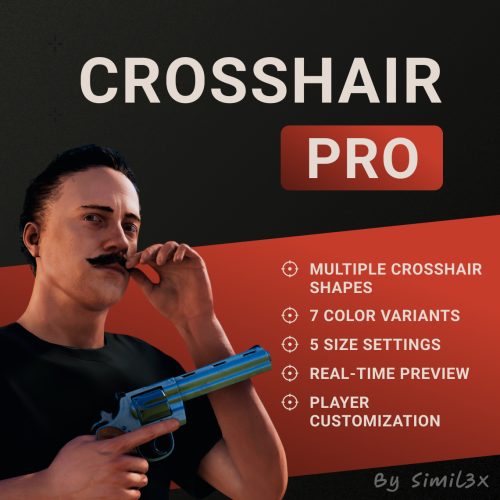
Version 1.1.0
38 downloads
Crosshair Pro Crosshair Pro is a customizable crosshair system for Rust that stays visible at all times. Players can enable or disable the crosshair, choose from several shapes, adjust the color and size - all through an intuitive in-game interface. Changes apply instantly and are saved between sessions. Currently, the plugin includes 5 crosshair styles, 5 size levels, and 7 color options. You can also add your own PNG crosshairs via a simple console command. Crosshair Pro works independently of weapons, allowing players to always have a visible reference point — even with empty hands or melee tools. It's especially useful for PvP, bow users, or just for aiming comfort. No manual configuration required - everything works out of the box. The plugin automatically saves player preferences and manages crosshair data behind the scenes. Player Command: /ch - Opens the crosshair settings menu. Admin Console Commands: add.crosshair <filename.png> <DisplayName> - Adds a custom crosshair remove.crosshair <DisplayName> - Removes a custom crosshair Permissions: crosshairpro.use - Allows players to use the system crosshairpro.admin - Allows admins to add or remove crosshairs Quick Setup: 1. Extract the plugin archive into your oxide/ folder 2. Done - ready to use$12.00- 5 comments
-
- 2
-
-
- #crosshair
- #scope
- (and 5 more)
-
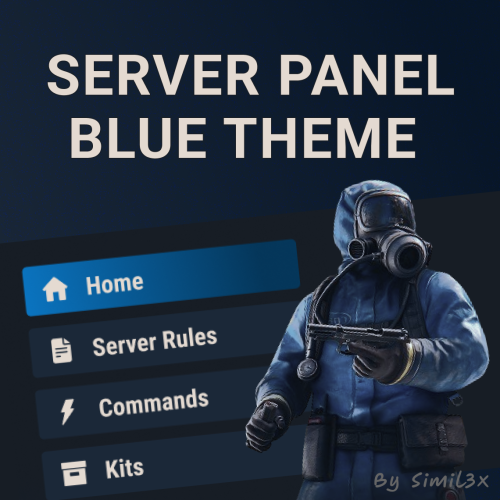
Version 1.1.0
31 downloads
Blue Theme for Server Panel by Simil3x Transform your server interface with a modern look using this clean blue-themed UI for the Server Panel plugin. Designed to enhance clarity and usability while keeping all core features intact. What's Included: ● Ready-to-use JSON configuration - no coding required ● Complete visual redesign of the Server Panel UI ● Calm blue color palette with improved contrast ● Streamlined layout with consistent spacing and alignment ● Enhanced readability for commands and settings Installation: 1. Make sure you have the latest version of the Server Panel plugin installed. 2, Use the /sp.install command and install the V5 template. 3, Download the theme archive. 4, Extract the contents of the archive into your oxide folder. 5, Reload Server Panel plugin Done - your new interface is live! Why Choose This Theme? This isn't just a recolor - it’s a full UI refresh. Every element, from headers to buttons, was rebuilt with usability and clean aesthetics in mind. Whether you're managing kits, commands, or player stats, this layout makes interactions smoother and more intuitive. You can modify content without touching JSON files, plugin includes an intuitive in-game editor. Looking for custom plugin design? Need something completely unique? I offer full-service UI design for any Rust plugin. From initial concept and Figma prototypes to final game-ready implementation - professional custom interfaces tailored to your needs. Contact me: Discord: Simil3x Telegram: @Simil3x_dm Compatible with the latest version of the Server Panel plugin. Easy installation, instant results.$16.99 -
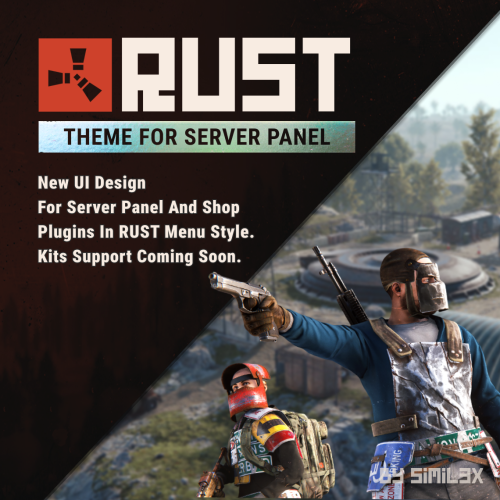
Version 1.0.0
12 downloads
RUST Menu Theme for Server Panel & Shop A custom theme for Server Panel and Shop, inspired by the in-game RUST menu. Give your server’s interface a native look and feel that blends seamlessly with the game world. Familiar, immersive, and user-friendly for your players. Ready-to-use JSON configuration - no coding required. Simply install and enjoy a fully styled UI in minutes. 1. Install the Server Panel plugin using the chat command: /sp.install — select the FULLSCREEN V2 template. 2. Install the Shop plugin using the chat command: /shop.install — select the Mevent Rust Styled Template V2. 3. Download the theme archive. 4. Extract its contents into your /oxide folder, overwriting existing files. 5. Open \oxide\data\ServerPanel\Categories.json, find "menu_shop" and change it to "shop". 6. Open \oxide\config\Shop.json and disable "Additional Economics": Replace "Enabled": true, with "Enabled": false,. 7. Reload both plugins using the following commands: o.reload Shop o.reload ServerPanel You're all set! Need a Custom UI? Looking for a completely unique design? I offer full-service UI development for Rust plugins - from concept and Figma prototypes to game-ready implementation. Contact Discord: Simil3x Telegram: @Simil3x_dm Compatibility Fully compatible with the latest version of the Server Panel plugin. Easy setup - instant results.$20.00 -
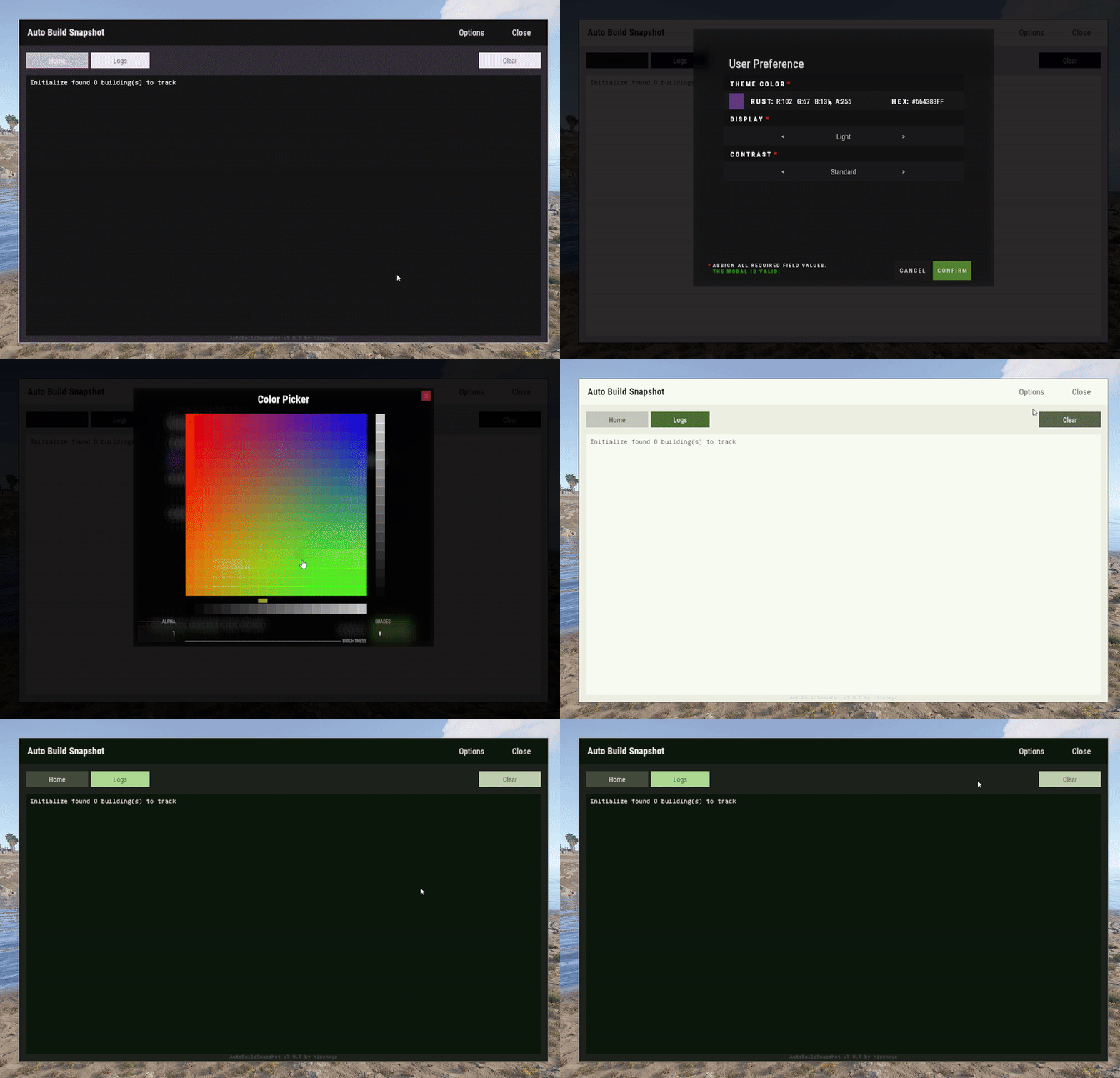
Version 25.6.1968
157 downloads
User Preference is an extension that enables plugin developers to provide a way for their users to customize their interface. Plugins can use this extension by placing a button in their application that calls the API to show the user interface options modal. Donations You won't get any extra colors, but if it makes you feel better!- Ko-fi: https://ko-fi.com/hizenxyz Note: If you want this to be optional, plugins should use the EXTENSION_USER_PREFERENCE region directive. See usage example below. Example 1 (optional dependency, recommended, using region directives): #if EXTENSION_USER_PREFERENCE using HizenLabs.Extensions.UserPreference.Data; #endif ... void Init() { #if EXTENSION_USER_PREFERENCE UserPreferenceData.SetDefaultTheme(this, MaterialTheme.CreateFromRgbHex("#FFFFFF", isDarkMode: true)); #endif } ... void ShowMenu(BasePlayer player) { #if EXTENSION_USER_PREFERENCE var userPreference = UserPreferenceData.Load(_instance, player); var theme = userPreference.Theme; string primary = theme.Primary; string onPrimary = theme.OnPrimary; var userPreferenceButton = CreateButton(cui, player, userPreference, container: headerButtons, position: new(optionsButtonX - .005f, 0, closeButtonX - .005f, 1), offset: LuiOffset.None, color: primary, textColor: primary, textKey: LangKeys.StringEmpty, commandName: nameof(CommandMenuSettings), fontSize: 14 ); #else string primary = "0.2 0.2 0.1 1"; string onPrimary = "0.9 0.9 0.9 1"; #endif // do ui stuff, using the defined color variables ... } #if EXTENSION_USER_PREFERENCE [ProtectedCommand(CommandPrefix + nameof(CommandMenuSettings))] private void CommandMenuSettings(BasePlayer player, string command, string[] args) { UserPreferenceUI.Show(this, player, onConfirm: () => UserInterface.ShowMenu(player)); } #endif For a complete example of how far you can take this, see the AutoBuildSnapshot implementation: https://github.com/HizenLabs/Plugins.Free/blob/main/src/Carbon.Plugins/Active/AutoBuildSnapshot/AutoBuildSnapshot.UserInterface.cs Example 2 (optional dependency, using PluginReference): [Info("Plugin Test", "hizenxyz", "1.0.0")] [Description("A plugin to test things.")] public class PluginTest : CarbonPlugin { [PluginReference("UserPreferencePlugin")] private CarbonPlugin userPreference; [ChatCommand("test")] private void TestCommand(BasePlayer player, string command, string[] args) { if (userPreference == null) { // Show the selection UI. userPreference.Call("Show", this, player, () => ShowConfirm(player)); } } private void ShowConfirm(BasePlayer player) { // Use the resulting values in the UI var primary = userPreference.Call<string>("GetPrimary", this, player); player.ChatMessage($"Primary: {primary}"); var secondary45Percent = userPreference.Call<string>("GetSecondary", this, player, 0.45f); player.ChatMessage($"Secondary (45% Opacity): {secondary45Percent}"); } } Example 3 (hard dependency): UserPreferenceUI.Show(this, player, onConfirm: () => Puts("Player clicked confirm!"); Example 3 continued in theme: var userPreference = UserPreferenceData.Load(this, player); var theme = userPreference.Theme; cui.v2.CreatePanel( container: parent, position: LuiPosition.MiddleCenter, offset: new(-450, -275, 450, 275), color: theme.SurfaceContainer ); cui.v2.CreateText( container: parent, position: LuiPosition.Top, offset: LuiOffset.None, color: theme.OnBackground, fontSize: 16, text: "Welcome!", alignment: TextAnchor.UpperCenter ); Themes (color palettes) are based on Material Design 3 (Material You) - https://material-foundation.github.io/material-theme-builder/ The user simply selects a color, a display mode (light/dark), and a contrast level, and a palette will be automatically generated off their selections. The available colors for use in theme are as follows: Primary Colors Primary OnPrimary PrimaryContainer OnPrimaryContainer InversePrimary Secondary Colors Secondary OnSecondary SecondaryContainer OnSecondaryContainer Tertiary Colors Tertiary OnTertiary TertiaryContainer OnTertiaryContainer Error Colors Error OnError ErrorContainer OnErrorContainer Surface & Background Surface SurfaceBright SurfaceContainerLowest SurfaceContainerLow SurfaceContainer SurfaceContainerHigh SurfaceContainerHighest SurfaceVariant OnSurface OnSurfaceVariant Background OnBackground InverseSurface InverseOnSurface Outline & Effects Outline OutlineVariant SurfaceTint Shadow Scrim Transparent (static 0 opacity black) You can either use these directly as properties of MaterialTheme, or all of these can be called from the plugin with userPref.Call<string>("Get[Option]") where [Option] is the color option above. It is recommended to use them directly and just use the #if EXTENSION_USER_PREFERENCE constant to toggle functionality.Free -
Version 1.0.8
89 downloads
Create an assortment of Weapons Caches to add to your players Looting Experience. Each Cache can have a unique name, skin, and loot table, and spawn Container allowing for diverse and thematic caches. PERMISSIONS WeaponsCache.Admin - Grants the ability to spawn in a Configurable amount of caches via command. COMMANDS /GWC - Users with perms will have the set amount of caches & keys if applicable, deposited to your inventory, good for testing your drop rates. CONSOLE COMMAND GCB PLAYERID/NAME AMOUNT Demo { "Enable Cache Spawns?": true, "Amount of each Cache to spawn via Command?": 5, "WeaponCache": [ { "Cache Name": "Mercenary Cache", "Skin ID": 3144631710, "LootTable": [ { "Item ShortName": "smg.2", "Item Custom Name": "Chameleon SMG", "Minimum Item Amount": 1, "Maximum Item Amount": 1, "Item Skin ID": 3128727224, "Probability out of 100 to pull this item from this Cache?": 20 }, { "Item ShortName": "pistol.python", "Item Custom Name": "Pirate Python", "Minimum Item Amount": 1, "Maximum Item Amount": 1, "Item Skin ID": 3044058473, "Probability out of 100 to pull this item from this Cache?": 20 }, { "Item ShortName": "smg.thompson", "Item Custom Name": "Thompsonana", "Minimum Item Amount": 1, "Maximum Item Amount": 1, "Item Skin ID": 2988410818, "Probability out of 100 to pull this item from this Cache?": 20 }, { "Item ShortName": "ammo.pistol", "Item Custom Name": "", "Minimum Item Amount": 32, "Maximum Item Amount": 64, "Item Skin ID": 0, "Probability out of 100 to pull this item from this Cache?": 20 }, { "Item ShortName": "ammo.pistol.fire", "Item Custom Name": "", "Minimum Item Amount": 32, "Maximum Item Amount": 64, "Item Skin ID": 0, "Probability out of 100 to pull this item from this Cache?": 20 } ], "Minimum amount of items to be extracted from a Cache?": 2, "Maximum amount of items to be extracted from a Cache?": 3, "Minimum Amount of Caches To Spawn into its set Container?": 1, "Maximum Amount of Caches To Spawn into its set Container?": 2, "Cache Spawn Chance out of 100 Percent To Spawn into a Container?": 50, "Container to Spawn Cache Into?": "crate_normal", "Require a Key To Unlock?": true, "Key SkinID": 3162342587, "Key Name": "Mercenary Cache Key", "Container to Spawn Key Into?": "crate_normal", "Key Spawn Chance out of 100 Percent To Spawn into a Container?": 50, "Minimum Amount of Keys To Spawn into its set Container?": 1, "Maximum Amount of Keys To Spawn into its set Container?": 2 }, { "Cache Name": "Tactical Cache", "Skin ID": 3144649146, "LootTable": [ { "Item ShortName": "rifle.ak", "Item Custom Name": "Fern47", "Minimum Item Amount": 1, "Maximum Item Amount": 1, "Item Skin ID": 3134902944, "Probability out of 100 to pull this item from this Cache?": 20 }, { "Item ShortName": "rifle.semiauto", "Item Custom Name": "Armageddon SAR", "Minimum Item Amount": 1, "Maximum Item Amount": 1, "Item Skin ID": 3066498341, "Probability out of 100 to pull this item from this Cache?": 20 }, { "Item ShortName": "rifle.lr300", "Item Custom Name": "Modern Military LR-300", "Minimum Item Amount": 1, "Maximum Item Amount": 1, "Item Skin ID": 3074330534, "Probability out of 100 to pull this item from this Cache?": 20 }, { "Item ShortName": "ammo.rifle", "Item Custom Name": "", "Minimum Item Amount": 32, "Maximum Item Amount": 64, "Item Skin ID": 0, "Probability out of 100 to pull this item from this Cache?": 20 }, { "Item ShortName": "ammo.rifle.explosive", "Item Custom Name": "", "Minimum Item Amount": 32, "Maximum Item Amount": 64, "Item Skin ID": 0, "Probability out of 100 to pull this item from this Cache?": 20 } ], "Minimum amount of items to be extracted from a Cache?": 2, "Maximum amount of items to be extracted from a Cache?": 3, "Minimum Amount of Caches To Spawn into its set Container?": 1, "Maximum Amount of Caches To Spawn into its set Container?": 2, "Cache Spawn Chance out of 100 Percent To Spawn into a Container?": 40, "Container to Spawn Cache Into?": "crate_elite", "Require a Key To Unlock?": true, "Key SkinID": 3162342772, "Key Name": "Tactical Cache Key", "Container to Spawn Key Into?": "crate_elite", "Key Spawn Chance out of 100 Percent To Spawn into a Container?": 40, "Minimum Amount of Keys To Spawn into its set Container?": 1, "Maximum Amount of Keys To Spawn into its set Container?": 2 }, { "Cache Name": "Exotic Armament Cache", "Skin ID": 3144632346, "LootTable": [ { "Item ShortName": "rifle.l96", "Item Custom Name": "Black Gold L96", "Minimum Item Amount": 1, "Maximum Item Amount": 1, "Item Skin ID": 3122572406, "Probability out of 100 to pull this item from this Cache?": 10 }, { "Item ShortName": "lmg.m249", "Item Custom Name": "Redemption M249", "Minimum Item Amount": 1, "Maximum Item Amount": 1, "Item Skin ID": 2979503014, "Probability out of 100 to pull this item from this Cache?": 10 }, { "Item ShortName": "rocket.launcher", "Item Custom Name": "Ancient Curse Launcher", "Minimum Item Amount": 1, "Maximum Item Amount": 1, "Item Skin ID": 2876350194, "Probability out of 100 to pull this item from this Cache?": 20 }, { "Item ShortName": "ammo.rocket.hv", "Item Custom Name": "", "Minimum Item Amount": 5, "Maximum Item Amount": 8, "Item Skin ID": 0, "Probability out of 100 to pull this item from this Cache?": 10 }, { "Item ShortName": "ammo.rocket.basic", "Item Custom Name": "", "Minimum Item Amount": 5, "Maximum Item Amount": 8, "Item Skin ID": 0, "Probability out of 100 to pull this item from this Cache?": 10 }, { "Item ShortName": "ammo.rifle.hv", "Item Custom Name": "", "Minimum Item Amount": 32, "Maximum Item Amount": 64, "Item Skin ID": 0, "Probability out of 100 to pull this item from this Cache?": 20 }, { "Item ShortName": "ammo.rifle", "Item Custom Name": "", "Minimum Item Amount": 32, "Maximum Item Amount": 64, "Item Skin ID": 0, "Probability out of 100 to pull this item from this Cache?": 20 } ], "Minimum amount of items to be extracted from a Cache?": 2, "Maximum amount of items to be extracted from a Cache?": 3, "Minimum Amount of Caches To Spawn into its set Container?": 1, "Maximum Amount of Caches To Spawn into its set Container?": 1, "Cache Spawn Chance out of 100 Percent To Spawn into a Container?": 30, "Container to Spawn Cache Into?": "bradley_crate", "Require a Key To Unlock?": true, "Key SkinID": 3162342879, "Key Name": "Exotic Armament Cache Key", "Container to Spawn Key Into?": "bradley_crate", "Key Spawn Chance out of 100 Percent To Spawn into a Container?": 30, "Minimum Amount of Keys To Spawn into its set Container?": 1, "Maximum Amount of Keys To Spawn into its set Container?": 2 } ] }$14.00 -
Version 1.0.0
10 downloads
The Car Picture Frame plugin allows players to place various types of picture frames on vehicles using chat commands. Frames can be attached to the front, doors, and top of the vehicle. While primarily designed for vehicles with an engine and cockpit, it can also be used on other vehicle parts. Additionally, the plugin retains the frame placements even after server restarts, ensuring that the decorations persist. Only players with the appropriate permission can use the commands. Permissions: - carpictureframe.use: Allows players to use the frame placement commands. Commands: - /frame_front2: Places a large frame on the front of a 2-module vehicle. - /frame_front3: Places a large frame on the front of a 3-module vehicle. - /frame_front4: Places a large frame on the front of a 4-module vehicle. - /frame_door2: Places small frames on the driver and passenger doors of a 2-module vehicle. - /frame_door3: Places small frames on the driver and passenger doors of a 3-module vehicle. - /frame_door4: Places small frames on the driver and passenger doors of a 4-module vehicle. - /frame_top: Places large frames on the top of the vehicle in all four directions. Installation: 1. Place the CarPictureFrame.cs file in the oxide/plugins directory. 2. Grant the required permission to players or groups using the following commands: - oxide.grant group default carpictureframe.use - oxide.grant user <username or steamid> carpictureframe.use Notes: - Ensure that players have the necessary permission to use the commands. - The frame placements are saved and restored automatically. - By re-entering the command, players can remove the frames, but the content of the picture will not be retained.$12.00 -
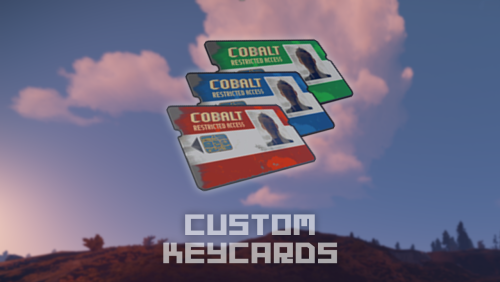
Version 1.1.4
18 downloads
This plugin allows you to set maximum card usages. Allows you to separate the configurations into permissions to, for example, create a specific configuration for VIPs You can also set maximum usages for cards with skinId (Only in the config file). This plugin does not change the spawn of the cards or their appearance, it only changes their durability/maximum uses. Commands update [permission] [green] [blue] [red] reload Command Examples cc update vip1 4 3 2 (all users with customkeycards.vip1 will have 4 uses of the green card, 3 of the blue and 2 of the red) cc reload (Reload config file) Permission Examples oxide.grant group default customkeycards.example (all players will use example config) oxide.grant group vip customkeycards.vip1 (all players in vip group will use vip1 config) Configuration example for any green/blue/red card with SkinId 1988408422 has 16 uses "example": { "Green KeyCard Max Uses": 4, /* Default */ "Blue KeyCard Max Uses": 4, /* Default */ "Red KeyCard Max Uses": 2, /* Default */ "Card Skin Ids (SkinId - Max Uses)": { "1988408422": 16 /* Any card that has this skinid will have 16 uses */ } Default Configuration { "Command": "cc", "Permissions": { "default": { "Priority level": 0, "Green KeyCard Max Uses (0 = disabled)": 4, "Blue KeyCard Max Uses (0 = disabled)": 4, "Red KeyCard Max Uses (0 = disabled)": 2, "Card Skin Ids (SkinId - Max Uses)": { "1988408422": 4 } }, "vip": { "Priority level": 1, "Green KeyCard Max Uses (0 = disabled)": 8, "Blue KeyCard Max Uses (0 = disabled)": 8, "Red KeyCard Max Uses (0 = disabled)": 4, "Card Skin Ids (SkinId - Max Uses)": { "1988408422": 8 } } } }$2.99- 4 comments
-
- 1
-
-
- #custom
- #customization
- (and 4 more)