Search the Community
Showing results for tags 'deployables'.
Found 8 results
-

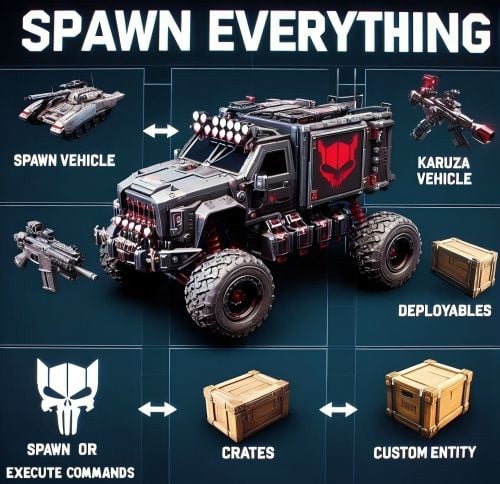
Version 1.4.9
1,481 downloads
Spawn Everything - Spawn Vehicle, Karuza Vehicle, Deployables, Bases, Item, Recycler, Crates, Custom entity, Execute Commands, Loots, Pickup Entity, Pickup Vehicles, Deploy Nature, Instant Airdrop, and much more... Spawn Everything - Spawn all entity, Bases, Item, loot, Pickup Entity, Pickup Vehicles, Deploy Nature, Instant Airdrop, allows you to spawn any entity or execute commands, all by using an item, pickup entity or vehicles, and much more. It is already configured to generate vehicles by default, including custom vehicles from Karuza, Crates, Locked Crate, Deployables, Casino items and much more. Through the configuration you can add other entities that can be generated, just enter a prefab name, or a command if you do not have a prefab name, and set the skin of the item that will be used. It also allows you to limit the spawn, for example if you do not have building permits, avoid spawning in water or allow it only in water, also being able to choose the minimum depth of the water, allow or not spawn inside buildings, monuments and more. It is also possible to pick up the generated entity/vehicles, using the hammer. You can add items to the in-game shop, loot, or wherever you want. Spawn Bases using copy paste or other plugin. You can also Deploy Nature and enable instant airdrop. Ability to enable the cleanup system, to automatically delete deployed entities that are no longer used. Compatible with Oxide/Umod and Carbon. ALL AVAILABLE ENTITIES Here you can find a file with all the entities currently available and the various information on the item to create to spawn the entity ALL AVAILABLE ENTITIES PLAYLIST - VIDEO EXAMPLE Below you can see an example video on how to use the plugin. -------------------- SOME EXAMPLES OF USE: Some examples of how the plugin works and the entities that can be spawned by default. Vehicle Spawn Spawn Custom Vehicles by Karuza Pickup Entity Pickup Vehicle Pickup Karuza Vehicle Spawn Recycler Deploy Nature Ability to enable instant airdrop. Spawn NPC vehicles, such as Bradley, Patrol helicopter, CH47 (Chinook 47) Spawn loot boxes, such as the: Locked Crate, Oil Rig Locked Crate, Bradley APC Crate, Patrol Helicopter Crate, Elite Tier Crate, Elite Tier Crate - Underwater Labs. Crater for mines, to place mines where you want. Survey Crater - For Mining Quarry, Survey Crater Oil - For Pump Jack. Spawn Bases using copy paste or other plugin Spawn Casino entities Spawn custom entities And much more PERMISSIONS: spawneverything.admin -- Allows the use of commands reserved for admins, such as giving items for entity spawning to players. spawneverything.fuel.unlimited -- If the entity to be spawned is a vehicle, the vehicle will not need fuel to run. The same can be achieved via the configuration file, for each individual entity. spawneverything.nodamage.enabled -- Spawned entities will not take damage if the player has this permission. spawneverything.nodamage.allow_decay_damage -- Entities for which damage protection has been activated will continue to take damage from decay. spawneverything.spawn.not_enabled -- Allows you to spawn entities that have not been enabled in the configuration file. spawneverything.spawn.bypass_building_privilege -- Allows you to spawn entities even if you don't have building permissions, for entities that require building permissions to spawn. spawneverything.spawn.bypass_tc -- Allows entities to be spawned, for entities that cannot be spawned near any Tool Cupboard (TC). spawneverything.spawn.bypass_monument -- Allows entities to be spawned in monuments, for entities that cannot be spawned in monuments. spawneverything.spawn.bypass_road_rails -- Allows entities to be spawned to the road/rails, for entities that cannot be spawned to the road/rails. spawneverything.spawn.bypass_only_outside -- Allows entities to spawn inside buildings, for entities that cannot be spawned inside buildings. spawneverything.spawn.bypass_water -- Allows entities to spawn in water, for entities that cannot be spawned in water. spawneverything.spawn.bypass_respawn_conditions -- Allows you to bypass condition checking for respawned entities after they have been picked up. Picked up entities will always be respawned in the max condition. COMMANDS FOR PLAYERS Commands can be typed in chat (by putting the / character in front of the command), or from console. /se pickup -- Command to pick up entities, without the hammer. COMMANDS FOR ADMIN Commands can be typed in chat (by putting the / character in front of the command), from console or Rcon. To use these commands you must have the role: spawneverything.admin /se <skinID> <quantity> -- Allows you to give the item to spawn the entity, to yourself. You need to pass these parameters: skinID of the configured entity The quantity of items. /se <skinID> <quantity> <steamID> -- Allows you to give the item to spawn the entity, to a player. You need to pass these parameters: skinID of the configured entity The quantity of items. The SteamID of the player to give the items to Commands can be added or modified in the configuration file: /oxide/config/SpawnEverything.json ENTITY PICK UP You can collect the generated entity using the hammer. By collecting the entity, you will be given back the item for the entity's spawn. To collect the entity you need to hold down the SHIFT key and hit the entity with the hammer. You can only collect entities that have been enabled for collection in the configuration file. Depending on the configurations/roles, the picked up entities can be respawned to the conditions they were in when they were picked up or to the maximum conditions. INSTANT AIRDROP In the plugin configuration, you can enable instant airdrop. USE VIA SHOP, LOOT. VENDING MACHINE The plugin can use any item for entity spawning. You need to generate an item with a certain skin id, to get the item that allows the entity to spawn. The name of the item to use and the skin id are present in the configuration file: Item name (That will be used to spawn the entity. Default grenade.flashbang) SkinID You can add these items to the in-game Shop, to the loot, in the Vending Machine or wherever you want, very easily. For example, this item spawns a minicopter: Item: grenade.flashbang | SkinID: 3366887420 or ItemID: -936921910 | SkinID: 3366887420 CONFIGURATION The settings and options can be configured in the SpawnEverything.json under the config directory. The use of an editor and validator is recommended to avoid formatting issues and syntax errors. { "TimeZone": "Europe/London", "Chat Command": [ "se", "spawneverything", "spawner" ], "ChatPrefix": "SpawnEverything", "Add spawnable Resource/Nature to your configuration. (Default: FALSE)": false, "Add Karuza Custom Vehicles to your configuration. (Default: FALSE)": false, "Instant Supply Signal Settings": { "Enable instant Supply Signal drop. Default: FALSE": false, "Spawn Only Outside bases. Default: TRUE": true, "Spawn Cooldown (seconds). [Minimum 1 seconds]. Default: 1": 1, "Bypass Fancy Drop to avoid conflicts with the launch of the Supply Signal. Default: TRUE": true }, "Cleanup system": { "Enable Cleanup System. Default: FALSE": false, "Deletes all player deployed entities when disconnecting. Default: FALSE": false, "Deletes all player vehicles when disconnecting. Default: FALSE": false, "Deletes all player Karuza vehicles when disconnecting. Default: FALSE": false }, "Role Permission": { "vip1": { "Priority. (lower = higher priority)": 1, "Always regenerate picked up entities at maximum conditions. Default FALSE": false, "Global maximum number of active entities for each Enabled Spawnable Entity. (-1 no limit)": -1, "Maximum number of active entities for each Enabled Spawnable Entity. Value = SkinID, Limits (Number of active entities. -1 no limit)": {} }, "vip2": { "Priority. (lower = higher priority)": 2, "Always regenerate picked up entities at maximum conditions. Default FALSE": false, "Global maximum number of active entities for each Enabled Spawnable Entity. (-1 no limit)": -1, "Maximum number of active entities for each Enabled Spawnable Entity. Value = SkinID, Limits (Number of active entities. -1 no limit)": {} }, "vip3": { "Priority. (lower = higher priority)": 3, "Always regenerate picked up entities at maximum conditions. Default FALSE": false, "Global maximum number of active entities for each Enabled Spawnable Entity. (-1 no limit)": -1, "Maximum number of active entities for each Enabled Spawnable Entity. Value = SkinID, Limits (Number of active entities. -1 no limit)": {} }, "default": { "Priority. (lower = higher priority)": 100, "Always regenerate picked up entities at maximum conditions. Default FALSE": false, "Global maximum number of active entities for each Enabled Spawnable Entity. (-1 no limit)": -1, "Maximum number of active entities for each Enabled Spawnable Entity. Value = SkinID, Limits (Number of active entities. -1 no limit)": {} } }, "Entity Drop Item": [ { "Enabled": false, "DisplayName": "Spawn Minicopter", "Description": "Spawn Minicopter", "Item name (That will be used to spawn the entity. Default grenade.flashbang)": "grenade.flashbang", "Spawn PrefabName": "assets/content/vehicles/minicopter/minicopter.entity.prefab", "SkinID": 3366887420, "Item can be stacked? FALSE, the entity will be respawned in the same condition it was in when picked. TRUE, the entity will always be respawned as new. Default: FALSE": false, "Spawn Position Offset": { "Right": 0.0, "Forward": 0.0, "Up": 0.0 }, "Spawn Rotation Offset": { "X": 0.0, "Y": 0.0, "Z": 0.0 }, "Entity Type. Default Rust": "Rust", "Can Pick Up Entity. Default false": true, "Custom Radius Check": 0.0, "Execute Player Commands": [], "Execute Player Commands As Admin": false, "Execute Server Commands": [], "Spawn Cooldown (seconds)": 0, "Usage Cooldown. Cooldown for reuse (seconds) (0 no cooldown)": 0, "Requires Building Privilege to Spawn Entity. (Default: TRUE)": true, "Minimum spawn distance from any Tool Cupboard (TC). [0 = Disabled] (Default: 0)": 0, "Allow Spawn in Monuments. (Default: FALSE)": false, "Disable Spawn in Monuments and Monuments radius. (Default: FALSE)": false, "Disable Spawn On Road/Rails. (Default: FALSE)": false, "Minimum spawn distance from Road/Rails. (Default: 0)": 0, "Spawn Only Outside": true, "Dont Spawn In Water": true, "Requires Water": false, "Minimum Water Depth": 0.0, "Armored": false, "Unlimited Fuel": false, "Fuel Amount": 0 }, { "Enabled": false, "DisplayName": "Spawn Attack Helicopter", "Description": "Spawn Attack Helicopter", "Item name (That will be used to spawn the entity. Default grenade.flashbang)": "grenade.flashbang", "Spawn PrefabName": "assets/content/vehicles/attackhelicopter/attackhelicopter.entity.prefab", "SkinID": 3366893095, "Item can be stacked? FALSE, the entity will be respawned in the same condition it was in when picked. TRUE, the entity will always be respawned as new. Default: FALSE": false, "Spawn Position Offset": { "Right": 0.0, "Forward": 0.0, "Up": 0.0 }, "Spawn Rotation Offset": { "X": 0.0, "Y": 0.0, "Z": 0.0 }, "Entity Type. Default Rust": "Rust", "Can Pick Up Entity. Default false": true, "Custom Radius Check": 0.0, "Execute Player Commands": [], "Execute Player Commands As Admin": false, "Execute Server Commands": [], "Spawn Cooldown (seconds)": 0, "Usage Cooldown. Cooldown for reuse (seconds) (0 no cooldown)": 0, "Requires Building Privilege to Spawn Entity. (Default: TRUE)": true, "Minimum spawn distance from any Tool Cupboard (TC). [0 = Disabled] (Default: 0)": 0, "Allow Spawn in Monuments. (Default: FALSE)": false, "Disable Spawn in Monuments and Monuments radius. (Default: FALSE)": false, "Disable Spawn On Road/Rails. (Default: FALSE)": false, "Minimum spawn distance from Road/Rails. (Default: 0)": 0, "Spawn Only Outside": true, "Dont Spawn In Water": true, "Requires Water": false, "Minimum Water Depth": 0.0, "Armored": false, "Unlimited Fuel": false, "Fuel Amount": 0 }, { "Enabled": false, "DisplayName": "Spawn Scrap Transport Helicopter", "Description": "Spawn Scrap Transport Helicopter", "Item name (That will be used to spawn the entity. Default grenade.flashbang)": "grenade.flashbang", "Spawn PrefabName": "assets/content/vehicles/scrap heli carrier/scraptransporthelicopter.prefab", "SkinID": 3366892516, "Item can be stacked? FALSE, the entity will be respawned in the same condition it was in when picked. TRUE, the entity will always be respawned as new. Default: FALSE": false, "Spawn Position Offset": { "Right": 0.0, "Forward": 0.0, "Up": 0.0 }, "Spawn Rotation Offset": { "X": 0.0, "Y": 0.0, "Z": 0.0 }, "Entity Type. Default Rust": "Rust", "Can Pick Up Entity. Default false": true, "Custom Radius Check": 0.0, "Execute Player Commands": [], "Execute Player Commands As Admin": false, "Execute Server Commands": [], "Spawn Cooldown (seconds)": 0, "Usage Cooldown. Cooldown for reuse (seconds) (0 no cooldown)": 0, "Requires Building Privilege to Spawn Entity. (Default: TRUE)": true, "Minimum spawn distance from any Tool Cupboard (TC). [0 = Disabled] (Default: 0)": 0, "Allow Spawn in Monuments. (Default: FALSE)": false, "Disable Spawn in Monuments and Monuments radius. (Default: FALSE)": false, "Disable Spawn On Road/Rails. (Default: FALSE)": false, "Minimum spawn distance from Road/Rails. (Default: 0)": 0, "Spawn Only Outside": true, "Dont Spawn In Water": true, "Requires Water": false, "Minimum Water Depth": 0.0, "Armored": false, "Unlimited Fuel": false, "Fuel Amount": 0 }, { "Enabled": false, "DisplayName": "Spawn Hot Air Balloon", "Description": "Spawn Hot Air Balloon", "Item name (That will be used to spawn the entity. Default grenade.flashbang)": "grenade.flashbang", "Spawn PrefabName": "assets/prefabs/deployable/hot air balloon/hotairballoon.prefab", "SkinID": 3366893631, "Item can be stacked? FALSE, the entity will be respawned in the same condition it was in when picked. TRUE, the entity will always be respawned as new. Default: FALSE": false, "Spawn Position Offset": { "Right": 0.0, "Forward": 0.0, "Up": 0.0 }, "Spawn Rotation Offset": { "X": 0.0, "Y": 0.0, "Z": 0.0 }, "Entity Type. Default Rust": "Rust", "Can Pick Up Entity. Default false": true, "Custom Radius Check": 0.0, "Execute Player Commands": [], "Execute Player Commands As Admin": false, "Execute Server Commands": [], "Spawn Cooldown (seconds)": 0, "Usage Cooldown. Cooldown for reuse (seconds) (0 no cooldown)": 0, "Requires Building Privilege to Spawn Entity. (Default: TRUE)": true, "Minimum spawn distance from any Tool Cupboard (TC). [0 = Disabled] (Default: 0)": 0, "Allow Spawn in Monuments. (Default: FALSE)": false, "Disable Spawn in Monuments and Monuments radius. (Default: FALSE)": false, "Disable Spawn On Road/Rails. (Default: FALSE)": false, "Minimum spawn distance from Road/Rails. (Default: 0)": 0, "Spawn Only Outside": true, "Dont Spawn In Water": true, "Requires Water": false, "Minimum Water Depth": 0.0, "Armored": false, "Unlimited Fuel": false, "Fuel Amount": 0 }, { "Enabled": false, "DisplayName": "Spawn Armored Hot Air Balloon", "Description": "Spawn Armored Hot Air Balloon", "Item name (That will be used to spawn the entity. Default grenade.flashbang)": "grenade.flashbang", "Spawn PrefabName": "assets/prefabs/deployable/hot air balloon/hotairballoon.prefab", "SkinID": 3366893925, "Item can be stacked? FALSE, the entity will be respawned in the same condition it was in when picked. TRUE, the entity will always be respawned as new. Default: FALSE": false, "Spawn Position Offset": { "Right": 0.0, "Forward": 0.0, "Up": 0.0 }, "Spawn Rotation Offset": { "X": 0.0, "Y": 0.0, "Z": 0.0 }, "Entity Type. Default Rust": "Rust", "Can Pick Up Entity. Default false": true, "Custom Radius Check": 0.0, "Execute Player Commands": [], "Execute Player Commands As Admin": false, "Execute Server Commands": [], "Spawn Cooldown (seconds)": 0, "Usage Cooldown. Cooldown for reuse (seconds) (0 no cooldown)": 0, "Requires Building Privilege to Spawn Entity. (Default: TRUE)": true, "Minimum spawn distance from any Tool Cupboard (TC). [0 = Disabled] (Default: 0)": 0, "Allow Spawn in Monuments. (Default: FALSE)": false, "Disable Spawn in Monuments and Monuments radius. (Default: FALSE)": false, "Disable Spawn On Road/Rails. (Default: FALSE)": false, "Minimum spawn distance from Road/Rails. (Default: 0)": 0, "Spawn Only Outside": true, "Dont Spawn In Water": true, "Requires Water": false, "Minimum Water Depth": 0.0, "Armored": true, "Unlimited Fuel": false, "Fuel Amount": 0 }, { "Enabled": false, "DisplayName": "Spawn Kayak", "Description": "Spawn Kayak", "Item name (That will be used to spawn the entity. Default grenade.flashbang)": "grenade.flashbang", "Spawn PrefabName": "assets/content/vehicles/boats/kayak/kayak.prefab", "SkinID": 3366894316, "Item can be stacked? FALSE, the entity will be respawned in the same condition it was in when picked. TRUE, the entity will always be respawned as new. Default: FALSE": false, "Spawn Position Offset": { "Right": 0.0, "Forward": 0.0, "Up": 0.0 }, "Spawn Rotation Offset": { "X": 0.0, "Y": 0.0, "Z": 0.0 }, "Entity Type. Default Rust": "Rust", "Can Pick Up Entity. Default false": true, "Custom Radius Check": 0.0, "Execute Player Commands": [], "Execute Player Commands As Admin": false, "Execute Server Commands": [], "Spawn Cooldown (seconds)": 0, "Usage Cooldown. Cooldown for reuse (seconds) (0 no cooldown)": 0, "Requires Building Privilege to Spawn Entity. (Default: TRUE)": true, "Minimum spawn distance from any Tool Cupboard (TC). [0 = Disabled] (Default: 0)": 0, "Allow Spawn in Monuments. (Default: FALSE)": false, "Disable Spawn in Monuments and Monuments radius. (Default: FALSE)": false, "Disable Spawn On Road/Rails. (Default: FALSE)": false, "Minimum spawn distance from Road/Rails. (Default: 0)": 0, "Spawn Only Outside": true, "Dont Spawn In Water": false, "Requires Water": true, "Minimum Water Depth": 0.5, "Armored": false, "Unlimited Fuel": false, "Fuel Amount": 0 }, ........................................ ], "VersionNumber": { "Major": 1, "Minor": 4, "Patch": 9 } } TimeZone: -- Default: Europe/London Chat Command: -- Here you can add, edit or delete Commands can be typed in chat (by putting the / character in front of the command), or from console. ChatPrefix: -- Chat message prefix. Show Pick Up Entity Confirm Dialog: -- If enabled, show a confirmation dialog when you want to collect the entity for added security and to avoid unintentional errors. Default: TRUE Add spawnable Resource/Nature to your configuration -- If set to TRUE, adds all Resources/Nature to the configuration. Default: FALSE Add Karuza Custom Vehicles to your configuration: -- If set to TRUE, adds all Karuza custom vehicles to the configuration. Default: FALSE INSTANT AIRDROP Configuration for instant airdrop: Enable instant Supply Signal drop: -- If enabled, Supply Drops arrive instantly. Default: FALSE Spawn Only Outside bases: -- Enable Supply Signals to spawn only outside bases. Default: TRUE Spawn Cooldown (seconds). [Minimum 1 seconds]: -- Sets a wait time before the Supply Drop arrive, once the Supply Signal is thrown. Minimum 1 seconds. Default: 1 Bypass Fancy Drop to avoid conflicts with the launch of the Supply Signal: -- If enabled, bypasses the FancyDrop plugin to avoid conflicts. Default: TRUE CLEANUP SYSTEM If enabled, it allows spawned entities to be automatically deleted after a player disconnects. This is useful for creative servers, but not only: Enable Cleanup System: Enable or disable the automatic cleanup system. Default: FALSE Deletes all player deployed entities when disconnecting: Destroys all spawned entities (except vehicles). Default: FALSE Deletes all player vehicles when disconnecting: Destroys all vehicles (Except Karuza vehicles). Default: FALSE Deletes all player Karuza vehicles when disconnecting: Destroys all Karuza vehicles. Default: FALSE GROUPS AND LIMITS - ROLE PERMISSION The plugin creates 4 default groups: Default, vip1, vip2, vip3. You can add more groups or rename groups. For example, if you change the group vip1 to vip_elite, the permission spawneverything.vip_elite will be created If you create a new group, for example vipvanilla, the permission spawneverything.vipvanilla will be created. In the configuration file there is this configuration for managing groups: Role Permission: Here you can set the configurations for the various roles: Priority. (lower = higher priority) -- Each group has its own property, the lower this number is, the more important the group is. This is useful in the case where a player has more roles assigned. In this case, the group with the lowest priority will be assigned, the most important group. Negative numbers are also allowed. Always regenerate picked up entities at maximum conditions: Force entity respawn to always be at maximum conditions, even for picked up entities. Default FALSE Global maximum number of active entities for each Enabled Spawnable Entity. (-1 no limit): Global limit that applies to all entities. Determines how many entities of the same type can be in use at the same time. Default -1 (no limit) Maximum number of active entities for each Enabled Spawnable Entity. Value = SkinID, Limits (Number of active entities. -1 no limit): Number of entities of the same type that can be in use at the same time. Here you can specify the limit for each individual SkinID. The limit applied here overrides the global limit. Configuration example: "Maximum number of active entities for each Enabled Spawnable Entity. Value = SkinID, Limits (Number of active entities. -1 no limit)": { "3366887420": -1, "3366892516": 20, "3366893095": 0 } SPAWNABLE ENTITY: ITEM CONFIGURATION Here you will insert all the items with their configurations for the spawn of any entity. Enabled: -- If set to FALSE, the entity cannot be spawned. You can bypass this check with the permission: spawneverything.spawn.not_enabled DisplayName: -- The name of the Item that the player will see when he clicks on it with the mouse. Description: -- A description of the entity that will be spawned. It has no effect on the player's Item, it is just for internal use to remind you what this Item does. Item name (That will be used to spawn the entity. Default grenade.flashbang): -- Here you need to specify the name of the item that will be used to spawn this entity. Spawn PrefabName: -- Here you enter the name of the Prefab that will be generated. It is not mandatory, you can not enter the Prefab Name and instead execute commands that you can define later in the configuration. SkinID: -- Here you enter the SkinID that will be applied to the item. Based on the SkinID, a different Item will be generated for the spawn of different entities. You can use existing SkinIDs on the Steam Workshop or create your own Skin. Item can be stacked? FALSE, the entity will be respawned in the same condition it was in when picked. TRUE, the entity will always be respawned as new: FALSE: the entity will be respawned in the same condition it was in when picked. TRUE: the entity will always be respawned as new. Default: FALSE Entity Type -- This field is used by the plugin to understand if it is a Rust entity or an entity generated by another plugin. If you do not know what to enter, leave it as default: Rust Can Pick Up Entity. Default false -- Here you can decide whether the entity can be picked up with the hammer or not. It is recommended to disable picking for all items that generate Loot, to avoid abuse. Spawn Position Offset: -- Here you can specify the position to add relative to the entity spawn point, to fine-tune the positions of entities. Right: Moves the entity to the right. Use a negative value to move the entity to the left Forward: Moves the entity forward. Use a negative value to move the entity backwards. Up: Moves the entity up. Use a negative value to move the entity down. Spawn Rotation Offset -- Here you can specify the coordinates to add relative to the entity's spawn point, to fine-tune the rotation of the entities. X: Rotate the entity on the X-axis Y: Rotate the entity on the Y-axis Z: Rotate the entity on the Z-axis Custom Radius Check -- Each spawn checks if there are entities that collide and the radius, within which to check, is automatically determined based on the size of the entity. But in some cases it is necessary to define a custom radius. Here you can decide the radius within which to check if there are entities that collide with the spawn. Execute Player Commands: -- Here you can enter 1 or more commands that will be executed when the Item is launched. You can use some placeholders that can be passed to the commands %%msg%%: This placeholder can be used to send a message to the player, here is an example command: "%%msg%% test command": This will send a message to the player with the text: "test command" "%%msg%% %%steamid%%": This will send a message to the player with the text: player steamID %%steamid%%: This placeholder is used to insert the player's steamID into the command. %%username%%: This placeholder is used to insert the player username into the command. %%displayName%%: This placeholder is used to insert the player display name (include clan tag) into the command. %%spawnCoordinateX%%: This placeholder is used to insert the spawn coordinate X into the command. %%spawnCoordinateY%%: This placeholder is used to insert the spawn coordinate Y into the command. %%spawnCoordinateZ%%: This placeholder is used to insert the spawn coordinate Z into the command. %%spawnRotationX%%: This placeholder is used to insert the spawn rotation X into the command. %%spawnRotationY%%: This placeholder is used to insert the spawn rotation Y into the command. %%spawnRotationZ%%: This placeholder is used to insert the spawn rotation Z into the command. %%mapGrid%%: This placeholder is used to insert the map grid into the command. %%mapGridLetter%%: This placeholder is used to insert the map grid letter into the command. %%mapGridNumber%%: This placeholder is used to insert the map grid number into the command. -------------------- Here are some possible command examples: "deposit %%steamid%% 1000": Will deposit 1000 RP into the player's account (Economics plugin) "inventory.giveto %%steamid%% "short name" "amount" ": This will send a certain amount of items to the player. Execute Player Commands As Admin: -- If set to TRUE, runs the command as Admin. Useful for running commands that require server-side Admin permissions. Default: FALSE Execute Server Commands: -- Run a command on the server console with server privileges. Allow administrative commands such as spawning entities, changing game variables, managing players, etc. Bypass normal player permission restrictions, as the command is executed as if it were entered directly into the server console. Useful if you want to run a command, that a player normally could not execute, because he does not have permissions. You can use the same placeholders as the property: Execute Player Commands Spawn Cooldown (seconds): -- Sets a wait time before the entity is spawned, once the item is thrown. Usage Cooldown. Cooldown for reuse (seconds) (0 no cooldown): Cooldown for entity reuse. Default 0 seconds Spawn Only Outside: -- If set to TRUE, the entity can only spawn outside of buildings or on the roof. It cannot spawn inside the building. Useful for vehicles or large entities, to avoid them getting stuck inside the base. Default: TRUE. You can bypass this check with the permission: spawneverything.spawn.bypass_only_outside Allow spawning entity only where you have Building Privilege -- If set to TRUE, spawning is only allowed where you have building permissions. Default: FALSE. You can bypass this check with the permission: spawneverything.spawn.bypass_building_privilege Requires Building Privilege or zones without TC to Spawn Entity: -- If set to TRUE, building permissions will be required to spawn an entity or zones without TC. Default: TRUE. You can bypass this check with the permission: spawneverything.spawn.bypass_building_privilege Minimum spawn distance from any Tool Cupboard (TC). [0 = Disabled] -- Minimum spawn distance from any Tool Cupboard (TC). [0 = Disabled]. Default: 0. You can bypass this check with the permission: spawneverything.spawn.bypass_tc Allow Spawn in Monuments: -- If set to FALSE, the entity cannot be spawned inside the monument, but can be spawned outside the monument, within the radius of the monument (Radius means the red radius visible when for example trying to build near a monument). Default: FALSE. You can bypass this check with the permission: spawneverything.spawn.bypass_monument Disable Spawn in Monuments and Monuments radius: -- If set to true, the entity cannot be spawned inside the monument and outside the monument, within the radius of the monument (Radius means the red radius visible when for example trying to build near a monument). Default: FALSE. You can bypass this check with the permission: spawneverything.spawn.bypass_monument Disable Spawn On Road/Rails -- Disable entity spawn on the road/rails. Default: FALSE. You can bypass this check with the permission: spawneverything.spawn.bypass_road_rails Minimum spawn distance from Road/Rails -- Minimum distance from the road/rails for the entity to spawn. Default: 0. You can bypass this check with the permission: spawneverything.spawn.bypass_road_rails Dont Spawn In Water: -- If set to TRUE, the entity cannot be spawned in water. Useful for vehicles that cannot go in water. Warning: There is one exception. In very shallow water, entities can still be spawned, for example near the coast. The water must not be deeper than 0.5 meters. Default: FALSE. You can bypass this check with the permission: spawneverything.spawn.bypass_water Requires Water: -- If set to TRUE, the entity can only be spawned in water, useful for vehicles that can only operate in water, such as boats. Default: FALSE Minimum Water Depth: -- If the entity can only be spawned in water, you can decide the minimum depth of the water. Useful to avoid spawning large entities in very shallow water so they do not get stuck. Default: 0 Meters = Any depth. The value cannot be negative. No Damage -- If set to TRUE, entities will not take damage. Default: FALSE No Damage - Allow Decay Damage -- Entities for which damage protection has been activated will continue to take damage from decay. Default: FALSE Disable resource production, for example for entities of type Resource/Nature -- If set to TRUE, entities do not produce resources, useful for entities of type Resources/Nature Armored: -- There are entities that have the same Prefab Name, but 1 of the 2 can be generated with armor. In this case, you can decide which entity should have armor, For example Armored Hot Air Balloon. Unlimited Fuel: -- If the entity is a vehicle, you can choose to spawn the entity with unlimited fuel. This configuration does not apply to Karuza's custom vehicles. You can bypass this check with the permission: spawneverything.fuel.unlimited Fuel Amount: -- If the entity is a vehicle, you can decide how much fuel the entity will spawn with. Default: 0 fuel. You can bypass this check with the permission: spawneverything.fuel.unlimited NB: At least 1 of the 2 fields between Spawn PrefabName and Execute Commands is mandatory LOCALIZATION The plugin is translated into the following languages: English Italian Spanish French German Dutch Turkish Russian Ukrainian Chinese (Simplified - zh-CN) Translation files are located in the /oxide/lang folder,here is an example of a /oxide/lang/en/SpawnEverything.json translation file. You can add translations for other languages by adding them to the folder: /oxide/lang ALL AVAILABLE ENTITIES Here you can find a file with all the entities currently available and the various information on the item to create to spawn the entity ALL AVAILABLE ENTITIES ---------------------------------------- AVAILABLE ENTITIES By default the plugin is configured with these entities that can be generated: VEHICLES: Minicopter, Attack Helicopter, Scrap Transport Helicopter, Hot Air Balloon, Armored Hot Air Balloon, Kayak, Row Boat, RHIB, Tugboat, Submarine Solo, Submarine Duo, Horse, Snowmobile, Tomaha Snowmobile, Sedan, 2 Module Car, 3 Module Car, 4 Module Car, Motorbike, Motorbike With Sidecar, Pedal Bike, Pedal Trike. KARUZA CUSTOM VEHICLES: All Karuza special vehicles are included, you need to enable the property in the config file to use them. Requires Karuza Vehicles plugin. SPECIAL VEHICLES: Bradley APC, Patrol Helicopter, Chinook 47. SPECIAL ENTITIES: Train Casino - Lucky Caboose, Blackjack Machine (Caboose), Card Table (Caboose), Slot Machine (Caboose), Card Table - A, Card Table - B, Card Table - C, Card Table - D, Slot Machine, Recycler, Recycler Safe Zone, Present Drop, Desk A Static CRATE: Locked Crate, Oil Rig Locked Crate, Bradley APC Crate, Patrol Helicopter Crate, Elite Tier Crate, Elite Tier Crate - Underwater Labs. CRATER: Survey Crater - For Mining Quarry, Survey Crater Oil - For Pump Jack. RESOURCES/NATURE: Deployment of entities of type Resources/Nature, such as trees NEW ENTITIES You can add as many entities as you want via the configuration file. If you have any difficulties or need to add a particular entity, feel free to open a support request and it will be added to the plugin. New entities will be added with future releases of the plugin. ENTITY IMAGE PREVIEW: Spawn Minicopter Spawn Attack Helicopter Spawn Scrap Transport Helicopter Spawn Hot Air Balloon Spawn Armored Hot Air Balloon Spawn Kayak Spawn Row Boat Spawn RHIB Spawn Tugboat Spawn Submarine Solo Spawn Submarine Duo Spawn Horse Spawn Snowmobile Spawn Tomaha Snowmobile Spawn Sedan Spawn 2 Module Car Spawn 3 Module Car Spawn 4 Module Car Spawn Motorbike Spawn Motorbike With Sidecar Spawn Pedal Bike Spawn Pedal Trike Spawn Recycler Spawn Recycler Safe Zone Spawn Bradley APC Spawn Patrol Helicopter Spawn Chinook 47 Spawn MLRS Launcher Spawn Survey Crater - For Mining Quarry Spawn Survey Crater Oil - For Pump Jack Spawn Locked Crate Spawn Oil Rig Locked Crate Spawn Bradley APC Crate Spawn Patrol Helicopter Crate Spawn Elite Tier Crate Spawn Elite Tier Crate - Underwater Labs Spawn Train Casino - Lucky Caboose Spawn Casino - Blackjack Machine (Caboose) Spawn Casino - Card Table (Caboose) Spawn Casino - Slot Machine (Caboose) Spawn Card Table - A Spawn Card Table - B Spawn Card Table - C Spawn Card Table - D Spawn Casino - Slot Machine Spawn Present Drop Spawn Desk A Static SPAWN ALL KARUZA VEHICLES SPAWN BASES EXECUTE COMMANDS AND MUCH MORE... Swamp Tree A Swamp Tree B Swamp Tree C Swamp Tree D Swamp Tree E Swamp Tree F Arctic Forest - Douglas Fir A Snow Arctic Forest - Douglas Fir B Snow Arctic Forest - Douglas Fir C Snow Arctic Forest - Pine A Snow Arctic Forest - Pine C Snow Arctic Forest - Pine Dead Snow A Arctic Forest - Pine Dead Snow B Arctic Forest - Pine Dead Snow C Arctic Forest - Pine Dead Snow D Arctic Forest - Pine Dead Snow E Arctic Forest - Pine Dead Snow F Arctic Forest - Pine Sapling A Snow Arctic Forest - Pine Sapling B Snow Arctic Forest - Pine Sapling C Snow Arctic Forest - Pine Sapling D Snow Arctic Forest - Pine Sapling E Snow Arctic Forestside - Pine A Snow Arctic Forestside - Pine B Snow Arctic Forestside - Pine D Snow Arctic Forestside - Pine Dead Snow E Arctic Forestside - Pine Dead Snow F Arctic Forestside - Pine Sapling D Snow Arctic Forestside - Pine Sapling E Snow Arid Beachside - Palm Tree Short A Arid Beachside - Palm Tree Short B Arid Beachside - Palm Tree Short C Arid Beachside - Palm Tree Small A Arid Beachside - Palm Tree Small B Arid Beachside - Palm Tree Small C Arid Cactus 1 Arid Cactus 2 Arid Cactus 3 Arid Cactus 4 Arid Cactus 5 Arid Cactus 6 Arid Cactus 7 Arid Field - Palm Tree Short A Arid Field - Palm Tree Short B Arid Field - Palm Tree Short C Arid Field - Palm Tree Small B Arid Field - Palm Tree Small C Arid Forest - Palm Tree Medium A Arid Forest - Palm Tree Short A Arid Forest - Palm Tree Short B Arid Forest - Palm Tree Short C Arid Forest - Palm Tree Tall A Arid Forest - Palm Tree Tall B Arid Forestside - Palm Tree Short A Arid Forestside - Palm Tree Short B Arid Forestside - Palm Tree Short C Bushes Arctic - Willow Snow A Bushes Arctic - Willow Snow B Bushes Arctic - Willow Snow C Bushes Arctic - Willow Snow D Bushes Arctic - Willow Snow Small A Bushes Arctic - Willow Snow Small B Bushes Arctic Forest - Spicebush A Snow Bushes Arctic Forest - Spicebush C Snow Bushes Arctic Forest - Willow Snow A Bushes Arctic Forest - Willow Snow B Bushes Arctic Forest - Willow Snow C Bushes Arctic Forest - Willow Snow D Bushes Arid Desert - Creosote C Bushes Arid Desert - Creosote D Bushes Arid Desert - Mormon Tea A Bushes Arid Desert - Mormon Tea B Bushes Arid Desert - Mormon Tea C Bushes Arid Desert - Mormon Tea D Bushes Arid Dry - Creosote A Bushes Arid Dry - Creosote B Bushes Arid Grass - Creosote A Bushes Arid Grass - Creosote B Bushes Arid Grass - Creosote C Bushes Arid Grass - Creosote D Bushes Arid Ocotillo A Bushes Arid Ocotillo B Bushes Arid Ocotillo C Bushes Arid Ocotillo D Bushes Arid Ocotillo - Dry A Bushes Arid Ocotillo - Dry B Bushes Arid Ocotillo - Dry C Bushes Arid Ocotillo - Dry D Bushes Temperate - Spicebush A Bushes Temperate - Spicebush B Bushes Temperate - Spicebush C Bushes Temperate - Spicebush D Bushes Temperate - Willow A Bushes Temperate - Willow B Bushes Temperate - Willow C Bushes Temperate - Willow D Bushes Tundra - Spicebush A Bushes Tundra - Spicebush B Bushes Tundra - Spicebush C Bushes Tundra - Spicebush D Temperate Beachside - Birch Small Temperate Beachside - Birch Tiny Temperate Field - American Beech D Temperate Field - American Beech E Temperate Field - Birch Small Temperate Field - Birch Tiny Temperate Field Large - Oak B Temperate Field Large - Oak C Temperate Field Large - Oak D Temperate Field - Oak E Temperate Field - Oak F Temperate Field - Pine B Temperate Field - Pine D Temperate Forest - American Beech A Dead Temperate Forest - American Beech A Temperate Forest - American Beech B Temperate Forest - American Beech C Temperate Forest - Birch Big Temperate Forest - Birch Large Temperate Forest - Birch Medium Temperate Forest Pine - American Beech A Temperate Forest Pine - American Beech B Temperate Forest Pine - American Beech C Temperate Forest Pine - Birch Big Temperate Forest Pine - Birch Large Temperate Forest Pine - Douglas Fir A Temperate Forest Pine - Douglas Fir B Temperate Forest Pine - Douglas Fir C Temperate Forest Pine A Temperate Forest Pine C Temperate Forestside - American Beech D Temperate Forestside - American Beech E Temperate Forestside - American Beech E Dead Temperate Forestside - Birch Medium Temperate Forestside - Birch Small Temperate Forestside - Birch Tiny Temperate Forestside Pine - Douglas Fir D Temperate Forestside Pine B Temperate Forestside Pine D Tundra Field - Birch Big Tundra Field - Birch Large Tundra Field - Birch Medium Tundra Field - Birch Small Tundra Field - Birch Tiny Tundra Field - Pine Dead D Tundra Field - Pine Dead E Tundra Field - Pine Dead F Tundra Field Pine A Tundra Field Pine B Tundra Field Pine D Tundra Field Pine Sapling A Tundra Field Pine Sapling B Tundra Field Pine Sapling C Tundra Field Pine Sapling D Tundra Field Pine Sapling E Tundra Forest - Birch Big Tundra Forest - Birch Large Tundra Forest Dead - Douglas Fir C Tundra Forest - Pine Dead A Tundra Forest - Pine Dead B Tundra Forest - Pine Dead C Tundra Forest - Pine Dead D Tundra Forest - Pine Dead E Tundra Forest - Pine Dead F Tundra Forest - Douglas Fir A Tundra Forest - Douglas Fir B Tundra Forest - Douglas Fir C Tundra Forest - Douglas Fir D Tundra Forest - Pine A Tundra Forest - Pine C Tundra Forest - Pine Dead A Tundra Forest - Pine Dead B Tundra Forest - Pine Dead C Tundra Forest - Pine Dead D Tundra Forest - Pine Dead E Tundra Forest - Pine Dead F Tundra Forest - Pine Sapling A Tundra Forest - Pine Sapling B Tundra Forest - Pine Sapling C Tundra Forest - Pine Sapling D Tundra Forest - Pine Sapling E Tundra Forestside - Birch Medium Tundra Forestside - Birch Small Tundra Forestside - Birch Tiny Tundra Forestside - Douglas Fir D Small Tundra Forestside - Pine B Tundra Forestside - Pine D Wood Pile Stone Ore Metal Ore Sulfur Ore Driftwood 1 Driftwood 2 Driftwood 3 Driftwood 4 Driftwood 5 Driftwood Set 1 Driftwood Set 2 Driftwood Set 3 Logs Dry - Dead Log A Logs Dry - Dead Log B Logs Dry - Dead Log C Logs Snow - Dead Log A Logs Snow - Dead Log B Logs Snow - Dead Log C Logs Wet - Dead Log A Logs Wet - Dead Log B Logs Wet - Dead Log C$10.99- 67 comments
- 8 reviews
-
- 6
-

-

-
- #spawn everything
- #spawn
- (and 32 more)
-
Version 1.6.0
4,485 downloads
UltimateLocker - Lock Everything, Auto Lock & Auto Closing UltimateLocker - Lock Everything, Auto Lock & Auto Closing, allows you to place Code Locks/Key Lock on Vehicles, Furnaces, Weapon Racks, Turrets, Mining Quarry, Pump Jack, Motorbike, Motorbike With Sidecar, Pedal Bike, Pedal Trike, Deployable Items and much more. Plus you can decide whether to automatically position the code locks, with many configurations and share locks with your clan/team members. You can also enable automatic closing by positioning door closers automatically or manually, change the closing delay time and decide on which entities to enable it. Place Code Lock wherever you want, Auto Lock and Auto Closing (Door Closer) with a single plugin, 3 plugin in 1. You can decide which entities to enable Code Lock on or Door Closer. Block any entity you want, including electrical, industrial, crafting, research, farming, etc. It has commands for administrators to lock, unlock and remove Code Locks/Key Lock. Include support for new CodeLock: Flight Control Codelock and option to automatically use the Flight Control Codelock skin. IMPORTANT: Added the ability to also place Key Locks, in addition to Code Locks. Place Code Lock/Key Lock wherever you want with a single plugin: Vehicle Locks Motorbike, Motorbike With Sidecar, Pedal Bike, Pedal Trike Rust item lock Windows Lock Automatic lock closing when dismount of the vehicle Code Lock support for Medieval entities: Mounted Ballista, Battering Ram, Catapult, Siege Tower, Ballista Medieval entities block usage: opening/closing doors, reloading/firing ammo, mounting, driving, pushing, pulling, etc... Furnaces, Refineries, and more Weapon Rack Lock Block any entity you want, including electrical, industrial, crafting, research, farming, etc. Farming Lock Electricity Lock / Electrical Lock Industrial Lock Construction Lock Mining Quarry, Pump Jack Items Lock Trap Lock Turrets Lock Misc Lock Fun Lock Deployable Lock And so on... EXAMPLES OF OPERATION/USE: Some examples of how the plugin works when there is a Code Lock/Key Lock to which you do not have access: Usage block/loot furnaces, refineries, electric furnaces, water dispensers, industrial conveyor, industrial crafter, car lift, elevator, small generator, metal shop front, dropbox, mail box, vending machine, etc... Usage block: workbench, research table, repair table, computer station, mixing table, etc... Device Identifier: If the Auto Turrets, CCTV Camera, PTZ CCTV Camera, etc..., are locked with Code Lock/Key Lock, you cannot access them remotely if you do not have access to Code lock/Key Lock, even if you know the identification number. Block use and loot of vehicles, including horses Block use and loot of vehicles, including Motorbike, Motorbike With Sidecar, Pedal Bike, Pedal Trike. Automatic lock closing when dismount of the vehicle Code Lock support for Medieval entities: Mounted Ballista, Battering Ram, Catapult, Siege Tower, Ballista Medieval entities block usage: opening/closing doors, reloading/firing ammo, mounting, driving, pushing, pulling, etc... Block use and loot of: Mining Quarry, Pump Jack. Auto Turret authorization lock, rotation, attack mode, remote control, lock to change identification ID. Locking loot and usafe of SAM Site. Lock to change camera identification ID and remote control. Block personal Quarry Mining usage and loot FARM: fertilizer container block, sowing block, harvesting/cutting plants and clone, or harvesting dead plants, composter lock, Beehive lock, Chicken Coop lock, Cooking Workbench lock, Planter Box lock, etc... Weapon rack: weapons storage and collection block, weapon reloading, weapon exchange. Blocking the insertion and removal of electrical cables and pipes from the various components. Blocking the use of electrical components: switching on/off switches, switches, buttons, changing timer duration and much more... Blocking use and frequency change of transceiver components, RF Broadcaster, RF Receiver. Blocking the use of some entertainment objects such as the piano, drums, boom box, arcade games, etc... Block fun objects such as Strobe Light, Laser Light, Sound Light, Neon Sign, etc... And much more, with new items that will be added in future releases or at your suggestion via a request for support or comment AUTO LOCK: The plugin integrates an automatic positioning system for Code Lock or Key Lock. Using the /autolock or /codelock command the player can manage all the settings: Sharing locks with clan/team members. Create a code lock pin and/or update all your codelock pins with 1 click. Create a Guest pin for your Code Lock and/or update all Guest pins of your code locks with 1 click. Enable the ability to use Key Locks, if you do not have Code Locks in your inventory. Streamer mode: to hide the display of the Code Lock pin on the screen. In addition, there will be many other options that can be enabled/disabled. These options will be available based on how the plugin has been configured. For example: has the ability to place the code lock on the furnaces been enabled? Then there will be the option to enable and/or disable the automatic positioning of the locks on the furnaces. And so on for all the other configurations. And many other new features and features that will arrive with the next plugin updates. ---------- AUTO CLOSING (DOOR CLOSER): The plugin integrates a system for automatic closing, via Door Closer, of various entities. The player can change the settings through a simple and intuitive interface and apply these settings automatically or manually. Using the /autolock or /codelock command and by pressing the button "Auto Closing Settings" the player can manage all the settings: CODE LOCK AUTO SKIN: The plugin allows you to automatically change the code lock skin, automatically switching the skin to the Flight Control Codelock skin. To use this feature, the player must own the DLC. DLC ownership check can be bypassed via configuration or permission (⚠ Only allowed on creative/test servers, otherwise you violate Facepunch’s TOS! ⚠) CONFIGURATION "Disable ownership checking on DLC/Skins. (⚠ Only allowed on creative/test servers, otherwise you violate Facepunch's TOS! ⚠) Default false": false PERMISSION ultimatelocker.bypass.dlc_skin_required - Permission to bypass DLC or Skin ownership checks. With this permission, you can use DLC or Skins you don’t own. PERMISSIONS: ultimatelocker.use - Allows you to use the plugin to place Code Locks/Key Locks. ultimatelocker.admin - Allows you to execute some commands reserved for administrators. ultimatelocker.bypass.lock_deploy_vehicle_check - Allows you to bypass these controls when deploying the lock on vehicles: Requires Building Privilege to place Code Locks Requires Building Privilege to place Code Locks in unowned vehicles Allow deployment of Code Lock in unowned vehicles ultimatelocker.bypass.force - Allows you to bypass Code Locks/Key Locks. (FOR ADMIN USE!!!) ultimatelocker.bypass.dlc_skin_required - Permission to bypass DLC or Skin ownership checks. With this permission, you can use DLC or Skins you don’t own. ultimatelocker.autolock.enabled - This role is required to be able to use the automatic positioning system of Code Lock or Key Lock. ultimatelocker.autolock.nolockrequired - With this role you do not need to have the Code Lock in your inventory, the Code Lock will be placed even if you do not have one. ultimatelocker.autoclosing.enabled - This role is required to be able to use the automatic closing system, Door Closer. ultimatelocker.autoclosing.nodoorcloserrequired - With this role you do not need to have the Door Closer in your inventory, the Door Closer will be placed even if you do not have one. COMMANDS FOR PLAYERS Commands can be typed in chat (by putting the / character in front of the command), or from console. /autolock or /codelock -- Open Auto Lock/Auto Closing settings UI. /locker -- Command to add lock manually. /closer -- Command to add door closer manually. /uncloser -- Command to remove door closer manually. /ul code <code> -- Change the Code Lock code of the entity you are looking at, if you own the entity or if it belongs to a clan/team member. /ul codeall <code> -- Change the Code Lock code on all entities owned by the player. /ul ctime <time> -- Set the closing delay time (seconds) for the Door Closer you are looking at. ---------- COMMANDS FOR ADMIN Commands can be typed in chat (by putting the / character in front of the command), or from console. To use these commands you must have the role: ultimatelocker.admin /ul unlock -- Unlock the Code Lock/Key Lock of the entity you are watching. /ul unlockall <steamID> -- Unlock all player Code Locks/Key Locks. /ul lock -- Lock the Code Lock/Key Lock of the entity you are watching. /ul lockall <steamID> -- Lock all player Code Locks/Key Locks. /ul remove -- Removes the Code Lock/Key Lock of the entity you are watching. /ul removeall <steamID> -- Removes all player Code Locks/Key Locks. /ul code <code> -- Change the Code Lock code of the entity you are looking at. Instead of <code> you must insert the new code. Must consist of 4 numbers. /ul codeall <code> <steamID> -- Change the Code Lock code on all entities owned by the player. You must pass the steamID of the player whose code you want to change instead of the <steamID>. Instead of <code> you must insert the new code. Must consist of 4 numbers. /ul show -- Shows the Code Lock code of the entity you are looking at. -------------------- NB: To use these commands you must set the configuration AllowAdminToBypassCodeLock to be set to true or have the role ultimatelocker.bypass.force. -------------------- Commands can be added or modified in the configuration file: /oxide/config/UltimateLocker.json CLAN/TEAM If the player is part of a clan/team, he can block, unlock or remove Code Locks/Key Locks placed by other teammates, if enabled in the configurations. CONFIGURATION The settings and options can be configured in the UltimateLocker under the config directory. The use of an editor and validator is recommended to avoid formatting issues and syntax errors. { "TimeZone": "Europe/London", "ChatPrefix": "UltimateLocker", "AllowAdminToBypassCodeLock (Allows admin to bypass Code Lock without using commands). Default False.)": false, "Disable ownership checking on DLC/Skins. (⚠ Only allowed on creative/test servers, otherwise you violate Facepunch's TOS! ⚠) Default false": false, "Chat Command": [ "ul", "ultimatelocker" ], "Skin Blacklist Configuration": { "Lock: Block lock for entity with this skin": [], "Door Closer: Block door closer for entity with this skin": [] }, "Auto Lock Configuration": { "Chat Command": [ "autolock", "codelock" ], "Add Lock manually - Chat Command": "locker", "Use only Key Lock. [true] to allow only Key Lock. [false] to allow both Key Lock and Code Lock. (Default: FALSE)": false, "RESYNC DEFAULT SETTINGS for all players. If set to [true], resets all player settings to the default settings configured. Once the settings are reset, the parameter will automatically be reset to false. (Default: FALSE)": false, "FORCE SHARE LOCKS WITH CLAN/TEAM MEMBERS. [true] to force all players to share locks with clan/team members. [false] to force all players to NOT share locks with clan/team members. [null] to use the player's default settings by UI. (Default: null)": null, "Auto Lock Category Configuration": { "Is automatic lock enabled on Doors enabled.": true, "Is automatic lock enabled on Windows enabled.": true, "Is automatic lock enabled on Boxes enabled.": true, "Is automatic lock enabled on Storage Container enabled.": true, "Is automatic lock enabled on Lockers enabled.": true, "Is automatic lock enabled on TC (Cupboards) enabled.": true, "Is automatic lock enabled on Vehicles enabled.": true, "Is automatic lock enabled on Medieval entity enabled.": true, "Is automatic lock enabled on Furnace enabled.": true, "Is automatic lock enabled on Vending Machine enabled.": true, "Is automatic lock enabled on Composter enabled.": true, "Is automatic lock enabled on Mixing Table enabled.": true, "Is automatic lock enabled on Planter enabled.": true, "Is automatic lock enabled on Auto Turret enabled.": true, "Is automatic lock enabled on SAM Site enabled.": true, "Is automatic lock enabled on Traps enabled.": true, "Is automatic lock enabled on Weapon Rack enabled.": true, "Is automatic lock enabled on Stash enabled.": true, "Is automatic lock enabled on Neon Sign enabled.": true, "Is automatic lock enabled on Other Custom Entities enabled.": true, "Is automatic lock enabled on Other Lockable Entities enabled.": true }, "Player default settings": { "Allow automatic lock placement by default. (Default: TRUE)": true, "Allow automatic placement of Key Locks if there are no Code Locks in the inventory. (Default: TRUE)": true, "Allow Guest Code by default. (Default: FALSE)": false, "Allow automatic Share locks with clan/team members by default. (Default: TRUE)": true, "Enable streamer mode by default. (Default: FALSE)": false, "Allow automatic lock on Doors by default. (Default: TRUE)": true, "Allow automatic lock on Boxes by default. (Default: FALSE)": false, "Allow automatic lock on Storage Container by default. (Default: FALSE)": false, "Allow automatic lock on Lockers by default. (Default: TRUE)": true, "Allow automatic lock on TC (Cupboards) by default. (Default: TRUE)": true, "Allow automatic lock on Vehicle by default. (Default: TRUE)": true, "Allow automatic lock closing when dismount of the vehicle by default. (Default: TRUE)": true, "Allow automatic lock on Medieval entity by default. (Default: FALSE)": false, "Allow automatic lock on Furnace by default. (Default: FALSE)": false, "Allow automatic lock on Vending Machine by default. (Default: FALSE)": false, "Allow automatic lock on Composter by default. (Default: FALSE)": false, "Allow automatic lock on Mixing Table by default. (Default: FALSE)": false, "Allow automatic lock on Planter by default. (Default: FALSE)": false, "Allow automatic lock on Auto Turret by default. (Default: FALSE)": false, "Allow automatic lock on SAM Site by default. (Default: FALSE)": false, "Allow automatic lock on Traps by default. (Default: FALSE)": false, "Allow automatic lock on Weapon Rack by default. (Default: TRUE)": true, "Allow automatic lock on Stash by default. (Default: FALSE)": false, "Allow automatic lock on Neon Sign by default. (Default: FALSE)": false, "Allow automatic lock on Other Lockable Entities by default. (Default: FALSE)": false, "Allow automatic lock on Other Custom Entities by default. (Default: FALSE)": false }, "Player Auto Closing default settings": { "Allow automatic closing by default. (Default: FALSE)": false, "Allow automatic closing of Door by default. (Default: FALSE)": false, "Allow automatic closing of Double Door by default. (Default: FALSE)": false, "Allow automatic closing of Window by default. (Default: FALSE)": false, "Allow automatic closing of Garage by default. (Default: FALSE)": false, "Allow automatic closing of Ladder Hatch by default. (Default: FALSE)": false, "Allow automatic closing of External Gate by default. (Default: FALSE)": false, "Allow automatic closing of Fence Gate by default. (Default: FALSE)": false, "Allow automatic closing of Legacy Wood Shelter Door by default. (Default: FALSE)": false } }, "Auto Closing Configuration": { "Add Door Closer manually - Chat Command": "closer", "Remove Door Closer manually - Chat Command": "uncloser", "Player Can Remove Door Closer? (If set to FALSE, only allows removal via command /uncloser). (Default: TRUE)": true, "Pickup Door Closer Refund. (Default: TRUE)": true, "Enable automatic closing of Door. (Default: FALSE)": false, "Enable automatic closing of Double Door. (Default: FALSE)": false, "Enable automatic closing of Window. (Default: FALSE)": false, "Enable automatic closing of Garage. (Default: FALSE)": false, "Enable automatic closing of Ladder Hatch. (Default: FALSE)": false, "Enable automatic closing of External Gate. (Default: FALSE)": false, "Enable automatic closing of Fence Gate. (Default: FALSE)": false, "Enable automatic closing of Legacy Wood Shelter Door. (Default: FALSE)": false, "Minimum Closing Delay Time. (Default: 10 seconds)": 10, "Maximum Closing Delay Time. (Default: 60 seconds)": 60, "Default Closing Delay Time. (Default: 30 seconds)": 30 }, "Requires Building Privilege to place Code Locks. (Default: TRUE)": true, "Requires Building Privilege to place Code Locks in unowned vehicles. (Default: FALSE)": false, "Allow deployment of Code Lock in vehicles owned by other players. (Default: FALSE)": false, "Allow deployment of Code Lock in unowned vehicles. (Default: TRUE)": true, "Auto claim unowned vehicles when deploying locks. (Default: FALSE)": false, "Auto replace vehicle ownership when deploying locks. (Default: FALSE)": false, "Allow pushing vehicles blocked by the Code Lock (Default: TRUE)": true, "Allow pushing vehicles blocked by the Code Lock if present in your Building Privilege. (Default: TRUE)": true, "Set player as owner when placing a Mining Quarry or Pump Jack (also static). (Default: TRUE)": true, "Enable Lock": { "Vehicles": [ { "ItemName": "Minicopter", "EnableLock": true, "PrefabName": "assets/content/vehicles/minicopter/minicopter.entity.prefab", "RequiredPermission": [ "" ] }, { "ItemName": "Scrap Transport Helicopter", "EnableLock": true, "PrefabName": "assets/content/vehicles/scrap heli carrier/scraptransporthelicopter.prefab", "RequiredPermission": [ "" ] }, { "ItemName": "Attack Helicopter", "EnableLock": true, "PrefabName": "assets/content/vehicles/attackhelicopter/attackhelicopter.entity.prefab", "RequiredPermission": [ "" ] }, { "ItemName": "Armored / Hot Air Balloon", "EnableLock": true, "PrefabName": "assets/prefabs/deployable/hot air balloon/hotairballoon.prefab", "RequiredPermission": [ "" ] }, { "ItemName": "Row Boat", "EnableLock": true, "PrefabName": "assets/content/vehicles/boats/rowboat/rowboat.prefab", "RequiredPermission": [ "" ] }, { "ItemName": "RHIB", "EnableLock": true, "PrefabName": "assets/content/vehicles/boats/rhib/rhib.prefab", "RequiredPermission": [ "" ] }, { "ItemName": "Tugboat", "EnableLock": true, "PrefabName": "assets/content/vehicles/boats/tugboat/tugboat.prefab", "RequiredPermission": [ "" ] }, { "ItemName": "Submarinesolo", "EnableLock": true, "PrefabName": "assets/content/vehicles/submarine/submarinesolo.entity.prefab", "RequiredPermission": [ "" ] }, { "ItemName": "Submarine Duo", "EnableLock": true, "PrefabName": "assets/content/vehicles/submarine/submarineduo.entity.prefab", "RequiredPermission": [ "" ] }, { "ItemName": "Horse", "EnableLock": true, "PrefabName": "assets/rust.ai/nextai/testridablehorse.prefab", "RequiredPermission": [ "" ] }, { "ItemName": "Tomaha Snowmobile", "EnableLock": true, "PrefabName": "assets/content/vehicles/snowmobiles/tomahasnowmobile.prefab", "RequiredPermission": [ "" ] }, { "ItemName": "Snowmobile", "EnableLock": true, "PrefabName": "assets/content/vehicles/snowmobiles/snowmobile.prefab", "RequiredPermission": [ "" ] }, { "ItemName": "Sedan", "EnableLock": true, "PrefabName": "assets/content/vehicles/sedan_a/sedantest.entity.prefab", "RequiredPermission": [ "" ] }, { "ItemName": "2 Module Car", "EnableLock": true, "PrefabName": "assets/content/vehicles/modularcar/2module_car_spawned.entity.prefab", "RequiredPermission": [ "" ] }, { "ItemName": "3 Module Car", "EnableLock": true, "PrefabName": "assets/content/vehicles/modularcar/3module_car_spawned.entity.prefab", "RequiredPermission": [ "" ] }, { "ItemName": "4 Module Car", "EnableLock": true, "PrefabName": "assets/content/vehicles/modularcar/4module_car_spawned.entity.prefab", "RequiredPermission": [ "" ] } ], "Deployables": [ { "ItemName": "Large Furnace", "EnableLock": true, "PrefabName": "assets/prefabs/deployable/furnace.large/furnace.large.prefab", "RequiredPermission": [ "" ] }, { "ItemName": "Furnace", "EnableLock": true, "PrefabName": "assets/prefabs/deployable/furnace/furnace.prefab", "RequiredPermission": [ "" ] }, { "ItemName": "Legacy Furnace", "EnableLock": true, "PrefabName": "assets/prefabs/deployable/legacyfurnace/legacy_furnace.prefab", "RequiredPermission": [ "" ] }, { "ItemName": "Refinery", "EnableLock": true, "PrefabName": "assets/prefabs/deployable/oil refinery/refinery_small_deployed.prefab", "RequiredPermission": [ "" ] }, { "ItemName": "Electric Furnace", "EnableLock": true, "PrefabName": "assets/prefabs/deployable/playerioents/electricfurnace/electricfurnace.deployed.prefab", "RequiredPermission": [ "" ] }, { "ItemName": "Stone Fireplace", "EnableLock": true, "PrefabName": "assets/prefabs/deployable/fireplace/fireplace.deployed.prefab", "RequiredPermission": [ "" ] }, { "ItemName": "BBQ", "EnableLock": true, "PrefabName": "assets/prefabs/deployable/bbq/bbq.deployed.prefab", "RequiredPermission": [ "" ] }, { "ItemName": "Hobo Barrel", "EnableLock": true, "PrefabName": "assets/prefabs/misc/twitch/hobobarrel/hobobarrel.deployed.prefab", "RequiredPermission": [ "" ] }, { "ItemName": "Storage Barrel B", "EnableLock": true, "PrefabName": "assets/prefabs/misc/decor_dlc/storagebarrel/storage_barrel_b.prefab", "RequiredPermission": [ "" ] }, { "ItemName": "Storage Barrel C", "EnableLock": true, "PrefabName": "assets/prefabs/misc/decor_dlc/storagebarrel/storage_barrel_c.prefab", "RequiredPermission": [ "" ] }, ............ ] }, "VersionNumber": { "Major": 1, "Minor": 6, "Patch": 0 } } TimeZone: Default: Europe/London ChatPrefix: -- Chat message prefix. Skin Blacklist Configuration: Skins that are not allowed for auto-lock or auto-close can be entered here. If the entity has one of these skins, auto-lock or auto-close will not work. "Skin Blacklist Configuration": { "Lock: Block lock for entity with this skin": [], "Door Closer: Block door closer for entity with this skin": [] }, AllowAdminToBypassCodeLock (Allows admin to bypass Code Locks/Key Locks without using commands). Default FALSE. Disable ownership checking on DLC/Skins. (⚠ Only allowed on creative/test servers, otherwise you violate Facepunch’s TOS! ⚠): Disable DLC/Skin ownership check, to be used only on CREATIVE or TEST servers. Using this option on PVP or PVE servers will result in a warning or ban from the Rust server list by Facepunch. Default false Chat Command: Here you can add, edit or delete Commands can be typed in chat (by putting the / character in front of the command), or from console. Requires Building Privilege to place Code Locks: Requires Building Privilege to place Code Locks/Key Lock. Default: TRUE Requires Building Privilege to place Code Locks in unowned vehicles: Requires Building Privilege to place Code Locks/Key Lock in unowned vehicles. Default: FALSE Allow deployment of Code Lock in vehicles owned by other players: Allow deployment of Code Lock in vehicles owned by other players. Default: FALSE Allow deployment of Code Lock in unowned vehicles: Allow deployment of Code Lock in unowned vehicles. Default: TRUE Auto claim unowned vehicles when deploying locks: Auto claim unowned vehicles when deploying locks. Default FALSE Auto replace vehicle ownership when deploying locks: Auto replace vehicle ownership when deploying locks. Default FALSE Allow pushing vehicles blocked by the Code Lock: Allow pushing vehicles/horses blocked by the Code Lock. Default: TRUE Sets player as owner when placing a Mining Quarry or Pump Jack (also static): Set the player as owner of the Mining Quarry or Pump Jack placed (also those statistics). Default: TRUE Allow pushing vehicles blocked by the Code Lock if present in your Building Privilege: Allow pushing vehicles/horses blocked by the code lock if present in the player's building authorization zone. Default: TRUE Enable Lock: Here you can set which entities to enable, on which you can place a Code Lock/Key Lock. ItemName: The name of the entity EnableLock: Whether or not to enable Code Lock/Key Lock placement for this entity. RequiredPermission: Here you can specify the roles required to be able to insert a Code Lock/Key Lock in the entities enabled in the configuration. You can specify 1 or more roles, and as long as the player has at least one of these roles he can enter the Code Lock/Key Lock. Here you can specify the roles required to be able to insert a Code Lock/Key Lock in the entities enabled in the configuration. You can specify 1 or more roles, and as long as the player has at least one of these roles he can enter the Code Lock/Key Lock. When you enter a role, a server-side role will be created which must then be assigned to the player, here are some examples. "RequiredPermission”: [ "vip_1”]: In this case the ultimatelocker.vip_1 role will be created, it will be necessary to assign this role to the player to enable the insertion of the Code Lock/Key Lock in the configured entity. "RequiredPermission”: [ "user_1”, "vip_2” ]: In this case the ultimatelocker.user_1 and ultimatelocker.vip_2 roles will be created and it will be necessary to assign one of these roles to the player (or even both) to enable the insertion of the Code Lock/Key Lock in the configured entity. The role name must respect certain parameters and can only contain these alphanumeric characters: a-z A-Z 0-9 . _ – Any unsupported characters will be removed, the space character will be replaced by the _ character. AUTO LOCK - CONFIGURATION Chat Command: Here you can specify 1 or more commands to open the UI for Auto Lock settings Add Lock manually -- Chat Command: Command to add lock manually. Default /locker Use only Key Lock. [true] to allow only Key Lock. [false] to allow both Key Lock and Code Lock-- If [true] allow only Key Lock. [false] to allow both Key Lock and Code Lock. Default FALSE If set to true, only new codelocks placed will not be shared, old codelocks will remain shared (if they were shared) RESYNC DEFAULT SETTINGS for all players. If set to [true], resets all player settings to the default settings configured. Once the settings are reset, the parameter will automatically be reset to false: Default settings are applied only 1 time, when the player runs the plugin for the first time. With this option you can reset all default settings for all players, useful when you change a default setting and want it to be applied to all players. The field must be set to true and the plugin restarted, at the end of the restart all players will have the new default settings that have been configured and the parameter is reset to false, for successful reuses. Default false FORCE SHARE LOCKS WITH CLAN/TEAM MEMBERS. [true] to force all players to share locks with clan/team members. [false] to force all players to NOT share locks with clan/team members. [null] to use the player's default settings by UI: This setting allows you to choose how to handle automatic sharing of locks with clan/team members. Default null true: If set to true, locks will be automatically shared with all clan/team members. The player will not be able to change this setting from the plugin UI. false: If set to false, locks will NOT be automatically shared with all clan/team members. The player will not be able to change this setting from the plugin UI. null: If set to null, the player will be able to enable or disable automatic lock sharing with clan/team members, via the plugin UI. -------------------- Auto Lock Category Configuration: This configuration allows you to enable or disable auto-lock regardless of the enabled entities. You can enable/disable auto-lock for each category: Is automatic lock enabled on Doors enabled.: Default true Is automatic lock enabled on Windows enabled.: Default true Is automatic lock enabled on Boxes enabled.: Default true Is automatic lock enabled on Storage Container enabled.: Default true Is automatic lock enabled on Lockers enabled.: Default true Is automatic lock enabled on TC (Cupboards) enabled.: Default true Is automatic lock enabled on Vehicles enabled.: Default true Is automatic lock enabled on Medieval entity enabled.: Default true Is automatic lock enabled on Furnace enabled.: Default true Is automatic lock enabled on Vending Machine enabled.: Default true Is automatic lock enabled on Composter enabled.: Default true Is automatic lock enabled on Mixing Table enabled.: Default true Is automatic lock enabled on Planter enabled.: Default true Is automatic lock enabled on Auto Turret enabled.: Default true Is automatic lock enabled on SAM Site enabled.: Default true Is automatic lock enabled on Traps enabled.: Default true Is automatic lock enabled on Weapon Rack enabled.: Default true Is automatic lock enabled on Stash enabled.: Default true Is automatic lock enabled on Neon Sign enabled.: Default true Is automatic lock enabled on Other Custom Entities enabled.: Default true Is automatic lock enabled on Other Lockable Entities enabled.: Default true -------------------- Player default settings: Allow automatic …. …. by default: The settings that start with "Allow automatic …. …. by default", are the basic settings once the Auto Lock system is enabled. EXAMPLE: If you have Auto Lock enabled and have the setting "Allow automatic lock on Doors by default = true", then it will be set to automatically place the code lock /key lock on doors by default. After that the player can change this setting via the UI. This applies to all basic "allow configuration properties”. -------------------- Allow automatic lock closing when dismount of the vehicle by default.: If the vehicle has a lock, the lock will be automatically closed when you dismount the vehicle, so as to avoid leaving vehicles open and potentially stolen. Default TRUE AUTO CLOSING (DOOR CLOSER) - CONFIGURATION Add Door Closer manually -- Chat Command: Command to add door closer manually. Default /closer Remove Door Closer manually – Chat Command: Command to remove door closer manually. Default /uncloser Player Can Remove Door Closer? (If set to FALSE, only allows removal via command /uncloser): If set to FALSE the DoorCloser cannot be removed by hammer or other plugins (example RemoverTool), but only by the command /uncloser. Default TRUE Pickup Door Closer Refund: If set to FALSE, the Door Closer will not be refunded when removed via hammer or other plugins (example RemoverTool). Default TRUE Enable automatic closing of Door. (Default: FALSE): Enable automatic closing for Single Doors. Permission is still required: ultimatelocker.autoclosing.enabled Enable automatic closing of Double Door. (Default: FALSE): Enable automatic closing for Double Doors. Permission is still required: ultimatelocker.autoclosing.enabled Enable automatic closing of Window. (Default: FALSE): Enable automatic closing for Windows. Permission is still required: ultimatelocker.autoclosing.enabled Enable automatic closing of Garage. (Default: FALSE): Enable automatic closing for Garage. Permission is still required: ultimatelocker.autoclosing.enabled Enable automatic closing of Ladder Hatch. (Default: FALSE): Enable automatic closing for Ladder Hatch. Permission is still required: ultimatelocker.autoclosing.enabled Enable automatic closing of External Gate. (Default: FALSE): Enable automatic closing for External Gate. Permission is still required: ultimatelocker.autoclosing.enabled Enable automatic closing of Fence Gate. (Default: FALSE): Enable automatic closing for Fence Gate. Permission is still required: ultimatelocker.autoclosing.enabled Enable automatic closing of Legacy Wood Shelter Door. (Default: FALSE): Enable automatic closing for Legacy Wood Shelter Door. Permission is still required: ultimatelocker.autoclosing.enabled Minimum Closing Delay Time. (Default: 10 seconds): Minimum delay time usable for automatic closing, Door Closer. Maximum Closing Delay Time. (Default: 60 seconds): Maximum delay time that can be used for automatic closing, Door Closer. Default Closing Delay Time. (Default: 30 seconds): Default delay time for automatic closing, Door Closer. -------------------- Player Auto Closing default settings: Allow automatic closing .... .... by default: The settings that start with "Allow automatic closing .... .... by default", are the basic settings once the Auto Closing system is enabled. EXAMPLE: If you have set "Allow automatic closing of Door by default. (Default: FALSE)": true", automatic closing for doors will be applied automatically. LOCALIZATION The plugin, therefore the automatic messages and statistics, are translated into the following languages: English Italian Spanish French German Dutch Turkish Russian Ukrainian Chinese (Simplified -- zh-CN) Chinese (Traditional -- zh-TW) Translation files are located in the /oxide/lang folder, here is an example of a /oxide/lang/en/UltimateLocker.json translation file. You can add translations for other languages by adding them to the folder: /oxide/lang AVAILABLE ENTITIES VEHICLES: Minicopter, Scrap Transport Helicopter, Attack Helicopter, Armored / Hot Air Balloon, Kayak, Row Boat, RHIB, Tugboat, Submarine Solo, Submarine Duo, Horse, Tomaha Snowmobile, Snowmobile, Sedan, 2 Module Car, 3 Module Car, 4 Module Car, Motorbike, Motorbike With Sidecar, Pedal Bike, Pedal Trike, Mounted Ballista, Battering Ram, Catapult, Siege Tower, Ballista DEPLOYABLES: Large Furnace, Furnace, Legacy Furnace, Refinery, Electric Furnace, Stone Fireplace, BBQ, Hobo Barrel, Medieval Large Wood Box, Storage Barrel B, Storage Barrel C, Black Box, Abyss Horizontal Storage Tank, Abyss Vertical Storage Tank, Bamboo Barrel, Wicker Barrel, Krieg Storage Crates, Krieg Storage Barrel, RHIB Storage, Wall Cabinet, Clothing Mannequin, Metal Shop Front, Dropbox, Mail Box, Vending Machine, Computer Station, Twitch Rivals Desk, Mixing Table, Composter, Small Planter Box, Large Planter Box, Minecart Planter, Bath Tub Planter, Rail Road Planter, Hitch & Trough, Small Water Catcher, Large Water Catcher, Water Barrel, Powered Water Purifier, Fluid Switch & Pump, Repair Bench, Research Table, Workbench Level 1, Workbench Level 2, Workbench Level 3, Button, Switch, Smart Switch, Timer, Small Generator, SAM Site, Auto Turret, Flame Turret, Shotgun Trap, Modular Car Lift, Snow Machine, Fogger-3000, Elevator, Mining Quarry, Pump Jack, Tall Weapon Rack, Horizontal Weapon Rack, Wide Weapon Rack, Weapon Rack Stand, Frontier Bolts Single Item Rack, Frontier Horseshoe Single Item Rack, Frontier Horns Single Item Rack, Small Stash, Chippy Arcade Game, Strobe Light, Laser Light, Sound Light, Small Neon Sign, Medium Neon Sign, Large Neon Sign, Medium Animated Neon Sign, Large Animated Neon Sign, Search Light, CCTV Camera, PTZ CCTV Camera, RF Broadcaster, RF Receiver, Industrial Conveyor, Industrial Crafter, Wheelbarrow Piano, Junkyard Drum Kit, Boom Box, Chinese Lantern, Chinese Lantern White, Tuna Can Lamp, Lantern, Camp Fire, Cursed Cauldron, Skull Fire Pit, Jack O Lantern Angry, Jack O Lantern Happy, Wood Shutters, Triangle Planter Box, Triangle Rail Road Planter, Single Plant Pot, Beehive, Chicken Coop, Cooking Workbench, Engineering Workbench, Hopper. NEW ENTITIES New entities will be added with future releases. If you want to request the addition of a specific entity, feel free to open a support request and it will be added to the plugin. ENTITY IMAGE PREVIEW VEHICLES: Minicopter Scrap Transport Helicopter Attack Helicopter Hot Air Balloon Armored Hot Air Balloon Kayak Row Boat RHIB Tugboat Submarine Solo Submarine Duo Horse Snowmobile Tomaha Snowmobile Sedan 2 Module Car 3 Module Car 4 Module Car Motorbike Motorbike With Sidecar Pedal Bike Pedal Trike Mounted Ballista Battering Ram Catapult Siege Tower Ballista DEPLOYABLES: Large Furnace Furnace Legacy Furnace Small Oil Refinery Electric Furnace Stone Fireplace Barbeque (BBQ) Hobo Barrel Storage Barrel Vertical Storage Barrel Horizontal Metal Shop Front Drop Box Abyss Horizontal Storage Tank Abyss Vertical Storage Tank Bamboo Barrel Wicker Barrel Black Box Wall Cabinet Clothing Mannequin Krieg Storage Crates Krieg Storage Barrel Mail Box Vending Machine Computer Station Twitch Rivals Desk Mixing Table Composter Small Planter Box Large Planter Box Minecart Planter Bath Tub Planter Rail Road Planter Hitch & Trough Triangle Planter Box Triangle Rail Road Planter Single Plant Pot Beehive Chicken Coop Cooking Workbench Engineering Workbench Hopper Small Water Catcher Large Water Catcher Water Barrel Powered Water Purifier Fluid Switch & Pump Repair Bench Research Table Workbench Level 1 Workbench Level 2 Workbench Level 3 Button Switch Smart Switch Timer Small Generator SAM Site Auto Turret Flame Turret Shotgun Trap Modular Car Lift Snow Machine Fogger-3000 Elevator Mining Quarry Pump Jack RHIB Storage Wood Shutters Medieval Large Wood Box Tall Weapon Rack Horizontal Weapon Rack Wide Weapon Rack Weapon Rack Stand Frontier Bolts Single Item Rack Frontier Horseshoe Single Item Rack Frontier Horns Single Item Rack Small Stash Chippy Arcade Game Strobe Light Laser Light Sound Light Small Neon Sign Medium Neon Sign Large Neon Sign Medium Animated Neon Sign Large Animated Neon Sign Search Light CCTV Camera PTZ CCTV Camera RF Broadcaster RF Receiver Industrial Conveyor Industrial Crafter Wheelbarrow Piano Junkyard Drum Kit Boom Box Chinese Lantern Chinese Lantern White Tuna Can Lamp Lantern Camp Fire Cursed Cauldron Skull Fire Pit Jack O Lantern Angry Jack O Lantern Happy$10.99 -
Version 1.3.11
1,236 downloads
This plugin adds custom portals, which could be deployed on players' bases, vanilla and custom monuments. Custom maps To use Custom Portals on your map you need to place any prefab and create a custom prefab from it. Name it CustomPortals.<portal name> 2 portals with the same name will link. ! Make sure not to break the prefab and not to add them as part of other prefabs ! Commands Player Chat Commands /buyportal - buy portal (requires customportals.buy permission) /spawnportal - spawns portal (requires customportals.spawn permission) Admin Chat Commands All of the commands that are mentioned below require customportals.admin permission! /customportals add <portal name> - spawns portal on the monument you stand on /customportals remove - removes portal from the monument /customportals reset - removes all portals from the monument /changeportal - setup any portal Admin Console Commands giveportal <amount> <player name> - gives portal(s) to the specified player Permissions customportals.use - required to use portals customportals.admin - allows usage of /customportals and giveportal commands customportals.buy - allows players to buy portal, using /buyportal command customportals.free - allows players to get portal for free, using /buyportal command (buy permission is still required) customportals.freeuse - allows players to use the portal for free (if the use price is set) customportals.bypasslimit - allows players to place infinite amount of portals customportals.bypasslinkinglimits - allows players to link any portals customportals.spawn - alllows players to spawn portals using a command, instead of placing them manually If you are an admin, you can specify individual portal permissions. They are saved as customportals.portal.<portal permission name> Localization This plugin has built-in support for the following languages - English Russian API BasePortal SpawnPortal(Vector3 position, Quaternion rotation, string name) // spawns portal Item CreatePortalItem() // returns portal item$9.99 -

Version 1.2.0
229 downloads
PlaceryExtended — Precision Deployable Placement for Creative Rust Builds PlaceryExtended is a highly configurable Rust plugin that gives players the power to place any deployable on walls, ceilings, and non-standard terrain, enabling creative base design and advanced PvE/PvP mechanics. It provides alignment control, cooldown restrictions, NoEscape integration, blacklist management, and more. Work In Progress Deployables On Terrain - Like Grass - Mountains - Rocks Ability To Place Doors On Floor.Frame Rotate Function For Deployed Deployables Correct Stacking Of Custom Deployables Key Features Deployable Placement on Walls and Ceilings Supports placing turrets, chairs, lockers, doors, seeds, lights, and more on any surface. Automatically aligns deployables using custom angle logic. Mountable Chair Support Players can mount chairs placed on walls or ceilings. Skins Support Items placed with skins retain their skin ID on spawn. Storage Adapter and Industrial Compatibility Supports industrial systems when placing furnaces, lockers, and other compatible deployables. Permission-Based Use Players need placeryextended.use to access features. Admin-only options available to bypass rules. Placement Toggle /toggleplacery allows players to turn plugin functionality on/off personally. Dynamic Blacklist Items can be blocked via config or admin commands. Combat/Raid/Escape Blocking Integrated with NoEscape plugin to restrict usage. Configurable Cooldowns and Radius Prevents spam or exploitative rapid placement. Language File Support Customize all messages through a language file. 🛠 How to Use Mounted Chairs & Sofa & ComputerStation Place the Entity using right-click via PlaceryExtended. Make sure it faces outwards and is not obstructed. Walk up and press E — the player will mount correctly. Press E again to dismount. 🛠 How It Works Placery Extended introduces a special right-click placement process, allowing players to place deployables in areas that are normally restricted, such as walls, roofs, and other unconventional surfaces. To place items using Placery Extended, players must right-click (or hold it) during placement. Left-click continues to follow Rust's normal placement logic. This ensures that PlaceryExtended enhances gameplay without overriding default behavior. Requires The Players To Have A TC Placed Down To Place Deployable Admins With Permissions Can Place Deployables On Players Bases Since No TC Is Required - Perfect For Admin Trolling If Thats The Case Configuration { "Blacklist": ["wall.external", "elevator", "door.closer", "cupboard.tool"], "Placement": ["floor", "wall", "foundation", "ceiling", "stair", "shelve", "roof"], "PlacementCooldown": 2.0, "PlacementRadius": 4.0, "IsCombatBlocked": false, "IsEscapeBlocked": false, "IsRaidBlocked": false, "AllowDoorPlacement": true } Blacklist: Items here can’t be placed via Placery. Placement: Surfaces allowed for deployables. Cooldown: Delay between placements. Radius: Maximum distance allowed for targeted structures. Block Flags: Disable use during combat/raiding. AllowDoorPlacement: Toggle support for doors (e.g. garage, wood, metal). If false, doors are denied with a message. Extended Placement List Copy Paste Belov This Line And Replace It With The Placement In Your Config "Placement": [ "floor", "wall", "foundation", "ceiling", "stair", "shelve", "roof", "floor.triangle", "floor.triangle.frame", "floor.frame", "wall.half", "wall.low", "roof.triangle", "wall.frame", "wall.frame.garagedoor" ], Commands Player Commands /toggleplacery – Toggle plugin functionality on/off /placeryhelp – Show available Placery commands Admin Commands /addblacklist <shortname> – Add item to blacklist /removeblacklist <shortname> – Remove item from blacklist /getblacklist – View all blacklisted items /clearblacklist – Wipe blacklist /reloadplacery – Reload plugin config on the fly Compatible Deployables (Examples) Furniture: Chairs, beds, lockers Doors: Garage, double/hinged (if enabled) Electronics: Smart switches, ceiling lights Farming: Seeds on walls and ceilings Storage: Coffins, boxes, lockers Defensive: Turrets, barricades, mines Basicly Any Deployable/Item In The Game Gets Turned Into A Deployable That Can Be Placed With PlaceryExtended Ideal For Creative Servers: Unlock full freedom in placement. PvP/Arena Maps: Place traps and decor smartly. Roleplay Builds: Enhanced immersion with unrestricted design. Compatibility NoEscape – Supported natively for blocking during combat. UberTool – May cause conflicts; disable if needed. Requires uMod/Oxide. Will Continuesly Be Updated To Support Useage While Using Other Custom Plugins Installation Drop the .cs file into your oxide/plugins folder. Restart or reload the plugin. Edit the config in oxide/config/PlaceryExtended.json. Media Enjoy the creative freedom of building your base YOUR way with PlaceryExtended! Join My Discord For Update Plugins By Duff - https://discord.gg/2KBPH7hXb7$19.99- 24 comments
- 4 reviews
-
- 4
-
-
-
- #placement
- #options
- (and 6 more)
-
Version 1.3.3
52 downloads
I've disabled sales of this product here moving forward.$9.99- 13 comments
- 2 reviews
-
- 3
-
-
-
- #deployables
- #plugin
- (and 23 more)
-
Version 1.2.1
481 downloads
This plugin adds 2 new deployable turrets and IR-traps. Overview Anti-Aerial turret This turret can be accessed via computer station. It has several modes Automatic - shoots multiple homing rockets, which will follow the target Manual (single) - shoots a single rocket Manual (burst) - shoots multiple If the turret is in automatic mode it waits for target. To acquire target player needs to place the crosshair on it and wait some time, which is configured here -> ([AA Turret] Target acquiring time (seconds)). After that the turret will follow the target and player can shoot by pressing Middle Mouse Button. Manual modes just shoot regular rockets. Machine gun Turret This turret can be mounted by pressing E on any of its parts (such as pipes etc.). Players can just aim and shoot. Ammo type can be configured here -> [Machine Gun Turret] Ammo type (short prefab name, must be one of 5.56 Rifle ammo). IR-Traps IR-traps (or flares) are used as a counter-measure to the anti-aerial turret. They can be loaded in the fuel storage of minicopter or scrap heli and can be deployed by pressing E. Stack sizes, amount per use and cooldown are configurable. IR-Traps can also affect SAM sites, this option can be enabled here -> [IR Trap] Affects SAM Sites (true/false) Commands Chat Commands /aaturret - buy anti-aerial turret (requires mountableturrets.aaturret.give permission) /mgturret - buy machine gun turret (requires mountableturrets.machinegun.give permission) Admin Chat Commands Following commands require mountableturrets.admin permission to work. See "Permissions" chapter for more info. /mt command must be ran a monument you want to modify. Positions are saved relative to the monument and persist even after a wipe or a map change. /mt (requires mountableturrets.admin permission) /mt add aa - spawns anti-aerial turret on a monument /mt add mg - spawns machine gun turret on a monument /mt add comp - spawns computer station on a monument, which gets automatically linked to anti-aerial turrets /mt remove - removes turret/computer station from the monument /mt reset - clears all data for a monument Admin Console Commands giveaaturret <player name> - gives anti-aerial turret to specified player givemgturret <player name> - gives machine gun turret to specified player Permissions mountableturrets.admin - allows usage of giveaaturret, givemgturret and /mg commands mountableturrets.aaturret.give - allows players to buy AA turret using /aaturret mountableturrets.aaturret.free - allows players to get AA turret for free using /aaturret (give permission is still needed) mountableturrets.machinegun.give - allows players to buy machine gun turret using /mgturret mountableturrets.machinegun.free - allows players to get machine gun turret for free using /mgturret (give permission is still needed) Localization This plugin has built-in support for the following languages - English Russian Configuration Example of MountableTurrets.json (some parts are shortened) { "PVE Mode (true/false)": false, "[AA Turret] Price (set value to 0 to make it free, use ServerRewards as a key to use RP points)": { "Key": "scrap", "Value": 500 }, "[AA Turret] Item Skin ID (Workshop ID)": 2849176835, "[AA Turret] Item Name": "Anti-Aerial Turret", "[AA Turret] Cooldown between shots (seconds)": 10.0, "[AA Turret] Rocket fuse length (seconds)": 10.0, "[AA Turret] Rocket fuse length (meters)": 450.0, "[AA Turret] Entities that turret is able to lock on to (short prefab name)": [ "minicopter.entity", "scraptransporthelicopter", "hotairballoon" ], "[AA Turret] Target acquiring time (seconds)": 0.6, "[AA Turret] Rocket initial velocity (meters per second)": 30.0, "[AA Turret] Interval between shots in Burst mode (seconds)": 0.4, "[AA Turret] Rocket explosion radius (meters)": 5.0, "[AA Turret] Movement Speed Fast": 3.7, "[AA Turret] Movement Speed Normal": 2.0, "[AA Turret] Movement Speed Slow": 1.0, "[Machine Gun Turret] Price (set value to 0 to make it free, use ServerRewards as a key to use RP points)": { "Key": "ServerRewards", "Value": 250 }, "[Machine Gun Turret] Item Skin ID (Workshop ID)": 2849176974, "[Machine Gun Turret] Item Name": "Machine Gun Turret", "[Machine Gun Turret] Ammo type (short prefab name, must be one of 5.56 Rifle ammo)": "ammo.rifle", "[IR Trap] Stack size": 12, "[IR Trap] Amount per use": 2, "[IR Trap] Cooldown (seconds)": 3.0, "[IR Trap] Initial velocity (meters per seconds)": 20.0, "[IR Trap] Fuse length (seconds)": 10.0, "[IR Trap] Affects SAM Sites (true/false)": true, "[IR Trap] SAM Site blind time (seconds)": 5.0, "[IR Trap] Show IR-Trap hint UI (true/false)": true, "[IR Trap] Deploy positions": { "minicopter.entity": [ { <..> } <..> ] }, "[Misc] Spawn positions on other entities (full prefab name)": { "assets/content/vehicles/modularcar/module_entities/2module_flatbed.prefab": [ { "Type": "MachinegunTurret", "Position": { <..> }, "Rotation": { <..> } } ], "assets/content/vehicles/train/trainwagonb.entity.prefab": [ <..> }, "[Misc] UI Images (leave names intact)": { <...> } } API BaseEntity SpawnAATurret(Vector3 position, Quaternion rotation) // spawns anti-aerial turret BaseEntity SpawnMachinegunTurret(Vector3 position, Quaternion rotation) // spawns machinegun turret void DestroyTurret(BaseEntity turret) // destroys the turret Credits Thanks to Vitek & Nikitos for helping me with this plugin!$19.99 -
If it is possible can someone make a mod for using electricity items on tub boats, I've seen it done but it but it was a glitch and used a shelf to hold a solar panel and battery, but has been patched out of the game, see the image for proof. Would be an awesome mod for RP server like mine, I would defiantly buy it, and would make things more fun! Thanks

-
Version 3.1.0
56 downloads
IMRG plugins are currently not for sale. Additionally the "IMR Tools Package" are (or soon to be) unlisted. Those who've already bought our plugins are welcome to still submit support request if necessary. Once we've more time to allocate to Codefling plugins will be relisted again as well as more added. Entity Control is a powerful all-in-one entity-controlling plugin offering virtually complete admin control over which entities players on the server can place, where they can place them, and how many they can place, with many advanced features. Because mass entities like bases with huge block counts or other unregulated entities like Large Furnaces, Wind Turbines, Disco items, Xmas Lights, and more, can greatly reduce both server frames and client frames (two different forms of FPS), it is especially critical to limit how many can be used in order to troubleshoot or optimize performance for your server and players. This plugin can also be used to allow or disallow specific groups of players access to or from specific entities or specific quantities of those entities, or used for special occasions like events and more; the sky is the limit, and this plugin gives admins the control they need. List of entity names for the config can be found here: https://www.corrosionhour.com/rust-prefab-list/ Features • Gives server owners precise control over which entities can be deployed, where they can be deployed, and how many can be deployed • Saves admins having to beg players to limit their entity counts when admins can now dynamically enforce this themselves • Can target specific groups of players or everyone at once • Controlling entities can be critical for server and client frames and therefore all around performance for your server • VIP Ready to allow specific players or groups to bypass the blocks or have different quantity amounts • Zone Manager integration (optional) to allow or disallow specific entities in specific areas or specific amounts in or out of those areas • Optional warning message when players are nearing their limit • Great performance • Highly customizable with advanced features Depends On IMR Tools Package: https://codefling.com/tools/imr-tools-package Always make sure you have the IMR Tools Package installed first when running any plugins by IMR Games. Works With Zone Manager: https://umod.org/plugins/zone-manager Compatibility with Zone Manager If you want to use the zones feature of the plugin. Installation - Make sure you have the IMR Tools Package installed, as explained above. - If you want to use the zones feature of this plugin, make sure you also install the Zone Manager plugin, found above. - Put this plugin in your oxide plugins folder. - It will generate a config file. - Customize and enjoy! Console Commands imrgentitycontrol.cache - Goes through all entities on server and reloads amounts for accuracy. Suggested for use before using the logcounts command. imrgentitycontrol.logcounts steamid - Shows how many relevant entities as per the config a particular player has. imrgentitycontrol.logexcess - Highlights any excess deployables that players may have outside of the configured limits. imrgentitycontrol.deleteexcess - Deletes any excess deployables that players have outside of the configured limits. Good for making sure limits are enforced or if you like, enforcing limits on a wipe that is already active but you changed the config settings and want to enforce the new limits, and so on. Permissions All permissions in this plugin are completely customizable in the config file. There can be as little or as many group as you like depending on what you want to do. The only requirement is that the beginning of the permission use the plugin name which is imrgentitycontrol. This makes the potential use cases nearly endless! Included in the default config are the following permission group examples just to demonstrate a few things you can do: - Example 1: Players can place 500 foundations, and VIP players can place 5000 foundations (With an example of the warning message feature) - Example 2: Small Oil Refineries are blocked for everyone - Example 3: Only VIP players can place Christmas lights - Example 4: Players can place 2 Large Furnaces, and VIP players can place 6 - Example 5: Players with this specific permission cannot place Wind Turbines at all, without even a VIP option (this could be useful if just simply trying to improve performance period) - Example 6: Disco deployables cannot be placed where the user is trying to place them, with a permission to bypass the block - Example 7: Auto Turrets can only be placed in a special Auto Turret Zone These are just examples, the plugin can be used in countless ways by inputting whichever prefabs you want to block/limit in whichever ways you want to block/limit them in the config below. Config { "Prefab Groups": [ { "Limits (By Zone)": [], //Optional list of Zone Manager Zones where players can or can't place entities, or controls how many they can place there. "Default Limits": { "Limit (By Permission)": { "imrgentitycontrol.vip": 5000 //Permission to allow any players with the permission to override the default limit below. Setting this to -1 would mean unlimited amount. Setting this to 0 means anyone with this permission can't place any. }, "Default Limit": 500 //The amount that all players can place of the configured entities below. Setting this to -1 would mean an unlimited amount. Setting this to 0 means they can't place any unless they have a permission bypass. }, "Shared Prefab Count": true, //If set to true, the count of prefabs below is shared. For example, if the default limit is set to 4, you can place 2 of each or 3 of one and 1 of another (using the sample prefab list below). If set to false, players can place 4 of each of those since the prefab count is NOT shared. "Warning Percentage": 0.75, // Percentage for when the warning message starts. So in this example players will start reciving warnings when they have placed 375 foundations (3750 for vips) "Limited Prefabs": [ //List of prefabs that all the above configs work with. "assets/prefabs/building core/foundation/foundation.prefab", "assets/prefabs/building core/foundation.triangle/foundation.triangle.prefab" ], "Block Chat Message": "Players can only place 500 foundations. VIP players can place 5000.", //Message players receive if trying to place an entity that is above their personal or global limit. "Warning Chat Message": "You are nearing your foundation limit. ({0} out of {1})" //Message players recive when being warning for nearing their limit. Or null to disable the warning }, { "Limits (By Zone)": [], "Default Limits": { "Limit (By Permission)": {}, "Default Limit": 0 }, "Shared Prefab Count": false, "Warning Percentage": 0.75, "Limited Prefabs": [ "assets/prefabs/deployable/oil refinery/refinery_small_deployed.prefab" ], "Block Chat Message": "Small Oil Refineries are blocked on this server", "Warning Chat Message": null }, { "Limits (By Zone)": [], "Default Limits": { "Limit (By Permission)": { "imrgentitycontrol.vip": -1 }, "Default Limit": 0 }, "Shared Prefab Count": false, "Warning Percentage": 0.75, "Limited Prefabs": [ "assets/prefabs/misc/xmas/poweredlights/xmas.advanced.lights.deployed.prefab", "assets/prefabs/misc/xmas/christmas_lights/xmas.lightstring.deployed.prefab" ], "Block Chat Message": "You must be a VIP player to place Christmas Lights", "Warning Chat Message": null }, { "Limits (By Zone)": [], "Default Limits": { "Limit (By Permission)": { "imrgentitycontrol.vip": 6 }, "Default Limit": 2 }, "Shared Prefab Count": false, "Warning Percentage": 0.75, "Limited Prefabs": [ "assets/prefabs/deployable/furnace.large/furnace.large.prefab" ], "Block Chat Message": "You can only place {1} Large Furnaces (you have already placed {0})\nVIP players can place up to 6", "Warning Chat Message": null }, { "Limits (By Zone)": [], "Default Limits": { "Limit (By Permission)": { "imrgentitycontrol.windmillblocked": 0 }, "Default Limit": -1 }, "Shared Prefab Count": false, "Warning Percentage": 0.75, "Limited Prefabs": [ "assets/prefabs/deployable/windmill/windmillsmall/electric.windmill.small.prefab" ], "Block Chat Message": "You are not allowed to place Wind Turbines", "Warning Chat Message": null }, { "Limits (By Zone)": [ { "Limit (By Permission)": { "imrgentitycontrol.discoallowed": -1 }, "Default Limit": 0, "Zone": [ "No Disco Zone" ] } ], "Default Limits": { "Limit (By Permission)": {}, "Default Limit": -1 }, "Shared Prefab Count": false, "Warning Percentage": 0.75, "Limited Prefabs": [ "assets/prefabs/voiceaudio/discofloor/discofloor.deployed.prefab", "assets/prefabs/voiceaudio/discoball/discoball.deployed.prefab", "assets/prefabs/voiceaudio/discofloor/skins/discofloor.largetiles.deployed.prefab" ], "Block Chat Message": "Disco Deployables may not be used in this Zone unless you have a special permission", "Warning Chat Message": null }, { "Limits (By Zone)": [ { "Limit (By Permission)": {}, "Default Limit": -1, "Zone": [ "Auto Turret Zone" ] } ], "Default Limits": { "Limit (By Permission)": {}, "Default Limit": 0 }, "Shared Prefab Count": false, "Warning Percentage": 0.75, "Limited Prefabs": [ "assets/prefabs/npc/autoturret/autoturret_deployed.prefab" ], "Block Chat Message": "Auto Turrets may only be placed in the Auto Turret Zone", "Warning Chat Message": null }, { "Limits (By Zone)": [], "Default Limits": { "Limit (By Permission)": {}, "Default Limit": 3 }, "Shared Prefab Count": true, "Warning Percentage": 0.75, "Limited Prefabs": [ "assets/prefabs/deployable/tier 1 workbench/workbench1.deployed.prefab", "assets/prefabs/deployable/tier 2 workbench/workbench2.deployed.prefab", "assets/prefabs/deployable/tier 3 workbench/workbench3.deployed.prefab" ], "Block Chat Message": "You can only have {1} Workbenches in total", "Warning Chat Message": null } ] } Lang All messages players receive related to prefab blocks or allowances are in the config file per group. They can be customized for the exact purpose you need them. Notes - If a prefab is not covered in the config, it is simply not limited/controlled/affected by permissions in any way. It is simply untouched and unaffected by this plugin and works like normal.$6.99