Search the Community
Showing results for tags 'help'.
Found 19 results
-
Version 2.0.0
31 downloads
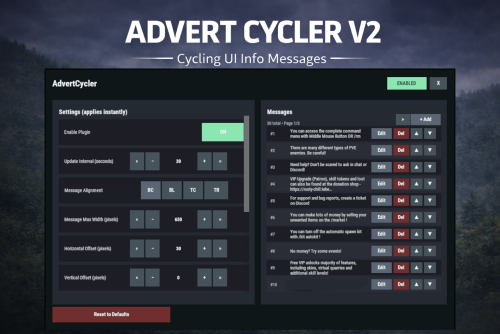
AdvertCycler lets you create a rotating list of on-screen info messages (“adverts”) that display to players without spamming chat. It’s a clean, unobtrusive alternative to chat-based announcers, and the positioning is designed to remain consistent across different screen resolutions and UI scale settings. Messages cycle on a configurable timer, either in order or randomly. You can fine-tune how the message looks and where it appears using: Preset alignment modes (Bottom Center / Bottom Left / Top Center / Top Right) Horizontal + Vertical offsets (with small/big nudge controls for precise positioning) Max text line width Font size Optional text outline with configurable color (quick-pick color swatches in the UI) Admin UI (Instant Apply) AdvertCycler includes a built-in admin UI for live editing and previewing changes in real time: Toggle the plugin on/off Adjust interval, alignment, offsets, width, and font settings Enable/disable outline and pick outline color Choose whether the advert displays on Overlay or Hud Manage the message list: Add / Edit / Delete Reorder messages (move up/down) Paging for large lists All changes apply instantly, so you can visually tune placement and style while in-game. Permissions advertcycler.admin - Grants access to the admin UI and allows editing of all AdvertCycler settings and messages. advertcycler.view - players/groups with this permission will be shown the advert messages. Chat Command /adverts - opens the editor UI Config Example { "AdvertCycler": { "Enable Plugin": true, /Can disable globally from config if needed for whatever reason. "Update Interval (seconds)": 30, /How often the message should change "Message Alignment (BottomCenter/BottomLeft/TopCenter/TopRight)": "BottomLeft", /Base position where the messages should appear "Message Max Width (pixels)": 300, /Maximum line width for text. Anything beyond carries on new line "Vertical Offset (pixels)": 10, /Fine Up and Down adjustment of text position "Horizontal Offset (pixels)": 2, /Fine Left and Right adjustment of text position "Enable Text Outline": true, /Enable or disable text outline "Text Outline Color (HEX)": "#000000", /Color of text outline. Black by default. "Font Size (pixels)": 12, /Text font size "Display as Overlay": true, /Displaying the messages as overlay will allow them to be seen on top of other in game hud screens such as inventory "Randomize Messages": false, /Messages can be displayed at random "Message List": [ "For server info, type <color=#30FEDE>/info</color> in chat.", "There are many different types of PVE enemies. Be careful!" ] } } HTML can be used in messages to modify color in full or partially, example: For server info, type <color=#30FEDE>/info</color> in chat.$7.99 -
Version 1.0.4
101 downloads
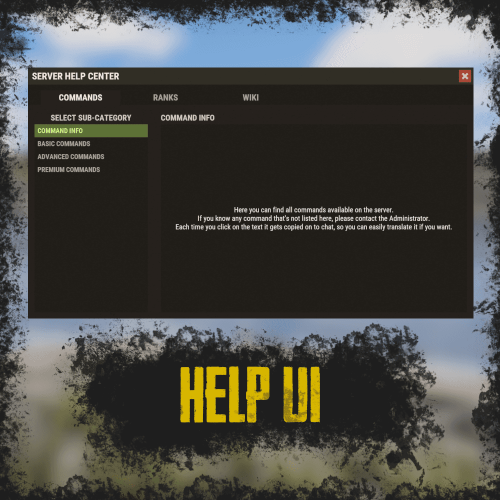
RUST Plugin Test Server TEST MY PLUGINS THERE! connect play.thepitereq.ovh:28050 Help UI lets you create unlimited help pages with ease, allowing players to navigate them effortlessly. All wrapped in a sleek RUST-themed interface with smooth, seamless UI updates. High quality RUST-themed UI. Up to 5 main categories. Almost infinite sub-category limit. Scrollable informations, when clicked printed on chat for easy copy-paste. Full language support. The Commands section values, are the redirect values of the page configurations below. So for example if default config contains "wiki": "wikipedia Page1" it means, that plugin will register command /wiki that will open an Page1 page on wikipedia category. All commands are configured in main config by default you have command like /help, but every command can be edited! { "Commands": { "help": "", "helppage": "", "wiki": "wikipedia Page1" }, "Pages": { "commands": { "Page1": { "Font Size": 15, "Center": false, "Increase Height Value": 0 } }, "ranks": { "Page1": { "Font Size": 15, "Center": false, "Increase Height Value": 0 } }, "wikipedia": { "Page1": { "Font Size": 15, "Center": false, "Increase Height Value": 0 }, "Page2": { "Font Size": 15, "Center": false, "Increase Height Value": 0 } } } }$9.99 -
Version 5.0.0
34 downloads
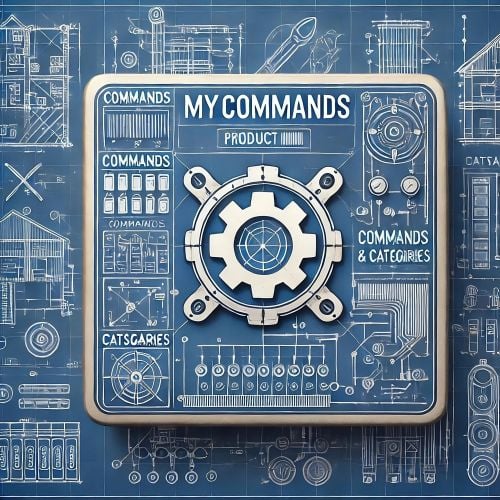
MyCommands Description The MyCommands plugin displays a modern, scrollable user interface (UI) that provides players with categorized commands and real-time search functionality. Who doesn't know that feeling - you have a lot of possibilities on your server, but players can't remember all the commands. With this plugin, it becomes easy to navigate and use commands via a visual interface. Administrators can define categories, commands, and descriptions. Features: Categorized commands: Commands are grouped into collapsible categories to make navigation easier for players. Example categories include House, Bells, Tools, Admin, and Economy. Real-time search functionality: Players can search for specific commands using the integrated search bar with instant results. Modern scrollable UI: Clean, modern interface with smooth scrolling for better user experience. Command descriptions: Each command includes a helpful description that appears in an information tooltip. Info tooltips: Click the blue "i" button next to any command to see its description in a modern popup. User-friendly interface: The UI provides a clear presentation of commands with options to expand or collapse categories. Customizable commands: Administrators can add new commands, categories, or descriptions, or edit existing ones in the configuration. Close button: The UI can be closed with a simple click on the close button. Direct command execution: Players can execute commands directly from the UI without entering them manually in the chat. Automatic UI closing: When a command is executed, the UI automatically closes. Search window: Separate search results window that appears alongside the main interface. Permission-based access: Only players with the correct permission can access the command interface. as off (v.4.4.0) Customizable colors: Adjust your colors in the config. Command: Set your own command Commands: /mycommands - Opens the main command interface Permissions: mycommands.use - Players need this permission to open the UI, search commands, and execute commands. This permission can be assigned to special user groups. Config: The configuration uses a comprehensive JSON system that is automatically created on first load if no configuration exists. You can edit it to adapt it to your server needs. The config includes both command categories and detailed descriptions. { "Command": "mycommands", "Categories": { "House": [ "/myhouse", "/rename", "/removehouse", "/findhouse" ], "Bells": [ "/addbell", "/setbell" ], "Tools": [ "/skinbox", "/cupboard", "/test1", "/test2", "/test3", "/teller" ], "Admin": [ "/god", "/vanish", "/fly", "/noclip", "/teleport" ], "Economy": [ "/shop", "/sell", "/buy", "/balance", "/pay" ] }, "CommandDescriptions": { "/myhouse": "Teleport to your house location", "/rename": "Rename your house or building", "/removehouse": "Remove your house from the system", "/findhouse": "Find the location of your house", "/addbell": "Add a bell to your building", "/setbell": "Configure bell settings", "/skinbox": "Open the skin selection interface", "/cupboard": "Manage your tool cupboard", "/test1": "Test command #1 for debugging", "/test2": "Test command #2 for debugging", "/test3": "Test command #3 for debugging", "/teller": "Access bank teller functions", "/god": "Toggle god mode (admin only)", "/vanish": "Become invisible to other players", "/fly": "Toggle fly mode for admins", "/noclip": "Toggle noclip through walls", "/teleport": "Teleport to coordinates or player", "/shop": "Open the main shop interface", "/sell": "Sell items from your inventory", "/buy": "Purchase items from the shop", "/balance": "Check your current balance", "/pay": "Send money to another player" }, "CategoryPermissions": { "House": "public", "Bells": "public", "Tools": "public", "Admin": "admin", "Economy": "public" }, "Colors": { "MainPanel": "#1A1A1AF2", "HeaderPanel": "#333333FF", "CloseButton": "#CC3333FF", "SearchPanel": "#1F1F1FFF", "SearchLabel": "#CCE6FFFF", "InputField": "#050505FF", "InputText": "#FFFFFFFF", "InputPlaceholder": "#808099FF", "ClearButton": "#B33333FF", "CategoryButton": "#4D9933FF", "CategoryButtonText": "#FFFFFFFF", "CommandButton": "#666666FF", "CommandButtonText": "#E6E6E6FF", "InfoButton": "#3380CCFF", "InfoButtonText": "#FFFFFFFF", "TooltipPanel": "#1A1A1AF2", "TooltipHeader": "#3380CCFF", "TooltipContent": "#0D0D0DE6", "TooltipText": "#E6E6E6FF", "NoResultsText": "#B3B3B3FF", "SearchResultsText": "#80E680FF", "ScrollbarHandle": "#808080FF", "ScrollbarTrack": "#333333FF" } } load, run, enjoy$16.99 -
Version 1.0.0
10 downloads
AdminRadar.cs Description : - This plugin provides a real-time radar system allowing instant tracking of Players, Cupboards, Patrol helicopters and Bradleys, with customizable display options. Display for the player : Player name - Health - Distance - Team Display for the cupboard : TC tag - Distance - List of authorized players Display for the patrol : Patrol tag - Health - Distance Display for the bradley : Bradley tag - Health - Distance Settings : - HUD colors (for the radar switch button) - Radar distance - Radar refresh - Player name color - Cupboard tag color - Patrol tag color - Bradley tag color - Distance color - Health >50hp color (for player/patrol/bradley) - Health <50hp color (for player/patrol/bradley) F1 Commands : - radar <all/player/tc/patrol/bradley> (on/off) Chat Commands : - /radar <all/player/tc/patrol/bradley> (on/off) Permissions : - oxide.grant user <steamID/user> adminradar.use WuyZar's Discord : https://discord.gg/NVwRcQwGwh Game interface :$3.49 -

Version 0.1.1
384 downloads
Allows toggling silent item giving(chat notifications and ownership) via Harmony patching. P.S. By default, silent item giving is enabled. The ability to disable item ownership assignment; The ability to disable item give messages via the 'give' command; The ability to disable item give messages via the 'giveid' command; The ability to disable item give messages via the 'givearm' command; The ability to disable item give messages via the 'giveto' command; The ability to disable item give messages via the 'giveall' command; The ability to disable item blueprint give messages via the 'giveBp' command; The ability to disable messages about copying player inventory via the 'copyTo' command. silentitemsgive.admin - Grants access to the command silentgive.toggle silentgive.toggle *boolValue*(optional) - Toggle silent item giving. To access this command, you must be an administrator or have the silentitemsgive.admin permission. Example: silentgive.toggle silentgive.toggle trueFree -
Version 2.1.5
2,204 downloads
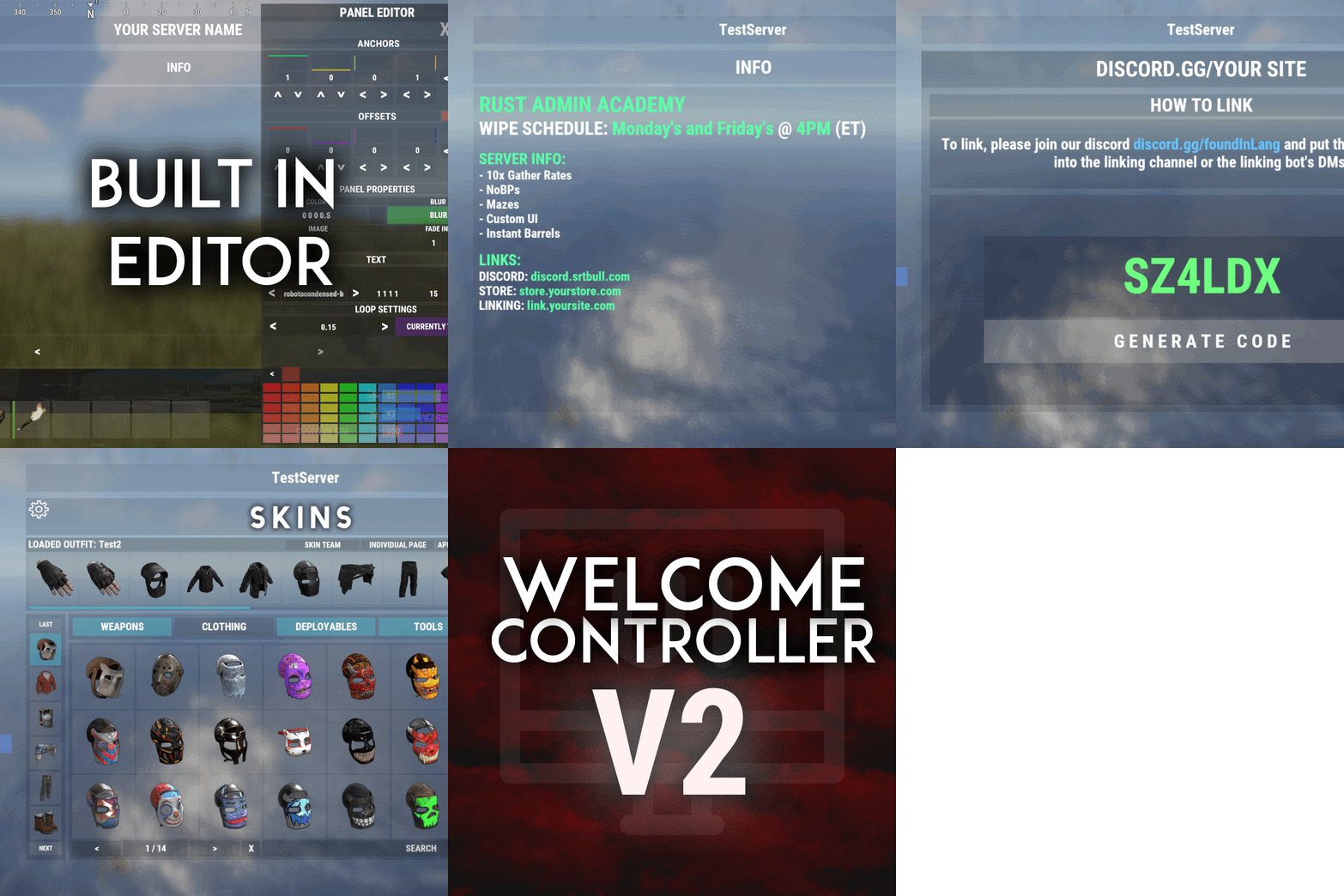
Welcome "UI" controller is a multi-function info panel! - Supports multiple plugins to be directly integrated. Linked in the optional dependencies! - Add permissions to access different pages - Optionally, you can set a page that has a permission to not show on the button list at all or you can set it to show a no permission page (You can make it say whatever you want) - Change the layout of the buttons - Add images to each button - Add multiple commands to access each page - Edit, add, and delete your info panels and or integrated plugins directly from the editor UI. - Apply a color theme INSTANTLY to ALL your integrated plugins with one simple click! - Running a command auto loads you into the correct page on the info panel, even if it's an addon. - Create infinite tabs for different pages. - You can do really anything you can think of! - In game editor for all your UI needs. - Add new panels - Clone panels - Change load orders of panels - Change the look in every way of a panel - Add an image and or text to ANY panel you want to - Easily move the UI with buttons or input numbers within the UI - When you're reading this, there might be even more themes available! - Images are pictures of the "Original" theme and show some of the optional addons and built in editor. ADMIN PERMISSION: welcomecontroller.admin Editor page: /welcomeedit Theme Selector: /welcomethemes Support? Questions? Comments? Concerns? Message me in my Discord! https://discord.gg/RVePam7pd7 DEVELOPER API's AND HOOKS API -> bool IsUsingPlugin(string pluginName) HOOKS -> void OnWCRequestedUIPanel(BasePlayer player, string panelName, string neededPlugin) - This is called when an addon is trying to be accessed for WelcomeController. - Make sure you do a simple check that the needed plugin is the plugin you're working in. - I recommend making the plugin name that you check for, the name of the CS file. - If neededPlugin == yourPlugin, open your UI, attach it to "panelName".$29.99 -

Version 1.0.3
177 downloads
Death tracker is an administration tool that allows server admins to restore player items via rcon or in-game, in the event a player dies for reasons beyond their control. The plugin will detail: The location of the death (grid + coordinate). The damage type that the player took. Whether they were connected to the server or not. Who killed them (along with the userid). The date and time of the death. The players inventory, item backpack contents, and their backpack plugin contents (if they dropped). Admins can select items from the UI to see more details about the item such as the items condition, amount, ammo, armor slots and other parameters (such as buffs from ItemPerks). You can also toggle whether the item will be restored from this menu, allowing you to exclude certain items from being restored if required. In order to use the following commands in game, you must have the deathtracker.admin permission. Command: dt Use: Access the DeathTracker restore menu in-game. Command: dt.,rcon deaths <userid> Use: Returns information for each death stored for the specified player. Command: dt.rcon query <userid> <index> Use: Returns detailed information about the specified death for the player at the specified index (item lists etc). Command: dt.rcon restore <userid> <index> Use: Restores the items to the specified player from the specified index.$14.99 -
Version 1.0.2
5 downloads
xCrosshair xCrosshair is a customizable crosshair system for Rust servers, giving players full control over their personal reticle/crosshair through an ingame UI menu. With multiple built-in shapes, color presets, HEX input support, outlines, and adjustable visual parameters, each player can design a crosshair that fits their preferred style. Features 7 crosshair shapes Full customization options Size Thickness Alpha/Transparency Outline toggle RGB/HEX color selection Quick-use color presets Per-player saved settings Chat Commands /crosshair - Opens the crosshair settings menu /ch - Opens the crosshair settings menu Permission xcrosshair.use - This permission is needed to use the crosshair. Preview ^ Sorry for bad video quality.$12.99 -

Version 1.0.4
15 downloads
The Quarry Notification plugin for Rust is a plugin designed to enhance the gameplay experience by providing detailed notifications and map markers for specific quarry activities. This plugin is ideal for server administrators looking to keep players informed about quarry statuses and activities in real-time. Real-Time Notifications ✦ Activation Alerts: Receive notifications when a quarry is activated. ✦ Player Identification: Identify the last player who toggled the quarry. ✦ Grid Positioning: Get precise grid locations of activated quarries. ✦ Spam Protection: Prevent excessive notifications with cooldown settings. Customizable Markers ✦ Individual Quarry Settings: Configure markers for Sulfur, Stone, and High-Quality Metal quarries independently. ✦ Marker Attributes: Adjust alpha, radius, center color, ring color, and duration for each quarry type. Configurable Advice Messages ✦ Interval Settings: Set the interval for periodic advice messages. ✦ Custom Message Formats: Personalize the format of notification messages. Additional Features ✦ Discord Notifications: Send activation updates to a Discord channel. ✦ Flexible Permissions: Assign different permissions for players and admins. ✦ Language Customization: Easily modify in-game messages to fit server preferences. ✦ /quarry: Displays the current status of all quarries. ✦ /addquarry <type> <x> <y> <z>: Adds a new quarry at the specified coordinates. ✦ /removequarry <type>: Removes the specified type of quarry. ✦ /listquarries: Lists all configured quarries. ✦ /clearquarries: Clears all quarries from the configuration. If you need help setting it up or just want to clear up any doubts before making the purchase, you can contact me via discord. { "Permission required to use chat commands": "quarrynotification.use", "Permission required for admin commands": "quarrynotification.admin", "SteamID icon for chat messages": 0, "Enable advice messages": true, "Interval for advice messages in seconds": 1800, "Notification message format": "{0} has activated a {1} Quarry at {2}!", "Anti-spam cooldown in seconds": 30.0, "Maximum toggles per minute before spam protection": 3, "Spam protection duration in minutes": 5, "Quarry marker configurations": { "SulfurQuarry": { "Enabled": true, "Alpha": 0.5, "Radius": 0.6, "Center Color": "#FF0000", "Ring Color": "#FFFFFF", "Duration": 30.0 }, "StoneQuarry": { "Enabled": true, "Alpha": 0.5, "Radius": 0.6, "Center Color": "#FFA07A", "Ring Color": "#20B2AA", "Duration": 30.0 }, "HQMQuarry": { "Enabled": true, "Alpha": 0.5, "Radius": 0.6, "Center Color": "#9370DB", "Ring Color": "#FF69B4", "Duration": 30.0 } }, "Enable Discord notifications": false, "Discord webhook URL": "" } { "QuarryStatusHeader": "<size=18><color=#4A90E2>Quarry Status Monitor</color></size>", "QuarryNameFormat": "<color=#F6C177>{0}</color>", "QuarryActivatedFormat": "<color=#4A90E2>|</color> Status: {0}", "QuarryLastPlayerFormat": "<color=#4A90E2>|</color> Last User: <color=#9ECBFF>{0}</color>", "QuarryGridPositionFormat": "<color=#4A90E2>|</color> Location: <color=#9ECBFF>{0}</color>", "QuarryNoActivationInfo": "<color=#4A90E2>|</color> <color=#E06C75>No activity recorded</color>", "QuarryLastActivated": "<color=#4A90E2>|</color> Last active: <color=#98C379>{0} {1}</color> ago at <color=#9ECBFF>{2}</color>", "QuarryOn": "<color=#98C379>✓</color> <color=#9ECBFF>{0}</color> activated the <color=#F6C177>{1}</color> quarry at <color=#9ECBFF>{2}</color>", "QuarryOff": "<color=#E06C75></color> <color=#9ECBFF>{0}</color> deactivated the <color=#F6C177>{1}</color> quarry at <color=#9ECBFF>{2}</color>", "PermissionError": "<color=#E06C75>Access denied: Insufficient permissions</color>", "QuarryAdded": "<color=#98C379>✓ Added {0} quarry at {1}</color>", "QuarryRemoved": "<color=#E06C75>Removed {0} quarry</color>", "NoQuarriesFound": "<color=#E06C75>No quarries found in the system</color>", "Minutes": "minutes", "Minute": "minute", "Seconds": "seconds", "Second": "second", "Hours": "hours", "Hour": "hour", "Days": "days", "Day": "day", "SulfurQuarry": "Sulfur", "StoneQuarry": "Stone", "HQMQuarry": "HQM", "QuarryNotFound": "<color=#E06C75>Quarry not found at specified location</color>", "InvalidCoordinates": "<color=#E06C75>Invalid coordinates format. Use: <x> <y> <z></color>", "InvalidType": "<color=#E06C75>Invalid quarry type. Available: SulfurQuarry, StoneQuarry, HQMQuarry</color>", "AddQuarryUsage": "<color=#4A90E2>Usage: /addquarry <type> <x> <y> <z></color>", "RemoveQuarryUsage": "<color=#4A90E2>Usage: /removequarry <type></color>", "NotificationHeader": "<size=18><color=#4A90E2>Quarry Activity Report</color></size>", "NotificationQuarryName": "<color=#F6C177>{0} Quarry</color>", "NotificationActivated": "<color=#4A90E2>|</color> Active: <color=#98C379>{0}</color> ago", "NotificationLastPlayer": "<color=#4A90E2>|</color> Operator: <color=#9ECBFF>{0}</color>", "NotificationGridPosition": "<color=#4A90E2>|</color> Grid: <color=#9ECBFF>{0}</color>", "NotificationSeparator": "<color=#4A90E2>└──--------------</color>", "InvalidPermissions": "<color=#E06C75>Access denied: Insufficient permissions</color>", "QuarryClearSuccess": "<color=#98C379>✓ All quarries cleared successfully</color>", "QuarryUpdateSuccess": "<color=#98C379>✓ Quarry information updated</color>", "SpamProtection": "<color=#E06C75>Anti-spam protection active. Please wait...</color>", "QuarryStatus": "<color=#4A90E2>|</color> Status: {0}", "StatusActive": "<color=#98C379>Active</color>", "StatusInactive": "<color=#E06C75>Inactive</color>" }$4.99 -
Version 1.0.0
17 downloads
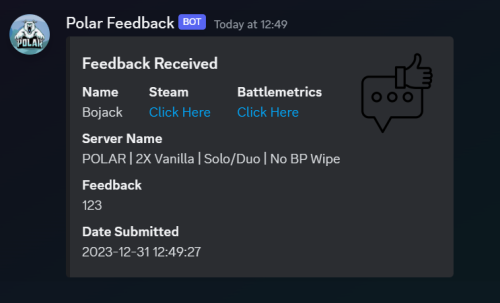
Discord Feedback takes ingame comments from your players and outputs them straight to your chosen Discord channel! Includes: Player Steam Profile Link, Battlemetrics Link, Name Server Name Feedback Submitted By Player Date Submitted readme file included for help setting up a Discord webhook! - your webhook URL can be added via the main plugin file.$1.50 -
Version 0.9.2
10 downloads
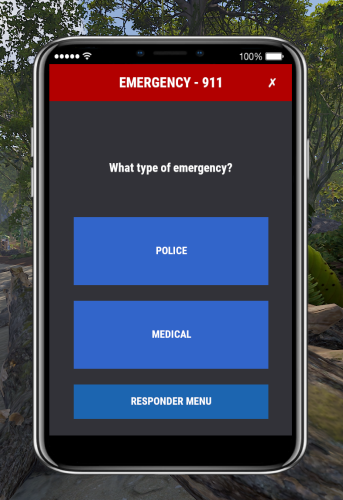
Emergency Response System Transform your server with the ultimate 911 system! Elevate Your Server Experience Emergency Response System doesn't just add a feature - it creates an experience. Turn your Rust server into a living, breathing world where players can call for help, heroes can respond, and every emergency becomes a story worth telling. What Makes This Plugin Special Immersive Emergency Calls: Players make realistic 911 calls with a sleek phone UI Thrilling Responder Experience: Receive pager alerts, teleport to emergencies, save the day! Dynamic Map Markers: Emergency locations light up on the map for all responders Complete Incident Records: Every call, response, and resolution is documented Seamless Discord Integration: Connect your server's emergency system to Discord Create an Elite Response Team Give your trusted players special roles and watch them transform into: Dedicated Police Officers: "We got a raid in progress at Dome, officers responding. Backup requested!" Skilled Medical Personnel: "Patient unconscious at Airfield. Administering treatment now. Medical record updated." Efficient Admin Staff: "Incident #T-4KV2MZ resolved: Player assisted with building issue, rule reminder given." Roleplay That Actually Feels Real Imagine the scenario: A player is being raided. Instead of spamming chat or Discord, they use /911 and fills out the easy guided questions. Police responders' pagers immediately alert them with the location and severity. An officer accepts the call, teleports to the scene, and handles the situation - just like real first responders! This isn't just roleplay - it's an immersive experience your players will talk about. Server Management Reimagined Tired of chaotic Discord tickets and forgotten admin requests? ERS gives you: Centralized Incident Tracking: Every player report and staff response in one place Staff Performance Metrics: See response times and resolution details Admin Task Assignment: Delegate tasks to moderators with priority levels Complete Audit Trails: Every action timestamped and documented Standout Features Players Will Love Interactive Emergency Dialog: Step-by-step emergency reporting Emergency Severity Levels: From minor issues to life-threatening emergencies Location Grid Tracking: Responders know exactly where to go Status Updates: Callers receive progress updates on their emergency Visual Map Markers: No more confusing "I'm at..." directions Get Started in Minutes Drop the plugin in your folder Set up your response team Watch the magic happen! Example Cases Base Raid Response: A player calls for help during a raid. Within seconds, officers are alerted, teleport to the scene, and coordinate a response. The entire incident - from initial call to resolution - is logged with timestamps and officer notes. Medical Emergency: A player is injured and needs help. Doctors receive priority alerts based on severity, teleport to the patient, and document treatment. Medical records are automatically stored and can be reviewed later. Admin Task Management: Assign specific tasks to your moderators, set priority levels, and track completion. Perfect for building checks, player assistance, and special events. Discord Enhanced Take your emergency system to the next level by connecting to Discord: Emergencies broadcast to staff channels in real-time Death reports with exact coordinates Archived records for admin review Staff activity tracking Ready to Transform Your Server? Add the Emergency Response System today and give your players an experience they can't get anywhere else! No more text-only emergencies. No more disorganized admin requests. No more chaos. Just an immersive, organized emergency response system that will make your server the one everyone talks about. For support or to share your ERS success stories, use the plugin Support/Discussion pages.$29.99 -
i want to integrate the mods/plugins from https://codefling.com/plugins/multi-events?tab=details NOT the event viewer (MultiEvents.cs) but every other plugin in to this Events manager https://codefling.com/plugins/events-manager?tab=details and add an option to clear/ get rid of a selected category. i know MultiEvents.cs already has the mods integrated but it doesnt have a timer option and isnt as "user/idiot" proof
-
Hello so i set it so when someone joins my server they automatically get the vip rank but im wondering how can i change it back so they just get the default rank? thank you!
-
Welcome to the FAQ and Support Guide for the Death Modifier plugin. This document is here to help you troubleshoot common issues, understand proper setup practices, and get support or suggest new features. Common Issues & Troubleshooting Permissions Bug - If a player is granted more than one permission, the plugin will not work correctly for them. Fix: - Only grant one permission per player. This ensures the plugin functions as intended. - Granting multiple permissions will cause conflicts and unexpected behavior. Example: oxide.grant user player1 deathmodifier.vip # Do NOT also grant: oxide.grant user player1 deathmodifier.vip2 We are aware of this bug and are working on a solution for a future release. Getting Support If you are experiencing issues with the plugin or have a question not covered in this guide: - Navigate to the Support section of the plugin page. - Open a support ticket. - Please include the following in your ticket: - A clear description of the issue - Any errors shown in the console - Plugin version - Steps to reproduce (if possible) This will help us assist you faster and more effectively. Feature Requests & Discussions If you have an idea for a new feature, improvement, or change you'd like to see: - Use the Discussion section of the plugin page. - Be descriptive in your suggestion, including the use-case or motivation. We welcome your ideas and will review them for possible inclusion in future updates! Best Practices Summary - Only assign one permission per player. - Use the Support tab for help with issues. - Use the Discussion tab for feature requests and general feedback. Thank you for using Death Modifier! Your feedback helps make this plugin even better. — Khan
-
I can't seem to get the plugin to work at all. At first there where a few errors on my part then it said it was working but nothing was spawning in. No cargo. no planes. No loot. Nothing. I'm stuck at this point. And I guess if someone has this and would be willing to walk me through how exactly to set this up it would be greatly appreciated! I also can't seem to get the Space plugin working either. I'm sure its something easy to fix... I just can't figure it out... If you'd like to add me on discord its insanejoker850 Thanks for all the help.
-
(1).thumb.gif.b7f01108ed2707569d9a6f5d8ed7e68e.gif)
Version 1.0.0
2 downloads
Auto Repair About AutoRepair is a plugin that automatically repairs items in a player's inventory when they are near a workbench. The plugin allows customization of item categories for automatic repair and the interval between notifications about insufficient resources. Key Features Customizable Item Categories Server owners can choose which item categories (weapons, clothing, tools, etc.) will be automatically repaired. Easy Configuration via JSON File Easy settings that even a person who has not long started working with plugins can understand. Workbench Levels Items in the inventory will be repaired only on those workbenches on which they are fashionable to learn or higher. logically request The plugin is configured to logically request resources when starting. Customizable Item Categories You сan choose which item categories (weapons, clothing, tools, etc.) will be automatically repaired. An example of a Config file view { "NotificationInterval": 10.0, "RepairCategories": { "weapon": true, "attire": true, "tool": true, "medical": false, "ammo": false } } NotificationInterval - Interval of messages about lack of resources when the player is near the workbench RepairCategories - Categories you want to be repaired automatically near the workbench (True - yes, False - no) You can see the above described plugin in the video Help If you have any questions or need any help, feel free to send me a private message on Discord My Discord: callofglory_anytime$5.00 -

Version 1.2.5
193 downloads
Beautiful minimalist design and easy customization EVERYTHING Forget about figuring out the interface, the plugin will do everything by itself, with the design you want! Event status, online, sleepers, balance and more..... 3 modes that change by clicking on the logo UI buttons for interacting with the server and other plugins The hint function will help players understand how to use some plugins. when you click on any button, the plugin menu will show, BUT you can customize the tooltip on the button, this is how it looks like BUTTONS UNDER INVENTORY you can add them as many as you like (the plugin will adjust them to the game inventory itself), with any color and inscription SCREENSHOTS OF CLIENTS COMMANDS: panelswitch - hide the panel. Functionality of the elements ("Element function" parameter in the information setting"): "Online" - displays online servers "Sleepers" - displays the number of sleepers "Time" - displays game time "Queue" - displays the players in the server queue "Balance" - displays the balance of the player who opened the panel (do not forget to set the parameter "Economic Integration") Config: { "Interface customization": { "Logo button": { "Anchors": "0 1", "OffsetMin": "0 -54", "OffsetMax": "54 0", "LOGO IMAGE": "https://megargan.foxplugins.ru/Image/MgPanel/Logo.png" }, "Layer one (panel with information)": { "Panel component settings": { "Customizing the top of the panel": { "Event panel settings": [ { "Picture": "https://megargan.foxplugins.ru/Image/MgPanel/cheenook.png", "Event(chinook, cargo, bradley, heli)": "chinook", "Active event color": "#c6f725", "Сolor of inactive event": "#ffffff" }, { "Picture": "https://megargan.foxplugins.ru/Image/MgPanel/heli.png", "Event(chinook, cargo, bradley, heli)": "heli", "Active event color": "#c6f725", "Сolor of inactive event": "#ffffff" }, { "Picture": "https://megargan.foxplugins.ru/Image/MgPanel/cargo.png", "Event(chinook, cargo, bradley, heli)": "cargo", "Active event color": "#c6f725", "Сolor of inactive event": "#ffffff" }, { "Picture": "https://megargan.foxplugins.ru/Image/MgPanel/tank.png", "Event(chinook, cargo, bradley, heli)": "bradley", "Active event color": "#c6f725", "Сolor of inactive event": "#ffffff" } ], "Inscription on the panel (label)": "MgPanel", "Label Text Color": "#ffffff", "Label font size": 18, "The length of the element with the label.": 90, "Color Stripe": "#ffffff", "Include a strip between blocks of information?": true, "Enable horizontal stripe?": true, "Padding between event indicators": 1, "Space between server name and events": 10 }, "Setting the bottom of the panel (online sleepers, etc.)": [ { "Element function": "Online", "Picture": "https://megargan.foxplugins.ru/Image/MgPanel/online.png", "Color picture": "#ffffff", "Text color": "#ffffff", "Text size": 17, "Element length": 55 }, { "Element function": "Sleepers", "Picture": "https://megargan.foxplugins.ru/Image/MgPanel/ZZZ.png", "Color picture": "#ffffff", "Text color": "#ffffff", "Text size": 17, "Element length": 55 }, { "Element function": "Time", "Picture": "https://megargan.foxplugins.ru/Image/MgPanel/clock.png", "Color picture": "#ffffff", "Text color": "#ffffff", "Text size": 17, "Element length": 75 } ] }, "Global size scale": 1.0, "Panel anchors (depends on logo position)": "1 0.5", "Panel height": 23, "Enable the panel Image?": false, "Panel Image": "https://megargan.foxplugins.ru/Image/MgPanel/backimage.png" }, "Button Customization": { "Hint Setting": { "Tip size (auto-tuning)": 1, "Picture Background": "https://megargan.foxplugins.ru/Image/MgPanel/window.png", "Header Text Color": "#000000", "Body text color": "#7e7f85" }, "Buttons": [ { "Picture": "https://megargan.foxplugins.ru/Image/MgPanel/info.png", "Text": "INFO", "Executable command": "chat.say /info", "Enable tooltip for this button?": false, "Tip title text": "", "Tip main text": "", "URL that can be copied (if not needed, leave the field blank)": "" }, { "Picture": "https://megargan.foxplugins.ru/Image/MgPanel/store.png", "Text": "STORE", "Executable command": "chat.say /store", "Enable tooltip for this button?": true, "Tip title text": "SERVER`S SHOP", "Tip main text": "To donate you need to go to our website!", "URL that can be copied (if not needed, leave the field blank)": "codefling.com/plugins/mgpanel-easy-customizable" } ], "Buttons under the hotbar": [ { "Text": "KITS", "Command": "chat.say /kit", "Button color": "#09c452", "Text Color": "#020001" }, { "Text": "BACKPACK", "Command": "chat.say /BACKPACK", "Button color": "#145c0b", "Text Color": "#020001" } ], "Anchors of the top point at the first button": "0.5 0", "Button Width": "22", "Under Hotbar buttons background": "https://megargan.foxplugins.ru/Image/MgPanel/plate.png" } }, "More settings": { "Economic Integration": { "Use economy plugin?": false, "Economy plugin name": "IQEconomic", "API Hook for getting balance in int": "API_GET_BALANCE" } } }$16.90 -
Version 1.0.701
65 downloads
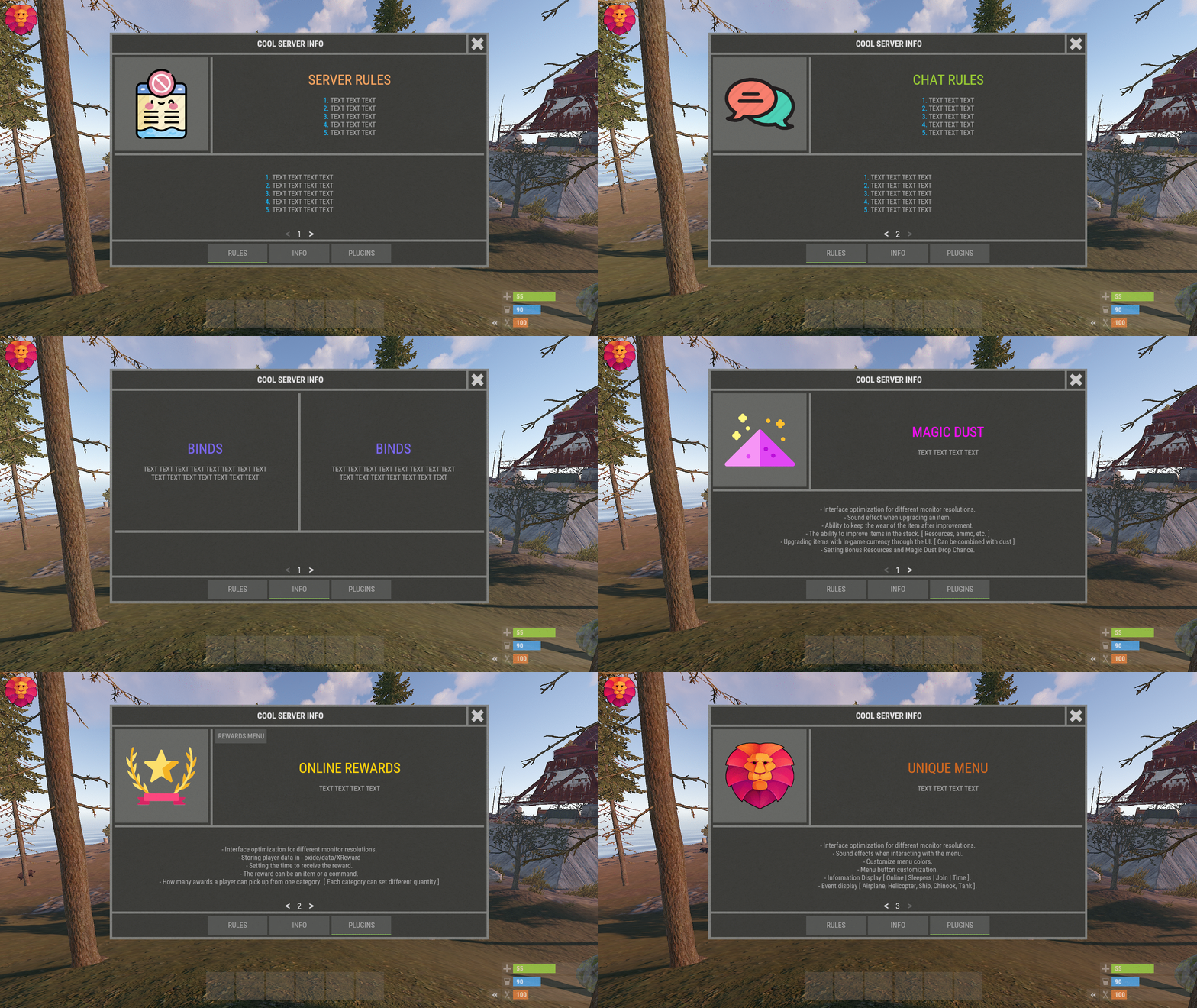
XInfoMenu - beautiful info menu for your server. - Optimization of the interface for different monitor resolutions. - Storing player data in - oxide/data/XInfoMenu - There is a lang ru/en/es. - Sound effects when interacting with the menu. - Info messages in chat. - Info messages under the slots. - Custom page settings. - Ability to turn on the timer when you first connect to the server. [ The player will have to wait N times before the menu can be closed. If the player disconnects from the server before the timer expires, then everything will be restarted when reconnecting. ] - Ability to create an unlimited number of pages. - Possibility to create an unlimited number per page - [ Elements, Pictures, Texts, Buttons ] - The ability to use keyword information in the text (Text in the menu and info messages): -> Overview - YouTube <- Need to know! The menu is a constructor. You can create whatever you want. If you do not understand this, you can ask the developer for help! Keywords [ %NAME% - player name, %STEAMID% - steamid player, %ONLINE% - number of online players, %MAXPLAYERS% - number of server slots, %JOINING% - number of joining players, %QUEUED% - number of players in the queue, %SLEEPING% - number of sleeping players, %TIME% - time on the server ]. Customized configuration. { "General settings": { "Open the menu when the player joined the server -> woke up [ If the timer is off, the menu will open after each connection to the server ]": false, "Reload images after plugin reload": true, "Show page switching buttons if there is only one page in the category": true, "Cooldown menu action": 0.75, "Type of page switching buttons. True - arrows | False - numbering": true, "Enable the timer for the first connection [ The player entered the server -> woke up -> the menu opened -> waited N seconds. The menu will not open again after connecting ]": false, "Timer time (.sec)": 0 }, "Settings up chat messages": { "List of unique message names - [ Settings text in lang ]": [ "MESSAGE1.1", "MESSAGE1.2", "MESSAGE1.3" ], "Chat message interval": 300.0, "Profile steamID for custom avatar": 0, "Enable messages in chat": false }, "Settings messages under slots": { "List of unique message names - [ Settings text in lang ]": [ "MESSAGE2.1", "MESSAGE2.2", "MESSAGE2.3" ], "Message interval under slots": 30.0, "Enable messages under slots": false }, "Settings GUI": { "Background color_1": "0.517 0.521 0.509 0.95", "Background color_2": "0.217 0.221 0.209 0.95", "Background material_1": "assets/icons/greyout.mat", "Background material_2": "", "Button color": "0.517 0.521 0.509 0.5", "Active button color": "0.53 0.77 0.35 1" }, "Settings buttons and pages": { "RULES": [ { "Setting elements": [ { "Element color": "0.517 0.521 0.509 0.95", "Element material": "assets/icons/greyout.mat", "OffsetMin": "-190 -11.25", "OffsetMax": "-185 198.75" }, { "Element color": "0.517 0.521 0.509 0.95", "Element material": "assets/icons/greyout.mat", "OffsetMin": "-395 -11.25", "OffsetMax": "395 -6.25" } ], "Setting images": [ { "Unique image name": "RULES1", "Link to image": "https://i.imgur.com/esfS0N4.png", "Player avatar": false, "OffsetMin": "-395 -1.25", "OffsetMax": "-195 198.75" } ], "Setting up a block of text": [ { "Block text unique name - [ Text setting in lang ]": "RULES1.1", "OffsetMin": "-180 -1.25", "OffsetMax": "395 198.75", "TextAnchor [ Text alignment ] | 0 - 8": 4, "Text color": "0.75 0.75 0.75 0.75" }, { "Block text unique name - [ Text setting in lang ]": "RULES1.2", "OffsetMin": "-395 -169", "OffsetMax": "395 -16.75", "TextAnchor [ Text alignment ] | 0 - 8": 4, "Text color": "0.75 0.75 0.75 0.75" } ], "Setting buttons": [] }, { "Setting elements": [ { "Element color": "0.517 0.521 0.509 0.95", "Element material": "assets/icons/greyout.mat", "OffsetMin": "-190 -11.25", "OffsetMax": "-185 198.75" }, { "Element color": "0.517 0.521 0.509 0.95", "Element material": "assets/icons/greyout.mat", "OffsetMin": "-395 -11.25", "OffsetMax": "395 -6.25" } ], "Setting images": [ { "Unique image name": "RULES2", "Link to image": "https://i.imgur.com/eAgrWKP.png", "Player avatar": false, "OffsetMin": "-395 -1.25", "OffsetMax": "-195 198.75" } ], "Setting up a block of text": [ { "Block text unique name - [ Text setting in lang ]": "RULES2.1", "OffsetMin": "-180 -1.25", "OffsetMax": "395 198.75", "TextAnchor [ Text alignment ] | 0 - 8": 4, "Text color": "0.75 0.75 0.75 0.75" }, { "Block text unique name - [ Text setting in lang ]": "RULES2.2", "OffsetMin": "-395 -169", "OffsetMax": "395 -16.75", "TextAnchor [ Text alignment ] | 0 - 8": 4, "Text color": "0.75 0.75 0.75 0.75" } ], "Setting buttons": [] } ], "INFO": [ { "Setting elements": [ { "Element color": "0.517 0.521 0.509 0.95", "Element material": "assets/icons/greyout.mat", "OffsetMin": "-2.5 -100", "OffsetMax": "2.5 198.75" }, { "Element color": "0.517 0.521 0.509 0.95", "Element material": "assets/icons/greyout.mat", "OffsetMin": "-395 -100", "OffsetMax": "395 -95" } ], "Setting images": [], "Setting up a block of text": [ { "Block text unique name - [ Text setting in lang ]": "INFO2.1", "OffsetMin": "-395 -90", "OffsetMax": "-7.5 198.75", "TextAnchor [ Text alignment ] | 0 - 8": 4, "Text color": "0.75 0.75 0.75 0.75" }, { "Block text unique name - [ Text setting in lang ]": "INFO2.2", "OffsetMin": "7.5 -90", "OffsetMax": "395 198.75", "TextAnchor [ Text alignment ] | 0 - 8": 4, "Text color": "0.75 0.75 0.75 0.75" } ], "Setting buttons": [] }, { "Setting elements": [ { "Element color": "0.517 0.521 0.509 0.95", "Element material": "assets/icons/greyout.mat", "OffsetMin": "-395 12.375", "OffsetMax": "395 17.375" } ], "Setting images": [], "Setting up a block of text": [ { "Block text unique name - [ Text setting in lang ]": "INFO3.1", "OffsetMin": "-395 22.375", "OffsetMax": "395 198.75", "TextAnchor [ Text alignment ] | 0 - 8": 4, "Text color": "0.75 0.75 0.75 0.75" }, { "Block text unique name - [ Text setting in lang ]": "INFO3.2", "OffsetMin": "-395 -169", "OffsetMax": "395 7.375", "TextAnchor [ Text alignment ] | 0 - 8": 4, "Text color": "0.75 0.75 0.75 0.75" } ], "Setting buttons": [] } ], "PLUGINS": [ { "Setting elements": [ { "Element color": "0.517 0.521 0.509 0.95", "Element material": "assets/icons/greyout.mat", "OffsetMin": "-190 -11.25", "OffsetMax": "-185 198.75" }, { "Element color": "0.517 0.521 0.509 0.95", "Element material": "assets/icons/greyout.mat", "OffsetMin": "-395 -11.25", "OffsetMax": "395 -6.25" } ], "Setting images": [ { "Unique image name": "PLUGINS1", "Link to image": "https://i.imgur.com/EHlroeY.png", "Player avatar": false, "OffsetMin": "-395 -1.25", "OffsetMax": "-195 198.75" } ], "Setting up a block of text": [ { "Block text unique name - [ Text setting in lang ]": "PLUGINS1.1", "OffsetMin": "-180 -1.25", "OffsetMax": "395 198.75", "TextAnchor [ Text alignment ] | 0 - 8": 4, "Text color": "0.75 0.75 0.75 0.75" }, { "Block text unique name - [ Text setting in lang ]": "PLUGINS1.2", "OffsetMin": "-395 -169", "OffsetMax": "395 -16.75", "TextAnchor [ Text alignment ] | 0 - 8": 4, "Text color": "0.75 0.75 0.75 0.75" } ], "Setting buttons": [] }, { "Setting elements": [ { "Element color": "0.517 0.521 0.509 0.95", "Element material": "assets/icons/greyout.mat", "OffsetMin": "-190 -11.25", "OffsetMax": "-185 198.75" }, { "Element color": "0.517 0.521 0.509 0.95", "Element material": "assets/icons/greyout.mat", "OffsetMin": "-395 -11.25", "OffsetMax": "395 -6.25" } ], "Setting images": [ { "Unique image name": "PLUGINS2", "Link to image": "https://i.imgur.com/dxHezlf.png", "Player avatar": false, "OffsetMin": "-395 -1.25", "OffsetMax": "-195 198.75" } ], "Setting up a block of text": [ { "Block text unique name - [ Text setting in lang ]": "PLUGINS2.1", "OffsetMin": "-180 -1.25", "OffsetMax": "395 198.75", "TextAnchor [ Text alignment ] | 0 - 8": 4, "Text color": "0.75 0.75 0.75 0.75" }, { "Block text unique name - [ Text setting in lang ]": "PLUGINS2.2", "OffsetMin": "-395 -169", "OffsetMax": "395 -16.75", "TextAnchor [ Text alignment ] | 0 - 8": 4, "Text color": "0.75 0.75 0.75 0.75" } ], "Setting buttons": [ { "Button unique name - [ Setting text in lang ]": "PLUGINS2.1.1", "OffsetMin": "-180 168.75", "OffsetMax": "-70 198.75", "TextAnchor [ Text alignment ] | 0 - 8": 4, "Command": "chat.say /reward", "Button color": "0.517 0.521 0.509 0.5", "Text color": "0.75 0.75 0.75 0.75", "Close menu after clicking": false } ] }, { "Setting elements": [ { "Element color": "0.517 0.521 0.509 0.95", "Element material": "assets/icons/greyout.mat", "OffsetMin": "-190 -11.25", "OffsetMax": "-185 198.75" }, { "Element color": "0.517 0.521 0.509 0.95", "Element material": "assets/icons/greyout.mat", "OffsetMin": "-395 -11.25", "OffsetMax": "395 -6.25" } ], "Setting images": [ { "Unique image name": "PLUGINS3", "Link to image": "https://i.imgur.com/1bljDKO.png", "Player avatar": false, "OffsetMin": "-395 -1.25", "OffsetMax": "-195 198.75" } ], "Setting up a block of text": [ { "Block text unique name - [ Text setting in lang ]": "PLUGINS3.1", "OffsetMin": "-180 -1.25", "OffsetMax": "395 198.75", "TextAnchor [ Text alignment ] | 0 - 8": 4, "Text color": "0.75 0.75 0.75 0.75" }, { "Block text unique name - [ Text setting in lang ]": "PLUGINS3.2", "OffsetMin": "-395 -169", "OffsetMax": "395 -16.75", "TextAnchor [ Text alignment ] | 0 - 8": 4, "Text color": "0.75 0.75 0.75 0.75" } ], "Setting buttons": [] } ] } }$10.99 -
I want to get a list of all the mines placed by the player, entity.GetComponentsInChildren<Landmine>() returns me only landmine[0] And I still don't know how to track the pressing of the RF transmitter and the player who pressed it(