Search the Community
Showing results for tags 'hints'.
Found 2 results
-
Version 2.0.0
31 downloads
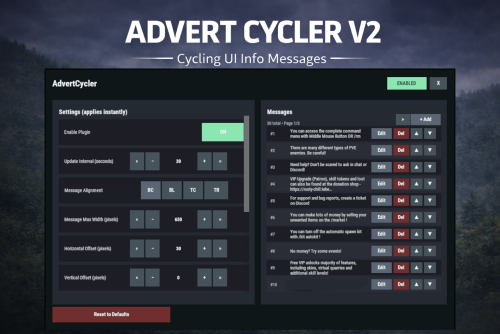
AdvertCycler lets you create a rotating list of on-screen info messages (“adverts”) that display to players without spamming chat. It’s a clean, unobtrusive alternative to chat-based announcers, and the positioning is designed to remain consistent across different screen resolutions and UI scale settings. Messages cycle on a configurable timer, either in order or randomly. You can fine-tune how the message looks and where it appears using: Preset alignment modes (Bottom Center / Bottom Left / Top Center / Top Right) Horizontal + Vertical offsets (with small/big nudge controls for precise positioning) Max text line width Font size Optional text outline with configurable color (quick-pick color swatches in the UI) Admin UI (Instant Apply) AdvertCycler includes a built-in admin UI for live editing and previewing changes in real time: Toggle the plugin on/off Adjust interval, alignment, offsets, width, and font settings Enable/disable outline and pick outline color Choose whether the advert displays on Overlay or Hud Manage the message list: Add / Edit / Delete Reorder messages (move up/down) Paging for large lists All changes apply instantly, so you can visually tune placement and style while in-game. Permissions advertcycler.admin - Grants access to the admin UI and allows editing of all AdvertCycler settings and messages. advertcycler.view - players/groups with this permission will be shown the advert messages. Chat Command /adverts - opens the editor UI Config Example { "AdvertCycler": { "Enable Plugin": true, /Can disable globally from config if needed for whatever reason. "Update Interval (seconds)": 30, /How often the message should change "Message Alignment (BottomCenter/BottomLeft/TopCenter/TopRight)": "BottomLeft", /Base position where the messages should appear "Message Max Width (pixels)": 300, /Maximum line width for text. Anything beyond carries on new line "Vertical Offset (pixels)": 10, /Fine Up and Down adjustment of text position "Horizontal Offset (pixels)": 2, /Fine Left and Right adjustment of text position "Enable Text Outline": true, /Enable or disable text outline "Text Outline Color (HEX)": "#000000", /Color of text outline. Black by default. "Font Size (pixels)": 12, /Text font size "Display as Overlay": true, /Displaying the messages as overlay will allow them to be seen on top of other in game hud screens such as inventory "Randomize Messages": false, /Messages can be displayed at random "Message List": [ "For server info, type <color=#30FEDE>/info</color> in chat.", "There are many different types of PVE enemies. Be careful!" ] } } HTML can be used in messages to modify color in full or partially, example: For server info, type <color=#30FEDE>/info</color> in chat.$7.99 -
Version 2.0.3
2,696 downloads
RUST Plugin Test Server TEST MY PLUGINS THERE! connect play.thepitereq.ovh:28050 PopUp API streamlines notifications into one minimalist plugin, particularly handy during player inventory actions when the chat is hidden. Pop-ups are fully customizable, allowing for infinite designs to be created. Please note that the ImageLibrary plugin is only required if you intend to use images in your pop-ups. You can generate an infinite number of customized pop-ups and display them to players using the built-in command. The PopUp API supports detailed customization, allowing you to add multiple panel/image details to your pop-up background. You can create pop-up presets within your plugins by hooking the function to generate a new preset with a simple JObject hook. showpopup <userId> <configName> <time> <fontSize> "<text>" - Shows pop-up with set preset to desired player. showpopup * <configName> <time> <fontSize> "<text>" - Shows pop-up with set preset to all players. How to create presets? Creating presets is very easy. You just need to know basics of RUST UI. Let's start from the beginning. Anchor Position It's a position on screen where pop-up will be hooked. It's based on 2 values in one string. Example: "0.5 1" Values are numbers from 0 to 1. First one is the width position of the anchor. Width is calculated from left to right. The second one is the height position of the anchor. Height is calculated from the bottom to the top. In our example, our pop-up is anchored to the middle-top of the screen. Value "0 0" would be bottom-right, and "1 1" would be top-left. Panel Parent Each UI have their parent. Based on that, it will know how "deep" it needs to be displayed. Sometimes we want pop-up to be shown in inventory, some of them not. Here is a small list of valid values with addition of RUST screen UIs. Indexes are from top to bottom. Overall > RUST Chat Overlay Hud.Menu > RUST Inventory Hud Under Panel Family Name It's a really basic config value. If you don't want your different pop-ups to overlap if they are in the same position, make the family name the same. Like if you want to create the pop-up on the middle top, keep the family name "Legacy", it will keep pop-ups remove if new one will show up there. Text/Background Position Basic RUST UI scale 1.0 is made on 1280x720 resolution. Position is just an offset from your previously set anchor. It's based on 2 values in one string. Example: "-180 -250" First value is width position, second is height position. Like in anchor option. For example, if you set Min. Value to "-200 -100" and Max. Value to "200 0" and if we will take the anchor of "0.5 1" our UI will be the size of 400x100 proportionally scaled to your resolution from 1280x720. Text Anchor These values are how text is positioned on your pop-up. A full list of anchors is available on Unity Docs HERE! Available Fonts Unfortunatelly RUST Fonts are limited to 4 for now. Here's a full list of them: DroidSansMono.ttf PermanentMarker.ttf RobotoCondensed-Bold.ttf RobotoCondensed-Regular.ttf The rest options should be easy to configure. Just test them! ^^ PopUp API 2.0 void ShowPopUp(BasePlayer player, string panelName, string text, int fontSize = 16, float time = 10f) #Shows pop-up in new 2.0 format. EXAMPLE USAGE: PopUpAPI.Call("ShowPopUp", player, "Market", Lang("MyLangMessage", player.UserIDString), 20, 15f); PopUp API void API_ShowPopup(BasePlayer player, string text, float time = 10f, string parent = "Hud.Menu", int fontSize = 25) #(Deprecated) Shows pop-up in old 1.0 format. For older plugins. Creating PopUp Schemas bool AddNewPopUpSchema(string pluginName, JObject schema) #Allows you to call plugin to create new pop-up preset for your plugin. EXAMPLE USAGE: JObject popUpConfig = new JObject() { { "key", "Market" }, #<- Config Key value. { "anchor", "0.5 1" }, { "name", "Legacy" }, { "parent", "Hud.Menu" }, { "background_enabled", true }, { "background_color", "0.145 0.135 0.12 1" }, { "background_fadeIn", 0.5f }, { "background_fadeOut", 0.5f }, { "background_offsetMax", "180 0" }, { "background_offsetMin", "-180 -65" }, { "background_smooth", false }, { "background_url", "" }, { "background_additionalObjectCount", 1 }, #<- This is value how many details is in this schema. { "background_detail_0_color", "0.185 0.175 0.16 1" }, { "background_detail_0_offsetMax", "356 65" }, { "background_detail_0_offsetMin", "4 4" }, { "background_detail_0_smooth", false }, { "background_detail_0_url", "" }, { "text_anchor", "MiddleCenter" }, { "text_color", "0.91 0.87 0.83 1" }, { "text_fadeIn", 0.5f }, { "text_fadeOut", 0.5f }, { "text_font", "RobotoCondensed-Bold.ttf" }, { "text_offsetMax", "180 0" }, { "text_offsetMin", "-180 -65" }, { "text_outlineColor", "0 0 0 0" }, { "text_outlineSize", "0 0" } }; PopUpAPI.Call("AddNewPopUpSchema", Name, popUpConfig); { "PopUp Schematics": { "Legacy": { "Anchor Position": "0.5 1", "Panel Parent": "Hud.Menu", "Panel Family Name": "Legacy", "Text": { "Text Position - Min": "-180 -250", "Text Position - Max": "180 -50", "Font (list available on website)": "RobotoCondensed-Bold.ttf", "Text Display Time Override": -1.0, "Text Font Size Override": -1, "Text Color": "1 1 1 1", "Text Anchor": "MiddleCenter", "Outline - Color": "0 0 0 1", "Outline - Size": "0.7 0.7", "Fade In Time (in seconds)": 0.5, "Fade Out Time (in seconds)": 0.5 }, "Background": { "Enabled": false, "Background Position - Min": "-180 -250", "Background Position - Max": "180 -50", "Background Color": "1 1 1 1", "Smooth Background": false, "Background Image URL": "", "Fade In Time (in seconds)": 0.5, "Fade Out Time (in seconds)": 0.5, "Background Details": [] } }, "NoWay": { "Anchor Position": "0.5 1", "Panel Parent": "Hud.Menu", "Panel Family Name": "Legacy", "Text": { "Text Position - Min": "-100 -200", "Text Position - Max": "100 -125", "Font (list available on website)": "RobotoCondensed-Bold.ttf", "Text Display Time Override": -1.0, "Text Font Size Override": -1, "Text Color": "0.91 0.87 0.83 1", "Text Anchor": "MiddleCenter", "Outline - Color": "0 0 0 0", "Outline - Size": "0 0", "Fade In Time (in seconds)": 0.5, "Fade Out Time (in seconds)": 0.5 }, "Background": { "Enabled": true, "Background Position - Min": "-100 -200", "Background Position - Max": "100 -125", "Background Color": "0.145 0.135 0.12 1", "Smooth Background": false, "Background Image URL": "", "Fade In Time (in seconds)": 0.5, "Fade Out Time (in seconds)": 0.5, "Background Details": [ { "Background Position - Min": "4 4", "Background Position - Max": "196 71", "Background Color": "0.185 0.175 0.16 1", "Smooth Background": false, "Background Image URL": "" }, { "Background Position - Min": "-100 -120", "Background Position - Max": "300 110", "Background Color": "1 1 1 1", "Smooth Background": false, "Background Image URL": "https://images.pvrust.eu/ui_icons/PopUpAPI/noway_0.png" } ] } } } }Free