Search the Community
Showing results for tags 'message'.
Found 18 results
-
Version 1.0.3
20 downloads
AdminWarn is intended for situations where players clearly exceed server rules or must be explicitly warned. It is not a lightweight or easily dismissible notification. The purpose is not to preserve gameplay flow, but to deliver a clear and serious warning. Warnings are delivered instantly and ignore conditions such as safe zones or PvP status. Stop guessing whether your warning messages in chat were actually noticed. Tired of sending important warnings as an admin via RCON or global chat and never being sure who actually read them? AdminWarn is built to give admins certainty. AdminWarn is designed for manual warning delivery. This is not an automated warning system. Every warning is intentionally sent by an admin using commands. At the same time, AdminWarn handles warnings smartly and automatically in the background. Warnings sent to offline players are stored and shown automatically when the player next joins, even days later. For individual online players, warnings remain stored until acknowledged, then are automatically cleared. All data is wipe-aware and cleaned up automatically on server wipes. Instead of relying on admin-sent chat warnings that can get lost, ignored, or missed while players are AFK, AdminWarn delivers a mandatory, player-specific GUI warning directly on the player’s screen. Each warning includes a configurable sound effect, using only built-in, local in-game sounds. No external or custom audio files are used. This is not an auto chat message. It is a visual warning that requires player acknowledgment. Even if the player closes the game without confirming it, the warning will reappear on the next login until acknowledged. No hard movement lock is applied. Warnings can be sent via RCON, server console, or in-game admin console (F1). In-game commands /warn and /warnall are used to manually send warnings. /warn can target individual players whether they are online or offline, while /warnall applies only to online players. Discord webhook logs clearly confirm when warnings are acknowledged. Global warnings apply only to online players and do not generate Discord logs, preventing spam and rate-limit issues. How It Works? 1) Admin sends warning (chat/RCON) → Message is delivered via GUI with sound 2) Player must acknowledge → Cannot play until clicking button (No movement lock, only a visual GUI barrier) 3) Offline player support → Warnings sent to offline players are saved and displayed via GUI when they join 4) Data management → Auto-clears on wipe Key Features - GUI warning that requires player confirmation - Works online/offline - Warnings save for offline players - Global warnings - Warn all online players at once - Discord logging - Track acknowledged warnings - Wipe detection - Auto-clear data on server wipe - Professional interface - Clean GUI with sound effects - UTC-based date display - All timestamps are shown in UTC (Coordinated Universal Time) Performance AdminWarn is built with an optimized and efficient code structure, making its presence virtually unnoticeable on the server. It runs smoothly during long uptimes and maintains stable hook memory and performance values under normal server conditions. Wipe Behavior - Restarts: Data preserved (approved warnings are auto-deleted for data optimization) - Server wipe: All warning data automatically cleared - No manual cleanup needed (Most of the time, it is not necessary) Commands ➤ Admin Chat Commands: /warn <player>|<steam64ID> <message> /warnall <message> ➤ Console/RCON Commands: warn <player>|<steam64ID> <message> warnall <message> Note: Player names are not unique and may include different alphabets or special characters. To avoid ambiguity, using Steam64ID is strongly recommended when sending warnings. Permissions Oxide/Carbon oxide.grant group admin adminwarn.admin c.grant group admin adminwarn.admin Discord Webhook Logging When enabled, sends acknowledgement logs to Discord: Player name Warning message Read status (online/after reconnect) Timestamp Does NOT log warning sending (only acknowledgements) Does NOT log global warning acknowledgements (due to DC rate limits) Configuration { "Clear data on wipe": true, "Discord Log Enabled": false, "Discord Webhook URL": "", "Show Date in GUI": true, "Warning sound": "assets/prefabs/building/wall.frame.shopfront/effects/metal_transaction_complete.prefab" } Lang/en { "NoPermission": "You don't have permission to use this command.", "WarnUsage": "Usage: /warn <player name or steamid> <message>", "PlayerNotFound": "Player not found. Use SteamID for offline players.", "DuplicateWarning": "Duplicate warning prevented for player {0}", "WarningSent": "Warning sent to {0}: {1}", "WarningSaved": "Warning saved for offline player {0}.", "WarnAllUsage": "Usage: /warnall <message>", "WarnAllSent": "Global warning sent to {0} online players: {1}", "ConsoleWarnUsage": "Usage: warn <player name or steamid> <message>", "ConsoleWarnAllUsage": "Usage: warnall <message>", "AcknowledgeThanks": "Thank you for acknowledging the warning.", "GuiTitle": "SERVER WARNING", "GuiButtonText": "✔ I ACKNOWLEDGE", "GuiDatePrefix": "Date", "GuiWarningFormat": "Hello {0}, you have received a warning." }$18.99- 3 comments
-
- 1
-

-
- #admin
- #admin tools
- (and 42 more)
-
Version 1.2.2
29 downloads
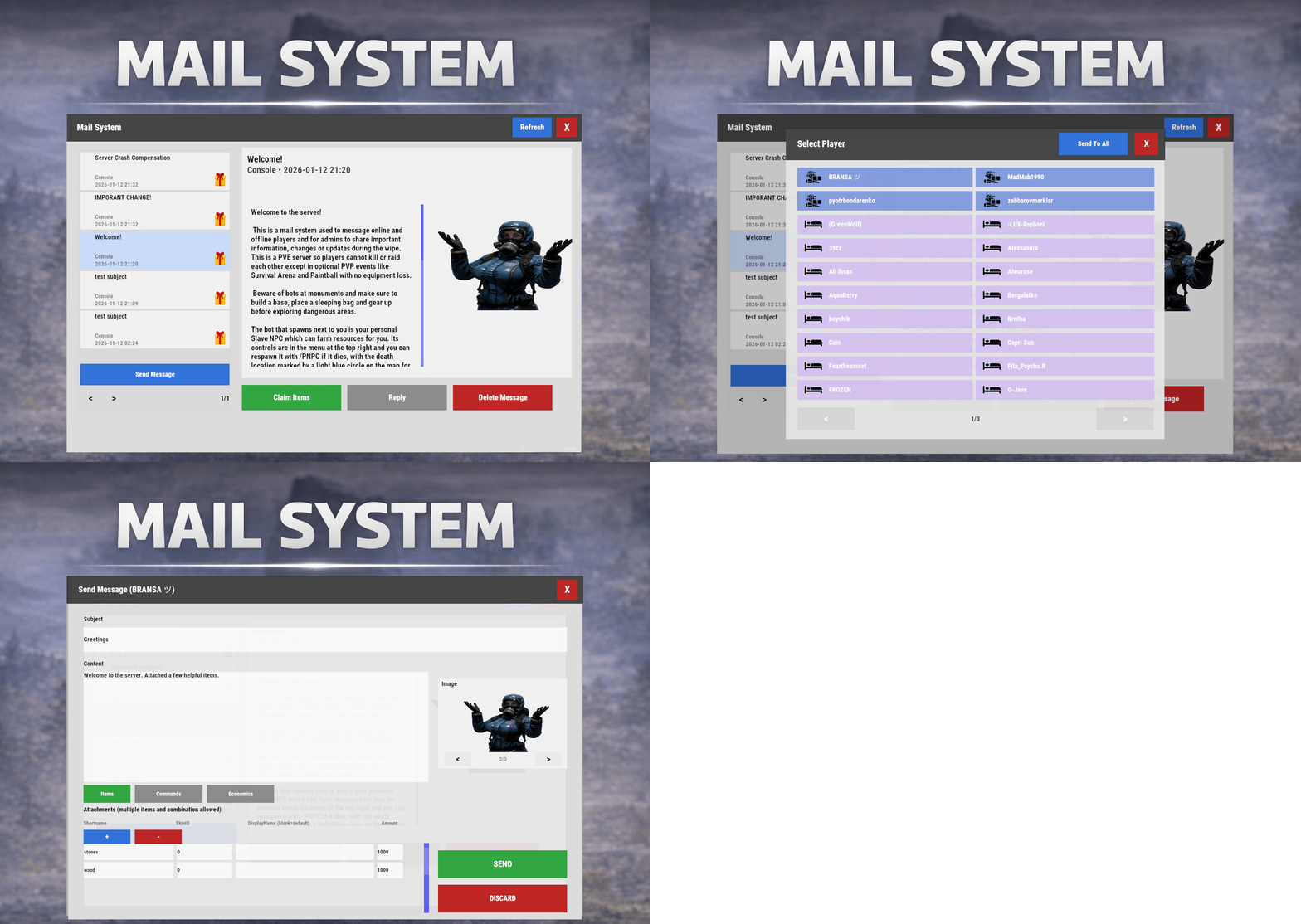
Mail System is an in-game mail and notification system for Rust servers, allowing players to send “emails” to online and offline players. Admins will also benefit from being able to include attachments such as items, commands, and economy rewards, and players can now open support tickets for staff assistance directly in-game. Designed for wipes, announcements, rewards, crash compensation, support, and direct communication, Mail System ensures both online and sleeping players receive admin messages, while also providing threaded conversations—replies are appended to the original message—so players can follow the full back-and-forth anytime via a simple UI they can access at any time. Perfect For Admin announcements Server rules and new player welcome messages Compensations Reward delivery Event prizes Player to Player communication Core Features Persistent inbox per player Messages are delivered even when players are currently offline Configurable inbox limits per player - oldest message deleted if limit exceeded. Optional wipe-based inbox clearing Simple message creation Ability to input subject and message content Recipient can be easily selected via a player picker UI, with unique colors and icons for Online/Sleeper/Staff Optional image per message via ImageLibrary. Available Image URLs (recommend square images eg 512x512) can be configured. Default/Example images have been included. Clean scrollable UI and configurable max length for long messages. Admins can easily include a combination of items, economies, or commands ran against the recipient. Messages and attachments can also be created via console commands, perfect for use in other plugins. Known Limitation: Rust does not currently have a functional multi-line support (as in, hitting enter to create a line break won't create a line break for the recipient). However. when typing message content, entering \n will create a new line in the resulting message as shown in attached screenshots. Facepunch is aware of this and UI input functionality will be updated accordingly. Unread notifications Notification sound upon receiving new message Visual indicator for unread messages and attachments Customizable position and size of on-screen notification bell Support Tickets (In-Game Helpdesk) Create new tickets with subject + message Staff groups can view/respond to all tickets (permission group based, configurable) Open & Closed ticket views (toggle), with close/reopen controls Threaded ticket history: every reply is stored and displayed as a conversation Attachments & Rewards Each message can include any combination of: Item rewards Multiple items per message Custom display names Optional skin IDs Inventory-safe claiming Command rewards Ability to run server commands on claim Supports placeholders to ensure command is run against the recipient (%steamid%) Repeatable command execution via amount entry Economy rewards Economics ServerRewards TCBank each handled independently, with clear failure feedback if unavailable or failed Players claim attachments directly from the inbox with a single click and receive a clear summary of what was successfully claimed and what failed, if anything. 🛠 Admin & Console Tools Send messages with attachments: Using In-game UI Using Console commands Attach rewards and images using simple flag-based commands Ability to include attachments is admin permission based Target: Individual players All players (Online and Sleepers) Customization Customize HUD icon and unread indicators Customize online/sleeper/staff icons Built-in notification HUD position & size editor (no config guessing) Customize available images which can be included in messages. Adjust HUD colors Configure subject/message max lengths and inbox size. Localization via lang files Timestamp +/- offset Chat Commands: /inbox - Opens the Inbox UI where players can view and send/reply messages /tickets - opens the Tickets UI /sendmail "PlayerName" - optional chat command to send message to specific player without going through inbox/player picker /inbox_top - Admin command to view players with largest inbox sizes /inbox_clear "PlayerName" - Admin command to clear a specific player's inbox /notif_iconpos - Admin command to reposition and resize the notification icon (auto saves) Permissions: mailsystem.send - required to be able to send messages mailsystem.admin - required to add attachments via UI and run admin commands mailsystem.ticketopen - allows opening/using the Tickets UI mailsystem.ticketstaff - marks a player as ticket staff (can view/respond to all tickets) mailsystem.ticketmanage - allows managing tickets (e.g., close/reopen regardless of creator) Console command functionality Console commands can be used for both messaging and attachment delivery using flags, with included option to select which image will appear in the message Basic command structure is as follows: mail.send <playername OR SteamID OR *> "<subject>" "<content>" [flags] Using the * star sign in place of recipient will send the message to all players. Available flags are desribed below and may be used multiple times and in any order: Image Flag: -img <number> Sets the message image. Uses the image list from the config Index starts at 0 0 = first image, 1 = second, etc. _______________________________ Item Flag: -item <shortname> <amount> <skinId> optional:"displayName" Adds an item attachment. skinId may be 0 Custom name is optional If omitted, the item’s default name is used _______________________________ Commands Flag: -cmd "<name>" "<command>" <amount> Runs a server command when claimed. amount specified how many time to run the command. It defaults to 1 Supports %steamid% and %name% wildcards - useful when sending to all players or via other plugins. "name" is what the player will see as the attachment name (instead of seeing the command itself) _______________________________ Economy Flag: -eco <type> <amount> Adds a currency attachment. Supported types: Economics ServerRewards TCBank _______________________________ Example Console Commands: Below are some example console commands. Note you can use \n\n for following text to start as a new paragraph Simple message only to single player(with image) mail.send PlayerName "Welcome!" "Welcome to the server. Enjoy your stay!" -img 0 Simple message only to all players (with image) mail.send * "Server Notice" "Welcome to the server everyone!" -img 0 Single item attachment (with image) mail.send PlayerName "Resource Gift" "Here are some materials to get you started." -img 1 -item wood 2000 0 Item attachment with custom display name and specific skinID (with image) mail.send PlayerName "Special AK" "You have received skinned HV pistol ammo." -img 2 -item rifle.ak 1 987654321 "Very Cool AK" Multiple items (with image) mail.send PlayerName "Supply Drop" "A mix of useful resources." -img 0 -item wood 3000 0 -item stones 2000 0 -item metal.fragments 500 0 Command attachment (with image) mail.send PlayerName "Starter Kit" "Claim this message to receive your starter kit." -img 1 -cmd "Starter Kit" "kit give %steamid% starter" Economy reward (Economics) (with image) mail.send PlayerName "Welcome Bonus" "You have received a currency reward." -img 0 -eco Economics 1000 Mix of Items + Economics (with image) mail.send PlayerName "Builder Pack" "Resources and money to help you build." -img 2 -item wood 4000 0 -item stones 4000 0 -eco Economics 2500 Mix of Items and Command (TWO vip kits) (with image) mail.send PlayerName "VIP Trial" "Enjoy a one time VIP kit." -img 1 -item scrap 250 0 -cmd "VIP Kit" "kit give %steamid% VIP" 2 Full mixed attachments (items + command + economy) (with image) mail.send PlayerName "Welcome Package" "Everything you need to get started." -img 0 -item wood 3000 0 -item ammo.pistol.hv 100 0 -cmd "Starter Kit" "kit give %steamid% starter" -eco Economics 1500 Full mixed attachments to all players (note using \n\n to create a new paragraph within message content) (with image) mail.send * "Attention Citizens!" "Thank you for being awesome.\n\nAttached some gifts." -img 0 -item wood 3000 0 -item ammo.pistol.hv 100 0 -cmd "Starter Kit" "kit give %steamid% starter" -eco Economics 1500 If using the commands within a JSON (config) file, you will need to ensure you escape the quotes with a backslash (place a backslash before any quote sign), for example: mail.send %SteamID% \"Welcome!\" \"Welcome to the server!\n\n This is a mail system used to message online and offline players and for admins to share important information, changes or updates during the wipe\n\nWe hope you have a great time\" -item ammo.pistol.hv 100 0 \"\" -img 1 If you’re looking for a modern replacement for chat spam, manual kit commands, or unreliable reward delivery, Mail System provides a polished, user-friendly solution that players will instantly understand and appreciate. I have done my best to document the full functionality, but if any doubt do not hesitate to open a support request.$22.99 -
Version 1.0.1
28 downloads
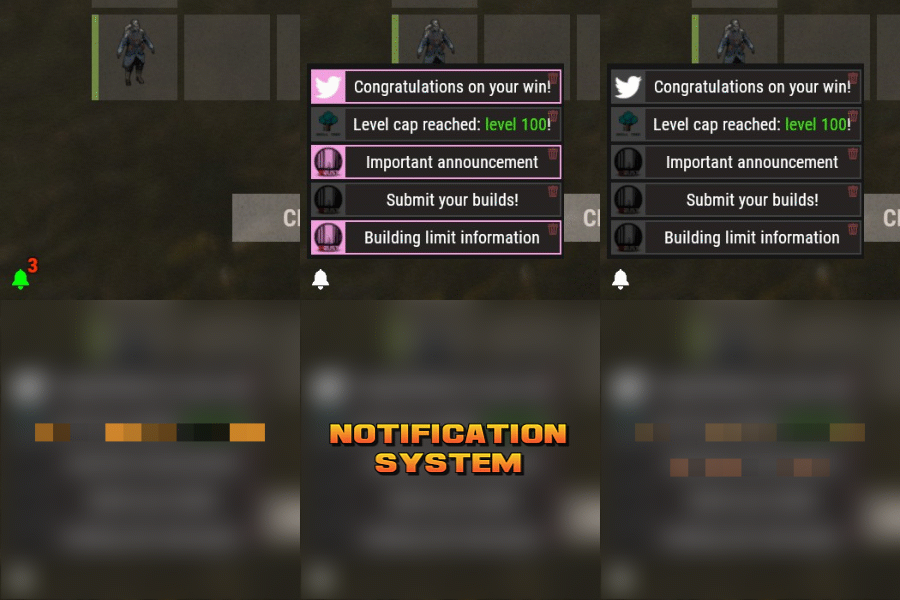
Notification Systems is a versatile plugin designed to deliver messages directly to players on your server — even when they’re offline. Seamlessly integrate it into other plugins, such as Skill Tree, or trigger notifications manually through commands for complete flexibility. Each notification can include a custom title, message, and an optional redemption button, giving you the power to reward players with items, currency, points, or trigger client-side commands — all tailored to your server’s needs. The idea behind the plugin is to allow server owners to send critical information to players, with the option to run commands that target said players. For example, you can send a notification to all players that have joined your server (regardless of their online status), with a redemption button that will give each of them 500 scrap. The following commands can be run in your server console, or player console (with the notificationsystem.admin permission). The commands are broken up in 3 sections: Title, body, redemptions, each of which is differentiated using "[]". Parameters: Userid: target player's Steam64 id. Message icon id: the skin id that you want to appear on the notification list. Setting to 0 will default to the message item id icon. Message item id: the item image you want to appear on the notification list (-769647921 = skull.trophy). Setting to 0 will default o the config icon. Title: Must be formatted with square brackets and surrounded by quotation marks like so: "[Title here]" Body: Must be formatted the same way as the title, with square brackets and quotation marks, like so: "[description here]" Redemptions: Must also have the square brackets and quotation marks, but also allow for an optional parameter of running it as a server command or client command. Here is the formatting for running a server command: "[(inventory.giveto {id} scrap 500, true)]" Here is the formatting for running a client command: "[(chat.say "/sprize", false)]" Here is the formatting for running both: "[(inventory.giveto {id} scrap 500, true),(chat.say "/sprize", false)]" Command: notification.add <userid> <message icon id> <message item id> "[Title]" "[Description]" "[(command1,bool:isServer)(command2,bool:isServer)]" Command: notification.all <message icon id> <message item id> "[Title]" "[Description]" "[(command1,bool:isServer)(command2,bool:isServer)]" Example of a full command: notification.add 123445667878213 "[Title goes here]" "[Here is my message, there are many others like it, but this is mine]" "[(inventory.giveto {id} scrap 500. true)]" notification.all "[Title goes here]" "[Here is my message, there are many others like it, but this is mine]" "[(inventory.giveto {id} scrap 500. true)]" void AddAll(string title, string body, int itemID, ulong picID = 0, string sprite = null, List<(string, bool)> commands = null) void Add(ulong id, string title, string body, int itemID, ulong picID = 0, string sprite = null, List<(string, bool)> commands = null)$11.99- 3 comments
-
- 1
-

-
- #notify
- #notification
- (and 7 more)
-
Version 1.0.3
458 downloads
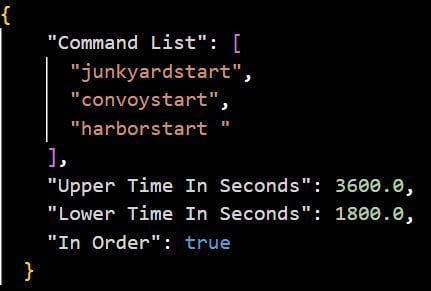
Timed Commands is an updated version of ComTimer. Features: This plugin is great for calling events and console commands - Commands run from a random time between an interval you set - Option to run commands in a random order Config: Default Configuration: { "Command List": [], "Longer Time In Seconds": 500.0, "Shorter Time In Seconds": 200.0, "In Order": true } Setting a single command: { "Command List": ["junkyardeventstart"], "Longer Time In Seconds": 500.0, "Shorter Time In Seconds": 200.0, "In Order": true } Setting more than one command: { "Command List": [ "junkyardeventstart", "callheli 1", "harborstart" ], "Longer Time In Seconds": 500.0, "Shorter Time In Seconds": 200.0, "In Order": true }Free -
Version 1.0.0
490 downloads
ServerMessage.cs Description : - This plugin allows you to send beautiful messages to all players' screens for a certain time. Settings : - HUD colors F1 Commands : - sm <message> <time> Permissions : - ownerid <steamID/user> WuyZar's Discord : https://discord.gg/NVwRcQwGwh Game interface :$2.00 -

Version 2.0.1
119 downloads
AdminEssentials is a powerful and easy-to-use toolkit for Rust server administrators. It provides a comprehensive suite of moderation, management, and utility commands to help you run your server smoothly. Features Teleportation tools: Teleport to players or coordinates, teleport back to previous locations, and teleport to placed map markers. Player moderation: Kick players, ban players (with timed durations and reasons), and unban players via simple commands. Player management: Heal players to full health, kill players instantly, and toggle special modes like God mode and Creative mode for yourself or others. Inventory and items: Give items to players, clear a player’s inventory, repair items, and view any player’s inventory contents in real time. Item Trash Can: Includes a personal Trash Can UI for safely destroying items. Server controls: Change the server time, set a personal “admin time”, instantly clear all weather effects, and reload server plugins in-game. Communication: Send private messages to players and reply quickly to the last message. Display a list of all online players and get detailed information on any player with a WhoIs lookup command. Automated messages: Optionally broadcast welcome messages to joining players and goodbye messages on disconnect. Configure periodic auto-messages that broadcast to the server at set intervals. Logging and customization: All admin actions can be logged to the server console/RCON and/or to a Discord webhook (configurable per command). Customize the chat prefix and icon for AdminEssentials messages to suit your server’s style. Commands (Use these commands in chat with the "/" prefix. All commands require the user to have the appropriate permission as listed in the Permissions section.) Teleportation Commands /goto – Teleport yourself to a player or to specific coordinates. (You can also teleport one player to another by specifying two player names.) /tpm – Toggle “teleport to marker” mode. When enabled, placing a map marker will instantly teleport you to that location. Use /tpm again to disable this mode. /back – Teleport back to your last saved location. Typically this returns you to where you teleported from (or your death location, if applicable). /spectate – Spectate the target player. Puts you into spectate mode attached to that player. Use the command again (or the on-screen UI button) to exit spectating and return to your original position. Moderation Commands /kick [reason] – Kick a player from the server. You may provide an optional reason which will be shown to the player. /ban [duration] [reason] – Ban a player. Optionally specify a duration (e.g. “30m”, “2h”, “7d”) and/or a reason. If no duration is given, a default (1 day) ban is applied. /unban – Unban a player. You can use either the player’s name or Steam ID. Player Management Commands /heal [player] – Fully heal yourself (no name) or the specified player (if a name is given). Restores health and vital stats to maximum. /kill [player] – Instantly kill yourself or the specified player. /god [player] – Toggle god mode (invincibility) on yourself or on another player. A player in god mode will not take damage or die until god mode is toggled off. /creative [player] – Toggle Rust’s creative mode on yourself or on another player. Creative mode allows building and crafting without restrictions. /creativeall – Toggle creative mode for all players on the server at once. Inventory Commands /give [amount] [skinId] [name] – Give an item to a player. You must specify the target player and item short name (or Item ID). You can optionally specify an amount (default 1), a skin ID, and a custom item name. /clear [player] – Clear your own inventory (no name given) or another player’s inventory (if a player name is provided). This completely empties the inventory of the target. /repair [player] – Repair the currently held item to full condition. If a player name is given, repair that player’s held item instead. /repairall [player] – Repair all items in your inventory. If a player name is given, repair all items in that player’s inventory instead. /viewinv – View the specified player’s inventory. This opens the target player’s inventory containers (main, belt, wear) for you, allowing you to see and/or move items. /trash – Open your personal trash can UI. This provides a special container (default 18 slots) where you can place items to destroy. Closing the trash UI with items inside will delete those items (after you confirm via the Delete button). Server Management Commands /time <0-24> – Change the server time to the specified hour (0–24). For example, “/time 12” sets in-game time to noon. /admintime [0-24] – Set your personal time of day. This overrides the server time for you only (useful for admins who want daylight while it’s night on the server). Specify an hour (0–24) to lock your time, or use no argument to reset back to normal server time. If you run it with no number or with -1 it will disable admintime. /clearweather – Instantly clear all weather effects on the server. This will stop rain, fog, and thunderstorms, returning to clear weather. /reload [plugin] – Reload an Oxide/Umod plugin. By default (no name given), this will reload the AdminEssentials plugin itself. You can specify another plugin name to reload that plugin instead. Communication Commands /pm <player> <message> – Send a private message to a player. The target player will receive your message privately. /r <message> – Reply to the last private message you received. This sends a PM back to whoever last messaged you (equivalent to a “reply” function). Information Commands /whois [player] – Display detailed information about a player. With no name, it will show your own info. The info can include the player’s name, Steam ID, position coordinates, connection status, health and vitals, and flags (admin, godmode, etc.). (The amount of detail shown depends on your permissions; see Permissions.) /players – Show a list of all online players on the server. By default this will list the player names (and possibly IDs) in chat. Utility Commands /essentials – Display the AdminEssentials help list. This command prints a list of all available AdminEssentials commands (the same commands listed above) with brief descriptions, to your chat. Only users with permission can use this. Permissions (Each permission can be granted to server staff or groups to allow use of the corresponding commands. All permission strings begin with adminessentials. as shown.) adminessentials.goto – Required to use the /goto command. adminessentials.back – Required to use the /back command. adminessentials.tpm – Required to use the /tpm teleport-to-marker command. adminessentials.spectate – Required to use /spectate. adminessentials.kick – Required for the /kick command. adminessentials.ban – Required for the /ban command. adminessentials.unban – Required for the /unban command. adminessentials.heal – Allows use of /heal. adminessentials.kill – Allows use of /kill. adminessentials.god – Allows use of /god mode toggle. adminessentials.creative – Allows use of /creative mode toggle. adminessentials.creativeall – Allows use of /creativeall (creative mode for all players). adminessentials.give – Required for /give item command. adminessentials.clear – Required for /clear inventory command. adminessentials.repair – Required for /repair command (repair held item). adminessentials.repairall – Required for /repairall command (repair all items). adminessentials.viewinv – Required for /viewinv (view player inventory). adminessentials.trash – Required for /trash (open personal trash can). adminessentials.time – Allows use of /time to set server time. adminessentials.admintime – Allows use of /admintime for personal time setting. adminessentials.clearweather – Allows use of /clearweather. adminessentials.reload – Allows use of /reload command to reload plugins. adminessentials.pm – Required for /pm and /r (private messaging commands). WhoIs Information Permissions: (The /whois command output is divided into sections; each section requires a specific permission. Granting all will show full info.) adminessentials.whois.info – Allows the /whois command to show basic info: player name, Steam ID, and position. adminessentials.whois.status – Allows /whois to show connection status (online/offline), life status (alive or dead), sleeping or wounded state. adminessentials.whois.stats – Allows /whois to show the player’s stats: health, calories, hydration, temperature, radiation, bleeding, wetness. adminessentials.whois.flags – Allows /whois to show player flags: whether the player is admin, in creative mode, developer mode, flying, or in god mode. adminessentials.players – Required for the /players list command. adminessentials.help – Required for the /essentials help command (to view the in-game command list).$19.99- 15 comments
- 1 review
-
- 2
-
-

-
- #admin
- #essentials
- (and 17 more)
-
Version 1.0.1
6 downloads
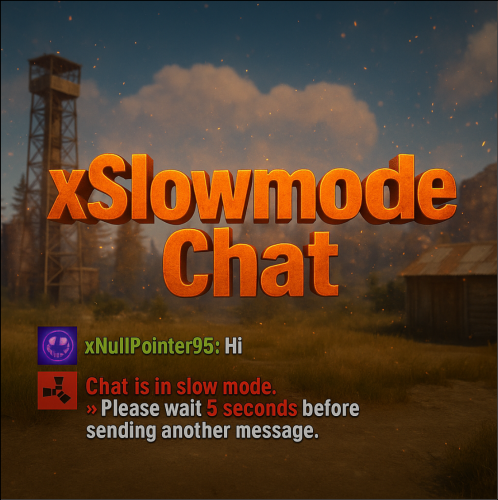
xSlowmodeChat xSlowmodeChat is a configurable chat-rate-limiting plugin for Rust servers. It allows server owners to control how frequently players can send messages, helping reduce spam, toxicity, and chat Flooding. Doesn't affect chat commands, only chat messages. Fully Configurable Slowmode Set custom cooldown between messages for normal- and vip players. Optional cumulative penalties for repeated spamming attempts. Adjustable penalty length for both, normal and VIP players. VIP Support Grant VIP players a separate cooldown & penalty system. VIP permission (xslowmodechat.vip). Lower intervals or completely remove slowmode for VIPs. Admin & Exclusion Options Easily toggle slowmode bypass for admins. Exclude specific SteamIDs from slowmode entirely. Informative Feedback Show a customizable slowmode warning message in chat. Optional on-screen UI timer showing remaining cooldown Console Commands xslowmode.enable - Enable slowmode xslowmode.disable - Disable slowmode xslowmode.setinterval <seconds> - Set default player cooldown xslowmode.setvipinterval <seconds> - Set VIP cooldown xslowmode.reloadconfig - Reload config from file Permission xslowmodechat.vip - Grants players the VIP slowmode settings. Config { "Enabled": true, "DisabledForAdmins": false, "ShowMessage": true, "MessageText": "<color=#e63939>Chat is in slow mode.\n»</color> Please wait <color=#e63939>{time} seconds</color> before sending another message.", "ShowSlowdownUi": true, "CumulativePenalty": true, "ChatMessageCooldown": 5.0, "CooldownPenalty": 5.0, "VipPermission": "xslowmodechat.vip", "VipChatMessageCooldown": 2.0, "VipCooldownPenalty": 2.0, "ExcludedSteamIds": [] }$8.99 -
Version 2.0.72
2,939 downloads
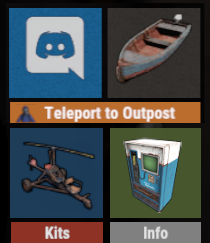
Create your own UI buttons for your rust server! Plugin comes with built ingame editor which makes creating proccess so much easier! • Features - Create as many buttons as you want. - Attach Images or Text to buttons. - Set chat commands to each button. - UI Editor ingame - Toggle hide function to create small gui menu. • Commands • Permissions • Config Example • Cui Data Example Special thanks to @SinKohhfor contributing and testing plugin before release.$7.50 -

Version 1.2.6
1,009 downloads
Description : This plugin allows you to have a graphical interface on your servers which will then give you information on the number of players, my not only that, all that in real time Editor : https://hud-panel.the-bandit.ovh/ Requires : ImageLibrary Compatible : TimedPermissions Economics TruePVE ServerRewards ZoneManager BuildCost UI Panel function : An ON/OFF button on the panel. A store button/Kits/Info/... An online player counter. An sleeping player counter. An player counter. A clock that gives the time of the match. A dial that gives the player balance. A dial that gives PVP/PVE information. A dial that indicates the time of a leave. A dial that displays your messages. A counter that gives the distance between you and your point. A dial that shows the player’s position on the map in real time. A dial that gives the server’s fps. An icon for the cargo plane event. An icon for freight events. An icon for ch47 events. An icon for attack helicopter events. An icon for tank events. An icon for your custom events via ( hook). Time format : file : /oxide/lang/en/HUDPanel.json for 12h format "Time_Format": "hh:mm tt", for 24h format "Time_Format": "HH:mm", https://www.c-sharpcorner.com/blogs/date-and-time-format-in-c-sharp-programming1 Themes : HUD BASIC CUBE TRIANGLE Icon ID : Contents : - HUDPanel.cs Install : rust\oxide\plugins\HUDPanel.cs Config : rust\oxide\config\HUDPanel.json { "Scan current map events on reload": true, "Chat command to show/disappear the HUDPanel": "h", "Anti Freeze Server Fps Limit": 15, "Change the overall size of the HUD Panel (30 - 100) Default 48": 48, "Width between icon": 18, "Change the sound of the On/Off button": "assets/prefabs/locks/keypad/effects/lock.code.lock.prefab", "Type the coordinate ( X: 1000 | Z: 1000 : 0 ), ( map : A1 : 1 ), ( Auto : 2 )": 2, "List Messages": { "Messages": { "On/Off (true/false)": true, "How long until the next message": 10, "Messages": [ "Messages 1", "Messages 2", "Messages 3" ], "The order the icon should place": 0, "Change text alignment": 4, "Text size": 11, "Text fonts ( 0 - 3 )": 0, "Color Text ( HEX )": "#ffffff", "The position on the screen that the icon should be ( LeftTop, CenterTop, RightTop, LeftBottom, CenterBottom, RightBottom)": "CenterTop", "Swich On": { "Themes ( HUD - BASIC - CUBE - TRIANGLE )": "HUD", "Color 1": "#000000", "Color 2": "#3f51b5", "Color 3": null, "Color Icon": "#ffffff", "Opacity 1": 0.3, "Opacity 2": 1.0, "Opacity 3": 0.0, "Opacity icon": 1.0, "Enlarge icon": 2.1, "Icon ID": "Messages", "URL Custom": null }, "Swich OFF": null, "Position of text in the logo": "20 0 -1 0", "Width BAR SIZE : 1 - 15": 8 } }, "Timed Permissions: Edit 'vip_*' ( Permissions / Groups )": { "vip_1": { "On/Off (true/false)": true, "Reload delay": 5, "Commands (leave blank to disable)": null, "The order the icon should place": 0, "Change text alignment": 4, "Text size": 11, "Text fonts ( 0 - 3 )": 0, "Color Text ( HEX )": "#ffffff", "The position on the screen that the icon should be ( LeftTop, CenterTop, RightTop, LeftBottom, CenterBottom, RightBottom)": "CenterTop", "Swich On": { "Themes ( HUD - BASIC - CUBE - TRIANGLE )": "HUD", "Color 1": "#000000", "Color 2": "#ff9800", "Color 3": null, "Color Icon": "#ffffff", "Opacity 1": 0.3, "Opacity 2": 1.0, "Opacity 3": 0.0, "Opacity icon": 1.0, "Enlarge icon": 1.5, "Icon ID": "Vip_3", "URL Custom": null }, "Swich OFF": null, "Position of text in the logo": "20 0 -1 0", "Width BAR SIZE : 1 - 15": 7 }, "demo": { "On/Off (true/false)": true, "Reload delay": 5, "Commands (leave blank to disable)": null, "The order the icon should place": 0, "Change text alignment": 4, "Text size": 11, "Text fonts ( 0 - 3 )": 0, "Color Text ( HEX )": "#ffffff", "The position on the screen that the icon should be ( LeftTop, CenterTop, RightTop, LeftBottom, CenterBottom, RightBottom)": "CenterBottom", "Swich On": { "Themes ( HUD - BASIC - CUBE - TRIANGLE )": "HUD", "Color 1": "#000000", "Color 2": "#ff9800", "Color 3": null, "Color Icon": "#ffffff", "Opacity 1": 0.3, "Opacity 2": 1.0, "Opacity 3": 0.0, "Opacity icon": 1.0, "Enlarge icon": 1.5, "Icon ID": "Vip_1", "URL Custom": null }, "Swich OFF": null, "Position of text in the logo": "20 0 -2 0", "Width BAR SIZE : 1 - 15": 7 } }, "Custom events": { "Sputnik": { "On/Off (true/false)": true, "The order the icon should place": 5, "The position on the screen that the icon should be ( LeftTop, CenterTop, RightTop, LeftBottom, CenterBottom, RightBottom)": "RightTop", "On Event start ( Hook )": "OnSputnikEventStart", "On Event End ( Hook )": "OnSputnikEventStop", "Swich On": { "Themes ( HUD - BASIC - CUBE - TRIANGLE )": "HUD", "Color 1": "#000000", "Color 2": "#ff8100", "Color 3": "#ffffff", "Color Icon": "#ffffff", "Opacity 1": 0.4, "Opacity 2": 1.0, "Opacity 3": 0.0, "Opacity icon": 1.0, "Enlarge icon": 1.6, "Icon ID": "Sputnik", "URL Custom": null }, "Swich OFF": { "Themes ( HUD - BASIC - CUBE - TRIANGLE )": "HUD", "Color 1": "#000000", "Color 2": "#000000", "Color 3": "#ffffff", "Color Icon": "#ffffff", "Opacity 1": 0.3, "Opacity 2": 0.0, "Opacity 3": 0.1, "Opacity icon": 1.0, "Enlarge icon": 1.6, "Icon ID": "Sputnik", "URL Custom": null }, "Width BAR SIZE : 1 - 15": 1 }, "Convoy": { "On/Off (true/false)": true, "The order the icon should place": 6, "The position on the screen that the icon should be ( LeftTop, CenterTop, RightTop, LeftBottom, CenterBottom, RightBottom)": "RightTop", "On Event start ( Hook )": "OnConvoyStart", "On Event End ( Hook )": "OnConvoyEnd", "Swich On": { "Themes ( HUD - BASIC - CUBE - TRIANGLE )": "HUD", "Color 1": "#000000", "Color 2": "#ff8100", "Color 3": "#ffffff", "Color Icon": "#ffffff", "Opacity 1": 0.4, "Opacity 2": 1.0, "Opacity 3": 0.0, "Opacity icon": 1.0, "Enlarge icon": 1.6, "Icon ID": "Convoy", "URL Custom": null }, "Swich OFF": { "Themes ( HUD - BASIC - CUBE - TRIANGLE )": "HUD", "Color 1": "#000000", "Color 2": "#000000", "Color 3": "#ffffff", "Color Icon": "#ffffff", "Opacity 1": 0.3, "Opacity 2": 0.0, "Opacity 3": 0.1, "Opacity icon": 1.0, "Enlarge icon": 1.6, "Icon ID": "Convoy", "URL Custom": null }, "Width BAR SIZE : 1 - 15": 1 }, "ArmoredTrain": { "On/Off (true/false)": true, "The order the icon should place": 7, "The position on the screen that the icon should be ( LeftTop, CenterTop, RightTop, LeftBottom, CenterBottom, RightBottom)": "RightTop", "On Event start ( Hook )": "OnArmoredTrainEventStart", "On Event End ( Hook )": "OnArmoredTrainEventStop", "Swich On": { "Themes ( HUD - BASIC - CUBE - TRIANGLE )": "HUD", "Color 1": "#000000", "Color 2": "#ff8100", "Color 3": "#ffffff", "Color Icon": "#ffffff", "Opacity 1": 0.4, "Opacity 2": 1.0, "Opacity 3": 0.0, "Opacity icon": 1.0, "Enlarge icon": 1.6, "Icon ID": "Train", "URL Custom": null }, "Swich OFF": { "Themes ( HUD - BASIC - CUBE - TRIANGLE )": "HUD", "Color 1": "#000000", "Color 2": "#000000", "Color 3": "#ffffff", "Color Icon": "#ffffff", "Opacity 1": 0.3, "Opacity 2": 0.0, "Opacity 3": 0.1, "Opacity icon": 1.0, "Enlarge icon": 1.6, "Icon ID": "Train", "URL Custom": null }, "Width BAR SIZE : 1 - 15": 1 }, "Harbor": { "On/Off (true/false)": true, "The order the icon should place": 8, "The position on the screen that the icon should be ( LeftTop, CenterTop, RightTop, LeftBottom, CenterBottom, RightBottom)": "RightTop", "On Event start ( Hook )": "OnHarborEventStart", "On Event End ( Hook )": "OnHarborEventEnd", "Swich On": { "Themes ( HUD - BASIC - CUBE - TRIANGLE )": "HUD", "Color 1": "#000000", "Color 2": "#ff8100", "Color 3": "#ffffff", "Color Icon": "#ffffff", "Opacity 1": 0.4, "Opacity 2": 1.0, "Opacity 3": 0.0, "Opacity icon": 1.0, "Enlarge icon": 2.0, "Icon ID": "Harbor", "URL Custom": null }, "Swich OFF": { "Themes ( HUD - BASIC - CUBE - TRIANGLE )": "HUD", "Color 1": "#000000", "Color 2": "#000000", "Color 3": "#ffffff", "Color Icon": "#ffffff", "Opacity 1": 0.3, "Opacity 2": 0.0, "Opacity 3": 0.1, "Opacity icon": 1.0, "Enlarge icon": 2.0, "Icon ID": "Harbor", "URL Custom": null }, "Width BAR SIZE : 1 - 15": 1 } }, "Default events": { "Patrol": { "On/Off (true/false)": true, "Change text alignment": 4, "Text size": 11, "Text fonts ( 0 - 3 )": 0, "Color Text ( HEX )": "#ffffff", "Position of text in the logo": "20 0 -1 0", "The order the icon should place": 2, "The position on the screen that the icon should be ( LeftTop, CenterTop, RightTop, LeftBottom, CenterBottom, RightBottom)": "RightTop", "On Event start ( Hook )": null, "On Event End ( Hook )": null, "Swich On": { "Themes ( HUD - BASIC - CUBE - TRIANGLE )": "HUD", "Color 1": "#000000", "Color 2": "#ff0000", "Color 3": "#ffffff", "Color Icon": "#ffffff", "Opacity 1": 0.3, "Opacity 2": 1.0, "Opacity 3": 0.0, "Opacity icon": 1.0, "Enlarge icon": 1.6, "Icon ID": "Patrol", "URL Custom": null }, "Swich OFF": { "Themes ( HUD - BASIC - CUBE - TRIANGLE )": "HUD", "Color 1": "#000000", "Color 2": "#ff0000", "Color 3": "#ffffff", "Color Icon": "#ffffff", "Opacity 1": 0.3, "Opacity 2": 0.0, "Opacity 3": 0.1, "Opacity icon": 1.0, "Enlarge icon": 1.6, "Icon ID": "Patrol", "URL Custom": null }, "Width BAR SIZE : 1 - 15": 1 }, "Ch47": { "On/Off (true/false)": true, "Change text alignment": 4, "Text size": 11, "Text fonts ( 0 - 3 )": 0, "Color Text ( HEX )": "#ffffff", "Position of text in the logo": "20 0 -1 0", "The order the icon should place": 3, "The position on the screen that the icon should be ( LeftTop, CenterTop, RightTop, LeftBottom, CenterBottom, RightBottom)": "RightTop", "On Event start ( Hook )": null, "On Event End ( Hook )": null, "Swich On": { "Themes ( HUD - BASIC - CUBE - TRIANGLE )": "HUD", "Color 1": "#000000", "Color 2": "#ff0000", "Color 3": "#ffffff", "Color Icon": "#ffffff", "Opacity 1": 0.3, "Opacity 2": 1.0, "Opacity 3": 0.0, "Opacity icon": 1.0, "Enlarge icon": 1.8, "Icon ID": "Ch-47", "URL Custom": null }, "Swich OFF": { "Themes ( HUD - BASIC - CUBE - TRIANGLE )": "HUD", "Color 1": "#000000", "Color 2": "#ff0000", "Color 3": "#ffffff", "Color Icon": "#ffffff", "Opacity 1": 0.3, "Opacity 2": 0.0, "Opacity 3": 0.1, "Opacity icon": 1.0, "Enlarge icon": 1.8, "Icon ID": "Ch-47", "URL Custom": null }, "Width BAR SIZE : 1 - 15": 1 }, "Plane": { "On/Off (true/false)": true, "Change text alignment": 4, "Text size": 11, "Text fonts ( 0 - 3 )": 0, "Color Text ( HEX )": "#ffffff", "Position of text in the logo": "20 0 -1 0", "The order the icon should place": 10, "The position on the screen that the icon should be ( LeftTop, CenterTop, RightTop, LeftBottom, CenterBottom, RightBottom)": "RightTop", "On Event start ( Hook )": null, "On Event End ( Hook )": null, "Swich On": { "Themes ( HUD - BASIC - CUBE - TRIANGLE )": "HUD", "Color 1": "#000000", "Color 2": "#007f00", "Color 3": "#ffffff", "Color Icon": "#ffffff", "Opacity 1": 0.3, "Opacity 2": 1.0, "Opacity 3": 0.0, "Opacity icon": 1.0, "Enlarge icon": 1.8, "Icon ID": "Plane", "URL Custom": null }, "Swich OFF": { "Themes ( HUD - BASIC - CUBE - TRIANGLE )": "HUD", "Color 1": "#000000", "Color 2": "#ff0000", "Color 3": "#ffffff", "Color Icon": "#ffffff", "Opacity 1": 0.3, "Opacity 2": 0.0, "Opacity 3": 0.1, "Opacity icon": 1.0, "Enlarge icon": 1.8, "Icon ID": "Plane", "URL Custom": null }, "Width BAR SIZE : 1 - 15": 2 }, "Cargo": { "On/Off (true/false)": true, "Change text alignment": 4, "Text size": 11, "Text fonts ( 0 - 3 )": 0, "Color Text ( HEX )": "#ffffff", "Position of text in the logo": "20 0 -1 0", "The order the icon should place": 4, "The position on the screen that the icon should be ( LeftTop, CenterTop, RightTop, LeftBottom, CenterBottom, RightBottom)": "RightTop", "On Event start ( Hook )": null, "On Event End ( Hook )": null, "Swich On": { "Themes ( HUD - BASIC - CUBE - TRIANGLE )": "HUD", "Color 1": "#000000", "Color 2": "#007f00", "Color 3": "#ffffff", "Color Icon": "#ffffff", "Opacity 1": 0.3, "Opacity 2": 1.0, "Opacity 3": 0.0, "Opacity icon": 1.0, "Enlarge icon": 1.5, "Icon ID": "Cargo", "URL Custom": null }, "Swich OFF": { "Themes ( HUD - BASIC - CUBE - TRIANGLE )": "HUD", "Color 1": "#000000", "Color 2": "#ff0000", "Color 3": "#ffffff", "Color Icon": "#ffffff", "Opacity 1": 0.3, "Opacity 2": 0.0, "Opacity 3": 0.1, "Opacity icon": 1.0, "Enlarge icon": 1.5, "Icon ID": "Cargo", "URL Custom": null }, "Width BAR SIZE : 1 - 15": 1 }, "BradleyAPC": { "On/Off (true/false)": true, "Change text alignment": 4, "Text size": 11, "Text fonts ( 0 - 3 )": 0, "Color Text ( HEX )": "#ffffff", "Position of text in the logo": "20 0 -1 0", "The order the icon should place": 1, "The position on the screen that the icon should be ( LeftTop, CenterTop, RightTop, LeftBottom, CenterBottom, RightBottom)": "RightTop", "On Event start ( Hook )": null, "On Event End ( Hook )": null, "Swich On": { "Themes ( HUD - BASIC - CUBE - TRIANGLE )": "HUD", "Color 1": "#000000", "Color 2": "#ff0000", "Color 3": "#ffffff", "Color Icon": "#ffffff", "Opacity 1": 0.4, "Opacity 2": 1.0, "Opacity 3": 0.0, "Opacity icon": 1.0, "Enlarge icon": 1.4, "Icon ID": "BradleyAPC", "URL Custom": null }, "Swich OFF": { "Themes ( HUD - BASIC - CUBE - TRIANGLE )": "HUD", "Color 1": "#000000", "Color 2": "#ff0000", "Color 3": "#ffffff", "Color Icon": "#ffffff", "Opacity 1": 0.3, "Opacity 2": 0.0, "Opacity 3": 0.1, "Opacity icon": 1.0, "Enlarge icon": 1.4, "Icon ID": "BradleyAPC", "URL Custom": null }, "Width BAR SIZE : 1 - 15": 1 } }, "Information frame": { "Power": { "On/Off (true/false)": true, "Reload delay": 0, "Commands (leave blank to disable)": null, "The order the icon should place": 1, "Change text alignment": 4, "Text size": 11, "Text fonts ( 0 - 3 )": 0, "Color Text ( HEX )": "#ffffff", "The position on the screen that the icon should be ( LeftTop, CenterTop, RightTop, LeftBottom, CenterBottom, RightBottom)": "LeftTop", "Position of text in the logo": "0 0 0 0", "Swich On": { "Themes ( HUD - BASIC - CUBE - TRIANGLE )": "HUD", "Color 1": "#000000", "Color 2": "#007f00", "Color 3": null, "Color Icon": "#ffffff", "Opacity 1": 0.3, "Opacity 2": 1.0, "Opacity 3": 0.0, "Opacity icon": 1.0, "Enlarge icon": 1.8, "Icon ID": "Power", "URL Custom": null }, "Swich OFF": { "Themes ( HUD - BASIC - CUBE - TRIANGLE )": "HUD", "Color 1": "#000000", "Color 2": "#ff0000", "Color 3": null, "Color Icon": "#ffffff", "Opacity 1": 0.3, "Opacity 2": 1.0, "Opacity 3": 0.0, "Opacity icon": 1.0, "Enlarge icon": 1.8, "Icon ID": "Power", "URL Custom": null }, "Width BAR SIZE : 1 - 15": 1 }, "Players": { "On/Off (true/false)": true, "Reload delay": 1, "Commands (leave blank to disable)": null, "The order the icon should place": 2, "Change text alignment": 4, "Text size": 11, "Text fonts ( 0 - 3 )": 0, "Color Text ( HEX )": "#ffffff", "The position on the screen that the icon should be ( LeftTop, CenterTop, RightTop, LeftBottom, CenterBottom, RightBottom)": "LeftTop", "Position of text in the logo": "20 0 -1 0", "Swich On": { "Themes ( HUD - BASIC - CUBE - TRIANGLE )": "HUD", "Color 1": "#000000", "Color 2": "#3d3d44", "Color 3": null, "Color Icon": "#ffffff", "Opacity 1": 0.3, "Opacity 2": 1.0, "Opacity 3": 0.0, "Opacity icon": 1.0, "Enlarge icon": 1.8, "Icon ID": "Players", "URL Custom": null }, "Swich OFF": null, "Width BAR SIZE : 1 - 15": 3 }, "Sleep": { "On/Off (true/false)": true, "Reload delay": 2, "Commands (leave blank to disable)": null, "The order the icon should place": 3, "Change text alignment": 4, "Text size": 11, "Text fonts ( 0 - 3 )": 0, "Color Text ( HEX )": "#ffffff", "The position on the screen that the icon should be ( LeftTop, CenterTop, RightTop, LeftBottom, CenterBottom, RightBottom)": "LeftTop", "Position of text in the logo": "20 0 -1 0", "Swich On": { "Themes ( HUD - BASIC - CUBE - TRIANGLE )": "HUD", "Color 1": "#000000", "Color 2": "#ff8100", "Color 3": null, "Color Icon": "#ffffff", "Opacity 1": 0.3, "Opacity 2": 1.0, "Opacity 3": 0.0, "Opacity icon": 1.0, "Enlarge icon": 1.8, "Icon ID": "Sleep", "URL Custom": null }, "Swich OFF": null, "Width BAR SIZE : 1 - 15": 2 }, "Joining": { "On/Off (true/false)": true, "Reload delay": 1, "Commands (leave blank to disable)": null, "The order the icon should place": 4, "Change text alignment": 4, "Text size": 11, "Text fonts ( 0 - 3 )": 0, "Color Text ( HEX )": "#ffffff", "The position on the screen that the icon should be ( LeftTop, CenterTop, RightTop, LeftBottom, CenterBottom, RightBottom)": "LeftTop", "Position of text in the logo": "20 0 -1 0", "Swich On": { "Themes ( HUD - BASIC - CUBE - TRIANGLE )": "HUD", "Color 1": "#000000", "Color 2": "#ff0000", "Color 3": null, "Color Icon": "#ffffff", "Opacity 1": 0.3, "Opacity 2": 1.0, "Opacity 3": 0.0, "Opacity icon": 1.0, "Enlarge icon": 1.8, "Icon ID": "Joining", "URL Custom": null }, "Swich OFF": null, "Width BAR SIZE : 1 - 15": 2 }, "Times": { "On/Off (true/false)": true, "Reload delay": 5, "Commands (leave blank to disable)": null, "The order the icon should place": 5, "Change text alignment": 4, "Text size": 11, "Text fonts ( 0 - 3 )": 0, "Color Text ( HEX )": "#ffffff", "The position on the screen that the icon should be ( LeftTop, CenterTop, RightTop, LeftBottom, CenterBottom, RightBottom)": "LeftTop", "Position of text in the logo": "20 0 -1 0", "Swich On": { "Themes ( HUD - BASIC - CUBE - TRIANGLE )": "HUD", "Color 1": "#000000", "Color 2": "#00a7c2", "Color 3": null, "Color Icon": "#ffffff", "Opacity 1": 0.3, "Opacity 2": 1.0, "Opacity 3": 0.0, "Opacity icon": 1.0, "Enlarge icon": 1.8, "Icon ID": "Times", "URL Custom": null }, "Swich OFF": null, "Width BAR SIZE : 1 - 15": 2 }, "ServerRewards": { "On/Off (true/false)": true, "Reload delay": 3, "Commands (leave blank to disable)": null, "The order the icon should place": 1, "Change text alignment": 4, "Text size": 11, "Text fonts ( 0 - 3 )": 0, "Color Text ( HEX )": "#ffffff", "The position on the screen that the icon should be ( LeftTop, CenterTop, RightTop, LeftBottom, CenterBottom, RightBottom)": "RightBottom", "Position of text in the logo": "20 0 -1 0", "Swich On": { "Themes ( HUD - BASIC - CUBE - TRIANGLE )": "HUD", "Color 1": "#000000", "Color 2": "#ff5722", "Color 3": null, "Color Icon": "#ffffff", "Opacity 1": 0.3, "Opacity 2": 1.0, "Opacity 3": 0.0, "Opacity icon": 1.0, "Enlarge icon": 1.8, "Icon ID": "ServerRewards", "URL Custom": null }, "Swich OFF": null, "Width BAR SIZE : 1 - 15": 5 }, "Economics": { "On/Off (true/false)": true, "Reload delay": 0, "Commands (leave blank to disable)": null, "The order the icon should place": 6, "Change text alignment": 4, "Text size": 11, "Text fonts ( 0 - 3 )": 0, "Color Text ( HEX )": "#ffffff", "The position on the screen that the icon should be ( LeftTop, CenterTop, RightTop, LeftBottom, CenterBottom, RightBottom)": "LeftTop", "Position of text in the logo": "20 0 -1 0", "Swich On": { "Themes ( HUD - BASIC - CUBE - TRIANGLE )": "HUD", "Color 1": "#000000", "Color 2": "#007f00", "Color 3": null, "Color Icon": "#ffffff", "Opacity 1": 0.3, "Opacity 2": 1.0, "Opacity 3": 0.0, "Opacity icon": 1.0, "Enlarge icon": 1.8, "Icon ID": "Economics", "URL Custom": null }, "Swich OFF": null, "Width BAR SIZE : 1 - 15": 5 }, "FPS": { "On/Off (true/false)": true, "Reload delay": 1, "Commands (leave blank to disable)": null, "The order the icon should place": 2, "Change text alignment": 4, "Text size": 11, "Text fonts ( 0 - 3 )": 0, "Color Text ( HEX )": "#ffffff", "The position on the screen that the icon should be ( LeftTop, CenterTop, RightTop, LeftBottom, CenterBottom, RightBottom)": "LeftBottom", "Position of text in the logo": "20 0 -1 0", "Swich On": { "Themes ( HUD - BASIC - CUBE - TRIANGLE )": "HUD", "Color 1": "#000000", "Color 2": "#ff0066", "Color 3": null, "Color Icon": "#ffffff", "Opacity 1": 0.3, "Opacity 2": 1.0, "Opacity 3": 0.0, "Opacity icon": 1.0, "Enlarge icon": 1.8, "Icon ID": "FPS", "URL Custom": null }, "Swich OFF": null, "Width BAR SIZE : 1 - 15": 2 }, "PvpPve": { "On/Off (true/false)": true, "Reload delay": 10, "Commands (leave blank to disable)": null, "The order the icon should place": 1, "Change text alignment": 4, "Text size": 11, "Text fonts ( 0 - 3 )": 0, "Color Text ( HEX )": "#ffffff", "The position on the screen that the icon should be ( LeftTop, CenterTop, RightTop, LeftBottom, CenterBottom, RightBottom)": "LeftBottom", "Position of text in the logo": "20 0 -1 0", "Swich On": { "Themes ( HUD - BASIC - CUBE - TRIANGLE )": "HUD", "Color 1": "#000000", "Color 2": "#ff0066", "Color 3": null, "Color Icon": "#ffffff", "Opacity 1": 0.3, "Opacity 2": 1.0, "Opacity 3": 0.0, "Opacity icon": 1.0, "Enlarge icon": 1.8, "Icon ID": "PvpPve", "URL Custom": null }, "Swich OFF": null, "Width BAR SIZE : 1 - 15": 3 }, "Coordinate": { "On/Off (true/false)": false, "Reload delay": 3, "Commands (leave blank to disable)": null, "The order the icon should place": 5, "Change text alignment": 4, "Text size": 11, "Text fonts ( 0 - 3 )": 0, "Color Text ( HEX )": "#ffffff", "The position on the screen that the icon should be ( LeftTop, CenterTop, RightTop, LeftBottom, CenterBottom, RightBottom)": "RightTop", "Position of text in the logo": "20 0 -1 0", "Swich On": { "Themes ( HUD - BASIC - CUBE - TRIANGLE )": "HUD", "Color 1": "#000000", "Color 2": "#006bc3", "Color 3": null, "Color Icon": "#ffffff", "Opacity 1": 0.3, "Opacity 2": 1.0, "Opacity 3": 0.0, "Opacity icon": 1.0, "Enlarge icon": 1.8, "Icon ID": "Coordinate", "URL Custom": null }, "Swich OFF": null, "Width BAR SIZE : 1 - 15": 6 }, "MarkerPos": { "On/Off (true/false)": true, "Reload delay": 1, "Commands (leave blank to disable)": null, "The order the icon should place": 2, "Change text alignment": 4, "Text size": 11, "Text fonts ( 0 - 3 )": 0, "Color Text ( HEX )": "#ffffff", "The position on the screen that the icon should be ( LeftTop, CenterTop, RightTop, LeftBottom, CenterBottom, RightBottom)": "RightBottom", "Position of text in the logo": "20 0 -1 0", "Swich On": { "Themes ( HUD - BASIC - CUBE - TRIANGLE )": "HUD", "Color 1": "#000000", "Color 2": "#feab00", "Color 3": null, "Color Icon": "#ffffff", "Opacity 1": 0.3, "Opacity 2": 1.0, "Opacity 3": 0.0, "Opacity icon": 1.0, "Enlarge icon": 1.8, "Icon ID": "MarkerPos", "URL Custom": null }, "Swich OFF": null, "Width BAR SIZE : 1 - 15": 2 } }, "Button Custom": { "Shop": { "On/Off (true/false)": true, "Commands (leave blank to disable)": "shop", "The order the icon should place": 6, "Text size": 11, "Text fonts ( 0 - 3 )": 0, "Color Text ( HEX )": "#ffffff", "Position of text in the logo": "20 0 -1 0", "Change text alignment": 4, "The position on the screen that the icon should be ( LeftTop, CenterTop, RightTop, LeftBottom, CenterBottom, RightBottom)": "CenterBottom", "Swich On": { "Themes ( HUD - BASIC - CUBE - TRIANGLE )": "HUD", "Color 1": "#000000", "Color 2": "#000000", "Color 3": "#ffffff", "Color Icon": "#ffffff", "Opacity 1": 0.4, "Opacity 2": 0.4, "Opacity 3": 1.0, "Opacity icon": 0.9, "Enlarge icon": 1.7, "Icon ID": "Shop", "URL Custom": null }, "Swich OFF": null, "Width BAR SIZE : 1 - 15": 2 }, "Kits": { "On/Off (true/false)": true, "Commands (leave blank to disable)": "chat.say /kit", "The order the icon should place": 6, "Text size": 11, "Text fonts ( 0 - 3 )": 0, "Color Text ( HEX )": "#ffffff", "Position of text in the logo": "20 0 -1 0", "Change text alignment": 4, "The position on the screen that the icon should be ( LeftTop, CenterTop, RightTop, LeftBottom, CenterBottom, RightBottom)": "CenterBottom", "Swich On": { "Themes ( HUD - BASIC - CUBE - TRIANGLE )": "HUD", "Color 1": "#000000", "Color 2": "#000000", "Color 3": "#ffffff", "Color Icon": "#ffffff", "Opacity 1": 0.4, "Opacity 2": 0.4, "Opacity 3": 1.0, "Opacity icon": 0.9, "Enlarge icon": 1.7, "Icon ID": "Kits", "URL Custom": null }, "Swich OFF": null, "Width BAR SIZE : 1 - 15": 2 }, "Info": { "On/Off (true/false)": true, "Commands (leave blank to disable)": "chat.say /info", "The order the icon should place": 6, "Text size": 11, "Text fonts ( 0 - 3 )": 0, "Color Text ( HEX )": "#ffffff", "Position of text in the logo": "20 0 -1 0", "Change text alignment": 4, "The position on the screen that the icon should be ( LeftTop, CenterTop, RightTop, LeftBottom, CenterBottom, RightBottom)": "CenterBottom", "Swich On": { "Themes ( HUD - BASIC - CUBE - TRIANGLE )": "HUD", "Color 1": "#000000", "Color 2": "#000000", "Color 3": "#ffffff", "Color Icon": "#ffffff", "Opacity 1": 0.4, "Opacity 2": 0.4, "Opacity 3": 1.0, "Opacity icon": 0.9, "Enlarge icon": 1.9, "Icon ID": "Info", "URL Custom": null }, "Swich OFF": null, "Width BAR SIZE : 1 - 15": 1 } } }$12.99 -
Version 25.5.39951
149 downloads
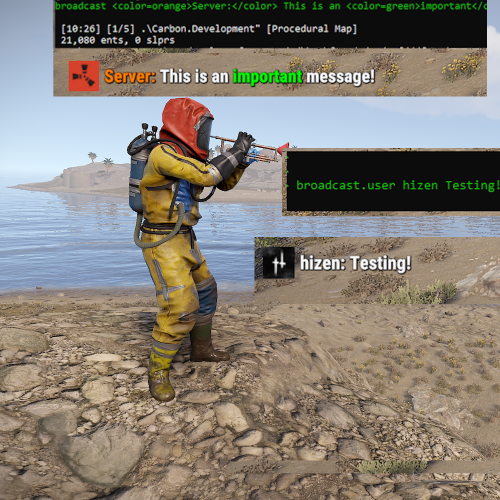
Extremely lightweight and simple wrapper around the server broadcast feature in carbon. This can be ran from any command area as long as you have the permissions or are running from the server console. This is made as an alternative to the "say" command which prepends messages with "SERVER". Usage is very simple: broadcast This is a public announcement! broadcast <color=orange>Server: </color>Hello, world! broadcast.icon hizen I am now just using hizen's icon! broadcast.user hizen This is something hizen would say. Permissions for each of the commands (broadcast, broadcast.icon, and broadcast.user, respectively): broadcast.use broadcast.icon broadcast.user The in-game f1 console doesn't work with html tags (<>), so I would recommend using those through the actual server console or using chat commands (eg: /broadcast <color=red> this text is red</color>)Free-
- 1
-
-
- #server
- #broadcast
- (and 4 more)
-

Version 1.0.0
219 downloads
The plugin sends chat messages at specified intervals with support for colour, size, underlining and italics. This plugin features: - Option to send messages sequentially or randomly - Option to change the colour of the text <#EEB134>Message</color>. - Option to add a new line without sending another message /n - Ability to write in italics <i>Message</i> - Ability to underline the text <u>Message</u> - Possibility to change the size of the text <size=14>Message</size> Permissions: AutoChatMessage.Admin Commands: /acm.reload - Requires permission AutoChatMessage.Admin Config File: { "Interval": 60, "Messages": [ "<size=14><#03FCE7><u>Hello, player!</u></color> <#FCF403>Welcome to the server!</color></size>", "<size=14><#FCB103>Plugin By:</color></size>/n<size=10><#FCF403><u>Kalvi</u></color></size>", "<size=14><#A1FC03><i>Thank you for downloading the plugin</i></color></size>" ], "RandomMessage": false }Free -
Version 1.0.2
191 downloads
This plugin allows to send to discord weebhook messages to discord weebhooks works like API. Messages can be sent normal or embed Add reference to the plugin: [PluginReference] Plugin DiscordApi; How to send: private string DiscordWeebHookUrl = "URL HERE" string message = $"YOU MESSAGE`"; send messages: DiscordApi?.Call("API_SendMessage", DiscordWeebHookUrl , Message, this); Embed: string EmbedTitle = "Title"; int EmbedColor = 16711680; -> Color string Empty = ""; string json = $"[{{\"name\":\"Message One\",\"value\":\"Example: {something} \",\"inline\":true}},\n{{\"name\":\"2n Message\",\"value\":\"3rd message: {Something}\",\"inline\":true}}]"; call to send: DiscordApi?.Call("API_SendEmbeddedMessage", DiscordWeebHookUrl, EmbedTitle, EmbedColor , json, Empty, this);Free-
- 1
-
-
- #plugin
- #rust plugin
- (and 3 more)
-
Version 1.1.1
447 downloads
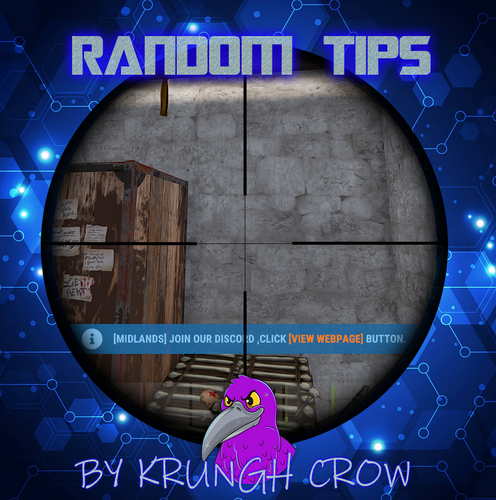
Send Gametip messages on a timed interval to online players Features : Simple configuration. Sends Gametip messages on a configurable timed interval and duration (seconds). Can use a permission to ignore a player to get the messages. API support for other plugins to use its simplified queue system. Permissions : randomtips.exclude : To exclude the player from getting the Gametips sent by this plugin Configuration : Show Messages is set to false by default so it will not run the standard messages on plugin install. If you don't want to use a prefix , then you can leave it empty. Warning tips (RED) have a max lifetime of 5 seconds { "Show Messages": true, "Prefix": "[YourServer] ", "Interval (seconds)": 600, "Global Tip Duration (seconds)": 5.0, "Show as warning (max 5 sec)": false, "Messages": [ "Join our Discord ,Click <color=orange>[view webpage]</color> button.", "We run several cool Plugins !", "Grab one of our kits using /kit .", "<color=red>Color</color> code is supported" ] } API : void TIP(BasePlayer player, string message, float dur , bool warning) example call RandomTips?.Call("TIP", player, "Your text here", 6f ,true);Free -
Version 1.0.8
453 downloads
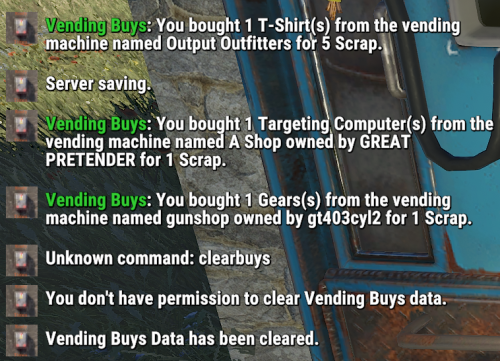
Vending Buys is a plugin that lets the buyer and/or seller of an item that has been bought or sold from any physical vending machine know about the sale and who they bought from or sold it to. If the vending machine is not owned buy a player, Outpost for example, it will show a slightly modified message with the name of the machine. Note: when logging purchases from the Drone Market, Vending Buys does not record the seller, cost or currency of the sale, only who bought what item(s). Permissions: vendingbuys.admin - Allows admin to clear the logged sales from the data file. vendingbuys.seller - Allows the players to see the messages as the seller. vendingbuys.buyer - Allows the player to see the message as the buyer. Commands: - /clrvb - Clears the data file. Default Config: { "Chat Prefix": "<color=#32CD32>Vending Buys</color>: ", "Command to clear Vending Buys data file: ": "clrvb", "Ignore Non-Player Vending Machines: ": false } Default Data file: { "Bought": [], "Sold": [], "NPCSold": [] } Default Language file: { "perms": "You don't have permission to clear Vending Buys data.", "clrvb": "Vending Data has been cleared.", "vendingresponse": "You bought {0} {1}(s) from the vending machine named {2} owned by {3} for {4} {5}.", "vendingresponse2": "You sold {0} {1}(s) from the vending machine named {2} for {3} {4} to {5}.", "vendingresponse3": "You bought {0} {1}(s) from the vending machine named {2} for {3} {4}.", "databoughtnpc": "{0} sold {1} {2}(s) to {3} ({4}) for {5} {6} {7} UTC.", "databoughtnpcmarket": "{0} ({1}) bought {2} {3}(s) from the {4} {5} UTC.", "databoughtnpcmarket2": "You bought {0} {1}(s) from the drone market.", "databought": "{0} ({1}) bought {2} {3}(s) from {4} for {5} {6} from {7} ({8}) {9} UTC.", "datasold": "{0} ({1}) sold {2} {3}(s) from {4} for {5} {6} to {7} ({8}) {9} UTC." } Other features: Admin can toggle on or off (true/false) the messages regarding buying from outpost vending machines in the config. Logging all vending machine purchases. Logs both the player name and Steam ID (only viewable by admin in the data file) in the event of a player changing their game name. Other information: Comments, suggestions or for support message me here or on Discord: gt403cyl2Free -

Version 1.0.2
725 downloads
Features - Displays the serveur population infos - Tweak the information displayed in the chat Permissions - popcommand.use - Allows player to use the /pop command if requiered in config - popcommand.admin - Allows player to use the /apop command Commands - pop - Displays the population infos - apop - Displays the full population infos (for admins) Also work with the ! prefix (such as !pop) Configuration Default configuration: { "Use permission for lambda players": false, "Broadcast to every player on /pop": false, "Chat default avatar": 0, "Display Options": { "Show player count": true, "Show server slots": true, "Show sleepers": false, "Show joining players": false, "Show players in queue": false } } - Use permission for lambda players (true or false) - If true, players will need the popcommand.use permission to use the /pop command - Broadcast to every player on /pop (true or false) - If true, the /pop command will be broadcasted to every player on the server - Chat default avatar (ulong) - The avatar displayed in the chat when using the /pop command (to replace the rust logo) WARNING: You can tweak theses options but make sure to edit the lang file to match your changes - Display Options - Options to tweak the information displayed in the chat - Show player count (true or false) - If true, the player count will be displayed - Show server slots (true or false) - If true, the server slots will be displayed - Show sleepers (true or false) - If true, the sleepers count will be displayed - Show joining players (true or false) - If true, the joining players count will be displayed - Show players in queue (true or false) - If true, the players in queue count will be displayed Localization Default english translation: { "PopCommand.ChatMessage": "Players online: <color=orange>{0}</color>/<color=orange>{1}</color>", "PopCommand.AdminMessage": "Players online: <color=orange>{0}</color>/<color=orange>{1}</color> | Sleeping: <color=orange>{2}</color> | Joining: <color=orange>{3}</color> | Queued: <color=orange>{4}</color>", "PopCommand.PermissionDeny": "You are not allowed to run this command!", "PopCommand.AdminPermissionDeny": "Only administrators can run this command!", "PopCommand.Error": "The config/lang file contains some errors!" } Support french as a native language! According to the Display Options in the config, you can tweak theses messages to match your changes. PLEASE MAKE SURE TO KEEP THE {x} PARAMETERS STARTING FROM 0 AND WITH THE ASCENDING ORDER!! If there is more {x} parameters than configure in the Display Options, the message will not be displayed and the error message will appear. Credits - Author: HandyS11Free -
.thumb.gif.ab067f88fcfbfb310085ab8fd62983d6.gif)
Version 0.1.1
9 downloads
Energize Interactions in Rust with Custom Messages! Unlock the potential of Rust's in-game chat with PlayerEventChatMessages-a plugin that elevates player interaction to an art form. Craft a vibrant community by enabling players to express themselves uniquely following in-game events, and in doing so, discreetly open up a new channel for economic opportunity on your server Key Features: Message Customization: Give your players the ability to purchase and select their chat messages to celebrate or announce specific actions. Flexible Monetization: Use the currency of your choice (Economics, Server Rewards, or your own plugin.) to enable players to acquire these distinctive messages. VIP Exclusivity: Control the ability to make certain messages exclusive to your VIP players, increasing the appeal for premium status. Configurable User Interface: A fully adaptable window, allowing you to change colors, size, and more, for a unique and personalized display. Integrated Localization: Tailor messages to the players' language, with a default configuration including forty messages already translated into English and French. Events Handled: Player Death Player Kill Player Connect Player Disconnect Dedicated Support: Rapid Assistance: Your seamless gaming experience is my priority. I'm readily available for support inquiries. Feel free to contact me on Codefling or join my Discord for swift and personalized assistance: https://discord.gg/CqNA32bzd3 Easy Configuration: Configuration File: 'Config/PlayerEventChatMessages.json' - Modify or add fields as needed. Message Management: The key defines the unique identifier of your message for translations. Accessibility: Enable or disable specific messages, making some inaccessible without completely deleting them. Triggering: Configure the sending time of messages according to the related event: "PlayerDead, PlayerKill, PlayerConnect, PlayerDisconnect". Message Customization: Language File: Lang/<language>/PlayerEventChatMessages.json - Associate the configuration ID with the desired message value. Dynamic Insertion: Use keywords such as `<owner_name>` and `<victim_name>` to integrate the players names into the messages. Adding Color: Beautify your messages with color tags for added visibility. Intuitive User Interface: With a multitude of customization options, create a user interface that perfectly matches the aesthetic of your server. Easy to configure and manage, our interface ensures a seamless integration with the game. Command & Control: - Commands: Set the stage for interaction with a customizable command for opening the chat window, defaulting to '/pevent'. - Permissions: Manage how players interact with the economy and the plugin with granular permissions: PlayerEventChatMessages.VIP for VIP content PlayerEventChatMessages.Default for standard plugin access PlayerEventChatMessages.UnlimitedCooldown for cooldown-free message usage Json Example : { "(By player) Message Cooldown for any types (seconds)": 1800.0, "(By player) Message Cooldown for each types (seconds)": 5.0, "Commands for show UI": [ "pevent_show", "pevent" ], "Money": { "Money Plugin Type ('Economics' | 'ServerRewards' | 'Custom')": "Economics", "(Custom) Plugin Name": "", "(Custom) Plugin Hook => int/double/float Hook(string id)": "", "(Custom) Plugin Hook => bool Hook(string id, int val)": "" }, "UI": { "Rects": { "Window Rect": { "X Size Min": -250.0, "Y Size Min": -210.0, "X Size Max": 250.0, "Y Size Max": 210.0, "Position X": 0.5, "Position Y": 0.5, "Width": 500.0, "Height": 420.0 }, "Top Rect": { "X Size Min": 0.0, "Y Size Min": -25.0, "X Size Max": 500.0, "Y Size Max": 0.0, "Position X": 0.0, "Position Y": 1.0, "Width": 500.0, "Height": 25.0 }, "Close Rect": { "X Size Min": -25.0, "Y Size Min": -25.0, "X Size Max": 0.0, "Y Size Max": 0.0, "Position X": 1.0, "Position Y": 1.0, "Width": 25.0, "Height": 25.0 }, "Categories Rect": { "X Size Min": 0.0, "Y Size Min": 0.0, "X Size Max": 75.0, "Y Size Max": 395.0, "Position X": 0.0, "Position Y": 0.0, "Width": 75.0, "Height": 395.0 }, "Content Rect": { "X Size Min": 80.0, "Y Size Min": 0.0, "X Size Max": 485.0, "Y Size Max": 385.0, "Position X": 0.0, "Position Y": 0.0, "Width": 405.0, "Height": 385.0 } }, "Title": { "Title Font Size": 12, "Title Font Color": "1 1 1 1", "Title Font": "robotocondensed-bold.ttf" }, "Money Top": { "Money Icon Ratio": 0.8, "Money Text Size": 10 }, "Categories": { "Category Height": 25.0, "Category Width": 75.0, "Category Font Size": 12, "Is Vertical": true }, "Icons": { "Money Icon Url": "https://i.postimg.cc/wy9FkWx3/icons8-cher-2-48.png", "New Icon Url": "https://i.postimg.cc/Yqgy13FV/icons8-nouveau-48.png", "Vip Icon Url": "https://i.postimg.cc/ft5CqxkC/icons8-vip-48.png" }, "Messages": { "Message Item Height": 30.0, "Max Message Per Line": 5.0, "Message Margin Height": 5.0, "Message Margin Width": 5.0, "Message Font Size": 12, "Icon Ratio (VIP, New, Money)": 0.8 }, "Theme": { "Colors": { "Surface": "0.133 0.133 0.133 1", "Background": "0.094 0.094 0.094 1", "TextPrimary": "1 1 1 1", "TextOnSelected": "1 1 1 1", "Primary": "1 1 1 1", "Selected": "0.77 0.26 0.171 1", "CloseButton": "0.8 0 0 1" } } }, "Messages (go to lang directory for values)": { "1": { "Enabled": true, "Trigger Type ('PlayerDead' | 'PlayerKill' | 'PlayerConnect' | 'PlayerDisconnect')":"PlayerDead", "Obtention": { "Price (0 => free)":150 } }, "2": { "Enabled": true, "Trigger Type ('PlayerDead' | 'PlayerKill' | 'PlayerConnect' | 'PlayerDisconnect')":"PlayerConnect", "Obtention": { "Price (0 => free)":150 } }, "3": { "Enabled": true, "Trigger Type ('PlayerDead' | 'PlayerKill' | 'PlayerConnect' | 'PlayerDisconnect')":"PlayerKill", "Obtention": { "Price (0 => free)":150 } } } }$8.99 -

Version 1.1.1
739 downloads
HUD based alert system, no configuration required. The main objective is to broadcast an alert when important server wide events are starting, such as: Bradley event starts Cargo ship event starts Cargo plane (airdrop) event starts Patrol event starts Chinook event starts Oilrig defense Standard hackable crate drop This plugin also exposes an API which allows other plugins to use the same alert system to broadcast messages. [PluginReference] private Plugin OxidationEventAnnouncer; // (...) private void OnMyImportantEvent() { OxidationEventAnnouncer.Call("Broadcast", "My important event has started"); } You can easily change the background color and text color of the announcement. The following snippet will change the background color to #00FF00 and the text color to #F0F0F0. [PluginReference] private Plugin OxidationEventAnnouncer; // (...) private void OnMyImportantEvent() { OxidationEventAnnouncer.Call("Broadcast", "My important event has started", "#00FF00", "#F0F0F0"); }Free -
Version 1.0.1
7 downloads
About NoItemAddContainer A Rust container ban plugin that supports adjusting the item ID pulled into the container name list. Players who violate the rules will receive a message. This plugin is made for hardcore servers! { "Message": "This item cannot be added to this container!", "Target Container Short Name Suppression List": [ "industrial crafter. deployed", "box.wooden.large" ], "Prohibited Items List": [ { "Item ID": 1545779598, "blueprint": true }, { "Item ID": 1545779598, "blueprint": false }, { "Item ID": 1318558775, "blueprint": true } ] }$3.99