Search the Community
Showing results for tags 'players'.
-

Version 1.0.4
128 downloads
Watchlist is a lightweight but powerful tool that alerts admins when specific players connect to the server. Whether you're online or offline, you'll get real-time in-game notifications and Discord alerts with fully configurable message templates and role pings. The built-in UI makes managing the watchlist easy, with support for sorting, filtering, teleporting, and note-taking. Players can be added or removed manually or straight from RustAdmin with custom commands. Very useful tool to keep you and your staff one step ahead. Configuration { "Discord Webhook URL": "https://discord.com/api/webhooks/your/webhook/url", (Your Webhook URL) "Ping Role": false, (Whether to ping a role when player comes online on discord, e.g: @Admin) "Role ID": 0, (Discord Roll Id to ping) "Purge Watchlist on Wipe": false, (whether to purge on wipe) "Purge Players List on Wipe": true, (performance, every player is stored in a file, it is recommended to clear this on wipe) "Enable UI": true, (plugin can be run entirely without UI if desired) "UI Color Scheme (Options: dark, light, rust)": "dark", ( UI styles ) "Custom Colors": { (customise the UI for your server) "PrimaryBackground": "0 0 0 0.95", "SecondaryBackground": "0.15 0.15 0.15 1", "HeaderBackground": "0.1 0.1 0.1 1", "ButtonPrimary": "0.2 0.7 0.2 0.9", "ButtonSecondary": "0.3 0.3 0.3 1", "ButtonDanger": "0.7 0.2 0.2 0.9", "TextPrimary": "1 1 1 1", "TextSecondary": "0.7 0.7 0.7 1", "OnlineIndicator": "0.2 0.8 0.2 1", "OfflineIndicator": "0.8 0.2 0.2 1", "RowEven": "0.12 0.12 0.12 0.95", "RowOdd": "0.15 0.15 0.15 0.95", "ActiveItem": "0.4 0.4 0.4 1", "AlertBackground": "0.8 0.2 0.2 0.95", "AlertText": "1 1 1 1" }, "UI Scale": 1.0, (scales the UI as desired) "Main UI Position": { "AnchorMin": "0.2 0.1", "AnchorMax": "0.8 0.9" }, "Font Size": { "Title": 20, "Header": 14, "Normal": 12, "Small": 10 }, "UI Animation": true, (enables ui animations) "Enable Sound Alert": true, (plays sound when watchlist player comes online) "Alert Sound": "assets/bundled/prefabs/fx/notice/item.select.fx.prefab", (choose which sound you want from rust prefab sounds) "Alert Duration (seconds)": 10.0, ( hlow long the alert is displayed in-game when a player comes online - only admins see this) "Show Visual Alert": true, (enable / disable the in-game alert) "Send Discord Add/Remove Notifications": true ( enable discord logging of adding/removing watchlist players) "Max Cached Players": 3000, (Performance, set this lower to reduce the memory used by the plugin this populates the player list with the last x number of players to join your server, ordered by latest) "Alert Cooldown Seconds": 120, (Prevents alert spam when players reconnect) "Startup Alert Grace Seconds": 60, (waits before firing watchlist alerts after server starts) "Auto Expire Days (0 = disabled)": 0, (auto expire watchlist players after number of days) "Send Prune Discord Notifications": true, (sent prune notification to discord) "Prune Report Max Per Embed": 10, (max players in prune message, prevents breaching discord embed count) "Prune Report Include Notes": false, "Enable Diagnostics": false (enable this for plugin performance stats and diagnostic information) } COMMANDS Chat: /watchlist Opens the Watchlist UI (requires permission) /wl <steamid> "<note>" Adds a player to the watchlist with a note (requires watchlist.admin permission) /wlr <steamid> Removes a player from the watchlist (requires watchlist.admin permission) /wlist Lists all watched players in chat (requires watchlist.admin permission) Console: watchlist.add <steamid> "<note>" Adds a player to the watchlist Example: watchlist.add 76561198000000000 "Suspected Cheater" watchlist.remove <steamid> Removes a player from the watchlist watchlist.list Lists all watched players in the server console wl <steamid> "<note>" Adds a player to the watchlist with a note (can be used via rcon) wlr <steamid> Removes a player from the watchlist (can be used via rcon) wlist Lists all watched players in the server console (can be used via rcon) purgewl Clears the entire watchlist (requires watchlist.admin permission) PERMISSIONS watchlist.admin Full access to all commands and features watchlistui.toggle Allows UI toggle via `/watchlist` command RUSTADMIN INTEGRATION You can integrate Watchlist directly with **RustAdmin** to add or remove players with a single click. Add to Watchlist Command to Execute: wl ${playerSteamid} "From RustAdmin" Tick "Show Command Output in a Dialog" (optional) Remove from Watchlist Command to Execute: wlr ${playerSteamid} Tick "Show Command Output in a Dialog" (optional)$4.99 -

Version 1.0.19
289 downloads
APDiscordOnline is a professional Rust plugin (compatible with uMod, Oxide, and Carbon) that automatically sends a list of online players to your Discord server using beautifully formatted embed messages. The plugin also displays the online status of players in the Discord bot. Key Features Automatic player list updates sent to Discord via Webhook at configurable intervals. Fully customizable columns: Toggle the display of player name, SteamID, Discord tag, country flag — all via config. Custom embed header format: Define your own header using variables like {statsLine}, or use the default layout. Multilingual support: Built-in translations for English, Russian, Ukrainian, Polish, and German. All system and technical messages are auto-localized. Automatic config migration: Your settings are preserved and updated during plugin upgrades. Smart caching system: Stores country and Discord data to reduce server load. Example Discord Embed Country flags can be disabled. All fields are configurable. Chat Command: /apdis – Displays a QR code with the Discord invite link. The QR code can be scanned to join the server and access the channel containing the button to receive your code. A channel with a button to receive the code, along with the code itself — visible only to you. Sample Config (config/APDiscordOnline.json) { "General Settings": { "Check Online Players On Load": true, "Language": "en", "Update Interval": 300, "Update Last Message": true, "Reward Settings": { "Reset on wipe": true, "Remove on unlink": true, "Notify on grant": true, "Notify on remove": true, "Notify unlinked players": { "Enabled": true, "Interval": "1h" } } }, "Discord Message Settings": { "Player List": { "List Embed Color": "16777215", "Show Country Flag": true, "Show Discord": true, "Show Player Name": true, "Show Steam ID": true, "Use Random Color": false, "Webhook URL": "https://discord.com/api/webhooks/your_webhook_url", "Use Custom Header Format": false, "Custom Header Format": "Online Players List: {statsLine}" }, "Auth Panel": { "Discord Invite Link for QR code": "https://discord.com/channels/id_discord_server/id_channels", "Embed Text": "Enter the code you received in-game using the command: /auth <code>", "Embed Color": 3447003, "Button Text": "Get code", "Button Reply": "Your code: {code}", "Message ID": "" } }, "Status Settings": { "Status Update Interval (Seconds)": 100, "Randomize Status": false, "Status Type (Game/Stream/Listen/Watch)": "Game", "Status Messages": [ "{players.online} / {server.maxplayers} (Sleepers {players.sleepers}) (Joining {players.joining})" ] }, "Auth Settings": { "Bot Token": "your_bot_token", "Discord Server ID": "your_guild_id", "Channel ID": "your_channel_id", "Code Settings": { "Code Lifetime (minutes)": 60, "Code Length": 5, "Code Case Insensitive Match": true, "Code Characters": "ABCDEFGHJKMNPQRSTUVWXYZ" } }, "Discord Rewards": { "Periodic Group Notify Interval (Seconds)": 300, "Remove Groups On Unlink": true, "Groups": { "apd_vip1": { "Group Name": "apd_vip1", "Time Period": "30d", "Cooldown On Unlink": "3d", "Description": "VIP group with special privileges", "Permission": "apdiscordonline.group.apd_vip1" }, "apd_vip2": { "Group Name": "apd_vip2", "Time Period": "3d", "Cooldown On Unlink": "3d", "Description": "APDiscordOnline group with special privileges", "Permission": "apdiscordonline.group.apd_vip2" }, "apd_vip3": { "Group Name": "apd_vip3", "Time Period": "8d", "Cooldown On Unlink": "3d", "Description": "Temporary group for Discord members", "Permission": "apdiscordonline.group.apd_vip3" } } }, "Version": { "Major": 1, "Minor": 0, "Patch": 19 } } CHAT COMANDS: /apdis – Displays a QR code with the Discord invite link. /auth – Enter the code you received from the discord in the game /deauth – Unlink discord /apd_groups - Displays how much time is left until the privilege expires. PERMISSION: Discord binding permission. apdiscordonline.auth Discord unbinding permission. apdiscordonline.deauth You can replace these permissions with your own or permissions from other plugins and issue rewards for connections to Steeam - Discord access to the group apdiscordonline.group.apd_vip1 CFG - INFO "Check Online Players On Load": true Check online players when the plugin loads true – the check is performed immediately after loading false – the check is not performed "Embed Color": "16777215" Color of the embed message in Discord (in decimal format) Default is white You can use any color in decimal format "Language": "en" Language used for Discord notifications "Show Country Flag": true Display the player’s country flag "Show Discord": true Show the player’s Discord information "Show Player Name": true Display the player’s name "Show Steam ID": true Display the player’s Steam ID "Update Interval": 300 Interval for updating the player list (in seconds) Default is 300 seconds (5 minutes) "Update Last Message": false Update the last message instead of sending a new one true – update existing message false – send a new message "Use Random Color": true Use a random color for each embed true – color changes false – static color is used "Webhook URL": "https://discord.com/api/webhooks/your_webhook_url" The Discord webhook URL for sending messages Replace with your actual webhook URL "Discord Invite Link for QR code": "https://discord.com/channels/id_discord_server/id_channels" Invite link used for QR code Used in the /apdis command "Use Custom Header Format": false Use a custom header format true – use your own format false – use the default format "Custom Header Format": "Online Players List: {statsLine}" Custom header format Supports: {statsLine} – player statistics "Auth Settings" "Bot Token": "your_bot_token" Discord bot token Replace with your actual bot token "Channel ID": "your_channel_id" Discord channel ID Replace with your actual channel ID "Code Settings" "Code Lifetime (minutes)": 60 Lifetime of the confirmation code (in minutes) "Code Length": 5 Length of the confirmation code "Code Case Insensitive Match": true Case-insensitive code matching true – case does not matter false – case-sensitive "Code Characters": "ABCDEFGHJKMNPQRSTUVWXYZ" Characters used to generate the code "Status Update Interval (Seconds)": 60 Interval for updating the bot’s status (in seconds) "Randomize Status": false Randomly select status true – status is chosen randomly false – one status is used "Status Type": "Game" Bot status type Game – Playing Stream – Streaming Listen – Listening Watch – Watching "Status": ["{players.online} / {server.maxplayers} (Sleepers {players.sleepers}) (Joining {players.joining})"] Status format Supports variables: {players.online}, {server.maxplayers}, {players.sleepers}, {players.joining} "Discord Rewards" "Groups" Group and time period settings Time format: Xd (days), Xh (hours), Xm (minutes) "vip": { "Time Period": "30d" } "Settings" "Reset on wipe": true Reset rewards on wipe true – reset false – keep "Remove on unlink": true Remove rewards when a player unlinks Discord true – remove false – keep "Notify on grant": true Notify when rewards are granted true – send notification false – do not notify "Notify on remove": true Notify when rewards are removed true – send notification false – do not notify "Notify unlinked players" "Enabled": true, "Interval": "1h" Notification settings for unlinked players Enabled – turn notifications on or off Interval – how often to send reminders Installation Copy APDiscordOnline.cs to your oxide/plugins/ or carbon/plugins/ folder. Restart the server or run oxide.reload APDiscordOnline. Edit config/APDiscordOnline.json APDiscordOnline — the perfect plugin for connecting your Rust server with Discord. Enhance visibility, automate admin work, and impress players with smart functionality.$8.00- 8 comments
- 3 reviews
-
- 2
-

-
- #discord online players
- #players online
- (and 5 more)
-

Version 2.0.5
303 downloads
Adds a list of players to your server with convenient options for interacting with them Commands players (open interface) Permissions Permission to use: you can set permission in config, for example: "Permission (ex: playerlist.use)": "playerlist.use", playerlist.hide (hides a player from the player list) FAQ Q: Where can I see an example of a config? A: Config$19.95 -
Version 1.2.3
425 downloads
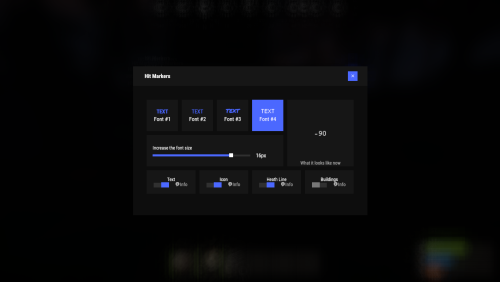
Each user can choose his own marker, which is convenient for him! Commands marker - open an UI Permissions You can set permission in config, for example: "Permission (ex: hitmarkers.use)": "hitmarkers.use", You can also set your own permission for each font and button. Config { "Commands": [ "marker", "hits" ], "Permission (ex: hitmarkers.use)": "", "Work with Notify?": true, "Fonts": { "0": { "Font": "robotocondensed-bold.ttf", "Permission (ex: hitmarkers.font)": "" }, "1": { "Font": "robotocondensed-regular.ttf", "Permission (ex: hitmarkers.font)": "" }, "2": { "Font": "permanentmarker.ttf", "Permission (ex: hitmarkers.font)": "" }, "3": { "Font": "droidsansmono.ttf", "Permission (ex: hitmarkers.font)": "" } }, "Min Font Size": 8, "Max Font Size": 18, "Buttons": [ { "Enabled": true, "Title": "Text", "Type": "Text", "Description": "<b>Damage numbers</b> will pop up in the center of the screen!", "Permission": "hitmarkers.text" }, { "Enabled": true, "Title": "Icon", "Type": "Icon", "Description": "The familiar hit icon changes color after a <b>headshot!</b>", "Permission": "hitmarkers.icon" }, { "Enabled": true, "Title": "Heath Line", "Type": "HealthLine", "Description": "A bar appears above the slots, showing the <b>remaining</b> health of the enemy", "Permission": "hitmarkers.line" }, { "Enabled": true, "Title": "Buildings", "Type": "Buildings", "Description": "Displaying damage by buildings", "Permission": "hitmarkers.buildings" } ], "Info Icon": "https://i.imgur.com/YIRjnIT.png", "Show damage to NPC": true, "Show damage to animals": false, "Marker removal time": 0.25, "Default Values": { "Font ID": 0, "Font Size": 14, "Text": true, "Icon": false, "Health Line": false, "Buildings": false } }$19.95 -
Version 0.1.7
223 downloads
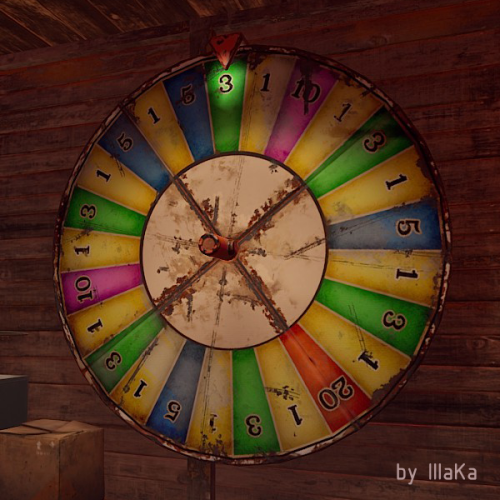
An indispensable plugin that collects Fortune Wheel statistics and provides the ability to view them through the UI. bigwheelstats.use - Provides access to use UI; bigwheelstats.admin - Provides the same permissions as bigwheelstats.use. Additionally, it provides the ability to manage big game wheels without any limitations. { "Is it worth checking for permissions before displaying the UI?": false, "Is it worth clearing statistics during a wipe?": true, "List of language keys for creating language files": [ "en" ], "Name of the prefab to play when a player becomes the best player. Leave empty to disable": "assets/prefabs/misc/xmas/advent_calendar/effects/open_advent.prefab", "Is it worth skipping the reward for the first best player?": true, "Command to execute when a player becomes the best player(0 - userID). Leave empty to disable, or null to use the default": "tperm add {0} vip 3600", "Cash reward for becoming the best player. Leave 0 to disable": 100.0, "List of items granted for becoming the best player. Leave empty to disable, or null to use the default": [ { "ShortName": "scrap", "Amount": 100, "SkinId": 0 } ], "List of permissions for top players. Each position in the list corresponds to the player's rank. Note: empty or null entries will be removed": [ [ "example.firstA", "example.firstB" ], [ "example.secondA" ], [ "example.thirdA" ] ], "List of permissions for top players for custom game wheels": [], "Big Wheel Game - Default name": "BIG WHEEL GAME", "Big Wheel Game - Name length limit(1–30)": 16, "Big Wheel Game - Cooldown time in seconds for changing the image url": 600.0, "Big Wheel Game - Default image Url": "https://i.imgur.com/MhW63JV.png", "Big Wheel Game - Allowed image Url prefix. Leave empty to allow all sites. Example: 'https://i.imgur.com/'": "", "Ui - Main Background Color": "#1A1A1A", "Ui - Main Background Transparency": 0.95, "Ui - Text Font(https://umod.org/guides/rust/basic-concepts-of-gui#fonts)": "RobotoCondensed-Bold.ttf", "Hud - Icon Url": "https://i.imgur.com/HvoFS7p.png", "Hud - Icon Color": "#808080", "Hud - Icon Transparency": 0.5, "Hud - Icon Is Raw Image": false, "Hud - Icon AnchorMin": "1 0", "Hud - Icon AnchorMax": "1 0", "Hud - Icon OffsetMin": "-250 15", "Hud - Icon OffsetMax": "-220 45", "Hit - Yellow Color": "#BFBF40", "Hit - Yellow Transparency": 0.4, "Hit - Green Color": "#408C8C", "Hit - Green Transparency": 0.4, "Hit - Blue Color": "#03598C", "Hit - Blue Transparency": 0.4, "Hit - Purple Color": "#8026CC", "Hit - Purple Transparency": 0.4, "Hit - Red Color": "#B24C59", "Hit - Red Transparency": 0.4, "Panel - Background Color": "#4C4C4C", "Panel - Background Transparency": 0.5, "Panel - OffsetMin": "-320 -255", "Panel - OffsetMax": "320 255", "Panel - Close Url": "https://i.imgur.com/O9m6yZF.png", "Panel - Close Color": "#D94026", "Panel - Close Transparency": 0.6, "Panel - Close Is Raw Image": false, "Panel - Close AnchorMin": "1 0", "Panel - Close AnchorMax": "1 0", "Panel - Close OffsetMin": "-250 15", "Panel - Close OffsetMax": "-220 45", "Menu - Buttons Color": "#808080", "Menu - Buttons Color Transparency": 0.4, "Menu - Buttons Active Color": "#3380BF", "Menu - Buttons Active Color Transparency": 0.6, "Menu - Font Size": 18, "Menu - Font Color": "#CCCCCC", "Menu - Font Color Transparency": 0.5, "Menu - Font Active Color": "#FFFFFF", "Menu - Font Active Color Transparency": 1.0, "Sub Menu - Reload Color": "#CCCCCC", "Sub Menu - Reload Color Transparency": 0.5, "Sub Menu - Settings Color": "#CCCCCC", "Sub Menu - Settings Color Transparency": 0.5, "Player Info - Online Color": "#CCFFB2", "Player Info - Online Transparency": 0.4, "Player Info - Offline Color": "#FF0000", "Player Info - Offline Transparency": 0.4, "Player Info - Font Size": 16, "Player Info - Font Color": "#FFFFFF", "Player Info Card - Background Color": "#808080", "Player Info Card - Background Transparency": 0.4, "Player Info Card - Title Font Size": 12, "Player Info Card - Title Font Color": "#808080", "Player Info Card - Value Font Size": 16, "Player Info Card - Value Font Color": "#CCCCB2", "Game Info - Color": "#808080", "Game Info - Transparency": 0.4, "Game Info - Font Size": 16, "Game Info - Font Color": "#FFFFFF", "Game Info Card - Background Color": "#808080", "Game Info Card - Background Transparency": 0.4, "Game Info Card - Title Font Size": 12, "Game Info Card - Title Font Color": "#808080", "Game Info Card - Value Font Size": 16, "Game Info Card - Value Font Color": "#CCCCB2", "Game Info Card - Percentage Font Size": 12, "Game Info Card - Percentage Font Color": "#808080", "Column Header - Color": "#4C4C4C", "Column Header - Transparency": 1.0, "Column Header - Active Color": "#595959", "Column Header - Active Transparency": 1.0, "Column Header - Font Size": 16, "Column Header - Font Color": "#CCCCB2", "Column Header - Font Active Color": "#FFFFFF", "Column Item - Font Size": 16, "Column Item - Color": "#808080", "Column Item - Transparency": 0.3, "Column Item - Even Color": "#808080", "Column Item - Even Transparency": 0.6, "Column Item - Font Color": "#CCCCB2", "Column Item - Font Active Color": "#FFFFFF", "Player HitList - Win Color": "#8CC83C", "Player HitList - Win Transparency": 0.4, "Player HitList - Lose Color": "#CD4632", "Player HitList - Lose Transparency": 0.4, "Game HitList Item - Font Size": 18, "Game HitList Item - Font Color": "#CCCCB2", "Player List - Name Font Size": 12, "Player List - ID Font Size": 10, "Player List - ID Font Color": "#808080", "Game List - Name Font Size": 12, "Game List - ID Font Size": 10, "Game List - ID Font Color": "#808080", "Settings - Background Color": "#4C4C4C", "Settings - Background Color Transparency": 0.5, "Settings - Title Color": "#4C4C4C", "Settings - Title Color Transparency": 0.7, "Settings - Input Color": "#4C4C4C", "Settings - Input Color Transparency": 0.7, "Settings - Button Color": "#4C4C4C", "Settings - Button Color Transparency": 0.7, "Settings - Text Color": "#CCCCB2", "Settings - Text Color Transparency": 1.0, "Settings - Sub Text Color": "#808080", "Settings - Sub Text Color Transparency": 1.0, "Scrolling - Width": 3.0, "Scrolling - Handle color": "#CCCCCC", "Scrolling - Handle color transparency": 0.5, "Scrolling - Pressed color": "#CCCCB2", "Scrolling - Pressed color transparency": 1.0, "Scrolling - Track color": "#000000", "Scrolling - Track color transparency": 0.0, "Footer - Color": "#4C4C4C", "Footer - Transparency": 0.4, "Footer - Font Size": 16, "Footer Buttons - Between Button Text": "...", "Footer Buttons - Color": "#808080", "Footer Buttons - Transparency": 0.4, "Footer Buttons - Active Color": "#3380BF", "Footer Buttons - Active Transparency": 0.6, "Footer Buttons - Font Color": "#CCCCB2", "Footer Buttons - Font Active Color": "#FFFFFF", "Footer Custom Button - Command. Leave empty to disable": "", "Footer Custom Button - Color": "#808080", "Footer Custom Button - Transparency": 0.4, "Footer Text - Font Size": 12, "Footer Text - Font Color": "#808080", "Wipe ID": null, "Version": { "Major": 0, "Minor": 1, "Patch": 7 } } EN: { "UiMenuPlayer": "My statistics", "UiMenuPlayerList": "Top players", "UiMenuGameList": "Game list", "UiFooterCustomButton": "My button", "UiFooterText": "Showing {0} to {1} of {2}", "UiPlayerTotalSpins": "Total spins", "UiPlayerWinSpins": "Win spins", "UiPlayerLoseSpins": "Lose spins", "UiPlayerScrapSpend": "Scrap spend", "UiPlayerScrapWin": "Scrap win", "UiPlayerScrapResult": "Scrap result", "UiPlayerScrapRecordBid": "Scrap record bid", "UiPlayerScrapLastBid": "Scrap last bid", "UiPlayerScrapLastWin": "Scrap last win", "UiPlayerHitsItem": "Item", "UiPlayerHitsHit": "Hit", "UiPlayerHitsBidAmount": "Bid amount", "UiPlayerHitsResultAmount": "Result", "UiPlayerListPlayer": "Player", "UiPlayerListTotal": "Total", "UiPlayerListLoses": "Loses", "UiPlayerListWins": "Wins", "UiPlayerListRecordBid": "Record bid", "UiPlayerListRecordWin": "Record win", "UiPlayerListResult": "Result", "UiGameBestPlayer": "Best player", "UiGameCurrentSpins": "Current session spins", "UiGameTotalSpins": "Total spins", "UiGameTotalYellow": "Yellow", "UiGameTotalGreen": "Green", "UiGameTotalBlue": "Blue", "UiGameTotalPurple": "Purple", "UiGameTotalRed": "Red", "UiGameSettingsTitle": "Big Wheel Game Management", "UiGameSettingsName": "Name:", "UiGameSettingsImage": "Image Url:", "UiGameSettingsImageCooldown": "The next opportunity to change the image will be available in {0} seconds!", "UiGameSettingsReset": "Reset statistics", "UiGameSettingsResetSpinning": "Can't reset the game wheel statistics while it is spinning!", "UiGameListBigWheelGame": "Big wheel game", "UiGameListBestWin": "Best Win", "UiGameListTotalSpins": "Total spins" } RU: { "UiMenuPlayer": "Моя статистика", "UiMenuPlayerList": "Топ игроков", "UiMenuGameList": "Список игр", "UiFooterCustomButton": "Моя кнопка", "UiFooterText": "Отображены с {0} по {1} из {2}", "UiPlayerTotalSpins": "Всего ставок", "UiPlayerWinSpins": "Выигрышные ставки", "UiPlayerLoseSpins": "Проигрышные ставки", "UiPlayerScrapSpend": "Потрачено скрапа", "UiPlayerScrapWin": "Выиграно скрапа", "UiPlayerScrapResult": "Итог скрапа", "UiPlayerScrapRecordBid": "Рекордная ставка", "UiPlayerScrapLastBid": "Последняя ставка", "UiPlayerScrapLastWin": "Последний выигрыш", "UiPlayerHitsItem": "Предмет", "UiPlayerHitsHit": "Число", "UiPlayerHitsBidAmount": "Ставка", "UiPlayerHitsResultAmount": "Итог", "UiPlayerListPlayer": "Игрок", "UiPlayerListTotal": "Всего", "UiPlayerListLoses": "Проигрышей", "UiPlayerListWins": "Выигрышей", "UiPlayerListRecordBid": "Рекордная ставка", "UiPlayerListRecordWin": "Рекордный выигрыш", "UiPlayerListResult": "Итог", "UiGameBestPlayer": "Лучший игрок", "UiGameCurrentSpins": "Вращений за сессию", "UiGameTotalSpins": "Всего вращений", "UiGameTotalYellow": "Желтый", "UiGameTotalGreen": "Зеленый", "UiGameTotalBlue": "Синий", "UiGameTotalPurple": "Фиолетовый", "UiGameTotalRed": "Красный", "UiGameSettingsTitle": "Управление игровым колесом", "UiGameSettingsName": "Имя:", "UiGameSettingsImage": "Ссылка на изображение:", "UiGameSettingsImageCooldown": "Следующая возможность изменить изображение будет доступна через {0} секунд!", "UiGameSettingsReset": "Сбросить статистику", "UiGameSettingsResetSpinning": "Нельзя сбросить статистику игрового колеса пока оно крутится!", "UiGameListBigWheelGame": "Игра", "UiGameListBestWin": "Лучший выигрыш", "UiGameListTotalSpins": "Всего вращений" }$14.99 -
Version 1.4.1
3,659 downloads
Manage your Rust server easier and more efficiently with the AdminMenu plugin. Track players, interact with them, edit their data and permissions, as well as change server convars and manage plugins. Features: Menu retains its state after closing, you won't lose everything you did before. Ability to fully translate the menu into any language. Large range of permissions for each action, will allow you to flexibly customize the admin menu for each group of administrators. Quick menu that allows you to perform quick actions Full list of players with the ability to filter by online, offline, admins and moderators. Also has a frame of different colors depending on the level of authorization. Wide range of information and actions for the selected player. Editing convars with search. Has a complete list of editable convars with descriptions for some of them. Extensive issue menu by category, with easy management of name, skin and amount (manual, +1, +100, +1000, +10000). Plugin management menu. It is possible to reload, unload or load a plugin easily and quickly. Updates occur in real time. Ability to create your own custom buttons that execute several commands Quick Start: You install the plugin in the plugins folder. Give yourself the adminmenu.fullaccess permission. Commands, use one of your choice, one for the player and one for the admin group: o.grant user [name or steamid] adminmenu.fullaccess o.grant group admin adminmenu.fullaccess Press the X button (swap seat button) or type adminmenu in the console. Enjoy Useful stuff: You can quickly open a player in the admin menu. To do this, point at the player and press X. You don't have to hover over the player exactly, you will be able to open players within a certain radius of the place you are looking at. CUSTOM BUTTONS Custom buttons are buttons that when pressed will execute commands on behalf of the administrator, commands can be several, below will be the details. At the moment, custom buttons can be created in two places: in the quick menu and in the menu when selecting a player. These places are separated in the config. Button Fields: "Execution as server" - Call the command on behalf of the server, not the administrator "Label" - Text that will be on the button, for each such inscription creates a field in the lang file, accordingly you can translate this text into several languages. "Commands" - Array of commands that will be executed on behalf of the administrator. Chat commands require a special entry, see examples. "Permission"- permission to display and use the button. You need to write the permission that will be after "adminmenu.". Example: if you enter the permission "test" the permission will be adminmenu.test "Position" - The location for the button, the first number is responsible for the row number, the second for the position within the row, starts from 0.There are limits of locations, if you have gone beyond the limit - the button will not be displayed. Common Tags: {adminUID} - administrator's id. {position} - administrator coordinates (underfoot) {view_position} - the position where the administrator is looking (can be used for spawning or something similar) {view_direction_forward} - forward view direction of the administrator {view_direction_backward} - the direction the administrator is looking backwards {view_direction_left} - direction of the administrator’s view to the left {view_direction_right} - administrator’s view direction to the right Tags for target only: {steamid}, {steamID}, {userID}, {STEAMID}, {USERID} - mean the same thing, namely the id of the selected player. {target_position} - target coordinates (underfoot) Example of commands: chat.say \"/{chat command}\" vanish ban {steamID} teleport {steamID} {adminUID} More information about the grant menu: The grant menu includes the full list of items including hidden items as well as custom items created by the CustomItemDefinitions library. The menu can be accessed from the navigation or from the menu of the selected player. When issuing itself has categories. Search works in any registry by any part of the name or short name. Has a page system at any stage. More information about the buttons in the Quick Menu: [Teleport to 0 0 0] - Teleport to coordinates 0 0 0. Requires adminmenu.quickmenu.teleportto000 permission [Teleport to Deathpoint] - Teleport to your deathpoint. Requires adminmenu.quickmenu.teleporttodeath permission [Teleport to Spawn point] - Teleport to a random spawn point. Requires adminmenu.quickmenu.teleporttospawnpoint permission [Kill Self] - Kill Self, kills even when immortal. Does not require permission. [Heal Self] - Fully heal yourself. Requires adminmenu.quickmenu.healself permission [Call Heli] - Call Helicopter to yourself (arrives in time). Requires adminmenu.quickmenu.helicall permission [Spawn Bradley] - Spawn bradley on yourself. Requires adminmenu.quickmenu.spawnbradley permission More information about the buttons in the menu of the selected player: [Teleport Self To] - Teleport yourself to the selected player. Requires adminmenu.userinfo.teleportselfto permission [Teleport To Self] - Teleport the selected player to yourself. Requires adminmenu.userinfo.teleporttoself permission [Teleport To Auth] - Teleportation to random authorization (TC). Requires adminmenu.userinfo.teleporttoauth permission [Teleport to Deathpoint] - Teleportation to a player's deathpoint. Requires adminmenu.userinfo.teleporttodeath permission [Heal] - Full healing, including metabolism. Requires adminmenu.userinfo.fullheal permission [Heal 50%] - Half healing. Requires adminmenu.userinfo.halfheal permission. [View Inventory] - View and edit player's inventory. Requires adminmenu.userinfo.viewinv permission [Strip Inventory] - Clear player's inventory. Requires adminmenu.userinfo.stripinventory permission [Unlock Blueprints] - Unlock all Blueprints. Requires adminmenu.userinfo.unlockblueprints permission [Revoke Blueprints] - Reset all Blueprints. Requires adminmenu.userinfo.revokeblueprints permission. [Kill] - Kill a player. Requires adminmenu.userinfo.kill permission [Kick] - Kick a player. Requires adminmenu.userinfo.kick permission [Ban] - Ban a player. Requires adminmenu.userinfo.ban permission More information about the buttons in the menu of the selected group: [Remove Group] - Remove group, has confirmation. Requires adminmenu.groupinfo.removegroup permission [Clone Group] - Clone group with the ability to copy users. Requires adminmenu.groupinfo.clonegroup permission Permissions: adminmenu.use - Ability to use admin menu with basic set. Open tab quick menu (each button has its own permission, without permissions is present only kill yourself button) and the list of players. adminmenu.fullaccess - Full access to all functions without the need for each permission, includes also adminmenu.use. It is recommended to give only to the main administrators. adminmenu.quickmenu.teleportto000 - Access to the button in the quick menu, teleportation to coordinates 0 0 0 0. adminmenu.quickmenu.teleporttodeath - Access to the button in the quick menu, teleportation to the point of your death. adminmenu.quickmenu.teleporttospawnpoint - Access to the button in the quick menu, teleportation to a random spawn point. adminmenu.quickmenu.healself - Access button in quickmenu, heal yourself completely. adminmenu.quickmenu.helicall - Access to the button in the quick menu, call a helicopter to yourself (arrives in time). adminmenu.quickmenu.spawnbradley - Access button in quickmenu, spawn bradley. adminmenu.userinfo.teleportselfto - Access to the button in the menu of the selected player, teleportation to the selected player. adminmenu.userinfo.teleporttoself - Access to the button in the menu of the selected player, teleport the selected player to himself. adminmenu.userinfo.teleporttoauth - Access to the button in the menu of the selected player, teleportation to random authorization (TC). adminmenu.userinfo.teleporttodeath - Access to the button in the menu of the selected player, teleportation to the place of death of the player. adminmenu.userinfo.fullheal - Access to the button in the menu of the selected player, full healing, including metabolism. adminmenu.userinfo.halfheal - Access to the button in the menu of the selected player, half healing. adminmenu.userinfo.viewinv - Access to the button in the selected player's menu, view and edit the player's inventory. adminmenu.userinfo.stripinventory - Access to the button in the menu of the selected player, clear the player's inventory. adminmenu.userinfo.unlockblueprints - Access the button in the menu of the selected player, unlock all drafts. adminmenu.userinfo.revokeblueprints - Access to the button in the menu of the selected player, reset all drafts. adminmenu.userinfo.kill - Access the button in the selected player's menu to kill the player. adminmenu.userinfo.kick - Access the button in the selected player's menu to kick the player. adminmenu.userinfo.ban - Access to the button in the menu of the selected player, ban the player. adminmenu.groupinfo.removegroup - Access to the button in the menu of the selected group, the ability to remove the group. adminmenu.groupinfo.clonegroup - Access to the button in the menu of the selected group, the ability to clone the group. adminmenu.convars - View and edit convars. adminmenu.permissionmanager - View and edit permissions in groups, player groups, create, delete and clone groups (requires additional permissions from these buttons). adminmenu.pluginmanager - Access to plugin management, reloading, unloading, loading plugins. adminmenu.give - Access to give resources, as well as yourself and the selected player.$30.00 -
Version 1.0.0
13 downloads
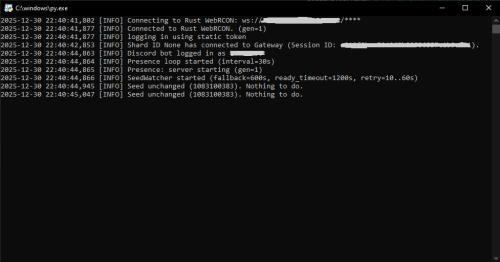
Discord Players & Wipes Alerts is a real-time monitoring bot for Rust servers written in Python that displays live player counts on Discord and automatically detects map wipes by tracking the server seed. The bot connects directly to the Rust WebRCON and keeps your Discord server continuously updated with accurate server information. When a wipe happens and the server restarts, the bot detects the new map seed and sends a notification to a designated Discord channel. All configuration is handled through a .env file, making the bot easy to customize and deploy on any server. Features: Displays the current number of players online in the Discord bot presence Automatically reconnects to WebRCON when the Rust server restarts Detects map wipes by monitoring changes in the server.seed value Sends wipe notifications to a specific Discord channel Stores the last known seed to avoid duplicate wipe alerts Handles long server startup times on large or heavily modded maps Fully configurable through environment variables How it works? The bot maintains a persistent connection to the Rust WebRCON. When the server restarts, the WebRCON connection drops and reconnects automatically. This reconnect is used as a trigger to verify whether a new map seed is active. After reconnecting, the bot waits until the Rust server is fully operational. It then runs the server.seed command and compares the result with the previously stored seed. If the seed has changed, a wipe is detected and a notification is sent to Discord. This approach guarantees reliable wipe detection even on servers that take a long time to load their maps. Required configuration The following environment variables must be set in the .env file for the bot to function correctly: DISCORD_TOKEN=The Discord bot token. This allows the bot to connect to Discord and update its presence and send messages. RUST_RCON_HOST=The IP address or hostname of the Rust server WebRCON. RUST_RCON_PORT=The WebRCON port of the Rust server. RUST_RCON_PASSWORD=The WebRCON password used to authenticate with the Rust server. SEED_CHANNEL_ID=The Discord channel ID where wipe alerts will be sent. SEED_CHANGE_MESSAGE=The message sent when a wipe is detected. You can use {old_seed} and {new_seed} as placeholders in the message. Example: SEED_CHANGE_MESSAGE=Map wipe detected. Old seed: {old_seed} -> New seed: {new_seed}Free -
Version 1.0.3
25 downloads
xAutoPurge - Automatically purges all entities owned by players which are inactive for X days. - Configurable parameters for: InactiveDays - Defines when a players gets purged if not online for X days. (Default: 7 days) CheckIntervalSeconds - Defines how often it should be checked for inactive players. (Default: 1 hour) LogToConsole - Defines if purging activities are getting logged to the console. (Default: true) ExcludedSteamIDs - Defines an exception list for specific SteamIDs, entered SteamIDs doesn't get purged. (Default: none) ResetDataOnWipe - Resets data on wipe automatically, so it doesn't happen that someone gets purged after wipe. (Default: true) Console Commands purge.run [Triggers the purging immediately with its configurations] purge.player PLAYERNAME/STEAMID [Purges a specific player immediately (ignoring configuration) - Example usage: purge.player xNullPointer95]$6.00 -
Version 1.0.300
6 downloads
Show all Active and past Tank records that track all attacks by players with detailed statistics for each tank and player. Features: ✯ Detailed Statistics for Tanks, Players, Weapons ✯ Easy to use UI to show all statistics ✯ 5 Theme colors that each player can choose from ✯ Top players for tank attacks, total damage, total hits ✯ Search attacker history for players ✯ Quick Tank spawn button for admins in the UI Recorded Data: [APC Tanks] ✯ Status (active/inactive) ✯ Health (current/max) ✯ Start Time ✯ End Time ✯ List of Attackers [Attackers] ✯ Total Tanks Attacked ✯ Total Damage (all tanks / per tank) ✯ Total Hits (all tanks/ per tank) ✯ List of every Attack [Attacks] ✯ Weapon ✯ Damage ✯ Type ✯ Distance ✯ Time [Weapons] ✯ Total Damage (all tanks / per tank) ✯ Total Hits (all tanks / per tank) ✯ List of every Attack with weapon [Top Players] ✯ Tanks Attacked ✯ Total Damage ✯ Total Hits Default Chat Command: /tr - Opens UI panels (can be changed in admin settings) NOTES: * Report all issues or bugs in our discord Language: { "menu_lable": "Menu", "menu_001": "Main", "menu_002": "Active APC Tanks", "menu_003": "APC Tank Records", "menu_004": "Top Players", "menu_005": "Search", "menu_006": "My Stats", "menu_007": "Close", "menu_008": "Admin", "menu_009": "『Helicopter Records』", "TR_001": "Tank Records", "TR_002": "Global Statistics", "TR_003": "Total Tanks", "TR_004": "Total Hits", "TR_005": "Total Attackers", "TR_006": "Active APC Tanks", "TR_007": "Last APC Tanks", "TR_008": "Tank ID", "TR_009": "APC Tank [#{0}]", "TR_010": "Health", "TR_011": "Started", "TR_012": "Ended", "TR_013": "Status", "TR_014": "Active", "TR_015": "InActive", "TR_016": "Escaped", "TR_017": "Attackers", "TR_018": "︽ Pevious", "TR_019": "Next ︾", "TR_020": "Player", "TR_021": "Damage", "TR_022": "No Attackers", "TR_023": "No Active APC Tanks", "TR_024": "No Inactive APC Tanks", "TR_025": "Tanks Attacked", "TR_026": "Total Damage", "TR_027": "Attack Record", "TR_028": "Total Attacks", "TR_029": "Timestamp", "TR_030": "Distance", "TR_031": "Type", "TR_032": "Weapon", "TR_033": "Page: {0}", "TR_034": "Total Damage Amount", "TR_035": "Total Damage Percentage", "TR_036": "Top Attackers", "TR_037": "Search Attackers", "TR_038": "..enter player name..", "TR_039": "Search Results", "TR_040": "Total Weapons", "TR_041": "Most Used", "TR_042": "All Weapons", "TR_043": "Total Hits", "TR_044": "Tanks Hit", "TRadmin_001": "Settings", "TRadmin_002": "Open UI Panel", "TRadmin_003": "Save Settings", "TRadmin_004": "Use Local Path", "TRadmin_005": "Oxide Folder Path", "TRadmin_006": "Reload Images & ImageLibrary", "TRadmin_007": "Delete Records", "TRadmin_008": "Delete", "TRadmin_009": "This will delete all records for this Tank including attackers and hits. \nAre you sure you want to remove all records for APC Tank [#{0}]?", "TRadmin_010": "Spawn New Tank", "TRadmin_011": "Clear All Data", "TRadmin_012": "This will delete all records for Tanks, attackers and hits. \nAre you sure you want to completely wipe all records?", "TRadmin_013": "Clear Unattacked Tanks", "TRadmin_014": "This will delete all records for Tanks that have no recorded attackers. \nAre you sure you want to remove all unattacked Tank records?" } Discord Join our community discord for fast support and future updates. We have several channels where you can get help, offer suggestions, see what's coming in future updates, and more. Our discord is the fastest way to get the help and info you need! http://discord.rustlevels.com/$19.99 -

Version 2.0.1
119 downloads
AdminEssentials is a powerful and easy-to-use toolkit for Rust server administrators. It provides a comprehensive suite of moderation, management, and utility commands to help you run your server smoothly. Features Teleportation tools: Teleport to players or coordinates, teleport back to previous locations, and teleport to placed map markers. Player moderation: Kick players, ban players (with timed durations and reasons), and unban players via simple commands. Player management: Heal players to full health, kill players instantly, and toggle special modes like God mode and Creative mode for yourself or others. Inventory and items: Give items to players, clear a player’s inventory, repair items, and view any player’s inventory contents in real time. Item Trash Can: Includes a personal Trash Can UI for safely destroying items. Server controls: Change the server time, set a personal “admin time”, instantly clear all weather effects, and reload server plugins in-game. Communication: Send private messages to players and reply quickly to the last message. Display a list of all online players and get detailed information on any player with a WhoIs lookup command. Automated messages: Optionally broadcast welcome messages to joining players and goodbye messages on disconnect. Configure periodic auto-messages that broadcast to the server at set intervals. Logging and customization: All admin actions can be logged to the server console/RCON and/or to a Discord webhook (configurable per command). Customize the chat prefix and icon for AdminEssentials messages to suit your server’s style. Commands (Use these commands in chat with the "/" prefix. All commands require the user to have the appropriate permission as listed in the Permissions section.) Teleportation Commands /goto – Teleport yourself to a player or to specific coordinates. (You can also teleport one player to another by specifying two player names.) /tpm – Toggle “teleport to marker” mode. When enabled, placing a map marker will instantly teleport you to that location. Use /tpm again to disable this mode. /back – Teleport back to your last saved location. Typically this returns you to where you teleported from (or your death location, if applicable). /spectate – Spectate the target player. Puts you into spectate mode attached to that player. Use the command again (or the on-screen UI button) to exit spectating and return to your original position. Moderation Commands /kick [reason] – Kick a player from the server. You may provide an optional reason which will be shown to the player. /ban [duration] [reason] – Ban a player. Optionally specify a duration (e.g. “30m”, “2h”, “7d”) and/or a reason. If no duration is given, a default (1 day) ban is applied. /unban – Unban a player. You can use either the player’s name or Steam ID. Player Management Commands /heal [player] – Fully heal yourself (no name) or the specified player (if a name is given). Restores health and vital stats to maximum. /kill [player] – Instantly kill yourself or the specified player. /god [player] – Toggle god mode (invincibility) on yourself or on another player. A player in god mode will not take damage or die until god mode is toggled off. /creative [player] – Toggle Rust’s creative mode on yourself or on another player. Creative mode allows building and crafting without restrictions. /creativeall – Toggle creative mode for all players on the server at once. Inventory Commands /give [amount] [skinId] [name] – Give an item to a player. You must specify the target player and item short name (or Item ID). You can optionally specify an amount (default 1), a skin ID, and a custom item name. /clear [player] – Clear your own inventory (no name given) or another player’s inventory (if a player name is provided). This completely empties the inventory of the target. /repair [player] – Repair the currently held item to full condition. If a player name is given, repair that player’s held item instead. /repairall [player] – Repair all items in your inventory. If a player name is given, repair all items in that player’s inventory instead. /viewinv – View the specified player’s inventory. This opens the target player’s inventory containers (main, belt, wear) for you, allowing you to see and/or move items. /trash – Open your personal trash can UI. This provides a special container (default 18 slots) where you can place items to destroy. Closing the trash UI with items inside will delete those items (after you confirm via the Delete button). Server Management Commands /time <0-24> – Change the server time to the specified hour (0–24). For example, “/time 12” sets in-game time to noon. /admintime [0-24] – Set your personal time of day. This overrides the server time for you only (useful for admins who want daylight while it’s night on the server). Specify an hour (0–24) to lock your time, or use no argument to reset back to normal server time. If you run it with no number or with -1 it will disable admintime. /clearweather – Instantly clear all weather effects on the server. This will stop rain, fog, and thunderstorms, returning to clear weather. /reload [plugin] – Reload an Oxide/Umod plugin. By default (no name given), this will reload the AdminEssentials plugin itself. You can specify another plugin name to reload that plugin instead. Communication Commands /pm <player> <message> – Send a private message to a player. The target player will receive your message privately. /r <message> – Reply to the last private message you received. This sends a PM back to whoever last messaged you (equivalent to a “reply” function). Information Commands /whois [player] – Display detailed information about a player. With no name, it will show your own info. The info can include the player’s name, Steam ID, position coordinates, connection status, health and vitals, and flags (admin, godmode, etc.). (The amount of detail shown depends on your permissions; see Permissions.) /players – Show a list of all online players on the server. By default this will list the player names (and possibly IDs) in chat. Utility Commands /essentials – Display the AdminEssentials help list. This command prints a list of all available AdminEssentials commands (the same commands listed above) with brief descriptions, to your chat. Only users with permission can use this. Permissions (Each permission can be granted to server staff or groups to allow use of the corresponding commands. All permission strings begin with adminessentials. as shown.) adminessentials.goto – Required to use the /goto command. adminessentials.back – Required to use the /back command. adminessentials.tpm – Required to use the /tpm teleport-to-marker command. adminessentials.spectate – Required to use /spectate. adminessentials.kick – Required for the /kick command. adminessentials.ban – Required for the /ban command. adminessentials.unban – Required for the /unban command. adminessentials.heal – Allows use of /heal. adminessentials.kill – Allows use of /kill. adminessentials.god – Allows use of /god mode toggle. adminessentials.creative – Allows use of /creative mode toggle. adminessentials.creativeall – Allows use of /creativeall (creative mode for all players). adminessentials.give – Required for /give item command. adminessentials.clear – Required for /clear inventory command. adminessentials.repair – Required for /repair command (repair held item). adminessentials.repairall – Required for /repairall command (repair all items). adminessentials.viewinv – Required for /viewinv (view player inventory). adminessentials.trash – Required for /trash (open personal trash can). adminessentials.time – Allows use of /time to set server time. adminessentials.admintime – Allows use of /admintime for personal time setting. adminessentials.clearweather – Allows use of /clearweather. adminessentials.reload – Allows use of /reload command to reload plugins. adminessentials.pm – Required for /pm and /r (private messaging commands). WhoIs Information Permissions: (The /whois command output is divided into sections; each section requires a specific permission. Granting all will show full info.) adminessentials.whois.info – Allows the /whois command to show basic info: player name, Steam ID, and position. adminessentials.whois.status – Allows /whois to show connection status (online/offline), life status (alive or dead), sleeping or wounded state. adminessentials.whois.stats – Allows /whois to show the player’s stats: health, calories, hydration, temperature, radiation, bleeding, wetness. adminessentials.whois.flags – Allows /whois to show player flags: whether the player is admin, in creative mode, developer mode, flying, or in god mode. adminessentials.players – Required for the /players list command. adminessentials.help – Required for the /essentials help command (to view the in-game command list).$19.99- 15 comments
- 1 review
-
- 2
-

-
-
- #admin
- #essentials
- (and 17 more)
-

Version 1.0.2
7 downloads
xBannedPlayersEntityCleaner xBannedPlayersEntityCleaner is a an efficient Rust plugin designed to automatically clean up all entities owned by players when they are banned. This helps maintain server performance and prevents clutter caused by banned users’ structures, deployables, and other entities. It also includes a manual cleanup command that allows admins with proper permission to trigger entity removal for specific players when needed. Features Automatically removes entities owned by banned players. Optional manual cleanup command with permission control. Adjustable cleanup speed and batch size to minimize lag. Silent or visible destruction modes. Efficient entity queue system for large-scale cleanups. Console Command xbannedplayersentitycleaner.clean <steamid64 or playername> - Manually trigger cleanup for a specific player. Permission xbannedplayersentitycleaner.use - Allows a user to manually trigger the cleanup command. Config { "SilentMode": true, "EntitiesPerCleanupInterval": 100, "CleanupInterval": 0.2, "LogToConsole": true } SilentMode → If enabled (true), entities are destroyed quietly without gibs or visual effects. EntitiesPerCleanupInterval → Number of entities processed per cleanup cycle (CleanupInterval) CleanupInterval → Time in seconds between each cleanup batch execution. LogToConsole → Enables or disables console logging for cleanup events and summaries.$4.99 -
Version 1.0.1
6 downloads
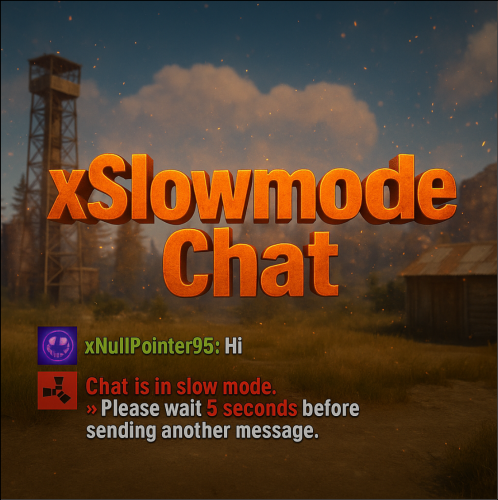
xSlowmodeChat xSlowmodeChat is a configurable chat-rate-limiting plugin for Rust servers. It allows server owners to control how frequently players can send messages, helping reduce spam, toxicity, and chat Flooding. Doesn't affect chat commands, only chat messages. Fully Configurable Slowmode Set custom cooldown between messages for normal- and vip players. Optional cumulative penalties for repeated spamming attempts. Adjustable penalty length for both, normal and VIP players. VIP Support Grant VIP players a separate cooldown & penalty system. VIP permission (xslowmodechat.vip). Lower intervals or completely remove slowmode for VIPs. Admin & Exclusion Options Easily toggle slowmode bypass for admins. Exclude specific SteamIDs from slowmode entirely. Informative Feedback Show a customizable slowmode warning message in chat. Optional on-screen UI timer showing remaining cooldown Console Commands xslowmode.enable - Enable slowmode xslowmode.disable - Disable slowmode xslowmode.setinterval <seconds> - Set default player cooldown xslowmode.setvipinterval <seconds> - Set VIP cooldown xslowmode.reloadconfig - Reload config from file Permission xslowmodechat.vip - Grants players the VIP slowmode settings. Config { "Enabled": true, "DisabledForAdmins": false, "ShowMessage": true, "MessageText": "<color=#e63939>Chat is in slow mode.\n»</color> Please wait <color=#e63939>{time} seconds</color> before sending another message.", "ShowSlowdownUi": true, "CumulativePenalty": true, "ChatMessageCooldown": 5.0, "CooldownPenalty": 5.0, "VipPermission": "xslowmodechat.vip", "VipChatMessageCooldown": 2.0, "VipCooldownPenalty": 2.0, "ExcludedSteamIds": [] }$8.99 -
Version 1.0.4
10 downloads
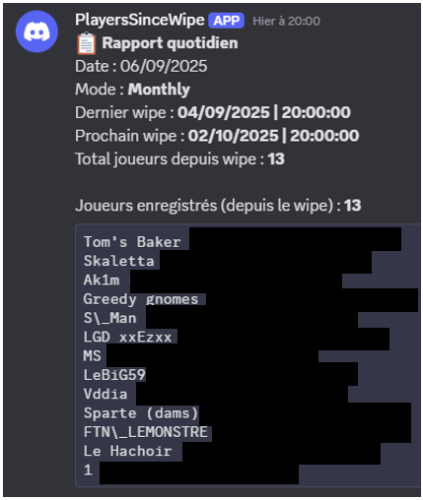
PlayersSinceWipe is a powerful Rust plugin designed to track all players connected since the last wipe. It supports different wipe modes (Monthly, Weekly, BiWeekly) and automatically sends daily or manual reports to Discord via webhook. Key Features: Automatic tracking of players since the last wipe. Support for monthly, weekly, and bi-weekly wipes. Daily and manual reports with full player lists and statistics. Full Discord integration via webhook for notifications and reports. Multi-language support (French / English) with customizable messages. Commands: /psw.report → Send a manual Discord report from chat. psw.report (console) → Send a manual Discord report from the server console. Benefits: Accurate, automated player tracking with zero manual work. Simple setup and seamless integration with Rust and Discord. Fully compatible with any Rust server running Oxide or Carbon.$4.99 -

Version 1.1.2
1,380 downloads
Loading Messages is a high-performance plugin that features customizable loading panel messages with adjustable display times and icons. Custom Messages for Queued and Loading Players Language Support - Display messages in local languages Loading Messages on Respawn and Teleport Loading Screens Configurable Display Time per Message High Performance Plugin! Loading Messages has three main message types: Queued - When a player is in the server queue Joining - When a player is joining the server Loading - The loading screen displayed when a player is teleporting or in a pending gamemode state Each custom type allows for options including icon ID, next message display time & message content. Loading Messages can use the following rich text tags - color, b, u, and i To display local languages set: "Use Language Support": true in you configuration. Custom languages will only be displayed after the first time a user connects to the server. Add multiple languages in the configuration listing: "Lang Messages": { "es-ES": { "Queue Messages": [ { "iconID": "0", "NextMessageTime": 5.0, "Message": "Estás en la cola" }, { "iconID": "0", "NextMessageTime": 5.0, "Message": "Por favor espera" }, { "iconID": "0", "NextMessageTime": 5.0, "Message": "Reporta tramposos usando f7" } ] } } You can see a list of most of the icons by going to https://fontawesome.com/icons.$9.99- 45 comments
- 7 reviews
-
- 3
-
-
-
- #loading messages
- #loading
- (and 15 more)
-
Version 1.0.0
23 downloads
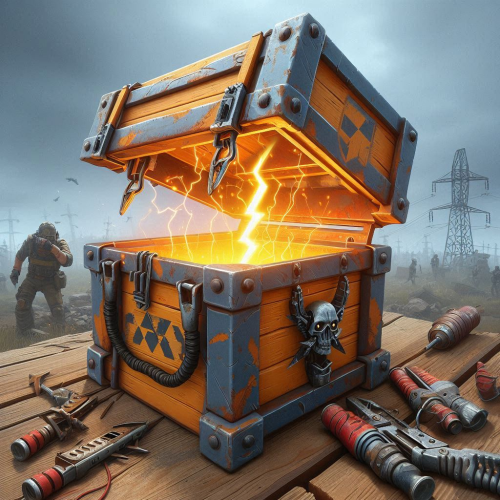
LootCrateSpawner is an exciting and innovative Rust plugin designed to add dynamic and thrilling events to your gameplay. This plugin automatically spawns loot crates in random locations on the map, ensuring unpredictability and constant player engagement. With configurable event intervals and crate lifespans, administrators can fine-tune the frequency and duration of these events to suit their server's needs. Each crate appears with a map marker, guiding players to its location and fostering competitive spirit as everyone rushes to claim the loot. Notifications in the chat inform players of the crate's appearance and lifespan, adding urgency and excitement to the hunt. The randomization of crate locations encourages exploration and keeps players on their toes, creating an ever-changing and vibrant game environment. Easy to configure and use, LootCrateSpawner is the perfect addition to any Rust server looking to enhance player interaction and elevate the gaming experience. Features Easily customisable. Сommands to start the event and to clear all the boxes and markers. (/crateventstart - start the event, /clearcratevents - clear all active LootCrateSpawner events) Customisable marker display time on the map. Customisable minimum and maximum time interval between the start of the event. If you use custom loot table, it will be applied to the Military Box. Does not load your server too much. An example of a Config file view { "CrateLifetime": 40.0, "MarkerLifetime": 40.0, "MaxEventInterval": 60.0, "MinEventInterval": 50.0 } As you can see above, the file configuration is as simple as possible, which everyone can understand, there is nothing complicated in it and it is as easy to configure as possible. CrateLifetime - Military Box lifetime on the map MarkerLifetime - the lifetime of a marker on the map MaxEventInterval - the maximum time after which a new event should start MinEventInterval - the minimum time after which the new event should start If you have any questions or need any help, feel free to send me a private message on Discord My Discord: callofglory_anytime You can see the above described plugin in the video$4.99 -

Version 1.0.6
37 downloads
Introducing the SupportFireworks plugin – a unique way to show gratitude for supporting your server! Now, every time a player buys a donation service in your store, the SupportFireworks plugin automatically launches spectacular fireworks at the player’s location, and a custom message about server support is sent to the global chat! Why SupportFireworks? Custom message: you can change the text of the chat notification at any time, adding the necessary details about the support; Random fireworks: each firework launched as a sign of gratitude has a random color, which creates a sense of unpredictability and uniqueness; Reliable operation: fireworks are guaranteed to go off in any place, regardless of where the player is; Multi-language support: the plugin is immediately translated into several languages, which allows players to receive messages in their native language automatically; Minimal load on the server: the simplicity of the plugin does not affect the server, but has a huge impact on player engagement. This is the perfect tool to increase motivation to support your project! SupportFireworks not only brings pleasure from spectacular effects, but also motivates players to support the server, creating a bright and memorable moment for all participants! The plugin is flexible for use, because it can be connected to any service in your store. This can be either buying an item, getting VIP status, or any other type of purchase. The plugin is activated by a single console command, so there will be no difficulties with its installation. Try SupportFireworks and make supporting your server even more memorable! Console command: support.project [STEAM ID]$3.70 -
Version 1.0.0
22 downloads
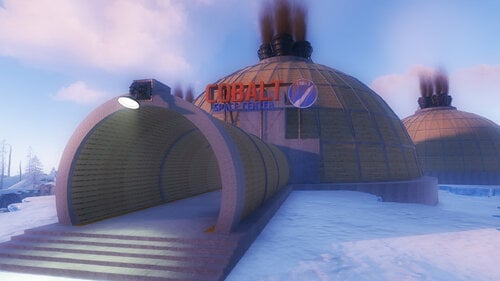
Players will be able to build inside this dome. Build Zone Dome is a safe dome for players to build inside. It contains a door that you can open and close, as well as its own lighting and vertical signs to draw on.$5.47 -
Version 1.1.5
6,638 downloads
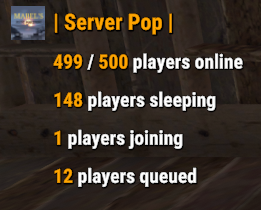
Display server population statistics in the chat using the !pop trigger. It provides detailed information about online, sleeping, joining, and queued players. Additionally, the !wipe trigger displays the time remaining until the next server wipe. The plugin supports cooldowns for trigger usage, customizable chat messages, and game tip responses. Features Cooldown Management Prevents spam by enforcing a configurable cooldown period for the !pop trigger. Detailed Player Statistics Displays the number of online players, sleeping players, players joining, and players in the queue. Customizable Messages Configure the chat prefix and SteamID for message icons. Customize messages' appearance, including colors and formats. Multi-Response Options Option to broadcast the server population message globally or to the player who issued the trigger. Supports both chat messages and game tip notifications. Welcome Messages Displays a customizable welcome message to players when they connect. Optionally shows the server population on player connect. Wipe Timer Displays time left till wipe with !wipe trigger. Trigger Filter Auto filters the !pop, !wipe, !bp, !purge, !st & !discord triggers so it isn't displayed in the chat (Reqs BetterChat) Configuration Options: Cooldown Settings • Cooldown (seconds): The cooldown period in seconds between uses of the !pop command. Chat Settings • Chat Prefix: The prefix displayed before the server population message in chat. • Chat Icon SteamID: The SteamID of the icon used for chat messages. Message Settings • Global Response: Determines if the response should be broadcast globally or sent only to the player who triggered the command. • Use Chat Response: If true, responses will be sent in the chat. • Use Game Tip Response: If true, responses will be shown as game tips (toasts). • Value Color (HEX): The color used for values in the messages. Response Settings • Show Online Players: Show the number of online players. • Show Sleeping Players: Show the number of sleeping players. • Show Joining Players: Show the number of players currently joining. • Show Queued Players: Show the number of players in the queue. Connect Settings • Show Pop On Connect: Show the server population message when a player connects. • Show Welcome Message: Show a welcome message when a player connects. • Show Wipe On Connect: Show wipe timer when a player connects. Wipe Settings • Wipe Timer Enabled: Enable the use of !wipe trigger to display wipe timer • Wipe Timer (epoch): Set the time till wipe using Epoch Time Stamp. Blueprint Wipe Settings • Blueprint Wipe Timer Enabled: Enable the use of !bp trigger to display blueprint wipe timer • Blueprint Wipe Timer (epoch): Set the time till blueprint wipe using Epoch Time Stamp. Purge Settings • Purge Enabled: Enable the use of !purge trigger to display purge timer • Purge Timer (epoch): Set the time till the purge using Epoch Time Stamp. Skill Tree Settings • Skill Tree Timer Enabled: Enable the use of !purge trigger to display purge timer • Skill Tree Timer (epoch): Set the time till skill tree using Epoch Time Stamp. Discord Settings • Discord Enabled Enable the use of !discord trigger to display invite link • Discord Invite Link: Set the discord link to be displayed. Triggers: !pop - displays server population !wipe - displays wipe time !bp - displays blueprint wipe time !purge - displays purge time !st - displays skill tree wipe time !discord - displays discord invite link Default Configuration: { "Cooldown Settings": { "Cooldown (seconds)": 60 }, "Chat Settings": { "Chat Prefix": "<size=16><color=#FFA500>| Server Pop |</color></size>", "Chat Icon SteamID": 76561199216745239 }, "Messgae Settings": { "Global Response (true = global response, false = player response)": true, "Use Chat Response": false, "Use Game Tip Response": true, "Use Single Line Chat Pop Response": false, "Value Color (HEX)": "#FFA500" }, "Response Settings": { "Show Online Players": true, "Show Sleeping Players": true, "Show Joining Players": true, "Show Queued Players": true }, "Connect Settings": { "Show Pop On Connect": true, "Show Welcome Message": true, "Show Wipe On Connect": true }, "Wipe Response Settings": { "Wipe Timer Enabled": false, "Wipe Timer (epoch)": 0 }, "Blueprint Wipe Response Settings": { "Blueprint Wipe Timer Enabled": false, "Blueprint Wipe Timer (epoch)": 0 }, "Purge Response Settings": { "Purge Timer Enabled": false, "Purge Timer (epoch)": 0 }, "Skill Tree Wipe Response Settings": { "Skill Tree Timer Enabled": false, "Skill Tree Wipe Timer (epoch)": 0 }, "Discord Response Settings": { "Discord Enabled": false, "Discord Invite Link": "" }, "Version": { "Major": 1, "Minor": 1, "Patch": 4 } } Default Language: { "Online": "{0} / {1} players online", "Sleeping": "{0} players sleeping", "Joining": "{0} players joining", "Queued": "{0} players queued", "WelcomeMessage": "Welcome to the server {0}!", "CooldownMessage": "You must wait {0} seconds before using this command again.", "WipeMessage": "Next wipe in: {0}", "DiscordMessage": "Join Us @ {0}", "OneLine": "{0} / {1} players with {2} joining! {3} queued", "BPWipeMessage": "Next blueprint wipe in: {0}", "PurgeMessage": "Purge starts in: {0}", "SkillMessage": "Next skill tree wipe in: {0}" }Free- 32 comments
- 5 reviews
-
- 7
-
-
-
- #population
- #server
- (and 7 more)
-
Version 1.1.1
155 downloads
Put in sale properties (house, building, etc) so that players can buy them, rented. Work with all doors that can include a lock code, Works with Economics Permissions propertybuying.manager.use - Gives access to the (creates, suprimed ) properties propertybuying.manager.admin - See all properties created and (creates , suprimed ) properties Commands /property - Accesses the property management ( added, removed ) How to add a property ? CopyPaste Decay Config Payment Time Model Lang$19.99 -

Version 1.0.0
8 downloads
Why This Plugin is a Game-Changer Transform your Rust server with Monument Loot Notifier, the essential tool to revolutionize gameplay for PVE and PVP alike! This plugin isn’t just functional—it’s a must-have for creating thrilling, efficient, and dynamic interactions on your server. On PVE Servers: Keep the action flowing and eliminate wasted time. With real-time notifications, players can focus on what matters most: exploration, teamwork, and thriving in the environment. No more looting empty monuments—this plugin boosts efficiency and keeps your players engaged. On PVP Servers: Turn up the heat! Notifications amplify the tension as players race to claim loot or ambush their rivals. Every notification becomes a high-stakes moment, transforming your server into a battleground of strategy and adrenaline. Support for Custom Monuments: Do you have unique, hand-crafted monuments on your server? No problem! Monument Loot Notifier fully supports custom monuments, which can be added manually through an integrated system. With just a few simple commands, you can define the boundaries of your custom creations and make them part of the action. This feature ensures your custom content gets the recognition and integration it deserves. Whether you’re fostering collaboration in PVE or creating heart-pounding moments in PVP, Monument Loot Notifier adds life and energy to your server! Documentation Commands /monument_add <name> Start creating a new custom monument by providing a name. Example: /monument_add CustomPowerPlant /add_point Add points to define the bounding box of the custom monument. Requires three points to complete. How have to start the session first by typing /monument_add NameOfYourMonument /monument_cancel Cancel the current monument creation session. No changes will be saved. /monuments_list Display a list of all custom monuments, including their name, position, and size. /monuments_show Visualize the bounding boxes of all custom monuments on the map for verification. Bounding Box System The bounding box system allows admins to define and manage custom monuments precisely. Here’s how it works: Begin by setting three points: top-left, top-right, and bottom-right corners. The plugin automatically calculates the bounding box and the center point. Bounding boxes are visually represented using spheres and lines, ensuring easy verification. This feature ensures accurate monument management for any monument size or layout, including custom monuments created by your team. Configuration File The configuration file empowers you to tailor the plugin to your server’s unique needs. Key options include: LootThreshold: Determines the number of loots required to trigger a notification. Example: Set it to 3 to notify players after three containers are looted. Default: 3. TrackLockedCrates: Enables or disables notifications for locked crate hacks. Default: true. TrackAirdrops: Enables or disables notifications for airdrop loots. Default: true. MapPreset: A critical setting that determines which custom monument configuration file to load. If your map is a regular procedural map with a seed, leave this blank, otherwise, add the preset name and the plugin will load the file with the same name to get the monument layout configuration. Example: Setting MapPreset to "CustomMap1" will load CustomMap1.json from the data folder. This makes managing multiple map setups seamless, especially for servers with unique content. To edit the configuration, navigate to the oxide/config folder and find the MonumentLootNotifier.json file. Make your changes and reload the plugin to apply them. Installation Copy MonumentLootNotifier.cs into your oxyde/plugins folder Copy Frostland.json into your oxyde/data/MonumentLootNotifier folder Permissions Control access to the plugin’s features with these permissions: • monumentlootnotifier.exclude.monuments: Exclude a player from monument-related notifications. • monumentlootnotifier.exclude.drops: Exclude a player from airdrop notifications. • monumentlootnotifier.exclude.lockedcrates: Exclude a player from locked crate hack notifications. • monumentlootnotifier.custommonument.create: Allow a player to create custom monuments using admin commands. Custom map preset included Map preset included in the ZIP file : - Frostland (map from gruber) Why Wait? Install Monument Loot Notifier Now! Whether you’re optimizing gameplay on your PVE server, cranking up the pressure in PVP, or showcasing your custom monuments, this plugin is the ultimate solution to transform your server into an unforgettable experience. Boost efficiency, increase adrenaline, and let your players thrive in the dynamic world of Rust. What are you waiting for?$7.00 -

Version 1.2.002
2,158 downloads
Discord Join our community discord for fast support and future updates. We have several channels where you can get help, offer suggestions, see what's coming in future updates, and more. Our discord is the fastest way to get the help and info you need! http://discord.rustlevels.com/ Features Online Player List UI Sleeping Player List UI Online Player HUD Kill Records Profile Icon (Kill Records plugin required) XPerience Profile Icon (XPerience plugin required) NTeleportation TPR Icon (NTeleportation plugin required with tpr permission) Chat Commands Default Commands (can be changed in config) /players - shows online player list UI /sleepers - shows sleeping player list UI /onlinehud (on/off) - turns on/off online player HUD Config { "Hide Admins": false, "Show Online Player Count": true, "Show Sleeper Count": true, "Show Player Avatars (requires ImageLibrary and Store player avatars = true)": true, "Show KillRecords Icon (Requires Kill Records Plugin)": true, "Show XPerience Icon (Requires XPerience Plugin)": true, "Show XPerience Rank Sig (Requires XPerience Plugin)": true, "Show XPerience Level (Requires XPerience Plugin)": true, "Show TPR Icon (Requires NTeleportation Plugin and tpr permission)": true, "Show Discord Report Icon (Requires DiscordReport Plugin)": false, "UI Location (distance from left 0 - 0.80)": 0.05, "UI Location (distance from bottom 0.45 - 1.0)": 0.75, "Chat Command (Online Players)": "players", "Chat Command (Sleepers)": "sleepers", "Show Online HUD": true, "Online HUD Chat Command": "onlinehud", "HUD Location From Left": 0.01, "HUD Location From Top": 0.98, "HUD Width": 0.15, "HUD Height": 0.30, "Max Players On HUD": 5, "HUD Transparency 0.0 - 1.0": 0.25, "HUD Refresh Rate (seconds)": 60.0, "HUD Font Size": 10 } Lang { "OP_01": "Online Players: {0}", "OP_02": "Sleeping Players: {0}", "OP_03": "Online Players:", "OP_04": "Sleeping Players:" }Free -

Version 1.0.5
169 downloads
PlayersUI give to your server with a beautiful and iterative interface for searching users and viewing their profiles. Features - A beautiful player list with a search box and pagination; - A profile for each user; - Permission to customize profile banner; - Badges on user profile with tooltips; - Highlight groups in user list; - Customizable commands; - Custom buttons in the profile; Default Commands /profile [target] - Show user profile; /players - Show the player list; /banner [url or default] - Change your current banner Demonstraton: Default configuration file: { "Player list command name": "players", "Profile command name": "profile", "Banner command name": "banner", "Change banner permission name": "playersui.banners.use", "Server default banner url (Recommended size: 1200x272)": "https://i.imgur.com/VjbhyCO.png", "Badges (don't use spaces in the ID, only alphanumeric chars and _ to replace the spaces)": [ { "id": "admin", "name": "Admin", "iconUrl": "https://i.imgur.com/v3ncrRY.png" }, { "id": "mod", "name": "Moderator", "iconUrl": "https://i.imgur.com/UV6NOQV.png" }, { "id": "sponsor", "name": "Sponsor", "iconUrl": "https://i.imgur.com/7YpivBD.png" }, { "id": "vip", "name": "VIP", "iconUrl": "https://i.imgur.com/E700MO8.png" } ], "Status display settings": { "Show kills": true, "Show deaths": true, "Show KDR": true, "Show killed animals": true, "Show killed NPC's": true, "Count all deaths (suicide, fall, animals, helicopters, etc...)": false }, "Custom buttons on profile": [ { "Button label": "<color=#FFF700>SEND TP</color>", "Button icon url": "https://i.imgur.com/diqgMnn.png", "Button background color": "0.82 0.6 0 1", "Button command": "chat.say /tpr {target_id}", "Is a server command": false, "Only admins can use": false, "Show it to your own profile": false, "Button anchor min": "1 1", "Button anchor max": "1 1", "Button offset min": "-74 -160", "Button offset max": "0 -136" }, { "Button label": "<color=#59ff00>CLAN INVITE</color>", "Button icon url": "https://i.imgur.com/EZWrsAo.png", "Button background color": "0.31 0.56 0.34 1", "Button command": "chat.say /clan invite {target_id}", "Is a server command": false, "Only admins can use": false, "Show it to your own profile": false, "Button anchor min": "1 1", "Button anchor max": "1 1", "Button offset min": "-174 -160", "Button offset max": "-80 -136" }, { "Button label": "KICK", "Button icon url": "https://i.imgur.com/zRr73cJ.png", "Button background color": "0.76 0.19 0.19 1", "Button command": "kick {target_id}", "Is a server command": true, "Only admins can use": true, "Show it to your own profile": false, "Button anchor min": "1 1", "Button anchor max": "1 1", "Button offset min": "-236 -160", "Button offset max": "-180 -136" } ], "Groups highlight": [ { "Group name (use oxide.groups on console to show all available groups)": "default", "Priority": 99, "Background color": "1 1 1 0.1", "Text color": "1 1 1 1", "Icon background color": "0 0 0 0", "Icon URL (empty = disabled)": "" }, { "Group name (use oxide.groups on console to show all available groups)": "admin", "Priority": 1, "Background color": "1 0 0 0.1", "Text color": "1 1 1 1", "Icon background color": "1 0 0 0.4", "Icon URL (empty = disabled)": "https://i.imgur.com/v3ncrRY.png" }, { "Group name (use oxide.groups on console to show all available groups)": "mod", "Priority": 2, "Background color": "0 1 0 .3", "Text color": "1 1 1 1", "Icon background color": "0 1 0 .5", "Icon URL (empty = disabled)": "https://i.imgur.com/UV6NOQV.png" }, { "Group name (use oxide.groups on console to show all available groups)": "sponsor", "Priority": 3, "Background color": "0.2 0.63 0.17 .3", "Text color": "1 1 1 1", "Icon background color": "0.2 0.63 0.17 .5", "Icon URL (empty = disabled)": "https://i.imgur.com/7YpivBD.png" }, { "Group name (use oxide.groups on console to show all available groups)": "vip", "Priority": 4, "Background color": "0 1 1 .3", "Text color": "1 1 1 1", "Icon background color": "0 1 1 .5", "Icon URL (empty = disabled)": "https://i.imgur.com/E700MO8.png" } ] } Preview images:$15.00- 48 comments
- 2 reviews
-
- 3
-
-
-
- #players
- #player list
- (and 4 more)
-
Version 1.0.3
245 downloads
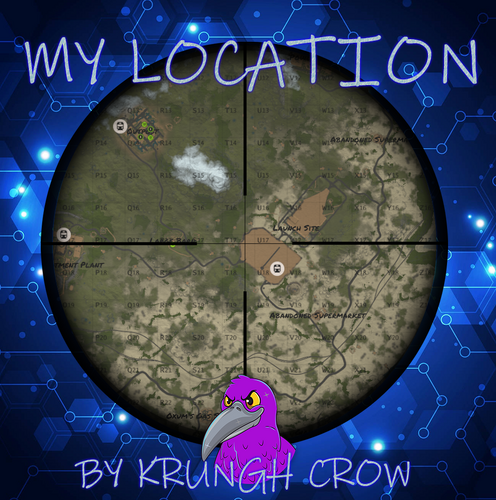
simple console log plugin to find online/sleeprs/your own location and prints it to console and logfile. Features : no config no permissions (Have to be a admin) Prints it to console. Prints it to a Logfile. Player name and steam id are now printed (New v1.0.2) Chat Commands : /position : Prints your position to chat and to console. /position.all : Prints all online players with position and Grid to console. /position.sleepers : Prints all sleepers location and Grid to console. Console Commands : position.all : Prints all online players with position and Grid to console. position.sleepers : Prints all sleepers location and Grid to console. Logfiles : Online players : Oxide --> Logs --> MyLocation(folder) --> mylocation_online.txt Sleepingplayers : Oxide --> Logs --> MyLocation(folder) --> mylocation_sleepers.txt Localization : English language file included to use a different language just make a new file in the language folder. { "All": "Printed all online players and current locations to console", "NoPermission": "<color=green>You do not have permission to use that command!</color>", "NoSleepersFound": "No sleepers found!", "Personal": "Printed to console\n{0} location = {1} Grid : {2}", "Sleepers": "Printed all sleeping players and current locations to console", "Commands": "Current commands to use :\n/position : Your position\n/position.all : Online players\n/position.sleepers : All sleepers" }Free -

Version 1.0.0
11 downloads
Preview Video NoFallDamagePlus is an innovative plugin designed for Rust that allows players to reduce fall damage based on permissions while also triggering unique effects and sounds when fall damage occurs. This plugin enhances gameplay by providing customizable fall damage management, enabling a more enjoyable experience for players. Perfect For PVE & PVP Servers Features: Dynamic Fall Damage Reduction: Players can reduce fall damage based on specific permissions, allowing for a tailored experience. Custom Effects: Trigger a variety of visual and sound effects upon taking fall damage, enhancing the immersive experience in the game. Configurable Effect Range: Admins can adjust the distance from which effects can be seen by other players, allowing for better management of visual clutter. Statistics Tracking: Keep track of fall damage taken, total damage negated, and average fall damage per player. Message Toggling: Players can enable or disable message notifications for fall damage interactions, providing greater control over in-game notifications. How to Use: Installation: Download the NoFallDamagePlus plugin file and place it in the oxide/plugins directory on your Rust server. Ensure the plugin is loaded correctly by checking the server logs for any errors. Configuration: Modify the NoFallDamagePlus.json file in the oxide/config directory to customize damage reduction percentages, effect ranges, and other settings to suit your server's needs. Permissions can be set up using the Oxide permissions system. Permissions: Players will need specific permissions to access fall damage reduction and effects. Use the following commands to assign permissions: Or you can add permissions to players or groups with the plugin PermissionManager Use Permissions: oxide.grant <player> nofalldamageplus.nodamage - Grants complete fall damage immunity. oxide.grant <player> nofalldamageplus.reduce10 - Grants 10% damage reduction. oxide.grant <player> nofalldamageplus.reduce20 - Grants 20% damage reduction. oxide.grant <player> nofalldamageplus.reduce30 - Grants 30% damage reduction. oxide.grant <player> nofalldamageplus.reduce40 - Grants 40% damage reduction. oxide.grant <player> nofalldamageplus.reduce50 - Grants 50% damage reduction. oxide.grant <player> nofalldamageplus.reduce60 - Grants 60% damage reduction. oxide.grant <player> nofalldamageplus.reduce70 - Grants 70% damage reduction. oxide.grant <player> nofalldamageplus.reduce80 - Grants 80% damage reduction. oxide.grant <player> nofalldamageplus.reduce90 - Grants 90% damage reduction. Effect Permissions: Players must also have the respective effect permission to trigger the associated effect when taking fall damage. oxide.grant <player> nofalldamageplus.z.EffectGoldenStars - Grants permission to trigger the Golden Stars effect. oxide.grant <player> nofalldamageplus.z.EffectFire - Grants permission to trigger the Fire effect. oxide.grant <player> nofalldamageplus.z.EffectExplosion - Grants permission to trigger the Explosion effect. oxide.grant <player> nofalldamageplus.z.EffectWater - Grants permission to trigger the Water effect. oxide.grant <player> nofalldamageplus.z.EffectRichochet - Grants permission to trigger the Ricochet effect. oxide.grant <player> nofalldamageplus.z.EffectSurvey - Grants permission to trigger the Survey effect. oxide.grant <player> nofalldamageplus.z.EffectWater - Grants permission to trigger the Water Splash effect. oxide.grant <player> nofalldamageplus.z.SoundEffectBearTrap - Grants permission to trigger the Bear Trap Fire effect. oxide.grant <player> nofalldamageplus.z.EffectDig - Grants permission to trigger the Digging effect. oxide.grant <player> nofalldamageplus.z.EffectSpawn - Grants permission to trigger the Barricade Spawn effect. oxide.grant <player> nofalldamageplus.z.EffectExplosion1 - Grants permission to trigger Explosion Effect 1. oxide.grant <player> nofalldamageplus.z.EffectExplosion2 - Grants permission to trigger Explosion Effect 2. oxide.grant <player> nofalldamageplus.z.EffectExplosion3 - Grants permission to trigger Explosion Effect 3. oxide.grant <player> nofalldamageplus.z.EffectWaterExplosion - Grants permission to trigger Water Bomb Explosion. oxide.grant <player> nofalldamageplus.z.EffectFire1 - Grants permission to trigger Fire Effect 1. oxide.grant <player> nofalldamageplus.z.EffectFire2 - Grants permission to trigger Fire Effect 2. oxide.grant <player> nofalldamageplus.z.EffectFire3 - Grants permission to trigger Fire Effect 3. oxide.grant <player> nofalldamageplus.z.EffectFire4 - Grants permission to trigger Fire Effect 4. oxide.grant <player> nofalldamageplus.z.EffectRockSpawn - Grants permission to trigger the Rock Spawn effect. oxide.grant <player> nofalldamageplus.z.EffectBlood - Grants permission to trigger the Blood effect. oxide.grant <player> nofalldamageplus.z.SoundEffectHowl - Grants permission to trigger the Howl sound effect. oxide.grant <player> nofalldamageplus.z.SoundEffectHurt - Grants permission to trigger the Hurt sound effect. oxide.grant <player> nofalldamageplus.z.EffectUpgradeMetal - Grants permission to trigger the Metal Upgrade effect. oxide.grant <player> nofalldamageplus.z.EffectUpgradeStone - Grants permission to trigger the Stone Upgrade effect. oxide.grant <player> nofalldamageplus.z.EffectUpgradeToptier - Grants permission to trigger the Top-tier Upgrade effect. oxide.grant <player> nofalldamageplus.z.EffectUpgradeWood - Grants permission to trigger the Wood Upgrade effect. oxide.grant <player> nofalldamageplus.z.EffectBulletExplosion - Grants permission to trigger the Bullet Explosion effect. oxide.grant <player> nofalldamageplus.z.EffectBulletFire - Grants permission to trigger the Bullet Fire effect. oxide.grant <player> nofalldamageplus.z.EffectDigSiteExplosion - Grants permission to trigger the Dig Site Explosion effect. oxide.grant <player> nofalldamageplus.z.EffectSand - Grants permission to trigger the Sand effect. oxide.grant <player> nofalldamageplus.z.EffectMissingCubes - Grants permission to trigger the MissingCube effect. Commands: /fallstats - Displays the total fall damage taken, average damage per fall, and fall count. /fallnegatedstats - Shows total negated fall damage, average damage negated per fall, and fall count. /fallnoti - Toggles message notifications related to fall damage on and off. /fallhelp - Displays help information about the plugin. Effect List: The following effects can be triggered based on player permissions when they hit the ground from falling: Golden Stars Effect Fire Effect Explosion Effect Water Effect Ricochet Effect Survey Effect Water Splash Effect Bear Trap Fire Effect Digging Effect Barricade Spawn Effect Explosion Effect 1 Explosion Effect 2 Explosion Effect 3 Water Bomb Explosion Effect Gas Explosion Effect Fire V2 Effect Fire V3 Effect Fire Explosion Effect Ore Break Effect Bloodspurt Effect Howl Sound Effect Hurt Sound Effect Metal Upgrade Effect Stone Upgrade Effect Top-tier Upgrade Effect Wood Upgrade Effect Bullet Explosion Effect Bullet Fire Effect Dig Site Explosion Effect Sand Effect Plugins By Duff https://discord.gg/2KBPH7hXb7$6.99 -

Version 1.1.8
69 downloads
RustStatistics is a plugin to recover players and server statistics We have a warning system automatic "Admin System Bans" Whitelist system for your server, can be activated with a click on the dashboard of your server from our website How to install on the server ? Linked the plugin Admin System Bans ( Prenium ) Data Recovery on Players Data Recovery on Servers Config Lang$2.00




.thumb.png.ccf8a947948c9eb1445ad21a7931247b.png)





(2).thumb.png.a6a5e9d3c32204c6c53a2159f2b1ae13.png)