Search the Community
Showing results for tags 'sell'.
Found 5 results
-
Version 2.1.3
2,400 downloads
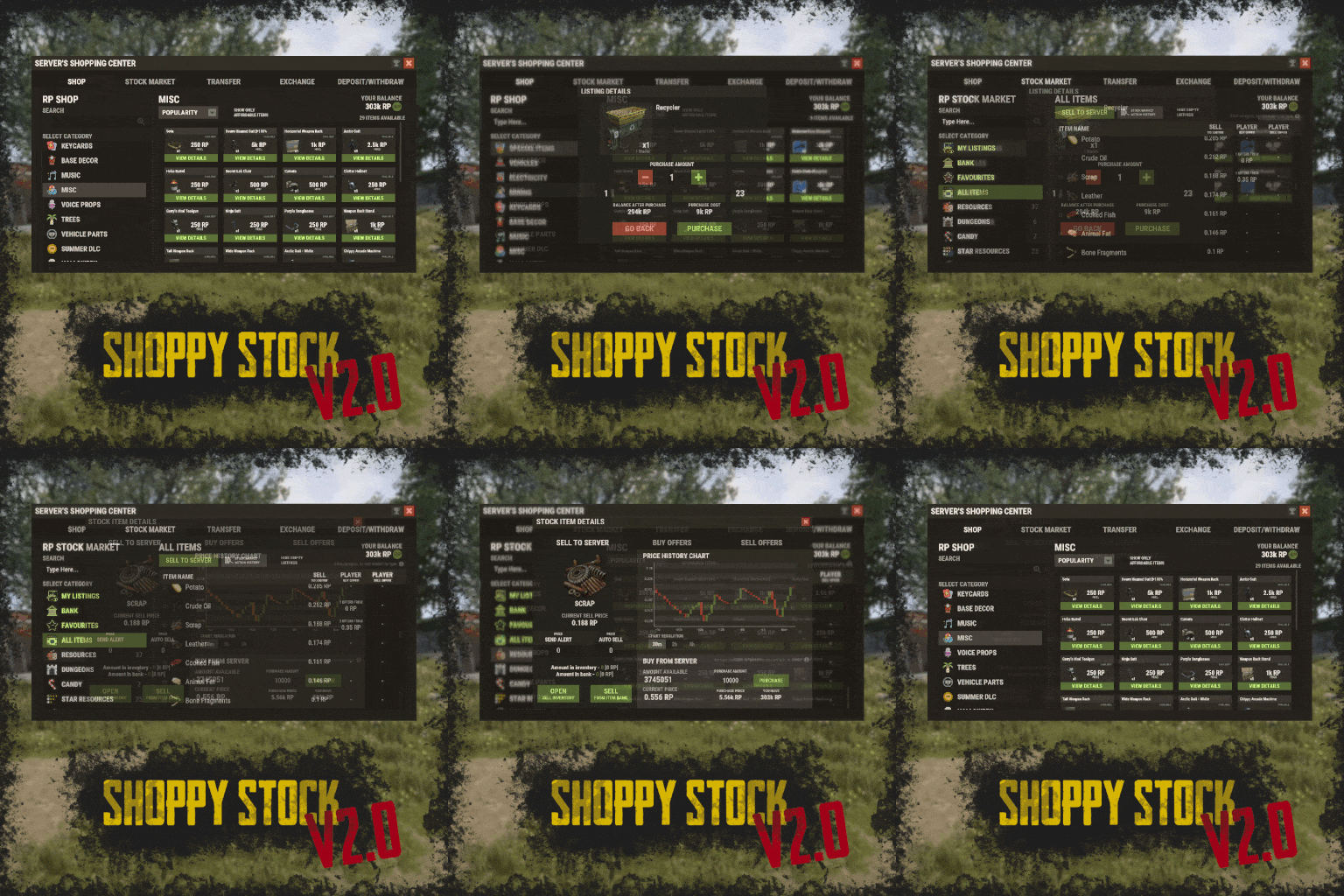
RUST Plugin Test Server TEST MY PLUGINS THERE! connect play.thepitereq.ovh:28050 Shoppy Stock is a powerful and versatile economy system designed to enrich your Rust server with shops, stock markets, transfers, exchanges, and deposit features. This plugin makes it easy to create multiple shops with unique currencies, set up dynamic stock markets with item listings, and manage a fully customizable server selling center—plus many more advanced options. Plugin package (zip) contains: ShoppyStock plugin ShoppyConverter plugin (Converts 1.x config to 2.0 config) Global Includes over 17 detailed Rust-themed GUI windows. Optimized for performance—actions are lightweight and won’t burden your server. Highly expandable, limited only by your imagination. Fully customizable popup messages through the PopUp API. Comprehensive command and API support for currency management. Full language support for all messages and items. Supports NoEscape integration. Complete UI color customization. NPC interaction support for shops and stock markets. Page memory feature remembers your position in the shop when reopened. Deposit and withdraw currencies to and from items. Currency exchange between different types. Built-in currency leaderboard. Shops Create multiple shops, each using different currencies. Easily import your old currency from other economy plugins. Organize items into categories with custom icons for seamless browsing. Unified search bar across all categories. Buy exactly the amount of items you need. Full custom item support. If currency is item-based, allow deposits into the shop as virtual currency and withdrawals back to items. Granular permission system configurable for each action. Daily or wipe purchase limits. Purchase cooldowns. Configurable discount system. Random offer rotations with customizable listings. Progressive pricing — prices can increase by set values or multipliers on each purchase. Stock Market Create multiple markets with different currencies. Favorite items tab for quick access. Automatic listing of all vanilla Rust items with blacklist support. Multiple sorting options for better market management. Buy and sell request creation. Configurable server sell price history. Permission-based limits on how many listings each player can create. Listings can be canceled, refunded, or returned to the market at no cost. Customizable taxes on market actions. Support for extra item info like durability and plant genes. Timed price rolls to adjust prices at set hours. Demand-based pricing that adjusts based on item popularity (DiscordCore required for messages). Advanced selling center with a price calculator using over 15 variables (e.g., amount sold, online player count). Stock Market Broker system—players can store or refund items, set alert prices, and even auto-sell resources while offline. Custom categories and full custom item support. Web API support for price checks or integration into server tools (requires web server). Statistics module for fine-tuning your economy. Timed listings with configurable availability durations. Ability to buy back resources sold to the market. Listing taxes based on listing time. Dynamic price history graphs. Individual configuration for server buy/sell offers per item. Generation of historical price data. Transfer Send currencies to other players, whether they’re online or offline. Configurable transfer limits and taxes. The following core permission is static and cannot be changed. However, the configuration files include hundreds of customizable permissions covering nearly every action. shoppystock.admin - Grants full access to admin commands and management tools. All commands can be fully customized in the configuration. Below are the default commands included with the plugin: /shop or /s — Opens the main Shoppy Stock interface. /adminshop — Opens the admin shop management panel. (Available in version 2.1) /deposit — Opens the currency deposit inventory. /mshop or /goldshop — Opens a specific shop. /market — Opens the stock market interface for a specific currency (defaults to “money”). /sell — Opens the sell inventory to sell items directly to the server (defaults to “money”). /list — Opens the interface to list a new item on the stock market (defaults to “money”). /bank — Opens the bank interface for a specific stock market (defaults to “money”). /stockcode <code> — Displays a private listing using a code shared by the listing owner. updateprices — Console command showing details on rolling or updating item prices in the stock market. Shoppy Stock is packed with powerful features, and configuring everything the first time can feel overwhelming. This guide provides a quick walkthrough to help you get started and understand key parts of the plugin. Optional Supported Currency Plugins Economics ServerRewards BankSystem IQEconomic Moving from V1 to V2. Shoppy Stock V2 has been almost completely rewritten from scratch, reusing less than 10% of the old code. The new configuration is redesigned to be more intuitive and feature-rich. To help you migrate, use the provided ShoppyConverter, which can convert about 95% of your old configs and data files to the new format. After converting, always review your new configs carefully — V2 includes dozens of new options that won’t automatically adjust to your preferred settings. How to convert: Place ShoppyConverter.cs in your plugins folder. Follow console instructions to move files to the required location. Run the conversion command as instructed. Once converted, place the new files in the correct folders as indicated. Configuration Files The plugin’s extensive features are divided across several files and folders: /config/ShoppyStock.json Main config containing default settings for currencies, shops, stock markets, and global options. /data/ShoppyStock/playersData.json Stores global plugin data and player currencies. /data/ShoppyStock/Shops/Configs/<shopName>.json Shop configs, including available categories and items. /data/ShoppyStock/Shops/Statistics/ Data on daily limits, unique purchases, and more. /data/ShoppyStock/StockMarkets/Configs/<stockName>.json Stock market configs. /data/ShoppyStock/StockMarkets/Listings/ Player buy and sell offers. /data/ShoppyStock/StockMarkets/PlayerData/ Alert data, favorites, banked items, etc. /data/ShoppyStock/StockMarkets/PriceCache/ Historical price data and current server sell prices. /data/ShoppyStock/StockMarkets/Statistics/ Data on items sold to the server and total currency earned. Main Config Highlights Web API You can use the Web API to show market prices on your website. Requires web hosting with PHP support. Download apiupdate.php by CLICKING HERE. Place it in the directory set by your “Web Price API - Link” config. Make sure it has permission to create api.html. The generated file will be accessible at <Web Price API - Link>/api.html. Server-Selling Items → Default Sell Amount Calculation (DSAC) DSAC helps define the average number of items sold in a period, based on your server’s player activity. The period is an one price roll time. Example: a PvE x10 server with ~20–30 players might set wood’s DSAC to 1,800,000 — based on my some calculations, but adjust based on your own stats and server needs. Always Run Timer on Hour Minute Controls when the plugin rolls stock prices. For example: Values: 0, 30, 60 → rolls at x:00 or x:30. Values: 0, 20, 40, 60 → rolls at x:00, x:20, or x:40. Stock Market - Default Categories By default, the stock market includes these categories: Favourites MyListings Bank AllItems Use these codenames in your configs to customize display order. Items - Custom Detail Info (skinId: languageKey) You can add custom info tags in listings (similar to showing tool condition or clone genes). For example, tag certain items as “Upgrade Ingredients.” Redeem Inventory Name Make sure to create a storage with this name in RedeemStorageAPI — otherwise, items from certain actions could disappear, and errors may occur. Generating Shop Config With All Vanilla Items To automatically add all vanilla RUST items to a shop: In /config/ShoppyStock.json, set Generate Config With All Default RUST Items to true in the desired shop section. Delete the existing shop config file in /data/ShoppyStock/Shops/Configs/. Reload the plugin—this will generate a new config containing all default items. Shop Data Config Highlights Shop Items - Commands Supports few types of dynamic variables in commands: {userId} → buyer’s Steam ID {userName} → buyer’s nickname {userPosX}, {userPosY}, {userPosZ} → buyer’s coordinates A collection of answers to common questions about demand systems, price multipliers, stock market trends, and developer API. Multiplier Events & Demand System Q: How does the demand system work? What is “weight”? A: The demand system uses “Multiplier Events” defined in the main config. Each event has a weight that determines its chance to be chosen during a price roll. How often demands appear is configured in your stock market file at: /data/ShoppyStock/StockMarket/Configs/<shopName>.json. Make sure names in the main config and stock market config match exactly. Q: How do “minimal” and “maximal” work? A: These define a range for random price multipliers. Example: if minimal is 1.4 and maximal is 1.8, and the original price is 1.4, the final rolled multiplier might be ~1.685 → final price becomes ≈ 2.359. If the random roll goes above max or below min, it’s clamped to min/max. Stock Market - Timestamps & Trends Q: What are timestamps used for? A: The plugin stores historical price data which appears in charts for players with the correct permission. Tip: set a reasonable timestamp retention value even if you don't plan to show players now—this lets you start collecting useful data early. Data Folder, Stock Market Config Q: Blocked Multiplier Listing Keys A: Certain items you want excluded from permission price multipliers. Price Calculator Q: Price Change - Price Fluctuation Percentage A: Adds random small price changes to keep the market realistic when no other events run. Q: Price Change - Same Price Actions Min/Max A: Controls how many rolls prices must go up or down in sequence, making trends look more natural. Q: Price Change - Chances To Increment Based On Current Price Percentage A: It's the chance to run the action listed above. It's made in "<price percentage>": <price increase chance (percentage)> format. It's made to make prices go higher more easily when they are low and harder when they are high. Q: Price Drop - Amount Sell Values Penalty Multiplier A: When many items are sold fast, price roll becomes negative × penalty multiplier, making it drop quicker. Q: Price Drop - Amount Sold Max Price Penalty A: If a huge amount of an item (e.g., 10000% of DSAC) is sold, price is locked to e.g., 25% of original value for a period (e.g., 24 price rolls). Q: Price Increase - DSAC Not Achieved A: When item demand is too low (<100% DSAC sold), price increases faster to encourage farming, e.g., by x1.5. Q: Default Sell Amount Calculation - Players Online Multiplier A: Automatically scales DSAC based on current player count (checked each price roll). Useful if online population varies greatly. Q: Price Multipliers - Minimal Time Distance Between Events A: Sets a cooldown between multiplier events to avoid price spikes. Q: Price Multipliers - Chance To Appear Based On Sold Amount A: Lets multipliers trigger more often when few or many items are sold. Q: Price Multiplier Events A: Defines how many price rolls the price-increase/decrease event should last. Server Sell Items Q: What is the price parent system? A: Lets you set base items (e.g., Metal Ore) and refined items (e.g., Metal Fragments) so that fragments always stay more valuable than ore by a set difference, encouraging refining. int GetCurrencyAmount(string shopName, BasePlayer player) - Returns player's balance rounded down to integeer. If not found returns 0. int GetCurrencyAmount(string shopName, ulong userId) - Returns player's balance rounded down to integeer. If not found returns 0. float GetCurrencyAmountFloat(string shopName, BasePlayer player) - Returns player's balance. If not found returns 0. float GetCurrencyAmountFloat(string shopName, ulong userId) - Returns player's balance. If not found returns 0. bool TakeCurrency(string shopName, BasePlayer player, int amount) - Takes player currency. Returns true if taken and false if not. bool TakeCurrency(string shopName, BasePlayer player, float amount) - Takes player currency. Returns true if taken and false if not. bool TakeCurrency(string shopName, ulong userId, int amount) - Takes player currency. Returns true if taken and false if not. bool TakeCurrency(string shopName, ulong userId, float amount) - Takes player currency. Returns true if taken and false if not. void GiveCurrency(string shopName, ulong sellerId, int amount) - Gives player currency. void GiveCurrency(string shopName, ulong sellerId, float amount) - Gives player currency. string FormatCurrency(string shopName, BasePlayer player) - Returns player's formatted balance. Video Configuration Contains all configuration files shown on video. My private configuration created for my purposes. Note: many custom item features won’t work directly on your server—they're specific to the author’s private setup. Example Configuration.zip Default Main Config CLICK HERE! Default Shop Data Config CLICK HERE! Default Stock Market Data Config CLICK HERE!$49.99 -
Version 2.4.12
15,315 downloads
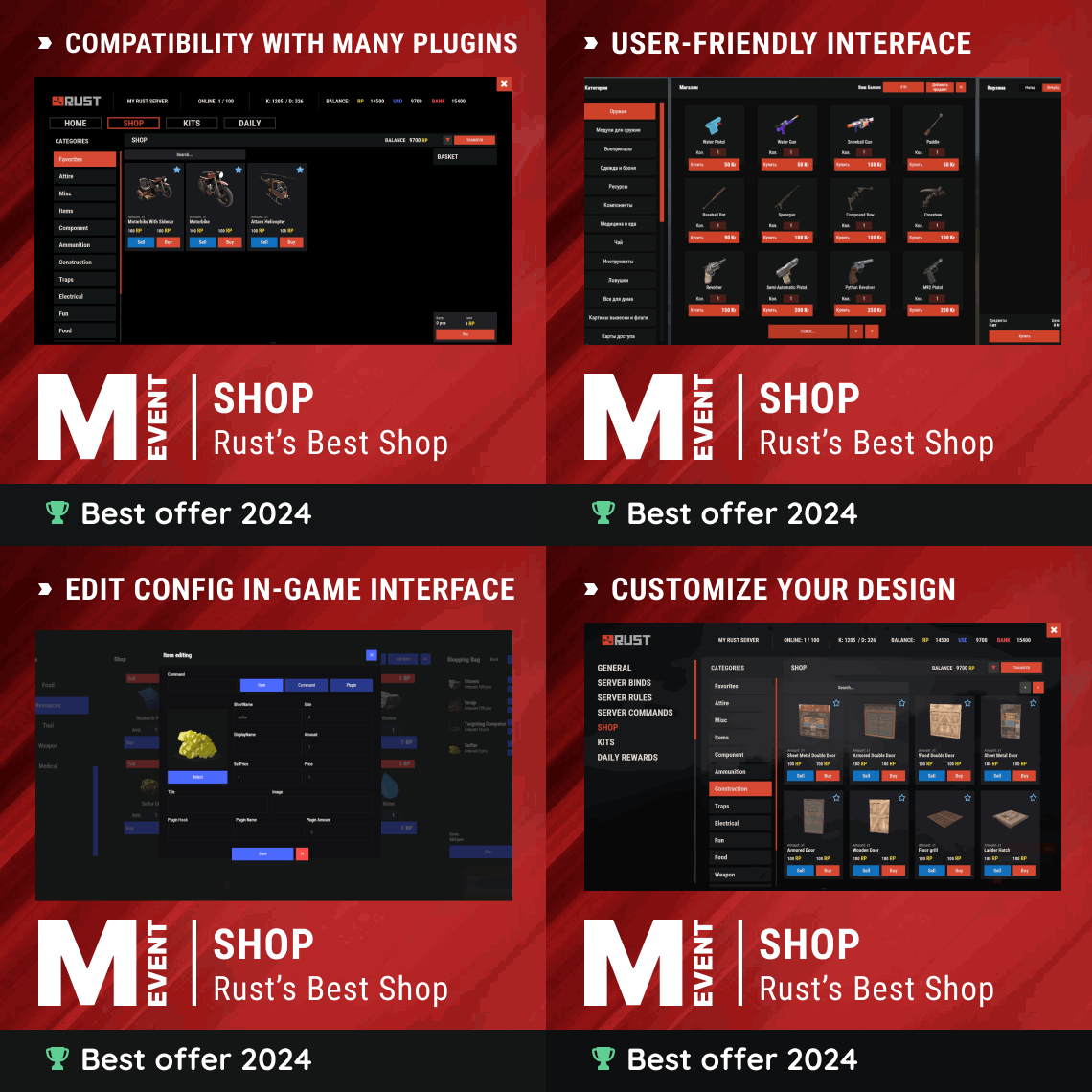
Enjoy a highly customizable Shop that can be configured in game! Use NPCs as shopkeepers, and set up a shop with ease using the game interface to add, edit, or remove items on the fly! Features of Shop Beautiful user interface with multiple templates (Fullscreen, In-Menu V1/V2/V4) Shopping Basket - add multiple items to cart and purchase them all at once Search functionality - search for items by name across all categories Pagination - efficient item browsing with page-by-page navigation Discount system (by permissions) with per-item custom discounts Automatic shop filling (+ the plugin has support for the ItemCostCalculator plugin) Selling items (players can sell items to the store and receive money for it) Sell containers configuration - choose which containers (main, belt) players can sell from Blocked skins - prevent selling of specific item skins High performance with optimized item loading Adding/editing/removing items IN GAME with visual editor Supports NPC shops (HumanNPC integration) Supports Custom Vending Machines Supports NoEscape plugin integration Supports Duel/Duelist - blocks shop access during duels Convert from ServerRewards Favorite items system - players can mark items as favorites Buy Again feature - quick repurchase of previously bought items By default, the plugin has English, Russian and Chinese translations LangAPI integration for custom translations Transfer money between players directly in the plugin (including offline players option) Shop allows you to use multiple economy plugins at once (players can choose what they want to pay with) For each item, you can choose which payment methods are available and how much they will cost, based on the selected method Cooldown system - per-item buy/sell cooldowns with per-permission overrides Wipe cooldown - block items for purchase/sale after server wipe Respawn cooldown - prevent shop access immediately after respawn Buy/Sell limits - lifetime and daily limits per permission Max buy/sell amount - limit items per transaction Force buy - fast purchase without confirmation dialogs Plant genes configuration for plant items Weapon configuration - spawn weapons with ammo and attachments Content system - configure container contents (liquid, weapon mods, etc.) Customizable UI - full color customization and formatting options Offline Image Mode - use local images instead of downloading from internet Image loading on login - preload images when players connect Console and file logging - comprehensive logging system ServerPanel integration - add Shop to ServerPanel menu Notify/UINotify integration for notifications Auto-wipe settings - automatically reset cooldowns, limits, and player data on wipe Discord Logging - Track all purchases, sales, and transfers directly in your Discord server via webhooks with customizable embeds API methods for other plugins to interact with Shop Commands shop - open shop interface shop.install – starts the shop installation process shop.refill <recovery_rate> - refill shop again recoveryRate: A value between 0 and 1 that determines the multiplier for the cost of selling items. For example, shop.refill 0.5 means that items will have a sale cost of 50% of their purchase cost. shop.convert.sr [clear] - convert items from ServerRewards to Shop. The option clear means clearing Shop items before converting shop.setvm [categories: cat1 cat2 ...] - add custom VM in config shop.setnpc [categories: cat1 cat2 ...] - add NPC in config shop.remove all - a console command to remove all items and categories from the plugin shop.remove item [category name/all] - a console command to remove an item (or all items) shop.remove category [category name/all] - a console command to remove a category (or all categories) shop.fill.icc [all/buy/sell] - a console command for updating prices of items in the store using ItemCostCalculator. all - updates both Price and SellPrice, buy - updates Price, sell - updates SellPrice shop.convert.from.1.2.26 – command to convert Shop plugin version 1.2.26 to version 1.3.0+ shop.reset – resets store data, including templates, configurations, and items. shop.reset template – resets the store interface template data. shop.reset config – resets store configuration data. shop.reset items – resets store items data. shop.reset full – completely resets all store data (templates, configurations and items). shop.manage – used to manage the Shop plugin. shop.manage economy list – displays a list of all available economic systems in the plugin. shop.manage economy set <economy_ID> <name> – sets the selected economic system by plugin ID and name. The command updates the corresponding economic system on the server and saves the changes in the configuration. FOR EXAMPLE: shop.manage economy set 0 Economics – sets the main economy plugin to "Economics". shop.manage economy set 1 ServerRewards – sets the additional economy system with ID 1 to "ServerRewards". shop.wipe – manually trigger wipe (resets cooldowns, limits, and player data) shop.change – change item category (used in editor) shop.item – console command for item actions Permissions shop.setvm - for command "shop.setvm" shop.setnpc - for command "shop.setnpc" shop.free - for free item purchases shop.admin - admin permission shop.bypass.dlc - allows bypassing Facepunch ToS item restrictions (WARNING: your server may be banned for this) API Methods The Shop plugin provides API methods for other plugins to interact with it: API_OpenPlugin(BasePlayer player) – opens the shop UI for a player. Returns empty string if failed, or UI data if successful. API_GetShopPlayerSelectedEconomy(ulong playerID) – returns the economy ID (0 = main, 1+ = additional) that the player has selected for shopping. Note: Other plugins can call these methods using Shop.Call("API_MethodName", ...) syntax. Sort Types None Name Amount PriceDecrease PriceIncrease Category Types None – normal category for items Favorite – category for favorite items Hidden – hidden category, available only in NPC stores or Vending Machines Video P.S. Video of the old version, video for the V2+ version is now in development Showcase Full screen Templates Template OLD STYLE Template NEW RUST In-Menu Templates Template V1 (V1.1) Template V1 (V1.1) with BASKET Template V2 Template V2 with BASKET Template V4 Template V4 with BASKET Installer Editor Discord Logging Track all shop activity via Discord webhooks: purchases, sales, and money transfers. TEST SERVER Join our test server to view and experience all our unique features yourself! Copy the IP Address below to start playing! connect 194.147.90.239:28015 FAQ Q: I get the message "The plugin does not work correctly, contact the administrator!”. What should I do? A: This means that your plugin is not installed. To install the plugin, use the command "/shop.install”. You need to have "shop.admin” permission to access this command. Q: Where can I see an example of a config? A: Config Q: How to use BankSystem to store the economy A: "Economy": { "Type (Plugin/Item)": "Plugin", "Plugin name": "BankSystem", "Balance add hook": "Deposit", "Balance remove hook": "Withdraw", "Balance show hook": "Balance", "ShortName": "", "Display Name (empty - default)": "", "Skin": 0, "Lang Key (for Title)": "LangTitle", "Lang Key (for Balance)": "BalanceTitle" }, Q: How to use ServerRewards to store the economy A: "Economy": { "Type (Plugin/Item)": "Plugin", "Plugin name": "ServerRewards", "Balance add hook": "AddPoints", "Balance remove hook": "TakePoints", "Balance show hook": "CheckPoints", "ShortName": "", "Display Name (empty - default)": "", "Skin": 0, "Lang Key (for Title)": "LangTitle", "Lang Key (for Balance)": "BalanceTitle" }, Q: How to use Economics to store the economy A: "Economy": { "Type (Plugin/Item)": "Plugin", "Plugin name": "Economics", "Balance add hook": "Deposit", "Balance remove hook": "Withdraw", "Balance show hook": "Balance", "ShortName": "", "Display Name (empty - default)": "", "Skin": 0, "Lang Key (for Title)": "LangTitle", "Lang Key (for Balance)": "BalanceTitle" }, Q: How to use IQEconomic to store the economy A: "Economy": { "Type (Plugin/Item)": "Plugin", "Plugin name": "IQEconomic", "Balance add hook": "API_SET_BALANCE", "Balance remove hook": "API_GET_BALANCE", "Balance show hook": "API_REMOVE_BALANCE", "ShortName": "", "Display Name (empty - default)": "", "Skin": 0, "Lang Key (for Title)": "LangTitle", "Lang Key (for Balance)": "BalanceTitle" }, Q: How to use scrap to pay for items A: "Economy": { "Type (Plugin/Item)": "Item", "Plugin name": "", "Balance add hook": "", "Balance remove hook": "", "Balance show hook": "", "ShortName": "scrap", "Display Name (empty - default)": "", "Skin": 0, "Lang Key (for Title)": "LangTitle", "Lang Key (for Balance)": "BalanceTitle" }, Q: How to add KIT as shop item A: https://pastebin.com/4szBQCgz Q: How to add Command as shop item A: https://pastebin.com/bcCkzBEL Q: How do I make a weapon spawn with ammo in it? A: You need to configure the "Weapon" section in the item config: "Weapon": { "Enabled": true, "Ammo Type": "ammo.rifle.explosive", "Ammo Amount": 128 } Q: How do I make items spawn some content (liquid, weapon modifications)? A: You need to configure the "Content" section in the item config: "Content": { "Enabled": true, "Contents": [ { "ShortName": "weapon.mod.lasersight", "Condition": 100.0, "Amount": 1, "Position": -1 } ] }, Q: How to turn off the sell feature? A: You need to turn off "Enable item selling” in the config, or do it in the item setting in the game. "Enable item selling?": false, Q: How to use the ItemCostCalculator with Shop? A: You need to use command "shop.refill" (command to refill the Shop) Q: What should be the size of images for item icons? A: Typically, the image dimensions for item icons are 512x512 pixels, but any square image can suffice. Q: I get the error "UI is unavailable for player. Reason: Menu UI is not initialized". How to fix it? A: This error occurs when the interface template is not installed or configured. Follow these steps: 1. Reset the template using the command: shop.reset template (use only template to avoid data loss). 2. Install the interface via shop.install in the game (to visually select a template) or through the console. Note: Ensure you have the shop.admin permission to execute these commands. Q: How do I add Shop to the ServerPanel menu? A: Follow these simple steps: 1. Open ServerPanel menu in-game and click "+ADD CATEGORY" button 2. Set these exact parameters: Type: Plugin Plugin Name: Shop Plugin Hook: API_OpenPlugin 3. Click "SAVE" button to create the category 4. Reset Shop template and install it: Type in console: shop.reset template (IMPORTANT: use only "template"!) Then type: shop.install Note: If Shop doesn't appear in ServerPanel menu, make sure both plugins are loaded and you typed the parameters exactly as shown above. Q: I see black images with Rust logo or get error 429 when loading images. What should I do? A: These issues occur when there are problems downloading images from the internet. The Shop plugin sends images to ImageLibrary but is not responsible for the downloading process itself. Error 429 typically occurs due to rate limits imposed by image hosting services like Imgur (see HTTP 429 documentation for more details). To fix this, enable Offline Image Mode which will use local images instead: Enable the mode in config: Open "oxide/config/Shop.json" (or "carbon/config/Shop.json" for Carbon) Set "Enable Offline Image Mode": true Set up the images: Create folder "TheMevent" in "oxide/data" (or "carbon/data" for Carbon) Download PluginsStorage (click "CODE" → "Download ZIP") Extract the ZIP and copy all contents to the "TheMevent" folder Reload the plugin: Type o.reload Shop (Oxide) or c.reload Shop (Carbon) Note: If you want to add your own custom images, place them in the "TheMevent" folder and reference them with the "TheMevent/" prefix. For example: "TheMevent/Icon1.png", "TheMevent/MyCustomIcon.jpg", etc. Q: What placeholders are available for commands and what do they do? A: You can use these placeholders in shop commands and they will be automatically replaced when a player purchases a command item: %steamid% - Replaced with the player's Steam ID (e.g., "76561198000000000") %username% - Replaced with the player's display name (e.g., "PlayerName") %player.x% - Replaced with the player's X coordinate position %player.y% - Replaced with the player's Y coordinate position %player.z% - Replaced with the player's Z coordinate position Example usage in shop commands: "Command (%steamid%)": "say Welcome %username%!|teleport %steamid% %player.x% %player.y% %player.z%" Note: Multiple commands can be separated by the "|" character, and they will be executed in sequence when the item is purchased. Q: How to set different prices for different currencies (RP and balance)? A: You can configure separate currency prices for each item. Edit the file oxide/data/Shop/Shops/Default.json and find the item you want to modify. In the "Currencies" section, set different prices for each economy: "Currencies": { "Enabled": true, "Currencies": { "0": {"Price": 1000}, "1": {"Price": 500} } } This means players pay 1000 from their main balance (Economics) or 500 RP from their ServerRewards balance. Economy ID 0 = main economy, ID 1 = ServerRewards. Q: How to create a shop using HumanNPC plugin and set specific categories? A: To create a shop with HumanNPC, follow these steps: Create an NPC using HumanNPC plugin Get the NPC ID (you can find it in the HumanNPC config or use the command humannpc.list) Use the Shop command to add the NPC: shop.setnpc [categories: cat1 cat2 ...] Example: shop.setnpc categories: Weapon Ammunition Tools - adds the NPC with Weapon, Ammunition, and Tools categories shop.setnpc categories: * - adds the NPC with all available categories Note: You need the shop.setnpc permission to use this command. Make sure both HumanNPC and Shop plugins are loaded on your server. Q: How to add Custom Vending Machines to Shop plugin? A: To add Custom Vending Machines to Shop, follow these steps: Place a Custom Vending Machine in your world Look at the vending machine and use the command: shop.setvm [categories: cat1 cat2 ...] Example: shop.setvm categories: Weapon Ammunition - adds the vending machine with Weapon and Ammunition categories shop.setvm categories: * - adds the vending machine with all available categories Note: You need the shop.setvm permission to use this command. The vending machine will be automatically added to the Shop configuration. Q: How does the Shopping Basket feature work? A: The Shopping Basket allows players to add multiple items to a cart before purchasing. Players can add items to the basket, review their selection, and purchase everything at once. The basket shows the total cost and allows players to remove items before checkout. This feature must be enabled in the template settings. Q: How does the Search functionality work? A: The Search feature allows players to search for items by name across all categories. Simply type in the search box and the shop will filter items matching your query. Search works across all enabled categories and respects permission settings. The search feature can be enabled/disabled in the template configuration. Q: What are Wipe Cooldown and Respawn Cooldown? A: These are time-based restrictions: Wipe Cooldown: Blocks items from being bought/sold for a specified time after a server wipe. This is useful for preventing powerful items from being purchased immediately after wipe. Configure in config: "Wipe Cooldown": true and "Wipe Cooldown Timer": 3600 (seconds). Respawn Cooldown: Prevents players from opening the shop immediately after respawning. Helps prevent abuse. Configure in config: "Respawn Cooldown": true and "Respawn Cooldown Timer": 60 (seconds). Q: How do Daily and Lifetime Limits work? A: Limits control how many times players can buy/sell items: Lifetime Limits: Total number of times a player can buy/sell an item across their entire account. Set to 0 for unlimited. Daily Limits: Maximum number of times per day a player can buy/sell an item. Resets daily. Set to 0 for unlimited. Limits are per-permission, so you can set different limits for VIP players, regular players, etc. The plugin uses the highest limit among all permissions the player has. Q: What is the "Buy Again" feature? A: Buy Again allows players to quickly repurchase items they have bought before. This feature shows a history button in the shop UI (if enabled) and requires a permission. To enable, set "Buy Again Settings": {"Enabled": true, "Permission": "shop.buyagain"} in the config. Q: How do I configure blocked skins for selling? A: You can prevent players from selling specific item skins. In the config, add entries to "Blocked skins for sell": "Blocked skins for sell": { "rifle.ak": [52, 25], "pistol.m92": [100, 200] } Q: How do I configure which containers players can sell from? A: In the config, set "Settings available containers for selling item": "Settings available containers for selling item": { "Enabled": true, "Containers": ["main", "belt"] } Available container names: "main" (inventory), "belt" (hotbar), "wear" (clothing), etc. Q: What are Auto-Wipe Settings? A: Auto-Wipe Settings automatically reset certain data when you run the shop.wipe command. Configure in config: "Auto-Wipe Settings": { "Cooldown": true, "Players": true, "Limits": true } Cooldown: Resets all item cooldowns Players: Resets all player data (favorites, economy selection, etc.) Limits: Resets all buy/sell limits Q: How do I customize price formatting? A: In the config, set "Formatting Settings" to control how prices are displayed: "Formatting Settings": { "Buy Price Format": "G", "Sell Price Format": "G", "Shopping Bag Cost Format": "G", "Balance Format": "G" } Format options: "G" (general), "N" (number with separators), "C" (currency), "F" (fixed-point), etc. See .NET number formatting for all options. Q: How do I enable transfers to offline players? A: In the config, set "Allow money transfers to offline players?": true. By default, this is disabled for security reasons. Q: How do I configure Duel/Duelist integration? A: To block shop access during duels, set "Blocking the opening in duels?": true in the config. Make sure you have the Duel or Duelist plugin loaded. Q: What do all shop item settings mean and how should I configure them? A: Below is a short explanation of the most important item fields and how they affect the plugin. Type – what this entry does: Item (gives an in-game item), Command (runs server commands), Plugin (calls another plugin hook), Kit (gives a kit). ID – unique numeric ID of the item inside Shop. Used internally (for logs, favorites, editor); normally you don’t change it manually. Image – custom UI icon key. If empty, Shop will try to use the item icon found by ShortName. Permission – Oxide/Carbon permission required to see and use this item. Leave empty to make the item available to everyone, or set e.g. shop.vip for VIP‑only items. Title – custom title shown in the UI. If empty, the plugin will try to use DisplayName, then the in‑game display name of the item, or fall back to an empty string. Description – additional text shown in the item window. Optional, purely visual. Command (%steamid%) – used when Type = Command. The plugin will execute this command on the server. You can use placeholders like %steamid%, %username%, %player.x%, %player.y%, %player.z%. Each purchase can run multiple commands (split internally by |). Kit – kit name for Type = Kit. The plugin will give a kit with this name when the player buys the item. Plugin – used for Type = Plugin. Contains plugin name, hook name and amount. When the item is purchased, the specified hook will be called in the target plugin. DisplayName (empty – default) – overrides the in‑game item name shown to the player (for Type = Item). If empty, the plugin uses the original item display name (optionally via Lang API). ShortName – shortname of the item (e.g. rifle.ak). This is required for Type = Item; it is used to find ItemDefinition, icon, stack size, etc. Skin – workshop skin ID for the item. Only used when Type = Item. Is Blueprint – if enabled, Shop will give the item as a blueprint instead of the regular item. Amount – how many items are given/sold per one purchase. For blueprints this is how many separate blueprint items are created. Enable item buying? (CanBuy) – if disabled, the item cannot be bought (only sold, if selling is enabled). Price – default purchase price. Can be overridden per‑economy in Currencies – if a currency is configured for buying, its price will be used instead of this value. Enable item selling? (CanSell) – if disabled, players cannot sell this item back to the shop. Sell Price – default sell price. Can also be overridden in Currencies for selling. Buy Cooldown / Sell Cooldown – base cooldown in seconds between purchases/sales of this item. Can be overridden by per‑permission cooldowns below. Buy Cooldowns / Sell Cooldowns – per‑permission cooldowns. Keys are permission names (e.g. shop.vip), values are cooldown seconds. The plugin uses the lowest cooldown among permissions that the player has. Use custom discount? – if enabled, the item will use its own Discount map instead of the global discount configuration. Discount (%) – per‑permission discount percentages for this item (only if custom discount is enabled). The highest discount from permissions that the player has will be applied. Sell Limits / Buy Limits – global lifetime limits per permission. A value of 0 means “no limit”. The plugin selects the highest limit among permissions the player has. Daily Buy Limits / Daily Sell Limits – per‑day limits (reset by the plugin’s daily logic). 0 means “no daily limit”. Max Buy Amount / Max Sell Amount – maximum number of items that can be bought/sold in a single transaction (0 disables this limit). Force Buy – if enabled, the item will use fast purchase flow (without extra confirmation windows, depending on UI settings). Prohibit splitting item into stacks? – if enabled, the plugin will try to give the item in a single stack instead of splitting it into multiple stacks, when possible. Purchase/Sale block duration after wipe – time (in seconds) after a wipe during which this item cannot be bought/sold. Useful for limiting powerful items early in the wipe. Localization – per‑language messages for the item title. If enabled and a translation exists for the player’s language, it will override the normal title. Content – configuration of contents for containers (e.g. boxes, weapons with attachments, etc.). You can add inner items (shortname, amount, condition, position). Weapon – additional settings for weapons (ammo type, ammo amount, etc.). Applied when the item is created. Genes – plant gene configuration. If enabled, the plugin will set specified genes on the created item. Currencies – per‑economy price configuration. You can set different prices for each enabled economy plugin (by economy ID) for both buying and selling. If a currency is configured and enabled for the player’s selected economy, its price takes priority over the default Price/Sell Price. Q: What do shop category settings mean and how should I configure them? A: Categories group your shop items and control how they are shown, sorted and filtered for players. Enabled – turns this category on or off. If disabled, the category and all its items will not appear in the shop UI at all. Category Type – controls special behavior of the category: None – a normal category that shows the items you added to Items. Favorite – a virtual category that shows each player’s favorite items (based on their own favorites list). Items here are taken from other categories the player marked as favorite. Hidden – a hidden category. It is stored in data and can be used for management, but is not shown in the normal category list in UI. Title – the name of the category displayed in the UI. If Localization is enabled and contains a translation for the player’s language, that localized text will be shown instead of this value. Permission – permission required to see and use this category. If you leave it empty, all players can see the category (subject to item‑level rules). If you set e.g. shop.category.vip, only players with that permission will see this category in the shop. Sort Type – how items inside the category are sorted: None – items are shown in the order they are stored/edited. Name – items are sorted alphabetically by their PublicTitle (what the player sees). Amount – items are sorted by Amount (stack size) in ascending order. PriceIncrease – items are sorted by price from cheaper to more expensive. PriceDecrease – items are sorted by price from more expensive to cheaper. Sorting is applied every time the category items are requested. Items – the list of ShopItem entries that belong to this category. For normal categories (Type = None/Hidden) this is what will be displayed in the item grid. For Favorite categories this list is not used for display – the plugin uses the player’s favorites instead. Localization – optional localized title for the category. When enabled, the plugin will try to show a translated title based on the player’s language. If no translation is found, it falls back to the Title field. How visibility and filtering work – when the shop builds a category: For normal categories, only items that are available for the player (permission, currencies, buy/sell rules, etc.) are included. Skip/take pagination is applied on top of that filtered list to show items page by page. For favorite categories, the plugin takes the player’s favorite items, applies sorting, and displays them in this special category. Reordering categories and items – categories and items can be moved up/down (or left/right) in the in‑game editor. This changes the order in which categories are shown in the UI and the default order of items when Sort Type = None. Q: How do I enable and use ADMIN MODE? A: ADMIN MODE is a visual in-game editor that allows you to manage your shop without editing files manually. Step 1: Enable ADMIN MODE Ensure you have the shop.admin permission Open shop with /shop command Click the "ADMIN MODE" button in the header (shows "■" when active) Step 2: Create/Edit Categories To create a new category: With ADMIN MODE enabled, click the "+" button in categories list Fill in category details (Title, Enabled, Type, Permission, Sort Type) Click "SAVE" To edit an existing category: Click the "Edit" button (pencil icon) next to the category Modify settings Click "SAVE" or "CANCEL" Step 3: Create/Edit Items To create a new item: Open the target category Click "+ADD ITEM" button Select item from the selection panel Configure all item properties (price, amount, permissions, etc.) Click "SAVE" To edit an existing item: Click the "Edit" button on the item Modify properties Click "SAVE" or "CANCEL" Additional ADMIN MODE Features: Use ↑↓ arrows to reorder categories Use ←→ arrows to reorder items within categories Use "DELETE" button in editor to remove categories/items All changes save automatically - no manual file editing needed Q: Where are shop files stored and what do they contain? A: Shop plugin data is organized in the following structure: Configuration (oxide/config/Shop.json or carbon/config/Shop.json) Plugin settings (permissions, commands, economy configuration) Notification settings Discord logging configuration Global plugin options Shop Data (oxide/data/Shop/Shops/Default.json or carbon/data/Shop/Shops/Default.json) This is the main shop inventory file All categories and their settings All items with prices, permissions, cooldowns, limits Item configurations (weapons, content, currencies, etc.) Edited through ADMIN MODE or manually UI Template (oxide/data/Shop/UI.json or carbon/data/Shop/UI.json) Interface template configuration Colors, sizes, positions Display settings Reset with: shop.reset template then shop.install Player Data (oxide/data/Shop/Players/ or carbon/data/Shop/Players/) Individual player files (one per player)$29.95 -
Version 1.1.0
1,261 downloads
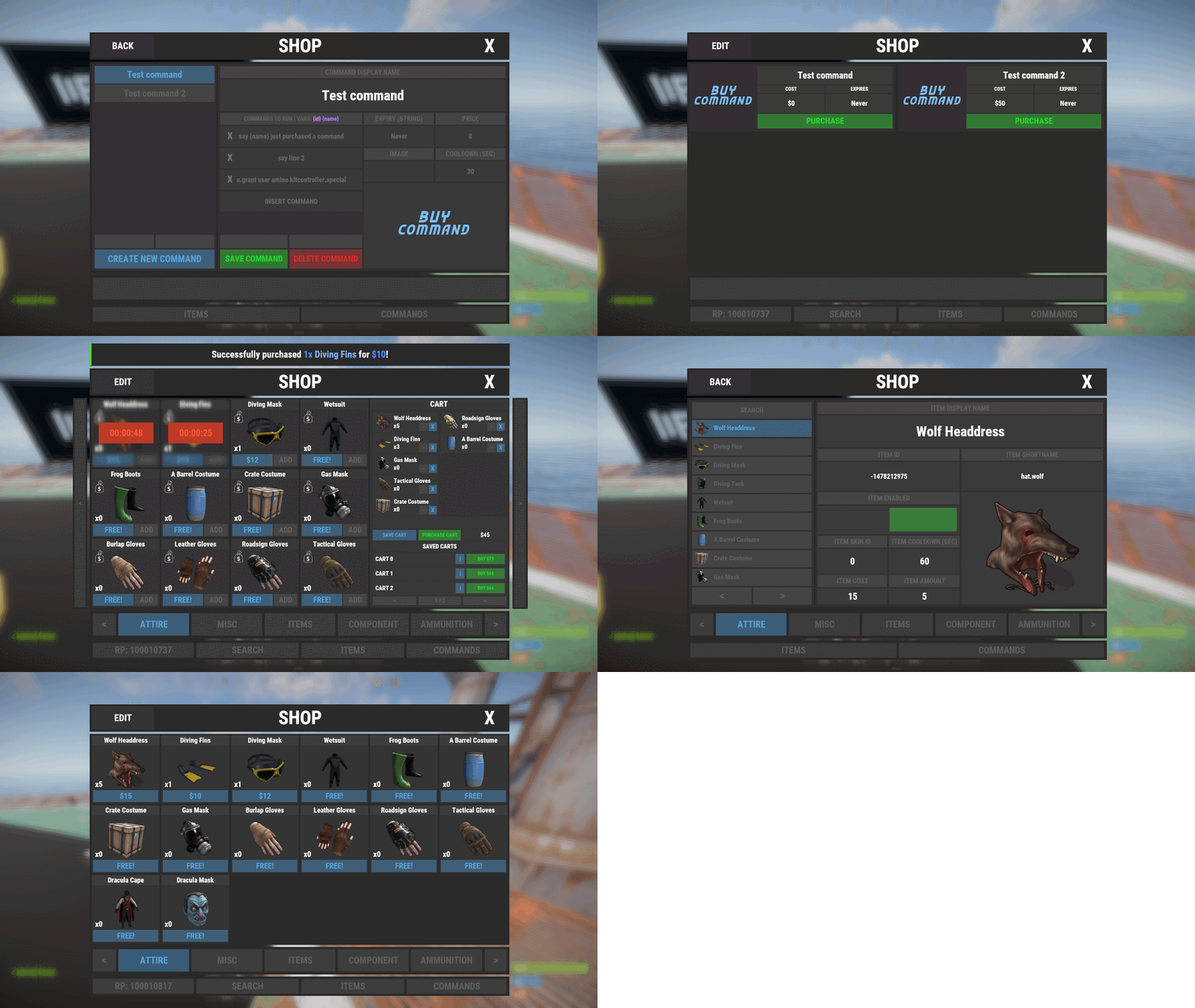
Shop Controller is an advanced shop UI system. Offers selling of items and commands as well as an in-game item editor. FEATURES • UI Cart system (Optional) • In-game item editor • In-game command editor • Item cooldowns • Command cooldowns • Custom item skins • Sell back to shop (Optional) • Easy color editing of the UI • Multi currency support (RP, Economics, any item) • Custom shop commands PERMISSIONS shopcontroller.use shopcontroller.admin SETUP The setup is very easy! - Set the commands you want the shop to be opened with - Set your currency. It supports RP, Economics, or any item (use the shortname)! - Set if you want to use the cart system or not - Plugin images, change if you want to use images other than the default ones. - UI Elements, all of these are color, "Rust Format" > https://tools.rustplugins.io/colors Support? Questions? Comments? Concerns? Message me in my Discord! https://discord.gg/RVePam7pd7$29.99 -

Version 1.0.3
24 downloads
Raffles is a plugin that allows servers to create and host raffles. These raffles are a fun way to give players an outlet to dispose of excess resources, and a great way for server owners to hand out rare and valuable items! Raffles features full language support and can be translated into other languages with oxides lang system. This plugin allows for the following reward types: Item rewards: Whether it be vanilla or custom items, Raffles will support it. Economics: Reward your players with an injection of economic dollars, straight into their account. Server Rewards: The same as Economics, but for the Server Rewards plugin! Commands: You can run as many commands as you like, and have them listed in the raffle with a custom name. For example, you could have a command that gives the player a random S tier Epic Loot item for winning. It allows for the userid and name to be substituted with {id} and {name}, so will support most command types. The raffles are broken down into 2 types. Daily raffles are the primary raffle structure in the plugin. They allow you to set item currencies (yes, it supports custom items), which the player will use to purchase raffle tickets. Some features it includes: Custom ticket items. Variable duration, allowing you to have the raffle run for as long as you want. Scheduled start date/time, allowing for you to create the raffle in the config, and have it automatically start when its date/time values are met. Ticket limits, allowing you to set a maximum number of tickets, which will conclude the raffle once met. Item, economics, server rewards and command prizes. Raffles that are in the config and set for a future date, will appear under the "Future Raffles" category. This allows users to see what raffles are coming up and when. This can be disabled by setting the visible flag to false. Future raffles can be force started by admins via this menu or command. Wipe Raffles contain the same prize structure as regular raffles, allowing for economics, server rewards, items and commands to be awarded to the winners, but their participation works a little differently. Rather than having players purchase a ticket for the raffle directly, it will count any raffle tickets that the player purchases from a daily raffle as an entry. This means that if a player purchases 60 raffle tickets between 3 different daily raffles over the course of the wipe, they will have 60 entries into the wipe raffle. The wipe raffle will roll when the server wipes and will allow you to award players with prizes that are redeemable AFTER the server wipes. This can be as simple as a pickaxe and hatchet that can be redeemed when they login, or as advanced as S tier Epic Loot items, the choice is yours. The plugin allows for multiple wipe raffles, so you can have multiple winners! The plugin has 2 permissions: raffles.allow - required to use the raffles plugin. raffles.admin - required to use admin commands and see admin elements. Commands: Command: forcestartraffle Parameters: <partial raffle name> Description: forces the specified raffle to start, even if the raffle has already run its course. The start date of the raffle will be modified to time the command is run.$19.99 -
Version 1.0.3
25 downloads
This plugin will immerse the player in the dark market, where you can buy various goods for various coins! -------------------------------------------------------------------------------------------------------------------------- Features: A unique, minimalistic, one-of-a-kind plugin design! A good idea of the store! The plugin is made with musical accompaniments when downloading and purchasing the product! When buying a product, the player will still need to find it! Convenient and easy configuration setup Optimized plugin operation! Discounts on products! -------------------------------------------------------------------------------------------------------------------------- Video Review: ( The video shows the main functionality of the plugin! ) -------------------------------------------------------------------------------------------------------------------------- Configuration: Main Settings: "Permission to use the command": "dkmarket.use", "Save logs ?": true, "Spawn radius of the box": 150, "SkinID Box": 1545613264, "Use Notify ? ( https://codefling.com/plugins/notify )": false, "Commands": [ "market", "darknet" ], Setting up a discount ( discounts) for privileges: "Personal discount for privileges": { "dkmarket.vip": 10, "dkmarket.premium": 20 }, Setting up text loading stages: "Stages of text loading": [ "ASUS P5KPL ACPI BIOS Revision 0603", "CPU: Intel (R) Core(TM) i5-3470 @ 3.20GHz", "Speed: 3.20 GHz", "Initializing USB Controllers", "Checking RAM storage", "Validating HDD", "Detecting IDE drivers", "Memory Frequency 8024MHz", "Validating complete", "Immortal (C) 2022 Codefling, Inc" ], Setting up your economy plugin: "Settings Economy": { "Plugin name": "Economics", "Balance add hook": "Deposit", "Balance remove hook": "Withdraw", "Balance show hook": "Balance" }, Basic setup of categories and items that will be in the category: "Settings Category and Items": [ { "Category name": "Weapon", "Items that will be sold in this category": [ { "ShortName": "rifle.ak", "SkinID": 0, "DisplayName": "", "Image ( Leave an empty field if you don't need to upload a picture for this item )": "", "Amount": 1, "Price": 50 }, { "ShortName": "rifle.bolt", "SkinID": 0, "DisplayName": "", "Image ( Leave an empty field if you don't need to upload a picture for this item )": "", "Amount": 1, "Price": 50 }, { "ShortName": "rifle.l96", "SkinID": 0, "DisplayName": "", "Image ( Leave an empty field if you don't need to upload a picture for this item )": "", "Amount": 1, "Price": 50 }, { "ShortName": "rifle.m39", "SkinID": 0, "DisplayName": "", "Image ( Leave an empty field if you don't need to upload a picture for this item )": "", "Amount": 1, "Price": 50 }, { "ShortName": "rifle.semiauto", "SkinID": 0, "DisplayName": "", "Image ( Leave an empty field if you don't need to upload a picture for this item )": "", "Amount": 1, "Price": 50 }, { "ShortName": "smg.2", "SkinID": 0, "DisplayName": "", "Image ( Leave an empty field if you don't need to upload a picture for this item )": "", "Amount": 1, "Price": 50 }, { "ShortName": "smg.mp5", "SkinID": 0, "DisplayName": "", "Image ( Leave an empty field if you don't need to upload a picture for this item )": "", "Amount": 1, "Price": 50 }, { "ShortName": "smg.thompson", "SkinID": 0, "DisplayName": "", "Image ( Leave an empty field if you don't need to upload a picture for this item )": "", "Amount": 1, "Price": 50 }, { "ShortName": "pistol.eoka", "SkinID": 0, "DisplayName": "", "Image ( Leave an empty field if you don't need to upload a picture for this item )": "", "Amount": 1, "Price": 50 }, { "ShortName": "pistol.m92", "SkinID": 0, "DisplayName": "", "Image ( Leave an empty field if you don't need to upload a picture for this item )": "", "Amount": 1, "Price": 50 }, { "ShortName": "pistol.nailgun", "SkinID": 0, "DisplayName": "", "Image ( Leave an empty field if you don't need to upload a picture for this item )": "", "Amount": 1, "Price": 50 } ] }, { "Category name": "Ammunition", "Items that will be sold in this category": [ { "ShortName": "ammo.shotgun", "SkinID": 0, "DisplayName": "", "Image ( Leave an empty field if you don't need to upload a picture for this item )": "", "Amount": 10, "Price": 50 }, { "ShortName": "ammo.shotgun.slug", "SkinID": 0, "DisplayName": "", "Image ( Leave an empty field if you don't need to upload a picture for this item )": "", "Amount": 20, "Price": 35 } ] }, { "Category name": "Medical", "Items that will be sold in this category": [ { "ShortName": "pistol.m92", "SkinID": 0, "DisplayName": "", "Image ( Leave an empty field if you don't need to upload a picture for this item )": "", "Amount": 1, "Price": 50 }, { "ShortName": "pistol.nailgun", "SkinID": 0, "DisplayName": "", "Image ( Leave an empty field if you don't need to upload a picture for this item )": "", "Amount": 1, "Price": 50 } ] }, { "Category name": "Food", "Items that will be sold in this category": [ { "ShortName": "pistol.m92", "SkinID": 0, "DisplayName": "", "Image ( Leave an empty field if you don't need to upload a picture for this item )": "", "Amount": 1, "Price": 50 }, { "ShortName": "pistol.nailgun", "SkinID": 0, "DisplayName": "", "Image ( Leave an empty field if you don't need to upload a picture for this item )": "", "Amount": 1, "Price": 50 } ] }, { "Category name": "Resources", "Items that will be sold in this category": [ { "ShortName": "pistol.m92", "SkinID": 0, "DisplayName": "", "Image ( Leave an empty field if you don't need to upload a picture for this item )": "", "Amount": 1, "Price": 50 }, { "ShortName": "pistol.nailgun", "SkinID": 0, "DisplayName": "", "Image ( Leave an empty field if you don't need to upload a picture for this item )": "", "Amount": 1, "Price": 50 } ] }, { "Category name": "Other", "Items that will be sold in this category": [ { "ShortName": "pistol.m92", "SkinID": 0, "DisplayName": "", "Image ( Leave an empty field if you don't need to upload a picture for this item )": "", "Amount": 1, "Price": 50 }, { "ShortName": "pistol.nailgun", "SkinID": 0, "DisplayName": "", "Image ( Leave an empty field if you don't need to upload a picture for this item )": "", "Amount": 1, "Price": 50 } ] }, { "Category name": "Rockets", "Items that will be sold in this category": [ { "ShortName": "pistol.m92", "SkinID": 0, "DisplayName": "", "Image ( Leave an empty field if you don't need to upload a picture for this item )": "", "Amount": 1, "Price": 50 }, { "ShortName": "pistol.nailgun", "SkinID": 0, "DisplayName": "", "Image ( Leave an empty field if you don't need to upload a picture for this item )": "", "Amount": 1, "Price": 50 } ] } ], Configuration version: "Verison Configuration": { "Major": 1, "Minor": 0, "Patch": 0 }$15.00