
Download Cursor Lock – cursor lock, multi-monitor, mouse control, productivity tool, hotkey utility, Windows app
Overview
Cursor Lock is a specialized productivity tool designed for users working across multiple monitors on Windows systems. Its primary purpose is to enhance mouse control by allowing users to lock the cursor within a specific window or monitor, reducing distractions and improving focus during multitasking. This functionality is particularly valuable for professionals managing complex workflows, content creators, and gamers who rely on precise cursor positioning across dual or multi-display setups. By preventing unintended cursor movement between screens, the app helps maintain workflow continuity and reduces the risk of accidental interactions with other applications.
The tool addresses a common pain point in multi-monitor environments: the cursor drifting unintentionally to another screen, disrupting concentration or gameplay. Cursor Lock provides a lightweight solution to this persistent issue. While the developer did not provide additional background information, the app has been available since 2013, suggesting a long-standing presence in the productivity software niche. Despite its age, the application continues to serve a niche but important function for users seeking granular control over their mouse behavior.
Real-world use cases include using one monitor for video editing while keeping the cursor confined to the editing software on another screen, or locking the cursor during competitive gaming to avoid accidental clicks on unrelated windows. The app’s minimal footprint and free pricing model make it accessible to a broad audience. In the broader app ecosystem, Cursor Lock fills a gap left by operating system-level tools, offering a targeted utility that enhances user efficiency without requiring system-level changes.
Key Features & Functionality
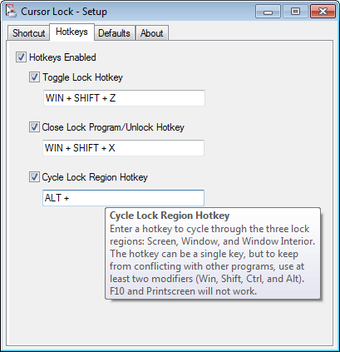
- Flexible Hotkey Setup: Users can assign custom hotkeys to trigger cursor locking actions. This allows quick activation of locking modes without navigating through menus, ideal for rapid task switching.
- Strict User Mode: This mode confines the cursor to a single monitor, preventing it from crossing display boundaries. It’s especially useful for users who need to maintain focus on one workspace at a time.
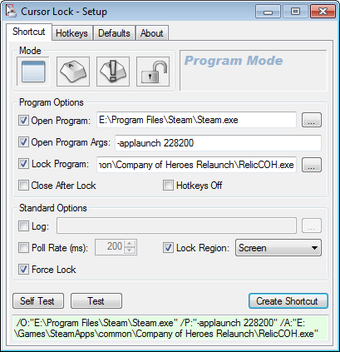
- Program Mode Locking: Enables users to lock the cursor within a specific application window. When activated, the cursor remains restricted to that program, even if other windows are open or active.
- Free to Use: The application is completely free, with no in-app purchases or subscription requirements. This encourages exploration and adoption without financial risk.
- Lightweight Design: At just 2.1 MB, Cursor Lock consumes minimal system resources, ensuring it runs smoothly even on older or low-spec machines.
For example, a graphic designer working with multiple tools across two screens can use Program Mode to lock the cursor within a design application while keeping other windows open. Similarly, a gamer can use Strict User Mode to prevent the cursor from escaping the game window during intense gameplay. The hotkey system allows users to toggle between modes quickly, supporting dynamic workflow needs. Although the developer did not provide detailed usage guides, the intuitive nature of the interface suggests that most users can begin using the app with minimal setup.
Interface, UX & Performance
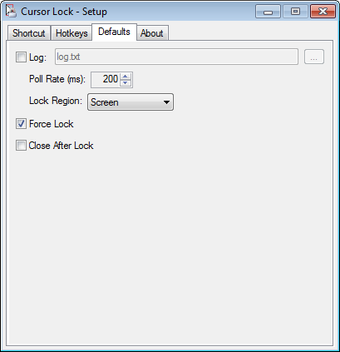
Cursor Lock features a minimalistic interface designed for functionality over aesthetics. The main window is compact, displaying essential controls and hotkey assignments without visual clutter. Navigation is straightforward, relying on a simple menu structure and keyboard shortcuts. Users can access settings, assign hotkeys, and toggle modes with few clicks, supporting efficient workflow integration.
Although the developer did not list formal performance metrics, the app’s small file size and low resource consumption suggest it operates efficiently on a wide range of Windows systems. It runs in the background without noticeable impact on system performance, making it suitable for use during intensive tasks such as video rendering or gaming. The responsiveness of the locking mechanism appears consistent, with minimal lag when activating or deactivating cursor confinement.
Stability is implied by the app’s long-standing availability since 2013, though no formal reliability reports were provided. Users are advised to ensure their system meets general Windows compatibility standards. The lack of visual feedback during mode activation may be a minor usability challenge for new users, but the app’s lightweight nature and predictable behavior help mitigate this. Overall, the user experience prioritizes utility and speed, aligning with the needs of power users who value control over convenience.
Platform Compatibility & Technical Requirements
Cursor Lock is designed exclusively for the Windows operating system. It is compatible with Windows platforms, though specific version requirements were not listed. The application has a file size of 2.1 MB, making it suitable for systems with limited storage or older hardware. The developer did not specify minimum OS requirements, so users should ensure their system meets general Windows compatibility standards.
While the app is not available on other platforms such as Android or iOS, its focus on Windows-specific multi-monitor functionality justifies this limitation. The absence of mobile support is consistent with its purpose as a desktop productivity utility. Users should verify that their system supports running desktop applications and has the necessary permissions to install software. No additional dependencies were mentioned, suggesting the app is self-contained.
Pros and Cons
Pros
- Completely free to download and use
- Minimal system resource usage (2.1 MB size)
- Effective cursor confinement across multiple monitors
- Supports customizable hotkeys for rapid access
- Stable performance on older and modern Windows systems
Cons
- Limited documentation for new users
- No official update history or changelog provided
- Interface lacks visual feedback during mode activation
- Not available on mobile platforms (Android, iOS)
- No built-in help guide or tutorial system
FAQ
Is Cursor Lock safe to download and install?
Yes, the app is free and available from official sources. It does not require administrative privileges to run and operates without installing additional software.
Can I use Cursor Lock on multiple monitors?
Yes, the app is specifically designed for multi-monitor setups, allowing users to lock the cursor to a specific screen or window.
Does Cursor Lock work on older versions of Windows?
While the developer did not specify compatibility details, the app’s lightweight design suggests it may run on older Windows versions. Users should test it on their system.
Is there a mobile version of Cursor Lock?
No, Cursor Lock is a desktop application and is not available for Android or iOS devices.
How do I set up custom hotkeys?
Users can configure hotkeys through the app’s settings menu. The interface allows assigning keys for locking modes, though detailed instructions are not included in the documentation.
Final Thoughts
Cursor Lock remains a practical and efficient tool for Windows users navigating complex multi-monitor environments. Despite its age and limited documentation, it delivers on its core promise: precise mouse control through customizable locking modes. The app’s free status, minimal footprint, and focus on usability make it a compelling choice for professionals, gamers, and power users who value control and focus. While the lack of updates and support materials may deter some, the app’s reliability and straightforward functionality continue to justify its use.
For anyone managing multiple screens and seeking to minimize distractions, Cursor Lock offers a lightweight, no-cost solution that enhances productivity without complexity. If you’re looking to streamline your workflow or gain better control over your cursor, this utility is worth trying.
Download Cursor Lock now


