
Screenshots

App details
- Version
- 11.2
- Size
- 6.45 MB
- Updated
- December 16, 2011
- Requires
- Mac OS X
- Language
- English
- License
- Trial version
- Developer
- Weirdkid
- Category
- Mac OS
About Emailchemy
Download Emailchemy – Convert, Export, and Import Email Anywhere Securely
Overview
Emailchemy is a powerful desktop utility designed to break the walls created by proprietary email archives. Whether you are migrating from an old AOL Mail store to Microsoft Outlook, switching corporate email platforms, or simply need a reliable way to back up decades of messages, Emailchemy reads closed, vendor‑specific formats and converts them into the universally accepted RFC‑2822 standard (also known as “The One True Email Format”). The tool supports a broad spectrum of legacy and modern clients, including Outlook PST, Thunderbird MBOX, Apple Mail, Eudora, and even obscure formats like Zimbra or Lotus Notes. Once converted, your messages become portable files that any modern email application can import, or they can be accessed directly via the built‑in IMAP server that Emailchemy provides. This server acts as a bridge, allowing any IMAP‑compatible client—desktop, web, or mobile—to fetch the converted mail without the need for a secondary import step.
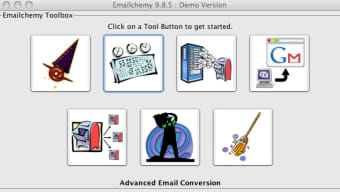
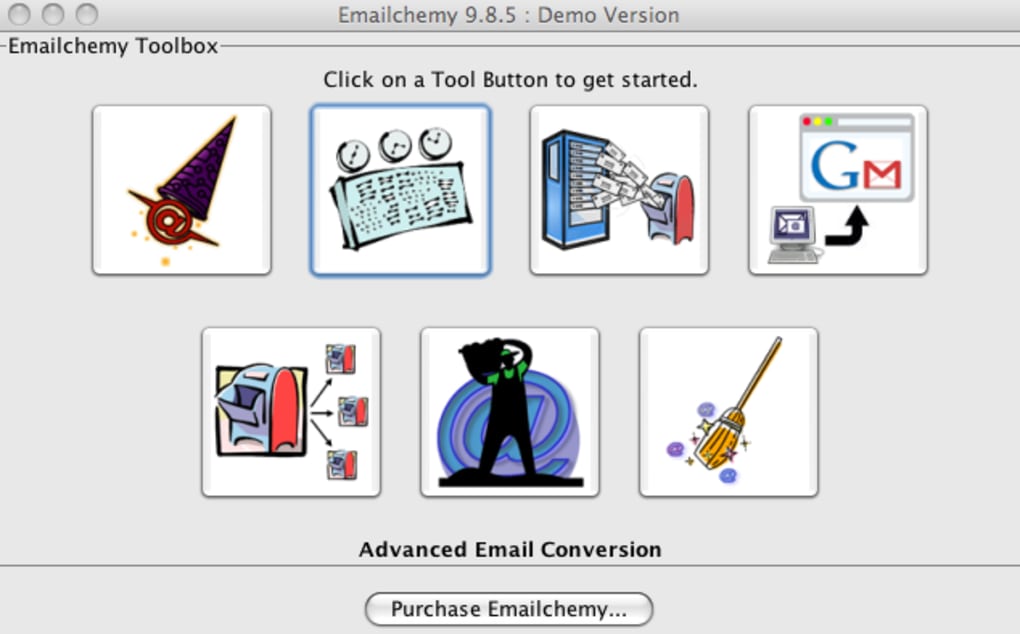
Beyond simple conversion, Emailchemy bundles a suite of utilities that make large‑scale email management far less painful. An email splitter can break a massive mailbox into logical sub‑folders, a sorter can reorder messages by date or sender, and a merger can combine several archives into a single, clean file. The newer Gmail Uploader feature addresses a common pain point: correctly placing sent items in Gmail’s “Sent” folder after migration, while improved handling of international characters ensures that folder names in languages such as Japanese, Arabic, or Cyrillic remain intact.
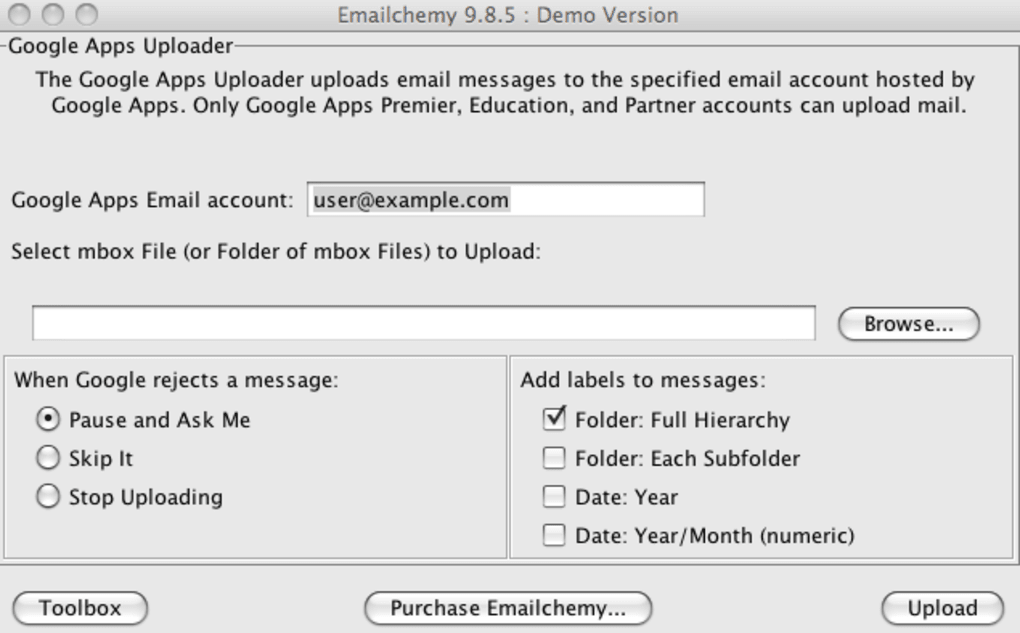
For users who need to move mail to cloud services, the Google Apps Uploader automates the upload process to Google Workspace accounts, eliminating the manual drag‑and‑drop that can be error‑prone. All of these capabilities are wrapped in an intuitive graphical interface that guides you step‑by‑step, making Emailchemy suitable for both IT professionals and everyday power users who want a secure, reliable way to preserve their email history.
Key Features & Tools
- Supports over 30 proprietary email formats, from legacy AOL and Eudora to modern Outlook PST and Apple Mail.
- Conversion to RFC‑2822 (standard .eml files) for universal compatibility.
- Embedded IMAP server for seamless access by any IMAP‑compatible client.
- Google Apps / Gmail Uploader with automatic Sent‑folder mapping.
- Email splitter, sorter, and merger for large‑scale mailbox management.
- Improved handling of international characters in folder names.
- Batch processing for bulk conversions, reducing manual effort.
- Secure, read‑only conversion that never alters the original archive.
- Cross‑platform GUI for Windows and macOS (Linux via Wine).
- Detailed log files for audit trails and troubleshooting.
Each feature is built with a focus on data integrity. When you select a source archive, Emailchemy first creates a read‑only snapshot, ensuring the original files stay untouched. The conversion engine then parses the proprietary structure, maps headers to the RFC‑2822 standard, and writes each message to an individual .eml file. This granular approach not only makes it easier to import into target applications but also simplifies selective restores—if you only need a handful of messages, you can extract them without processing the entire mailbox.
The embedded IMAP server runs on a configurable port, allowing you to point any email client (Outlook, Thunderbird, Apple Mail, or mobile apps) at localhost and browse the converted mail as if it were a live server. This is especially handy for users who want to verify conversion results before committing to a full import. The server also supports SSL/TLS, ensuring that the connection remains encrypted even on a local machine.
For organizations that rely on Google Workspace, the Gmail Uploader automatically creates the appropriate labels and folders, and it respects Gmail’s conversation threading. The tool also fixes a known Gmail quirk where sent items are misplaced, guaranteeing that your outbound messages appear in the correct “Sent” label after migration.
Installation, Compatibility & Usage
Installing Emailchemy is straightforward. The software is offered as a single installer for Windows (64‑bit) and macOS (Intel & Apple Silicon). After downloading the installer, run it and follow the on‑screen prompts—no additional runtime libraries or admin privileges are required on most systems. For Linux users, the Windows version runs smoothly under Wine, and the macOS package can be extracted and executed directly.
Supported operating systems include:
- Windows 10, 11 (both 64‑bit and 32‑bit)
- macOS Catalina (10.15) and later, including macOS Ventura (13) and macOS Sonoma (14)
- Linux (via Wine) – tested on Ubuntu 20.04 LTS and Fedora 38
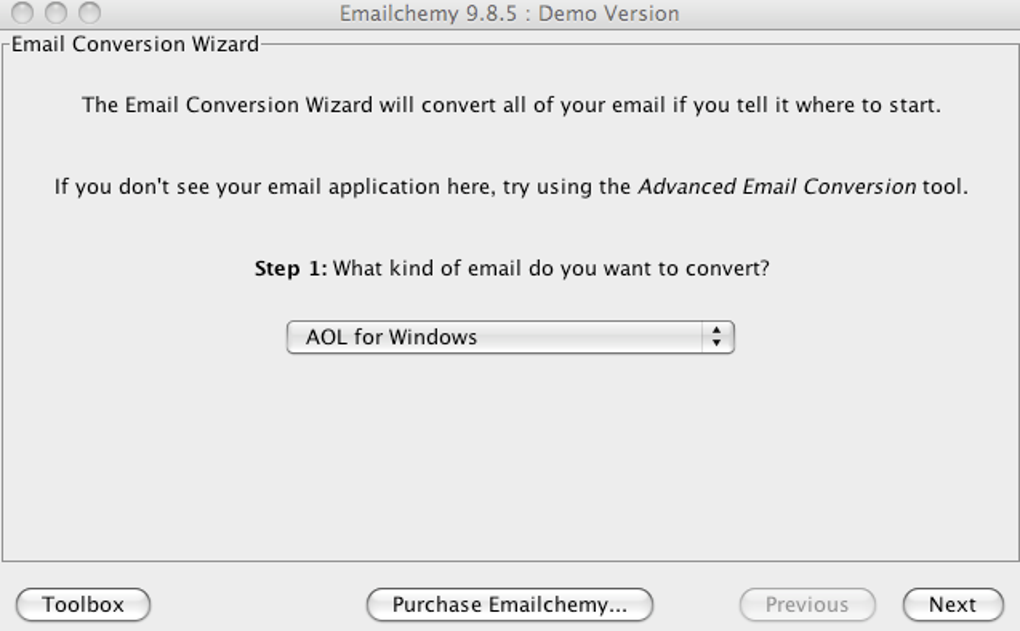
Once installed, launch Emailchemy and you will be greeted by the main dashboard. The workflow consists of three simple steps:
Step 1 – Choose Source Format
Select the email client whose archive you want to convert. The dropdown lists all supported formats, and a brief description appears to help you confirm the correct choice.
Step 2 – Locate Archive Files
Click “Browse” to navigate to the folder containing your original mail files. Emailchemy can process single files (e.g., .pst) or entire directories (e.g., Thunderbird’s Mail folder). For large archives, you can enable “Batch mode” to queue multiple files for conversion.
Step 3 – Choose Destination & Options
Pick an output folder where the converted .eml files will be stored. Optional settings include “Preserve folder hierarchy,” “Export attachments only,” and “Enable IMAP server after conversion.” Click “Start” and watch the progress bar as Emailchemy parses and writes each message.
After conversion, you can either import the .eml files directly into your new client or enable the built‑in IMAP server. To activate the server, go to Tools → IMAP Server, set a port (default 143), optionally enable SSL, and click “Start Server.” Then configure your email client to connect to localhost using the chosen port and credentials (default username: emailchemy, password: emailchemy, which you can change for added security).
For cloud migrations, open the “Toolbox” menu and select “Google Apps Uploader.” Sign in with your Google Workspace credentials, choose the target label or folder, and click “Upload.” The process runs in the background, and a log file records each message’s status, making it easy to spot any errors.
Pros & Cons
Pros
- Extensive support for both legacy and modern email formats.
- Conversion to a universally accepted RFC‑2822 format.
- Built‑in IMAP server eliminates the need for separate import steps.
- Google Apps uploader saves time for Workspace migrations.
- Robust splitter, sorter, and merger tools handle large mailboxes efficiently.
- Secure, read‑only conversion preserves original data integrity.
- Cross‑platform GUI works on Windows, macOS, and Linux (via Wine).
- Detailed logging aids troubleshooting and audit compliance.
Cons
- Interface, while functional, feels dated compared to modern SaaS tools.
- No native Linux binary; reliance on Wine may affect performance for some users.
- Bulk conversions of extremely large PST files can be memory‑intensive.
- Free trial limits conversion to 50 messages per archive.
- Advanced features (e.g., Gmail Uploader) require a paid license.
Frequently Asked Questions
Can Emailchemy convert encrypted email archives?
Emailchemy can read password‑protected PST files if you provide the correct password during the import step. However, it cannot decrypt archives that use proprietary encryption algorithms beyond the standard password protection.
Is there a free version of Emailchemy?
A fully functional 30‑day trial is available, allowing you to convert up to 50 messages per archive. For unlimited conversions and access to premium tools like the Gmail Uploader, a paid license is required.
How does the built‑in IMAP server handle large mailboxes?
The IMAP server streams messages directly from the converted .eml files, so memory usage stays low even for mailboxes with thousands of messages. Performance depends on disk speed and the chosen port configuration.
Can I use Emailchemy on a headless server?
Emailchemy is primarily a GUI application. While you can run it on a server with a remote desktop session, there is currently no command‑line interface for fully automated, headless operations.
What security measures protect my data during conversion?
All conversions are performed locally on your machine; no data is uploaded to the cloud unless you explicitly use the Google Apps Uploader. The IMAP server supports SSL/TLS, and the application never writes over the original archive files.
Conclusion & Call to Action
In a world where email remains the backbone of business communication, the ability to move messages across platforms without losing history is essential. Emailchemy delivers on that promise with a robust set of conversion tools, an embedded IMAP server, and dedicated utilities for cloud migrations. While the interface may feel a bit dated and Linux support relies on Wine, the core functionality is reliable, secure, and highly compatible with both legacy and modern email clients. Whether you’re an IT administrator planning a corporate email migration or a power user looking to preserve personal archives, Emailchemy offers a one‑stop solution that saves time and eliminates the frustration of proprietary lock‑ins.
Ready to reclaim control over your email data? Download Emailchemy now, try the free trial, and experience seamless email conversion for yourself.
Guides & Tutorials
How to install Emailchemy
- Click the Download button above.
- Once redirected, accept the terms and click Install.
- Wait for the Emailchemy download to finish on your device.
How to use Emailchemy
This software is primarily used for its core features described above. Open the app after installation to explore its capabilities.
User Reviews
No reviews yet. Be the first to share your experience.
You may also like
more
DiffusionBee
Generate unique art with this app DiffusionBee is a free and accessible artifici...

Excire Foto Light
Organize your snapshots Excire Foto Light is a free-to-download AI -powered phot...

Topaz Photo AI
Photo enhancement tool with AI Topaz Photo AI is a premium AI image editor for P...

anonymoX
Surf anonymously with Firefox anonymoX for Firefox is an add-on that gives you f...

DownThemAll
Download Them All! Downloading anything or everything on a webpage can be a labo...
.webp)
DuckDuckGo Privacy Essentials
A free program for Mac, by DuckDuckGo, Inc.. DuckDuckGo Privacy Essentials is a...
