
Download ForkLift – Fast Dual‑Pane File Manager for macOS
Overview
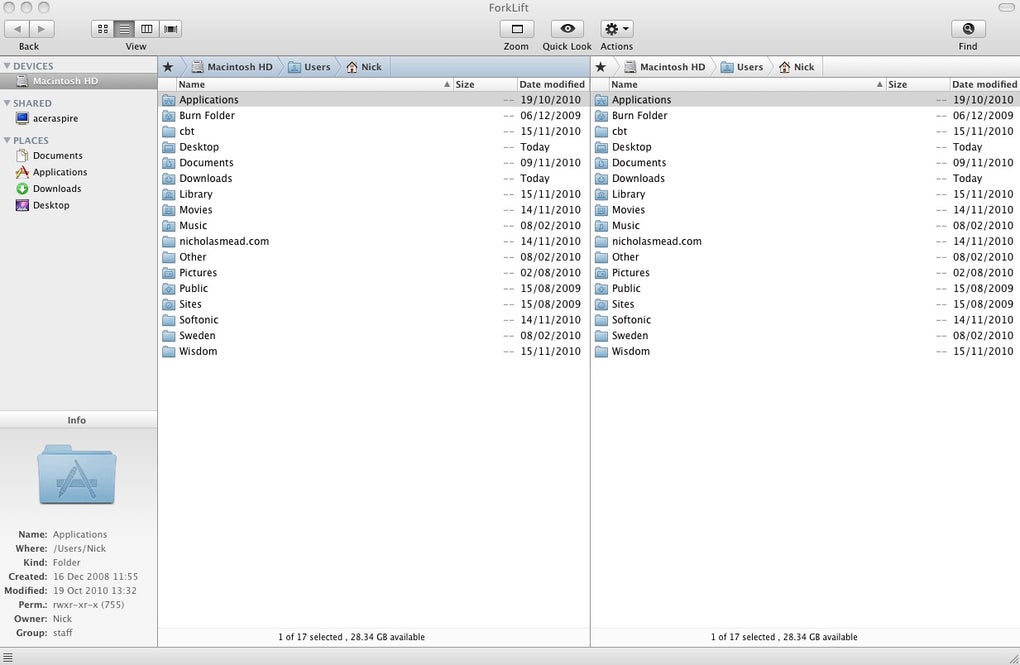
ForkLift is a high‑performance file manager designed exclusively for macOS. With its signature dual‑pane interface, ForkLift lets you view two folders side‑by‑side, making drag‑and‑drop operations, batch renames, and remote transfers feel natural and fast. The latest version (v2) builds on a solid foundation by adding pure‑speed improvements, a more reliable transfer engine, and a host of new tools such as Disklets, Synclets, and advanced search filters that accept regular expressions. Whether you are a web developer pushing files to an FTP server, a photographer organizing massive image libraries, or a system administrator synchronizing remote directories, ForkLift provides a friendly yet powerful environment that reduces the time spent navigating the Finder.
One of the most compelling aspects of ForkLift is its seamless integration with popular remote protocols. It supports FTP, SFTP, WebDAV, Amazon S3, and even Bluetooth file sharing, all from the same window. The built‑in connection manager remembers your favorite devices, and the intuitive search box instantly narrows down results across both local and remote locations. ForkLift also offers a polished archive handling system: create, extract, and split archives without leaving the app. While the tool is not free, it offers a trial period that lets you evaluate its speed, stability, and feature set before committing to a license.
Security is another cornerstone of ForkLift’s design. All remote connections use encrypted channels (SFTP, FTPS) by default, and the app is signed with a Developer ID, ensuring smooth passage through macOS Gatekeeper on versions as recent as macOS 10.15 Catalina and later. Regular updates address bug fixes, performance tweaks, and new protocol support, keeping the software secure and up‑to‑date. In short, ForkLift stands out as a modern, secure, and fast file manager that respects the macOS aesthetic while delivering enterprise‑grade capabilities.
Key Features
- Dual‑Pane Navigation: View and manipulate two directories simultaneously, speeding up copy, move, and compare tasks.
- Multi‑Protocol Support: Native FTP, SFTP, WebDAV, Amazon S3, and Bluetooth connections, all managed through a single interface.
- Disklets & Synclets: Mini‑apps that let you mount remote locations as local drives and keep folders synchronized in real time.
- Advanced Search & Filters: Search modes include regular expressions, date ranges, and file‑type filters, making it easy to locate files across large datasets.
- Batch Rename & Archive Tools: Powerful multi‑rename patterns, create ZIP/TAR archives, and split large archives without external utilities.
- Transfer Queue & Speed Optimizations: Background queue with pause/resume capabilities; the new engine processes transfers up to 30 % faster than the previous version.
- Workspaces & Stacks: Save custom pane layouts and favorite folder collections for instant access.
- Integrated Favorite Manager: Pin frequently used folders, servers, and disks for one‑click navigation.
- Customizable View Modes: Column, icon, and list views with adjustable column widths, thumbnail previews, and hidden file toggles.
- Secure Gatekeeper Signing: Fully compatible with macOS security features, ensuring a smooth installation on OS X 10.8 Mountain Lion and later.
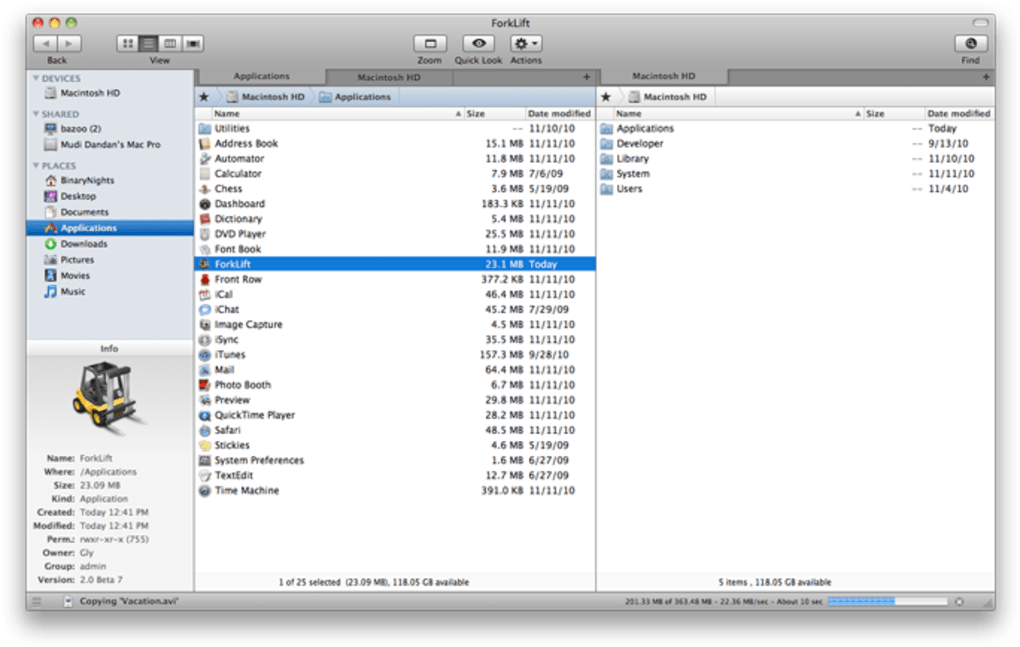
Beyond the list above, ForkLift’s UI is crafted for macOS users who appreciate clean typography, retina‑ready icons, and smooth animations. The bottom detail pane dynamically displays file metadata, preview thumbnails, and quick‑action buttons for opening, editing, or sharing files. For developers, the built‑in terminal emulator provides quick access to command‑line tools without leaving the app. ForkLift also supports drag‑and‑drop of URLs, enabling you to drop a web address directly into a remote FTP pane, which then initiates an automatic download to the chosen directory.
While the feature set is extensive, ForkLift remains intuitive for beginners. The onboarding wizard guides new users through creating their first remote connection, and context‑sensitive menus surface the most relevant actions based on the selected pane. This blend of depth and accessibility makes ForkLift a versatile tool for both power users and those who simply need a more efficient way to move files on their Mac.
Installation, Usage & Compatibility
Downloading and Installing: To begin, visit the official ForkLift website and click the Download ForkLift button. The installer is a signed .dmg file, ensuring a secure and Gatekeeper‑approved installation. After opening the disk image, drag the ForkLift icon into your /Applications folder. macOS may prompt you to confirm the app’s authenticity; simply approve the request to complete the installation.
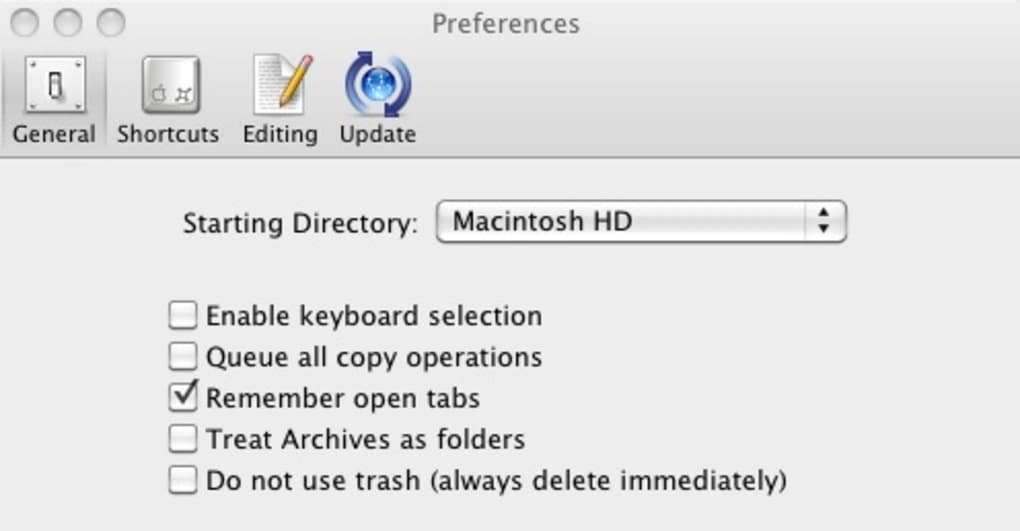
First‑Run Setup: Upon launching ForkLift for the first time, a brief tutorial window introduces the dual‑pane layout and explains how to add favorite devices. You can skip the tutorial if you prefer to explore on your own. The Preferences pane (accessible via the ForkLift menu) lets you customize default view modes, transfer settings, and keyboard shortcuts. For remote connections, click the Connect button in the toolbar, choose a protocol, and fill in the server address, username, and password. Saved connections appear in the left sidebar under Favorites for instant access.
Daily Workflow: Once set up, the typical workflow involves navigating to a local folder in the left pane and a remote directory in the right pane. Drag files between panes to start a transfer; the progress bar appears at the bottom, and you can pause or reorder items via the transfer queue. Use the Search field at the top to locate files instantly; advanced filters can be activated by clicking the magnifying‑glass icon and selecting Regex or Date Range. For batch operations, select multiple items and choose Multi‑Rename from the context menu, where you can apply patterns such as “{date}_{name}”.
Compatibility: ForkLift is built exclusively for macOS, supporting OS X 10.8 Mountain Lion and all subsequent releases, including macOS Ventura (13) and macOS Sonoma (14). The app takes full advantage of Apple Silicon, offering native performance on M1, M2, and later chips, while also running flawlessly under Rosetta 2 on Intel‑based Macs. ForkLift does not have Windows, Linux, Android, or iOS versions; however, its remote protocol support allows you to manage files on those platforms from your Mac.
Updates and Licensing: ForkLift follows a perpetual licensing model with optional annual updates. When a new version is released, the app notifies you via the Check for Updates menu item. Updating is as simple as downloading the latest .dmg and replacing the existing application bundle. Licensed users receive priority support and can request new feature additions through the developer’s feedback portal.
Pros, Cons & Frequently Asked Questions
Pros
- Lightning‑fast dual‑pane navigation dramatically reduces file‑management time.
- Comprehensive protocol support (FTP, SFTP, WebDAV, Amazon S3, Bluetooth) in a single app.
- Advanced search with regular‑expression filters makes locating files effortless.
- Robust batch rename and archive tools eliminate the need for external utilities.
- Native Apple Silicon support ensures optimal performance on modern Macs.
- Secure, Gatekeeper‑signed installer guarantees a safe download and installation process.
Cons
- No built‑in scheduler for automated uploads or downloads.
- Only available for macOS; Windows and Linux users must seek alternatives.
- One‑time purchase may be a barrier for users looking for completely free software.
- Advanced features like Disklets and Synclets have a learning curve for beginners.
FAQ
Is ForkLift compatible with Apple Silicon Macs?
Yes. ForkLift provides a native Apple Silicon build that runs natively on M1, M2, and later chips, delivering faster file‑transfer speeds and lower power consumption compared to Rosetta‑emulated versions.
Can I use ForkLift to manage files on a Windows server?
Absolutely. By connecting via FTP, SFTP, or WebDAV, ForkLift can browse, upload, and download files from Windows servers just as easily as from macOS or Linux machines.
Does ForkLift support encrypted transfers?
Yes. ForkLift offers SFTP and FTPS for encrypted file transfers, ensuring that your data remains secure while in transit.
How do I back up my ForkLift preferences and saved connections?
ForkLift stores its preferences in ~/Library/Preferences/com.binarynights.ForkLift.plist. You can copy this file to a backup location or use Time Machine to preserve your settings, including saved connections and workspace layouts.
Is there a free trial available before I purchase?
Yes. ForkLift offers a 14‑day trial that unlocks all features, allowing you to evaluate performance, remote connectivity, and workflow enhancements before buying a license.
Conclusion & Call to Action
ForkLift stands out as a fast, secure, and feature‑rich file manager that brings professional‑grade capabilities to the macOS desktop. Its dual‑pane layout, extensive protocol support, and powerful batch tools make everyday file handling a breeze, while the recent speed optimizations ensure that even large transfers complete quickly. Although it lacks a built‑in scheduler and is limited to macOS, the overall value proposition is strong for anyone who spends significant time moving, renaming, or syncing files. If you’re ready to replace the Finder’s clunky file operations with a modern, efficient workflow, download ForkLift today and experience the difference for yourself.








