After testing many products, I have found Formidable all that I need!

Last updated on June 5, 2026 by Formidable Team
There's no single right way to sell on WordPress with PayPal, which is exactly why so many people get stuck. A creator with one ebook, a consultant taking custom orders, and a full-catalog shop each need something different. Below, we'll walk through the three best ways to do it, from native buttons to the right WordPress PayPal plugin for your store.
Approximate read time: 10 minutes
Upgrade your WordPress site with powerful, flexible forms.
PayPal is one of the most popular payment processors in the world, with hundreds of millions of people using it to make purchases every year. That kind of reach matters at checkout, because it lets customers pay with the money already in their digital wallets instead of digging out a card.
The numbers back it up. According to PayPal, stores that accept it convert buyers at a rate of 87.5% during checkout, which means a shopper who spots PayPal as an option is far more likely to follow through.
PayPal also handles debit and credit card transactions, so offering it rarely costs you a sale.
From Idea to Reality in Minutes. Build Powerful Forms, Dashboards, Apps and More.
Formidable Forms makes advanced site building simple. Launch forms, directories, dashboards, and custom WordPress apps faster than ever before.
There is no single "best" method here. The right one depends on what you're selling, how much control you want over the buying experience, and whether you need anything to happen after the payment lands.
| Method | Best for | Setup difficulty | What you need |
|---|---|---|---|
| PayPal buttons | A few products, donations, a single subscription | Easiest | A PayPal account |
| Formidable Forms PayPal add-on | Custom order forms, calculations, automated follow-ups | Easy | Formidable Forms (free Lite works) |
| WooCommerce | Catalog stores with inventory, shipping, and many products | Hardest | WooCommerce plus the PayPal extension |
The good news is that you can start with the simplest method and move up to a more advanced one whenever your store outgrows it. Let's walk through all three.
Luckily PayPal makes it easy to add payment buttons no matter what website platform you use. WordPress is no exception.
There are several PayPal buttons to choose from:
To access them, log in to your PayPal account and visit PayPal's button creation page. Take a look at the screenshot below to see what PayPal buttons are up for grabs:
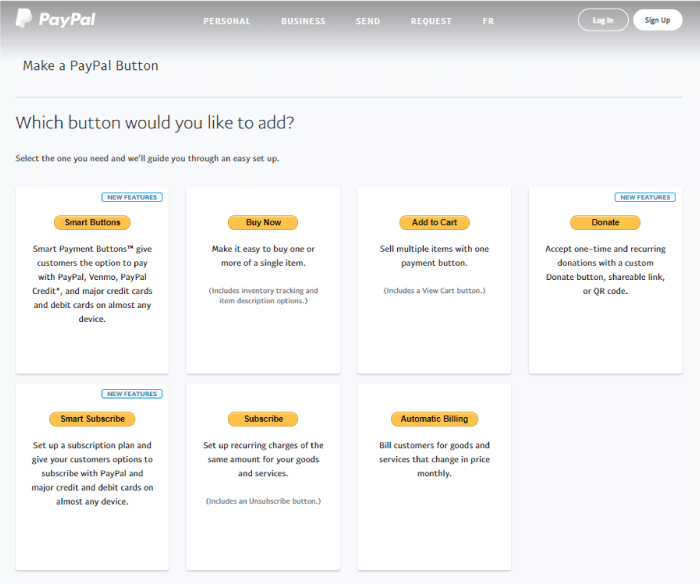
Each button requires some setup using a wizard on the PayPal site. Then, you'll copy and paste the code into your site where you want the button to appear.
Keep in mind that these are only buttons. You'll still need to build your pages in WordPress. Depending on what you are selling, this could work very well.
For more control over the selling process, look into the next two options. Buttons can't capture extra information at checkout, run conditional logic on the order, or pass customer data to a CRM (customer relationship management) tool. If those things matter, the next option gives you a lot more control without any code.

If you want to take full advantage of PayPal payments on WordPress, you'll need more than buttons, because eCommerce really runs on forms. A form is how customers hand over their details, choose options, and change what they're buying before they pay.
Formidable Forms gives you a drag and drop form builder plus a PayPal add-on, so you can build anything from a simple PayPal shopping cart to a full custom checkout on your own site.
More than 300,000 active installs and a 4.8 rating from 1,300+ reviewers put it among the most trusted form builders for the job.
PayPal handles the cash. Formidable Forms handles everything that happens before, during, and after, including calculations, email confirmations, and connections to the rest of your tools.
Start by installing Formidable Forms on your WordPress site. The PayPal add-on works in the free Lite version, so you can build and launch a working order form without buying a license. On Lite you'll just pay a 3% Formidable fee per transaction, on top of PayPal's standard processing fees.
Upgrading to Formidable Forms Pro removes that additional fee and adds conditional logic, multiple payment actions, and the rest of the integrations, all backed by a 14-day money-back guarantee.
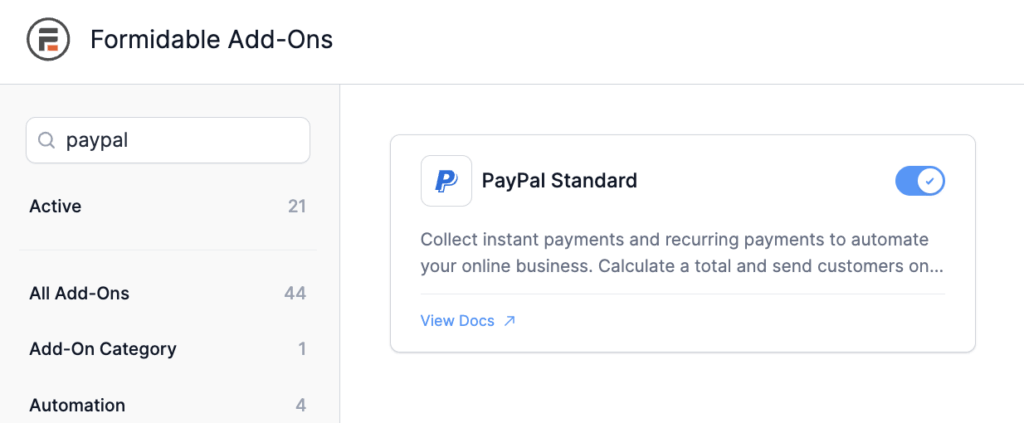
In your WordPress admin, go to Formidable → Add-Ons, find the PayPal add-on, and toggle it to On.
Open Formidable → Global Settings → Payments and select PayPal.
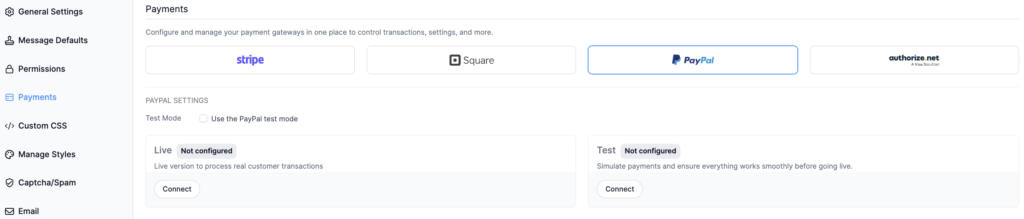
Under PayPal Settings, make sure Test Mode is unchecked so you're setting up live payments. Then click Connect in the Live box, enter the email address for your PayPal account, choose your country or region, and click Next.
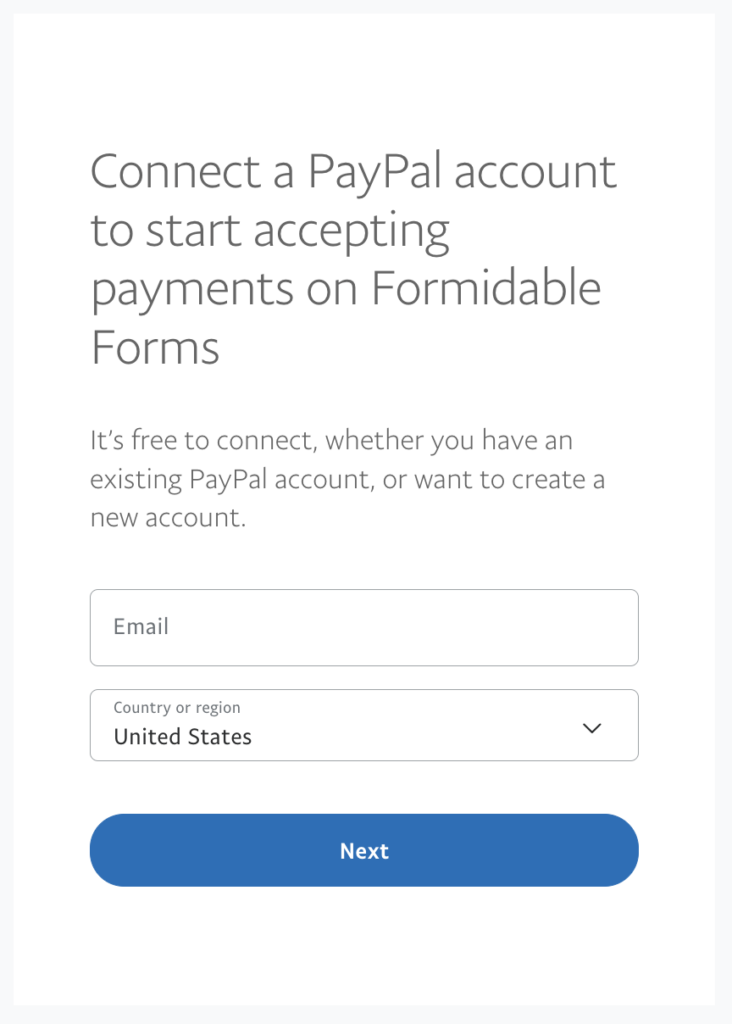
There are no API keys, no developer console, and no credentials to copy between tabs. You enter an email address and you're done.
Go to Formidable → Forms → Add New. You can start from one of the ready-made PayPal form templates, which load the usual fields already arranged, or pick Blank Form to build from scratch.
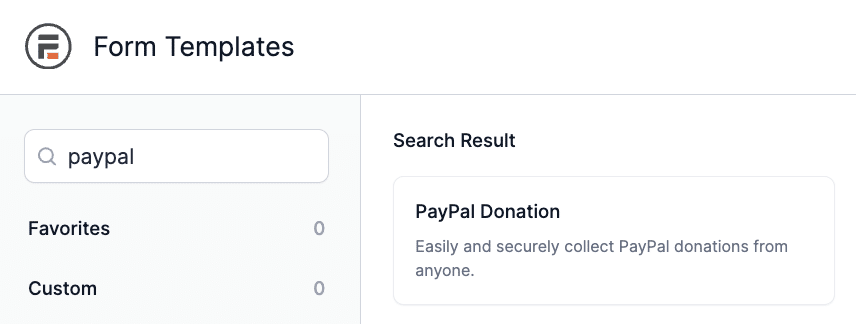
Name your form and click Create to open the drag and drop builder.
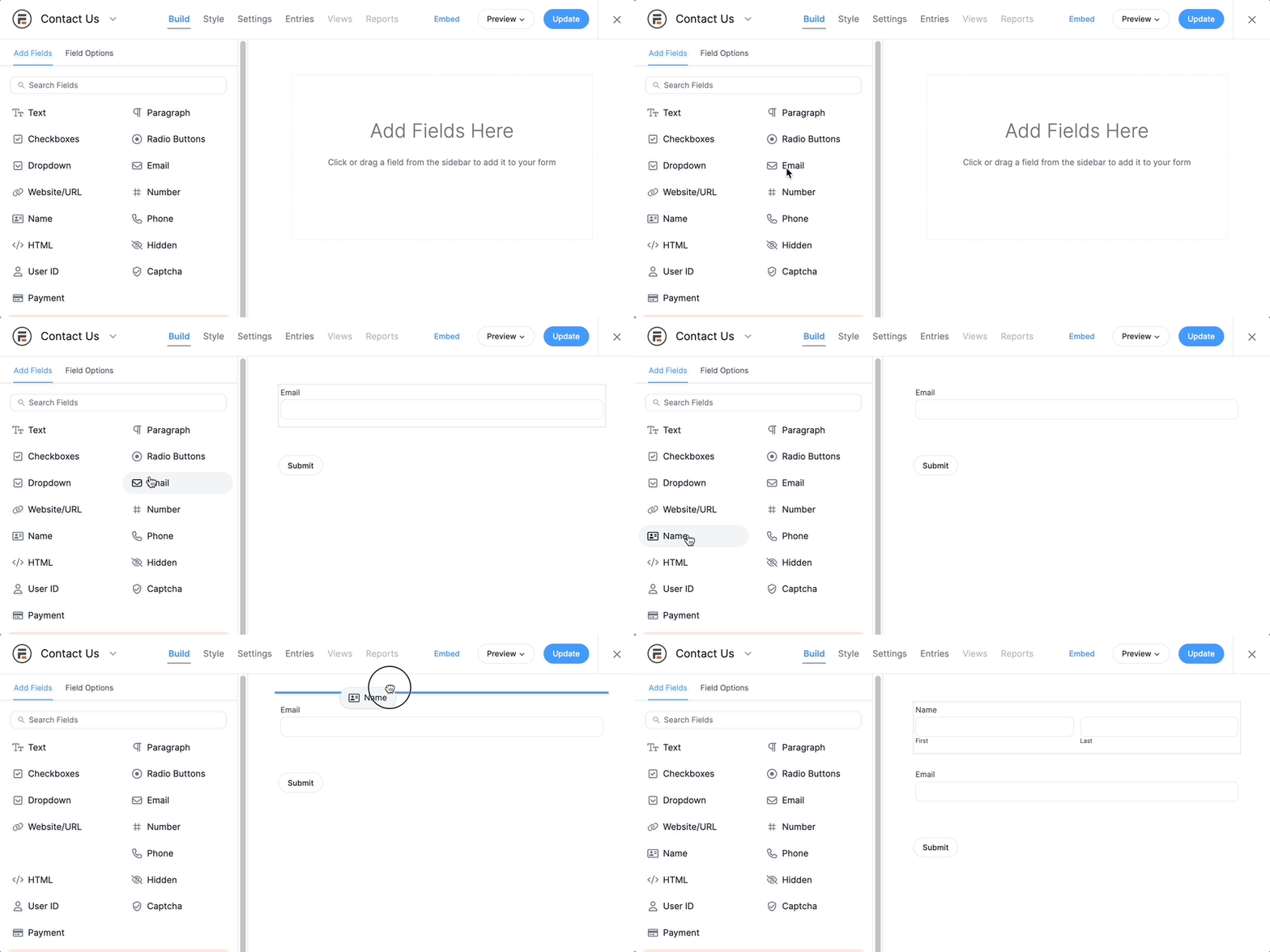
Now drag on the fields an order form needs:
Add any pricing fields you need (product options with surcharges, quantity inputs, shipping choices) and let the Total field calculate the final amount. When your fields are in place, click Update to save.
Connecting the gateway and building the form isn't quite enough on its own. You also need an action that tells Formidable Forms to process the payment when someone submits the form. Inside the form builder, open Settings → Actions and Notifications and click PayPal to add the action.

Then fill in the action's settings:
Click Update to save the form.
Head to the page where you want the form. Add a new block, search for the Formidable Forms block, and pick your order form from the dropdown.

Before you go live, run a test order using PayPal's sandbox so no real money moves. Confirm the payment shows up in your PayPal account and the receipt arrives, then switch to live mode and start selling.

The form is just the start. Because Formidable Forms is a form builder with a lot of integrations, you can wire up the rest of your stack without writing any code:
If you're running a real catalog with dozens or hundreds of products, inventory counts, shipping zones, and tax tables, WooCommerce is the right tool. It's the most popular WordPress eCommerce plugin on the market, it turns WordPress into a full store, and PayPal is one of its default payment options. The PayPal extension is also free.
Install WooCommerce from Plugins → Add New and run the setup wizard.
Then go to WooCommerce → Settings → Payments and enable PayPal.
Enter your PayPal email address (and your PayPal API credentials if you want WooCommerce to process refunds for you), then save.
WooCommerce is excellent at what it does. The limits show up when you want anything beyond a standard product page. You can't add form fields to product forms without a paid extension, and custom checkout fields, dynamic pricing, and complex calculations usually mean buying add-ons that add up fast. If you're selling ebooks, software, or other digital downloads, there are lighter alternatives worth considering.
If you love WooCommerce for the catalog management but you also want Formidable Forms' form power, the Formidable Forms WooCommerce add-on lets you attach a full Formidable Forms form to any product. You get inventory and shipping from WooCommerce and conditional logic, calculations, and integrations from Formidable Forms.
There's no single best answer. The right tool depends on what you're selling and how much complexity you actually need.
Selling on WordPress with PayPal comes down to picking the tool that matches your store. Use buttons for the simplest cases, WooCommerce for full catalogs, and Formidable Forms for everything in between, especially when the order needs to do more than collect a payment. And if you want to give buyers a choice at checkout, you can add Stripe payments to the same form alongside PayPal.
When you're ready to build your own, try Formidable Forms free and have a PayPal order form live in an afternoon.
Yes. You'll need a PayPal account so payments have somewhere to land. PayPal offers different account types, so choose the one that suits your business before you start connecting it to WordPress.
Yes. PayPal buttons include a Subscribe type for simple recurring billing. The Formidable Forms PayPal add-on also supports recurring payments and subscriptions, so you can set up monthly donations, membership renewals, or subscription products with conditional logic and CRM integration built in.
No. The Formidable Forms PayPal add-on connects with just your PayPal email address. There's no code to install and no API credentials to copy and paste, so you can be ready to take payments in a few minutes.
Yes. PayPal handles debit and credit card transactions, so buyers can pay with a card on the PayPal checkout page without creating a PayPal account.
PayPal buttons are free to generate from your PayPal account, and WooCommerce's PayPal extension is free as well. If you want the form builder approach, Formidable Forms Lite is free on WordPress.org and includes the PayPal add-on, so you can build a full PayPal order form at no cost.
Yes, and this is one of the strongest reasons to use Formidable Forms for selling. Add both a PayPal action and a Stripe action to the same form, then let buyers choose their preferred payment method on the checkout page.
This article may contain affiliate links. Once in a while, we earn commissions from those links. But we only recommend products we like, with or without commissions.


