

Visual Donation Form Builder Blocks
The Visual Donation Form Builder features the ability to quickly build donation forms by dragging and dropping blocks into the form. GiveWP provides several free blocks to get you started, some of which are integral to the form’s function. This document outlines the available blocks and their settings.
GiveWP Free Blocks
GiveWP comes with free blocks that you can use to build your form. Some of them are essential and will be automatically added every time you create a new form using the visual donation form builder. There are also blocks that can only be used once, as well as blocks that are optional or can be used multiple times. These are the free blocks, their settings, and their restrictions.
Essential Blocks
These blocks are required for your form to work properly. They must be included in the form, or you will not be able to publish it.
- Donation Amount
- Donor Name
- Donation Summary
- Payment Gateways
If you remove any of these blocks and try to publish the form, you will see a message telling you to re-add them.

Donation Amount
When you create a form, you’ll see a block with some donation amounts and a field to enter a custom amount. This is where donors will specify the amount they want to donate.

You can move this block up or down within the form, but it must be included before publishing the form because it is an essential block.
Field Settings
You can change the field label text in the Field Settings.
Donation Options
Choose between Multi-level Donation and Fixed Donation options to decide whether your donors can select from multiple amounts or a Set Donation amount that you determine.
Donation Levels
This setting is only available if you select Multi-level Donations under Donation Options. By default, there will already be several amounts added to your Donation Levels options.
You can use the + symbol to add donation amounts you want donors to choose from. You can use the – symbol to remove unwanted amounts, and you can use the double-line handle to the left of each amount to drag it into the order you want.

Custom Amount
You can toggle the Custom Amount option on or off to determine whether your customers can enter whatever amount they want to give.
If you enable this option, you can also choose to set a minimum and maximum donation amount. The maximum amount can be left empty if you don’t want to put a cap on how much a donor can give at once.
Donation Amount Descriptions
You can add a description to your donation amounts by toggling on the Enable amount description setting. It adds a text field to each donation amount where you can enter up to 120 characters of text. This feature lets you add descriptions to any or all donation amounts to provide more context for donors.

Recurring Donations
If you use the premium Recurring Donations add-on, those settings will appear in the visual donation form builder in the Donation Amounts block settings in their own section.
Donor Name
The Donor Name block includes First name and Last name fields. If you want to allow anonymous donations, you’ll have to add the Anonymous Donations block, which will be explained later in this document. However, you must still include the Donor Name block in your form to publish, even if your donor wishes to donate anonymously, because it is an essential block.

Name Title Prefix
You can choose whether to show a prefix before the First Name field and enter the prefixes (such as Mr, Ms, Mrs, or Dr) you would like to let donors choose from.
First Name
You can change the label that goes above the field as well as the placeholder text that goes inside it. This block is required by default and cannot be made optional.
Last Name
Like the First Name field, you can change the label that goes above the field as well as the placeholder text. However, this block is not required by default and has an additional setting to make it required.
This block is simply an email field where the donor enters their email address. You can change the label and placeholder text. It is required by default and cannot be made optional. This block is an essential block and is required for the form to function.

Donor Phone
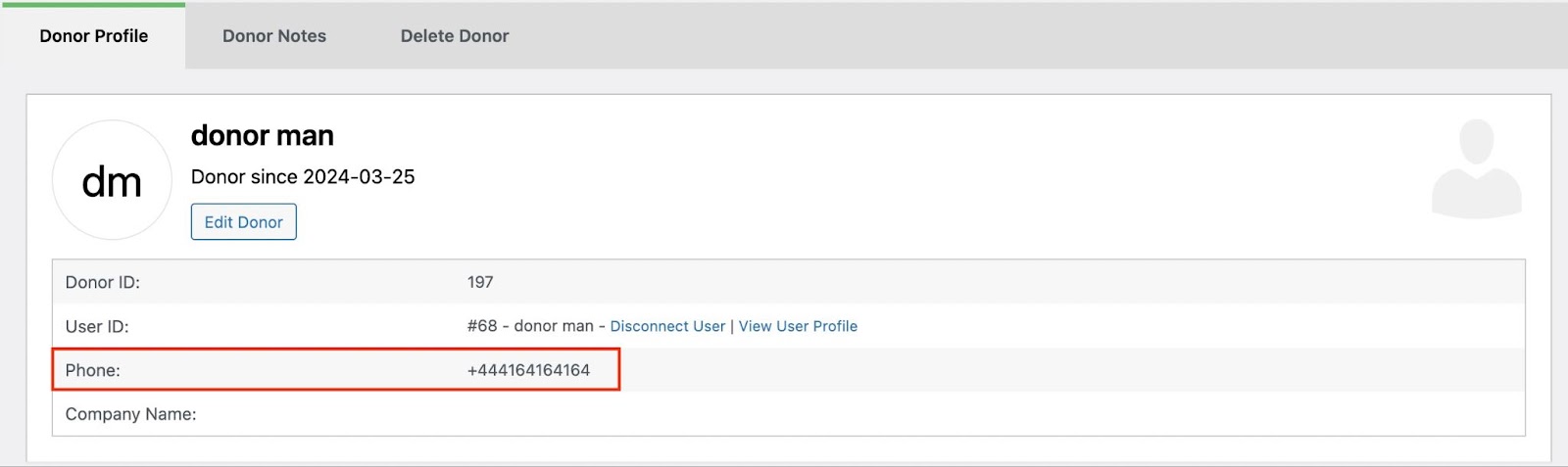
GiveWP includes a phone number field in the core Visual Donation Form Builder blocks. While the Form Field Manager add-on has a phone field as well, this field is specifically used to populate the Phone Number field in donor profiles at GiveWP > Donors.
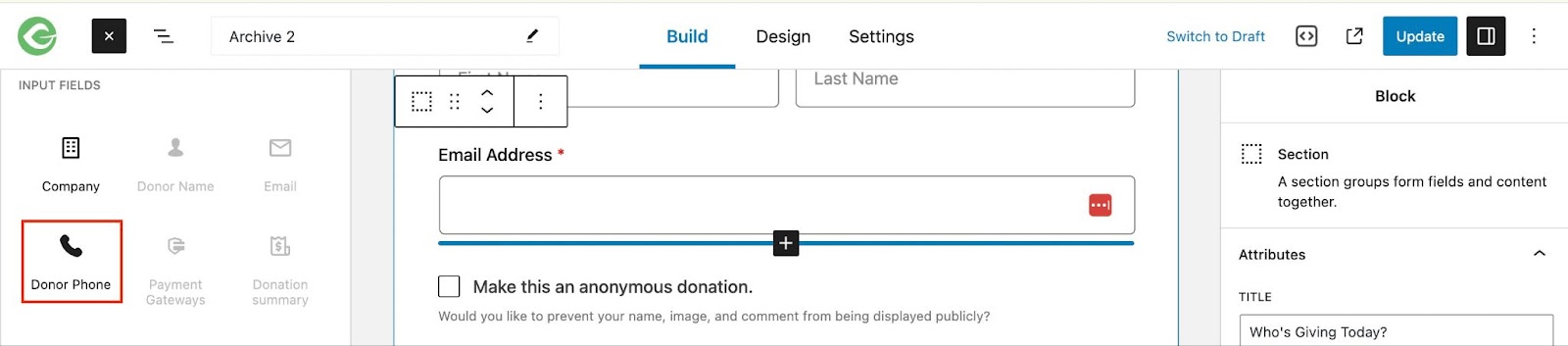
The Donor Phone field is in the list of blocks on the left-hand side of the screen. You can drag and drop the block into the form, or use the plus (+) icon to add it to the form.
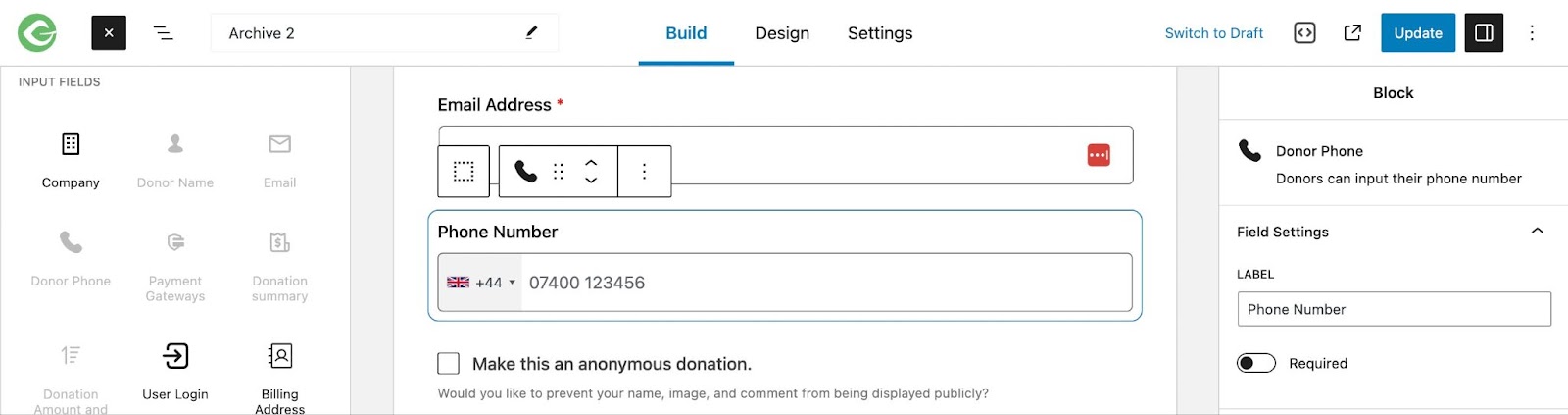
When the Donor Phone block is selected, you’ll see a block editing menu on the right-hand side. You can customize the label and make the phone number required.
Anonymous Donation
The Anonymous Donation block is a free block you can add to your form to let donors make their donation without showing their name or any identifying information. It’s optional by default and cannot be made required. It’s a checkbox field, and you can change the Label next to the checkbox and the Description text that goes below.

Donation Summary
This block shows a summary of the donation, including the frequency if Recurring Donations is in use. You cannot change any settings on this block, as it is automatically generated from the donation amount and frequency selections donors make on your form. It is an essential block and is required for the form to function.

Payment Gateways
The Payment Gateways block shows your donor all of the payment options you’ve made available to them. You can choose whether or not you want to accept offline donations and whether to use the payment instructions configured in your global settings or write new payment instructions specific to the form.
This block is also required for the form to function.

Note: Some gateways, like PayPal Donations, don’t use the Donate button. Inserting blocks with required fields after the Payment Gateways block can cause donors to not see or fill out those blocks, which will stop the form from being submitted. The best way to avoid this is to keep the Payment Gateway block last.
Company
The company block is a free field that you can add to your form, usually in the same section where you collect details about the donor. You can change the label (for example, Organization instead of Company) and the placeholder text. You can also make it a required field, but it is optional by default. This is not an essential block and is not added to your form by default.

User Login
The User Login block adds a login option to your form if you want donors to be able to log in when they make a donation. You can change the Login Notice (the link text that prompts your donors to log in) and the Login Confirmation (the text they see once they’ve logged in successfully or if they are already logged in).
With GiveWP 3.0 and later versions, donors are automatically registered as WordPress users. However, they will not be notified by email since this is purely for the convenience of donor management by administrators. For that reason, we recommend most admins keep the User Login optional.
Some more advanced settings you can manage are the option to require login and to redirect to a login page. These settings should only be used if your website only serves registered donors, and if you already have a login page to use.

Billing Address
In previous versions of GiveWP, billing information was collected on a per-gateway basis. The Billing Address block is a group of fields that gives you a way to collect that information in a uniform manner for every donor, regardless of the payment method they choose. This information is tied to the donor details in your admin and can also be used by any payment gateway you have enabled.
You can change the Label for the whole group of fields, the Label for the country selector, Label and Placeholder for each address line, Label and Placeholder for the city, Label and placeholder for the Zip code, and decide whether to make the second address line required.
If you add this block, all but the second address line are automatically required and cannot be made optional.

Terms and Conditions
You can add a Terms and Conditions block if you want to make your donors aware of any terms associated with their donation. This is a checkbox field that is required by default when you add it to your form and cannot be made optional.
You can decide whether to set custom terms and conditions for the form or use your global settings, and you can write the Agreement Text if you choose custom settings for the form. You can also change the Checkbox Label text and how the terms and conditions should be displayed (inside the form, in a modal, or as a link).

Donor Comments
The Comment box lets your donor add a comment to their donation, which will be shown publicly on the donor wall if they do not choose to give anonymously. You can change the Label and the Description for this field. It is optional by default and cannot be made required.

Paragraph
This is a really handy block that lets you add text content anywhere on your form. It is not a field that accepts input from your donors, but just adds whatever additional text content you want to any section. You can simply enter the text you want to add and use the Bold, Italic, or Link options to enhance it.






