Sonant Manual
Native Contextual Audio Manager for Unreal Engine 5.5-5.7
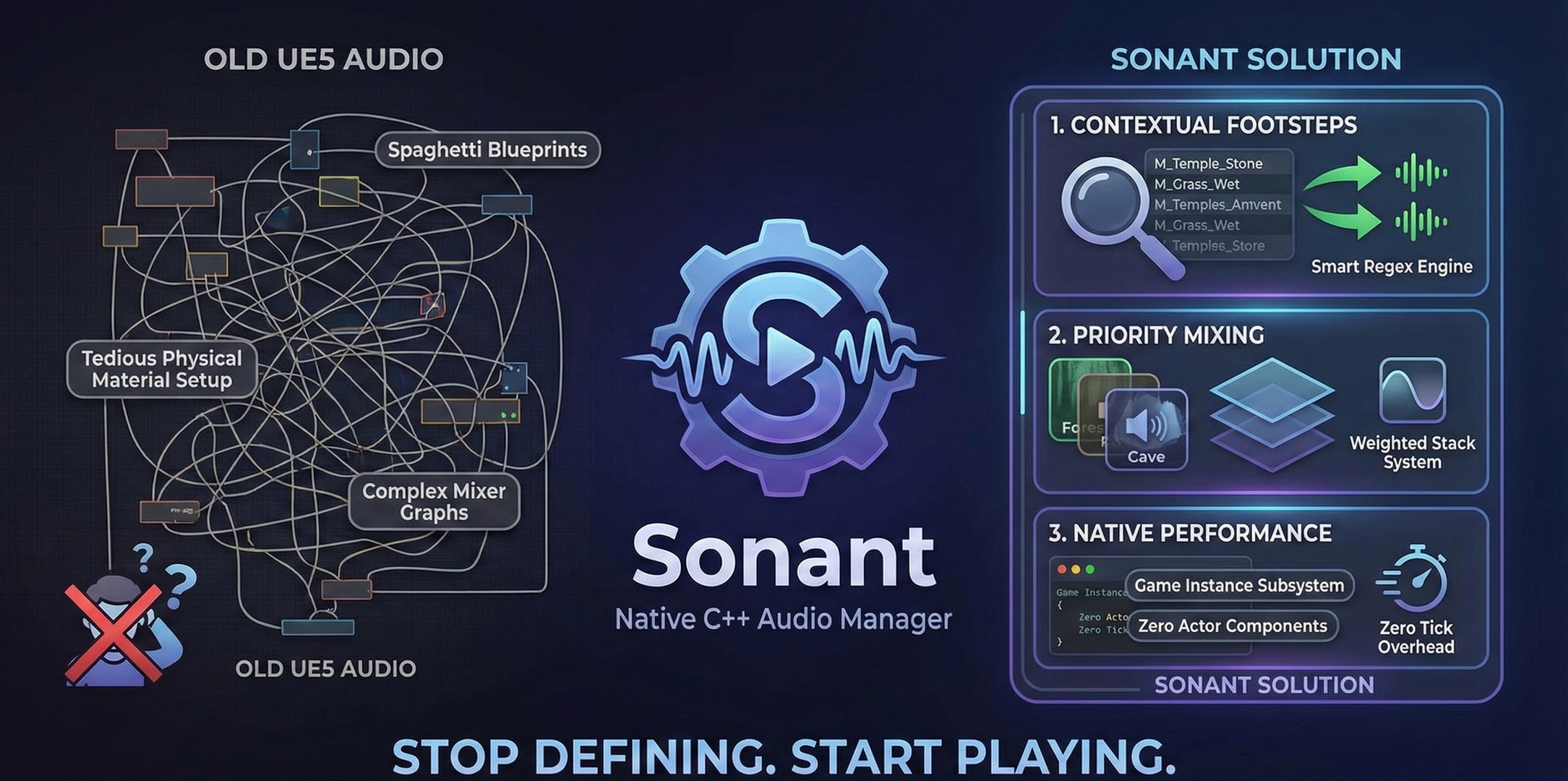
Welcome to Sonant! This plugin replaces scattered audio logic with a unified, data-driven pipeline. From physically accurate footsteps to dynamic room estimation, Sonant handles the complexity so you can focus on the soundscape. Designed for performance and ease of use, Sonant integrates seamlessly with UE5's AudioModulation system.
One subsystem routes surface, impact, atmosphere, and reverb decisions.
Sonant listens to gameplay context, resolves the acoustic surface, selects the requested GameplayTag event, and activates the right sound, VFX, decal, or Control Bus Mix without scattering audio logic across every Blueprint.
🎯 Contextual Surfaces
Map GameplayTags (Walk, Run, Land) to specific materials. Supports Physical Materials, Material Instances, and Sub-Mesh detection with intelligent caching.
💥 Physics Audio
Automatically triggers impact sounds based on Mass and Velocity. Falls, collisions, and debris sound right instantly with automatic intensity detection.
🌊 Auto Reverb
Raycasts the environment in real-time (2Hz) to determine room size and apply the perfect Reverb Bus Mix dynamically without manual volume triggers.
🏔️ Atmosphere Zones
Push and pop atmospheric zones with priority-based mixing. Perfect for underwater sections, caves, forests, or any environmental audio transition.
⚡ High Performance
O(1) material lookup caching, optimized raycasting, and minimal overhead. Built for AAA production environments with profiling in mind.
🔧 Data-Driven
Configure everything through Data Assets. No code changes needed for new surface types, allowing sound designers to work independently.
Installation & Setup
Copy the Sonant folder into your project's Plugins/ directory. Restart the editor if it was open.
Navigate to Edit > Plugins > Audio > Sonant and check the enabled box. Restart the editor when prompted.
In the Content Browser, Right Click > Miscellaneous > Data Asset > Select SonantConfig. Name it something like DA_Sonant_Global.
Open Project Settings > Plugins > Sonant Audio and assign your created config to the Main Config property.
In Project Settings > GameplayTags, add default tags like Sonant.Event.Footstep, Sonant.Event.Impact.Light, and Sonant.Event.Impact.Heavy.
Editor Tools & Validation
Sonant provides robust, game-ready editor tooling to accelerate your workflow and ensure your audio setup is flawless before shipping.
🧙 Setup Wizard
The Sonant Setup Wizard automates global audio configuration. It auto-discovers all your project's UPhysicalMaterial assets and prepopulates the SonantConfig with them. It is equipped with an FScopedSlowTask progress bar to safely run background loading of massive material libraries without locking the editor.
🛡️ Blueprint Validation
Sonant integrates directly into the Unreal Engine Map Check system. When you build or save your map, Sonant validates all SonantVolume instances. If a volume is missing an Atmosphere Tag or references an invalid mix, a yellow Map Check Warning will alert you immediately!
Using the Setup Wizard
- In your editor, find the BP_SonantSceneSetup actor (generated by the demo script or found in the plugin Content).
- Drag it into your scene.
- In the Details panel, click the Run Setup button.
- Watch the progress bar as Sonant registers all physical materials in your project directly into your Global Config!
Quick Start Guide
Get your first contextual footstep working in under 5 minutes:
1. Prepare Your Audio
Import your footstep sounds and create Sound Cues or MetaSounds for different surface types (Grass, Metal, Stone, etc.).
2. Configure Surfaces
Open your SonantConfig asset and add entries to the Keyword Map:
- Key: Grass (matches materials with "Grass" in the name)
- Sounds Map: Add entry with Key Sonant.Event.Footstep
- Assign your grass footstep Sound Cue
3. Trigger from Blueprint
In your Character Blueprint, during the footstep animation notify:
Get Owning Local Player -> Get Subsystem (Sonant Subsystem)
    -> Play Footstep
        Location: Get Actor Location
        Surface Hit: Line Trace result from foot socket
4. Test
Place meshes with materials containing "Grass" in your level and walk on them. You should hear your configured sounds!
Generalized Surface System
Sonant introduces a powerful GameplayTag-driven event system. Instead of just "Footsteps", you can now define any audio event for a surface type—landing, jumping, scuffing, rolling, or custom gameplay actions.
Direct asset mapping for final production control.
Previously resolved material pointer gives O(1) lookup.
Material or parent material name contains a configured keyword.
Safe fallback keeps the event audible even when no surface matches.
Resolution Priority
Sonant resolves surface types in this order (first match wins):
- Physical Material Map - Exact asset match (most precise)
- Material Cache - Previously resolved material lookup
- Keyword Map - Substring search in material name
- Default Surface - Fallback configuration
How to Add a New Footstep Type
- Open your SonantConfig asset.
- Find or Add an entry in Keyword Map (e.g., Key: "Grass" matches any material with "Grass" in the name).
- Expand the Sounds map.
- Add a Key: Sonant.Event.Footstep (or your custom tag).
- Assign your Sound Cue or MetaSound to the Sound property.
- Adjust Volume and Pitch Randomization to add variety.
Supported Material Types
| Material Type | Detection Method | Use Case |
|---|---|---|
| Base Materials | Name substring matching | Prototyping, simple projects |
| Material Instances | Parent material name | Production environments |
| Physical Materials | Direct asset reference | Precise control, final shipping |
| Per-Face Materials | Collision face index lookup | Complex meshes with multiple surfaces |
Physics Impact System
The PlayImpact API handles collision audio automatically. It calculates intensity based on impact force and selects the appropriate tag, pitch, and volume scaling.
Normal impulse magnitude is translated into a quiet, light, or heavy response. The same surface resolver still chooses the material-specific sound.
Blueprint Usage
Call PlayImpact in your actor's OnComponentHit event:
Event Hit (MyActor)
    -> Sonant Subsystem: Play Impact
        Location: Hit.Location
        Impact Force: NormalImpulse.Size()
        Surface Hit: Hit Result
Thresholds & Logic
The system automatically categorizes impacts into tiers:
- Force < 50.0: Ignored (Silence) - prevents micro-jitter noise.
- Force 50 - 2000: Triggers Sonant.Event.Impact.Light. Pitch is slightly increased (1.2x) for a lighter sound.
- Force > 2000: Triggers Sonant.Event.Impact.Heavy. Pitch is lowered (0.8x) for a heavier thud. Volume scales with force up to 2.0x.
Atmosphere System
The Atmosphere System manages environmental audio transitions through priority-based Control Bus Mix activation. Perfect for areas with distinct acoustic properties.
Common Use Cases
- Underwater: Muffle high frequencies, apply underwater reverb
- Caves: Heavy reverb, echo effects
- Forests: Open ambience, distant wildlife
- Indoors: Room tone, muffled exterior sounds
- Radio Zones: Music mixing areas
Setting Up Atmosphere Zones
- Create Sound Control Bus Mixes for each atmosphere type in your project
- In SonantConfig, expand the Atmospheres map
- Add entries with GameplayTag keys (e.g., Sonant.Atmosphere.Underwater)
- Set Priority (higher wins): Underwater=100, Cave=50, Forest=10
- Assign the Mix Asset (your Sound Control Bus Mix)
Using SonantVolume Components
Add a USonantVolume component to any actor to create atmosphere zones:
- Add the component to your trigger volume or blocking volume
- Set the Atmosphere Tag property
- The atmosphere pushes on overlap and pops on end overlap automatically
Nested Atmospheres
Sonant supports nested zones through reference counting. If the player enters a Cave (priority 50) inside a Forest (priority 10), the Cave mix wins. When they exit the cave, it automatically falls back to Forest.
Spline Audio
For volumetric audio sources like rivers, traffic, or long electrical humming, Sonant includes the USonantSplineAudioComponent. It automatically tracks the listener and moves the audio source along the spline to the closest point, creating a seamless volumetric sound.
👥 Multi-Listener Support
In local multiplayer or split-screen scenarios, the Spline Audio component automatically scales to support multiple listeners. It will spawn virtual audio sources for each active listener along the spline, so everyone hears the river from their correct perspective!
Usage
- Create an Actor and add a Spline Component to define your path (e.g., a riverbed).
- Add the Sonant Spline Audio component.
- Assign your Sound Asset in the Details panel.
- The component handles the rest, calculating the closest point on the spline for each player and translating the sound instantly.
Auto Reverb Estimation
Sonant passively scans the environment around the player to determine room size using a 6-axis raycast system. This eliminates the need for manual reverb volume placement in most scenarios.
↓
Average Distance = 450cm → Apply: SmallRoom_Reverb
How it Works
Every 0.5 seconds, the subsystem fires rays in 6 directions (Up, Down, Left, Right, Forward, Back) up to 50 meters. It calculates the Average Open Distance and compares against your Reverb Settings in SonantConfig.
Configuration
In SonantConfig, fill the Reverb Settings array:
- Max Room Radius: The upper limit for this preset (e.g., 500 for Small Room, 2000 for Hall).
- Reverb Mix: The Sound Control Bus Mix to activate. This mix should apply a Reverb Submix Effect.
The system automatically selects the smallest Radius that fits the current average distance (Best Fit algorithm).
Example Presets
| Environment | Max Room Radius | Description |
|---|---|---|
| Outdoors/Open | 5000 | No reverb or minimal room tone |
| Large Hall | 2000 | Cathedrals, stadiums, large caves |
| Medium Room | 800 | Offices, apartments, corridors |
| Small Room | 400 | Bathrooms, closets, tight spaces |
Performance Optimization
Material Cache & Pre-caching
Sonant maintains an O(1) lookup cache for material resolutions. The cache auto-initializes with 128 entries and grows as needed. First contact with a new material performs a substring search; subsequent contacts are instant. Furthermore, the PrecacheMaterials() API allows you to force a background scan during level load, sanitizing your KeywordMap and completely eliminating runtime hitches.
Raycast Budget
The auto-reverb system uses a fixed budget:
- Frequency: 2Hz (every 0.5 seconds)
- Ray Count: 6 traces per update
- Max Distance: 5000 units (configurable in code)
- Collision: Uses the dedicated AudioTrace profile to ensure sound waves ignore invisible blockers or foliage, hitting only dense acoustic geometry.
Profiling
Use these console commands to monitor Sonant:
stat sonant        // Display Sonant performance stats (if implemented)
stat game          // General game thread performance
show collision     // Visualize trace queries
Optimization Tips
Large Open Worlds
For very large open worlds, consider disabling auto-reverb outdoors and using manual atmosphere zones for specific landmarks. Use the UpdateReverb() function's source code as a reference for custom implementations.
High-Frequency Events
For rapid-fire events (machine gun impacts, fast footsteps), consider implementing cooldown timers in your Blueprints to avoid flooding the audio thread. Sonant handles the surface detection efficiently, but audio instantiation has inherent costs.
C++ API Reference
Access via USonantSubsystem, a ULocalPlayerSubsystem designed for local listener state, client-side atmosphere stacks, and player-specific reverb decisions.
PlaySoundAtLocation(EventTag, Location, SurfaceHit, VolumeMultiplier, PitchMultiplier)
Generic audio event system. Use this for any custom event (Land, Jump, Scuff).
PlayImpact(Location, ImpactForce, SurfaceHit)
Helper for collision events. Automatically selects Light/Heavy impact tags based on force.
PlayImpactByIntensity(Location, Intensity, SurfaceHit)
Helper for non-physics systems. Pass a normalized intensity from 0.0 to 1.0 when your gameplay code already knows how strong the impact should feel.
PlayFootstep(Location, SurfaceHit)
Convenience wrapper that calls PlaySoundAtLocation with Sonant.Event.Footstep tag.
PushAtmosphere(Tag)
Activates an atmosphere by tag. Increments reference count if already active.
PopAtmosphere(Tag)
Deactivates an atmosphere by tag. Decrements reference count; mix persists if count > 0.
Internal Methods
ResolveMaterial(Hit) → const FSonantSurfaceDef*
Core material resolution logic. Returns surface definition based on priority order (Physics → Cache → Keyword → Default).
Blueprint Guide
Accessing the Subsystem
All Sonant functions are available through the Local Player Subsystem:
Get Player Controller
    -> Get Local Player
    -> Get Subsystem (Class: Sonant Subsystem)
        -> [Any Sonant function]
Character Footstep Setup
- Open your Character Blueprint
- Add a Line Trace by Channel before the footstep should play
- Set Start to Foot Socket location, End to Start + (0,0,-50)
- On Hit: Get Local Player → Get Subsystem (Sonant)
- Call Play Footstep with Hit Location and Hit Result
Physics Impact Setup
- Select your physics-enabled mesh
- Add Event On Component Hit
- Get Sonant Subsystem
- Call Play Impact with:
- Location: Hit.Location
- Impact Force: Normal Impulse → Vector Length
- Surface Hit: Hit Result pin
Atmosphere Volume Setup
- Create a Blueprint extending Actor
- Add a Box Collision component
- Add Sonant Volume component
- Set Atmosphere Tag property (e.g., Sonant.Atmosphere.Underwater)
- Set collision to Overlap All or specific channels
Best Practices
🎯 Naming Conventions
Establish consistent material naming early. Use M_SurfaceType_Variant format (e.g., M_Grass_Dry, M_Metal_Rusted). This makes keyword matching reliable.
🔊 Audio Asset Organization
Organize sounds by surface type, not by character. Use folders like /Audio/Sonant/Surfaces/Grass/ containing Walk, Run, Land, Impact subfolders.
🧪 Testing Workflow
Use the included demo generators (ASonantDemoGenerator, ASonantAutoShowcase) to test surface configurations before implementing in your main level.
⚖️ Physics Material Strategy
Use Physical Materials for final polish on critical surfaces. Start with keyword matching for rapid prototyping, then refine with Physical Material overrides.
🔇 The Silence Threshold
The 50.0 force threshold for impacts exists for good reason—micro-collisions from physics jitter create noise. Don't lower this without careful testing.
Troubleshooting
🔇 No Sound Playing At All
Symptoms: Complete silence from Sonant functions.
- Verify AudioModulation plugin is enabled in Project Settings
- Check that a SonantConfig Data Asset exists and is assigned in Project Settings > Sonant Audio
- Ensure the Subsystem is being accessed correctly: Get Local Player -> Get Subsystem (Sonant Subsystem)
- Check the Output Log for yellow warnings about missing config
- Verify your Sound Cues are valid and not reporting errors
🎵 Wrong Sound Playing
Symptoms: Footsteps sound like a different material.
- Check if a Physical Material is assigned to the mesh—Physics Map overrides Keyword Map
- Verify your material name contains the keyword (case-sensitive in some engine versions)
- Check if the mesh has proper collision data for sub-material detection
- Clear the material cache (restart PIE) if you've changed material names
- Verify the default surface isn't being used (add logging or check in debugger)
🌊 Reverb Not Changing
Symptoms: Reverb stays the same regardless of room size.
- Ensure your Sound Control Bus Mix is correctly configured with a Reverb Submix Effect
- Verify the AudioModulation plugin is enabled
- Check that Reverb Settings array in SonantConfig has entries
- Ensure collision exists on Visibility channel for raycasts to hit
- Check the Max Room Radius values—larger rooms must have larger values
- Verify the player pawn is valid and has a controller
💥 No Audio on Impact
Symptoms: Physics collisions make no sound.
- Enable Simulation Generates Hit Events on the mesh component
- Verify the impact force exceeds 50.0 (add Print String to check Normal Impulse size)
- Check that collision is properly set up (not just overlap)
- Ensure the hit surface has a valid material assigned
- For destructible meshes, check that impact data is being passed correctly
🏔️ Atmosphere Not Applying
Symptoms: Entering zones doesn't change the audio mix.
- Verify the Atmosphere Tag matches an entry in SonantConfig's Atmospheres map
- Check that the SonantVolume component is actually overlapping the player
- Ensure the priority is set correctly (higher number = higher priority)
- Verify the Sound Control Bus Mix asset is valid and activatable
- Check if multiple overlapping zones are conflicting (check ActiveAtmosphereCounts in debugger)
⏱️ Performance Issues
Symptoms: Frame drops when using Sonant.
- Check for excessive raycasts—disable auto-reverb if using many manual zones
- Profile with stat game to see if UpdateReverb is expensive
- Reduce the frequency of footstep events (don't call every frame)
- Ensure material cache isn't growing unbounded (should stabilize after initial area exploration)
- Check for redundant subsystem calls in Blueprints
🎨 Material Not Detected
Symptoms: Default sound plays for custom materials.
- Verify the material instance's PARENT name contains the keyword (not just the instance name)
- For complex meshes, ensure collision face index is being read (requires detailed collision)
- Check that the material is actually applied to the rendered mesh, not just a duplicate
- Verify the Static Mesh has "Use Complex Collision As Simple" disabled for face-index detection
- Use show collision console command to visualize traces
✅ Debug Checklist
If you're still stuck, verify these in order:
- Plugin enabled and editor restarted
- SonantConfig asset created and assigned
- GameplayTags registered (if using custom tags)
- Sound Cues valid and audible
- Trace channels hitting correct collision
- Subsystem accessible from your Blueprint
- No errors in Output Log related to Sonant
Frequently Asked Questions
Does Sonant work with MetaSounds?
Yes! Sonant works with any USoundBase asset, which includes Sound Cues, MetaSounds, and Wave files.
Can I use Sonant with multiplayer?
Yes. Sonant runs locally on each client. For replicated physics events, trigger the audio on each client when the replicated event occurs. The demo generators include network-safe checks.
Does it support Niagara particle audio?
Sonant handles surface-based audio events. For particle audio, use Niagara's built-in audio or trigger Sonant functions from Blueprints based on particle collision events.
Can I disable auto-reverb and use manual zones?
Absolutely. Auto-reverb is optional. You can leave the Reverb Settings array empty and use atmosphere zones exclusively.
Is there a performance cost for having many surface types?
No. Once cached, surface resolution is O(1) regardless of how many types you have. The only cost is initial memory for the cache entries.
Does Sonant work with World Partition?
Yes. Sonant operates independently of level streaming. Atmosphere zones should be placed in persistent levels or appropriate sub-levels.
Can I extend Sonant with custom C++?
Yes. Sonant is designed as a foundation. Inherit from USonantSubsystem or modify the plugin source directly for project-specific needs.
Demo & Quick Start Content
Sonant includes a fully automated Python script that generates a comprehensive demo system, complete with synthetic placeholder audio, prefabs, and a showcase map directly into your project's Content folder.
🚀 Generate the Demo Content Instantly
Because Sonant is built for Unreal Engine 5, you can generate all the demo assets instantly without downloading external files:
- In your Unreal Engine Editor, open the Output Log (Window > Output Log).
- Switch the bottom-left dropdown from Cmd to Python.
- Paste the following command and hit Enter:
import sys; sys.path.append(r"C:\1gregorigin\SonantDev 5.7\Plugins\Sonant\Resources"); import GenerateSonantContent; GenerateSonantContent.run()
What's Included in the Generated Content?
🗺️ SonantDemo Map
Located at /Sonant/Demo/SonantDemo. A fully lit showcase map with the SonantAutoShowcase generator ready to test all surface types.
🔊 Procedural Audio Library
14 synthetic USoundWave assets representing Footsteps (Concrete, Dirt, Metal), Impacts, and looping Atmospheres (Cave, City, SciFi).
📦 Ready-to-Use Prefabs
10 specialized BP_SonantVolume prefabs (Cave, City, Underwater, SciFi Corridor, etc.) with pre-configured routing.
🧱 Physics Materials
Default UPhysicalMaterial assets ready to be assigned to your static meshes for exact surface matching.
Walk across generated physical materials (Grass, Metal, Wood) to hear seamless footstep transitions.
Interact with physics objects to hear light and heavy impact sounds based on force.
Walk through nested atmosphere zones to experience priority-based mixing (e.g., entering a Cave).
Move between small rooms and large halls to hear the auto-reverb dynamically adapt to the raycasted room size.
Replacing the Placeholder Audio
The generated synthetic audio is completely royalty-free and safe for prototyping. When you are ready for production:
- Open the SonantConfig asset assigned in your Project Settings.
- Under the Keyword Map or Physics Map, replace the referenced Sound Waves with your own high-quality assets.
- Adjust the Volume and Pitch Randomization multipliers to fit your new sounds.
