Sample Posts by C8KE App

How to post on C8KE App for different kind of Posts.
Image
Written by Helper
Updated 4 years ago

Click the 'Post' icon to start a Post. 

Image

➜ Choose a Post media source: Photos, Videos, From Instagram, A Saved Draft

Note: To post a video from TikTok, please choose 'Photos'.

Image

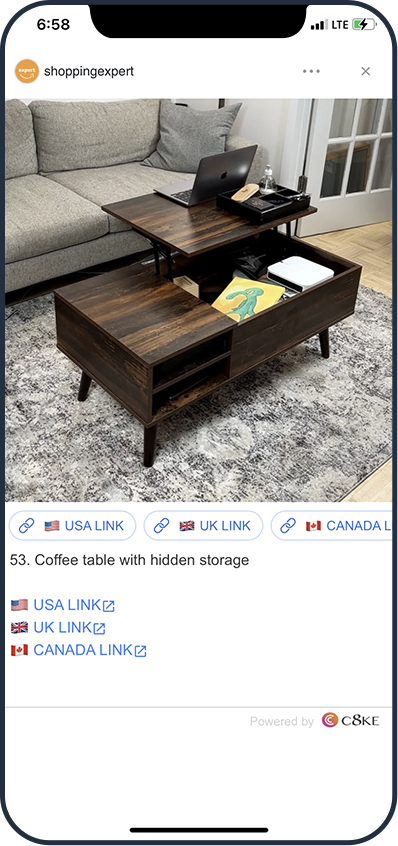
Shoppable Photo Post

1. Add influential photo(s) .
2. Add 'Shop My Post' items.

Image

3. Click 'SHARE' button to publish.

Image

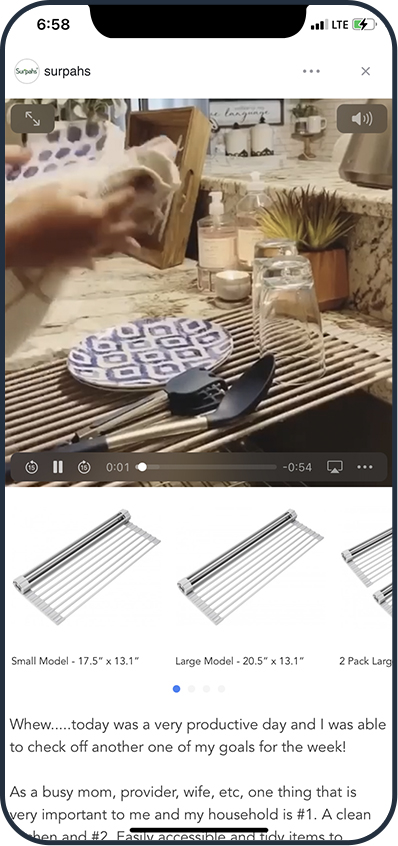
Shoppable Video Post

1. Add a video.
2. Add 'Shop My Post' items.

Image
3. Click 'SHARE' button to publish.

Image

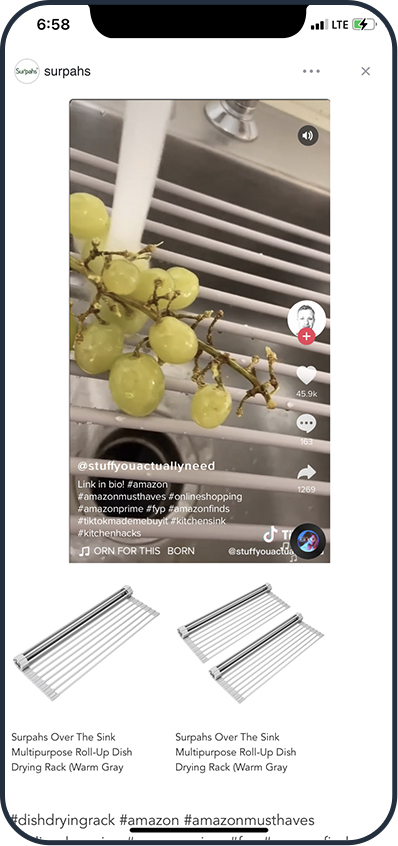
Shoppable TikTok Post

1. Add a video from TikTok.
Options:
a). Share from TikTok App directly to C8KE App.
Then go to step 2.
b). Click '' and choose 'From a Webpage'  
Paste the TikTok video link to the URL box.
➜  'GO', wait for the video loaded. 
➜  'NEXT'.
➜  Choose the video.
➜  'OK'.

2. Add 'Shop My Post' items.
Image
3. Click 'SHARE' button to publish.

Image

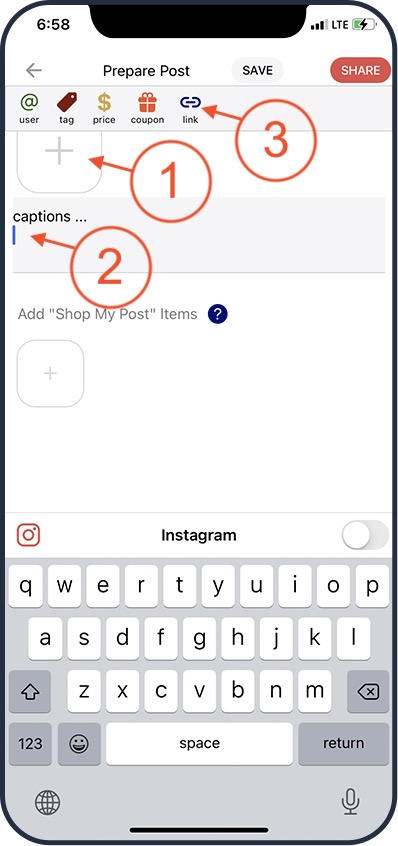
Photo Link Post

1. Add influential photo(s).
2. Edit captions (comments).
3. Click the 'Link' icon on the toolbar, enter link info.
Repeat for more links. 

Image
4. Click 'SHARE' button to publish.

Image

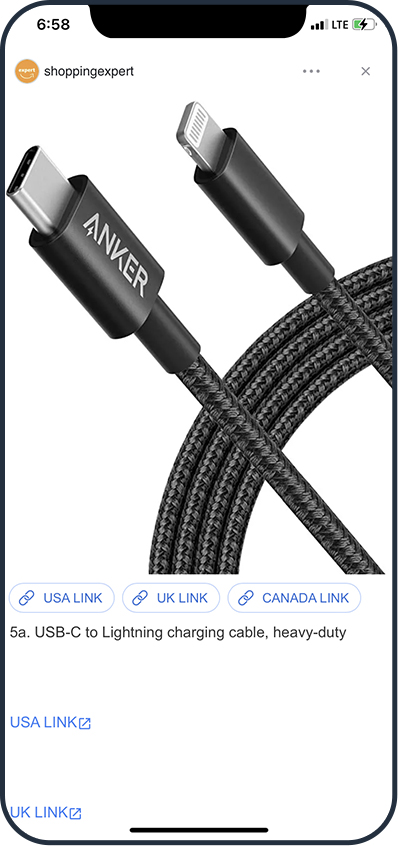
Product Link Post

1. Add product photo(s).
2. Edit captions (comments).
3. Click the 'Link' icon on the toolbar, enter link info.
Repeat for more links. 

Image

4. Click 'SHARE' button to publish.

Image

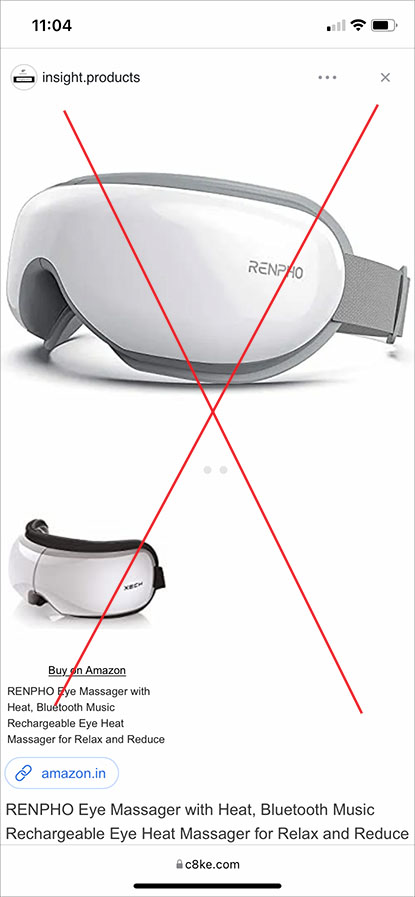
NOT Recommended!

Problem: The Post photo is not influential.


Did this answer your question?