 Martin Jørgensen
Scapple – A simple, flexible brainstorming tool for Mac and Windows
Scapple is a visual brainstorming tool from the makers of Scrivener, aimed at creatives, writers, and students who want a freer alternative to classic mind mapping. While apps like XMind and MindNode have fixed hierarchical structures, Scapple gives you a blank canvas with no restrictions — and that’s the app’s biggest strength.
Unstructured mind mapping: How Scapple works
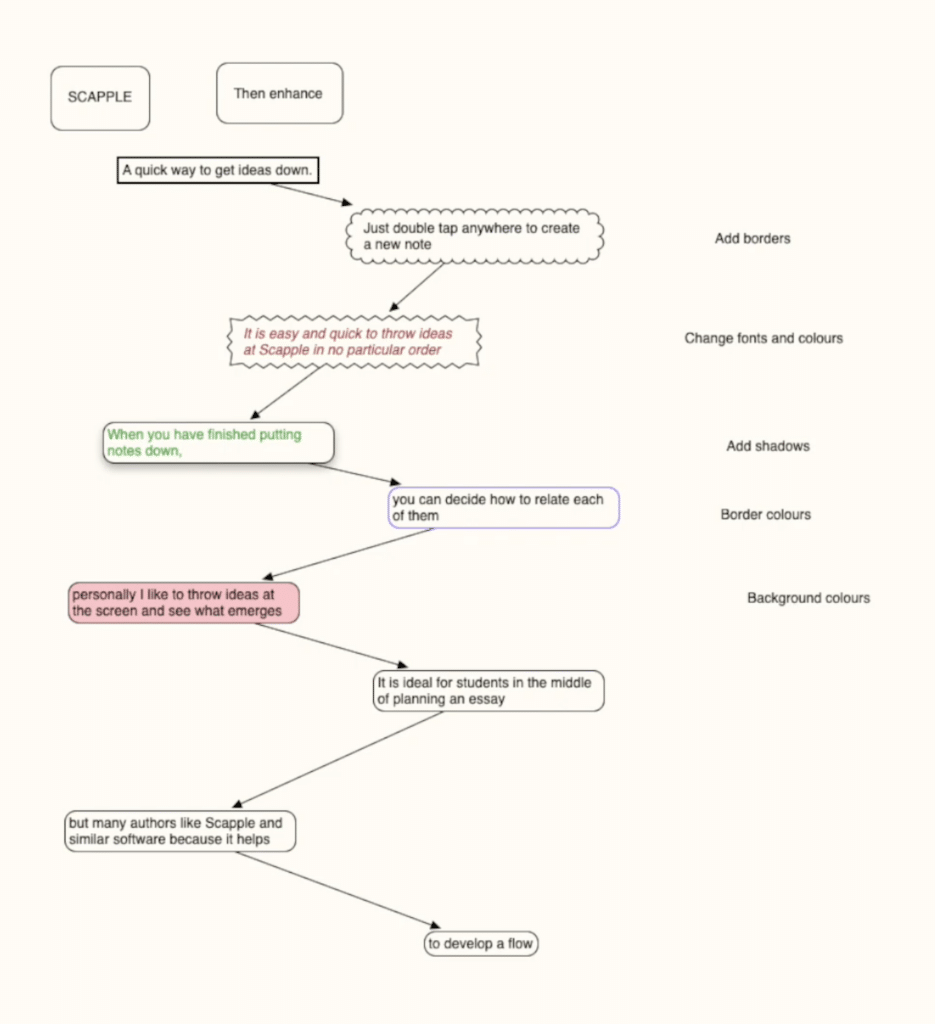
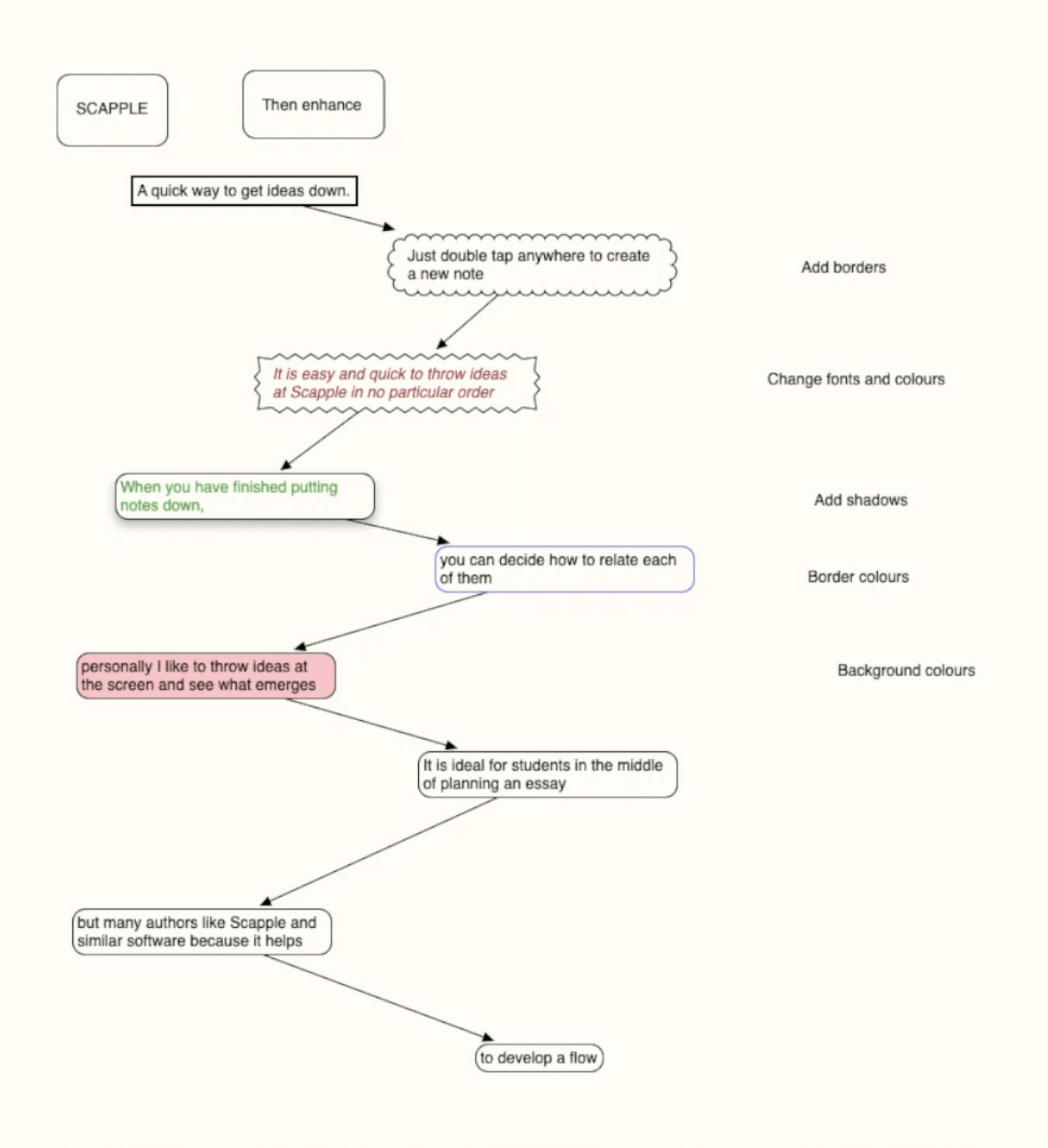
In Scapple you start with a blank board where you can double‑click to add a thought, idea, quote, or keyword. You decide how to organize these elements and can draw connection lines between them if you want — but it’s completely optional.
You’re not tied to a central topic or a fixed structure. That makes Scapple especially well‑suited for:
- Plot development for writers
- Notes from classes and lectures
- Concept development for projects
- Collecting research and sources
In our testing of Scapple, we found it easy to add notes in different sizes, fonts, and colors, and to move everything around with the mouse. It feels like working with sticky notes — just digital and clutter‑free.
Full screen and focus – especially strong on Mac
On Mac, Scapple supports full‑screen mode and Mission Control, so you can work without distractions on a single desktop without being tempted by email, Facebook, or news. This feature is ideal for focused work and unfortunately isn’t available in every similar app.
The Windows version offers the same core features, but the overall Mac integration is a bit more elegant. In practice, it’s a minor difference.
Comparison: Scapple vs. XMind
| Feature | Scapple | XMind |
|---|---|---|
| Price | About $12 (one-time) | Free and Pro edition |
| Structure | Freeform, no hierarchy | Classic mind map structure |
| Ease of use | Very intuitive | More features, but more complex |
| Export | PDF, text, image | PDF, PNG, DOCX, etc. |
| Target audience | Writers, creatives | Business, education, personal |
Although XMind offers more features for free, Scapple is much faster and easier to use for creative workflows. It’s ideal if you don’t need presentation‑ready diagrams, but want to capture and organize ideas quickly.
Top 5 tips for Scapple
Top 5 tips for Scapple
Scapple looks simple at first glance, but it hides several smart features that make it easier to structure ideas, notes, and larger writing projects.
Create clarity by color‑coding your notes — for example, red for problems, green for solutions, and blue for ideas in progress. You can set a background color for each note so you can quickly distinguish different types of information. This works especially well on larger Scapple boards with many elements.
Hold Ctrl on Windows or Cmd on Mac, and use the mouse wheel to zoom in and out. On a big board, this quickly becomes indispensable. Right‑click and drag to pan around — like sliding a large sheet of paper across a desk.
Hold Shift and drag a box around multiple notes to select and move them together. This is handy when an idea has several subpoints, or when you temporarily want to cluster related notes without creating permanent visual containers.
Scapple supports export to PDF, image files, and text files. If you need to share your ideas with a project team, a class, or an editorial group, PDF export is often the most practical choice. You can export the entire board or only a selected portion.
If you use Scrivener for stories, theses, screenplays, or long‑form writing, Scapple fits naturally into your process. Start with freeform brainstorming in Scapple, move notes into Scrivener, and then build your project from there. It makes bigger writing projects much more manageable.