Screenshots
App details
- Version
- 1.6.1
- Size
- 58.54 KB
- Updated
- March 9, 2017
- Requires
- Windows 2000
- Language
- English | Danish | Spanish | Italian | C...
- License
- Free
- Developer
- Nic-nac-project
- Category
- Windows OS
About ImportExportTools
Download ImportExportTools – free Thunderbird message import/export utility
Overview of ImportExportTools
ImportExportTools is a lightweight, open‑source utility designed to simplify the movement of email messages in and out of Mozilla Thunderbird. Built under the GNU GPL license, the tool targets users who need a reliable way to back up, migrate, or share their message archives without resorting to complex scripts or risky manual file handling. First released in 2007, the current stable version 1.6.1 (updated on April 14 2008) continues to serve a global audience, with over 38 000 downloads recorded since its debut. Its small footprint makes it an attractive option for older Windows installations such as Windows 98 and earlier, while its multilingual support—including English, Spanish, and Simplified Chinese—helps bridge language barriers for non‑English speakers. The software belongs to the “Communication” category on most software directories, specifically under “Other email tools,” and is praised for its straightforward interface, robust export formats (EML, MBOX, PDF, and CSV), and seamless integration with Thunderbird’s native message store. Whether you are an IT administrator tasked with migrating user mailboxes, a power user looking to archive old conversations, or a casual Thunderbird fan who wants a quick backup before a system upgrade, ImportExportTools offers a secure, free solution that has stood the test of time across diverse markets such as Italy, Sweden, and Macau.
Key Features That Set ImportExportTools Apart
- Multiple Export Formats: Choose between standard EML files for individual messages, MBOX containers for whole folders, PDF for printable archives, and CSV for spreadsheet‑ready data.
- Selective Folder Export: Export a single folder, a whole account, or custom‑selected subfolders with just a few clicks.
- Batch Import Capability: Import collections of EML or MBOX files back into Thunderbird, preserving original timestamps, flags, and attachments.
- Unicode and Internationalization Support: Handles UTF‑8 subject lines and body text, ensuring that messages in Spanish, Chinese, or any language retain their original characters.
- Preserves Message Metadata: Keeps read/unread status, tags, and custom headers intact during both export and import processes.
- Portable Execution: No installation wizard is required; the tool runs directly from its executable, making it ideal for use on locked‑down corporate machines.
- Secure Operation: All file handling occurs locally; no data is transmitted over the internet, which satisfies strict privacy policies for confidential communications.
- Lightweight Footprint: The program occupies less than 2 MB on disk, leaving ample space for user data even on legacy systems.
- Multilingual Interface: The UI can be switched between English, Spanish, and Simplified Chinese, reducing the learning curve for non‑native speakers.
- Free and Open Source: Released under the GPL, developers can audit the source code, contribute improvements, or customize the tool for specific workflows.
Each of these features is crafted to address a common pain point in email management. For example, the ability to export a folder as a single MBOX file is invaluable when migrating an entire mailbox to a new computer or when archiving old correspondence for legal compliance. Likewise, the batch import function eliminates the tedious manual dragging of individual EML files, speeding up restoration tasks after a system crash. By keeping the utility free and portable, ImportExportTools remains accessible to both home users and enterprise environments that demand cost‑effective, secure solutions.
Installation, Usage, and Compatibility
Downloading the installer: Start by visiting the official download page or a trusted software repository. The file is typically named ImportExportTools_v1.6.1.exe. Because the program is free and does not require registration, you can begin the download with a single click. Ensure that your internet connection is secure (HTTPS) to avoid tampered binaries.
Running the program (no traditional install): Unlike many Windows utilities, ImportExportTools does not modify the system registry. Once the executable is saved, double‑click it to launch the interface. A tiny window will appear within Thunderbird’s Add‑On manager, offering “Export” and “Import” buttons alongside a folder selector.
Step‑by‑step export process:
- Open Thunderbird and navigate to the folder you wish to back up (e.g., Inbox or a custom label).
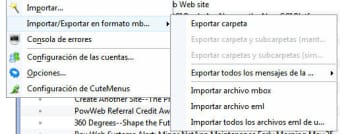
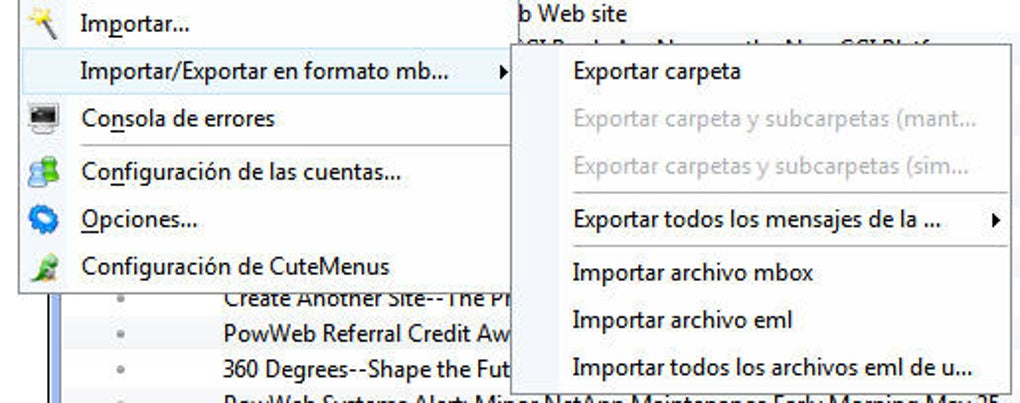
- Click the ImportExportTools button added to the toolbar.
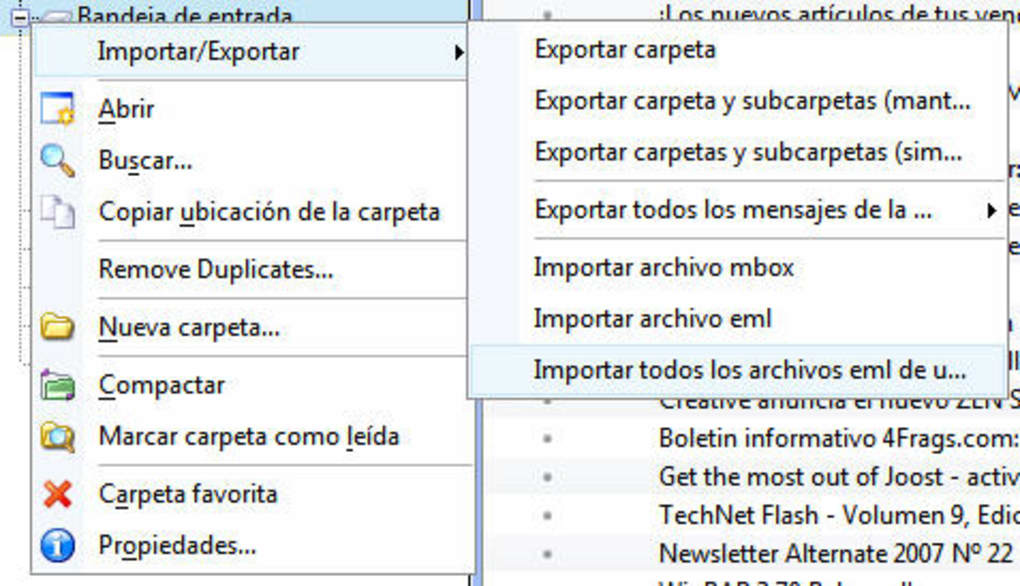
- Choose “Export folder” and select the desired format (EML, MBOX, PDF, CSV).
- Specify a destination folder on your hard drive. The tool will create a subdirectory matching the folder name for clarity.
- Press “Start” and watch the progress bar as each message is written to disk. Large folders may take several minutes, but the operation is fully transparent.
Importing messages back into Thunderbird: The reverse workflow mirrors the export steps. Choose “Import” from the toolbar, point to the folder containing your previously exported files, and let the utility rebuild the message hierarchy. All original flags, timestamps, and attachments are restored automatically.
System compatibility: ImportExportTools runs on Windows 98, Windows ME, Windows 2000, XP, Vista, 7, and later editions. While the original codebase targets Windows, the executable can also be executed on modern Windows 10/11 systems without compatibility issues. The program does not have native Linux or macOS builds, but it can operate under Wine on those platforms for users who prefer a cross‑environment solution. Minimum requirements are modest: a 600 MHz processor, 128 MB of RAM, and at least 5 MB of free disk space for the program itself. Because the tool works directly with Thunderbird’s local profile folder, it inherits Thunderbird’s own system requirements, which are already met on most everyday computers.
Updating to newer releases: When a newer version becomes available, the download page will present a “Check for updates” button within the Add‑On manager. Since the utility is lightweight, updating simply involves replacing the existing .exe file with the newer version—no re‑installation wizard is needed. Users are encouraged to keep the tool current to benefit from bug fixes and improved format handling.
Pros, Cons, and Frequently Asked Questions
Pros
- Free and open source, eliminating any licensing concerns.
- Supports a wide range of export formats for diverse workflows.
- Runs without installation, preserving system integrity on locked‑down machines.
- Maintains full message metadata, ensuring accurate restores.
- Lightweight footprint suitable for legacy Windows installations.
Cons
- No native macOS or Linux GUI version (requires Wine for non‑Windows platforms).
- Interface is functional but dated; lacks modern visual polish.
- Last official update was in 2008, so community support may be limited.
- Limited automation; batch operations require manual folder selection.
Frequently Asked Questions
Is ImportExportTools compatible with the latest Thunderbird releases?
Yes. Although the tool was last updated in 2008, its core functionality—reading and writing EML/MBOX files—relies on file formats that remain unchanged in modern Thunderbird versions. Users have reported successful operation with Thunderbird 78 and later, provided they run the utility on a supported Windows OS.
Can I use ImportExportTools to migrate messages to another email client?
Absolutely. By exporting messages as standard EML or MBOX files, you can import them into virtually any email client that supports these formats, including Outlook, Apple Mail, and eM Client. The exported files retain original headers and attachments, making cross‑client migration straightforward.
Is there a way to automate regular backups with ImportExportTools?
The standalone version does not include a built‑in scheduler. However, advanced users can script the executable using Windows Task Scheduler combined with command‑line arguments (available in the source repository) to run nightly exports of selected folders.
Will my passwords or account credentials be exposed during export?
No. ImportExportTools works exclusively with message files stored on your local drive. It never accesses or writes authentication data, and all operations are performed offline, ensuring that credentials remain secure.
How can I contribute to the project or request new features?
Since the software is GPL‑licensed, the source code is publicly available on platforms like SourceForge. Interested developers can fork the repository, submit pull requests, or open issue tickets to suggest enhancements or report bugs.
Conclusion and Call‑to‑Action
ImportExportTools remains a compelling choice for anyone who needs a free, secure, and straightforward method to move Thunderbird messages between computers, archives, or alternative email clients. Its small size, multilingual support, and ability to preserve every nuance of an email (including tags, read status, and attachments) make it especially valuable for users operating on older Windows machines where modern, resource‑heavy backup solutions might be impractical. While the UI could benefit from a visual refresh and the lack of native non‑Windows builds limits its reach, the core functionality is solid and dependable.
If you are looking for a trustworthy way to protect your mailbox without spending a dime, download ImportExportTools today. Follow the simple installation steps outlined above, test an export on a small folder, and soon you’ll have a full backup ready for any eventuality. For power users, consider automating nightly backups via Task Scheduler to keep your data continuously safe.
Overall Rating: 4 out of 5 stars
Pros: Free, lightweight, multiple export formats, preserves metadata.
Cons: No native macOS/Linux GUI, dated interface, limited automation.
Ready to secure your Thunderbird messages? Click here to download the latest version and start protecting your email data now.
Guides & Tutorials
How to install ImportExportTools
- Click the Download button above.
- Once redirected, accept the terms and click Install.
- Wait for the ImportExportTools download to finish on your device.
How to use ImportExportTools
This software is primarily used for its core features described above. Open the app after installation to explore its capabilities.
User Reviews
No reviews yet. Be the first to share your experience.
You may also like
more
Llama 2
Free-to-use large language model As the new addition to Meta’s arsenal of langua...

NotebookLM
Revolutionizing the note-taking and idea-generation process NotebookLM is an exp...

Github co pilot
AI-inspired software development and coding platform GitHub Copilot is a browser...

Google Gemma
Google’s lightweight AI models Introducing Google Gemma , a family of cutting-ed...

AI Image Enlarger
A free app for Windows, by ai-image-larger. AI Image Enlarger is a free software...

DALL E
AI-driven text-to-image transformation engine DALL·E is a free graphic and desig...
