
Download Inkscape – Free Vector Graphic Editor for Windows, macOS, Linux
Overview
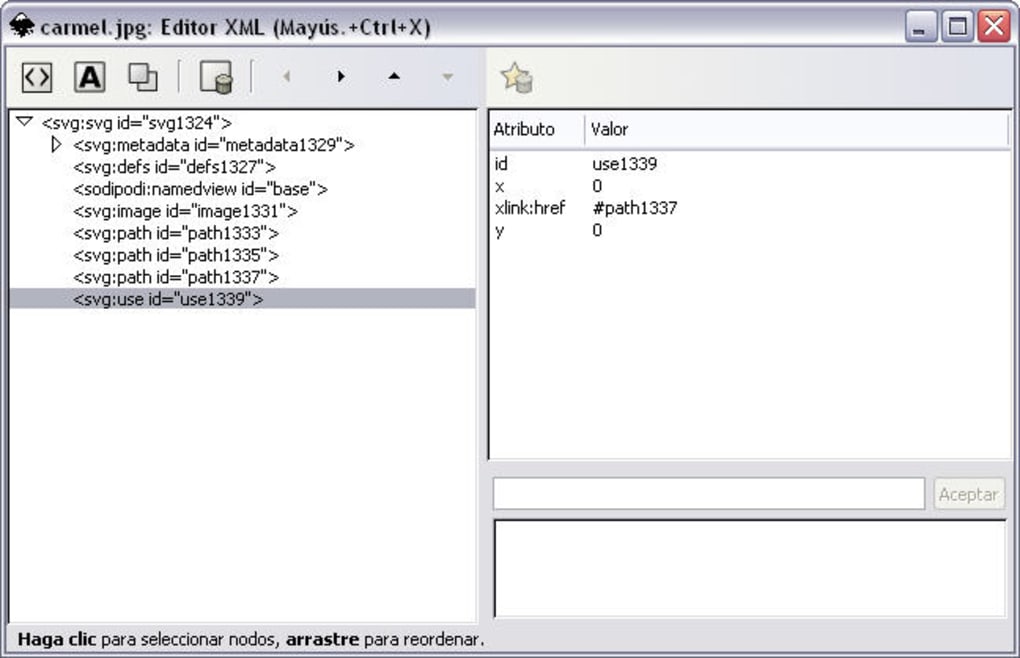
Inkscape is a powerful, open‑source vector graphics editor that rivals premium tools like Adobe Illustrator while remaining completely free. Built around the Scalable Vector Graphic (SVG) format, Inkscape lets designers create crisp icons, logos, illustrations, maps, diagrams, and web‑ready artwork without worrying about pixelation. The program offers a comprehensive set of drawing tools—pen, pencil, shape, text, gradient, pattern, and more—plus advanced path operations, node editing, and direct XML manipulation for fine‑tuned control. Whether you are a hobbyist sketching a quick doodle or a professional agency crafting brand‑defining assets, Inkscape provides a reliable, cross‑platform environment that runs on Windows (Vista and newer, including Windows 11), macOS, and major Linux distributions. Its user‑friendly interface, multi‑language support (including full Spanish translation), and active community make it an excellent entry point for newcomers while still delivering the depth that seasoned designers expect. Recent releases, such as Inkscape 1.4, have introduced a refreshed UI, improved HiDPI support, a unified font browser, modular grids, and enhanced filter previews—features that keep the software current with modern design workflows. Because it is open source, you also benefit from continuous updates, community‑driven extensions, and the freedom to customize the tool to suit any workflow, whether that means adding new export formats, scripting repetitive tasks, or integrating with other design pipelines. In short, Inkscape empowers you to create professional‑grade vector graphics without a subscription fee, making it an indispensable asset for anyone serious about design.
Key Features of Inkscape
- Full SVG Support: Native handling of Scalable Vector Graphics with real‑time preview and editing.
- Advanced Path Operations: Boolean operations, node editing, and live path effects for complex shapes.
- Extensive Export Options: Export to PNG, PDF, EPS, PS, AI, and raster images directly from the UI.
- Powerful Text Engine: Text on path, multi‑line text, font variations, and a unified font browser.
- Gradients & Patterns: Linear, radial, and mesh gradients, plus pattern fills and stroke styles.
- Layer Management: Unlimited layers with grouping, locking, and visibility controls.
- Filter Gallery: Over 70 built‑in filters with live preview, plus the ability to create custom filters.
- Modular Grids & Guides: Precise layout assistance with custom grid spacing and snapping.
- Extension Ecosystem: Hundreds of community‑built extensions for tasks like batch exporting, barcode generation, and image tracing.
- Cross‑Platform Compatibility: Runs on Windows, macOS, and Linux with consistent feature sets.
- Open‑Source Flexibility: Free to modify, redistribute, and integrate into other workflows.
Installation, Usage Instructions & Compatibility
Downloading the installer: Visit the official Inkscape website (inkscape.org) and navigate to the Download page. Choose the appropriate installer for your operating system—Windows (64‑bit), macOS (Intel or Apple Silicon), or Linux (AppImage, Snap, or native package). All downloads are signed and delivered over HTTPS, ensuring a secure and tamper‑free installation.
Windows installation: Run the .exe installer, accept the license agreement, and follow the wizard’s prompts. The installer adds Inkscape to the Start menu and registers file associations for SVG, PNG, and PDF. After installation, launch the program from the Start menu or desktop shortcut. The first launch may prompt you to install optional language packs; select your preferred language to enjoy a fully localized UI.
macOS installation: Drag the Inkscape.app bundle into the /Applications folder. macOS may warn that the app is from an unidentified developer; you can bypass this by right‑clicking the app, selecting Open, and confirming the security dialog. The app integrates with macOS’s native preview and uses the system’s font library for seamless text rendering.
Linux installation: Most distributions provide Inkscape in their repositories. For Ubuntu/Debian, run sudo apt install inkscape. For Fedora, use sudo dnf install inkscape. Alternatively, download the AppImage for a portable version that runs without root privileges. After installation, launch Inkscape from the applications menu or by typing inkscape in a terminal.
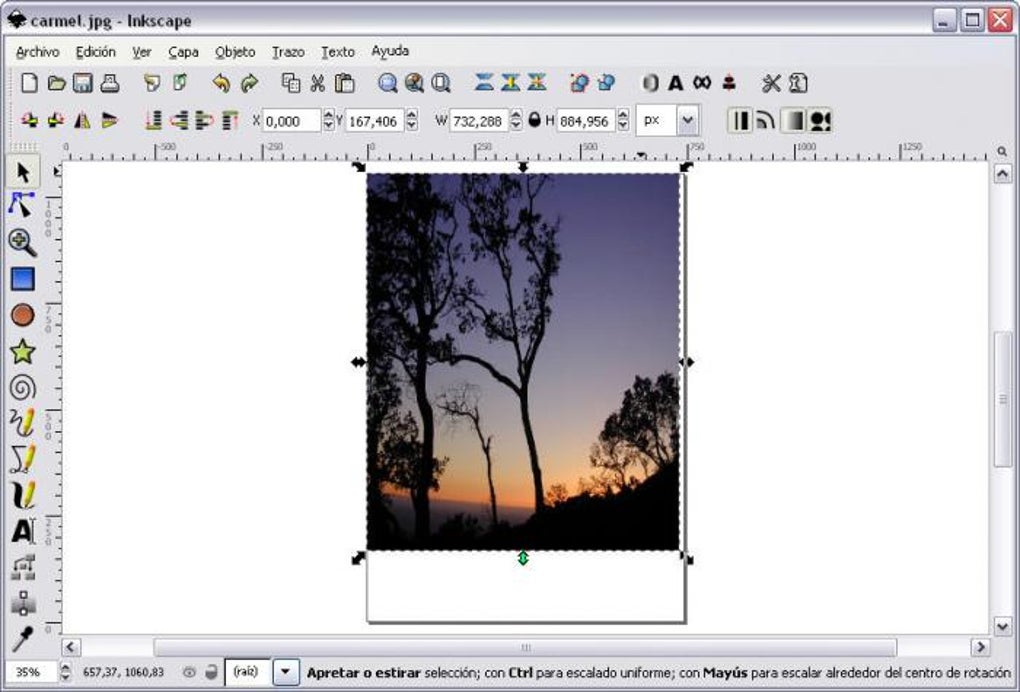
Basic workflow: Upon opening Inkscape, you are greeted with a clean workspace and a toolbar on the left. Create a new document via File → New, then use the shape tools (rectangle, ellipse, star) or the pen tool to start drawing. Layers can be managed through the Layers dialog (Shift+Ctrl+L). To export your work, choose File → Export PNG Image for raster output or File → Save As for vector formats.
Updates & maintenance: Inkscape checks for updates automatically on launch, but you can also manually download the latest version from the website. Because the software is open source, security patches are released promptly, and you can verify the installer’s checksum on the download page for added assurance.
Pros, Cons, FAQ & Conclusion
Pros
- Completely free with no hidden subscription fees.
- Professional‑grade vector tools comparable to Illustrator.
- Cross‑platform support (Windows, macOS, Linux).
- Extensive export options covering both vector and raster formats.
- Active community providing extensions, tutorials, and rapid bug fixes.
- HiDPI and 4K screen support ensures crisp UI on modern monitors.
Cons
- Learning curve can be steep for users new to vector editing.
- Performance may lag with extremely complex documents on low‑end hardware.
- Some Adobe‑compatible features (e.g., CMYK preview) require workarounds.
- Interface, while improving, still feels less polished than paid alternatives.
- Official support relies on community forums rather than dedicated help desk.
Frequently Asked Questions
Is Inkscape suitable for professional logo design?
Absolutely. Inkscape provides precise vector tools, gradient controls, and export options (SVG, PDF, EPS) that meet industry standards for logo creation and branding.
Can Inkscape handle raster images?
Yes. While its core strength is vector editing, Inkscape can import bitmap images (PNG, JPEG) and apply filters, tracing, or clipping directly within a vector document.
What file formats can I export from Inkscape?
Inkscape supports export to SVG, PNG, PDF, EPS, PS, AI, and even plain XML. You can also save as G-code for CNC or laser cutting via extensions.
Is there a way to automate repetitive tasks?
Yes. Inkscape offers scripting through Python extensions, and you can record macros using the built‑in extension manager to streamline batch operations.
How frequently are new versions released?
The development team releases major updates roughly twice a year, with minor bug‑fix patches in between. Version 1.4, for example, introduced a new filter gallery and modular grids.
Conclusion & Call to Action
Inkscape stands out as a robust, free alternative to costly vector design suites. Its rich feature set, cross‑platform availability, and thriving open‑source community make it a smart choice for designers ranging from students to seasoned professionals. While the learning curve and occasional performance hiccups may require patience, the payoff is a fully capable tool that lets you produce polished, scalable graphics without paying a subscription fee. Ready to elevate your design workflow? Download Inkscape today and start creating vector masterpieces that scale perfectly across any screen or print medium.








