
Screenshots

App details
- Version
- 2.52 | 2.51.1 | 2.50 | 2.49 | 2.23
- Size
- 2.86 MB
- Updated
- August 8, 2025
- Requires
- Mac OS X
- Language
- English
- License
- Free
- Developer
- Dominik Reichl
- Category
- Mac OS
About KeePass
Download KeePass – Free Secure Password Manager for Windows, Mac, Linux, Android, iOS
Overview
KeePass is a free and open‑source password manager that addresses the modern security need of storing, organizing, and retrieving dozens of complex passwords without the mental overhead of memorizing each one. Acting as a centralised “password homepage,” KeePass encrypts every entry in a secure database that can only be opened with a master password, a key file, or a combination of both. The encryption engine relies on industry‑standard AES‑256 and SHA‑256 algorithms, ensuring that the stored credentials remain unreadable to anyone without the correct unlocking credentials. Because the software is open‑source, its codebase is constantly reviewed by the security community, providing an additional layer of trust that commercial closed‑source alternatives may lack. Moreover, KeePass does not force users into a subscription model; the application is completely free to download, install, and use on any supported platform. Whether you are a solo professional juggling multiple client logins, a family looking to share safe access to streaming services, or an IT administrator needing a portable solution for on‑the‑go troubleshooting, KeePass offers a flexible, secure, and cost‑effective answer.
Key Features of KeePass
- Strong Encryption: Utilises AES‑256 and Twofish ciphers with SHA‑256 hashing for master key derivation.
- Portable Mode: No installation required; the entire application can run directly from a USB stick.
- Cross‑Platform Compatibility: Native Windows client, with community‑maintained ports for macOS, Linux, Android, and iOS.
- Database Export Options: Export password entries to .TXT, .CSV, .XML, or HTML for easy migration.
- Search & Categorisation: Instant search, custom groups, and tags for rapid retrieval of credentials.
- Auto‑Type Functionality: Simulate keyboard entry to automatically fill login forms without copying to clipboard.
- Two‑Factor Authentication Support: Integration with YubiKey, smart cards, or Windows Hello for an extra security layer.
- Plugin Ecosystem: Over 50 third‑party plugins extend functionality (browser integration, cloud sync, password generator enhancements).
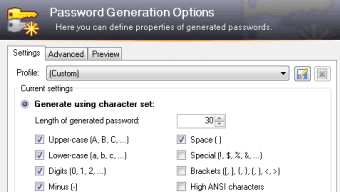
- Secure Password Generator: Built‑in generator creates complex passwords with custom length and character sets.
- Audit Tools: Detect weak, duplicate, or compromised passwords within the database.
Installation, Usage & Compatibility
Downloading and Installing KeePass
To begin, visit the official KeePass website and download the latest version for your operating system. For Windows users, the installer (.exe) or the portable zip package is available. macOS and Linux users typically rely on community ports such as KeePassXC, which follow the same file format and can be installed via Homebrew, Snap, or native package managers. Mobile users can find KeePass-compatible apps (e.g., Keepass2Android, Strongbox) in Google Play or the Apple App Store; these apps read the same .kdbx database format, ensuring seamless synchronization across devices.
First‑Time Setup
After launching KeePass, you will be prompted to create a new database. Choose a strong master password—ideally a passphrase of at least 12 characters with mixed case, numbers, and symbols. Optionally, generate a key file (a random binary file stored separately) for two‑factor protection. Store the key file on a different medium than the database (e.g., a USB stick) to mitigate risk if one component is compromised. Once the database is created, you can begin adding entries: click the “Add Entry” button, fill in the title, username, password, URL, and any custom notes. Use the “Group” feature to organise entries into categories like “Work”, “Personal”, or “Finance”.
Using KeePass in Daily Workflow
KeePass shines during routine logins. With the “Auto‑Type” feature, you can focus a login field on a website or application, press the assigned hotkey, and KeePass will type the username and password automatically. This avoids copying passwords to the clipboard, which can be intercepted by malicious software. For web browsers, install the official KeePassBrowser extension (available for Chrome, Firefox, and Edge) to trigger auto‑fill directly from the browser toolbar. If you need to share credentials securely with a teammate, export a read‑only copy of the relevant group, encrypt it with a separate password, and send it via a secure channel.
Supported Operating Systems
KeePass is natively supported on Windows 7 and newer, while macOS users can rely on the KeePassXC port (compatible with macOS 10.13+). Linux distributions such as Ubuntu, Fedora, and Arch provide KeePassXC in their official repos. Mobile versions are available for Android 5.0+ (Keepass2Android) and iOS 12.0+ (Strongbox). The portable version works on any Windows machine without admin rights, making it ideal for travel or shared workstations.
Pros and Cons of KeePass
Pros
- Completely free and open‑source – no hidden fees or subscription traps.
- Robust AES‑256 encryption ensures top‑tier data protection.
- Portable version eliminates the need for installation on shared PCs.
- Extensive plugin ecosystem allows customization for browsers, cloud sync, and more.
- Cross‑platform compatibility keeps your database accessible on Windows, macOS, Linux, Android, and iOS.
- Auto‑type and clipboard‑free login reduces exposure to keyloggers.
- Strong password generator and audit tools help maintain healthy credential hygiene.
Cons
- Official Windows client lacks native cloud sync; users must rely on third‑party plugins or external services.
- Interface can feel dated compared to commercial alternatives like 1Password or LastPass.
- Mobile apps are not developed by the KeePass team, leading to varying feature parity.
- Initial setup (master password and key file) may be intimidating for non‑technical users.
- Advanced features often require separate plugins, which can complicate the learning curve.
KeePass remains a benchmark for secure, free password management. Its encryption strength and portability make it ideal for privacy‑focused users, though the lack of built‑in cloud sync and a modern UI may deter those seeking a seamless, out‑of‑the‑box experience. Overall, the pros far outweigh the cons, especially for anyone comfortable with a bit of configuration.
Frequently Asked Questions
Is KeePass really free, or are there hidden costs?
KeePass is 100 % free and open‑source. There are no subscription fees, no premium tiers, and no hidden charges. All features are available to anyone who downloads the software.
Can I use KeeKee on multiple devices?
Yes. The database file (.kdbx) can be stored on a cloud service (e.g., Dropbox, Google Drive) or a USB stick, and any device with a KeePass-compatible client can open it using the same master password and key file.
How secure is the encryption used by KeePass?
KeePass uses AES‑256 and Twofish ciphers combined with SHA‑256 for key derivation, which are considered military‑grade encryption standards. When paired with a strong master password and optional key file, the database is extremely resistant to brute‑force attacks.
Do I need to install any additional software for mobile access?
Mobile access requires a third‑party app that can read .kdbx files, such as Keepass2Android for Android or Strongbox for iOS. These apps are free and maintain full compatibility with KeePass databases.
Can I share specific passwords with a colleague without exposing my entire database?
Yes. You can export a single group or entry to a separate .kdbx file, protect it with its own master password, and send it securely. KeePass also offers a “Database Export” feature that lets you create read‑only copies.
Conclusion – Secure Your Digital Life with KeePass Today
In a world where data breaches are increasingly common, a reliable password manager is no longer a luxury—it’s a necessity. KeePass delivers enterprise‑grade encryption, cross‑platform flexibility, and a truly free licensing model that makes it stand out among both commercial and open‑source competitors. While the interface may feel utilitarian and cloud sync requires a third‑party solution, these trade‑offs are more than compensated by the level of control and security you gain over your credentials. Whether you’re a seasoned IT professional, a small‑business owner, or an everyday internet user, KeePass provides a solid foundation for safeguarding your online identity.
Ready to take the first step toward a password‑free memory? Download KeePass now, create a strong master password, and start consolidating your credentials into a single, encrypted vault. Your digital security is only as strong as your weakest password—make KeePass your strongest defense.
Guides & Tutorials
How to install KeePass
- Click the Download button above.
- Once redirected, accept the terms and click Install.
- Wait for the KeePass download to finish on your device.
How to use KeePass
This software is primarily used for its core features described above. Open the app after installation to explore its capabilities.
User Reviews
No reviews yet. Be the first to share your experience.
You may also like
more
DiffusionBee
Generate unique art with this app DiffusionBee is a free and accessible artifici...

Excire Foto Light
Organize your snapshots Excire Foto Light is a free-to-download AI -powered phot...

Topaz Photo AI
Photo enhancement tool with AI Topaz Photo AI is a premium AI image editor for P...

anonymoX
Surf anonymously with Firefox anonymoX for Firefox is an add-on that gives you f...

DownThemAll
Download Them All! Downloading anything or everything on a webpage can be a labo...
.webp)
DuckDuckGo Privacy Essentials
A free program for Mac, by DuckDuckGo, Inc.. DuckDuckGo Privacy Essentials is a...
