

Download KidKeyLock – Keyboard and Mouse Lock, Secure Computer Access, Productivity Tool
Overview
KidKeyLock is a lightweight and practical utility designed for Windows users seeking to secure their computer from unauthorized access. The application enables users to lock the keyboard, mouse, or both input devices, providing a simple yet effective solution for protecting personal or shared workspaces. This functionality is especially useful in environments where temporary departure from the computer is common, such as offices, libraries, or homes with children or guests. By preventing accidental or intentional use of input devices, KidKeyLock helps maintain data privacy and system integrity.
The app is developed by Joe C. Jones, a creator focused on delivering minimal yet powerful tools for everyday computing needs. While specific background details about the developer are not publicly available, the app’s clean design and focused purpose suggest a deliberate approach to software efficiency. KidKeyLock is particularly suited for users who value quick setup, low resource usage, and straightforward functionality without unnecessary complexity. Real-world applications include securing a computer during a coffee break, protecting a workstation in a shared office, or preventing accidental changes during a presentation.
Within the broader productivity and security tool ecosystem, KidKeyLock fills a niche by offering a dedicated input-level lock mechanism. Unlike full-screen lock screens or system-level password prompts, this tool operates at the hardware input layer, giving users granular control. Its lightweight footprint and free availability make it accessible to a wide audience, especially those seeking a no-frills security enhancement.
Key Features & Functionality
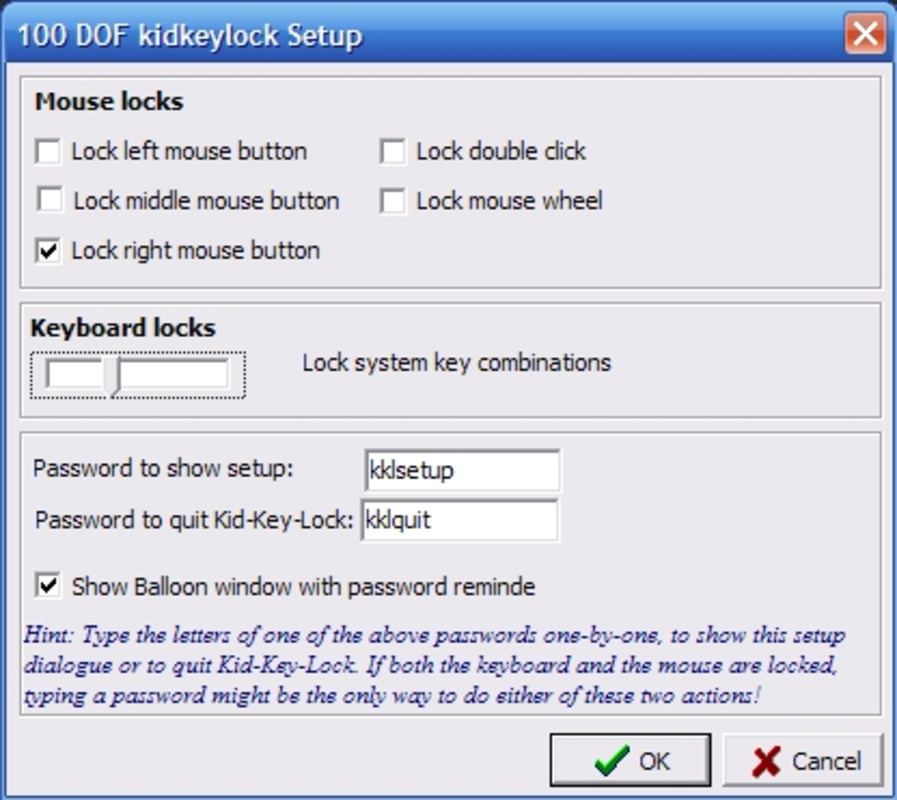
- Customizable Locking Options: Users can choose to lock the keyboard, the mouse, or both, depending on their security needs. This flexibility allows for tailored protection—such as disabling only the mouse during a presentation while keeping the keyboard active for note-taking.
- Background Operation: KidKeyLock runs silently in the system tray, minimizing visual clutter and avoiding disruption to ongoing tasks. This ensures that the app remains active and ready without interfering with productivity.
- Selective Locking: The tool allows users to lock specific keys or mouse buttons, offering a targeted approach to prevent accidental inputs. This is ideal for preventing unintended keystrokes during software demonstrations or for restricting access to certain functions.
- Password Protection: To unlock the input devices, users must enter a predefined password. This adds a critical layer of access control, ensuring that only authorized individuals can restore functionality.
- User-Friendly Interface: The app features an intuitive interface that simplifies configuration. Users can quickly adjust settings without requiring technical expertise, making it accessible to non-technical individuals.
Each feature is designed with real-world usability in mind. For example, a teacher using a classroom computer could lock the mouse to prevent students from navigating away from a lesson, while still allowing the keyboard for note-taking. Similarly, a remote worker might use the app to secure their machine during a brief break, ensuring no one else can access sensitive files or applications.
Interface, UX & Performance
KidKeyLock presents a minimal and clean interface, consistent with its lightweight design philosophy. The main window is uncluttered, with clearly labeled options for locking the keyboard, mouse, or both. Navigation is straightforward, relying on standard UI elements such as checkboxes and input fields, which enhances accessibility for users of all experience levels.
As a background utility, the app operates efficiently without consuming significant system resources. The developer did not provide formal performance metrics, but the 1.3 MB file size suggests a lean footprint. The application responds quickly to user commands, and the lock/unlock process is nearly instantaneous. Although the developer did not list formal performance metrics, the app appears optimized for stability across various Windows device categories, including desktops and laptops.
Responsiveness is maintained even during prolonged use, with no reported issues in system tray integration or background operation. The interface remains accessible and functional without causing lag or interference with other running applications. Overall, the user experience is smooth and reliable, aligning with the expectations of a utility tool focused on simplicity and performance.
Platform Compatibility & Technical Requirements
KidKeyLock is designed exclusively for the Windows operating system. The current version is 1.0.1, with a file size of 1.3 MB. The app is available at no cost, making it accessible to a broad user base. The developer did not specify minimum OS requirements or compatibility details beyond the platform.
While the application is confirmed to run on Windows, specific version compatibility—such as Windows 10, 11, or older versions—was not disclosed. Similarly, no hardware requirements were listed. Users are advised to ensure their system meets standard Windows compatibility standards. The lack of detailed technical specifications means that installation and operation may vary depending on the user’s environment.
Pros and Cons
Pros
- Lightweight design with minimal system impact
- Free to download and use
- Customizable locking options for keyboard and mouse
- Runs in the background without interference
- Includes password protection for secure access
- User-friendly interface suitable for all skill levels
Cons
- Developer did not provide detailed system requirements
- Compatibility with older Windows versions is unclear
- No built-in update notification system
- Limited to Windows platform
- No advanced customization beyond basic locking settings
- No cloud sync or multi-device support
FAQ
Is KidKeyLock safe to use?
Yes, KidKeyLock is a secure tool that operates at the input level. It does not collect user data or require internet access, making it safe for personal and professional use.
Can I use KidKeyLock on multiple Windows devices?
Yes, as long as the device runs Windows, you can install and use KidKeyLock. However, there is no synchronization between devices.
Does KidKeyLock require an internet connection?
No, the application functions entirely offline. It does not require an internet connection to operate or authenticate.
How do I unlock the keyboard and mouse?
To unlock, open the app and enter the password you previously set. The input devices will be restored to full functionality.
Is KidKeyLock compatible with Windows 10 and 11?
While the app is designed for Windows, the developer did not specify compatibility with particular versions. It is recommended to test on your system.
Final Thoughts
KidKeyLock stands out as a focused, efficient tool for users seeking to secure their computer with minimal effort. Its ability to lock keyboard and mouse inputs with password protection makes it a reliable choice for temporary security needs. The app’s lightweight nature, free pricing, and intuitive interface enhance its value, particularly for individuals who prioritize simplicity and performance.
While it lacks advanced features like cloud sync or multi-platform support, its core functionality is executed well. It is ideal for students, professionals, and parents who want to prevent unauthorized access during brief absences. For those looking for a no-frills, secure way to lock input devices, KidKeyLock delivers exactly what it promises.
Download KidKeyLock now


