
Download LibreWolf – Privacy‑Focused Firefox Fork, Free Secure Browser
Overview
LibreWolf is a free, open‑source web browser that takes the solid foundation of Mozilla Firefox and strips away everything that isn’t essential for privacy and speed. Developed by a dedicated community of privacy‑conscious contributors, LibreWolf removes telemetry, disables data‑collecting features, and ships with built‑in privacy tools such as uBlock Origin and a selection of privacy‑first search engines. The result is a lean, fast, and secure browsing experience that feels familiar to Firefox users while offering a higher level of protection against tracking, fingerprinting, and malicious content. Because it is a fork, LibreWolf inherits Firefox’s robust rendering engine, WebExtensions support, and cross‑platform compatibility, but it deliberately avoids the extensive customization options that can bloat the original browser. This makes LibreWolf an attractive choice for users who want a “set‑and‑forget” browser that works out of the box without requiring constant tweaking. The project’s open‑source nature means that security patches and feature updates are rolled out regularly by volunteers, ensuring that the browser stays current with the latest web standards and privacy best practices. Whether you’re a journalist protecting sources, a developer testing privacy‑sensitive applications, or simply a everyday internet user tired of invasive ads and trackers, LibreWolf offers a compelling blend of speed, simplicity, and security—all at no cost.
Key Features
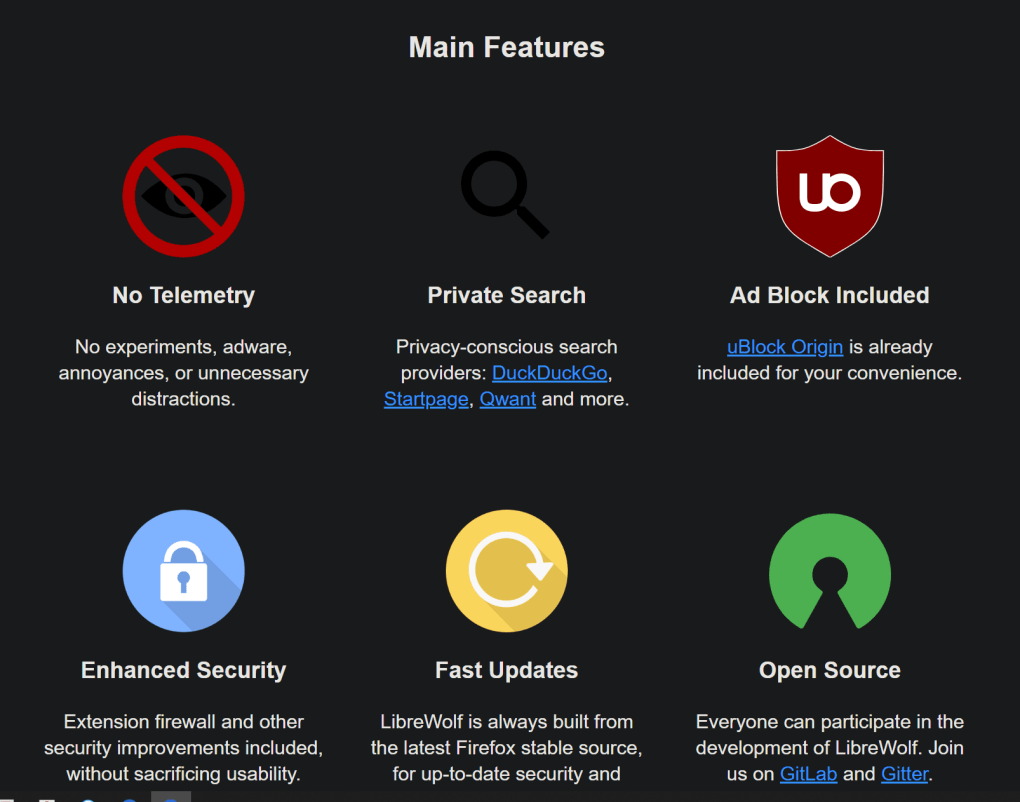
- Built‑in uBlock Origin: Ad‑blocking and tracker‑blocking are activated by default, removing the need for additional extensions.
- Telemetry‑free design: All telemetry and data‑sending mechanisms present in standard Firefox are disabled, guaranteeing that your browsing habits stay private.
- Privacy‑focused search engines: Pre‑configured options such as DuckDuckGo, Searx, Qwant, and Startpage let you choose a search provider that does not log your queries.
- Enhanced security settings: Hardened TLS defaults, strict cookie handling, and anti‑fingerprinting measures are turned on from the first launch.
- Automatic updates via community repo: Regular releases keep the browser compatible with the latest web standards and security patches.
- Lightweight footprint: By removing optional Firefox features (like Pocket, built‑in PDF viewer extensions, and extra UI customizations), LibreWolf consumes less RAM and CPU.
- Cross‑platform support: Available for Windows, macOS, Linux, and even ARM‑based devices, ensuring a consistent privacy experience across all your hardware.
- Open‑source transparency: All source code is publicly available on GitHub, allowing independent audits and community contributions.
These features combine to create a browser that is not only fast but also respects the user’s right to privacy. Because LibreWolf is a fork, it retains compatibility with the vast ecosystem of Firefox extensions, meaning you can still add tools you love—just remember that many extensions may re‑introduce tracking, so choose wisely. The default configuration is deliberately opinionated: it prioritizes privacy over visual flair, which is why you’ll notice fewer UI bells and whistles compared to the standard Firefox release. However, the simplicity is intentional; it reduces the attack surface and ensures that the browser remains stable even on older hardware. If you value a clean, secure, and privacy‑centric web experience without the need for constant manual hardening, LibreWolf’s feature set is purpose‑built for you.
Installation, Usage & Compatibility
Getting LibreWolf up and running is straightforward on all major operating systems. Below are step‑by‑step instructions for Windows, macOS, and Linux.
Windows
- Visit the official LibreWolf download page and click the Windows installer (.exe) that matches your system architecture (64‑bit recommended).
- Run the installer and follow the wizard prompts. The installer will automatically place LibreWolf in the
Program Filesdirectory and add a shortcut to the Start menu. - During installation you can choose to set LibreWolf as the default browser; this is optional but useful if you want all links to open in the privacy‑focused environment.
- After installation, launch LibreWolf. The first run will display a brief “Welcome” screen that confirms privacy settings such as telemetry disabled and uBlock Origin enabled.
macOS
- Download the macOS .dmg package from the official site.
- Open the .dmg file and drag the LibreWolf icon into your
Applicationsfolder. - On first launch, macOS may warn you that the app is from an unidentified developer. Go to System Preferences → Security & Privacy → General and click “Open Anyway”.
- LibreWolf will start with privacy defaults already applied. You can pin it to the Dock for quick access.
Linux
LibreWolf is distributed as a flatpak, snap, and native package for several distributions (Arch, Debian, Ubuntu, Fedora). The most universal method is via Flatpak:
- Ensure Flatpak is installed (
sudo apt install flatpakfor Debian‑based,sudo dnf install flatpakfor Fedora). - Add the Flathub repository if you haven’t already:
flatpak remote-add --if-not-exists flathub https://flathub.org/repo/flathub.flatpakrepo. - Install LibreWolf:
flatpak install flathub io.gitlab.librewolf-community. - Launch with
flatpak run io.gitlab.librewolf-communityor find it in your desktop menu.
Usage Tips
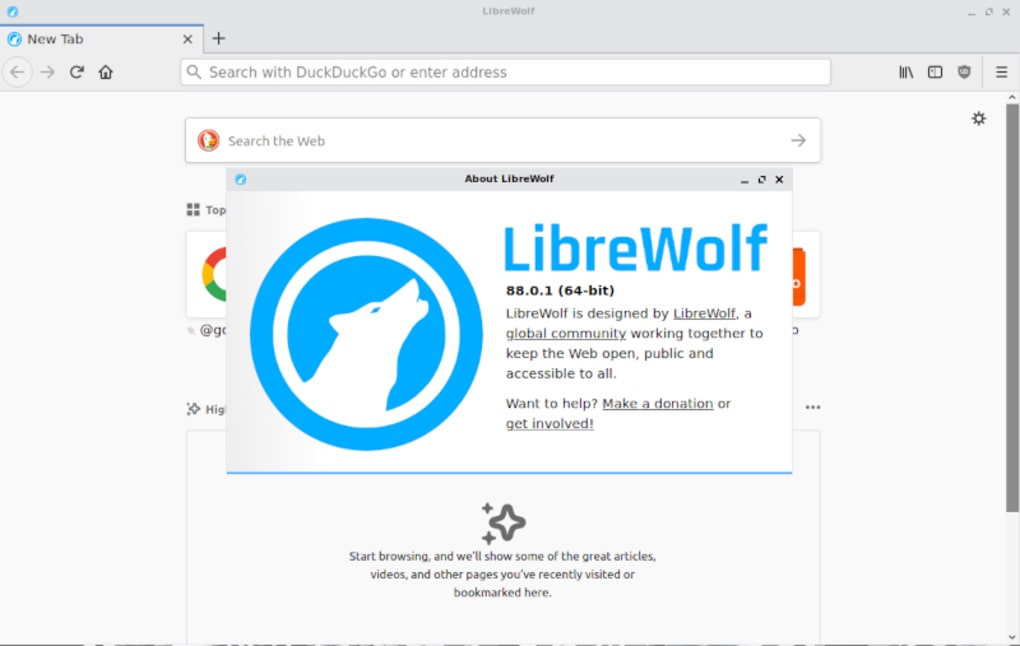
Once LibreWolf is installed, you’ll notice a minimal toolbar and the presence of the uBlock Origin icon on the right side. To customize the built‑in ad‑blocker, click the icon and access the dashboard where you can whitelist sites you trust. The search bar defaults to DuckDuckGo, but you can change it in Settings → Search → Manage Search Engines. Because telemetry is disabled, you won’t see the “Send usage data?” prompts that appear in Firefox. For power users, the about:config page is still accessible, allowing fine‑grained tweaks—but remember that changing settings may re‑introduce privacy‑reducing behaviors, so only modify what you understand.
LibreWolf runs on Windows 10/11, macOS 10.15+ (Catalina and later), and virtually any modern Linux distribution that supports Flatpak, Snap, or native packages. ARM‑based devices (including Raspberry Pi and Apple Silicon) are also supported via the appropriate package format.
Pros and Cons
Pros
- Privacy‑first out of the box: No telemetry, built‑in uBlock Origin, and default use of privacy‑focused search engines.
- Fast and lightweight: By removing non‑essential Firefox features, LibreWolf uses less RAM and CPU, resulting in quicker page loads.
- Regular community updates: Security patches and new features are released frequently by a global group of contributors.
- Cross‑platform compatibility: Available for Windows, macOS, Linux, and ARM devices, ensuring a consistent experience across hardware.
- Open‑source transparency: Source code is publicly audited, fostering trust and allowing developers to contribute enhancements.
- Firefox extension ecosystem: Retains compatibility with most Firefox add‑ons, giving users flexibility while still maintaining a privacy baseline.
Cons
- Reduced customizability: Many of Firefox’s UI tweaks and experimental features are stripped away, which may disappoint power users.
- Limited built‑in tools: Features such as Pocket, built‑in PDF viewer extensions, and certain accessibility options are not included.
- Potential extension conflicts: Some third‑party extensions may re‑enable tracking or telemetry, requiring careful selection.
- Smaller user base: Compared to mainstream browsers, community support and troubleshooting resources are less extensive.
- Occasional lag on first launch: Because the browser loads a full set of privacy filters at startup, the initial launch may be slightly slower on very old hardware.
Frequently Asked Questions
Is LibreWolf completely free to use?
Yes, LibreWolf is 100 % free and open‑source. You can download, install, and use it without any license fees or hidden costs.
How does LibreWolf differ from regular Firefox?
LibreWolf removes telemetry, disables data‑collecting services, and ships with built‑in ad‑blocking and privacy‑focused search engines. It also strips out optional UI features to keep the browser lightweight and faster.
Can I install Chrome extensions in LibreWolf?
LibreWolf supports Firefox WebExtensions, which are compatible with many Chrome extensions. However, extensions that rely on Chrome‑specific APIs may not work.
Is the browser regularly updated?
Yes. The LibreWolf community releases updates in line with Firefox’s release cycle, and security patches are applied promptly via the community repositories.
How do I switch the default search engine?
Open Settings → Search → Manage Search Engines. From there you can add, remove, or set any of the pre‑installed privacy‑focused engines (DuckDuckGo, Searx, Qwant, etc.) as the default.
Conclusion & Call to Action
LibreWolf stands out as a solid, privacy‑first alternative for anyone who wants the reliability of Firefox without the baggage of telemetry and unnecessary features. Its built‑in ad‑blocker, default use of privacy‑focused search engines, and regular community updates make it a trustworthy choice for both casual users and professionals who need a secure browsing environment. While power users may miss some of Firefox’s extensive customization options, the trade‑off results in a faster, leaner, and more secure browser that respects your data from the moment you install it. If you prioritize security, speed, and open‑source transparency, LibreWolf is definitely worth a try. Download LibreWolf today and experience a cleaner, safer web experience without compromising on performance.








