
Download LifeShaker – Colorful To‑Do List App for Mac
Overview – A Fresh Take on To‑Do Lists for macOS
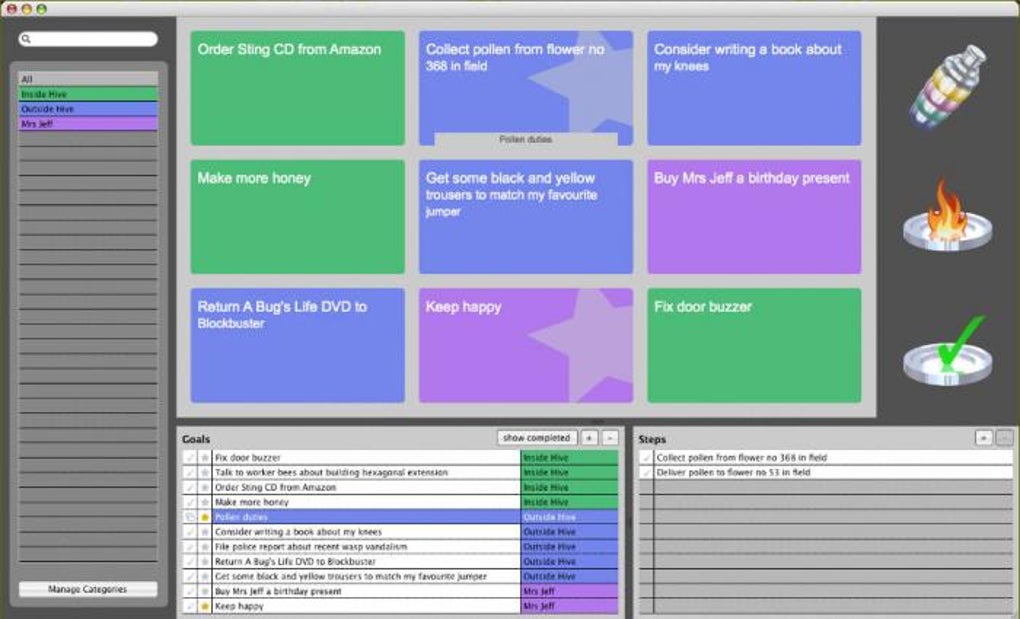
LifeShaker reimagines the classic to‑do list by borrowing the visual language of flashcards. Designed exclusively for Mac, the app splits its window into three intuitive panels: a left‑hand column that houses your categories, a top grid that displays each goal as a card, and a bottom pane that reveals the steps behind every objective. Adding a new task is as simple as typing a title and hitting Enter; the entry instantly populates the grid, keeping your workspace tidy and visually engaging.
The interface is deliberately minimal, allowing you to focus on ideas rather than navigation clutter. LifeShaker also spices up routine actions with a variety of sound effects, turning mundane check‑offs into satisfying auditory cues. While the app is generally stable, a few users—including the reviewer—have reported occasional crashes when inserting many steps at once. The learning curve can feel a bit steep for newcomers because the app offers limited onboarding guidance. Nevertheless, if you enjoy the tactile feel of flashcards and prefer a colorful, grid‑based representation of tasks, LifeShaker delivers a unique and refreshing experience.
From personal productivity enthusiasts to students juggling multiple projects, LifeShaker aims to make goal tracking both fun and functional. Its design philosophy centers on visual clarity, rapid entry, and an engaging user experience that sets it apart from traditional list‑making software. Whether you’re planning a weekly grocery run, outlining a complex software development sprint, or simply organizing daily habits, LifeShaker gives you a fresh canvas to shake up your productivity routine.
Key Features that Make LifeShaker Stand Out
- Flashcard‑Style Grid View: Each goal appears as a colorful card in a responsive grid, offering an at‑a‑glance overview of all tasks.
- Three‑Panel Layout: Categories on the left, grid of goals on top, and detailed steps at the bottom keep information organized without overwhelming the user.
- Instant Task Creation: New items are added with a single keystroke and appear immediately in the grid, eliminating lag and reducing friction.
- Custom Sound Effects: Different actions—such as completing a step or moving a card—trigger pleasant audio cues that reinforce progress.
- Drag‑and‑Drop Reordering: Rearrange categories, goals, or steps with a simple drag, making it easy to prioritize on the fly.
- Rich Color Themes: Choose from a palette of preset themes or customize card colors to match personal aesthetic or project branding.
- Export & Import Options: Back up your task database or migrate data between devices using JSON or CSV formats.
- Search & Filter: Quickly locate tasks by keyword, category, or status, ensuring you never lose track of a critical step.
- Keyboard Shortcuts: Power users can navigate, create, and edit tasks without leaving the keyboard, boosting efficiency.
- Minimalist Design Philosophy: No intrusive ads or pop‑ups; the focus stays on your goals.
Beyond the headline features, LifeShaker incorporates subtle usability enhancements. The bottom pane automatically expands to show the full description of a selected goal, while the left sidebar can be collapsed to free up screen real estate. The app also supports macOS’s native Dark Mode, automatically adjusting colors for a comfortable night‑time workflow. Together, these features create a balanced environment where creativity meets structure, helping users maintain momentum on both short‑term errands and long‑term ambitions.
Because the program is built with macOS frameworks, it integrates seamlessly with System Preferences, allowing users to grant notifications, enable iCloud sync, and set privacy permissions without leaving the Settings app. While LifeShaker is not a cloud‑first solution, the optional iCloud sync ensures your flashcard boards stay consistent across multiple Macs, making it a practical choice for professionals who work on both a desktop and a laptop.
Installation, Usage & Compatibility – Getting Started on macOS
Step‑by‑Step Installation Guide
Downloading LifeShaker is straightforward. Visit the official website or the Mac App Store, click the Download button, and the installer (.dmg) will begin downloading. Once the file appears in your Downloads folder, double‑click to mount the disk image. Drag the LifeShaker icon into your Applications folder, then eject the mounted volume. macOS may prompt you to confirm that you want to open an app from an unidentified developer; simply click Open after reviewing the security warning.
After the first launch, macOS will ask for permission to access your files and send notifications. Granting these permissions is recommended for the best experience—especially if you intend to use the export/import feature or enable reminders. LifeShaker will then present a brief tutorial overlay that highlights the three main panels. Although the tutorial is concise, users are encouraged to explore the Help menu for a deeper dive into keyboard shortcuts and customization options.
Everyday Usage Tips
To add a new category, click the + button at the bottom of the left sidebar and type a name (e.g., “Work,” “Personal,” “Fitness”). Within any category, press Cmd + N or click the New Goal button at the top of the grid. Enter the goal title, hit Enter, and the card appears instantly. To break a goal into actionable steps, select the card, then type a step in the bottom pane and press Enter. You can reorder steps by dragging them up or down, and mark them complete by clicking the checkbox or using the Space key.
For power users, the Search field at the top right filters cards in real time, while the Filter dropdown lets you view only unfinished tasks, completed items, or tasks due today. The Export function, found under the File menu, creates a JSON file you can store on an external drive or share with teammates. Importing works the same way—simply choose the JSON file, and LifeShaker will merge the data with your existing boards.
Compatibility Details
LifeShaker is built exclusively for macOS 10.15 (Catalina) and later, including macOS Ventura and Sonoma. The application runs natively on Apple Silicon (M1, M2) as well as Intel‑based Macs, delivering smooth performance even when handling large numbers of cards and steps. Because the app leverages modern macOS APIs, users can expect consistent behavior across all supported hardware, with automatic Dark Mode adaptation and Retina‑ready graphics.
While LifeShaker does not have a Windows, Android, or iOS version at this time, its focus on a single platform allows the developers to fine‑tune the user experience for Mac users. For teams that need cross‑platform collaboration, the export/import feature serves as a bridge, enabling data exchange with other task‑management tools that accept CSV or JSON formats.
Pros, Cons & Overall Verdict
What Works Well
- Visually engaging flashcard grid that makes task management feel like a game.
- Instant addition of goals keeps workflow fast and uninterrupted.
- Customizable sound effects add satisfying feedback for completed steps.
- Drag‑and‑drop reordering and keyboard shortcuts boost productivity for power users.
- Full Dark Mode support and Retina‑optimized graphics provide a polished macOS experience.
- Export/Import functionality offers a simple backup solution and cross‑platform data sharing.
Areas for Improvement
- Occasional crashes when adding a large number of steps can disrupt workflow.
- Limited onboarding guidance may leave new users confused about the three‑panel layout.
- No native Windows, Android, or iOS counterpart restricts usage to Mac environments.
- Advanced features such as recurring tasks or built‑in calendar sync are missing.
- Pricing model (free trial with paid upgrade) could be clearer on the website.
LifeShaker brings a fresh, visual spin to the classic to‑do list, especially for macOS power users who appreciate a flashcard‑like interface. While a few stability quirks and a lack of cross‑platform support keep it from being perfect, the app’s design, speed, and engaging sound cues make it a compelling choice for anyone looking to “shake” up their productivity workflow.
Frequently Asked Questions
Is LifeShaker free to download?
LifeShaker offers a free trial with limited features. To unlock the full feature set—including unlimited categories, export/import, and custom sound packs—you’ll need to purchase the Pro license, which is a one‑time payment.
Can I sync LifeShaker across multiple Macs?
Yes. By enabling iCloud sync in the app’s preferences, your boards and cards will stay consistent across any Mac signed into the same Apple ID.
Does LifeShaker support recurring tasks?
Currently, the app does not include native recurring task functionality. Users can work around this by duplicating a task manually each time it repeats, or by using the export/import feature to re‑import a template.
Is there a keyboard shortcut to mark a step as complete?
Yes. When a step is selected in the bottom pane, pressing Space toggles its completion status, providing a quick way to check off items without reaching for the mouse.
Will LifeShaker run on macOS Ventura?
Absolutely. LifeShaker is fully compatible with macOS 10.15 (Catalina) and newer, including Ventura and Sonoma, and it runs natively on both Intel and Apple Silicon Macs.
Conclusion – Should You Download LifeShaker?
LifeShaker delivers a vibrant, flashcard‑inspired approach to task management that stands out in a crowded market of traditional to‑do list apps. Its three‑panel design, instant card creation, and engaging sound effects make daily planning feel interactive rather than burdensome. While occasional stability hiccups and the lack of a Windows or mobile version may deter some users, the overall experience is polished, especially for Mac enthusiasts who value visual organization and swift keyboard workflows.
If you’re looking for a free, secure, and aesthetically pleasing way to organize goals on macOS, LifeShaker is worth a download. The free trial lets you explore core features, and upgrading to the Pro version unlocks unlimited categories, custom sounds, and advanced export options. Take advantage of the iCloud sync to keep your cards up‑to‑date across devices, and enjoy the satisfaction of checking off steps with a simple tap of the space bar.
Ready to shake up your productivity? Download LifeShaker now and experience a fresh, colorful way to manage your tasks on Mac.








