User views
See views that show you how work is distributed across your team.
Overview
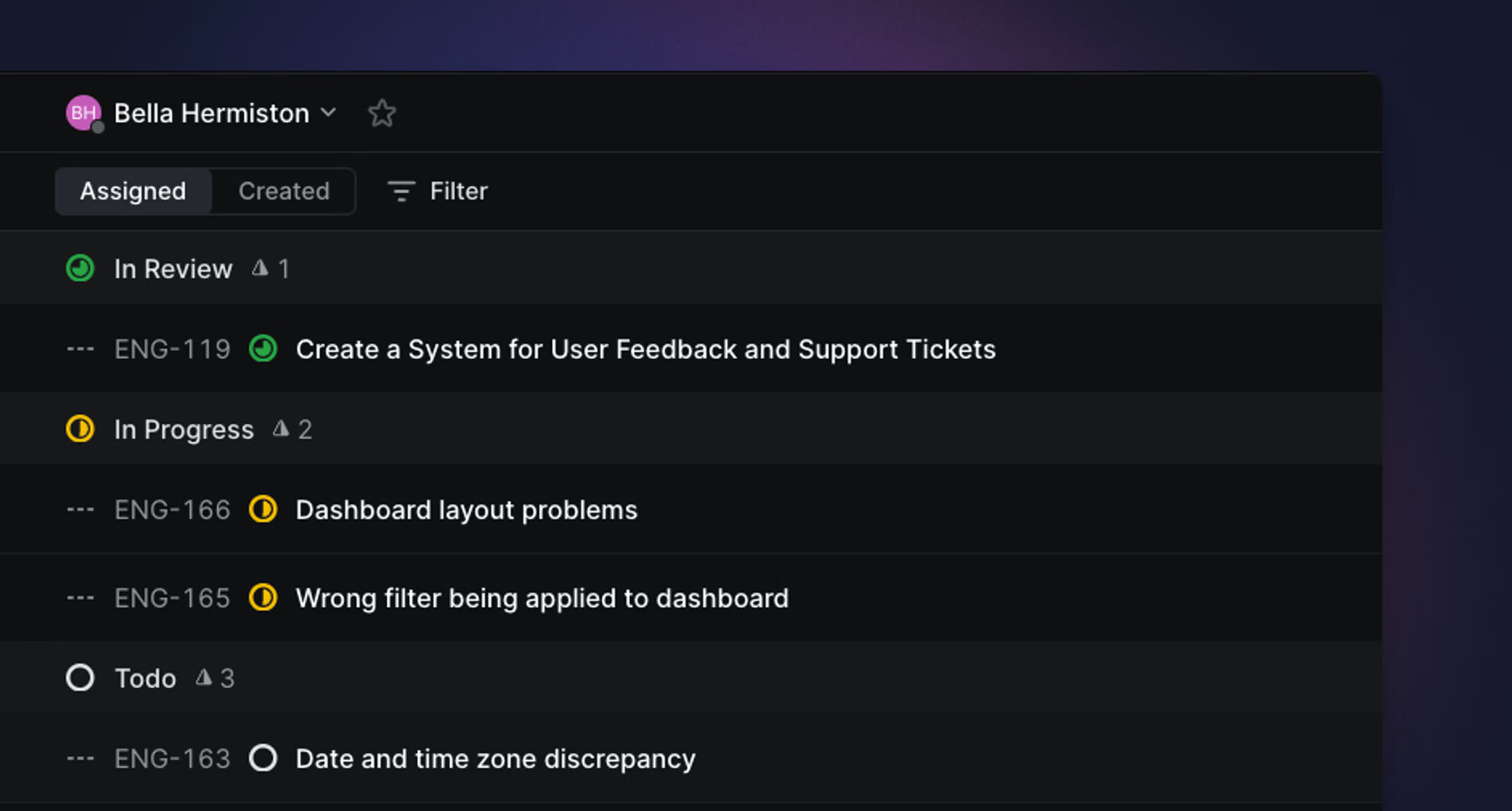
You’ll often want to create a view that shows issues assigned to one or more members of your team. There are a few ways to see this in Linear: user profiles, assignee grouping, filter by assignee, and the cycle sidebar.
O then U to open a user profile
- Click your avatar to view your profile
- Click on a user’s name in activity items to view their profile
open user to open user profile
Basics
User profiles
To see a view of all issues assigned to a specific user, you can open up a user profile. The easiest way to do this is with the shortcut O then U, which will show a list of all users in your workspace. Select a user to open their profile, then use the Assigned tab to see their issues. You can also access user profiles by clicking on a user avatar in the activity feed.
Custom Views
If you’d like to have a view show the assigned issues of multiple users, or if you’d like to change the view’s parameters, Custom Views are more flexible than user profiles and are the recommended next step for multi-user use cases.
Filter and Group
Most views support grouping by assignee. If you want to see distribution of remaining work in a project for example, you can group by assignee and then filter by Started and Unstarted statuses.
From any cycle view, use Cmd/Ctrl I to open a sidebar that shows the cycle details, graph, and distribution of work across the team. Next to each user’s name, you’ll see their issue count or estimate total for that cycle, along with progress and completion information. Click a specific user’s name to filter the list or board view down to their issues only.
