
Screenshots
App details
- Version
- 1.3
- Updated
- May 23, 2023
- Requires
- Mac | Other platforms (1)
- Language
- English
- License
- Full
- Developer
- Li Wenhui
- Category
- Mac OS
About Mail
Download Mail – Unofficial Outlook Email Client for Mac, Free & Secure Sync
Overview
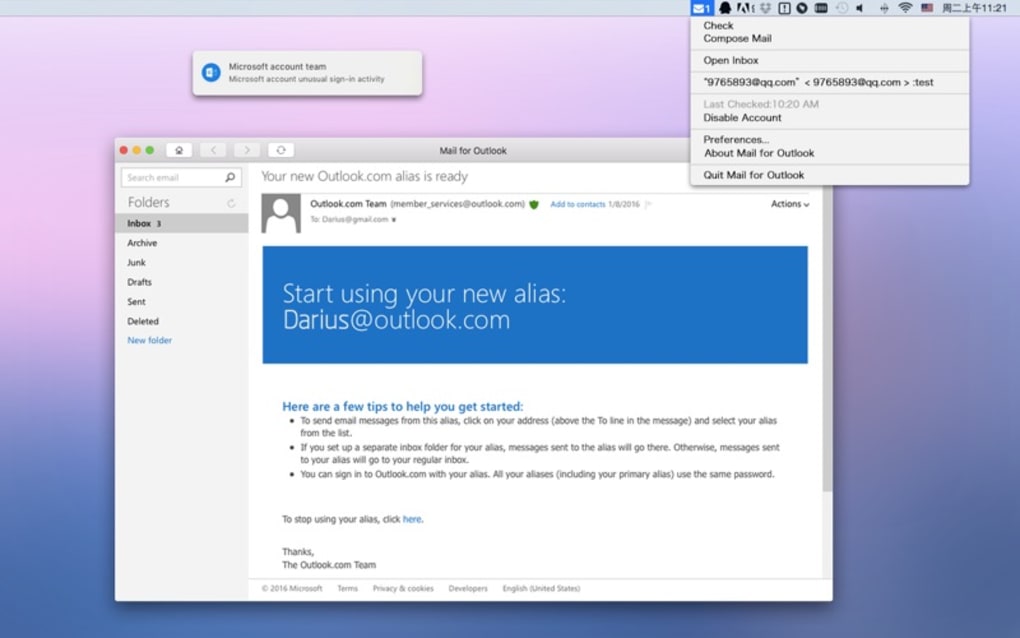
Mail is an unofficial, third‑party email client that brings Microsoft Outlook and Hotmail accounts to macOS without the need for a browser‑based login. While Microsoft’s native Outlook app is built for Windows, Mac users are often forced to rely on Outlook Web Access, which can be slower and less integrated with the desktop environment. Mail for Outlook fills that gap by offering a native macOS experience that synchronises multiple Microsoft email accounts, lets you read, delete, archive, and organise messages, and provides a simple interface for adding or removing accounts. Because it is not an official Microsoft product, some advanced features found in the official Outlook client—such as deep integration with Office 365 calendars, task management, and the exact visual styling—are missing. However, for users who need a quick, secure, and free way to access Outlook, Hotmail, or Exchange‑based mailboxes directly from the Mac desktop, Mail delivers a practical solution. The app is lightweight, respects macOS security standards, and updates automatically to keep your credentials safe. In short, Mail is a convenient bridge between Microsoft’s email ecosystem and Apple’s operating system, offering the essential functions you expect from a desktop email client while keeping the setup process straightforward.
Key Features
- Multi‑Account Synchronisation: Connect any number of Outlook, Hotmail, or Exchange accounts and switch between them seamlessly.
- Native macOS Interface: Utilises macOS design conventions for a familiar look and feel, including Dark Mode support.
- Secure OAuth Authentication: Uses Microsoft’s OAuth 2.0 flow to protect your credentials; no passwords are stored locally.
- Full Email Actions: Read, reply, forward, delete, archive, and flag messages just like you would in the official client.
- Instant Account Management: Add, remove, or edit accounts from a dedicated settings pane without restarting the app.
- Background Sync: Automatic background fetching keeps your inbox up‑to‑date without manual refresh.
- Search & Filters: Powerful search bar and customizable filters let you locate messages quickly.
- Attachment Handling: Drag‑and‑drop attachments into messages and preview common file types directly in the app.
- Free Updates: Regular updates are delivered through the Mac App Store, ensuring compatibility with the latest macOS releases.
- Lightweight Footprint: Consumes minimal system resources, making it ideal for older Mac hardware.
Installation, Usage & Compatibility
Step‑by‑Step Installation
Getting Mail up and running on your Mac is designed to be as simple as possible. Follow these steps:
- Open the Mac App Store and search for “Mail for Outlook”.
- Click the Get button, then Install App. The download size is under 50 MB, so it finishes quickly even on slower connections.
- Once the download completes, launch the app from the Applications folder or the Launchpad.
- The first‑time launch presents a welcome screen that prompts you to add an account.
- Select the type of Microsoft account you wish to connect (Outlook.com, Hotmail, or Exchange). You will be redirected to Microsoft’s secure OAuth login page.
- Enter your credentials, grant the requested permissions, and click Allow. Mail stores only an access token, not your password.
- After successful authentication, the app synchronises your mailbox. You can now start reading and sending emails.
Daily Usage Tips
Once installed, the workflow mirrors that of any native macOS mail client. The left sidebar displays all connected accounts, each expandable to reveal folders such as Inbox, Sent, Drafts, and custom folders you have created on the server. Dragging an email from one folder to another updates the server instantly. Use the search bar at the top to query across all accounts or limit the scope to a single mailbox. The toolbar offers quick actions: reply, reply‑all, forward, and archive. To compose a new message, click the New Message button, choose the sending account from a dropdown, and start typing. Attachments can be added via the paperclip icon or by dragging files directly into the compose window.
Compatibility (itemprop="operatingSystem")
Mail is built specifically for macOS 10.14 (Mojave) and later. It takes advantage of Apple’s native frameworks, ensuring smooth performance on both Intel‑based and Apple Silicon (M1, M2) Macs. The app is not available for Windows, Android, or iOS, as its primary purpose is to fill the gap left by Microsoft’s lack of a native Outlook client on macOS. System requirements are modest: 2 GB RAM, 200 MB free disk space, and an active internet connection for synchronisation. Because the app relies on Apple’s sandboxing technology, it operates within a secure environment, preventing unauthorized access to your data.
Pros, Cons & Frequently Asked Questions
Pros
- Free to download and use.
- Native macOS experience with Dark Mode support.
- Secure OAuth authentication, no password storage.
- Supports multiple Outlook/Hotmail accounts simultaneously.
- Lightweight and fast, even on older Macs.
- Regular free updates via the Mac App Store.
Cons
- Lacks deep integration with Office 365 calendar and tasks.
- Interface does not exactly mimic Microsoft’s Outlook design.
- No official Microsoft support; reliance on third‑party developer.
- Advanced enterprise features (e.g., mail rules, shared mailboxes) are limited.
FAQ (itemscope itemtype="https://schema.org/FAQPage")
Is Mail for Outlook completely free?
Yes, the app is free to download from the Mac App Store and does not require any subscription. All core features, including multi‑account sync and background fetching, are available at no cost.
Can I use Mail with an Office 365 business account?
Absolutely. Mail supports Exchange‑based accounts, which includes Office 365 business mailboxes. You’ll be prompted for your corporate credentials during the OAuth flow, and the app will sync your inbox, sent items, and folders.
Does the app store my password locally?
No. Mail uses Microsoft’s OAuth 2.0 authentication, which means only an access token is saved in the macOS Keychain. Your actual password never touches the app’s code or storage.
How often does Mail sync new messages?
The app checks for new mail every 5 minutes by default, but you can adjust the sync interval in the Preferences pane. Push notifications are also supported when new mail arrives.
Will Mail work on my new Apple Silicon Mac?
Yes. Mail is a universal binary that runs natively on both Intel and Apple Silicon Macs, delivering the same performance and feature set on both architectures.
Conclusion & Call to Action
For Mac users who need a reliable, free, and secure way to access Outlook, Hotmail, or Exchange mailboxes without opening a browser, Mail offers a solid alternative. While it may not replicate every nuance of Microsoft’s official Outlook client, its native macOS design, multi‑account support, and OAuth‑based security make it a practical choice for everyday email management. The lightweight footprint ensures that even older Macs stay responsive, and regular updates keep the app compatible with the latest macOS releases. If you’re looking for a quick, non‑browser solution that respects your privacy and delivers essential email functions, give Mail a try today.
Download Mail now and start synchronising your Microsoft email accounts on macOS instantly.
Mail delivers a clean, native experience for Outlook users on Mac, with secure authentication and reliable syncing. The lack of deep Office 365 integration keeps it from being a perfect replacement, but for most personal and small‑business scenarios it works beautifully.
Guides & Tutorials
How to install Mail
- Click the Download button above.
- Once redirected, accept the terms and click Install.
- Wait for the Mail download to finish on your device.
How to use Mail
This software is primarily used for its core features described above. Open the app after installation to explore its capabilities.
User Reviews
No reviews yet. Be the first to share your experience.
You may also like
more
DiffusionBee
Generate unique art with this app DiffusionBee is a free and accessible artifici...

Excire Foto Light
Organize your snapshots Excire Foto Light is a free-to-download AI -powered phot...

Topaz Photo AI
Photo enhancement tool with AI Topaz Photo AI is a premium AI image editor for P...

anonymoX
Surf anonymously with Firefox anonymoX for Firefox is an add-on that gives you f...

DownThemAll
Download Them All! Downloading anything or everything on a webpage can be a labo...
.webp)
DuckDuckGo Privacy Essentials
A free program for Mac, by DuckDuckGo, Inc.. DuckDuckGo Privacy Essentials is a...
