
Download Mouselock – free web app to monitor unauthorized mouse activity
What Is Mouselock and Why You Might Need It?
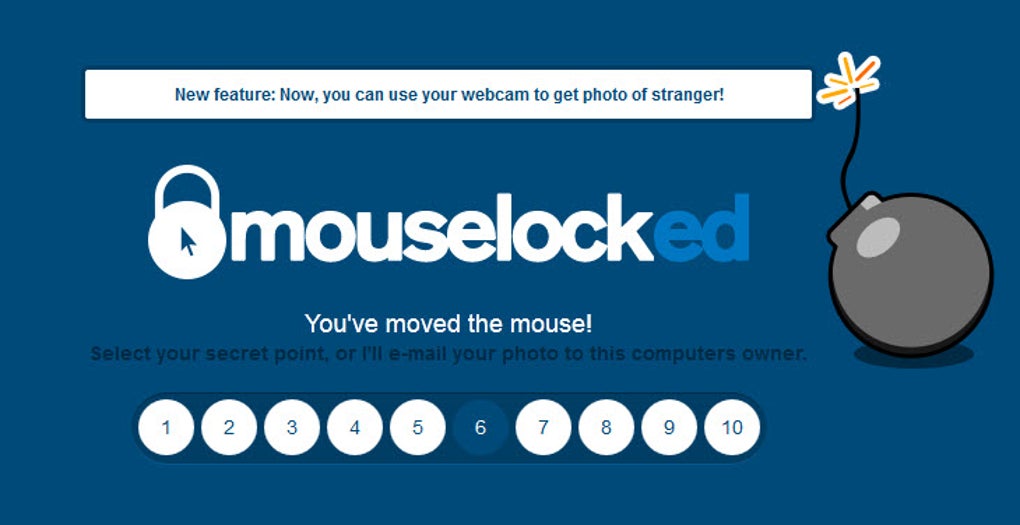
Mouselock is a lightweight web‑based tool that lets you know when someone else tries to use your computer while you’re away. The service works by displaying a row of numbered tiles that you turn into a personal PIN, then watching for mouse movement that doesn’t match the expected pattern. If a coworker, housemate, or curious friend attempts to move the cursor, Mouselock flashes the PIN bar, shows a ticking‑bomb graphic, and – if the wrong code is entered – sends you an instant e‑mail alert. While the app is primarily a fun “prank” or awareness gadget, it can also serve as a subtle reminder that your workstation is being accessed without permission. Because it runs entirely in the browser, there’s no need to install heavyweight software, and the interface is designed to be as unobtrusive as possible. The core idea is simple: give you a heads‑up the moment your mouse is taken over, without actually locking the system or encrypting any data. This makes Mouselock a good fit for shared office desks, home PCs in busy households, or any environment where you want to keep an eye on who’s touching your keyboard while you’re grabbing a coffee.
Key Features and How Mouselock Works
Core Functionality
Mouselock’s workflow can be broken down into three easy steps. First, you log in with your Google account – this is required only so the service can send you e‑mail notifications. Second, you choose a numeric PIN by clicking one of the ten numbers displayed across the screen. Finally, you place the mouse cursor in the center of the display and walk away. From that point on, any unexpected mouse movement triggers the alert sequence.
Feature List
- Real‑time e‑mail notifications when the mouse is moved without your PIN.
- Animated “bomb” graphic that adds a playful visual cue for the intruder.
- Optional webcam snapshot (Chrome‑only) that captures the face of the person trying to use the computer.
- Simple Google‑account login – no additional passwords or licences required.
- Cross‑browser support for Chrome, Firefox, and Internet Explorer (basic features).
- Zero‑install, web‑based interface that works on any device with a modern browser.
- Free to use – no hidden fees or subscription models.
While the app does not lock files or encrypt data, the combination of visual alerts and instant e‑mail messages can deter casual snooping and provide a light‑hearted way to catch pranksters in the act. The Chrome‑specific webcam feature adds an extra layer of amusement by sending a snapshot of the “culprit” directly to your inbox, turning a simple alert into a memorable moment.
Step‑by‑Step Installation and Usage Guide
Because Mouselock is a web app, there is no traditional installation process. The entire setup can be completed in under five minutes, even for users who are not technically inclined.
1. Open the Web Portal
Navigate to the official Mouselock website using a supported browser (Chrome provides the full feature set). The landing page will present a clean, centered interface with a row of numbers from 1 to 10.
2. Sign In with Google
Click the “Sign in with Google” button. You will be redirected to Google’s OAuth page where you grant Mouselock permission to send you e‑mail notifications. No personal data is stored beyond what is needed for the alert system, and Google’s privacy policies apply.
3. Choose Your PIN
Select any number from the displayed row to serve as your personal PIN. The chosen number will be highlighted and stored in the session. You can change the PIN at any time by re‑loading the page and repeating this step.
4. Position the Cursor
Move your mouse to the exact center of the screen – a faint crosshair appears to help you align it. Once the cursor is centered, you are ready to step away.
5. Triggering an Alert
If someone moves the mouse, Mouselock flashes the PIN bar, starts the bomb timer, and, after a short delay, sends an e‑mail to the address linked to your Google account. If you have a webcam attached and are using Chrome, a snapshot of the intruder will be attached to that e‑mail.
6. Resetting the Session
After an alert is sent, Mouselock automatically returns to the main page, allowing you to start a new monitoring session without reinstalling anything. Simply repeat steps 3–5 whenever you need to protect your workstation again.
Compatibility, Pros & Cons, FAQ and Final Verdict
Supported Platforms
The application runs in any modern web browser, but full functionality (including webcam snapshots) is currently limited to Google Chrome. Basic alert features work in Firefox and Internet Explorer, though the latter may exhibit animation glitches. The Windows, macOS, Linux, Chrome OS, Android and iOS platforms are all supported because the service is browser‑based.
Pros
- Completely free and requires no software download.
- Instant e‑mail alerts keep you informed in real time.
- Playful visual cues (bomb graphic) add humor to the experience.
- Webcam snapshot (Chrome only) provides a visual record of the intruder.
- Simple Google‑login eliminates the need for separate credentials.
Cons
- Does not provide actual security or data protection.
- Webcam feature unavailable in Firefox, IE, and most mobile browsers.
- Internet Explorer may suffer from animation glitches.
- Relies on an active internet connection for e‑mail notifications.
- Session resets after each alert, requiring manual re‑activation.
Frequently Asked Questions
Is Mouselock a security tool?
No. Mouselock only notifies you when someone moves the mouse; it does not lock files, encrypt data, or prevent unauthorized access.
Do I need to install anything?
No installation is required. Mouselock runs entirely in the browser, so you just need a compatible web browser and an internet connection.
Can I use Mouselock on a Mac?
Yes. Because it’s web‑based, any Mac with a recent version of Chrome, Firefox, or Safari can access the full feature set (webcam snapshots are Chrome‑only).
Will my Google account be spammed?
Mouselock only uses your Google account to send the alert e‑mail. It does not subscribe you to newsletters or share your address with third parties.
What happens after an alert is sent?
The app returns to the main page, allowing you to set a new PIN and start another monitoring session.
Conclusion – Should You Download Mouselock?
If you need a quick, free way to know when someone else is fiddling with your mouse, Mouselock delivers a fun and reliable solution. It shines in shared office spaces or busy households where a gentle reminder is enough to deter casual snooping. However, remember that it is not a replacement for proper security software; it does not lock files or prevent data theft. For users who value humor and instant alerts over hard‑core protection, Mouselock is a perfect fit. Download Mouselock today, set your PIN, and enjoy the peace of mind (and occasional laugh) that comes with knowing exactly who’s moving your cursor.








