
Download Namebench – Free DNS Benchmark Tool for Faster, Secure Browsing
Overview
Namebench is a free, open‑source networking utility designed to help users discover the fastest Domain Name System (DNS) servers for their internet connection. Developed under Google’s famed “20 percent” innovation program, the tool runs a comprehensive benchmark using your browsing history, local network data, and publicly available DNS datasets. By analyzing latency, reliability, and security of each server, Namebench presents a clear ranking and recommends the optimal DNS provider for a smoother, quicker web experience. The application offers both a graphical user interface (GUI) for beginners and a command‑line mode for power users, ensuring flexibility across different skill levels. Importantly, Namebench never modifies system settings without your explicit consent; it simply provides the data you need to manually switch DNS servers if you choose. Because it is cross‑platform, Windows, macOS, and even Linux users can download and run the program without extra cost. Whether you’re frustrated by slow page loads, dealing with ISP‑imposed censorship, or seeking a more secure DNS solution, Namebench equips you with the information to make an informed decision—all while remaining completely free and transparent thanks to its Apache 2.0 open‑source license.
Key Features
- Cross‑Platform Compatibility: Native builds for Windows, macOS, and Linux ensure broad accessibility.
- Dual Interface Options: Choose between an intuitive GUI for visual learners or a lightweight command‑line version for scripting and automation.
- Automatic Data Collection: Utilizes your browsing history, TCP dump logs, and geo‑location data to create a personalized benchmark.
- Comprehensive DNS Ranking: Generates a detailed list of public DNS servers, sorted by latency, reliability, and security.
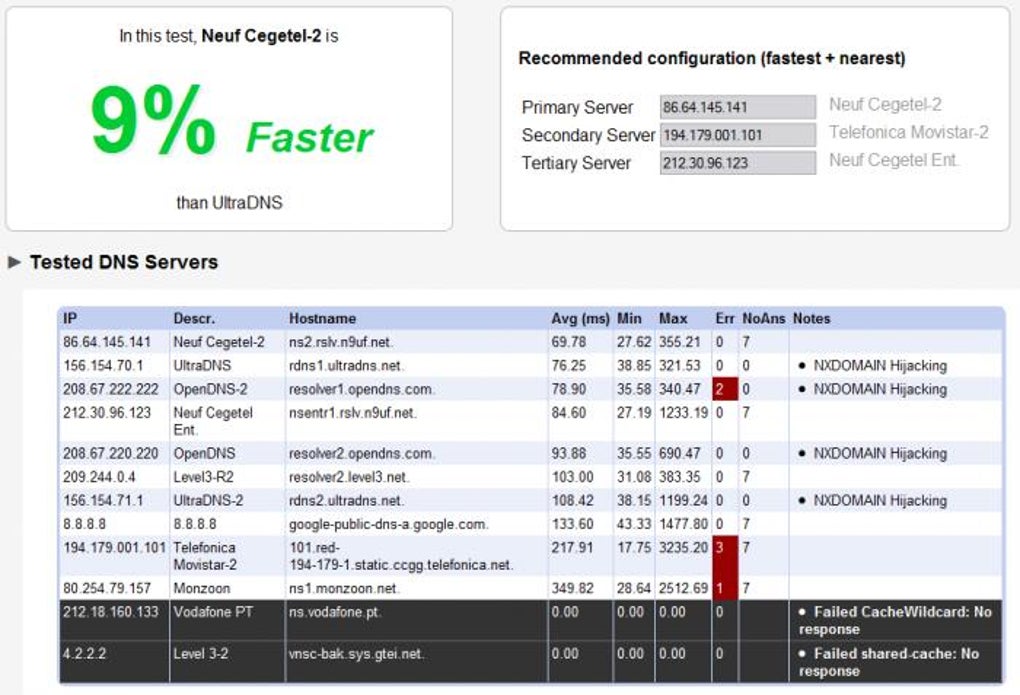
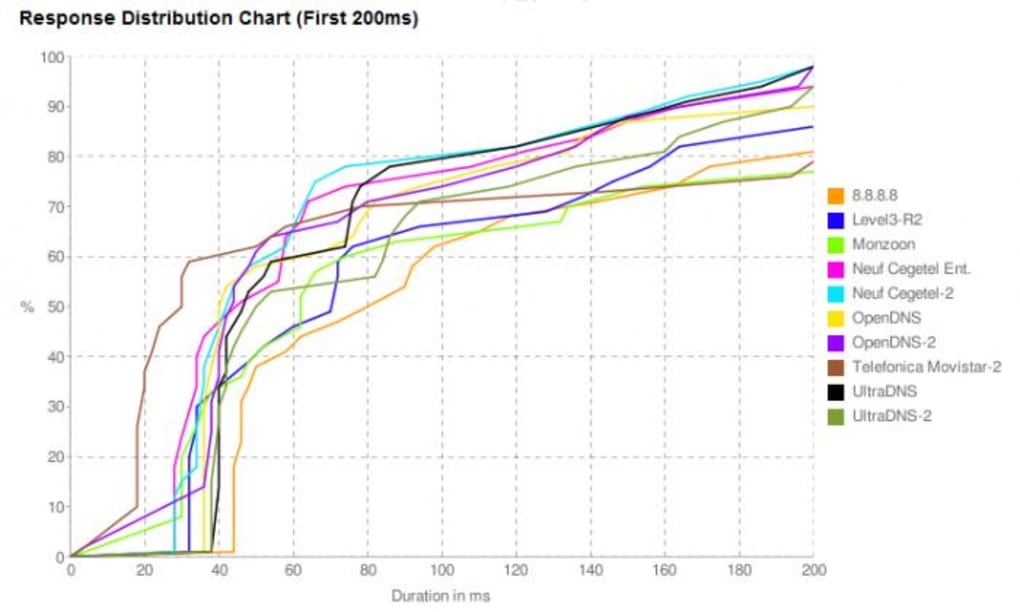
- Graphical Result Presentation: Visual charts and tables illustrate performance differences, making it easy to spot the fastest servers.
- Open‑Source Transparency: Full source code available under the Apache 2.0 license for auditability and community contributions.
- No System Changes: The tool never rewrites your network settings; it only provides recommendations.
- Fast Benchmarking: Typical tests complete within 5‑10 minutes, depending on connection speed.
- Security Insights: Highlights DNS servers that support DNSSEC and other modern security protocols.
- Free of Charge: No hidden fees, ads, or trial periods—completely free to download and use.
Installation, Compatibility & Usage Instructions
Downloading and Installing Namebench
To begin, visit the official Namebench GitHub repository or the project's download page. Choose the installer that matches your operating system: Namebench‑setup‑windows.exe for Windows, Namebench‑mac.dmg for macOS, or the appropriate Linux package (often a .tar.gz archive). The installation process is straightforward—run the installer, accept the license agreement, and follow the on‑screen prompts. No additional dependencies are required for the Windows and macOS versions; the Linux build may need python and pip if you prefer the command‑line interface.
Running the Benchmark
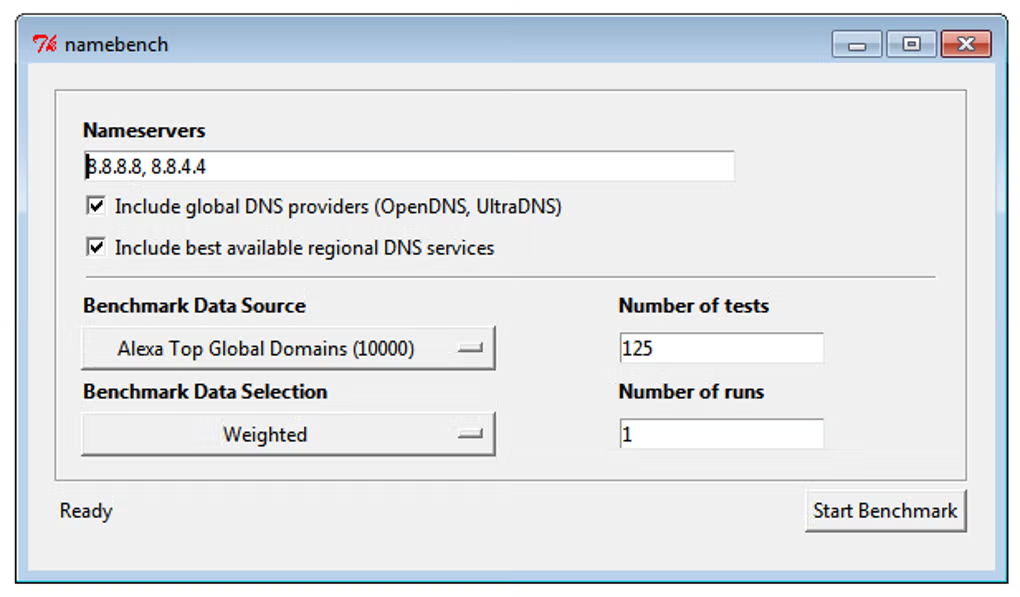
After installation, launch Namebench from your Start menu or Applications folder. In the GUI, you’ll see fields to enter custom DNS servers (optional) and to specify how many queries to send. For most users, the default settings—using your current DNS, a set of popular public servers, and your browsing history—provide the best balance of speed and accuracy. Click “Start Benchmark” and let the tool run its series of latency tests. The process typically takes 5‑15 minutes; you can monitor progress via the status bar and real‑time charts.
Interpreting Results and Switching DNS
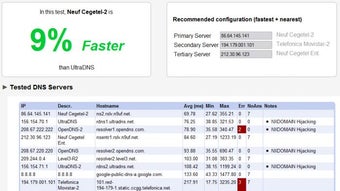
Once the benchmark finishes, Namebench displays a results page with both graphical (bar charts) and tabular data. Servers that outperform your current DNS are highlighted in green, while slower options appear in red. The top three recommendations are listed prominently, complete with IP addresses and a brief security rating. To apply a new DNS, you can manually edit your network adapter settings (Windows → Control Panel → Network → Properties; macOS → System Preferences → Network) or use a dedicated DNS changer tool. Because Namebench does not alter settings automatically, you retain full control over the transition.
System Requirements (Operating System)
Namebench runs on Windows 7 or later, macOS 10.10 (Yosemite) and newer, and most modern Linux distributions (Ubuntu, Fedora, Debian, etc.). The application requires at least 100 MB of free disk space and a stable internet connection for accurate benchmarking.
Pros, Cons & Frequently Asked Questions
Pros
- Completely free and open‑source, ensuring transparency.
- Cross‑platform support for Windows, macOS, and Linux.
- Provides both GUI and command‑line interfaces.
- Uses real‑world data (browsing history, location) for accurate results.
- Displays results in easy‑to‑read charts and tables.
- Highlights DNS servers with advanced security features like DNSSEC.
- No automatic changes to system settings—full user control.
Cons
- Project has not received major updates since 2015, which may raise compatibility concerns on newer OS versions.
- Command‑line version requires basic scripting knowledge.
- Benchmark duration can be lengthy on slower connections.
- Limited built‑in guidance for novice users on how to change DNS after results.
FAQ
Is Namebench safe to use?
Yes. Namebench is open‑source, has no hidden malware, and does not modify your DNS settings automatically. The source code is publicly available for inspection, ensuring transparency and security.
How long does a benchmark take?
Benchmark duration depends on your internet speed and the number of queries selected. Typically, it completes in 5‑10 minutes, but on slower connections it may extend up to 15 minutes.
Can I use Namebench on a Mac?
Absolutely. Namebench provides a native macOS build (.dmg) that works on macOS 10.10 and newer. Installation follows the standard drag‑and‑drop process.
Do I need an internet connection to run the test?
Yes. The benchmark sends real DNS queries to public servers, so an active internet connection is required for accurate measurement.
Are there alternatives to Namebench?
If you’re looking for other options, consider tools like DNS Benchmark (by Gibson Research Corporation), DNS Jumper, or QuickSetDNS. Each offers a slightly different interface and feature set, but Namebench remains a solid free choice.
Final Verdict
Namebench delivers exactly what its name promises: a bench‑marking tool that helps you pinpoint the fastest, most secure DNS servers for your network. Its open‑source nature, cross‑platform support, and easy‑to‑read results make it a valuable utility for both casual users and network enthusiasts. While the project’s development has slowed, the core functionality remains solid, and the lack of automatic system changes ensures you stay in control. If you’re experiencing sluggish page loads, regional content blocks, or just want to enhance online privacy, downloading Namebench is a straightforward, cost‑free first step toward a better browsing experience.








