
Download No Mouse – keyboard‑only browsing, Firefox hot‑key extension
Overview
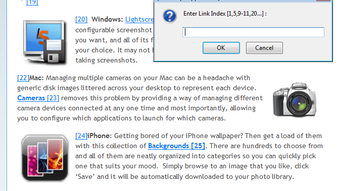
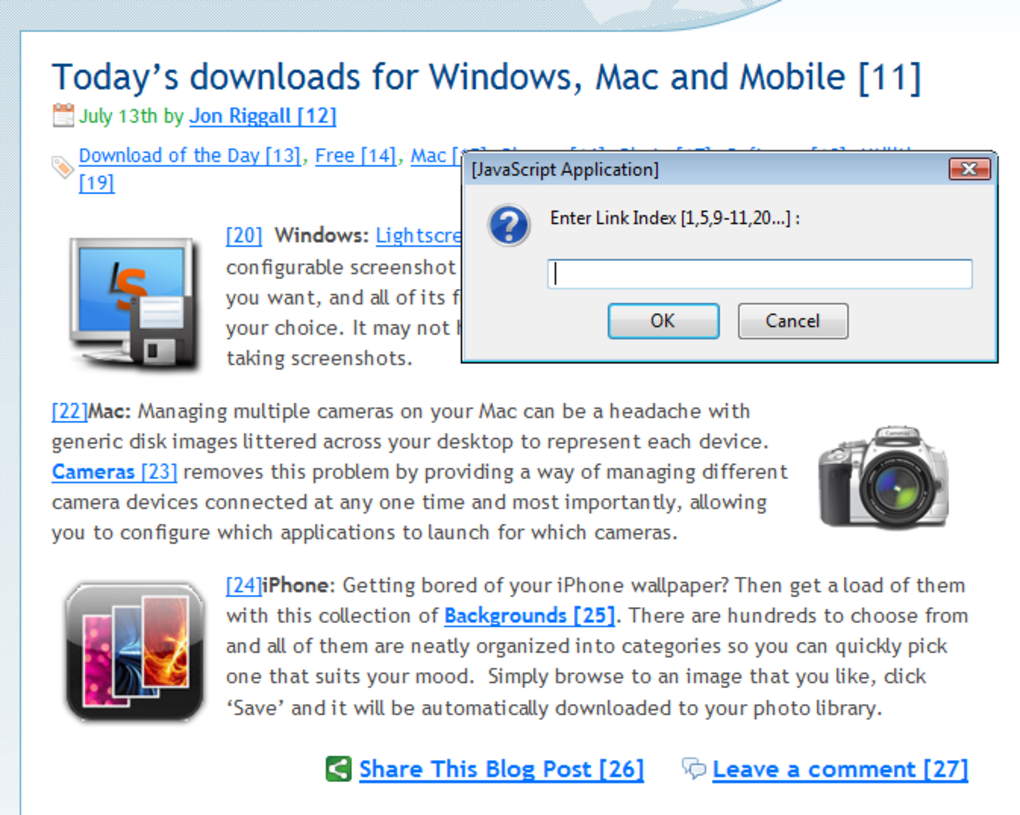
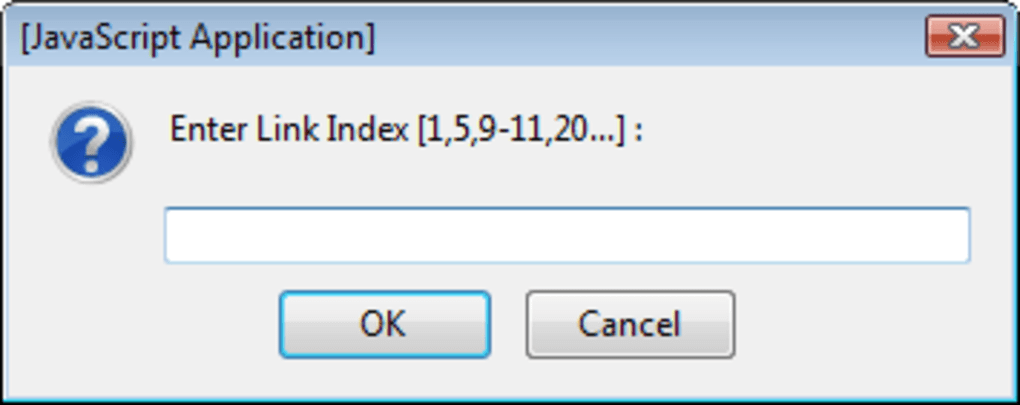
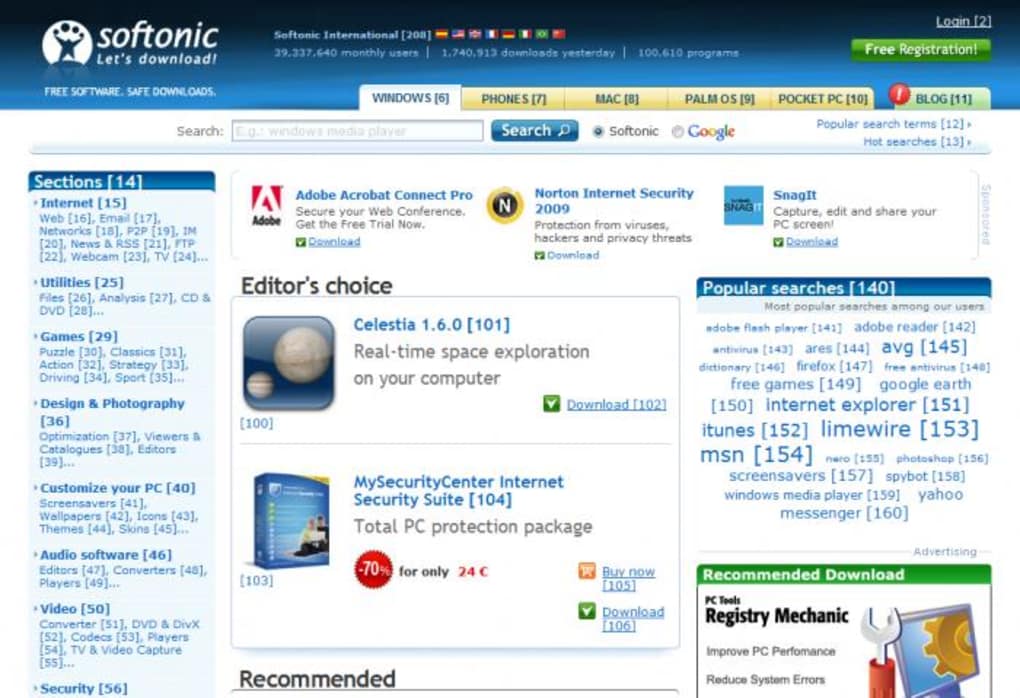
No Mouse is a lightweight Firefox extension designed for desktop users who want to eliminate the constant back‑and‑forth between keyboard and mouse while surfing the Web. By assigning a handful of intuitive hot‑key combinations, the add‑on lets you index every hyperlink on a page, open links in new tabs or the same tab, and navigate without ever moving the cursor. The workflow is simple: press Ctrl + Alt + 7 to reveal numbered tags next to each link, then use Ctrl + Alt + 8 (new tab) or Ctrl + Alt + 9 (same tab) followed by the link’s number and the Enter key. While the initial learning curve can feel a bit steep for mouse‑centric users, the extension quickly becomes a natural extension of a power‑user’s keyboard habits. No Mouse respects the visual integrity of web pages by keeping the numbering hidden until you explicitly request it, and an optional setting in the add‑on’s preferences can automate the indexing for those who prefer an always‑on approach. The tool does not claim to replace the mouse for everyone; rather, it offers a focused solution for users who spend long hours at a desk, experience repetitive‑strain discomfort, or simply love hot‑key driven workflows. By keeping hands on the keyboard, No Mouse can reduce wrist fatigue, speed up navigation once mastered, and provide a distraction‑free browsing experience that aligns with the ergonomics of modern desktop computing.
Key Features
- Hot‑key indexing: Activate link numbering instantly with
Ctrl + Alt + 7. - Flexible opening options: Open links in a new tab (
Ctrl + Alt + 8) or the current tab (Ctrl + Alt + 9). - On‑demand numbering: Numbers appear only when you request them, preserving page aesthetics.
- Automatic mode: Optional setting to index links automatically on every page load.
- Full keyboard control: Navigate, select, and open links without ever touching a mouse.
- Customizable hot‑keys: Change default shortcuts in the extension’s options page.
- Lightweight footprint: Minimal impact on Firefox performance and memory usage.
- Cross‑platform support: Works on any operating system that runs Firefox (Windows, macOS, Linux).
- Open‑source transparency: Source code is available for review, ensuring security and trust.
- Accessibility boost: Provides an alternative navigation method for users with motor impairments.
These features combine to create a seamless, mouse‑free browsing experience that respects both the visual layout of modern websites and the ergonomic needs of power users. Whether you are a developer, writer, or anyone who spends hours in front of a screen, No Mouse gives you the freedom to keep your hands on the keyboard, reducing unnecessary movement and potential strain.
Installation, Usage & Compatibility
Getting started with No Mouse is straightforward. Follow these steps to install the extension and begin browsing without a mouse:
- Open Firefox and navigate to the No Mouse add‑on page on Mozilla’s official repository.
- Click the Add to Firefox button, then confirm the permissions request.
- Once installed, you’ll see the No Mouse icon appear in the browser toolbar.
- Open the extension’s options by right‑clicking the icon and selecting Preferences. Here you can customize hot‑keys, enable automatic indexing, or adjust other settings.
- To use the tool, press
Ctrl + Alt + 7on any webpage. Numbers will appear next to each hyperlink. - Choose your opening method (
Ctrl + Alt + 8for a new tab,Ctrl + Alt + 9for the same tab), type the corresponding number, and hit Enter.
Compatibility is broad because No Mouse relies solely on the Firefox engine. It supports all major desktop operating systems that run Firefox, including:
- Windows 10, 11 (both 64‑bit and 32‑bit)
- macOS 10.15 Catalina and later
- Linux distributions with Firefox installed (Ubuntu, Fedora, Debian, etc.)
The extension does not work on mobile versions of Firefox or on other browsers such as Chrome or Edge, as it is built specifically for Firefox’s add‑on architecture. Users on laptops with touchpads can still benefit, but the ergonomic advantage is most noticeable on traditional desktop setups where a separate mouse is common.
Updates are delivered automatically through Firefox’s add‑on update mechanism, ensuring you always have the latest security patches and feature enhancements without manual intervention. The extension’s lightweight design means it won’t noticeably slow down page loads or increase memory consumption, keeping your browsing experience smooth and responsive.
Pros, Cons, FAQ & Final Thoughts
Pros
- Eliminates mouse movement, reducing wrist strain for long browsing sessions.
- Fast, keyboard‑centric workflow once the shortcuts are memorized.
- Non‑intrusive UI – numbers appear only when you ask for them.
- Highly customizable hot‑keys to fit personal preferences.
- Open‑source, transparent codebase that enhances security confidence.
Cons
- Initial learning curve can be steep for users accustomed to mouse navigation.
- Only works in Firefox; no support for Chrome, Edge, or mobile browsers.
- Automatic indexing may clutter pages if enabled on content‑heavy sites.
- Requires memorization of numeric link identifiers for efficient use.
- Limited utility for laptop users who primarily rely on touchpads.
Frequently Asked Questions
Can I change the default hot‑keys?
Yes. Open the No Mouse options page from the toolbar icon, and you’ll find a section to customize each shortcut to any key combination you prefer.
Does No Mouse work on private browsing windows?
The extension functions normally in private windows, provided you allow it to run in that mode from the Firefox add‑on permissions panel.
Is the extension safe to use?
Yes. No Mouse is reviewed by Mozilla’s add‑on team, and its source code is publicly available on GitHub, allowing the community to audit it for security issues.
Can I use No Mouse on Linux distributions without a graphical desktop?
No. The extension requires a graphical Firefox session, so it won’t function in a pure terminal environment.
How does No Mouse affect page load speed?
The impact is negligible. Numbers are injected only after the page finishes loading and only when you trigger the indexing shortcut, so normal browsing performance remains unchanged.
Conclusion & Call to Action
Overall, No Mouse delivers a focused solution for desktop users who crave a truly keyboard‑first browsing experience. While it won’t replace the mouse for every user, the extension shines in scenarios where ergonomic concerns, repetitive‑strain prevention, or pure productivity are top priorities. The combination of on‑demand link indexing, customizable shortcuts, and a minimal UI makes it a solid addition to any power user’s toolkit. If you spend many hours in front of a desktop and are comfortable with hot‑key navigation, give No Mouse a try today. Download it from the official Firefox Add‑ons store, configure the shortcuts to match your workflow, and enjoy a cleaner, mouse‑free browsing session.








