
Download OneAudio – AI Audio Transcription, Free & Secure Note‑Taking Tool
Overview of OneAudio
OneAudio is a cloud‑based AI voice generator that turns spoken words into clean, searchable notes in seconds. Designed for busy professionals, students, and creators, the web app lets you record a conversation, upload an existing audio file, or simply dictate ideas on the fly. The engine behind OneAudio leverages OpenAI’s GPT‑4 model to not only transcribe but also summarize content, giving you a concise outline that’s ready for export or further editing. Whether you’re in a boardroom meeting, a classroom lecture, or a remote brainstorming session, OneAudio captures every nuance and delivers a structured document that can be stored, shared, or integrated into your favorite productivity suite. The platform also offers a dedicated mobile app for iOS and Android, ensuring that you never miss a moment of inspiration, even when you’re on the move. With tiered subscription plans—Free, Plus, and Amplify—OneAudio scales to match the needs of occasional users as well as power users who require unlimited recording time and advanced customization. Security is baked in: all audio files are encrypted in transit and at rest, and the service complies with GDPR and CCPA standards. In short, OneAudio provides a seamless bridge between spoken ideas and written knowledge, eliminating the manual effort traditionally associated with note‑taking.
Key Features That Power OneAudio
- AI‑Driven Transcription: Powered by OpenAI GPT‑4, the engine delivers near‑human accuracy across multiple languages and accents.
- Instant Summarization: Generates concise bullet‑point summaries, saving you time when reviewing long recordings.
- Multi‑Platform Access: Web interface works on any browser; native apps available for iOS, Android, Windows, and macOS.
- Secure Cloud Storage: Encrypted storage keeps your notes safe, with optional end‑to‑end encryption for premium plans.
- Flexible Import Options: Upload MP3, WAV, AAC, or record directly from the microphone for instant processing.
- Customizable Export: Export transcripts as TXT, PDF, DOCX, or directly push to Google Drive, OneDrive, and Notion.
- Collaboration Tools: Share editable notes with teammates, assign tags, and add comments in real time.
- Tiered Subscription Model: Free plan includes limited minutes and GPT‑4 access; Plus adds unlimited note storage; Amplify unlocks unlimited recording time and advanced analytics.
- Continuous Updates: Regular AI model upgrades and UI enhancements are delivered without user intervention.
- Voice‑Activated Commands: Use simple voice prompts to start/stop recording, insert timestamps, or request a summary.
How to Install, Set Up, and Use OneAudio on Any Device
Getting started with OneAudio is intentionally straightforward. Follow these steps to unleash the power of AI transcription on Windows, macOS, Android, or iOS.
Step 1: Create an Account
Visit OneAudio.com and click “Sign Up.” You can register using an email address, Google, or Apple ID. After confirming the verification email, you’ll be redirected to the dashboard where you can select a plan. The Free tier requires no credit card, making it perfect for first‑time testers.
Step 2: Choose Your Platform
OneAudio runs natively in any modern browser (Chrome, Firefox, Edge, Safari). For offline convenience, download the desktop client for Windows or macOS from the “Downloads” section, or install the mobile app from the Google Play Store or Apple App Store. Installation files are signed and scanned for malware, ensuring a secure setup.
Step 3: Record or Upload Audio
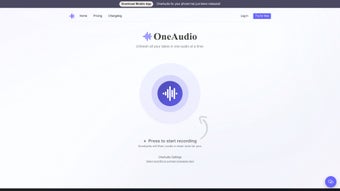
Inside the dashboard, click the microphone icon to start a live recording. You can pause, resume, or add timestamps with voice commands (“OneAudio, insert timestamp”). Alternatively, drag‑and‑drop an existing audio file into the upload area. The platform automatically detects file format and begins processing within seconds.
Step 4: Review, Edit, and Export
The AI‑generated transcript appears in an editable pane. Use the built‑in editor to correct any mis‑heard words, highlight key sections, or add personal notes. Click “Summarize” to receive a concise overview, then choose an export format—PDF for formal reports, DOCX for collaboration, or plain text for quick copy‑pasting. You can also sync the file directly to cloud storage services linked in your account settings.
Step 5: Manage Your Library
All transcriptions are stored in the “My Notes” library. The Plus plan provides unlimited storage, while Amplify adds advanced analytics such as word‑frequency heatmaps and speaker identification. Use tags and folders to keep projects organized, and share links with teammates who can comment in real time.
Tips for Optimal Accuracy
- Record in a quiet environment or use a high‑quality headset.
- Speak clearly and avoid overlapping conversations.
- For multi‑speaker meetings, enable “Speaker Detection” in settings (available on Plus and Amplify).
Pros and Cons
- Pros:
- High‑accuracy AI transcription powered by GPT‑4.
- Instant summarization saves time on review.
- Cross‑platform availability (web, desktop, mobile).
- Secure cloud storage with GDPR compliance.
- Flexible export options and collaboration tools.
- Cons:
- Free tier limits recording minutes per month.
- Advanced analytics require Amplify subscription.
- Internet connection needed for real‑time processing.
Frequently Asked Questions
Can OneAudio transcribe languages other than English?
Yes. OneAudio supports over 20 languages, including Spanish, French, German, Mandarin, and Japanese. Accuracy varies with accent and audio quality, but the GPT‑4 model continuously improves across all supported languages.
Is there a limit to the length of an audio file on the Free plan?
The Free plan allows up to 30 minutes of total transcription per month. If you exceed this limit, the system will pause processing until the next billing cycle or you upgrade to a paid tier.
How secure is my data when I upload recordings?
All uploads are encrypted with TLS 1.3 during transmission and stored using AES‑256 encryption at rest. OneAudio adheres to GDPR, CCPA, and ISO‑27001 standards, and premium plans offer optional end‑to‑end encryption for added privacy.
Can I integrate OneAudio with other productivity tools?
Absolutely. OneAudio provides native integrations with Google Drive, Microsoft OneDrive, Notion, and Slack. You can also use Zapier to connect with over 2,000 apps, automating workflows such as “Save new transcript to a specific folder” or “Post summary to a team channel.”
What happens if I lose internet connectivity during a live recording?
Live recordings are buffered locally on your device. Once the connection is restored, OneAudio automatically uploads the buffered audio and resumes transcription without losing any content.
Conclusion – Should You Download OneAudio?
OneAudio delivers a compelling blend of AI‑powered transcription, instant summarization, and cross‑platform flexibility that makes it a standout choice for anyone who needs to capture spoken ideas quickly and accurately. The free tier provides enough functionality to test the core features, while the Plus and Amplify plans unlock unlimited storage, advanced analytics, and premium support—making the service scalable from occasional note‑takers to enterprise teams. Security, ease of use, and seamless integration with existing workflows further cement its value proposition. If you spend a significant portion of your day in meetings, lectures, or brainstorming sessions, downloading OneAudio will likely save you hours of manual typing and help you stay organized. Take advantage of the free plan today, explore the AI transcription capabilities, and upgrade only when you’re ready for the next level of productivity.
Download OneAudio now and experience the future of voice‑driven note‑taking.



.png)