
Screenshots

App details
- Version
- 1.8.2
- Size
- 4.34 MB
- Updated
- August 12, 2021
- Requires
- Mac OS X
- Language
- English
- License
- Free
- Developer
- Mehlau
- Category
- Mac OS
About Pastor
Download Pastor – Free Secure Password Manager for macOS
Overview
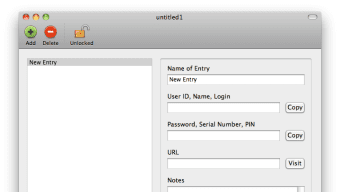
Pastor is a lightweight, free password‑manager designed exclusively for macOS users who want an alternative to Apple’s built‑in Keychain. The app lets you keep passwords, private URLs, serial numbers, and secret notes in a single encrypted vault. Although the initial launch screen is intentionally minimal—no onboarding wizard or pop‑up tutorials—once you explore the clean interface you’ll discover that creating and locking entries is as simple as a few clicks. Pastor also ships with an on‑the‑fly password generator that defaults to a strong 14‑character alphanumeric string, helping you avoid weak, reused credentials. Recent updates added a character counter for the notes field, a sharper 256 × 256 px icon, and refined tooltips that make the experience feel polished despite its “no‑frills” philosophy. If you’re looking for a free, secure way to store sensitive data without paying for a subscription, Pastor is worth a try, especially if you find Keychain’s automatic syncing or cloud‑based approach unnecessary.
Key Features
- Unlimited entries for passwords, URLs, serial numbers, and private notes.
- Built‑in password generator with customizable length and character sets.
- One‑click lock/unlock from the macOS menu bar.
- Find‑as‑you‑type search that matches whole words for faster retrieval.
- Character counter for the notes field to avoid overflow.
- High‑resolution 256 × 256 px application icon for modern macOS aesthetics.
- Automatic unlocking of the most recent document on startup for convenience.
- Tooltips and clearer dialog text for a more intuitive workflow.
- Free to download and use—no hidden fees or subscription plans.
- Fully native macOS app compiled under OS X 10.6.6, ensuring smooth performance on older and newer systems.
Installation & Usage Instructions
Downloading and Installing Pastor
Start by visiting the official Pastor download page (usually hosted on a reputable Mac software repository). Click the Download button to retrieve the .dmg file. Once the download completes, open the file and drag the Pastor icon into your /Applications folder. macOS may prompt you to confirm that you trust the developer; simply click “Open” to proceed.
First Launch and Initial Setup
When you launch Pastor for the first time, the window will appear empty with a prominent “New Entry” button. There is no wizard, but the interface is self‑explanatory. Click New Entry and fill in the following fields:
- Name: A memorable label for the entry (e.g., “GitHub Account”).
- URL: Optional link to the service’s login page.
- Username / Email: Your login identifier.
- Password: Either type your existing password or click the generator icon to create a new, strong password.
- Notes: Any additional information such as security questions or recovery codes. The new character‑counter helps you stay within limits.
After completing the fields, press the Lock button in the menu bar. Pastor encrypts the entry using the macOS keychain’s built‑in encryption, so your data stays protected even if someone gains physical access to your machine.
Managing Entries
To edit an entry, unlock it from the menu bar, locate the item in the list, and double‑click to open the edit view. The “Find‑as‑you‑type” box at the top instantly filters entries by whole‑word matches, making it easy to locate a specific password among dozens. If you need to generate a new password, click the generator icon; you can adjust length and character set by opening the generator’s preferences.
Backup and Export
Pastor stores its database in ~/Library/Application Support/Patron/. For peace of mind, copy this folder to an external drive or cloud storage. The app does not currently offer a native export format, but you can manually copy the encrypted file and restore it on another Mac by placing it in the same directory and unlocking it.
Compatibility & System Requirements
Pastor runs natively on macOS 10.6 (Snow Leopard) and later, including the latest macOS Ventura and Sonoma releases. Because the application is built with Apple’s native frameworks, it requires no additional runtimes or third‑party libraries. Minimum hardware specifications are modest: 512 MB RAM and 50 MB of free disk space for the app and its encrypted database. The program fully supports Retina displays and adapts to Dark Mode, ensuring a consistent visual experience across all Mac hardware—from older MacBooks to the latest Apple Silicon Macs.
Pros & Cons
What Users Love About Pastor
- Completely free with no hidden costs.
- Simple, uncluttered interface that focuses on core password‑management tasks.
- Strong built‑in password generator with sensible defaults.
- Native macOS encryption ensures data stays secure without extra configuration.
- Lightweight; it launches instantly and consumes minimal system resources.
Areas for Improvement
- Lacks cloud sync; you must manually back up the database for multi‑device access.
- No built‑in two‑factor authentication or biometric unlocking options.
- Missing import/export features for popular formats like CSV or 1Password.
- First‑time users may feel disoriented due to the absence of a guided tutorial.
- Only available for macOS; no Windows, Android, or iOS counterpart.
Frequently Asked Questions
Is Pastor completely free, or are there hidden fees?
Pastor is 100 % free to download and use. The developer does not offer a premium tier, subscription, or in‑app purchases. All features, including the password generator and unlimited entries, are available without cost.
How secure is the data stored in Pastor?
Pastor encrypts its database using the same cryptographic mechanisms that power macOS Keychain. Your passwords are stored in an encrypted file within your user Library, and the app requires your macOS password to unlock entries, providing strong local security.
Can I sync Pastor across multiple Macs?
Pastor does not include built‑in cloud sync. However, you can manually copy the ~/Library/Application Support/Patron/ folder to a cloud‑storage service (iCloud Drive, Dropbox, etc.) and place it on another Mac. The app will read the encrypted file on startup.
Does Pastor support biometric unlocking (Touch ID/Face ID)?
As of the latest version, Pastor relies on the macOS password prompt for unlocking entries. It does not yet integrate with Touch ID or Face ID, though future updates may add this convenience.
What happens if I forget the master password for Pastor?
Pastor uses your macOS user password as the decryption key. If you forget your macOS password, you will need to reset it using Apple’s account recovery methods. There is no separate “master password” for Pastor, which simplifies recovery but also means you must retain access to your macOS account.
Final Verdict & Call to Action
Pastor delivers a no‑frills, secure environment for storing passwords and secret notes on macOS. Its free price tag, native encryption, and intuitive lock/unlock workflow make it a solid competitor to Apple’s Keychain, especially for users who prefer a dedicated vault rather than an integrated system. While the lack of cloud sync and advanced features like biometric unlock may limit its appeal for power users, the core functionality is reliable and fast. If you’re looking for a lightweight, cost‑free solution that respects your privacy and runs flawlessly on any Mac from Snow Leopard to the latest Apple Silicon, Pastor is definitely worth a download.
Ready to secure your digital life? Download Pastor now and start protecting your passwords without spending a dime.
Guides & Tutorials
How to install Pastor
- Click the Download button above.
- Once redirected, accept the terms and click Install.
- Wait for the Pastor download to finish on your device.
How to use Pastor
This software is primarily used for its core features described above. Open the app after installation to explore its capabilities.
User Reviews
No reviews yet. Be the first to share your experience.
You may also like
more
DiffusionBee
Generate unique art with this app DiffusionBee is a free and accessible artifici...

Excire Foto Light
Organize your snapshots Excire Foto Light is a free-to-download AI -powered phot...

Topaz Photo AI
Photo enhancement tool with AI Topaz Photo AI is a premium AI image editor for P...

anonymoX
Surf anonymously with Firefox anonymoX for Firefox is an add-on that gives you f...

DownThemAll
Download Them All! Downloading anything or everything on a webpage can be a labo...
.webp)
DuckDuckGo Privacy Essentials
A free program for Mac, by DuckDuckGo, Inc.. DuckDuckGo Privacy Essentials is a...
