
Download RStudio Server – Free Web‑Based R IDE for Data Science
Overview of RStudio Server
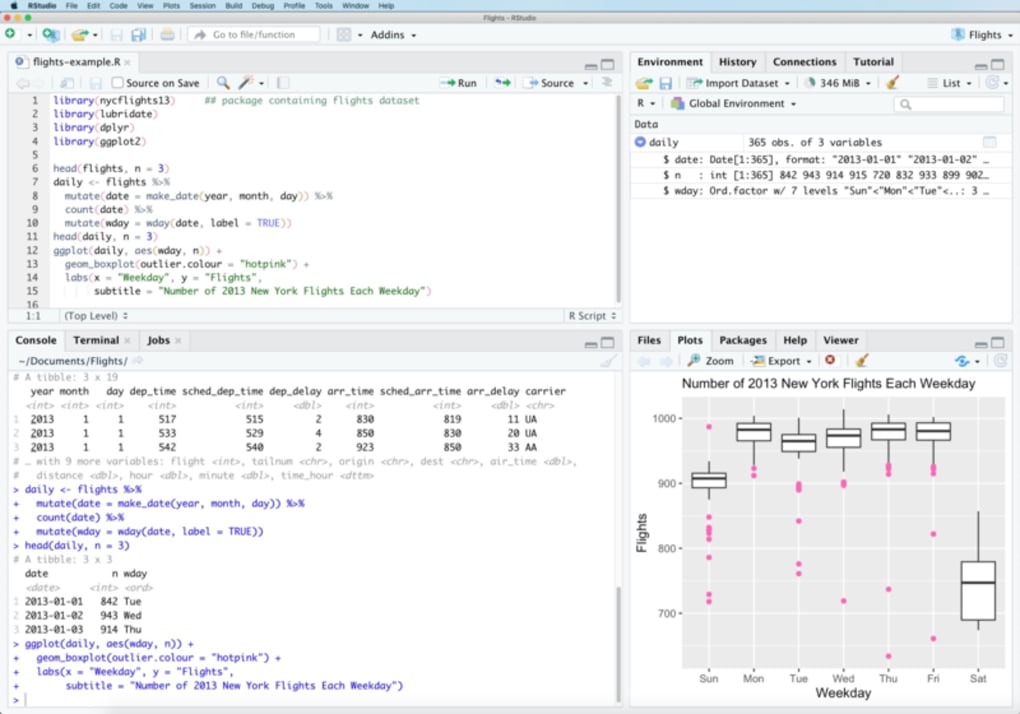
RStudio Server brings the power of the popular RStudio integrated development environment (IDE) to any modern web browser. Designed for analysts, statisticians, and data‑science teams, the free edition lets you run a full‑featured R session on a remote Linux host while you interact through a clean, responsive UI that mirrors the desktop experience. Because the computation happens on the server, you can tap into larger CPU and memory resources than a typical laptop would allow, making heavy data‑wrangling, model training, or simulation tasks more efficient. The server listens on port 8787 by default and requires only a username and password for authentication, although it deliberately blocks system accounts with IDs lower than 100 for security. Once logged in, you get the same panes—Console, Script, Environment, Files, Plots, Packages, and Help—plus the ability to open multiple projects, use version control, and install packages centrally, ensuring that every collaborator works with the same package versions. While enterprise‑grade capabilities like load balancing and LDAP integration belong to the paid RStudio Workbench, the free RStudio Server remains a solid choice for academic labs, research groups, and solo data scientists who need a secure, browser‑based R workspace that can be accessed from any device with an internet connection.
Key Features and Benefits
- Browser‑Based IDE: Access the full RStudio interface from Chrome, Firefox, Safari, or Edge without installing any client software.
- Scalable Compute: Run R scripts on a remote Linux server that can be provisioned with multiple CPUs, large RAM, and GPU support.
- Centralized Package Management: Install and update R packages once on the server, guaranteeing version consistency across all users.
- Project Isolation: Each user works within a dedicated home directory, preventing accidental interference between projects.
- Integrated Version Control: Built‑in Git and Subversion panels let you commit, push, and pull code directly from the web UI.
- Secure Authentication: Simple username/password login with optional HTTPS encryption for data‑in‑transit protection.
- Customizable Environment: Set environment variables, load modules, and configure R startup scripts on the server side.
- Responsive Design: The UI adapts to different screen sizes, making it usable on laptops, tablets, and even smartphones for lightweight tasks.
- Open‑Source Community Support: Extensive documentation, forums, and Stack Overflow threads help troubleshoot most issues.
- Free License: No subscription fees; you can download, install, and run RStudio Server on any compatible Linux distribution.
These features translate into tangible benefits for everyday data‑science workflows. By moving heavy calculations to a server, you free up your local machine for other tasks, avoid the “out‑of‑memory” errors common with large data frames, and reduce the time spent waiting for results. Centralized package management eliminates the “works on my machine” problem, a frequent source of frustration in collaborative research. Moreover, the familiar RStudio layout means there’s almost no learning curve for users transitioning from the desktop version, allowing teams to adopt the web‑based solution quickly and maintain productivity.
Installation, Usage, and Compatibility
Step‑by‑Step Installation
Installing RStudio Server is straightforward for anyone comfortable with Linux command‑line tools. Follow these high‑level steps to get the server up and running:
- Prepare the Host: Ensure you have a supported Linux distribution (Ubuntu 20.04+, Debian 10+, CentOS 7+, or RHEL 8+). Update the package index with
sudo apt‑updateoryum update. - Install R: RStudio Server requires a working R installation. Use the official CRAN repository to install the latest stable version (e.g.,
sudo apt‑install r-base). - Download the .deb or .rpm Package: Visit the RStudio Server download page and grab the appropriate package for your distro.
- Install the Package: Run
sudo dpkg -i rstudio‑server‑X.Y‑amd64.debfor Debian/Ubuntu orsudo rpm -i rstudio‑server‑X.Y‑x86_64.rpmfor Red Hat‑based systems. - Start the Service: The installer automatically starts
rstudio‑server. Verify withsystemctl status rstudio‑server. - Open Firewall Port: Allow inbound traffic on port 8787 (e.g.,
sudo ufw allow 8787/tcp). - Create User Accounts: Add Linux users with
sudo adduser username. Ensure each user has a home directory; RStudio Server will refuse accounts without one.
Launching the IDE
Once the service is running, open a web browser and navigate to http://your‑server‑ip:8787. Enter the Linux username and password you created, and you’ll be greeted by the RStudio Server login screen. From there, you can create new projects, upload scripts, and start an R console just like the desktop version. The interface also supports keyboard shortcuts and custom themes, so you can tailor the experience to your preferences.
Operating System Compatibility
RStudio Server is officially supported on 64‑bit Linux distributions only. The most common platforms include Ubuntu 20.04 LTS, Debian 10 (Buster), CentOS 7, and Red Hat Enterprise Linux 8. While it is possible to run the server inside a Docker container or on cloud platforms like AWS, Azure, and GCP, the underlying host must still be a compatible Linux kernel. There is currently no native Windows or macOS version of RStudio Server; however, Windows users can leverage Windows Subsystem for Linux (WSL) to host a Linux environment and run the server locally.
After installation, the server automatically updates itself when you run sudo apt‑upgrade or sudo yum update. Keeping the underlying OS and R installation current is essential for security patches and to benefit from the latest performance improvements.
Pros, Cons, Frequently Asked Questions, and Final Verdict
Pros and Cons
- Pros:
- Free to use with no licensing fees.
- Full RStudio IDE experience in any modern browser.
- Leverages powerful server hardware for large analyses.
- Centralized package management ensures reproducibility.
- Simple username/password authentication.
- Open‑source community provides extensive documentation.
- Cons:
- Limited to Linux hosts; no native Windows/macOS server.
- Enterprise features (e.g., LDAP, load balancing) require paid Workbench.
- Community‑only support can be slower for complex issues.
- Initial setup requires command‑line familiarity.
- HTTPS must be configured manually for production environments.
Frequently Asked Questions
Is RStudio Server really free?
Yes. The core RStudio Server edition is open‑source and can be downloaded, installed, and used at no cost on any compatible Linux server.
Can I run RStudio Server on Windows?
Not directly. RStudio Server requires a Linux environment. Windows users can install Windows Subsystem for Linux (WSL) and host the server there, or use a virtual machine running a supported Linux distro.
How do I secure the connection with HTTPS?
Configure a reverse proxy (e.g., Nginx or Apache) to terminate TLS and forward traffic to port 8787. Obtain an SSL certificate from Let’s Encrypt or another CA, then update the proxy’s configuration to enable secure HTTPS connections.
What happens to my files if the server restarts?
All user files are stored in each user’s home directory on the underlying Linux file system, so they persist across server reboots. Only the R session state (variables in memory) is cleared.
Can I limit user resources (CPU, RAM) per session?
Yes. System administrators can use Linux cgroups, Docker containers, or systemd resource limits to cap CPU and memory usage for individual RStudio Server sessions.
Conclusion and Call to Action
RStudio Server delivers a robust, free solution for anyone who needs a full‑featured R IDE accessible from anywhere with a web browser. Its ability to offload heavy computation to a central Linux server, combined with the familiar RStudio interface, makes it an excellent choice for research groups, teaching labs, and independent data scientists. While the lack of native Windows support and the reliance on community forums for troubleshooting are drawbacks, the benefits of scalable resources, centralized package management, and zero licensing cost usually outweigh these concerns. If you’re ready to modernize your R workflow and collaborate more efficiently, download RStudio Server today, follow the quick installation guide, and start harnessing the power of remote R computing.
Take the next step: Download RStudio Server now and transform the way you develop, analyze, and share R code.








