
Screenshots
App details
- Version
- 18.5.5
- Updated
- May 24, 2023
- Requires
- Mac | Other platforms (2)
- Language
- English | Czech | Danish | German | Gree...
- License
- Free
- Developer
- Andrey Shcherbakov
- Category
- Mac OS
About SafeInCloud
Download SafeInCloud – Secure Password Manager for Windows, macOS, Android & iOS
Overview
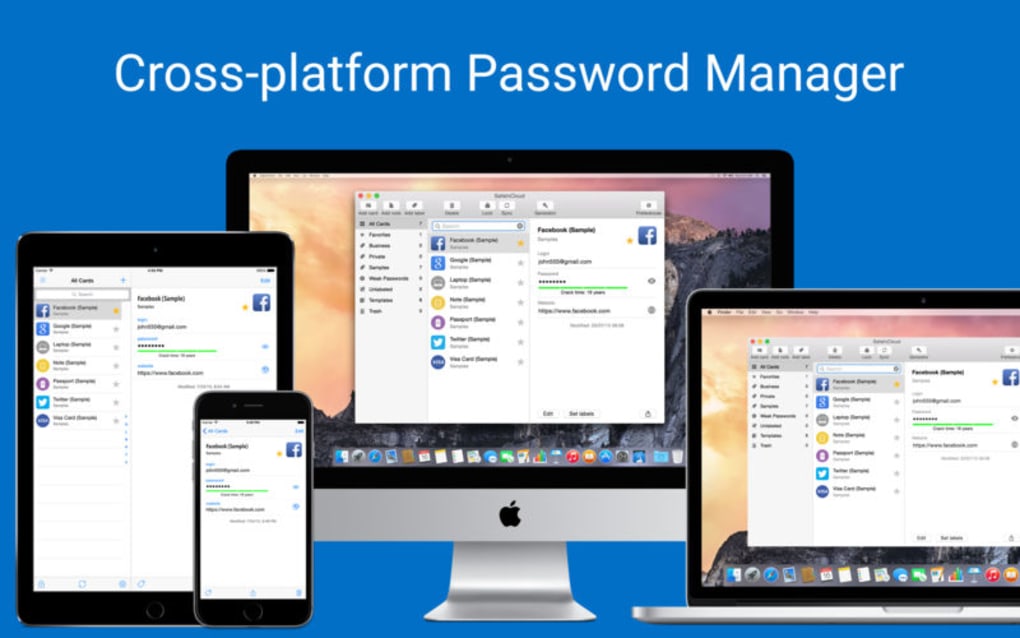
SafeInCloud is a free, cross‑platform password manager designed to store login credentials, credit‑card numbers, secure notes and other sensitive data in a single encrypted vault. The software relies on 256‑bit AES encryption, which is the industry standard for protecting personal information against unauthorized access. Whether you are a casual internet user juggling dozens of online accounts or a small‑business professional needing to share credentials securely with teammates, SafeInCloud offers a straightforward, user‑friendly interface that works consistently across Windows, macOS, Android and iOS devices. The application automatically syncs your vault through popular cloud services such as Dropbox, Google Drive, OneDrive, and iCloud, ensuring that you always have the latest version of your passwords at hand—no matter which device you pick up.
The free tier of SafeInCloud provides unlimited password storage, auto‑fill capabilities for browsers, and a built-in password generator that complies with NIST guidelines. For users who need advanced features like multi‑device synchronization, biometric unlock, and secure password sharing, a modest premium upgrade is available. The core promise of SafeInCloud is simplicity without sacrificing security: a single master password unlocks your entire vault, while the master password itself is never stored or transmitted, reducing the attack surface dramatically.
Because the program is built on open standards and offers regular updates, it stays compatible with the latest operating‑system releases and security patches. The developer community actively monitors emerging threats and releases patches promptly, making SafeInCloud a trustworthy choice for anyone who values both convenience and data protection. In the sections that follow, we’ll dive deeper into its standout features, walk through the installation process, discuss compatibility, weigh the pros and cons, and answer the most common questions users have before they decide to download this powerful tool.
Key Features
- 256‑bit AES Encryption: Every entry in the vault is encrypted locally before it ever leaves your device, ensuring that even cloud providers cannot read your data.
- Cross‑Platform Sync: Seamlessly sync passwords via Dropbox, Google Drive, OneDrive, iCloud, or a local network folder.
- Auto‑Fill & Browser Integration: Supports Chrome, Firefox, Edge, Safari and Opera with one‑click login and form filling.
- Password Generator: Generates strong, random passwords with customizable length, symbols, and character sets.
- Biometric Unlock: Use fingerprint or Face ID on compatible devices for quick, secure access.
- Secure Password Sharing: Share specific entries with other SafeInCloud users without exposing the master password.
- Two‑Factor Authentication (2FA) Backup: Store OTP secrets alongside passwords for a single source of truth.
- Offline Access: All data remains available even without an internet connection; changes sync once you’re back online.
- Export & Import Options: CSV, XML and JSON export/import for easy migration from other managers.
- Automatic Updates: The app checks for security patches and feature upgrades daily, keeping your vault protected.
Beyond the listed capabilities, SafeInCloud distinguishes itself with a clean, minimalist UI that reduces visual clutter, making it easy for non‑technical users to navigate. The password generator includes a “pronounceable” mode for those who prefer memorable passwords without sacrificing entropy. Additionally, the app offers a “password audit” tool that scans your vault for weak, reused, or compromised passwords, providing actionable recommendations to improve overall security hygiene. All these features are bundled in a free version that is surprisingly generous, while the premium tier unlocks the full synchronization suite and advanced sharing controls.
Installation & Compatibility
Downloading SafeInCloud
To get started, visit the official SafeInCloud website and click the Download button that matches your operating system. The installer is available for:
- Windows 7, 8, 10, 11 (64‑bit)
- macOS 10.13 or later
- Android 5.0+ (Google Play Store)
- iOS 12+ (App Store)
For desktop platforms, the installer is a single .exe (Windows) or .dmg (macOS) file. After downloading, run the installer and follow the on‑screen prompts: accept the license agreement, choose an installation folder, and optionally create a desktop shortcut. The installation process typically completes within two minutes.
Initial Setup
When you launch SafeInCloud for the first time, you’ll be guided through a wizard:
- Create a Master Password: Choose a strong, memorable phrase; this password never leaves your device.
- Set Up a Vault: You can start with a local vault or immediately link a cloud folder for synchronization.
- Enable Biometric Unlock (Optional): On supported devices, you can enable fingerprint or Face ID for quicker access.
- Import Existing Passwords: If you’re switching from another manager, import a CSV or JSON file.
Once the vault is created, you can begin adding entries manually or using the built‑in password generator. The app automatically encrypts each entry before saving it to disk or uploading it to your chosen cloud service.
Operating System Compatibility
SafeInCloud is fully compatible with the latest versions of Windows, macOS, Android, and iOS. The desktop clients support both 64‑bit and 32‑bit Windows environments, while the macOS version runs natively on Intel and Apple Silicon chips thanks to universal binaries. Mobile apps are optimized for both phone and tablet form factors, offering responsive layouts that adapt to portrait and landscape orientations. The software also respects platform‑specific security features, such as Android’s SafetyNet and iOS’s Secure Enclave, to store the master password securely.
Because SafeInCloud relies on standard cloud storage APIs, it works behind most corporate firewalls and VPNs. If your organization restricts certain cloud providers, you can configure a local network folder as a sync target, ensuring the vault stays within your internal infrastructure while still benefiting from automatic backup and versioning.
Pros & Cons
Advantages
- Robust 256‑bit AES encryption protects data at rest and in transit.
- Free version offers unlimited password storage and essential features.
- Cross‑platform sync via major cloud services keeps vaults up‑to‑date.
- Biometric unlock adds convenience without compromising security.
- Intuitive UI suitable for both beginners and power users.
- Regular security updates and transparent development roadmap.
- Built‑in password audit helps maintain strong, unique credentials.
- Offline access ensures you’re never locked out when internet is unavailable.
Limitations
- Premium upgrade required for advanced sharing and multi‑device sync.
- No native support for passwordless WebAuthn authentication.
- Exported data is plain‑text unless manually re‑encrypted.
- Browser extensions are separate downloads and may need occasional updates.
- Limited corporate‑level admin console for enterprise deployment.
FAQ & Conclusion
Is SafeInCloud really free?
Yes, the core password manager is free and includes unlimited password storage, a password generator, and basic cloud sync. A paid upgrade unlocks premium features such as advanced synchronization, secure password sharing, and biometric authentication.
How secure is the 256‑bit AES encryption?
AES‑256 is the strongest symmetric encryption currently approved by the U.S. National Institute of Standards and Technology (NIST). SafeInCloud encrypts all data locally before any upload, meaning the encryption key never leaves your device.
Can I use SafeInCloud without an internet connection?
Absolutely. The vault is stored locally on each device, so you can retrieve and edit passwords offline. Changes will sync automatically once you reconnect to the internet.
Does SafeInCloud support two‑factor authentication?
While the app itself does not generate 2FA codes, it allows you to store OTP secrets securely alongside passwords, providing a single place to manage both credentials and authentication tokens.
What happens if I forget my master password?
Because the master password is never stored, SafeInCloud cannot recover it. Users are encouraged to create a strong hint and keep a secure backup of the master password in a trusted location.
Final Thoughts
SafeInCloud stands out in the crowded password‑manager market by offering a truly free tier that does not compromise on encryption quality or cross‑device usability. Its 256‑bit AES protection, seamless cloud sync, and intuitive interface make it an excellent choice for anyone looking to replace weak, reused passwords with a secure, centralized vault. While the premium upgrade unlocks some advanced collaboration tools, the free version already covers the essential needs of most individual users and small teams.
If you value a balance between strong security, ease of use, and multi‑platform flexibility, downloading SafeInCloud today is a prudent step toward safeguarding your digital life. Click the button below to start your free download and enjoy a safer, more organized online experience.
Guides & Tutorials
How to install SafeInCloud
- Click the Download button above.
- Once redirected, accept the terms and click Install.
- Wait for the SafeInCloud download to finish on your device.
How to use SafeInCloud
This software is primarily used for its core features described above. Open the app after installation to explore its capabilities.
User Reviews
No reviews yet. Be the first to share your experience.
You may also like
more
DiffusionBee
Generate unique art with this app DiffusionBee is a free and accessible artifici...

Excire Foto Light
Organize your snapshots Excire Foto Light is a free-to-download AI -powered phot...

Topaz Photo AI
Photo enhancement tool with AI Topaz Photo AI is a premium AI image editor for P...

anonymoX
Surf anonymously with Firefox anonymoX for Firefox is an add-on that gives you f...

DownThemAll
Download Them All! Downloading anything or everything on a webpage can be a labo...
.webp)
DuckDuckGo Privacy Essentials
A free program for Mac, by DuckDuckGo, Inc.. DuckDuckGo Privacy Essentials is a...
