
Screenshots
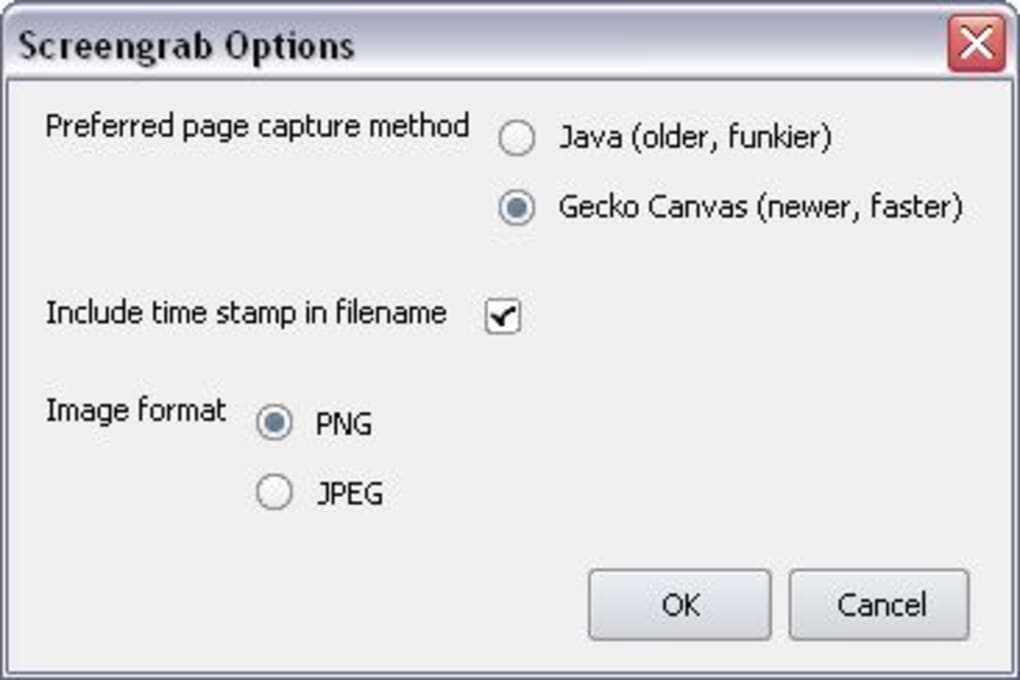
App details
- Version
- 0.96.2 | 0.96.1 | 0.9.6 | 0.9.5
- Size
- 77.79 KB
- Updated
- July 28, 2020
- Requires
- Windows XP
- Language
- English
- License
- Free
- Developer
- S3.Blog
- Category
- Windows OS
About ScreenGrab
Download ScreenGrab – Capture Full‑Page Web Screenshots Fast & Secure
Overview
ScreenGrab is a lightweight Firefox extension designed for web developers, designers, and anyone who needs to capture webpages without leaving the browser. With a single right‑click, you can grab the visible portion of a page, a manually selected region, or the entire page from top to bottom—even the sections that extend beyond the scrollable window. The tool eliminates the hassle of third‑party screenshot software, allowing you to save the image directly as JPG or PNG or copy it straight to the clipboard for instant pasting. Its minimalist interface keeps the workflow smooth: no extra dialogs, no intrusive ads, and no background services that drain system resources. While the extension currently supports only JPG and PNG formats and requires you to type the file extension manually, its speed and convenience make it a standout choice for anyone who frequently documents web layouts, bug reports, or design iterations. ScreenGrab’s core promise is to turn a multi‑step manual process into a single, secure click, thereby improving productivity and reducing the risk of missing critical page elements during capture.
Key Features & Functionalities
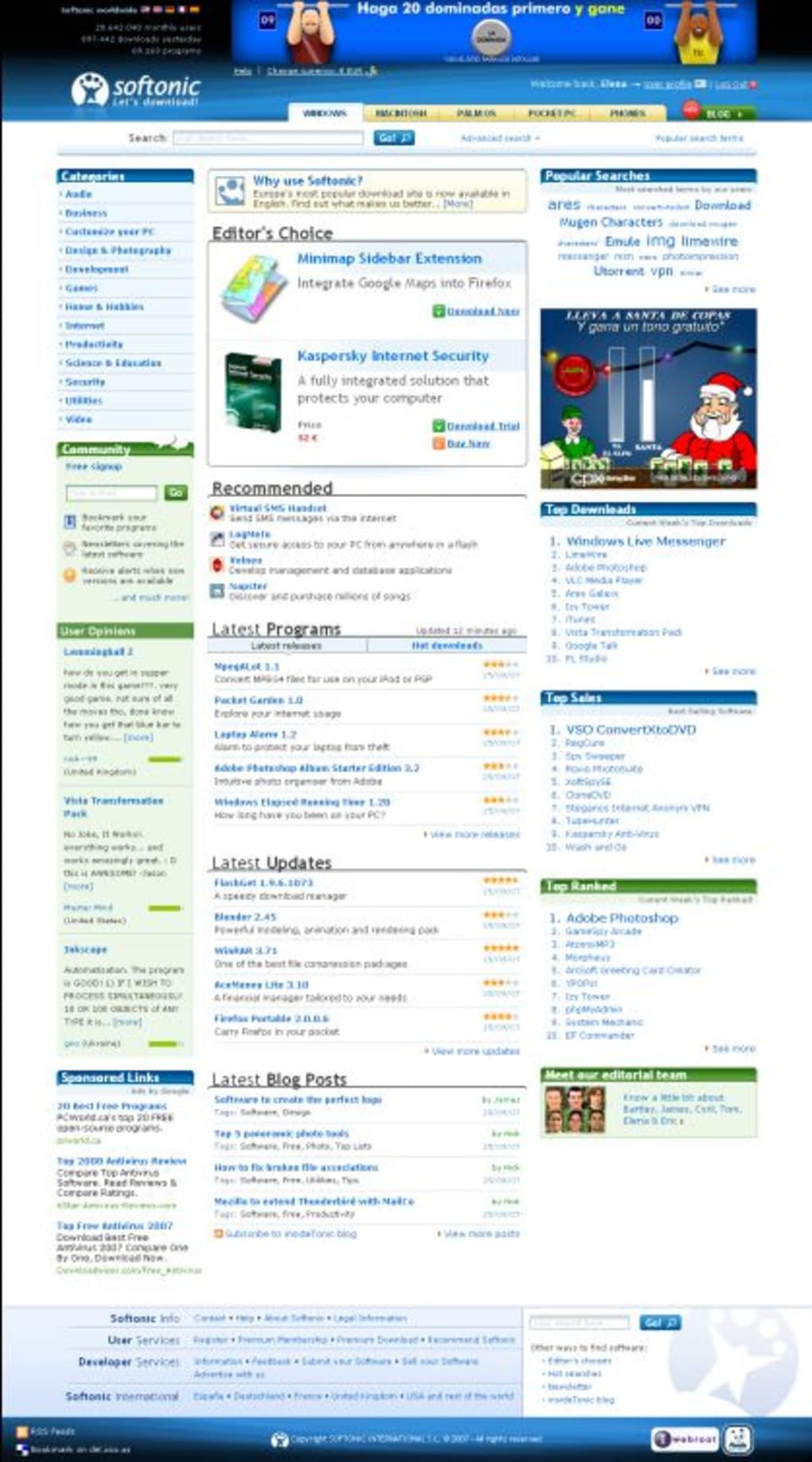
- Full‑page capture: Seamlessly screenshot the entire webpage, even content hidden below the fold.
- Visible‑area capture: Quickly snap the portion of the page currently displayed in the browser window.
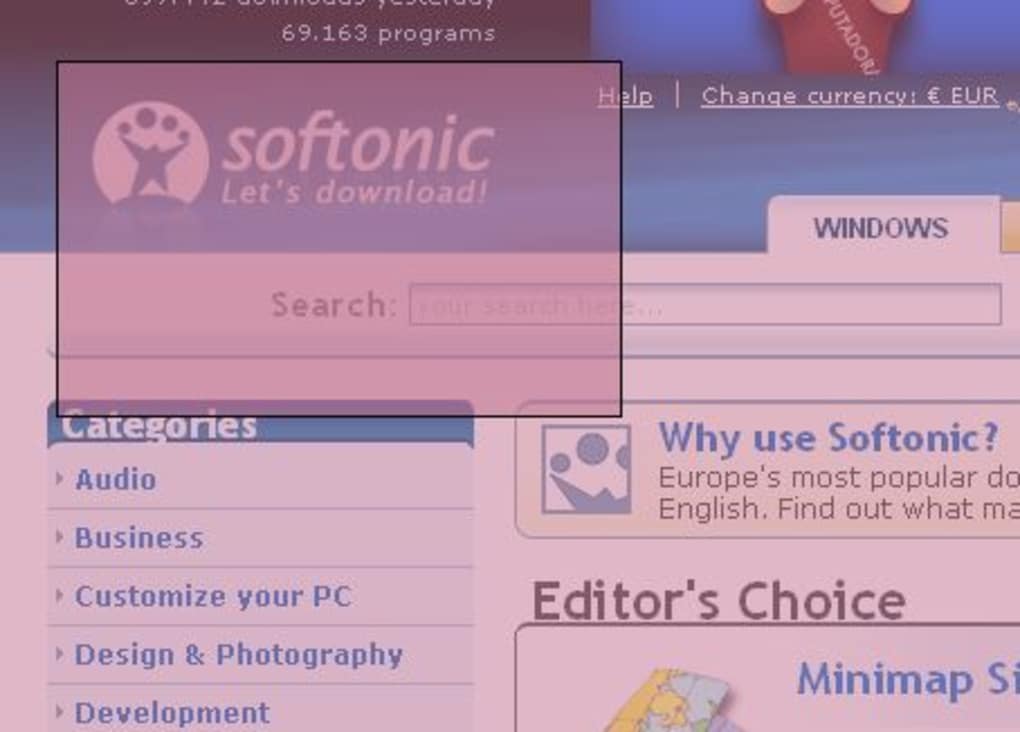
- Region selection: Drag‑to‑select any area of the page for a custom‑sized screenshot.
- One‑click copy to clipboard: Instantly copy the captured image for pasting into documents or design tools.
- Save as JPG or PNG: Choose between two widely supported image formats for maximum compatibility.
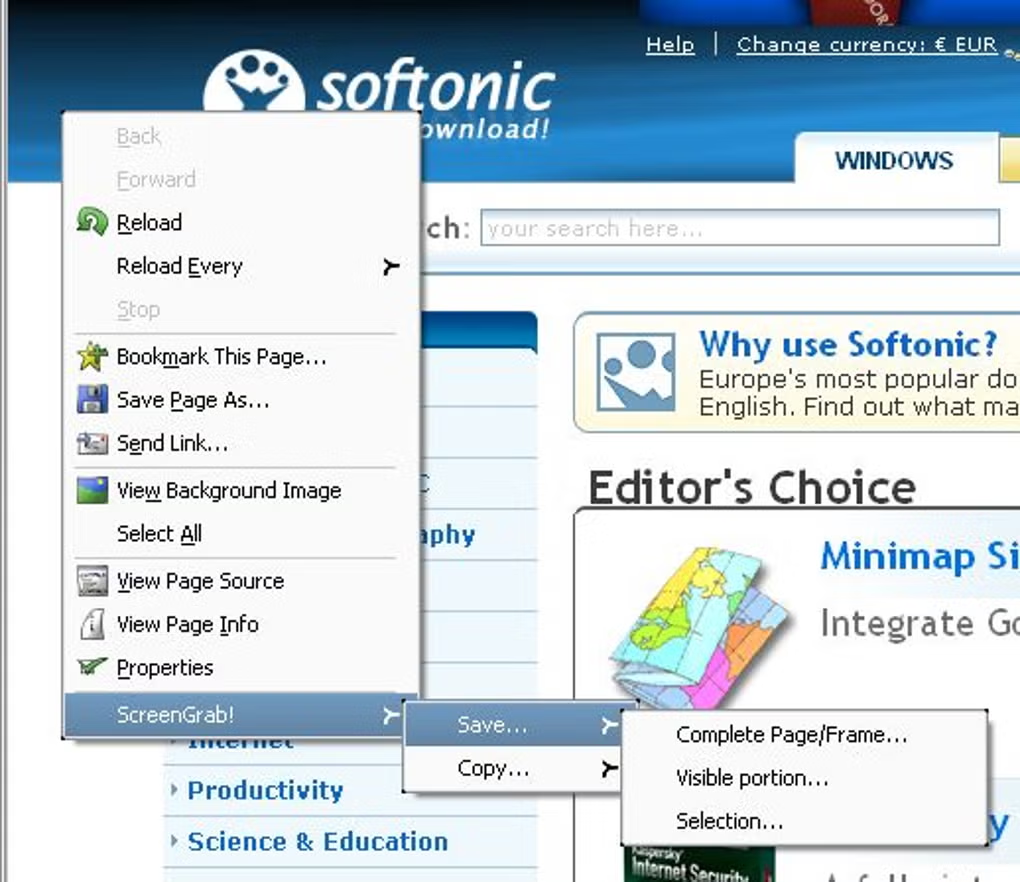
- Context‑menu integration: Access ScreenGrab directly from the right‑click menu, eliminating the need to open a separate UI.
- Lightweight footprint: Minimal memory usage ensures Firefox remains fast and responsive.
- Automatic scrolling: The extension scrolls the page behind the scenes to stitch together a seamless full‑page image.
Why These Features Matter
For developers, capturing a full‑page screenshot is often a prerequisite for bug reporting, UI testing, or client presentations. Traditional methods require multiple screenshots that must be manually stitched together, a time‑consuming process prone to misalignment. ScreenGrab automates scrolling and stitching, delivering a pixel‑perfect image in seconds. The ability to copy directly to the clipboard accelerates workflows that involve quick annotations or sharing images in chat applications. Although the format options are limited to JPG and PNG, these are universally accepted by browsers, content management systems, and graphic editors, ensuring that the output can be used immediately without conversion. The extension’s integration into Firefox’s native context menu means you never have to leave the page you’re working on, reinforcing a “stay‑in‑the‑flow” experience that is especially valuable during intensive development sessions.
Installation, Setup & Daily Use
Step‑by‑Step Installation
- Open Firefox and navigate to the ScreenGrab add‑on page.
- Click the Add to Firefox button and confirm any permission prompts.
- After installation, a small camera icon appears in the Firefox toolbar, and the “ScreenGrab” entry is added to the right‑click context menu.
- Restart Firefox (optional) to ensure the extension loads correctly.
First‑Time Configuration
Upon first use, ScreenGrab presents a brief settings dialog where you can select the default image format (JPG or PNG) and define a default download folder. Because the extension does not automatically append the file extension, it is advisable to set a naming convention that includes “.jpg” or “.png” at the end. You can also enable “Copy to clipboard” as the default action if you prefer instant pasting over file storage.
Everyday Workflow
To capture a full page, simply right‑click anywhere on the target webpage and choose ScreenGrab → Capture Full Page. The extension will scroll through the page, stitch the sections together, and prompt you to save the image or copy it. For a region capture, select ScreenGrab → Capture Selected Area, then drag the selection box over the desired portion. The visible‑area capture works the same way, but without any scrolling. All captured images appear in your designated folder, ready for immediate use. The process typically takes less than three seconds for standard web pages, making ScreenGrab one of the fastest screenshot tools available for Firefox.
Compatibility, Pros & Cons
ScreenGrab is built exclusively for the Firefox browser and works on all major desktop operating systems that support Firefox, including Windows 10/11, macOS 10.15+ (Catalina and later), and major Linux distributions. Mobile versions of Firefox do not currently support this extension, so it is recommended for desktop development environments only.
Pros
- Fast, one‑click capture of full‑page screenshots.
- No need for external software; works entirely within Firefox.
- Lightweight and does not impact browser performance.
- Supports both saving to disk and copying to clipboard.
- Works reliably across Windows, macOS, and Linux.
Cons
- Limited to JPG and PNG formats; no support for WebP, SVG, or TIFF.
- Users must manually type the file extension when saving.
- No built‑in image editor for quick annotations.
- Not available on Firefox for Android or iOS.
Frequently Asked Questions
Can ScreenGrab capture pages that require login?
Yes. Since the extension runs inside the authenticated Firefox session, it can capture any page you can view, including those behind login forms or paywalls.
Is there a limit to the size of a webpage ScreenGrab can handle?
ScreenGrab can handle most typical webpages up to several thousand pixels in height. Extremely long pages may cause higher memory usage, but the extension will usually complete the capture without crashing.
How secure is the screenshot data?
All screenshot processing occurs locally in your browser. No image data is transmitted to external servers unless you choose to upload it yourself, ensuring your captures remain private.
Can I customize the default file name or folder?
Yes. In the extension’s options page you can set a default naming pattern (e.g., “screengrab‑{date}.png”) and choose a default download directory for all captures.
Does ScreenGrab work with Firefox’s Private Browsing mode?
The extension is disabled by default in Private Browsing to protect privacy. You can enable it manually in the add‑on settings if you need to capture pages while in a private window.
Conclusion & Call to Action
ScreenGrab delivers exactly what web professionals need: a fast, reliable, and secure way to capture whole‑page screenshots without leaving Firefox. Its simple right‑click interface, automatic scrolling, and clipboard integration shave minutes off daily workflows, especially when documenting UI bugs or creating design portfolios. While the lack of additional image formats and the manual extension requirement for file names are minor inconveniences, they do not outweigh the productivity gains. If you spend any amount of time reviewing or sharing web layouts, installing ScreenGrab is a small investment that pays big returns in efficiency.
Ready to streamline your screenshot process? Download ScreenGrab now and start capturing full‑page web images with a single click—free, secure, and right from your Firefox browser.
Pros: Fast full‑page capture, lightweight, clipboard support.
Cons: Only JPG/PNG formats, manual file extension entry.
Guides & Tutorials
How to install ScreenGrab
- Click the Download button above.
- Once redirected, accept the terms and click Install.
- Wait for the ScreenGrab download to finish on your device.
How to use ScreenGrab
This software is primarily used for its core features described above. Open the app after installation to explore its capabilities.
User Reviews
No reviews yet. Be the first to share your experience.
You may also like
more
Llama 2
Free-to-use large language model As the new addition to Meta’s arsenal of langua...

NotebookLM
Revolutionizing the note-taking and idea-generation process NotebookLM is an exp...

Github co pilot
AI-inspired software development and coding platform GitHub Copilot is a browser...

Google Gemma
Google’s lightweight AI models Introducing Google Gemma , a family of cutting-ed...

AI Image Enlarger
A free app for Windows, by ai-image-larger. AI Image Enlarger is a free software...

DALL E
AI-driven text-to-image transformation engine DALL·E is a free graphic and desig...
