<?xml version="1.0" encoding="utf-8"?><feed xmlns="http://www.w3.org/2005/Atom" ><generator uri="https://jekyllrb.com/" version="3.10.0">Jekyll</generator><link href="https://sculley.github.io/feed.xml" rel="self" type="application/atom+xml" /><link href="https://sculley.github.io/" rel="alternate" type="text/html" /><updated>2025-09-26T18:12:29+00:00</updated><id>https://sculley.github.io/feed.xml</id><title type="html">Sam Culley</title><subtitle>This is my Github pages blog, where I write about things I&apos;ve learned and things I&apos;m interested in.</subtitle><entry><title type="html">Increase the size of a LibVirt/KVM Volume</title><link href="https://sculley.github.io/posts/2025/09/26/increase-the-size-of-a-libvirt-kvm-volume.html" rel="alternate" type="text/html" title="Increase the size of a LibVirt/KVM Volume" /><published>2025-09-26T16:00:00+00:00</published><updated>2025-09-26T16:00:00+00:00</updated><id>https://sculley.github.io/posts/2025/09/26/increase-the-size-of-a-libvirt-kvm-volume</id><content type="html" xml:base="https://sculley.github.io/posts/2025/09/26/increase-the-size-of-a-libvirt-kvm-volume.html"><![CDATA[<h1 id="increase-the-size-of-a-libvirtkvm-volume">Increase the size of a LibVirt/KVM Volume</h1>

<p><img src="https://raw.githubusercontent.com/sculley/sculley.github.io/main/img/increase_libvirt_kvm_volume_size.png" alt="increase the size of a libvirt/kvm volume" /></p>

<p>Sometimes you create a virtual machine in Libvirt/KVM with a <code class="language-plaintext highlighter-rouge">qcow2</code> disk and later realise you need more space.<br />
The good news is you can expand the disk without rebuilding the VM. This post walks through the process step by step.</p>

<hr />

<h2 id="1-shut-down-the-vm">1. Shut down the VM</h2>

<p>It’s safest to resize while the VM is powered off.</p>

<div class="language-bash highlighter-rouge"><div class="highlight"><pre class="highlight"><code><span class="c"># Shutdown the vm</span>
virsh shutdown &lt;vm-name&gt;
<span class="c"># Confirm the vm is shutdown</span>
virsh list <span class="nt">--all</span>
</code></pre></div></div>

<h2 id="2-resize-the-qcow2-image">2. Resize the qcow2 image</h2>

<p>On the host, increase the size of the disk file. You can either grow by a delta or set an absolute size.</p>

<div class="language-bash highlighter-rouge"><div class="highlight"><pre class="highlight"><code><span class="c"># Add 500 GB</span>
qemu-img resize /var/lib/libvirt/images/&lt;vm-name&gt;.qcow2 +500G

<span class="c"># Or set to a fixed size (2 TB total)</span>
qemu-img resize /var/lib/libvirt/images/&lt;vm-name&gt;.qcow2 2T
</code></pre></div></div>

<h2 id="3-start-the-vm">3. Start the VM</h2>

<p>Bring the VM back up:</p>

<div class="language-bash highlighter-rouge"><div class="highlight"><pre class="highlight"><code>virsh start &lt;vm-name&gt;
</code></pre></div></div>

<h2 id="4-grow-the-partition-inside-the-vm">4. Grow the partition inside the VM</h2>

<p>Inside the VM, check what the disk looks like:</p>

<div class="language-bash highlighter-rouge"><div class="highlight"><pre class="highlight"><code>lsblk
</code></pre></div></div>

<p>If your root/data partition is /dev/vda1, you can expand it:</p>

<div class="language-bash highlighter-rouge"><div class="highlight"><pre class="highlight"><code><span class="c"># Expand the partition</span>
<span class="nb">sudo </span>growpart /dev/vda 1

<span class="c"># Resize the filesystem</span>
<span class="c"># For ext4:</span>
<span class="nb">sudo </span>resize2fs /dev/vda1

<span class="c"># For XFS:</span>
<span class="nb">sudo </span>xfs_growfs /
</code></pre></div></div>

<p>Now the OS can use the additional space.</p>

<h2 id="5-verify-the-new-size">5. Verify the new size</h2>

<p>You should see the extra capacity available</p>

<div class="language-bash highlighter-rouge"><div class="highlight"><pre class="highlight"><code>dh <span class="nt">-h</span>
</code></pre></div></div>

<h3 id="notes--tips">Notes &amp; Tips</h3>

<ul>
  <li>You can run qemu-img resize while the VM is running, but the guest won’t see the change until a rescan or reboot.</li>
  <li>If you use LVM inside the VM, you’ll also need pvresize and lvextend before running resize2fs or xfs_growfs.</li>
  <li>For storage nodes (e.g. Longhorn or Ceph), make sure you resize the data disk partition, not just the root disk, so the cluster sees the capacity.</li>
</ul>]]></content><author><name></name></author><category term="posts" /><summary type="html"><![CDATA[Increase the size of a LibVirt/KVM Volume]]></summary></entry><entry><title type="html">Use Let’s Encrypt certificates with Cockpit on Ubuntu</title><link href="https://sculley.github.io/posts/2025/09/12/use-lets-encrypt-certificates-with-cockpit-ubuntu.html" rel="alternate" type="text/html" title="Use Let’s Encrypt certificates with Cockpit on Ubuntu" /><published>2025-09-12T07:00:00+00:00</published><updated>2025-09-12T07:00:00+00:00</updated><id>https://sculley.github.io/posts/2025/09/12/use-lets-encrypt-certificates-with-cockpit-ubuntu</id><content type="html" xml:base="https://sculley.github.io/posts/2025/09/12/use-lets-encrypt-certificates-with-cockpit-ubuntu.html"><![CDATA[<h1 id="use-lets-encrypt-certificates-with-cockpit-on-ubuntu">Use Let’s Encrypt certificates with Cockpit on Ubuntu</h1>

<p>Cockpit is great for managing a box, but it ships with a self-signed cert. Here’s a clean, repeatable way to put a real Let’s Encrypt cert on Cockpit and keep it renewing automatically.</p>

<p>We’ll use the <strong>DNS-01</strong> challenge with <strong>Cloudflare</strong> (works behind firewalls and supports wildcards).</p>

<h2 id="what-youll-end-up-with">What you’ll end up with</h2>

<ul>
  <li><code class="language-plaintext highlighter-rouge">https://cockpit.your-domain.tld:9090</code> on a valid Let’s Encrypt certificate</li>
  <li>Auto-renewals via the Certbot <strong>snap</strong> systemd timer</li>
  <li>A deploy hook that restarts Cockpit only when this cert renews</li>
</ul>

<h2 id="requirements">Requirements</h2>

<ul>
  <li>Ubuntu 22.04+ (works on 24.04 too)</li>
  <li>Cockpit installed and running on port 9090</li>
  <li>A Cloudflare API token scoped to just the zone you need (DNS:Edit is sufficient; add Zone:Read if required)</li>
</ul>

<h2 id="1-install-certbot">1) Install Certbot</h2>

<div class="language-sh highlighter-rouge"><div class="highlight"><pre class="highlight"><code><span class="nb">sudo </span>snap <span class="nb">install</span> <span class="nt">--classic</span> certbot
</code></pre></div></div>

<p>The snap sets up a systemd timer for renewals out of the box.</p>

<h2 id="2-get-a-certificate">2) Get a certificate</h2>

<div class="language-sh highlighter-rouge"><div class="highlight"><pre class="highlight"><code><span class="c"># allow plugins to run with root and install the cloudflare dns plugin</span>
<span class="nb">sudo </span>snap <span class="nb">set </span>certbot trust-plugin-with-root<span class="o">=</span>ok
<span class="nb">sudo </span>snap <span class="nb">install </span>certbot-dns-cloudflare

<span class="c"># token file (restrict perms!)</span>
<span class="nb">sudo mkdir</span> <span class="nt">-p</span> /root/.secrets/certbot
<span class="nb">sudo tee</span> /root/.secrets/certbot/cloudflare.ini <span class="o">&gt;</span> /dev/null <span class="o">&lt;&lt;</span><span class="sh">'</span><span class="no">EOT</span><span class="sh">'
dns_cloudflare_api_token = AN_API_TOKEN_HERE
</span><span class="no">EOT
</span><span class="nb">sudo chmod </span>600 /root/.secrets/certbot/cloudflare.ini

<span class="c"># issue the cert (add a wildcard if you want)</span>
<span class="nb">sudo </span>certbot certonly <span class="se">\</span>
  <span class="nt">--dns-cloudflare</span> <span class="se">\</span>
  <span class="nt">--dns-cloudflare-credentials</span> /root/.secrets/certbot/cloudflare.ini <span class="se">\</span>
  <span class="nt">--domain</span> cockpit.example.com <span class="se">\</span>
  <span class="nt">--deploy-hook</span> <span class="s1">'systemctl restart cockpit.socket'</span>
</code></pre></div></div>

<p>Using the <code class="language-plaintext highlighter-rouge">--deploy-hook 'systemctl restart cockpit.socket</code> arg we can make sure Cockpit restarts when the certificate is renewed.</p>

<h2 id="3-point-cockpit-at-the-lets-encrypt-cert">3) Point Cockpit at the Let’s Encrypt cert</h2>

<p>Cockpit reads certs from /etc/cockpit/ws-certs.d/. It picks the alphabetically last .cert file and expects a matching .key (same basename). The key must be unencrypted.</p>

<div class="language-sh highlighter-rouge"><div class="highlight"><pre class="highlight"><code><span class="nb">sudo mkdir</span> <span class="nt">-p</span> /etc/cockpit/ws-certs.d

<span class="c"># pick a basename that sorts late (e.g., 99-*)</span>
<span class="nb">sudo ln</span> <span class="nt">-sf</span> /etc/letsencrypt/live/cockpit.example.com/fullchain.pem /etc/cockpit/ws-certs.d/99-letsencrypt.cert
<span class="nb">sudo ln</span> <span class="nt">-sf</span> /etc/letsencrypt/live/cockpit.example.com/privkey.pem   /etc/cockpit/ws-certs.d/99-letsencrypt.key

<span class="c"># reload Cockpit</span>
<span class="nb">sudo </span>systemctl restart cockpit.socket

<span class="c"># sanity check</span>
<span class="nb">sudo</span> /usr/lib/cockpit/cockpit-certificate-ensure <span class="nt">--check</span>
</code></pre></div></div>

<h2 id="4-renewals-already-handled">4) Renewals (already handled)</h2>

<div class="language-sh highlighter-rouge"><div class="highlight"><pre class="highlight"><code><span class="nb">sudo </span>certbot renew <span class="nt">--dry-run</span>
systemctl list-timers | <span class="nb">grep </span>certbot
</code></pre></div></div>

<p>That’s it, Cockpit will have be using a real certificate from Let’s Encrypt.</p>]]></content><author><name></name></author><category term="posts" /><summary type="html"><![CDATA[Use Let’s Encrypt certificates with Cockpit on Ubuntu]]></summary></entry><entry><title type="html">Sorting Terraform variables using terraform-variable-sort</title><link href="https://sculley.github.io/posts/2023/12/29/sorting-terraform-variables-using-terraform-variable-sort.html" rel="alternate" type="text/html" title="Sorting Terraform variables using terraform-variable-sort" /><published>2023-12-29T07:00:00+00:00</published><updated>2023-12-29T07:00:00+00:00</updated><id>https://sculley.github.io/posts/2023/12/29/sorting-terraform-variables-using-terraform-variable-sort</id><content type="html" xml:base="https://sculley.github.io/posts/2023/12/29/sorting-terraform-variables-using-terraform-variable-sort.html"><![CDATA[<p>When managing complex infrastructure with Terraform, keeping your variables organized can be a challenge. If you’ve ever struggled with maintaining consistency in your Terraform variable files, I have a created a solution. Meet terraform-variable-sort, a simple yet powerful script that allows you to sort your Terraform variables alphabetically with ease.</p>

<h2 id="what-is-terraform-variable-sort">What is terraform-variable-sort?</h2>

<p>terraform-variable-sort is a handy script designed to bring order to your Terraform variable files. By sorting your variables alphabetically, you can improve readability and ensure that your variable definitions follow a consistent pattern. Whether you’re working on a small project or a large-scale infrastructure, maintaining well-organized variable files is essential.</p>

<p>For more information on the terraform-variable-sort script look <a href="https://github.com/sculley/terraform-variable-sort">here</a></p>

<h2 id="requirements">Requirements</h2>

<p>This script relies on GNU <code class="language-plaintext highlighter-rouge">awk</code>, which is readily available on most Linux distributions. If you’re using macOS, you can install gawk using Homebrew:</p>

<div class="language-shell highlighter-rouge"><div class="highlight"><pre class="highlight"><code>brew <span class="nb">install </span>gawk
</code></pre></div></div>

<p>With <code class="language-plaintext highlighter-rouge">gawk</code> or <code class="language-plaintext highlighter-rouge">awk</code> installed, you’re ready to proceed.</p>

<h2 id="installation">Installation</h2>

<p>Getting terraform-variable-sort up and running is a breeze. You can install it using Homebrew, making it even more convenient to manage your Terraform projects.</p>

<div class="language-shell highlighter-rouge"><div class="highlight"><pre class="highlight"><code>brew tap sculley/homebrew-formula
brew <span class="nb">install </span>terraform-variable-sort
</code></pre></div></div>

<p>Alternatively, you can use the script manually by running the following command:</p>

<div class="language-shell highlighter-rouge"><div class="highlight"><pre class="highlight"><code>curl <span class="nt">-s</span> https://raw.githubusercontent.com/sculley/terraform-variable-sort/main/terraform-variable-sort.sh <span class="nt">-o</span> terraform-variable-sort.sh
<span class="nb">chmod</span> +x terraform-variable-sort
<span class="nb">mv </span>terraform-variable-sort /usr/local/bin
</code></pre></div></div>

<p>With the <code class="language-plaintext highlighter-rouge">terraform-variable-sort</code> command installed, you’re all set to start sorting your Terraform variables.</p>

<h2 id="usage">Usage</h2>

<p>The simplest way to sort your Terraform variables is by running terraform-variable-sort without any arguments. By default, it looks for a file named variables.tf in your current directory:</p>

<div class="language-hcl highlighter-rouge"><div class="highlight"><pre class="highlight"><code><span class="nx">variable</span> <span class="s2">"foo"</span> <span class="p">{</span>
    <span class="nx">description</span> <span class="p">=</span> <span class="s2">"foo"</span>
    <span class="nx">type</span> <span class="p">=</span> <span class="nx">string</span>
    <span class="nx">default</span> <span class="p">=</span> <span class="s2">"foo"</span>
<span class="p">}</span>

<span class="nx">variable</span> <span class="s2">"bar"</span> <span class="p">{</span>
    <span class="nx">description</span> <span class="p">=</span> <span class="s2">"bar"</span>
    <span class="nx">type</span> <span class="p">=</span> <span class="nx">string</span>
    <span class="nx">default</span> <span class="p">=</span> <span class="s2">"bar"</span>
<span class="p">}</span>
</code></pre></div></div>

<div class="language-shell highlighter-rouge"><div class="highlight"><pre class="highlight"><code>terraform-variable-sort
</code></pre></div></div>

<p>If your variable file has a different name or is located elsewhere, you can specify it as the first argument:</p>

<div class="language-shell highlighter-rouge"><div class="highlight"><pre class="highlight"><code>terraform-variable-sort my_variables.tf
</code></pre></div></div>

<p>After running your variables file should now look like</p>

<div class="language-hcl highlighter-rouge"><div class="highlight"><pre class="highlight"><code><span class="nx">variable</span> <span class="s2">"bar"</span> <span class="p">{</span>
    <span class="nx">description</span> <span class="p">=</span> <span class="s2">"bar"</span>
    <span class="nx">type</span> <span class="p">=</span> <span class="nx">string</span>
    <span class="nx">default</span> <span class="p">=</span> <span class="s2">"bar"</span>
<span class="p">}</span>

<span class="nx">variable</span> <span class="s2">"foo"</span> <span class="p">{</span>
    <span class="nx">description</span> <span class="p">=</span> <span class="s2">"foo"</span>
    <span class="nx">type</span> <span class="p">=</span> <span class="nx">string</span>
    <span class="nx">default</span> <span class="p">=</span> <span class="s2">"foo"</span>
<span class="p">}</span>
</code></pre></div></div>

<p>Your Terraform variable file will be automatically updated in place, ensuring that it remains well-organized.</p>

<h2 id="conclusion">Conclusion</h2>

<p>With <code class="language-plaintext highlighter-rouge">terraform-variable-sort</code>, you can maintain consistency and readability in your Terraform projects effortlessly. Say goodbye to manually sorting variables, and start enjoying a more organized infrastructure codebase. Give it a try today and experience the benefits of a neatly sorted Terraform variable file.</p>

<p>Download <code class="language-plaintext highlighter-rouge">terraform-variable-sort</code> now and simplify your Terraform workflow!</p>]]></content><author><name></name></author><category term="posts" /><summary type="html"><![CDATA[When managing complex infrastructure with Terraform, keeping your variables organized can be a challenge. If you’ve ever struggled with maintaining consistency in your Terraform variable files, I have a created a solution. Meet terraform-variable-sort, a simple yet powerful script that allows you to sort your Terraform variables alphabetically with ease.]]></summary></entry><entry><title type="html">Adding an approle for Terraform in Hashicorp Vault</title><link href="https://sculley.github.io/posts/2023/01/03/adding-an-approle-for-terraform-in-hashicorp-vault.html" rel="alternate" type="text/html" title="Adding an approle for Terraform in Hashicorp Vault" /><published>2023-01-03T16:26:33+00:00</published><updated>2023-01-03T16:26:33+00:00</updated><id>https://sculley.github.io/posts/2023/01/03/adding-an-approle-for-terraform-in-hashicorp-vault</id><content type="html" xml:base="https://sculley.github.io/posts/2023/01/03/adding-an-approle-for-terraform-in-hashicorp-vault.html"><![CDATA[<p>I recently set up a new Hashicorp Vault instance and wanted to use it with Terraform. I followed the instructions on the Hashicorp website and got it working. However, I wanted to use an <code class="language-plaintext highlighter-rouge">approle</code> instead of a token. I found the instructions on the Hashicorp website to be a bit confusing, here is what I did to get it working.</p>

<p>First, I created a policy called <code class="language-plaintext highlighter-rouge">terraform</code> with the following permissions.</p>

<div class="language-bash highlighter-rouge"><div class="highlight"><pre class="highlight"><code><span class="nv">$ </span>vault policy write terraform - <span class="o">&lt;&lt;</span><span class="no">EOF</span><span class="sh">
path "*" {
  capabilities = ["list", "read"]
}

path "secrets/*" {
  capabilities = ["create", "read", "update", "delete", "list"]
}

path "auth/token/create" {
capabilities = ["create", "read", "update", "list"]
}
</span><span class="no">EOF
</span></code></pre></div></div>

<p>Then I enabled the <code class="language-plaintext highlighter-rouge">approle</code> auth method.</p>

<div class="language-bash highlighter-rouge"><div class="highlight"><pre class="highlight"><code><span class="nv">$ </span>vault auth <span class="nb">enable </span>approle
</code></pre></div></div>

<p>Next, I created an approle called <code class="language-plaintext highlighter-rouge">terraform</code>.</p>

<div class="language-bash highlighter-rouge"><div class="highlight"><pre class="highlight"><code><span class="nv">$ </span>vault write auth/approle/role/terraform <span class="se">\</span>
  <span class="nv">secret_id_ttl</span><span class="o">=</span>0 <span class="se">\</span>
  <span class="nv">token_num_uses</span><span class="o">=</span>0 <span class="se">\</span>
  <span class="nv">token_ttl</span><span class="o">=</span>0 <span class="se">\</span>
  <span class="nv">token_max_ttl</span><span class="o">=</span>0 <span class="se">\</span>
  <span class="nv">secret_id_num_uses</span><span class="o">=</span>0
</code></pre></div></div>

<!-- markdownlint-disable MD033 -->
<div class="note" style="position: relative; padding:1rem 1rem; margin-bottom: 0.5em; background-color:#cfe2ff; border: 1px solid transparent; border-radius: 0.25rem;">
  <p><strong>Note:</strong> The <code>secret_id_num_uses=0</code> option will mean that the secret id does not expire, this is useful so we can useful in CI/CD pipelines without having to regenerate after x number of uses.</p>
</div>

<p>Let’s assign the policy we created earlier to the <code class="language-plaintext highlighter-rouge">approle</code>.</p>

<div class="language-bash highlighter-rouge"><div class="highlight"><pre class="highlight"><code><span class="nv">$ </span>vault write auth/approle/role/terraform/policy terraform
</code></pre></div></div>

<p>Now we can get the role id and secret id for the <code class="language-plaintext highlighter-rouge">approle</code>, this is what we will use in Terraform to authenticate with Vault.</p>

<div class="language-bash highlighter-rouge"><div class="highlight"><pre class="highlight"><code><span class="nv">$ </span>vault <span class="nb">read </span>auth/approle/role/terraform/role-id
<span class="nv">$ </span>vault write <span class="nt">-f</span> auth/approle/role/terraform/secret-id
</code></pre></div></div>

<p>Copy the role id and secret id and add them to your Terraform configuration I pass them in as variables and store in my CI/CD pipeline.</p>

<div class="language-hcl highlighter-rouge"><div class="highlight"><pre class="highlight"><code><span class="nx">provider</span> <span class="s2">"vault"</span> <span class="p">{</span>
  <span class="nx">address</span>          <span class="p">=</span> <span class="nx">var</span><span class="err">.</span><span class="nx">vault_address</span>
  <span class="nx">skip_child_token</span> <span class="p">=</span> <span class="kc">true</span> <span class="c1"># https://stackoverflow.com/questions/73034161/permission-denied-on-vault-terraform-provider-token-creation</span>

  <span class="nx">auth_login</span> <span class="p">{</span>
    <span class="nx">path</span> <span class="p">=</span> <span class="s2">"auth/approle/login"</span>

    <span class="nx">parameters</span> <span class="p">=</span> <span class="p">{</span>
      <span class="nx">role_id</span>   <span class="p">=</span> <span class="nx">var</span><span class="err">.</span><span class="nx">vault_role_id</span>
      <span class="nx">secret_id</span> <span class="p">=</span> <span class="nx">var</span><span class="err">.</span><span class="nx">vault_role_secret_id</span>
    <span class="p">}</span>
  <span class="p">}</span>
<span class="p">}</span>
</code></pre></div></div>

<p>That’s it you should now be able to authenticate with Vault using an <code class="language-plaintext highlighter-rouge">approle</code> instead of a token.</p>]]></content><author><name></name></author><category term="posts" /><summary type="html"><![CDATA[I recently set up a new Hashicorp Vault instance and wanted to use it with Terraform. I followed the instructions on the Hashicorp website and got it working. However, I wanted to use an approle instead of a token. I found the instructions on the Hashicorp website to be a bit confusing, here is what I did to get it working.]]></summary></entry><entry><title type="html">Listing all the Kubernetes RBAC resources/sub-resources</title><link href="https://sculley.github.io/posts/2023/01/01/listing-all-kubernetes-rbac-resources-and-sub-resources.html" rel="alternate" type="text/html" title="Listing all the Kubernetes RBAC resources/sub-resources" /><published>2023-01-01T15:26:33+00:00</published><updated>2023-01-01T15:26:33+00:00</updated><id>https://sculley.github.io/posts/2023/01/01/listing-all-kubernetes-rbac-resources-and-sub-resources</id><content type="html" xml:base="https://sculley.github.io/posts/2023/01/01/listing-all-kubernetes-rbac-resources-and-sub-resources.html"><![CDATA[<p>When working with Kubernetes RBAC, it can be difficult to know what resources and sub-resources are available. This is especially true when you are trying to create a role or cluster role that grants access to specific resources and sub-resources for applications and users. In this post, I will show you how to list all the Kubernetes RBAC resources/sub-resources using a script that I wrote in bash. This script uses the Kubernetes API to get the list of resources/sub-resources and then uses the <code class="language-plaintext highlighter-rouge">jq</code> command to parse the JSON output and print out the list of resources/sub-resources in a human-readable format using the <code class="language-plaintext highlighter-rouge">column</code> command.</p>

<h2 id="requirements">Requirements</h2>

<p>To run this script, you will need the following:</p>

<ul>
  <li>A Kubernetes cluster</li>
  <li>A Kubernetes API server URL</li>
  <li>A client key</li>
  <li>A client cert</li>
  <li>A CA cert</li>
  <li>jq (https://stedolan.github.io/jq/)</li>
</ul>

<p>To get the client key, client cert, and CA cert, you can use the following commands (assuming you are using the default context and have a kubeconfig file):</p>

<div class="language-shell highlighter-rouge"><div class="highlight"><pre class="highlight"><code>kubectl config view <span class="nt">--raw</span> <span class="nt">-o</span> json | jq <span class="nt">-r</span> <span class="s1">'.users[0].user."client-certificate-data"'</span> | <span class="nb">base64</span> <span class="nt">-d</span> <span class="o">&gt;</span> client.crt
kubectl config view <span class="nt">--raw</span> <span class="nt">-o</span> json | jq <span class="nt">-r</span> <span class="s1">'.users[0].user."client-key-data"'</span> | <span class="nb">base64</span> <span class="nt">-d</span> <span class="o">&gt;</span> client.key
kubectl config view <span class="nt">--raw</span> <span class="nt">-o</span> json | jq <span class="nt">-r</span> <span class="s1">'.clusters[0].cluster."certificate-authority-data"'</span> | <span class="nb">base64</span> <span class="nt">-d</span> <span class="o">&gt;</span> ca.crt
</code></pre></div></div>

<h2 id="usage">Usage</h2>

<p>Copy the following script to a file and run it with the required arguments</p>

<div class="language-shell highlighter-rouge"><div class="highlight"><pre class="highlight"><code><span class="c">#!/usr/bin/env bash</span>
<span class="c"># list_rbac_resources.sh - list all the kubernetes rbac resources/sub-resources</span>
<span class="c"># Requires jq (https://stedolan.github.io/jq/)</span>
<span class="c"># Usage: ./list_rbac_resources.sh &lt;kubernetes api server url&gt; &lt;client key&gt; &lt;client cert&gt; &lt;ca cert&gt;</span>

<span class="c"># Generate a UUID for the tmp output file</span>
<span class="nv">UUID</span><span class="o">=</span><span class="si">$(</span>uuidgen<span class="si">)</span>

<span class="c"># Get the list of APIs</span>
<span class="nv">APIS</span><span class="o">=</span><span class="si">$(</span>curl <span class="nt">--key</span> <span class="nv">$2</span> <span class="nt">--cert</span> <span class="nv">$3</span> <span class="nt">--cacert</span> <span class="nv">$4</span> <span class="nt">-s</span> <span class="nv">$1</span>/apis | jq <span class="nt">-r</span> <span class="s1">'[.groups | .[].name] | join(" ")'</span><span class="si">)</span>

<span class="c"># Add header to tmp output file</span>
<span class="nb">echo</span> <span class="s2">"API Resource Verb Namespaced Kind"</span> <span class="o">&gt;&gt;</span> /tmp/list_rbac_resources_<span class="k">${</span><span class="nv">UUID</span><span class="k">}</span>

<span class="c"># Get the list of resources/sub-resources from the core API</span>
curl <span class="nt">--key</span> <span class="nv">$2</span> <span class="nt">--cert</span> <span class="nv">$3</span> <span class="nt">--cacert</span> <span class="nv">$4</span> <span class="nt">-s</span> <span class="nv">$1</span>/api/v1 | jq <span class="nt">-r</span> <span class="nt">--arg</span> api <span class="s2">"</span><span class="nv">$api</span><span class="s2">"</span> <span class="s1">'.resources | .[] | "\($api) \(.name) \(.verbs | join(",")) \(.namespaced) \(.kind)"'</span> <span class="o">&gt;&gt;</span> /tmp/list_rbac_resources_<span class="k">${</span><span class="nv">UUID</span><span class="k">}</span>

<span class="c"># Get the list of resources/sub-resources from the other APIs</span>
<span class="k">for </span>api <span class="k">in</span> <span class="nv">$APIS</span><span class="p">;</span> <span class="k">do
    </span><span class="nv">version</span><span class="o">=</span><span class="si">$(</span>curl <span class="nt">--key</span> <span class="nv">$2</span> <span class="nt">--cert</span> <span class="nv">$3</span> <span class="nt">--cacert</span> <span class="nv">$4</span> <span class="nt">-s</span> <span class="nv">$1</span>/apis/<span class="nv">$api</span> | jq <span class="nt">-r</span> <span class="s1">'.preferredVersion.version'</span><span class="si">)</span>
    curl <span class="nt">--key</span> <span class="nv">$2</span> <span class="nt">--cert</span> <span class="nv">$3</span> <span class="nt">--cacert</span> <span class="nv">$4</span> <span class="nt">-s</span> <span class="nv">$1</span>/apis/<span class="nv">$api</span>/<span class="nv">$version</span> | jq <span class="nt">-r</span> <span class="nt">--arg</span> api <span class="s2">"</span><span class="nv">$api</span><span class="s2">"</span> <span class="s1">'.resources | .[]? | "\($api) \(.name) \(.verbs | join(",")) \(.namespaced) \(.kind)"'</span> <span class="o">&gt;&gt;</span> /tmp/list_rbac_resources_<span class="k">${</span><span class="nv">UUID</span><span class="k">}</span>
<span class="k">done</span>

<span class="c"># Print the list of resources/sub-resources using the column command</span>
column <span class="nt">-t</span> /tmp/list_rbac_resources_<span class="k">${</span><span class="nv">UUID</span><span class="k">}</span>

<span class="c"># Remove the tmp output file</span>
<span class="nb">rm</span> <span class="nt">-rf</span> /tmp/list_rbac_resources_<span class="k">${</span><span class="nv">UUID</span><span class="k">}</span>
</code></pre></div></div>

<h2 id="example">Example</h2>

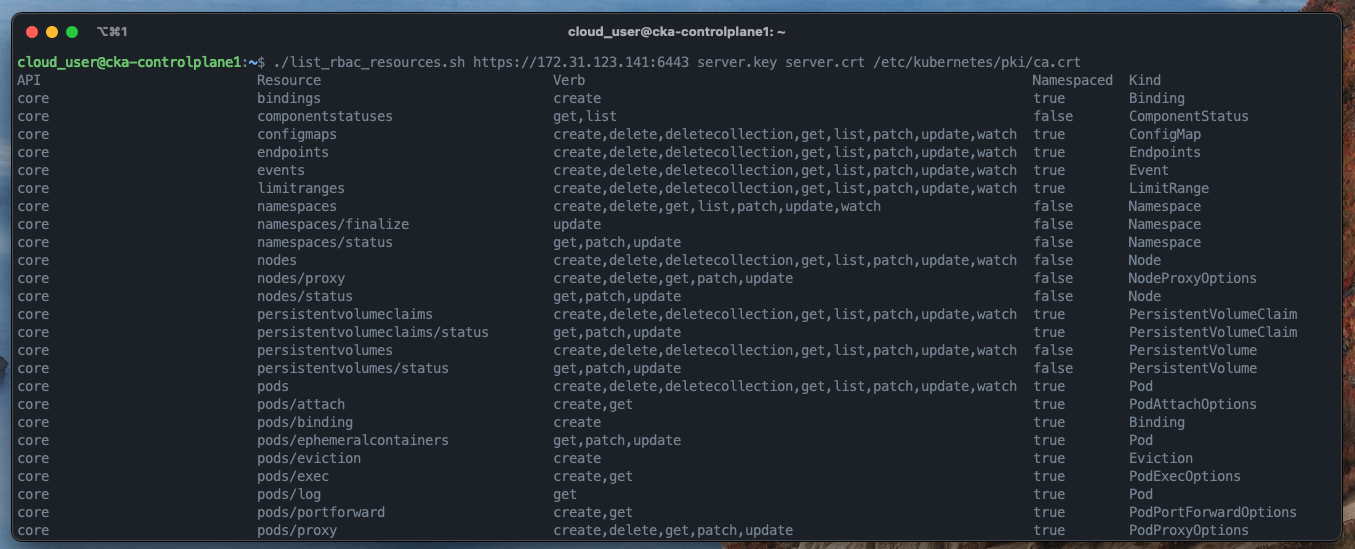
<div class="language-shell highlighter-rouge"><div class="highlight"><pre class="highlight"><code><span class="nv">$ </span>./list_rbac_resources.sh https://172.31.123.141:6443 client.key client.crt ca.crt
</code></pre></div></div>

<p><br /></p>

<p><img src="https://raw.githubusercontent.com/sculley/sculley.github.io/main/img/list_rbac_resources_output.png" alt="list rbac resources output" /></p>]]></content><author><name></name></author><category term="posts" /><summary type="html"><![CDATA[When working with Kubernetes RBAC, it can be difficult to know what resources and sub-resources are available. This is especially true when you are trying to create a role or cluster role that grants access to specific resources and sub-resources for applications and users. In this post, I will show you how to list all the Kubernetes RBAC resources/sub-resources using a script that I wrote in bash. This script uses the Kubernetes API to get the list of resources/sub-resources and then uses the jq command to parse the JSON output and print out the list of resources/sub-resources in a human-readable format using the column command.]]></summary></entry><entry><title type="html">Using 1Password to automatically retrieve your Ansible become password for commands that require elevated privileges</title><link href="https://sculley.github.io/posts/2022/12/31/using-1password-to-automatically-retrieve-your-ansible-become-password.html" rel="alternate" type="text/html" title="Using 1Password to automatically retrieve your Ansible become password for commands that require elevated privileges" /><published>2022-12-31T07:20:33+00:00</published><updated>2022-12-31T07:20:33+00:00</updated><id>https://sculley.github.io/posts/2022/12/31/using-1password-to-automatically-retrieve-your-ansible-become-password</id><content type="html" xml:base="https://sculley.github.io/posts/2022/12/31/using-1password-to-automatically-retrieve-your-ansible-become-password.html"><![CDATA[<p>Are you tired of having to manually retrieve your <code class="language-plaintext highlighter-rouge">sudo</code> password and enter it into your terminal every time you run an Ansible playbook with <code class="language-plaintext highlighter-rouge">ansible_become_user</code>? I was, so I discovered a way to automatically retrieve it from 1Password and use it in Ansible playbooks.</p>

<p>Using the Ansible <code class="language-plaintext highlighter-rouge">lookup</code> plugin, you can retrieve the value of a 1Password item and use it in Ansible playbooks. The <code class="language-plaintext highlighter-rouge">lookup</code> plugin is a built-in plugin that allows you to retrieve the value of a variable from a file, database, or another external source. In this case, we will be retrieving the value of a 1Password item.</p>

<!--  -->
<div class="language-yaml highlighter-rouge"><div class="highlight"><pre class="highlight"><code><span class="pi">-</span> <span class="na">name</span><span class="pi">:</span> <span class="s2">"</span><span class="s">retrieve</span><span class="nv"> </span><span class="s">password</span><span class="nv"> </span><span class="s">for</span><span class="nv"> </span><span class="s">ITEM"</span>
  <span class="na">debug</span><span class="pi">:</span>
    <span class="na">msg</span><span class="pi">:</span> <span class="s2">"</span><span class="s">{{</span><span class="nv"> </span><span class="s">lookup('onepassword',</span><span class="nv"> </span><span class="s">'ITEM')</span><span class="nv"> </span><span class="s">}}"</span>
</code></pre></div></div>
<!--  -->

<p>For more information on the <code class="language-plaintext highlighter-rouge">lookup</code> plugin, see the <a href="https://docs.ansible.com/ansible/latest/plugins/lookup.html">ansible-lookup-plugin</a>.</p>

<p>This allows you to retrieve your <code class="language-plaintext highlighter-rouge">sudo</code> password from 1Password without having to manually enter it into your terminal when running <code class="language-plaintext highlighter-rouge">ansible-playbook main.yml -K</code> or reading locally from a plan text file or encrypted vault.</p>

<h3 id="usage">Usage</h3>

<p>Requirements</p>

<ul>
  <li>
    <p>A 1Password account - If you don’t have a 1Password account, you can sign up for a free account <a href="https://1password.com/">here</a>.</p>
  </li>
  <li>
    <p>The 1Password CLI tool - If you don’t have the 1Password CLI tool, you can download it <a href="https://support.1password.com/command-line-getting-started/">here</a>.</p>
  </li>
</ul>

<p>Create your password item in 1Password and give it a name. In this example, I will be using the name <code class="language-plaintext highlighter-rouge">ansible_become_pass</code>. You can name it whatever you want, but you will need to use the same name in your Ansible playbook.</p>

<div class="language-shell highlighter-rouge"><div class="highlight"><pre class="highlight"><code><span class="nv">$ </span>op item create <span class="nt">--category</span><span class="o">=</span>password <span class="nt">--title</span><span class="o">=</span><span class="s2">"ansible-become-password"</span> <span class="nt">--vault</span><span class="o">=</span><span class="s2">"Personal"</span> <span class="se">\</span>
  <span class="nv">password</span><span class="o">=</span><span class="s2">"my-super-secret-password"</span>
</code></pre></div></div>

<!-- markdownlint-disable MD033 -->
<div class="note" style="position: relative; padding:1rem 1rem; margin-bottom: 0.5em; background-color:#cfe2ff; border: 1px solid transparent; border-radius: 0.25rem;">
  <p><strong>Note:</strong> You can use a different category, but I recommend using the <code>password</code> category. You need to specify the <code>--vault</code> option if you want to store the item in a specific vault. If you don’t specify the <code>--vault</code> option, the item will be stored in the default vault.</p>
</div>

<p>Next, you will need to add the lookup plugin as the value for the <code class="language-plaintext highlighter-rouge">ansible_become_pass</code> variable in your Ansible playbook. I set mine in the inventory file, but you can also set it in the vars section of your playbook (or a vars file). The lookup plugin will retrieve the value of the 1Password item with the same name as the variable. In this case, it will retrieve the value of the 1Password item named <code class="language-plaintext highlighter-rouge">ansible_become_pass</code>.</p>

<!--  -->
<div class="language-yaml highlighter-rouge"><div class="highlight"><pre class="highlight"><code><span class="pi">[</span><span class="nv">all</span><span class="pi">:</span><span class="nv">vars</span><span class="pi">]</span>
<span class="s">ansible_become_pass="{{ lookup('onepassword', 'ansible_become_pass', errors='warn') | d(omit) }}"</span>
</code></pre></div></div>
<!--  -->

<p>That’s it! when running your playbook, Ansible will automatically retrieve the value of the 1Password item and use it as the value for the <code class="language-plaintext highlighter-rouge">ansible_become_pass</code> variable. 1Password will prompt you to allow access to the Vault/Item when running the playbook.</p>

<!-- markdownlint-disable MD014 -->
<div class="language-shell highlighter-rouge"><div class="highlight"><pre class="highlight"><code><span class="nv">$ </span>ansible-playbook <span class="nt">-i</span> inventory main.yml
</code></pre></div></div>]]></content><author><name></name></author><category term="posts" /><summary type="html"><![CDATA[Are you tired of having to manually retrieve your sudo password and enter it into your terminal every time you run an Ansible playbook with ansible_become_user? I was, so I discovered a way to automatically retrieve it from 1Password and use it in Ansible playbooks.]]></summary></entry></feed>