
Screenshots
App details
- Version
- 0.4.2
- Size
- 14.03 KB
- Updated
- July 1, 2024
- Requires
- Windows 11
- Language
- English | Spanish
- License
- Free
- Developer
- Frank DiLecce
- Category
- Windows OS
About SendTools
Download SendTools – Email Scheduler for Mozilla Thunderbird
Overview
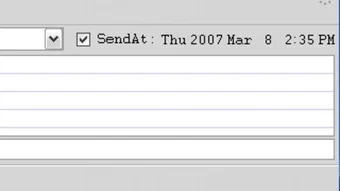
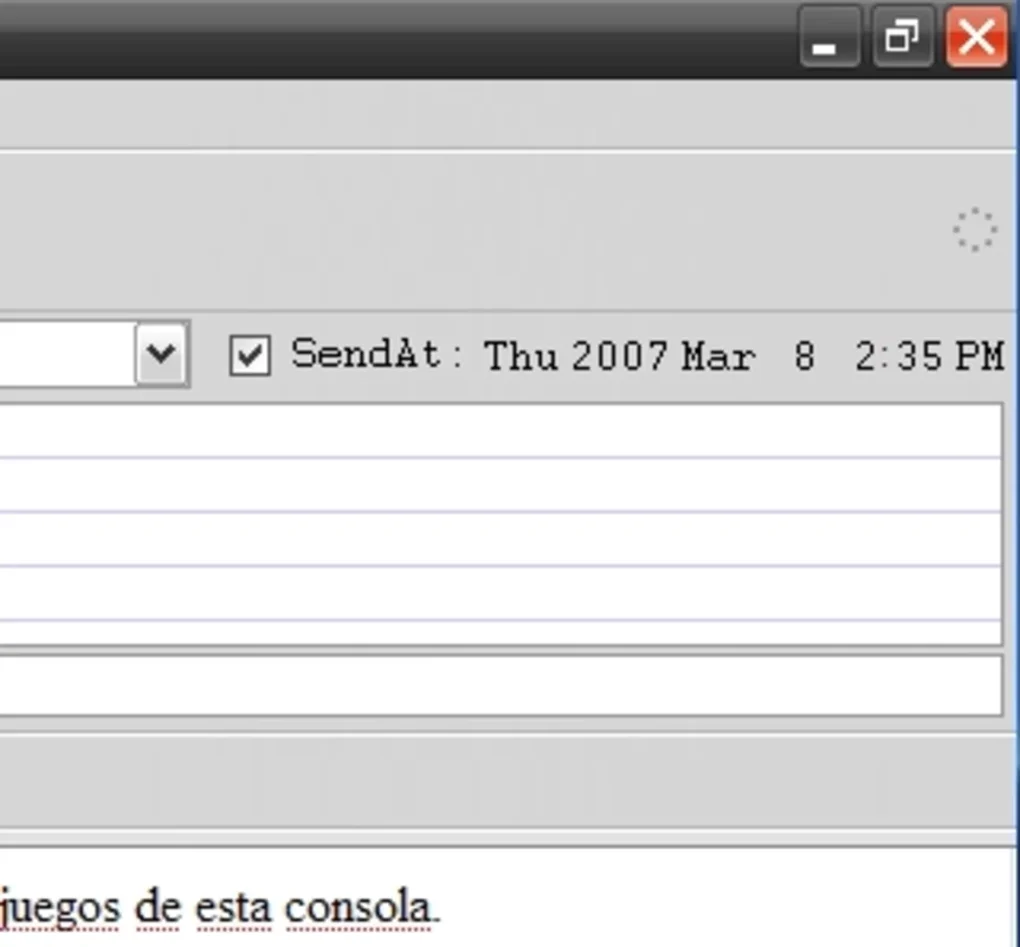
In today’s fast‑paced work environment, timing is everything. Whether you’re reaching out to a client across a different time zone, planning a marketing blast, or simply want to avoid the “late‑night email” stigma, a reliable scheduling tool can make a world of difference. **SendTools** steps into that niche as a sophisticated extension built specifically for the Mozilla Thunderbird email client. By adding two intuitive folders—Later and Scheduled—the extension gives you a sandbox where drafts wait patiently until the exact moment you designate for sending. The core of SendTools lives in a sleek control placed in the upper‑right corner of the compose window. With a single checkbox, you activate the scheduler, then fine‑tune the date and time with just a few clicks. No external services, no cloud‑based intermediaries, and no extra accounts—everything runs locally within Thunderbird, preserving privacy and keeping your workflow seamless. The extension is free, lightweight, and receives regular updates from its developers to stay compatible with the latest Thunderbird releases. In the sections that follow, we’ll break down the standout features, walk you through a step‑by‑step installation, explore system compatibility, weigh the pros and cons, and answer the most common questions users have when they first encounter SendTools.
Powerful Scheduling Features and Benefits
Feature List
- One‑click activation of scheduling via a clearly marked checkbox.
- Custom date‑time picker that integrates with Thunderbird’s native calendar.
- Automatic creation of “Later” and “Scheduled” folders for organized storage.
- Support for recurring send times (daily, weekly, monthly) for routine communications.
- Visual indicators in the message list showing pending scheduled emails.
- Seamless handling of attachments, signatures, and encryption while preserving schedule.
- Full offline capability – messages are queued locally and sent when the schedule triggers.
- Instant rescheduling: drag‑and‑drop between folders or edit the time directly from the compose window.
- Comprehensive logging: view a history of sent, pending, and failed scheduled messages.
- Lightweight codebase that adds less than 500 KB to your Thunderbird profile.
These features collectively transform Thunderbird from a simple inbox manager into a proactive communication hub. The ability to pre‑plan outreach means you can work in batches—draft several emails during a focused “writing hour,” then let SendTools handle the dispatch at optimal moments. This not only boosts productivity but also improves open‑rate metrics because recipients receive messages at times they’re most likely to read them. Moreover, the offline‑first design safeguards against internet outages; your emails remain in the “Scheduled” folder until connectivity is restored and the designated send time arrives. For teams that rely on strict compliance or audit trails, the logging feature provides a clear, timestamped record of every scheduled action.
Getting Started, System Compatibility and Frequently Asked Questions
Installation & Usage Instructions
Installing SendTools is straightforward and requires no technical expertise. Follow these steps:
- Open Thunderbird and navigate to Tools → Add‑ons and Themes.
- Click the Extensions tab and use the search bar to type “SendTools”.
- Press Add to Thunderbird, confirm any permission prompts, and wait for the download to complete.
- Restart Thunderbird when prompted; the extension will load automatically.
- Compose a new message. In the upper‑right corner of the compose window you’ll see a small calendar icon next to a checkbox labeled “Schedule send”.
- Check the box, click the calendar icon, and select your desired date and time. The message will automatically move to the “Later” folder until the schedule is reached.
- To view or edit scheduled emails, open the “Scheduled” folder. Right‑click any entry to reschedule or cancel.
Compatibility
SendTools is built for the cross‑platform nature of Mozilla Thunderbird. It works on:
- Windows 10, 11 (both 64‑bit and 32‑bit builds)
- macOS 12 Monterey and newer
- Linux distributions that support Thunderbird (Ubuntu, Fedora, Debian, etc.)
Because the extension runs inside Thunderbird’s JavaScript engine, there are no additional system requirements beyond the base application. Ensure you keep Thunderbird updated to the latest stable release to guarantee full compatibility with SendTools.
Pros and Cons
- Pros
- Free and open‑source – no hidden fees.
- Intuitive UI that blends with Thunderbird’s native design.
- Offline‑first scheduling protects against connectivity issues.
- Lightweight footprint keeps Thunderbird responsive.
- Robust logging for compliance‑oriented environments.
- Cons
- Only available for Thunderbird; not compatible with other email clients.
- Recurring schedules are limited to basic intervals (no complex cron‑like patterns).
- Occasional minor bugs after major Thunderbird updates (typically resolved quickly).
FAQ – Frequently Asked Questions
Can I schedule an email to be sent while my computer is turned off?
No. SendTools stores scheduled messages locally, so the computer must be powered on and Thunderbird running at the exact time for the email to be dispatched.
Is there a limit to how many emails I can schedule?
There is no hard‑coded limit. The practical limit depends on your system’s storage capacity and Thunderbird’s performance with large mail folders.
Will SendTools encrypt scheduled messages?
Yes. If you use OpenPGP or S/MIME encryption in Thunderbird, the message is encrypted before it is moved to the “Later” folder, preserving security throughout the scheduling process.
How do I cancel a scheduled email?
Open the “Scheduled” folder, right‑click the email you wish to cancel, and select “Delete” or “Move to Drafts”. The message will be removed from the queue and will not be sent.
Is SendTools compatible with Thunderbird’s new “Unified Folders” view?
Yes. The “Later” and “Scheduled” folders appear as regular local folders, so they integrate naturally with any folder view configuration, including the Unified Folders layout.
Final Verdict and How to Download SendTools
If you rely on Thunderbird for daily correspondence and need a reliable, no‑cost method to control when your messages leave the outbox, SendTools delivers exactly that. Its clean integration, offline‑first design, and comprehensive feature set make it a must‑have extension for professionals, marketers, and anyone who values timing in communication. Installation is a matter of minutes, and because the tool is free and open‑source, you can trust that there are no hidden subscriptions or data‑mining concerns. The only real limitation is that it works exclusively with Thunderbird, but for users already invested in that ecosystem, the benefits far outweigh the narrow scope.
Ready to take control of your email schedule? Download SendTools now, add it to Thunderbird, and start sending emails at the perfect moment—without ever needing to be at your computer.
Guides & Tutorials
How to install SendTools
- Click the Download button above.
- Once redirected, accept the terms and click Install.
- Wait for the SendTools download to finish on your device.
How to use SendTools
This software is primarily used for its core features described above. Open the app after installation to explore its capabilities.
User Reviews
No reviews yet. Be the first to share your experience.
You may also like
more
Llama 2
Free-to-use large language model As the new addition to Meta’s arsenal of langua...

NotebookLM
Revolutionizing the note-taking and idea-generation process NotebookLM is an exp...

Github co pilot
AI-inspired software development and coding platform GitHub Copilot is a browser...

Google Gemma
Google’s lightweight AI models Introducing Google Gemma , a family of cutting-ed...

AI Image Enlarger
A free app for Windows, by ai-image-larger. AI Image Enlarger is a free software...

DALL E
AI-driven text-to-image transformation engine DALL·E is a free graphic and desig...
