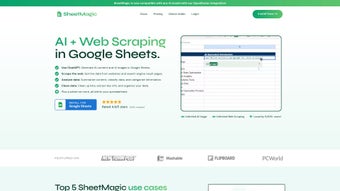

Download SheetMagic – AI‑Powered Web Scraping & Content Generation for Google Sheets
Overview
SheetMagic is a next‑generation AI tool that brings the power of OpenAI’s GPT models and robust web‑scraping capabilities directly into Google Sheets. Designed for marketers, e‑commerce managers, SEO specialists, and anyone who lives in spreadsheets, SheetMagic lets you generate AI‑driven text, create images, and pull live data from any web source without leaving your familiar spreadsheet environment. The tool automates repetitive tasks such as bulk content creation, personalized email drafts, product data extraction, and real‑time price monitoring, turning a static sheet into an interactive data hub. By embedding AI functions as native spreadsheet formulas, SheetMagic eliminates the need for separate coding environments or third‑party APIs, while supporting multilingual inputs and collaborative team workflows. Although it requires users to provide their own OpenAI API key, the trade‑off is a highly customizable, secure, and scalable solution that can be deployed across any Google Workspace account. Whether you’re building a dynamic SEO dashboard, curating a product catalog, or summarizing market research, SheetMagic offers a seamless bridge between AI, web data, and the spreadsheet world.
Powerful Features That Transform Google Sheets
SheetMagic packs a comprehensive suite of functionalities that go far beyond simple formula extensions. Each feature is crafted to reduce manual effort, improve data accuracy, and unlock creative possibilities right inside your spreadsheet. Below is a deep dive into the core capabilities that make SheetMagic a must‑have add‑on for data‑driven teams.
- AI‑Generated Text & Images: Use GPT‑4 level prompts to create blog excerpts, product descriptions, ad copy, or even generate DALL·E images directly in a cell.
- Live Web Scraping: Pull live tables, price feeds, reviews, and JSON data from any public website without writing a single line of code.
- Data Summarization: Summarize lengthy articles, research papers, or customer feedback into concise bullet points with a single formula.
- Content Classification & Tagging: Automatically categorize rows based on sentiment, topic, or custom taxonomy, helping you organize large datasets instantly.
- Bulk Content Creation: Generate thousands of unique product titles or email templates by feeding a list of keywords into an AI prompt.
- Multilingual Support: Write prompts and receive outputs in over 30 languages, making global campaigns and translations effortless.
- Team Collaboration: Share AI‑driven sheets with teammates, track changes, and set permission levels without leaving Google Workspace.
- Customizable Prompt Library: Save frequently used prompts as reusable snippets, ensuring consistency across projects.
- Scheduled Data Refresh: Set automatic intervals for web‑scraped data to stay up‑to‑date, ideal for price monitoring or SEO rank tracking.
- Secure API Integration: Connect your own OpenAI API key, giving you full control over usage limits, billing, and data privacy.
These features are not isolated; they work together through intuitive spreadsheet formulas like =SM_AI("write a 150‑word meta description for {keyword}") or =SM_SCRAPE("https://example.com", "table:nth‑child(2)"). The result is a fluid workflow where data ingestion, transformation, and output happen in a single, collaborative environment.
Installation, Setup & Compatibility Guide
Getting SheetMagic up and running is straightforward, even for users with limited technical background. Follow the steps below to install the add‑on, configure your OpenAI API key, and start leveraging AI within seconds.
Step‑by‑Step Installation
- Open Google Sheets: Navigate to Extensions → Add‑ons → Get add‑ons from the main menu.
- Search for “SheetMagic”: Type the product name in the marketplace search bar and click the Install button.
- Grant Permissions: Allow SheetMagic to access your spreadsheets, drive files, and external URLs – this is required for web scraping and AI calls.
- Open the Sidebar: After installation, launch the add‑on via Extensions → SheetMagic → Open. The sidebar will guide you through the initial configuration.
- Enter Your OpenAI API Key: Paste your personal API key in the designated field. If you don’t have one, you can generate it from the OpenAI dashboard.
- Save Settings: Click Save & Activate. SheetMagic will verify the key and display a confirmation message.
Basic Usage Examples
Once installed, you can start using SheetMagic with simple formulas. For example:
=SM_AI("Summarize the following paragraph: " & A2)This will output a concise summary of the text in cell A2. To scrape a live table:
=SM_SCRAPE("https://example.com/products", "table.product-list")The function returns the extracted table data directly into the sheet, ready for further analysis.
Compatibility Details
SheetMagic is built exclusively for Google Sheets, which means it works on any platform that can run Google Workspace – including Windows, macOS, Linux, Chrome OS, Android, and iOS. Because the add‑on runs within the browser, there is no separate desktop client, and all processing occurs via Google’s cloud infrastructure and the OpenAI API. The tool does not support offline use; an active internet connection is required for both AI generation and web scraping.
For teams using Google Workspace Enterprise, SheetMagic respects organization‑wide security policies and can be deployed via the admin console for bulk rollout. If you are on a personal Google account, the same functionality is available without additional licensing.
Pros and Cons – A Balanced Look at SheetMagic
Every software solution has its strengths and trade‑offs. Below we outline the most frequently mentioned advantages and drawbacks based on user feedback and independent testing.
Pros
- Deep integration with Google Sheets eliminates the need for separate AI platforms.
- Powerful web‑scraping engine that fetches live data without scripting.
- Supports GPT‑4 level text generation and DALL·E image creation.
- Multilingual capabilities make it suitable for global teams.
- Collaborative features align with Google Workspace permissions.
- Custom prompt library speeds up repetitive tasks.
- Scheduled data refresh keeps dashboards up‑to‑date automatically.
- Secure, user‑provided OpenAI API key ensures data privacy.
Cons
- Requires an OpenAI API key – no built‑in free tier.
- Limited to Google Sheets; cannot be used with Excel or other spreadsheet apps.
- No standalone API for developers who need programmatic access outside Sheets.
- Setup guide can be overwhelming for non‑technical users.
- Web‑scraping functions may struggle with heavily JavaScript‑rendered sites.
- Usage costs depend on OpenAI pricing, which can add up for high‑volume workloads.
- Customer support resources are modest compared with larger SaaS platforms.
- Offline usage is not possible; a constant internet connection is mandatory.
Overall, the benefits of having AI and live data extraction directly inside a spreadsheet outweigh the limitations for most power users, especially those already invested in the Google ecosystem.
Frequently Asked Questions & Final Verdict
Do I need any programming knowledge to use SheetMagic?
No. SheetMagic is designed for non‑technical users. All AI and scraping functions are accessed via simple spreadsheet formulas, and the add‑on includes a step‑by‑step setup wizard.
What happens if I exceed my OpenAI usage limits?
Since SheetMagic relies on your own OpenAI API key, any usage limits or billing are managed directly through your OpenAI account. If you exceed your quota, the API will return an error, and SheetMagic will display a friendly notification prompting you to upgrade your OpenAI plan.
Can SheetMagic scrape data from sites that require login?
SheetMagic’s built‑in scraper works best with publicly accessible pages. For authenticated sites, you would need to use external tools to export the data first or employ custom scripts outside of SheetMagic.
Is there a free trial or demo version available?
SheetMagic offers a 7‑day trial with a limited number of AI calls, allowing you to explore the core features before committing to a paid subscription.
How does SheetMagic handle data security and privacy?
All data stays within your Google Workspace environment. The only external communication is between SheetMagic and the OpenAI API (for AI generation) and target websites (for scraping). Your OpenAI API key is stored encrypted in your Google account, and no data is retained on SheetMagic’s servers after processing.
Conclusion – Should You Download SheetMagic?
SheetMagic bridges a critical gap for professionals who need AI‑driven content creation and real‑time web data without leaving Google Sheets. Its seamless formula‑based interface, robust scraping engine, and multilingual AI output make it a powerful productivity booster for marketing teams, SEO analysts, and e‑commerce managers. While the reliance on an external OpenAI key and the absence of an offline mode are notable constraints, the overall value proposition—especially for organizations already entrenched in the Google ecosystem—remains strong. If you regularly work with large datasets, need automated content generation, or want to keep dashboards refreshed with live market data, SheetMagic is a worthy investment.
Ready to supercharge your spreadsheets? Download SheetMagic now and start turning raw data into actionable insights with AI.



.png)