
Download SmoothDraw – Free Digital Paint Application for Windows PCs
Overview
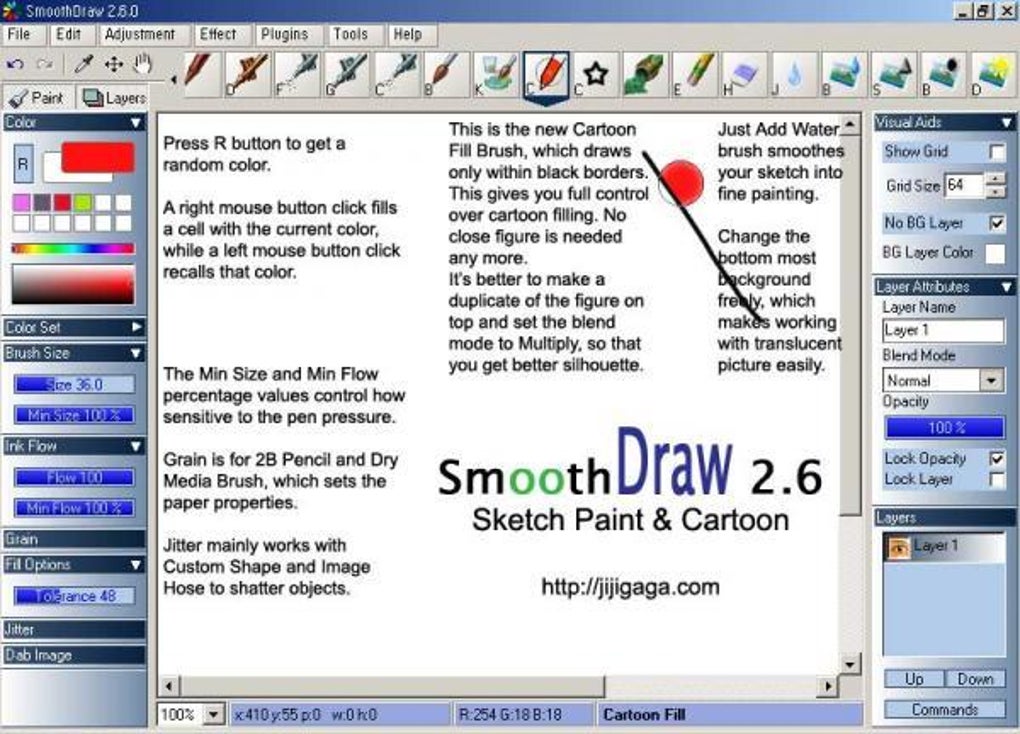
SmoothDraw is a free graphic and design software built especially for Windows‑based PCs. Positioned between the simplicity of Paint.NET and the flexibility of more advanced sketch‑board tools, SmoothDraw gives hobbyists, students, and semi‑professional artists a reliable canvas for free‑hand digital sketches, illustrations, and lightweight painting projects. The user interface mirrors classic paint programs, featuring a familiar toolbar, colour palettes, and a straightforward layout that shortens the learning curve. When paired with a pen tablet or a pressure‑sensitive stylus, the application unlocks a surprisingly rich set of brush dynamics, allowing artists to vary line weight, opacity, and texture with a natural hand‑drawing feel. Whether you’re creating a quick doodle, a detailed concept sketch, or a layered illustration, SmoothDraw offers the essential tools without the steep price tag or the bloat of enterprise‑level suites. Its core strengths lie in an intuitive UI, a respectable brush library, and robust layer support—features typically reserved for paid software like Adobe Photoshop. While it does not boast cutting‑edge AI‑driven filters or 3‑D capabilities, SmoothDraw excels at what it promises: a secure, free, and easy‑to‑use digital drawing environment that runs smoothly on most modern Windows computers.
Key Features and System Compatibility
Feature List
- Free‑hand drawing with multiple brush types (pen, pencil, airbrush, charcoal, etc.)
- Pressure‑sensitive support for stylus and pen tablets
- Layer management – add, reorder, hide, and merge layers
- Canvas resizing and custom paper textures
- Built‑in stencils (stars, grass, shapes) for quick embellishments
- Image adjustment sliders – contrast, saturation, gamma, brightness
- Basic filters and effects for quick visual tweaks
- Import and export support for PNG, JPEG, BMP, and TIFF formats
- Undo/redo stack with up to 50 steps
- Lightweight installer – less than 30 MB download size
Operating System Compatibility
SmoothDraw is designed exclusively for Windows 7, 8, 8.1, and 10 (both 32‑bit and 64‑bit). The installer checks for required .NET Framework components and will prompt the user to install missing dependencies automatically. While the software does not have native macOS, Linux, Android, or iOS versions, it runs smoothly on any modern Windows PC that meets the minimum requirement of a 1 GHz processor, 2 GB RAM, and a graphics card supporting DirectX 9.0c or higher. Users who rely on virtual machines or compatibility layers (such as Wine) can also run SmoothDraw, though native performance is best on a true Windows environment.
Installation, Daily Use, and Pros & Cons
Step‑by‑Step Installation Guide
Downloading and installing SmoothDraw is a straightforward process that takes under five minutes on a typical broadband connection. Follow these steps:
- Visit the official SmoothDraw website and click the “Download for Windows” button.
- The installer (SmoothDrawSetup.exe) will be saved to your
Downloadsfolder. - Double‑click the executable. Windows may prompt you to confirm the installation; click “Yes”.
- The setup wizard will verify that the required .NET Framework version is present. If not, it will download and install the missing component automatically.
- Choose your installation directory (default is
C:\Program Files\SmoothDraw) and click “Install”. - When the progress bar reaches 100 %, click “Finish”. You can now launch SmoothDraw from the Start menu or a desktop shortcut.
First‑Time Usage Tips
Upon launching SmoothDraw, you’ll be greeted by a clean canvas and a toolbar on the left. Begin by selecting a brush from the brush panel; hovering over each icon reveals a brief tooltip (though the application lacks extensive tooltips for every feature). Adjust brush size and opacity using the sliders at the top of the toolbar. To enable pressure sensitivity, go to Settings → Input and ensure your tablet is detected. Creating layers is as simple as clicking the “New Layer” button in the Layers panel; you can rename, reorder, and toggle visibility with a click. For image adjustments, import a photo via File → Open, then use the “Adjustments” panel to tweak contrast, saturation, or gamma. Save your work frequently—SmoothDraw offers both the native .sdr format (preserving layers) and standard image exports like PNG or JPEG.
Pros and Cons
- Pros
- Completely free with no hidden fees or trial periods.
- Intuitive UI that feels familiar to anyone who has used basic paint programs.
- Robust layer support for a free application.
- Pressure‑sensitive brush dynamics work well with most tablet brands.
- Lightweight installer and low system resource consumption.
- Regular updates that address bugs and add minor features.
- Cons
- Limited hotkey shortcuts; power users may miss advanced keyboard navigation.
- Tooltips are sparse, which can make discovering hidden options slower.
- Missing advanced features such as vector editing, layer blending modes, and CMYK colour management.
- No native support for macOS, Linux, or mobile platforms.
- Export options are basic; no direct PDF or SVG output.
Overall, SmoothDraw delivers a solid, free drawing experience for Windows users who need layers and pressure‑sensitive brushes without the cost of premium software.
Frequently Asked Questions
Is SmoothDraw really free or does it have hidden in‑app purchases?
SmoothDraw is 100 % free. There are no premium tiers, subscription plans, or in‑app purchases. All features, including layers and brush packs, are available to every user after download.
Can I use SmoothDraw on a Mac or Linux machine?
Currently SmoothDraw is built only for Windows. macOS and Linux users can try running it through compatibility layers such as Wine, but native performance and full feature support are not guaranteed.
Does SmoothDraw support pressure‑sensitive tablets?
Yes. SmoothDraw detects most popular pen tablets (Wacom, Huion, XP‑Pen) and translates pressure data into brush size and opacity variations. Make sure the tablet driver is installed before launching the program.
What file formats can I import and export?
You can open PNG, JPEG, BMP, and TIFF files. For saving, SmoothDraw offers its native .sdr format (preserves layers) and standard exports like PNG, JPEG, and BMP. PDF, SVG, and PSD are not supported.
How often is SmoothDraw updated?
The development team releases updates roughly every 3–4 months, focusing on bug fixes, performance improvements, and occasional new brush additions. Users are notified of updates via the built‑in “Check for Updates” feature.
Conclusion & Call to Action
SmoothDraw strikes a commendable balance between simplicity and functionality, making it an ideal choice for Windows users who want a reliable, free drawing platform with layer support and pressure‑sensitive brushes. While it lacks some high‑end features found in professional suites, its lightweight design, easy learning curve, and regular updates provide excellent value for hobbyists, students, and semi‑professional artists. If you’re searching for a secure, no‑cost tool to start sketching, create digital paintings, or experiment with layer‑based compositions, SmoothDraw deserves a spot on your PC.
Ready to unleash your creativity? Download SmoothDraw now and start drawing for free today!








