
Download SpiderOak – Secure Free Online Backup, Storage & Sharing Tool
Overview
SpiderOak is a free, cross‑platform solution that combines online backup, cloud storage, and secure file‑sharing into a single, easy‑to‑use service. After registering for a free account, users receive 2 GB of cloud space that can be used to store documents, photos, videos, or any other digital asset. The platform’s core promise is simplicity: you select files or folders on your computer, SpiderOak uploads them in the background, and you receive a personal shareable link that can be accessed by anyone you choose—no FTP knowledge required. The service is designed for both personal and small‑team workflows, making it an attractive option for people who need a reliable backup without the hassle of configuring external drives or dealing with complex permission settings. While the free tier offers modest storage, it is sufficient for light users who want a secure vault for critical files and a straightforward way to share large media collections with friends or family. SpiderOak also emphasizes security; all data is encrypted during transfer and at rest, and the company has a strong privacy stance that discourages data mining. However, one noted drawback is the latency in making shared spaces publicly available—especially noticeable when uploading a handful of photos. Despite this, SpiderOak remains one of the most user‑friendly cloud solutions for Windows, macOS, and Linux users seeking a free, secure, and hassle‑free backup and sharing experience.
Key Features and Functionality
- Free 2 GB Cloud Space – Immediate access to a personal storage vault without any payment.
- Cross‑Platform Compatibility – Native clients for Windows, macOS, and Linux ensure a seamless experience across all major desktop operating systems.
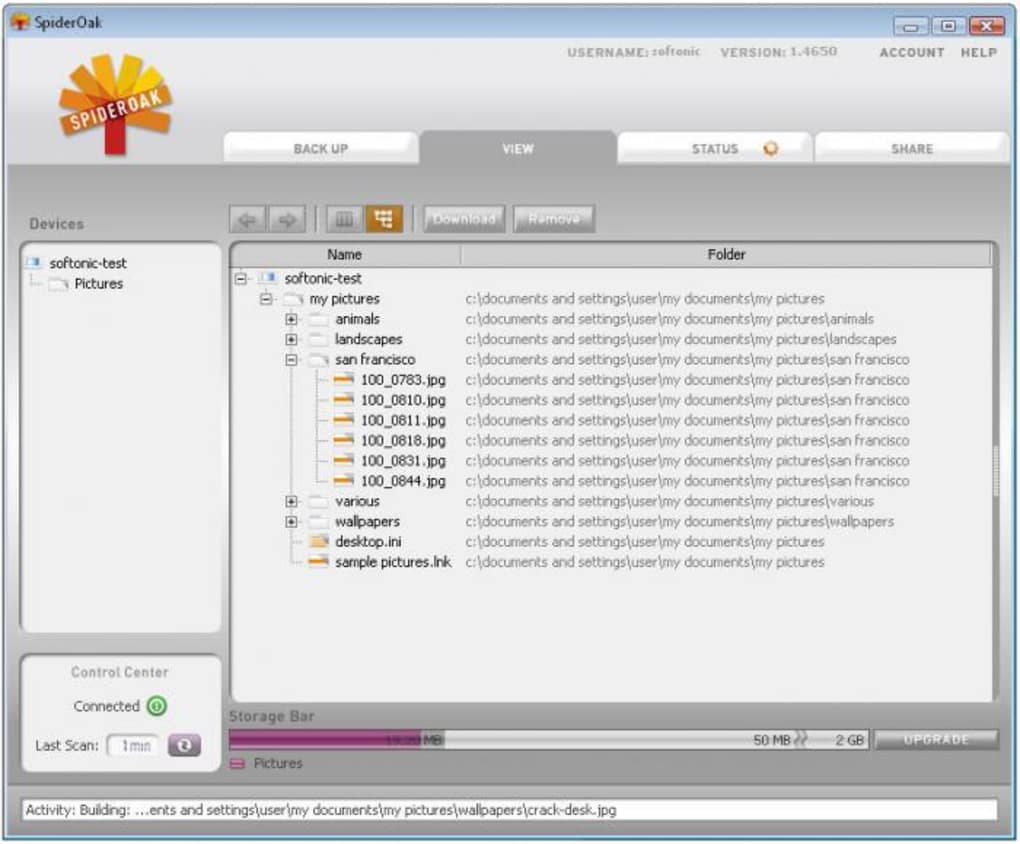
- Automatic Background Uploads – Choose files or folders and let SpiderOak handle the transfer while you continue working.
- Secure End‑to‑End Encryption – All data is encrypted in transit and at rest, protecting your files from unauthorized access.
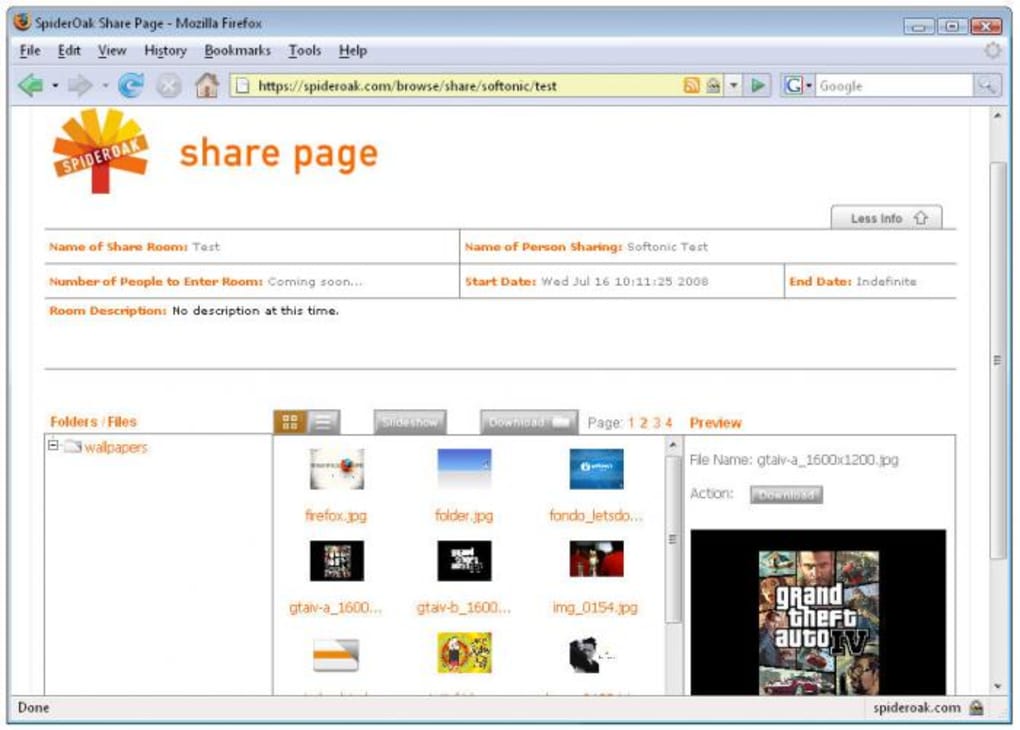
- Simple Share Links – Generate a public URL for any file or folder, allowing anyone with the link to download without creating an account.
- Version History – Keep older versions of edited files, making it easy to revert changes or recover accidentally deleted data.
- Digital Signature for macOS Builds – Recent updates include a digital signature for Mac clients, improving trust and compliance with macOS security policies.
- Low‑Impact System Usage – The client runs quietly in the background, consuming minimal CPU and RAM.
Beyond the bullet‑point list, SpiderOak’s workflow is built around the principle of “set it and forget it.” After installation, you can create “sync sets” that automatically monitor specific folders for changes. When a new file is added, SpiderOak encrypts it locally before uploading, ensuring that even the service provider cannot read your data. The sharing interface is equally intuitive: a single click on the “Share” button generates a unique URL that can be copied to email, instant messenger, or embedded in a website. Permissions are limited to view‑only, which is ideal for distributing media or documents without risking accidental edits. For users who need more storage, SpiderOak offers paid plans with larger capacities, but the free tier remains fully functional for everyday backup and occasional sharing tasks.
Installation, Usage & Compatibility
Step‑by‑Step Installation Guide
1. Visit the official SpiderOak website and click the “Download” button for your operating system. The site automatically detects Windows, macOS, or Linux and presents the appropriate installer.
2. Run the installer. On Windows, double‑click the .exe file; on macOS, open the .dmg and drag the SpiderOak icon into the Applications folder; on Linux, download the .deb or .rpm package and install via your package manager (e.g., sudo dpkg -i spideroak.deb).
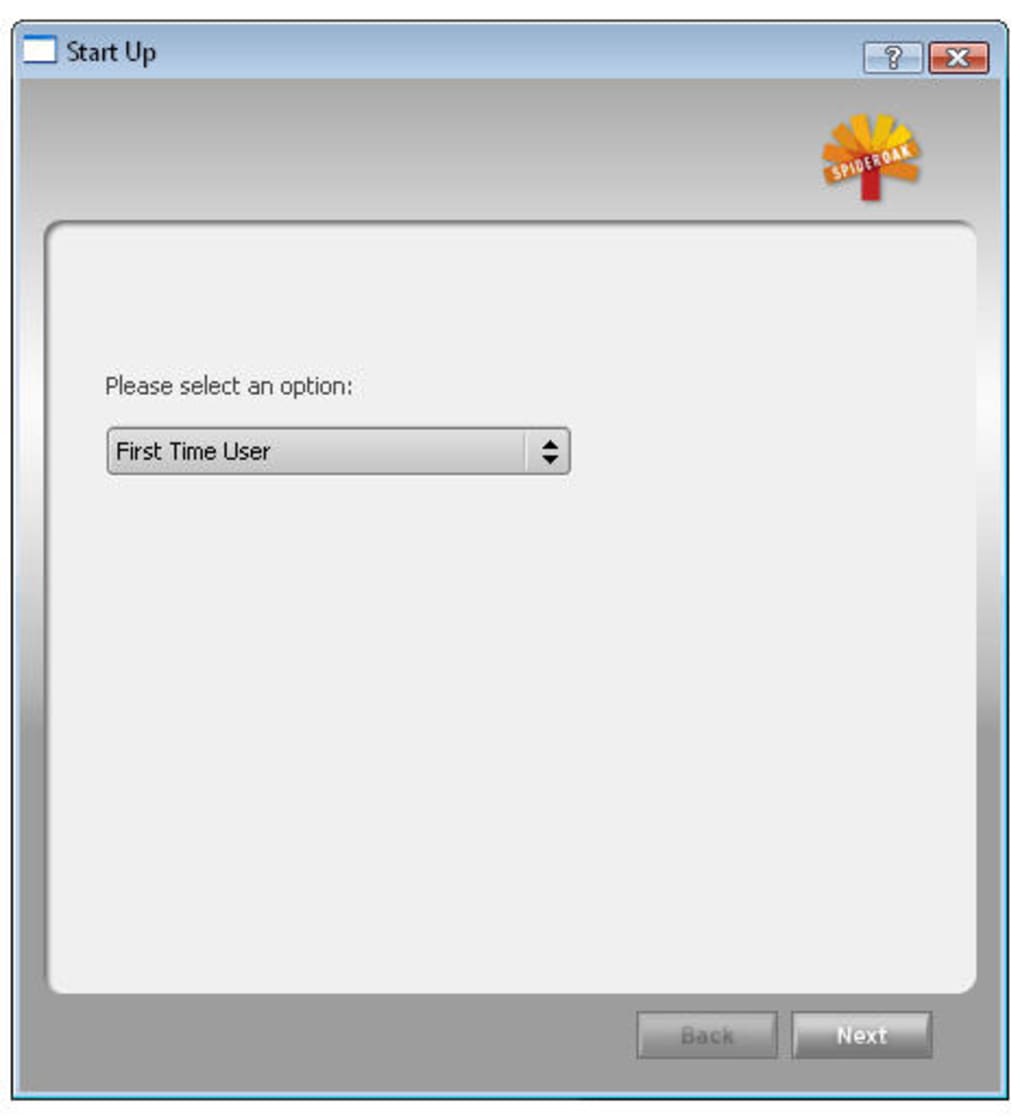
3. Create a free account during the first launch. You’ll be asked for an email address, a strong password, and an optional recovery key. Keep the recovery key safe; it’s the only way to access your data if you forget your password.
4. Log in with your newly created credentials. The client will prompt you to select a local folder to act as your “SpiderOak Vault.” This is the directory where you will place files you want to back up.
5. Configure sync sets (optional). You can add additional folders to be monitored and automatically uploaded to the cloud.
6. Start sharing by right‑clicking any file or folder within the vault and choosing “Share.” A unique URL is generated, which you can copy and distribute.
Operating System Support
SpiderOak officially supports the following platforms:
- Windows 10, 11 (64‑bit)
- macOS 10.14 Mojave and later (including Apple Silicon)
- Linux distributions with .deb or .rpm packages (Ubuntu, Fedora, Debian, etc.)
The client is regularly updated to maintain compatibility with the latest OS releases. For macOS, the recent addition of a digital signature improves launch reliability on newer versions that enforce stricter security policies. On Linux, the command‑line interface (CLI) version is also available for power users who prefer terminal‑based control.
Practical Usage Tips
To get the most out of SpiderOak’s free tier, consider the following best practices:
- Prioritize critical files: Since storage is limited to 2 GB, focus on backing up essential documents, high‑resolution photos, or project files you cannot afford to lose.
- Compress large folders: Use zip or tar to bundle multiple files before uploading, which saves space and reduces the number of individual uploads.
- Leverage version history: If you frequently edit a document, keep the original in the vault and let SpiderOak handle versioning, allowing you to revert if needed.
- Test share links: Before sending a link to a wide audience, open it in an incognito browser window to confirm that the permissions work as intended.
Overall, SpiderOak’s installation process is straightforward, and its cross‑platform nature ensures that you can protect and share files regardless of whether you work on a Windows PC, a MacBook, or a Linux workstation.
Pros, Cons & Frequently Asked Questions
Pros
- Free 2 GB storage with no hidden fees.
- End‑to‑end encryption guarantees privacy.
- Simple shareable links require no recipient account.
- Native clients for Windows, macOS, and Linux.
- Versioning and automatic background uploads.
- Digital signature for macOS builds improves security compliance.
Cons
- Shared spaces may take longer to become publicly accessible.
- Free tier storage is limited; heavy users will need a paid plan.
- No built‑in collaboration tools (e.g., real‑time editing).
- Advanced features such as granular permissions are only in paid plans.
FAQ
Is SpiderOak really free?
Yes. Upon registration you receive 2 GB of secure cloud storage at no cost. Additional storage requires a paid subscription.
How does SpiderOak protect my data?
All files are encrypted on your device before they leave your computer, using strong AES‑256 encryption. The data remains encrypted while stored on SpiderOak’s servers, ensuring that only you can decrypt it.
Can I use SpiderOak on mobile devices?
SpiderOak currently offers desktop clients for Windows, macOS, and Linux. Mobile apps are not part of the free tier, but the service can be accessed via a web browser on Android or iOS for basic download and sharing.
What happens if I forget my password?
During account creation you receive a recovery key. This key is the only way to reset your password and regain access to your encrypted files. Keep it stored securely offline.
Is there a limit to file size when sharing?
SpiderOak does not impose a strict per‑file size limit, but the total amount of data you can upload is bounded by your storage quota (2 GB on the free plan). Large files may take longer to upload and become available for sharing.
Conclusion & Call to Action
SpiderOak stands out in the crowded cloud‑backup market by marrying simplicity with strong security. Its free 2 GB tier is perfect for users who need a trustworthy vault for personal documents, photos, or occasional file sharing without the complexity of enterprise‑grade solutions. While the sharing latency can be a minor annoyance, the overall experience—especially the seamless cross‑platform support and end‑to‑end encryption—makes SpiderOak a compelling choice for anyone prioritizing privacy and ease of use.
If you’re looking for a straightforward, secure way to back up your critical files and share them with friends or family, download SpiderOak today and start protecting your data instantly. The free account gets you up and running in minutes, and you’ll appreciate the peace of mind that comes with knowing your files are encrypted and safely stored.
SpiderOak delivers a reliable, secure, and user‑friendly backup and sharing experience. Its free tier is generous enough for light users, and the cross‑platform clients ensure you stay protected regardless of your operating system.








