
Download Startup Timer – Free Boot‑Time Measurement Tool for Windows & macOS
Overview
Startup Timer is a lightweight, free utility that lets you measure exactly how long your computer takes to boot from power‑on to a ready‑to‑use desktop. Whether you’re a casual user curious about why your PC feels sluggish after a Windows update, an IT professional looking to benchmark a fleet of machines, or a hardware enthusiast who loves to squeeze every millisecond out of a custom build, Startup Timer provides a simple, accurate, and visual way to capture boot‑time data. The program’s interface is deliberately minimalistic: a single window guides you through hardware detection, offers a one‑click “Restart Computer” button, and then automatically records the time it takes for the operating system to present the first desktop screen. After the reboot, you’ll see a clear numeric result, a graphical timeline, and the option to share your score on a global leaderboard where users compare startup speeds across different hardware configurations. Because the tool works directly with the BIOS/UEFI timing signals and does not rely on third‑party scripts, the measurements are trustworthy and repeatable. Moreover, Startup Timer is built with security in mind; the installer is digitally signed, and the application runs with standard user privileges, so there’s no risk of unwanted system changes. If you’ve ever wondered whether a new SSD, a fresh driver set, or a BIOS tweak actually improves boot performance, this app gives you the data you need—fast, free, and without the hassle of manual stop‑watch timing.
Key Features & Benefits
- Accurate Boot‑Time Measurement: Captures the exact duration from power‑on to the moment the desktop becomes visible, using low‑level system hooks for millisecond precision.
- One‑Click Restart: Integrated “Restart Computer” button eliminates the need to manually reboot; the app automatically begins timing as soon as the system powers back on.
- Global Leaderboard: Compare your boot time with users worldwide, filter results by hardware type, and see how your configuration stacks up against the fastest builds.
- Hardware Detection: Automatically identifies CPU, RAM, storage type (HDD/SSD), and BIOS version, then displays these specs alongside the timing result for easy context.
- Historical Log: Stores previous measurements locally, allowing you to track performance trends after driver updates, Windows patches, or hardware upgrades.
- Secure & Signed Installer: The download is digitally signed, runs with standard user rights, and never modifies system files, ensuring a safe experience.
- Cross‑Platform Support: Available for both Windows 10/11 and macOS 10.15+ (Catalina and later), with a consistent UI across operating systems.
- Lightweight Design: The application uses less than 20 MB of disk space and consumes negligible CPU while measuring, so it won’t impact the very performance you’re trying to evaluate.
Each of these features is crafted to reduce friction for users at any skill level. The UI presents a clear progress bar during the reboot, and the final screen shows a concise summary: total boot time, hardware profile, and a “Share on Leaderboard” button. For power users, the log file can be exported as CSV, enabling deeper analysis with spreadsheet tools or integration into automated testing pipelines. Because the tool is free, there are no hidden fees, premium tiers, or annoying ads—just pure functionality. The combination of accurate timing, automatic restart, and community competition makes Startup Timer not only a diagnostic instrument but also a gamified way to encourage hardware upgrades and system optimization.
Installation, Usage & Compatibility
Step‑by‑Step Installation Guide
Installing Startup Timer is straightforward. Follow these steps to get the app up and running on your machine:
- Download the Installer: Visit the official website and click the “Download for Windows” or “Download for macOS” button. The file is a signed
.exefor Windows or a.dmgfor macOS. - Run the Installer: Double‑click the downloaded file. On Windows, you may see a User Account Control (UAC) prompt—click “Yes” to allow the installer to proceed. On macOS, drag the Startup Timer icon into the Applications folder.
- Complete the Wizard: The setup wizard asks for a destination folder (the default works for most users) and whether you want a desktop shortcut. Choose your preferences and click “Install.”
- Launch the Application: After installation, open Startup Timer from the Start menu (Windows) or Launchpad (macOS). The first launch may trigger a brief security check; confirm that you trust the publisher.
How to Use Startup Timer
Using the tool requires only a few clicks:
- Detect Hardware: Upon opening, the app scans your system and displays CPU, RAM, storage, and BIOS information.
- Start the Test: Click the large “Restart Computer” button. The program will close, initiate a system reboot, and automatically begin timing as soon as power is restored.
- Wait for the Desktop: The app runs silently in the background. When Windows or macOS finishes loading the desktop for the first time, Startup Timer records the elapsed time.
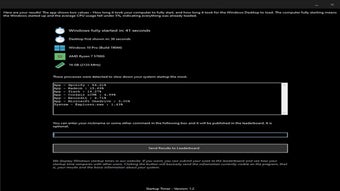
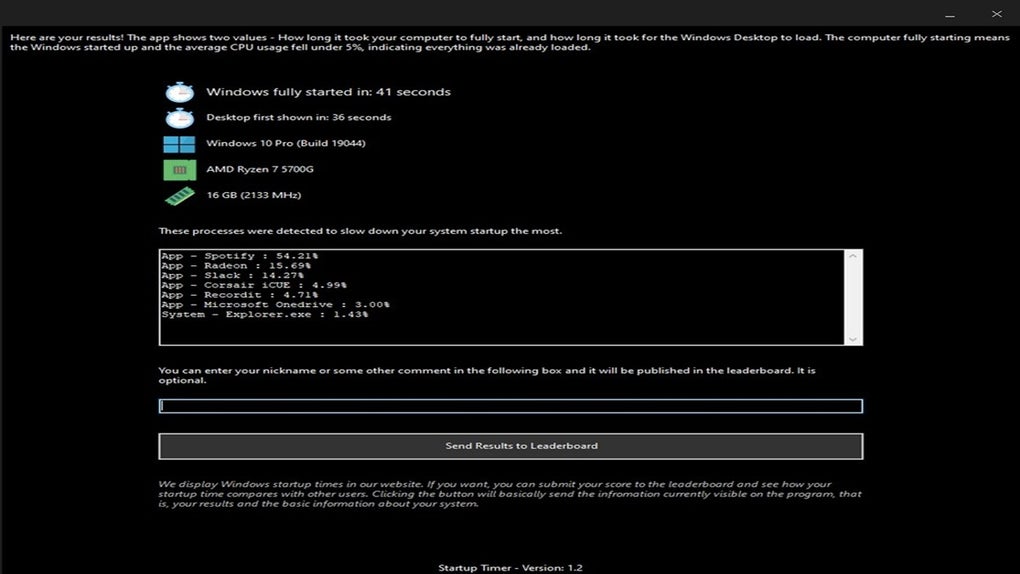
- View Results: After the reboot, the app reopens and shows a summary screen with total boot time, a graphical timeline, and your hardware specs. You can choose to save the result, export it, or upload it to the leaderboard.
Compatibility & System Requirements
Startup Timer is built to run on the most common consumer operating systems. Below are the supported platforms and minimum hardware requirements:
- Windows: Windows 10 (64‑bit) or Windows 11. Requires .NET Framework 4.7.2 or later (automatically installed if missing).
- macOS: macOS Catalina (10.15) or later. Requires the Apple Silicon or Intel architecture; the app includes a universal binary.
- Processor: Any 64‑bit x86 or ARM processor released after 2010.
- RAM: Minimum 2 GB (4 GB recommended for smoother operation).
- Storage: Less than 20 MB of free disk space for installation; additional space needed for log files (approximately 1 MB per measurement).
- Permissions: Standard user rights; no administrator privileges required unless your system policy blocks software installations.
Because Startup Timer interacts directly with the boot process, it is advisable to close any critical applications before initiating a measurement. The program does not interfere with startup programs or services, so your regular boot configuration remains untouched. If you encounter any compatibility warnings—particularly on older BIOS versions—consult the FAQ section below for troubleshooting tips.
Pros, Cons & Frequently Asked Questions
Pros
- Free, no hidden costs or subscription fees.
- Highly accurate millisecond‑level boot time measurement.
- One‑click restart eliminates manual timing errors.
- Cross‑platform support for Windows and macOS.
- Secure, signed installer with standard user privileges.
- Global leaderboard adds a fun, competitive element.
- Exportable log files for deeper analysis.
Cons
- No native Linux version (community forks may exist).
- Leaderboard requires an internet connection; offline users cannot compare scores.
- Limited customization of the measurement process (e.g., cannot exclude specific services).
- Requires a system reboot for each measurement, which may be inconvenient for rapid testing.
Frequently Asked Questions
Is Startup Timer safe to use on a work computer?
Yes. The application runs with normal user privileges, does not modify system files, and its installer is digitally signed. However, corporate IT policies may restrict reboot‑based utilities, so it’s best to check with your administrator before using it on a managed device.
Can I measure boot time without restarting my PC?
Startup Timer is designed to capture the full boot sequence, which inherently requires a reboot. While you can approximate startup speed by measuring the time until the login screen appears, the most accurate results come from a complete restart initiated by the app.
Does the tool work with dual‑boot systems?
Yes. When you run Startup Timer on a machine that has multiple operating systems, the measurement will reflect the boot time of the OS you are currently using. You’ll need to run the tool separately on each OS to compare their individual boot times.
How does the leaderboard protect my privacy?
Only anonymized data—boot time, hardware specs, and a randomly generated user ID—are uploaded. No personally identifiable information (such as your name or IP address) is stored or displayed. You can opt out of sharing at any time.
Can I export the boot‑time logs for analysis?
Absolutely. The app provides an “Export CSV” button on the results screen, allowing you to save all recorded measurements, timestamps, and hardware details for later review in spreadsheet programs or custom scripts.
Conclusion & Call to Action
Startup Timer fills a niche that many system utilities overlook: delivering an effortless, reliable snapshot of how fast your computer truly boots. By combining a clean UI, one‑click restart, and a community‑driven leaderboard, it transforms a mundane diagnostic task into an engaging experience. The fact that it’s free, secure, and cross‑platform makes it an ideal addition to any tech enthusiast’s toolbox, and even casual users will appreciate the instant feedback after hardware upgrades or Windows updates. While it does require a reboot for each measurement and lacks a native Linux version, these trade‑offs are minor compared with the clarity and precision it offers. If you’re looking to fine‑tune your PC, verify that a new SSD is delivering the promised speed boost, or simply satisfy a curiosity about your machine’s performance, Startup Timer is the go‑to solution.
Ready to see exactly how fast your system can start? Download Startup Timer now, run a quick test, and join the global leaderboard to compare your results with tech enthusiasts worldwide. Optimize, compete, and keep your boot times in the fast lane!








