
Download SuperImage – AI Image Upscaling Tool, Fast, Secure
Overview
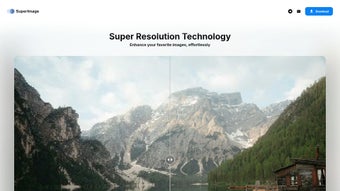
SuperImage is a cutting‑edge, AI‑powered desktop application that specializes in upscaling low‑resolution photographs, graphics, and digital artwork. Powered by the Real‑ESRGAN algorithm and a custom‑trained neural network, SuperImage restores missing details, sharpens edges, and boosts color fidelity while preserving the original aesthetic. One of the most compelling aspects of the tool is its local‑processing model: the application runs directly on your computer, leveraging GPU acceleration to deliver rapid results without ever sending your files to a remote server. This design guarantees both speed and privacy, making it an ideal solution for casual hobbyists, professional photographers, graphic designers, game developers, and anyone who needs high‑quality image enhancement on the fly. While the current stable release focuses on Windows, the development roadmap includes full‑featured versions for Linux and macOS, broadening its accessibility across the major desktop ecosystems. Whether you are preparing images for print, enlarging textures for 3D projects, restoring treasured family photos, or simply improving assets for e‑commerce listings, SuperImage provides an efficient, secure, and user‑friendly way to bring out the hidden detail in every pixel. The software also integrates a lightweight command‑line API, allowing power users to embed upscaling directly into automated pipelines, further extending its utility beyond the graphical user interface.
Key Features That Set SuperImage Apart
- Real‑ESRGAN Core Engine: Utilizes the state‑of‑the‑art Real‑ESRGAN model, delivering upscaling quality comparable to professional photo‑editing suites.
- GPU‑Accelerated Processing: Takes full advantage of NVIDIA, AMD, and Intel graphics cards to reduce rendering time from minutes to seconds on modern hardware.
- Offline, Privacy‑First Architecture: All computations are performed locally, ensuring that your images never leave your device.
- Batch Upscaling: Supports multiple files at once, letting you upscale entire folders with a single click.
- Custom Scale Options: Choose from 2×, 4×, or 6× upscaling, with an experimental 8× mode for advanced users.
- Detail Restoration Controls: Fine‑tune texture preservation, noise reduction, and edge sharpening to match your creative intent.
- Cross‑Platform Development: While the current stable version runs on Windows, a Linux build and macOS native app are in active development, ensuring future flexibility.
- Simple Web‑Based UI: Intuitive drag‑and‑drop interface that requires no steep learning curve.
Beyond the core upscaling engine, SuperImage offers a suite of ancillary tools that streamline the workflow for professional pipelines. The batch processing mode includes automatic naming conventions, metadata preservation, and optional export to popular formats such as PNG, JPEG, and TIFF. Users can also enable a “preview mode” that generates a low‑resolution thumbnail of the upscaled result, allowing quick visual verification before committing to the full‑resolution output. For developers and power users, the application exposes a lightweight API that can be called from command‑line scripts, enabling integration into automated pipelines for game asset creation, e‑commerce image preparation, or archival restoration projects. Additionally, SuperImage supports plugin extensions, allowing third‑party developers to add custom pre‑ or post‑processing filters. The combination of high‑quality AI models, hardware acceleration, and a privacy‑centric design makes SuperImage a compelling alternative to cloud‑based upscalers that often impose usage limits or charge per image.
Installation, Usage Instructions, and Compatibility
Step‑by‑Step Installation
- Visit the official SuperImage download page and click the Download for Windows button. The installer is a compact
.exefile (~120 MB). - Run the installer with administrator privileges. The wizard will guide you through selecting an installation folder and optionally creating a desktop shortcut.
- During setup, you will be prompted to install the required GPU drivers (CUDA for NVIDIA, ROCm for AMD, or Intel oneAPI). If your system already has up‑to‑date drivers, you can skip this step.
- After installation, launch SuperImage from the Start Menu. The first launch may take a few seconds as the application caches the AI model on your local drive.
- Check for updates via the built‑in updater. SuperImage checks for new model releases and bug‑fix patches automatically and offers a one‑click download, ensuring you always have the latest performance improvements.
How to Use SuperImage Effectively
Once the program is open, the interface presents a clean workspace with a large drop‑zone. Drag your low‑resolution image(s) into the area or click the Browse button to locate files manually. In the right‑hand panel, select the desired upscale factor (2×, 4×, 6×, or 8×) and toggle optional settings such as Noise Reduction and Edge Preservation. For batch operations, you can add an entire folder; SuperImage will process each file sequentially while displaying a progress bar and estimated time remaining.
After configuring the parameters, click Start Upscaling. The GPU‑accelerated engine begins processing, and you can monitor GPU usage in real‑time via the built‑in performance meter. When the job completes, the upscaled images appear in the Output pane, ready for export. Use the Export Settings button to choose the destination folder, file format, and whether to preserve original metadata (EXIF, IPTC, etc.). The application also offers a “quick‑save” option that writes files to a default directory with a timestamped naming scheme, which is handy for users who need to process large batches quickly.
System Compatibility (itemprop="operatingSystem")
SuperImage is officially supported on 64‑bit Windows 10 and Windows 11. Minimum hardware requirements include a dedicated GPU with at least 4 GB of VRAM, 8 GB of system RAM, and a modern CPU (Intel i5‑6600 or AMD Ryzen 5 1600 or newer). While the Windows version is production‑ready, beta builds for Linux (Ubuntu 20.04+, Fedora 34+) and macOS (Monterey 12.0+) are available through the project's GitHub repository. These pre‑release versions share the same local‑processing model and can be compiled from source or installed via community‑maintained package managers.
For users without a dedicated GPU, SuperImage can fall back to CPU mode, though processing times increase significantly (up to 10× slower). The application automatically detects available hardware on launch and offers a prompt to enable GPU acceleration if compatible devices are found. Additionally, SuperImage supports DirectX 12 and Vulkan render back‑ends, giving users flexibility on newer graphics stacks.
Pros, Cons, Frequently Asked Questions, and Final Verdict
Pros
- High‑quality AI upscaling using Real‑ESRGAN delivers impressive detail restoration.
- All processing occurs locally, ensuring privacy and eliminating upload bandwidth constraints.
- GPU acceleration provides near‑instant results on modern graphics cards.
- Batch processing and customizable export options streamline large‑scale workflows.
- Free download with optional paid “Pro” add‑ons for extended features.
- Lightweight command‑line API enables automation and integration into custom pipelines.
- Regular updates keep the AI model and performance optimizations current.
Cons
- Current stable release is Windows‑only; macOS and Linux users must rely on beta builds.
- Requires a compatible GPU for optimal performance; CPU‑only mode can be slow.
- Advanced settings may be overwhelming for absolute beginners.
- Large model files (~500 MB) increase initial download size.
- Beta builds for other platforms may lack the polish of the Windows version.
Frequently Asked Questions
Is SuperImage completely free to use?
The core application is free and includes all essential upscaling features. A premium “Pro” tier offers additional AI models, higher batch limits, and priority support for a modest yearly fee.
Can I upscale images without an internet connection?
Yes. SuperImage runs entirely on your local machine, so no internet connection is required after the initial download and installation.
What image formats are supported?
SuperImage accepts PNG, JPEG, BMP, TIFF, and WebP. Export can be performed in any of these formats, preserving original color profiles when possible.
How does SuperImage handle large batch jobs?
Batch jobs are queued automatically. The UI shows a progress bar for each file, and you can pause or cancel the queue at any time. For very large collections, we recommend using the command‑line interface to script the process.
Is there a way to test SuperImage before installing?
A portable “demo” version is available on the website. It runs without installation and lets you try a single upscaling operation to evaluate quality and performance.
Will future updates add new AI models?
Yes. The development team plans to integrate newer generative models and specialized upscaling presets for video frames, offering continuous improvements without requiring a full re‑install.
Conclusion & Call to Action
SuperImage delivers a powerful combination of AI‑driven upscaling quality, privacy‑first architecture, and hardware‑accelerated speed that few desktop tools can match. While its Windows‑only release may limit early adopters on other platforms, the active development of Linux and macOS builds signals a commitment to broader accessibility. For photographers, designers, gamers, and archivists who need to breathe new life into low‑resolution assets, SuperImage offers a reliable, free‑to‑start solution that scales with your hardware. The intuitive drag‑and‑drop UI, robust batch capabilities, and optional command‑line API make it suitable for both casual users and professional pipelines. Download the installer today, unleash the potential of your images, and experience next‑generation detail restoration without ever leaving your computer.
SuperImage impresses with its AI quality and fast GPU processing. The offline workflow guarantees privacy, and the batch features make large projects manageable. Minor drawbacks include the lack of a stable macOS version and the steep learning curve for advanced settings, but overall it earns a solid 4.5‑star rating for anyone serious about image enhancement.



.png)