
Download Temp Taskbar – CPU Temperature Monitor, Taskbar Color Alert, System Health Tool
Overview
Temp Taskbar is a specialized utility designed for Windows users seeking real-time insight into their CPU’s thermal state through a visually intuitive method. The application functions as a system health monitor, offering immediate feedback on CPU temperature by dynamically changing the color of the taskbar. This unique approach allows users to quickly assess whether their system is operating within safe thermal limits, without needing to open complex monitoring software. The core purpose of Temp Taskbar is preventive—by alerting users to rising temperatures through visual cues, it helps avoid potential system instability, crashes, or hardware damage due to overheating.
The app is particularly useful for users who engage in resource-intensive tasks such as gaming, video editing, or software development, where sustained CPU load can lead to thermal stress. Its simplicity makes it accessible to both casual users and those with intermediate technical knowledge. While the developer did not provide additional background details, the app has been available since 2011, indicating a long-standing presence in the utility space. The persistent relevance of Temp Taskbar suggests a niche but effective solution for users prioritizing system stability and proactive maintenance.
Although the developer did not list formal performance metrics, the application operates in the background with minimal impact on system resources. It integrates seamlessly into the Windows environment, making it a reliable companion for users who want to stay informed about their computer’s health without interrupting their workflow.
Key Features & Functionality
- Visual Temperature Alerts: The primary function of Temp Taskbar is its color-coded taskbar system. The taskbar turns green when the CPU is at a normal temperature, yellow as it enters a cautionary range, and red when it reaches a critical threshold. This immediate visual feedback allows users to respond quickly to thermal changes.
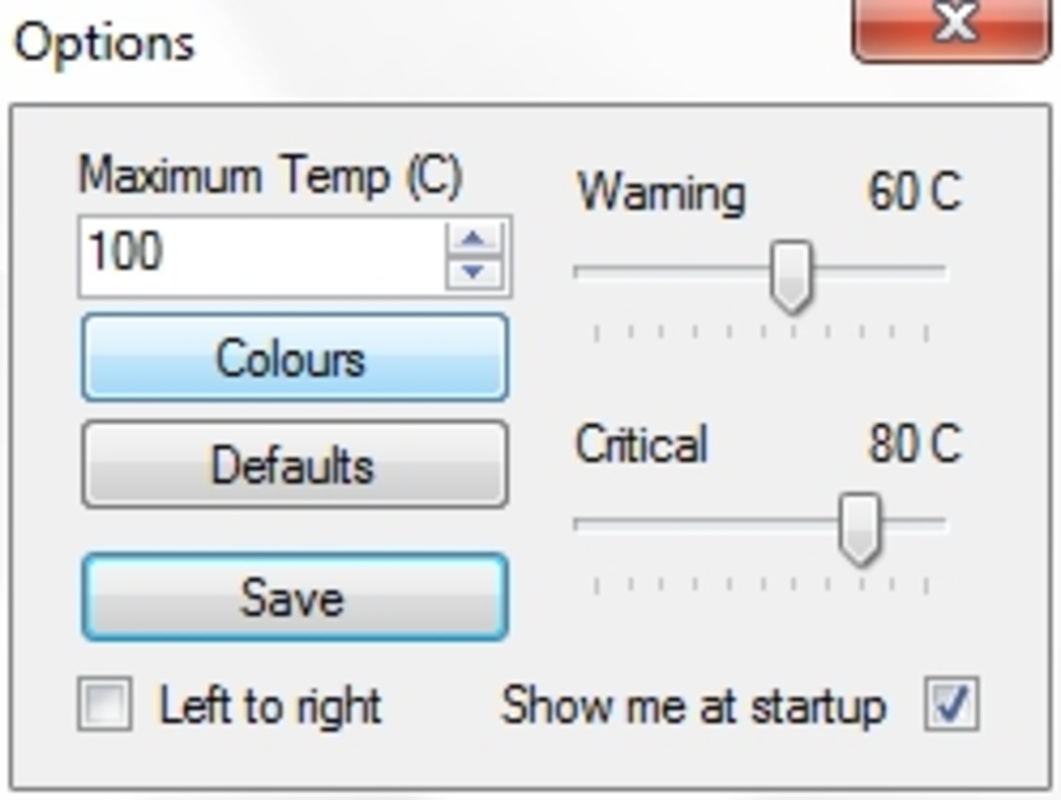
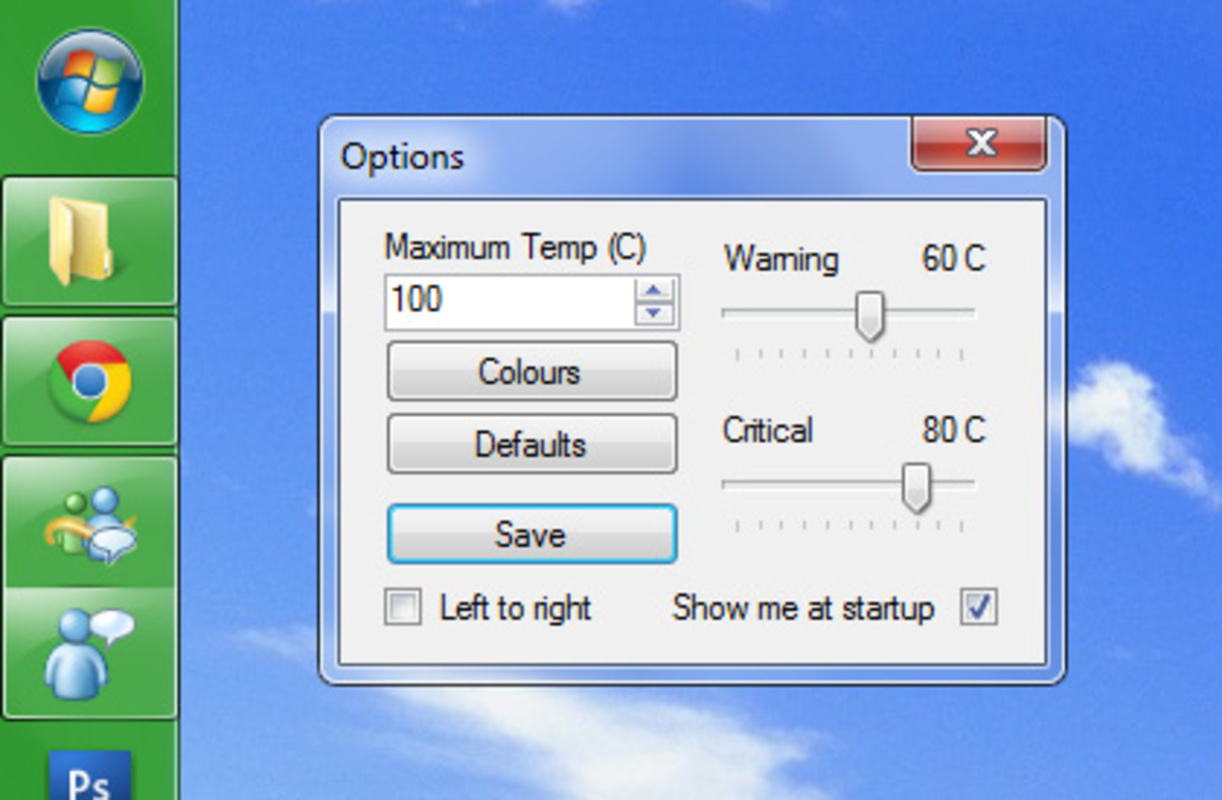
- Customizable Color Thresholds: Users can adjust the temperature values that trigger each color change. This flexibility ensures the app can be tailored to different hardware configurations or user preferences, enhancing its usability across a range of systems.
- Customizable Color Scheme: Beyond temperature settings, users can modify the actual colors used for each state. This feature allows personalization while maintaining the core functionality of visual alerts.
- Background Operation: Once installed, Temp Taskbar runs silently in the background, consuming minimal system resources. It does not require constant user interaction, making it ideal for continuous monitoring during long sessions.
- Preventive Maintenance Tool: By providing early warnings through color shifts, the app encourages timely intervention—such as cleaning dust from fans or improving airflow—before overheating leads to system instability.
For example, a gamer using a high-performance laptop may notice the taskbar turning yellow during extended gameplay. This signal prompts them to pause, check ventilation, or lower graphics settings—potentially preventing a thermal shutdown. Similarly, a content creator working on long render jobs can monitor the taskbar color to ensure their system remains stable throughout the process.
Interface, UX & Performance
Temp Taskbar features a minimalistic and unobtrusive interface, designed to blend into the Windows desktop environment without distraction. The application does not require a dedicated dashboard or complex setup; it operates silently once installed. The visual feedback is the main interaction point—the taskbar color itself serves as the primary interface, eliminating the need for pop-up windows or notifications.
Navigating the app’s settings is straightforward, likely involving a right-click context menu or a small system tray icon. This design prioritizes ease of use, allowing users to access configuration options quickly. The interface avoids clutter, focusing on functionality over aesthetics, which aligns with its utility-driven purpose.
Although the developer did not list formal performance metrics, the application is described as lightweight and non-intrusive. It is expected to have negligible impact on CPU and memory usage, ensuring that it does not interfere with the performance of other applications. Responsiveness is likely high, as the color changes are triggered in real time based on temperature readings. Stability is assumed to be consistent, given the app’s long availability and low system footprint.
Platform Compatibility & Technical Requirements
Temp Taskbar is designed for the Windows operating system. The developer did not specify minimum OS requirements, nor did they list the exact version or file size. Compatibility information was not fully disclosed. However, the app has been available since 2011, suggesting it supports a wide range of Windows versions, including older systems.
Given its lightweight nature and focus on system monitoring, it is likely compatible with modern Windows installations, including Windows 10 and Windows 11. The file size is not provided, but based on its description as a minimal utility, it is expected to be small—likely under 10 MB. Users should verify compatibility with their specific system configuration before installation.
Pros and Cons
Pros
- Simple, visual feedback via taskbar color changes
- Customizable temperature thresholds and colors
- Minimal system resource usage
- Effective for preventing overheating-related crashes
- Long-standing presence with proven reliability
Cons
- Developer did not provide detailed technical specifications
- Compatibility with newer Windows versions not explicitly confirmed
- Limited to Windows platform
- No built-in logging or historical data tracking
- Interface is minimal, which may not appeal to users seeking detailed analytics
FAQ
Is Temp Taskbar safe to install?
Yes, Temp Taskbar is a lightweight utility that does not require administrative privileges to run. It operates in the background without modifying core system files, making it secure for most users.
Can I use Temp Taskbar on Windows 11?
While the developer did not specify compatibility with Windows 11, the app has been available since 2011 and is likely compatible with modern Windows versions. Users are advised to test it on their system.
Does Temp Taskbar work on all CPUs?
Temp Taskbar relies on system-level temperature sensors available in most modern CPUs. It is expected to work with Intel and AMD processors that support thermal monitoring, though results may vary depending on hardware and driver support.
How often does the taskbar update its color?
The color changes are triggered in real time based on current CPU temperature readings. The frequency depends on the system’s sensor update rate, typically occurring every few seconds.
Can I disable the color changes?
Yes, the application likely allows users to disable or modify the visual alerts through its settings. This ensures the app can be used in a passive monitoring mode if desired.
Final Thoughts
Temp Taskbar stands out as a clever, minimalist solution for users who want a quick and effective way to monitor their CPU’s thermal health. Its visual alert system—using green, yellow, and red taskbar colors—offers an intuitive, real-time indication of system temperature without the need for complex tools. The ability to customize thresholds and colors adds flexibility, while its lightweight design ensures it won’t slow down your system.
This app is ideal for gamers, content creators, and anyone who pushes their computer to its limits. It serves as a preventive measure, helping users avoid crashes and extend hardware lifespan. While it lacks advanced features like data logging or detailed graphs, its simplicity is its strength.
For those seeking a reliable, no-frills way to keep an eye on their system’s temperature, Temp Taskbar delivers on its promise. Download Temp Taskbar now.


