
Download Thinkbuddy – AI Productivity Assistant for macOS
Overview
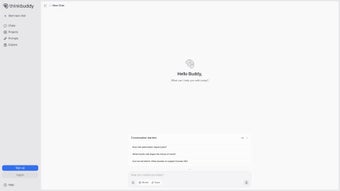
Thinkbuddy is an AI‑powered productivity suite built exclusively for macOS users who want to turn everyday tasks into effortless actions. By blending advanced voice‑command integration with multiple large‑language models, Thinkbuddy lets you speak, type, or select text and instantly receive intelligent responses. Whether you need to draft a quick email, translate a paragraph into several languages, or generate a concise summary of a long article, the app handles it in real time. The built‑in “Quick Chat” window offers a conversational interface that feels like having a personal assistant on your desktop, while the Whisper‑based voice‑to‑text engine guarantees high‑accuracy transcription even in noisy environments. Customizable shortcut keys and prompt templates give power users the ability to tailor the experience to their unique workflow, making Thinkbuddy a truly adaptable tool. A free tier welcomes newcomers, and paid plans unlock higher request limits, priority support, and additional AI model options. In short, Thinkbuddy combines the convenience of natural‑language interaction with the precision of modern AI, delivering a secure, constantly‑updated solution that helps macOS professionals stay focused and get more done.
Features, Installation & How to Use Thinkbuddy
Core Feature List
- Voice‑activated commands powered by OpenAI Whisper for flawless transcription.
- Multilingual support – ask questions or request translations in over 20 languages.
- Quick Chat sidebar for instant AI conversations without leaving your workspace.
- Text‑selection triggers that automatically launch AI actions (summarize, rewrite, translate).
- Custom shortcut keys and prompt libraries for personalizing routine tasks.
- Integration with macOS native services (Mail, Notes, Safari) for seamless workflow.
- Free tier with daily usage limits; premium plans add higher limits and faster response times.
Step‑by‑Step Installation
1. Visit the official Thinkbuddy website and click the Download for macOS button.
2. Once the .dmg file finishes downloading, double‑click to open it.
3. Drag the Thinkbuddy icon into your Applications folder.
4. Launch the app; macOS will ask for permission to access the microphone and accessibility features – grant both to enable voice commands and text‑selection shortcuts.
5. Sign in with your Apple ID or create a new Thinkbuddy account to sync preferences across devices.
Getting Started Quickly
After the initial setup, open the Quick Chat panel (⌘ + Shift + Q by default). Speak or type a request like “Summarize the last email thread” and watch the AI produce a concise overview. To translate a highlighted paragraph, simply select the text and press the custom shortcut (⌥ + T by default); Thinkbuddy will replace the selection with the translated version. All actions are logged in the History tab, allowing you to revisit past outputs or adjust prompts for better results. Regular software updates are delivered automatically through the macOS App Store, ensuring you always have the latest AI models and security patches.
Compatibility, Pricing, and Pros & Cons
Supported Operating System
macOS 11.0 (Big Sur) and laterPricing Plans
- Free – 500 AI requests per month, access to Whisper transcription, basic shortcuts.
- Pro – $9.99/month – 5,000 requests, priority server access, advanced prompt library.
- Team – $29.99/month per seat – Unlimited requests, team collaboration tools, dedicated support.
Pros
- Native macOS integration delivers a smooth, lag‑free experience.
- Voice‑to‑text accuracy is among the best on the market thanks to Whisper.
- Highly customizable shortcuts empower power users.
- Multilingual capabilities reduce the need for third‑party translation apps.
- Free tier makes it easy to test the core functionality without commitment.
Cons
- Only available on macOS – Windows and Linux users must look elsewhere.
- Premium plans can become costly for heavy users.
- Initial learning curve for setting up custom prompts and shortcuts.
FAQ & Conclusion
Is Thinkbuddy safe for handling confidential information?
Yes. Thinkbuddy uses end‑to‑end encryption for all data transmitted to its AI servers, and the app never stores raw user content on local disks unless you explicitly save it.
Can I use Thinkbuddy offline?
The core voice‑to‑text engine works offline after the initial download, but AI‑driven features (summarization, translation, chat) require an internet connection.
How does the free tier differ from the Pro plan?
The free tier limits you to 500 AI requests per month and provides basic shortcuts, while the Pro plan raises the limit to 5,000 requests, unlocks faster response times, and adds advanced prompt templates.
What languages does Thinkbuddy support for translation?
Thinkbuddy currently supports over 20 languages, including Spanish, French, German, Chinese, Japanese, and Arabic. The list is expanding with each software update.
Is there a refund policy for paid subscriptions?
Yes. Thinkbuddy offers a 14‑day money‑back guarantee on all paid plans. Contact support within the window for a full refund.
Conclusion – Boost Your macOS Workflow Today
Thinkbuddy combines cutting‑edge AI with native macOS design to turn routine tasks into a single spoken command or a quick text selection. Its free tier lets you explore the core capabilities without risk, while the affordable Pro plan scales effortlessly for power users. If you spend a lot of time drafting emails, translating documents, or summarizing research, Thinkbuddy can shave minutes—or even hours—off your daily workload. Download Thinkbuddy now from the official website or the Mac App Store and experience a more productive, voice‑driven way of working on your Mac.



.png)