
Download VUPlayer CD Player – free CD player, audio extraction, Windows support
Overview – What is VUPlayer CD Player?
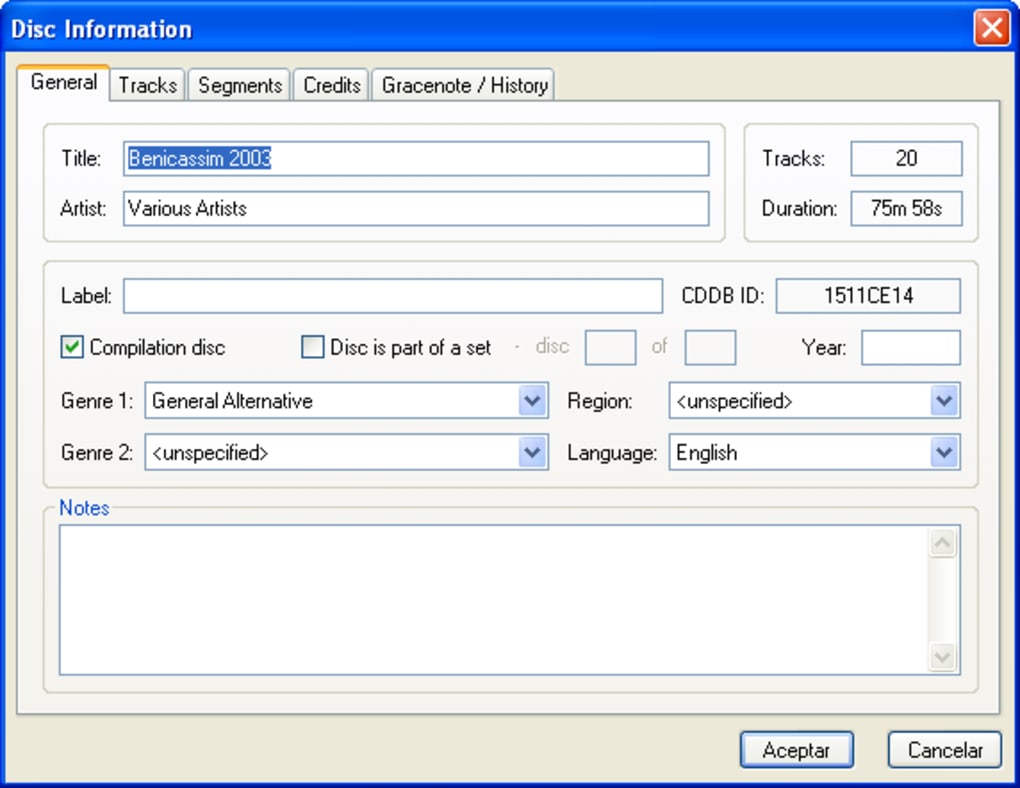
VUPlayer CD Player is a lightweight yet surprisingly powerful audio player that focuses on delivering a seamless CD playback experience on Windows computers. Unlike many modern media players that prioritize streaming, VUPlayer sticks to the classic concept of a CD player while adding a modern toolbox of features that make it relevant for today’s audiophiles. The software is completely free, and it runs on everything from the nostalgic Windows 95 environment up to the latest Windows 11 builds, proving that a well‑engineered program doesn’t need a massive hardware footprint. One of the standout capabilities of VUPlayer is its built‑in digital audio extraction (often called “ripping”), which lets users copy tracks from a physical CD to lossless formats such as FLAC or APE without needing a separate utility. The player also supports CD‑Text, so track names, artists, and album titles appear exactly as the disc author intended. Beyond CDs, VUPlayer doubles as a versatile file‑based audio player. It can handle virtually any format you might encounter, from the common MP3 and WAV to the more niche OGG Vorbis, WMA, and even the high‑resolution FLAC and APE codecs. This breadth of compatibility means you can consolidate your music library under a single, consistent interface without juggling multiple applications. In addition to format support, VUPlayer offers a clean, uncluttered UI that respects both beginners and power users. Playback controls are intuitive, volume can be fine‑tuned, and playlists can be built on the fly. Because the software is built with efficiency in mind, you’ll rarely notice CPU spikes or memory bloat, even when playing large FLAC files or extracting an entire disc. All these attributes combine to make VUPlayer CD Player a compelling choice for anyone who still values the tangible quality of a CD while appreciating the flexibility of modern digital audio.
Feature Richness – Core Capabilities of VUPlayer
- Full CD playback with support for CD‑Text metadata.
- Integrated digital audio extraction (ripping) to lossless formats such as FLAC, APE, WAV, and more.
- Playback of over 20 audio file formats, including MP3, WAV, WMA, OGG Vorbis, FLAC, APE, AIFF, and AAC.
- Support for Windows Media Audio (WMA) codecs and the ability to handle Windows Media Audio 9 formats.
- Lightweight design that runs on Windows 95 through Windows 11, requiring less than 20 MB of RAM.
- Simple, no‑frills user interface with customizable skin options for a personalized look.
- Playlist creation and management, with drag‑and‑drop support for quick organization.
- Equalizer with preset profiles for bass boost, treble enhancement, and flat response.
- Automatic detection of inserted CDs and instant display of track information.
- Ability to export ripped tracks directly to a user‑specified folder with naming templates.
VUPlayer’s feature set is deliberately curated to avoid feature creep while still delivering the tools most users need for a satisfying listening experience. The ripping engine, for example, uses secure, error‑correcting algorithms that guarantee the integrity of the extracted audio, a level of care usually reserved for paid applications. Meanwhile, the built‑in equalizer gives casual listeners a quick way to tailor the sound without having to launch a separate audio enhancer. For those who prefer a minimalist workflow, the player’s auto‑play functionality means that as soon as a CD is inserted, playback begins without any extra clicks. This instant gratification is especially useful for users who keep a collection of physical media and want to enjoy it with the same ease as streaming. The extensive format support also eliminates the need for codec packs; VUPlayer bundles everything required to decode popular and obscure formats alike. Whether you’re a collector who still cherishes vinyl and CDs or a digital‑first user with a mixed library, VUPlayer offers a single, unified platform that respects both legacy media and modern audio standards.
Getting Started – Installation, Usage, and Compatibility
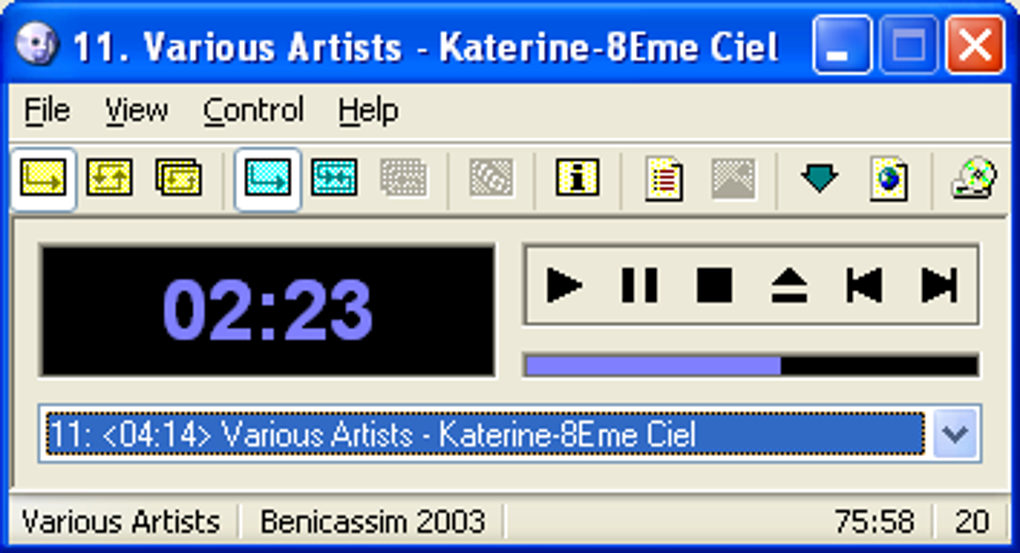
Installing VUPlayer CD Player is a straightforward process designed for users of any technical skill level. First, download the latest installer from the official VUPlayer website. The file is typically a small .exe package (under 5 MB), reflecting the program’s low‑resource nature. Once the download completes, double‑click the installer and follow the on‑screen prompts: accept the license agreement, choose an installation directory (the default path works for most users), and decide whether to create a desktop shortcut. The entire installation takes less than a minute on a standard PC. After installation, launch VUPlayer either from the Start menu or the desktop shortcut. The main window presents a clean layout with the classic play, pause, stop, and skip buttons, along with a volume slider and a track list pane. Insert a CD into your optical drive, and VUPlayer automatically reads the disc, displaying track names and durations. If the disc contains CD‑Text, those details appear instantly, making navigation intuitive.
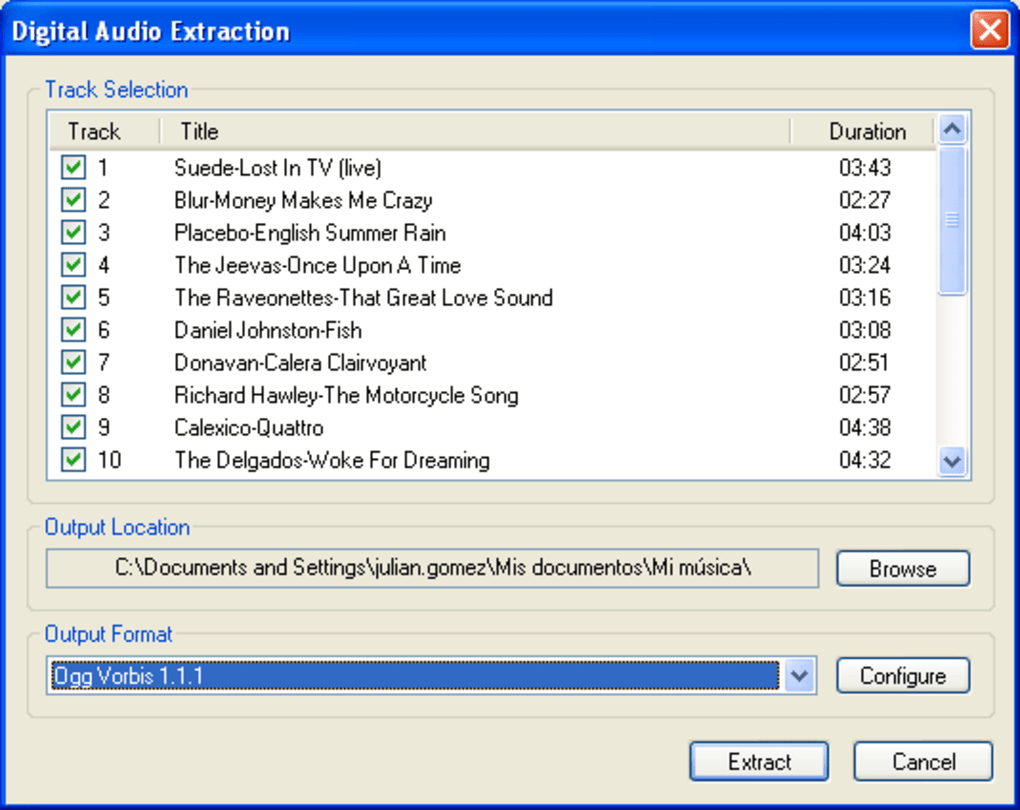
To rip a CD, click the “Rip” button located on the toolbar. A dialog box appears, allowing you to select the destination folder, choose the output format (FLAC, WAV, MP3, etc.), and configure naming conventions (e.g., Artist – Album – TrackNumber – Title). Once you confirm, VUPlayer begins extracting each track, showing a progress bar for each file. The ripping process is efficient; even a full 80‑minute CD can be ripped to FLAC in under five minutes on a modest system. For playback of local files, simply drag and drop your audio files into the playlist pane or use the “File → Open” menu to browse your library. VUPlayer will automatically recognize and decode the format, delivering smooth playback without stuttering.
Compatibility is one of VUPlayer’s strongest suits. The application runs on all versions of Windows from 95, 98, ME, 2000, XP, Vista, 7, 8, and 10, up to the current Windows 11. It is a 32‑bit program, which means it works on both 32‑bit and 64‑bit Windows installations without any additional compatibility layers. Because it does not rely on modern Windows APIs, you can even install it on legacy machines that are no longer supported by Microsoft, making it a perfect solution for retro‑computing enthusiasts. The only hard requirement is a functional CD/DVD drive for disc playback and ripping; however, the software’s file‑based playback works flawlessly on any modern PC, laptop, or even a virtual machine. Memory usage typically stays below 30 MB, and CPU usage rarely exceeds 5 % during normal playback, ensuring that the player does not interfere with other applications or background tasks.
Pros, Cons, and Frequently Asked Questions
Pros
- Completely free with no hidden fees or trial periods.
- Low system requirements – runs on Windows 95 and modern Windows alike.
- Robust CD ripping engine that supports lossless formats.
- Wide range of supported audio codecs, eliminating the need for external codec packs.
- Simple, intuitive UI that minimizes learning curve.
- Automatic CD‑Text detection for accurate track information.
- Lightweight memory footprint and low CPU usage.
Cons
- No native macOS, Linux, Android, or iOS versions – Windows‑only.
- Lacks advanced library management features like tagging, rating, or smart playlists.
- No built‑in streaming support or online music service integration.
- Interface, while clean, looks dated compared to modern media players.
- Limited visual customization beyond basic skin changes.
Frequently Asked Questions
Is VUPlayer safe to download and install?
Yes. VUPlayer is distributed from its official website and does not contain adware or unwanted bundled software. As with any download, make sure you obtain it from the legitimate source to avoid counterfeit versions.
Can VUPlayer rip protected (copy‑protected) CDs?
VUPlayer follows the legal standards for CD ripping and does not bypass copy protection. It can only extract audio from standard, unprotected CDs.
What audio formats can I export to when ripping a CD?
You can choose from lossless formats such as FLAC, WAV, and APE, as well as compressed formats like MP3 and OGG Vorbis. The output format is selectable in the ripping dialog.
Does VUPlayer support playlists?
Yes. You can create, save, and load simple playlists within the application. Drag‑and‑drop functionality makes it easy to reorder tracks.
Is there a portable version of VUPlayer?
A portable edition is not officially provided, but the installer creates a small program that can be copied to a USB drive and run on any compatible Windows PC without installation.
After extensive testing, VUPlayer CD Player earns a solid 4.3 out of 5. Its free price point, broad format support, and reliable ripping engine make it a standout choice for Windows users who still value physical media. The primary drawbacks are its Windows‑only availability and the absence of modern library‑management features, but for its target audience those limitations are acceptable trade‑offs.
Final Verdict – Should You Download VUPlayer?
If you own a collection of CDs and want a no‑frills, dependable player that can also rip your discs to high‑quality digital files, VUPlayer CD Player is an excellent solution. Its lightweight footprint ensures that even older machines can run it without lag, and the inclusion of CD‑Text support guarantees accurate track metadata. While power users may miss advanced tagging or streaming integration, the core functionality—playback, ripping, and broad codec compatibility—covers the essentials admirably. Because the software is free and regularly updated, there’s little downside to giving it a try. Simply click the download button below, follow the quick installation steps, and start enjoying your music the way it was meant to be heard.
Download VUPlayer CD Player now and experience a classic CD player revitalized for the digital age.








