
How to Try-except-print an Error in Python
Using the try-except block, you can prevent errors in your code


 3 min. read
  Updated on
Key notes
- With try-except and print functions, you can get basic error information in Python.
- For more detailed information, it’s advised to import the traceback module and use it as well.
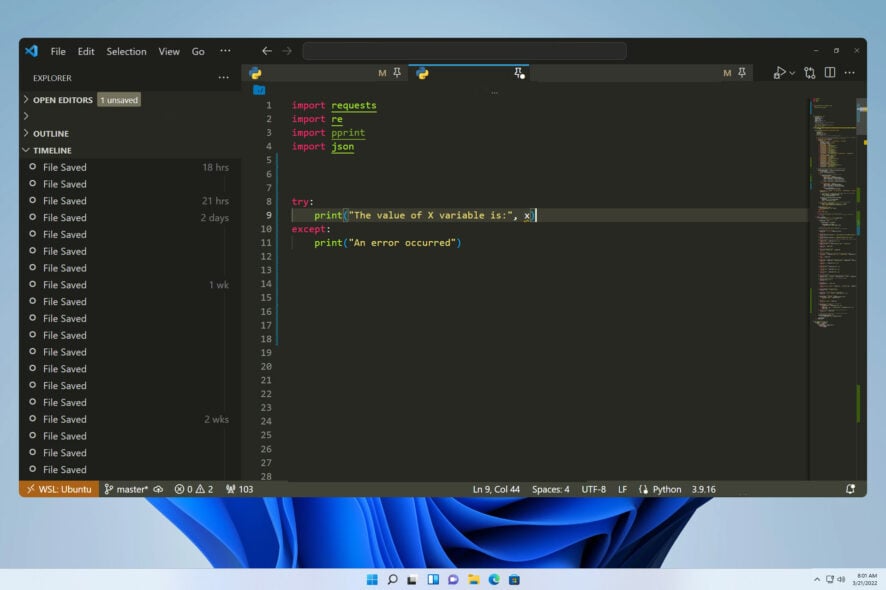
To write a working code, it’s necessary to find and handle any errors, and this can be achieved by using try-except and printing error information in Python.
By handling errors, you will ensure that your code is working, so it’s crucial to learn how to do it properly, and this guide will help you with that.
Do Python exceptions stop the execution?
This depends on the error but in most cases, if the code encounters an unexpected error, such as invalid syntax or an invalid integer, it won’t be able to proceed and it will stop the program execution.
How to use try except print for errors in Python?
1. Use the try and except block
- Open the code editor.
- Add the following lines:
try:
    print("The value of X variable is:", x)
except:
    print("An error occurred")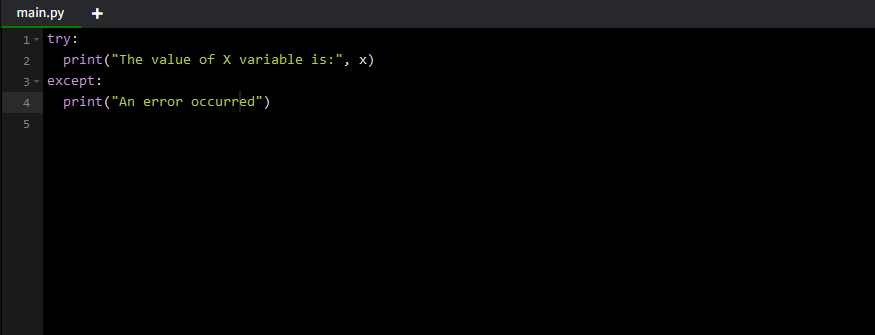
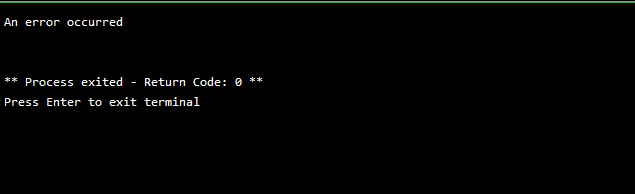
- Run the code and you should get a message in the terminal saying that an error occurred.


2. Get the error description
- Open your Python file.
- Use the following code:
try:
    print("The value of X variable is:", x)
except Exception as error:
    print("The following error occurred:", error)
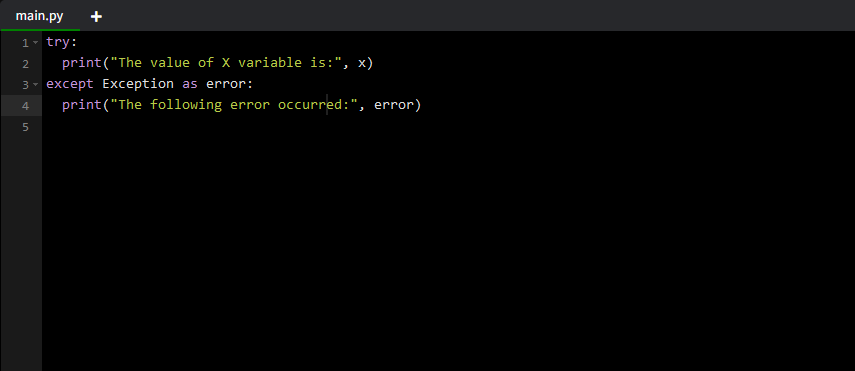
- When you run the code you’ll get the error message in the terminal thanks to the exception class and the error information will be printed from the exception object.
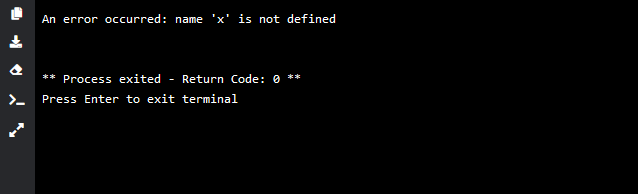


With these two methods, you only get the basic information, such as an error description, which can be useful for beginners or smaller projects.
When using try-except for debugging, it also helps to know which Python version you’re running, since error messages can differ. Here’s how you can check Python version in Windows CMD before testing your scripts.
3. Use the traceback module
- Open your coding tool.
- Enter the following:
import traceback
try:
open("randomfile.txt")
except Exception:
print(traceback.format_exc())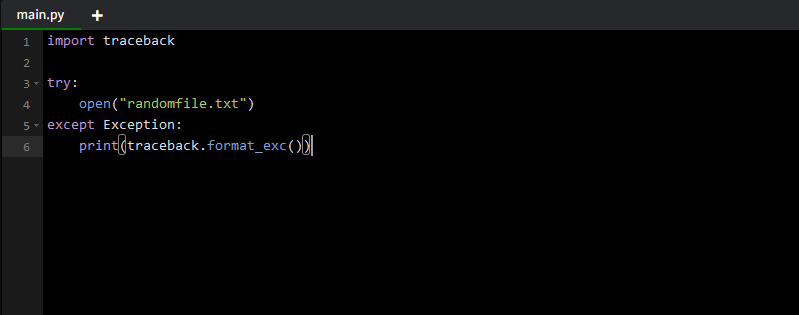
- When you try to run the code, you’ll get an exception message saying which error occurred, along with the information about the file name and the exact line that caused the error.
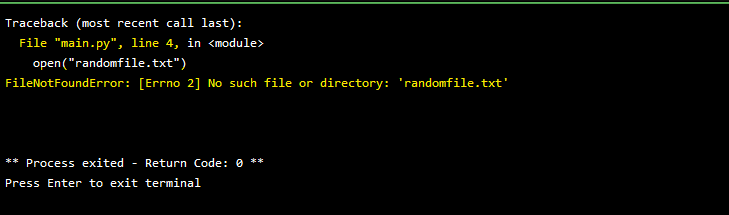


You can also use traceback.print_stack() instead if you want to see the stack trace that led to that error.
What is the difference between print and raise exceptions?
- The print function will just display the error name as well as the line and file name where the error occurred.
- With the raise statement, you can use custom exceptions, set exception types, and you can optimize your code using the exception handler.
This is how you can use try-except block and print errors in Python, and by using these tips, you’ll ensure that your code is always working properly without any unhandled exceptions.
While working with Python, you’ll encounter various issues, such as Python runtime error and ImportError: The specified module could not be found, but we covered both of these in separate guides.
Many also experienced PermissionError [Errno 13], but we have a guide that addresses it.
If you are facing another issue with Python, such as python setup.py bdist_wheel did not run successfully or _xsrf’ argument missing from POST, we have separate guides on them.
Did you ever use try-except to print error stack trace in Python? Share your tips with us in the comments section.

Read our disclosure page to find out how can you help Windows Report sustain the editorial team. Read more



Improve this guide


User forum
0 messages